Billing parts to a work order
Link a job to its work order, read what the parts come to, copy it into AppFolio or download it, and keep track of the jobs still waiting to be billed.
When a job is done, someone has to bill the parts you took for it. A9 Stockroom adds them up for you: every part taken for the job, minus what was returned, at the price you bill. You link the job to its work order (the request in AppFolio or another system), then copy the result, download it, or keep a list of what is still to be billed.
Two things are on every plan: linking a job to a work order and reading its Billing summary. Copy for AppFolio, CSV, PDF, the To bill list and the default markup come with Essentials and Pro. On Free, the buttons are there and open a box that offers the upgrade. See Your plan.
What you'll need#
- A job with parts taken for it. See Jobs.
- The work order's web address, if it has one. In AppFolio, copy it from your browser's address bar. You can also link any other work order system's address.
- For Copy for AppFolio, CSV, PDF, To bill and the markup: your company is on Essentials or Pro.
- For To bill: the manager or owner role.
- For the markup: the owner role.
Steps#
Link a job to AppFolio's work order#
- Tap Jobs, then tap Start job.
- Paste the work order's web address into Work order link (optional).
- Look at Reference. If it was empty and the address is an AppFolio one that has the work order's number in it, A9 Stockroom types the number there for you, and a line under the link says "AppFolio work order" and the number. Check that it matches the number on the work order. If Reference already has something in it, it is left alone.
- Fill in What's the job? if you like, then tap Start job.
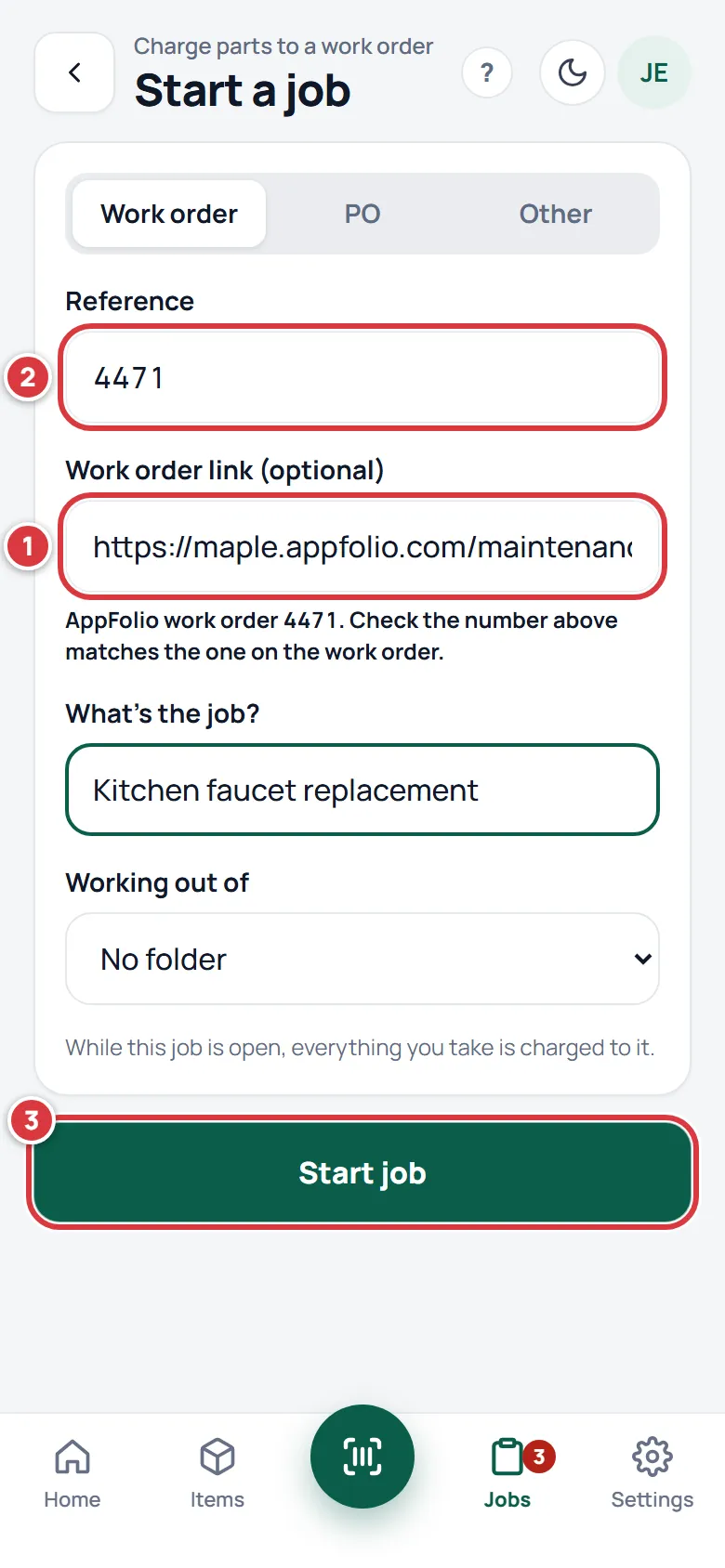
The job's page is headed by the work order's number. Under it, for an AppFolio address, a line shows a small AppFolio label. Tap Open work order there to open the work order in a new tab.
If the address has no number A9 Stockroom can read, it keeps the link and says "We kept the link. Type the work order number in Reference." Type the number yourself. If the box says "That doesn't look like a web address.", paste the whole address, starting with https://.
Add or change the link on a job later#
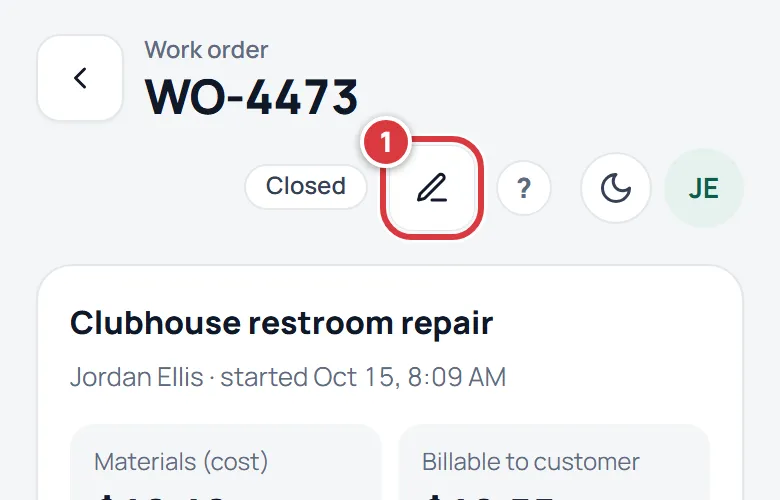
- Tap Jobs, then tap the job.
- Tap the pencil at the top right of the job. Its name is Edit job.
- Paste or change the address in Work order link (optional). Clear the box to remove the link. You can also change Reference and What's the job? here.
- Tap Save.
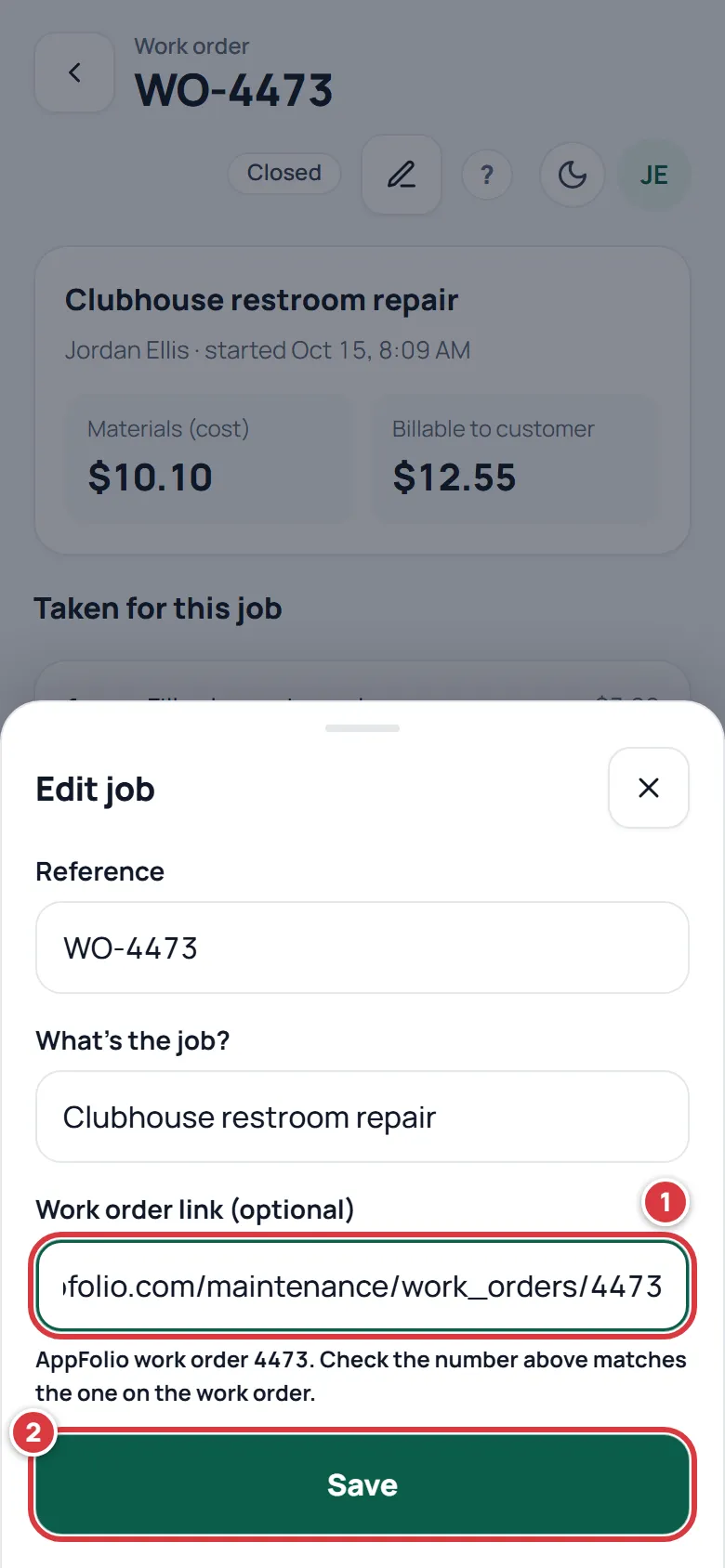
Owners and managers can edit any job. A tech can edit a job they started, while it is open. A viewer can't edit jobs. One AppFolio work order can sit on one job only: if it is already on another job, you see "That work order is already on another job."
Read the billing summary#
- Tap Jobs, tap Open or Closed, then tap the job.
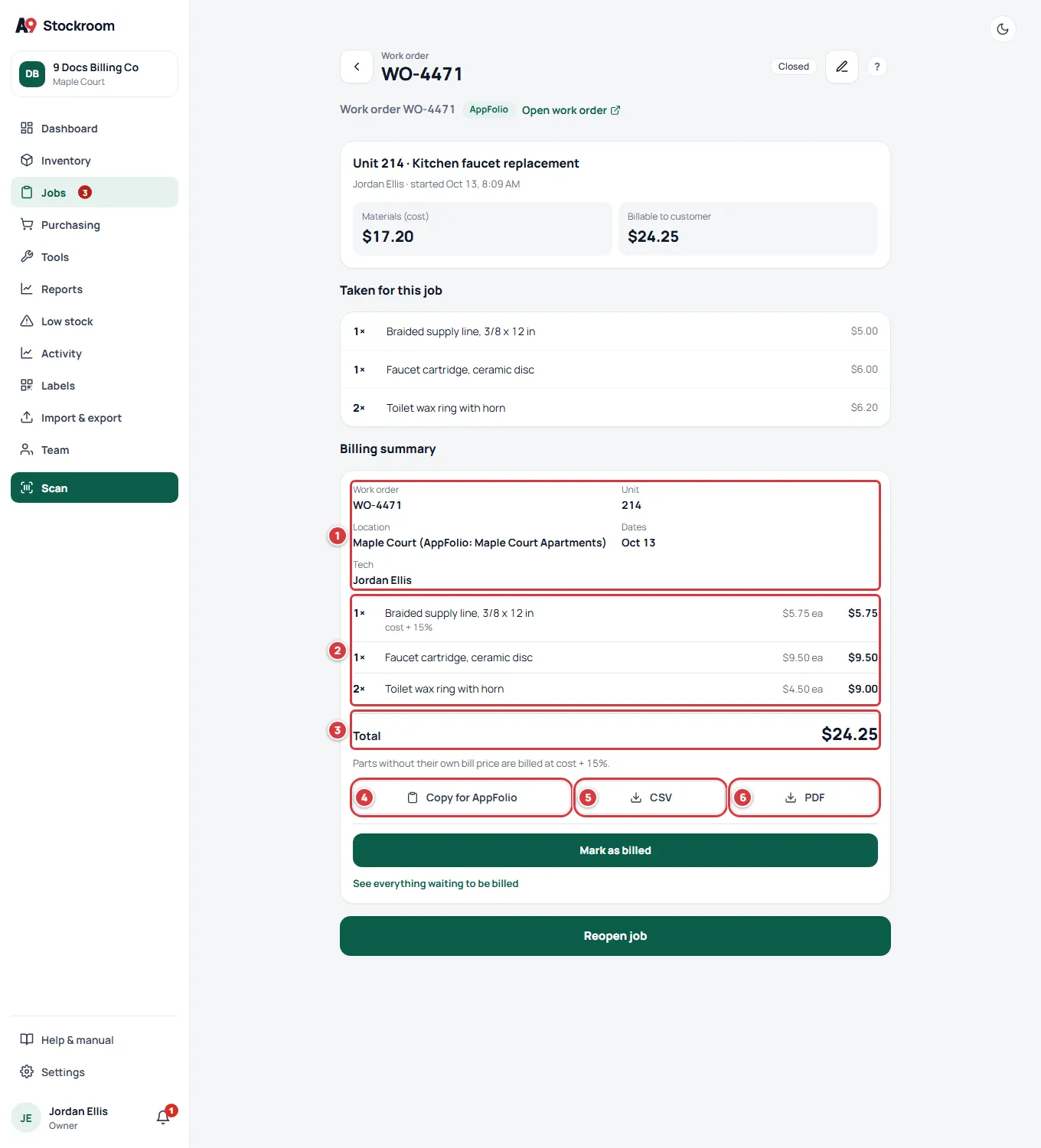
- Scroll down to Billing summary.
- Read the top of the card: the Work order number, the Unit (only when the job has one), the location, the Dates the parts were taken, and who took them (Tech or Techs).
- Read each part: how many, its name, the price for one, and the line total. A part you took and then returned does not count.
- Look for a small tag under a part. "cost + 15%" means the part has no bill price of its own, so it is billed at its cost plus your company's markup. "needs a price" means there is no price to bill at all, so the part is left out of the total.
- Read Total. It is the sum of the line totals.
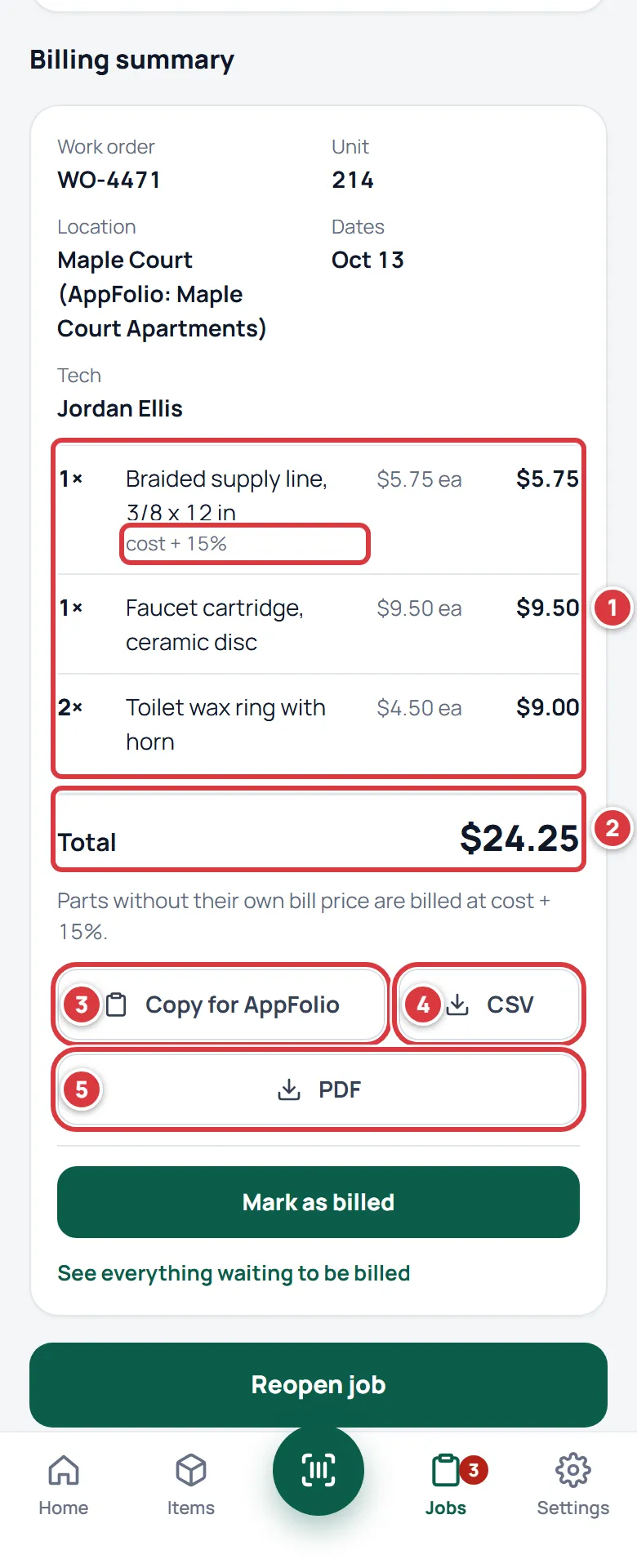
On a computer, the same card sits under the list of parts.
Set a default markup on cost#
Parts with no bill price of their own can be billed at their cost plus a percentage. Only the owner sets it, and it needs Essentials or Pro.
- Tap Settings, then Company. On a computer, Settings is at the bottom left of the menu, above your name.
- Under Billing, type a percentage in Default markup on cost (%), for example 15.
- Tap Save markup.
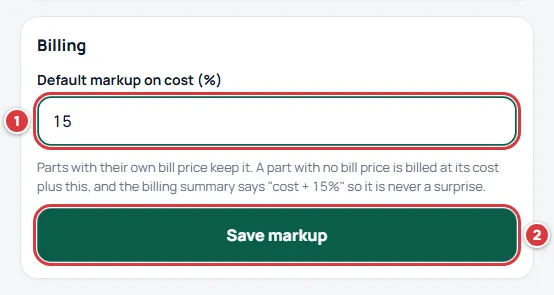
A message says "Done. Parts without a bill price are billed at cost + 15%." Three rules keep it predictable:
- Parts with their own bill price keep it. The markup is only for parts with none. A manager sets a part's bill price on the item. See Items.
- The price for one is cost plus the markup, rounded to the cent. The line total is the quantity times that price, so what is printed adds up.
- A part with no bill price and no cost has nothing to add the markup to. It shows "needs a price".
To switch the markup off, clear the box and tap Save markup. A manager sees the setting but can't change it. On Free, the box is greyed out and the button says Comes with Essentials.
Copy for AppFolio, or download a CSV or PDF#
- Open the job and scroll to Billing summary.
- Tap Copy for AppFolio. A message says "Copied. Paste it into AppFolio."
- In AppFolio, open the work order or the bill and paste. It pastes as plain text, one line for each part:
Work order WO-4471 — Unit 214
1 × Braided supply line, 3/8 x 12 in — $5.75 ea — $5.75
1 × Faucet cartridge, ceramic disc — $9.50 ea — $9.50
2 × Toilet wax ring with horn — $4.50 ea — $9.00
Total: $24.25
A part with no price reads "no price set" in place of the prices.
- For a file instead, tap CSV or PDF. The CSV opens in a spreadsheet and has one row for each part and a total row. It lists the work order, the location, the AppFolio name and ID if you typed them, the unit, the item and its SKU, the quantity, the bill price, how the price was worked out and the line total. The PDF is the same summary as a page you can print or send.
Mark a job as billed and see what is left to bill#
The To bill tab lists every closed job that has parts and is not marked as billed, oldest first. Managers and owners see it, on Essentials and Pro.
- Tap Jobs, then tap To bill. The number beside it is how many jobs are waiting. The same number shows on Jobs at the bottom of the screen and in the menu on a computer.
- Read a row: the job's reference, an AppFolio label if it is linked, the unit, the title and the location, the day it closed, how many parts, and the total. An orange "no price" means some part there has no price and is not in that total.
- Tap a row to open the job. Use Copy for AppFolio, CSV or PDF there.
- After you have billed the job in AppFolio, tap Mark as billed. The job leaves the list and a message says which job was marked, with Undo.
- Tap Undo in that message if you marked the wrong job. The job comes back to the list.
- To get everything at once, tap Export all. It downloads one CSV with one row for each part of every waiting job.
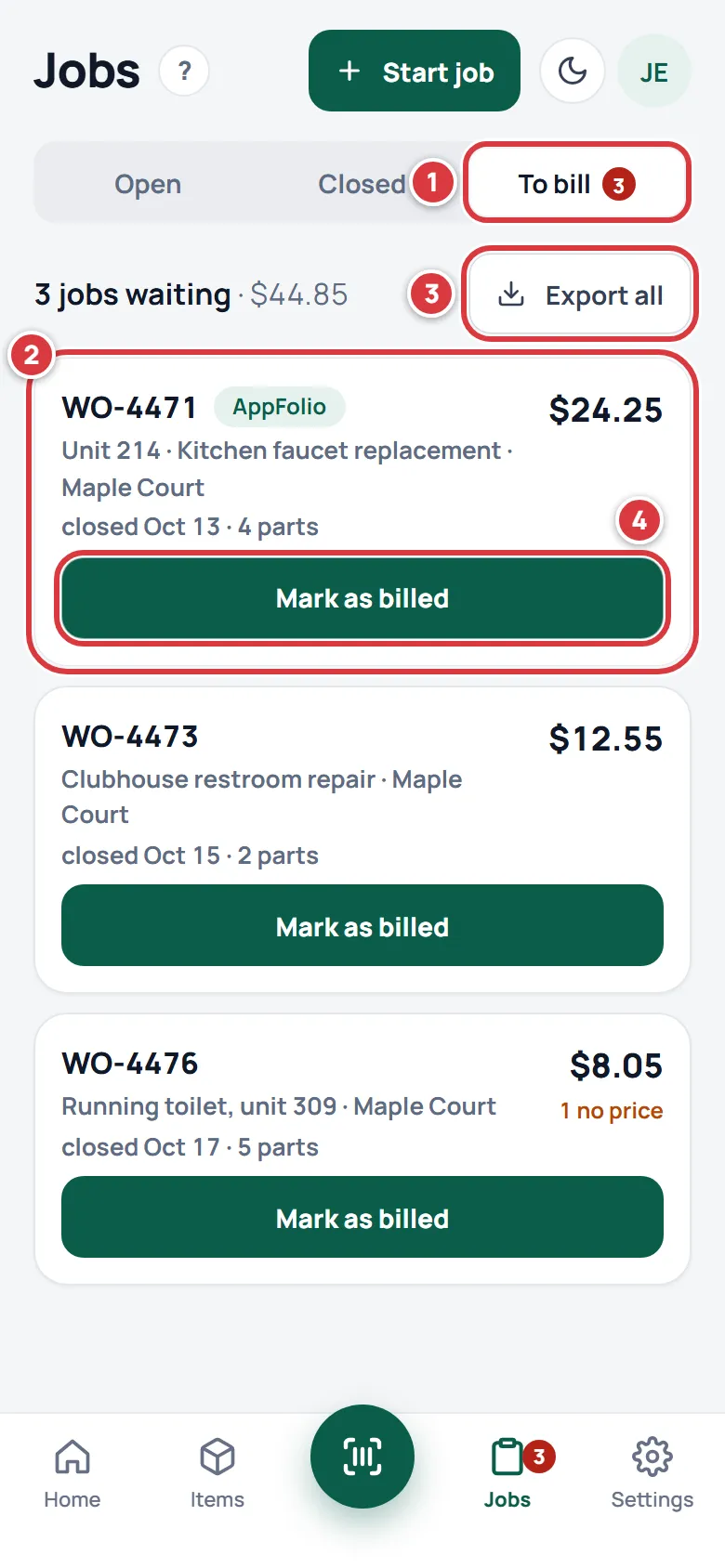
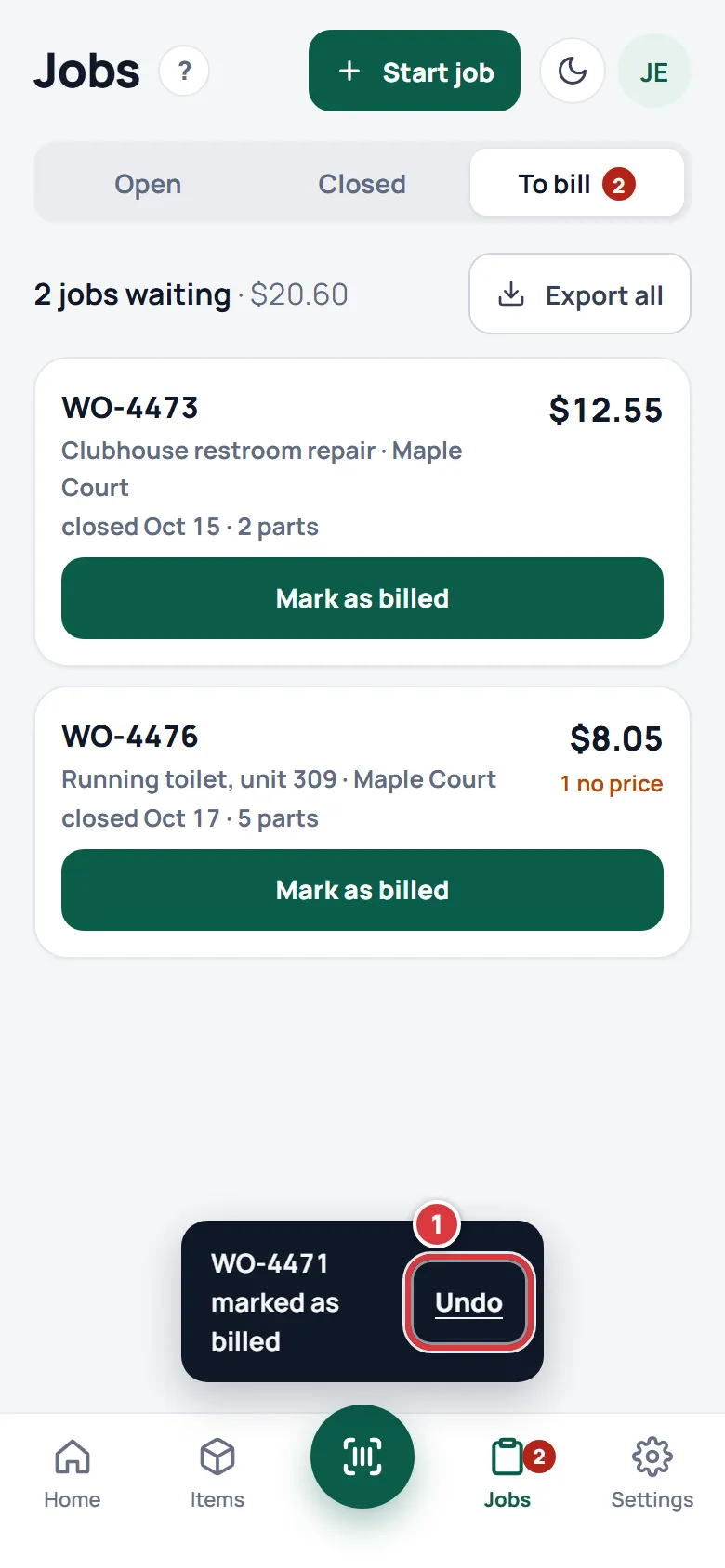
A job you marked as billed is not lost. Open it and the Billing summary says who billed it and when, with an Undo button. Mark as billed is also on a closed job's Billing summary, for when you open the job first. The To bill list follows the location you chose in the switcher.
When the daily email goes out, it adds a line, "Jobs waiting to be billed", with a link, if any are waiting. See Daily digest.
Add AppFolio's names to a location#
This is optional. If your office uses AppFolio's names for your locations, type them once and they print on the summary and the downloads, so the office can match a job to the right place in AppFolio.
- Tap Settings, then Locations. Techs and viewers do not see Locations.
- Tap Edit on the location.
- Type the name as AppFolio writes it in AppFolio property name (optional) and AppFolio's number for it in AppFolio property ID (optional).
- Tap Save changes.
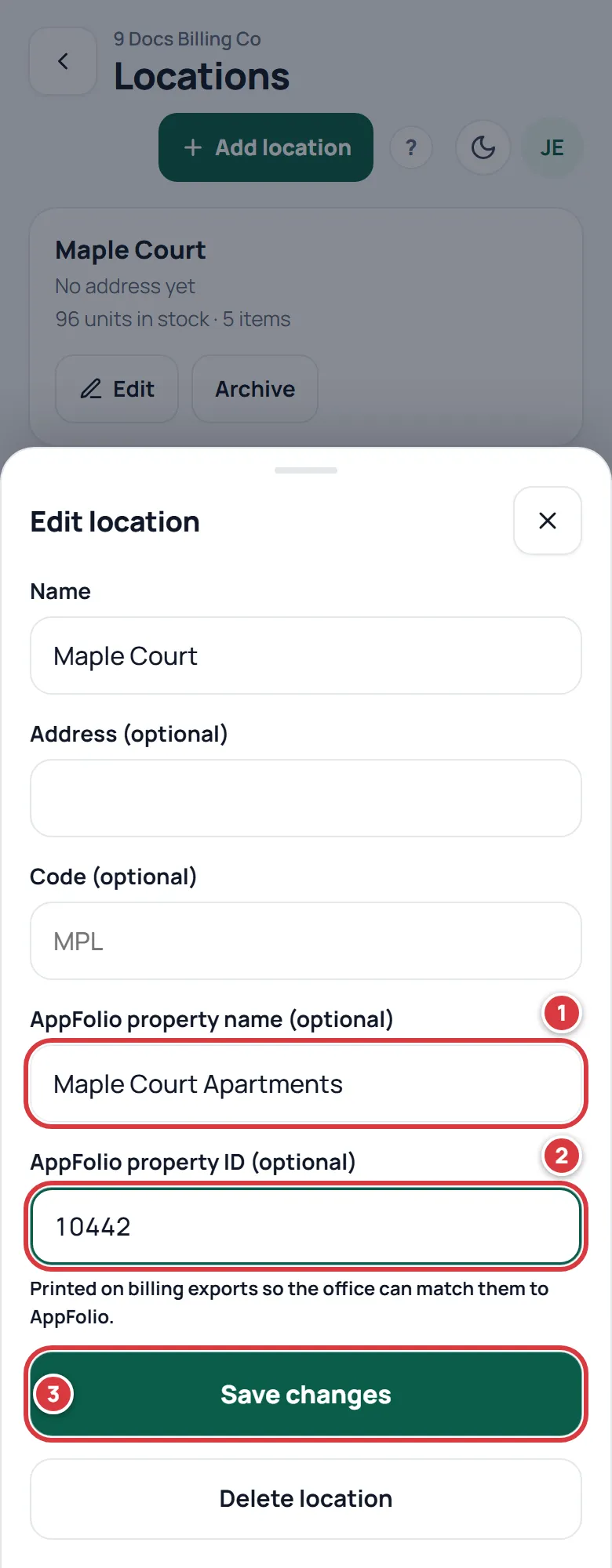
The same AppFolio name or ID can't go on two locations.
What you'll see#
- After Start job with a link, the job shows its work order number, an AppFolio label for an AppFolio address, and Open work order.
- Every job has a Billing summary with a Total, on every plan.
- After Copy for AppFolio, a message says "Copied. Paste it into AppFolio."
- After Mark as billed, the job leaves To bill, the count goes down by one, and a message names the job and offers Undo.
- After Save markup, parts with no bill price show "cost + 15%" (or your number) under their name.
AppFolio#
The copy flow works today for every AppFolio plan: Core, Plus and Max. It needs no connection between A9 Stockroom and AppFolio. You copy the parts out of the Billing summary and paste them into AppFolio yourself, or you hand the office a CSV or PDF. Nothing here needs AppFolio to give A9 Stockroom access.
A direct connection to AppFolio is coming. Until then, the copy, the downloads and To bill are how parts get onto a work order. The owner can tell us that the company uses AppFolio: open Settings, then Integrations, and tap Tell us you use AppFolio. We will say here when there is more.
If it didn't work#
- Copy for AppFolio, CSV, PDF or the markup box asks me to upgrade. Your company is on Free. These come with Essentials and Pro. Linking a job and reading the Billing summary still work. See Upgrading and billing.
- I don't see a To bill tab. It is for managers and owners, and it comes with Essentials and Pro. Ask a manager or owner to look, or to upgrade.
- Reference did not fill itself in. It only fills in when it was empty, and only for an AppFolio address with the work order's number in it. For any other address, or an AppFolio one where the number can't be read, type the number in Reference.
- The number in Reference is wrong. A9 Stockroom reads the number from the address and can be wrong for an address of a shape it does not know. Fix it in Reference. On a job that is already started, tap Edit job.
- "That work order is already on another job." One work order sits on one job. Open the other job, or change the link on this one.
- I don't see the pencil on a job. A tech can edit a job only while it is open and only if they started it. A viewer can't edit jobs. Ask a manager or owner.
- A part says "needs a price". It has no bill price and no cost, or your company has no markup and the part has no bill price. Ask a manager to give the item a bill price, or ask the owner to set a default markup.
- The Total is lower than I expected. Check for "needs a price" or an orange "no price" on the part. A part with no price is left out of the total.
- Copy for AppFolio says it couldn't copy. Try again. If your phone still won't copy, tap CSV and open the file instead.
- The Billing summary says it needs a connection. It is worked out when you open it, so it needs a signal. Open it again when you have one.
- I marked the wrong job as billed. Tap Undo in the message, or open the job and tap Undo in its Billing summary.
- A billed job shows that its parts changed. Someone took or returned a part after it was billed. The summary shows the new total. Bill the difference in AppFolio.