Your plan
What Essentials and Pro include, how seats and locations are counted, what a trial, an overdue payment or a read-only company looks like, and how to change plan.
Your plan decides which parts of A9 Stockroom you have, how many people can be on the team and how many locations you can set up. Only the owner can see it. Everyone else sees only the banner at the top of the screen when the plan needs attention.
Where to see your plan#
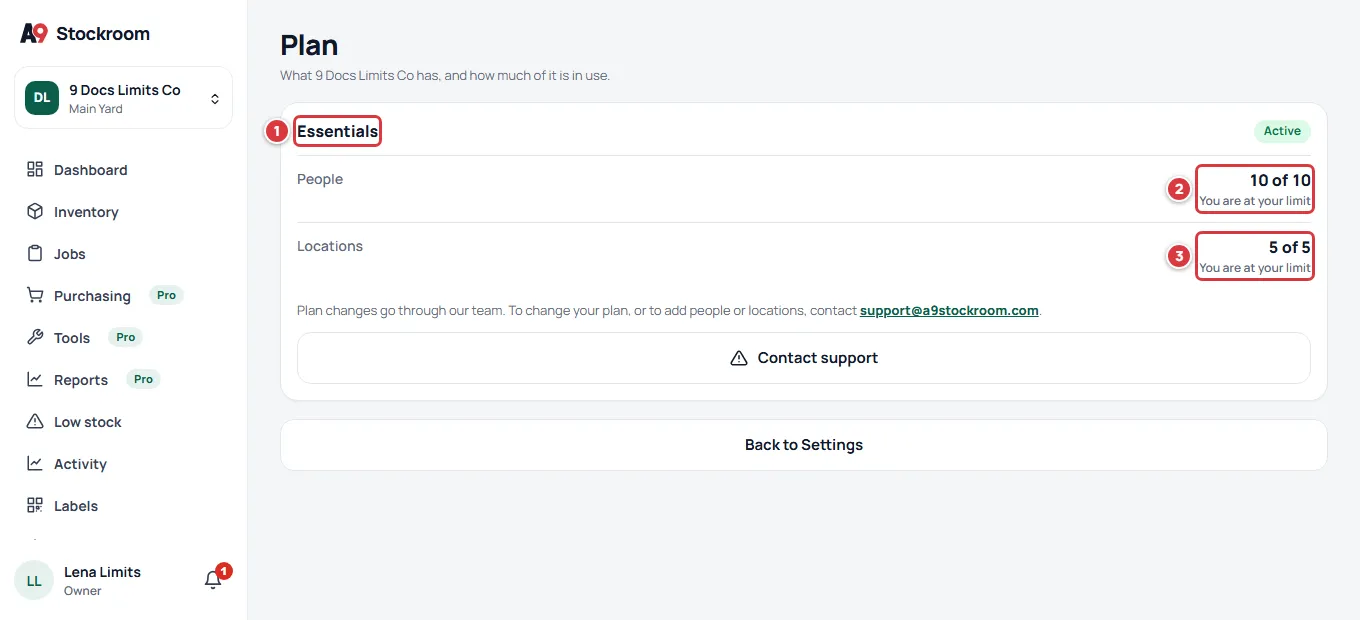
Open Settings, then Plan. The same card is on the right-hand side of Company. Others who open it see "Owners only".
- The plan's name, Essentials or Pro, and its status: Trial, Active, Payment overdue, Read-only or Cancelled.
- People: how many seats are used, and how many your plan includes.
- Locations: how many locations you have, and how many your plan includes, as "1 of 3". The line uses your company's word, so it may read Sites or Properties.
- Contact support: starts an email to support@a9stockroom.com, with your company's name in the subject.

During a trial the card also has Trial ends, with the date and the days that are left.
Essentials and Pro#
Both plans have the core of A9 Stockroom. Pro adds the parts that big teams need.
| Essentials | Pro | |
|---|---|---|
| Items, folders, scanning, jobs, labels, Low stock | Yes | Yes |
| Works without signal | Yes | Yes |
| Import from Sortly, CSV export, Export everything | Yes | Yes |
| Daily Low stock email | Yes | Yes |
| People (seats) | Up to 10 | No limit unless your agreement sets one |
| All locations view | No | Yes |
| Purchase orders and suppliers | No | Yes |
| Tools: check out, due dates, overdue | No | Yes |
| Reports and spend | No | Yes |
On Essentials, the menu marks the Pro screens with a Pro badge. If you open one, the app says "This is part of the Pro plan" and asks you to write to support@a9stockroom.com. Prices are on the pricing section of our site. They are not repeated here, so this page does not go out of date.
How seats and locations are counted#
- People counts everyone on the team, plus every invite that has not been accepted and has not run out. A revoked invite does not count.
- Locations counts the locations you use. An archived location does not count, so archiving one gives its place back.
- Essentials includes 10 people. On Pro the number of people has no limit, unless your agreement sets one. The number of locations is set by your agreement, on both plans.
When you reach a limit the app does not break. It stops you adding one more, and says why:
- A full team: Send invite on the Team screen answers "Your plan includes" and the number of people, and asks you to contact support@a9stockroom.com to add more. See Team.
- A full set of locations: adding a location answers "Your plan includes" and the number of locations, with an Email support button.
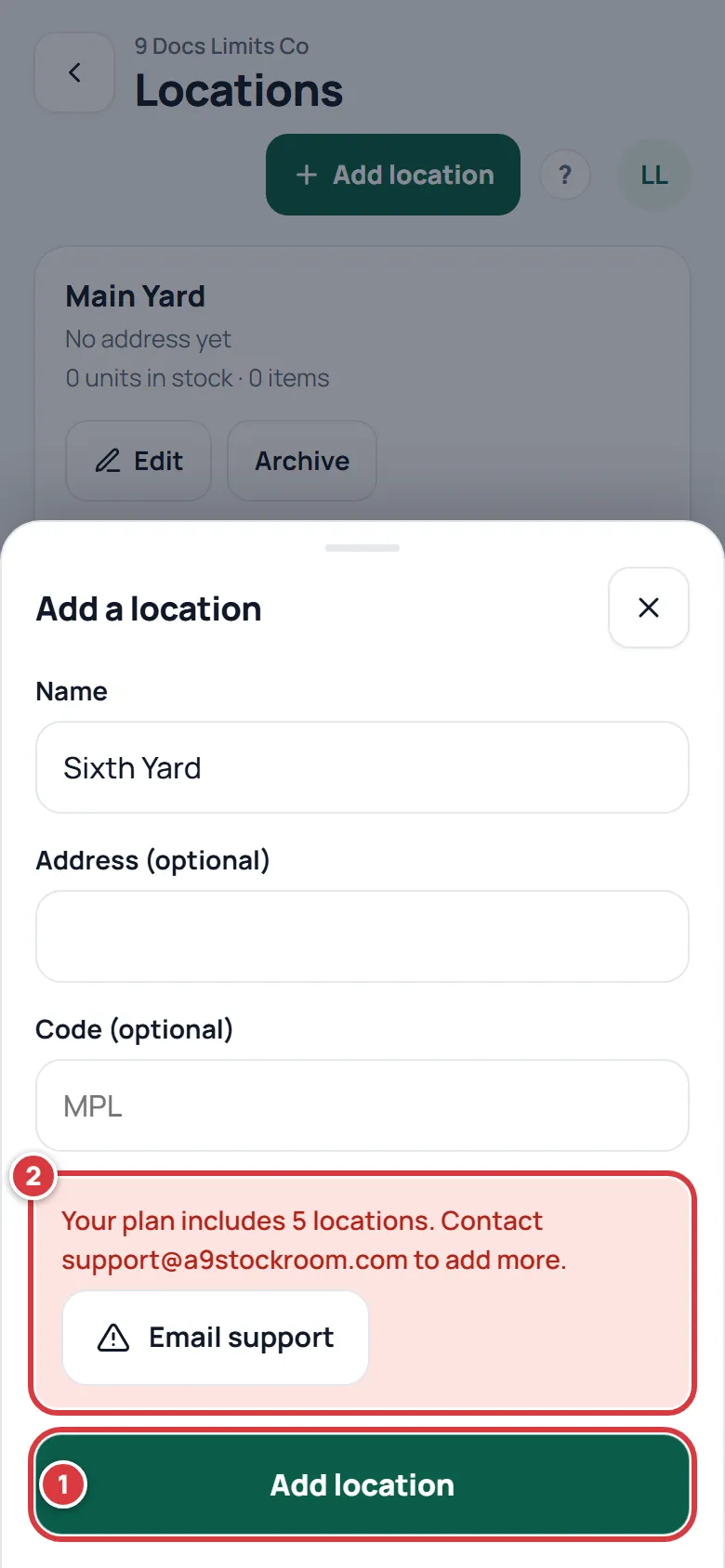
To add people or locations, write to support@a9stockroom.com. Nothing you already have is removed when you reach a limit.
The trial#
A trial lasts 60 days, unless your agreement says otherwise. Everything in the plan you are trying works.
- Every person who signs in sees a blue line at the top of each screen: "… days left in your trial", or "Your trial ends today." on the last day, with the support address.
- The Plan card shows Trial ends and the date.
- When the trial ends and the plan has not been set up, the company moves to Payment overdue, below.

Payment overdue#
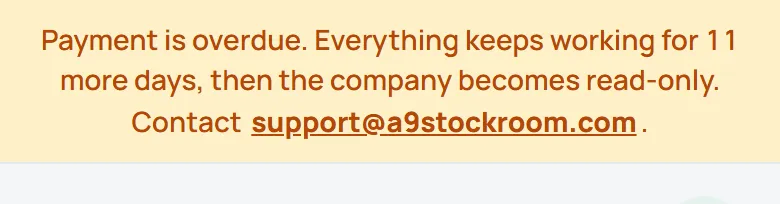
If a payment is overdue, a yellow line shows at the top of every screen. Everything keeps working for 14 days. The line counts down the days that are left. When the days run out, the company becomes read-only. Write to support@a9stockroom.com to sort out the payment. The company goes back to Active with nothing lost.
Read-only: suspended or cancelled#
A company is read-only when it has been suspended, when its payment stayed overdue past the days above, or when the subscription has ended. A red line shows on every screen.


In a read-only company:
- People can still sign in, look at every screen and search.
- The owner can still take everything out: Export everything on Company, and the CSV buttons on the screens. See Getting your data out.
- Nothing can be changed. Taking, returning and counting stock, jobs, orders, new items, new people and settings all stop, and the app says "This company is read-only" and tells you to write to support@a9stockroom.com. Importing is paused.
- Nobody new can join with an invite.

Your data is kept. When the company is restored, it comes back as it was.
How to change plan#
Plan changes go through our team. Write to support@a9stockroom.com, or tap Contact support on the Plan card, and say what you want: the other plan, more people or more locations. You do not pick a plan on the Plan screen.
If you have a question#
Write to support@a9stockroom.com and say what you see on the Plan screen. A person reads every message.