The daily digest email
The one email owners and managers get each morning when something is low or a tool is overdue: who gets it, when, what it says, how to test it and how to change its time.
The daily digest is an email that tells you what to reorder before anyone has to ask. Every morning, if something is under its minimum or a tool is overdue, owners and managers get one email that lists it, grouped the way you would order it. If nothing needs attention, no email is sent.
Who gets it#
- Owners and managers, and nobody else. Techs and viewers never get it.
- Each person can turn it off for themselves. See Turn it off for yourself.
- One email per person, to the address they sign in with.
When it arrives#
- At 6:00 AM in your company's time zone. The company has one time zone, so everyone gets it at the same local time.
- At most once a day for the company, on the day's first check after 6:00 AM.
- Only when something is low or a tool is overdue. If both lists are empty that morning, nothing is sent.
The time zone is a company setting. See Change the time zone.
What it contains#
The email has:
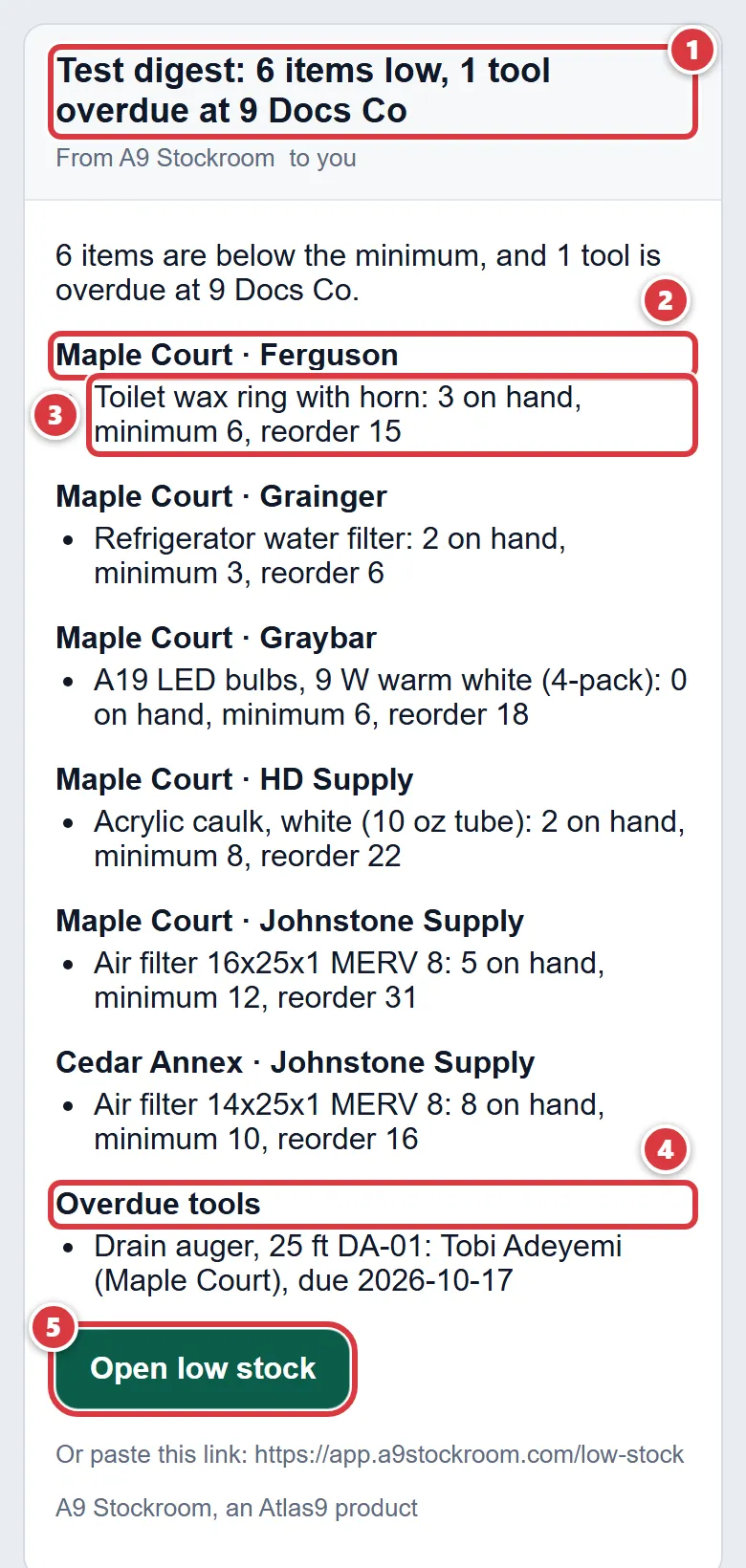
- A subject that says what is wrong at a glance, such as "6 items low, 1 tool overdue at 9 Docs Co". It names the company, so people who belong to more than one company can tell them apart.
- An opening line: "6 items are below the minimum, and 1 tool is overdue at 9 Docs Co."
- The low items, grouped by location, then by supplier, with suppliers in alphabetical order and "No supplier set" last. If your company has only one location, the groups are just the suppliers. Each line says how many are on hand, the minimum, and how many to order, for example "Toilet wax ring with horn: 3 on hand, minimum 6, reorder 15".
- An Overdue tools list, if any tool is past its due date: the tool, who has it, where, and the date it was due.
- An "Open low stock" button that opens the Low stock list in the app, and the same link written out in case the button does not show.
- If your company has a logo, it is at the top.
A few things to know about how the lists are made:
- The same rule as Low stock applies, location by location. An item that is low at two locations appears under both, and counts twice in the subject.
- The reorder number is how many it takes to get back up to the item's reorder level at that location. If the item has no reorder level, the line has no reorder number. See Minimums and reordering.
- Archived locations are left out.
- Overdue tools come from the Pro plan's tools feature. See Tools.
From the email, tap "Open low stock", sign in if you are asked, and use Create PO to turn the list into orders. See Low stock and Purchase orders.
Send yourself a test digest#
Use this to see what the email looks like, and to check that it reaches you, without waiting for morning.
- Open Settings, then Company.
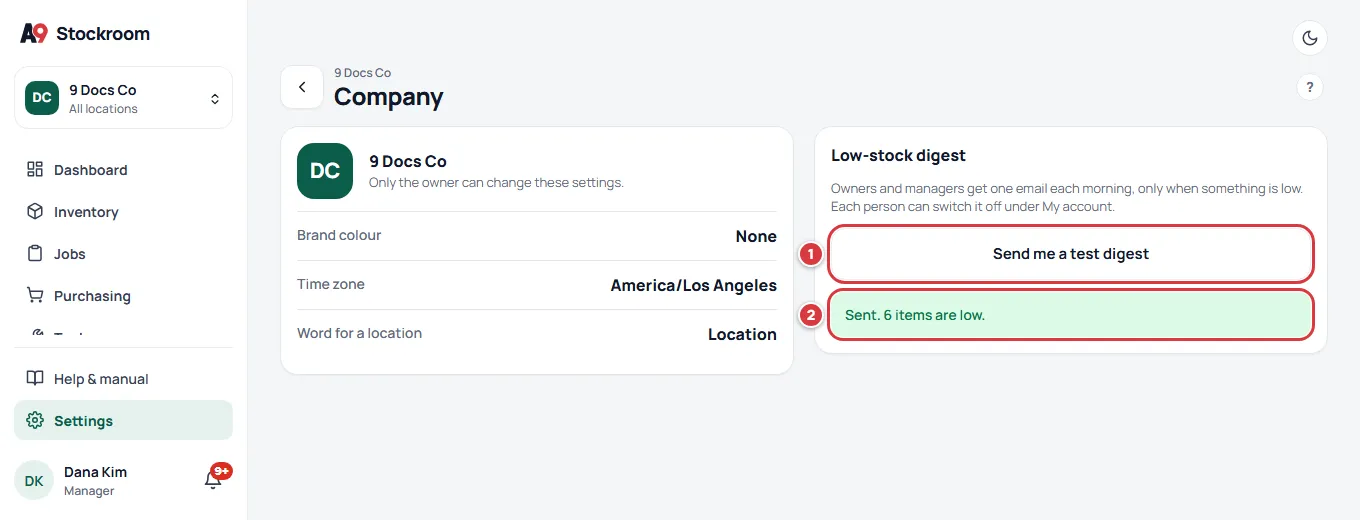
- Find the Low-stock digest card.
- Tap Send me a test digest.
- A message appears: "Sent. 6 items are low." (with your own number). If nothing is low, it says "Nothing is low. We sent you a note saying so."
- Open your email. The subject starts with "Test digest:" so you can tell it from the real one.
The test goes only to you, right away, and it works even when nothing is low (the email then says "Nothing is low at" your company name "right now"). It does not count as that day's digest and does not stop the real one.
Change the time zone#
Only the owner can change the time zone. Managers can see it but not change it.
- Open Settings, then Company.
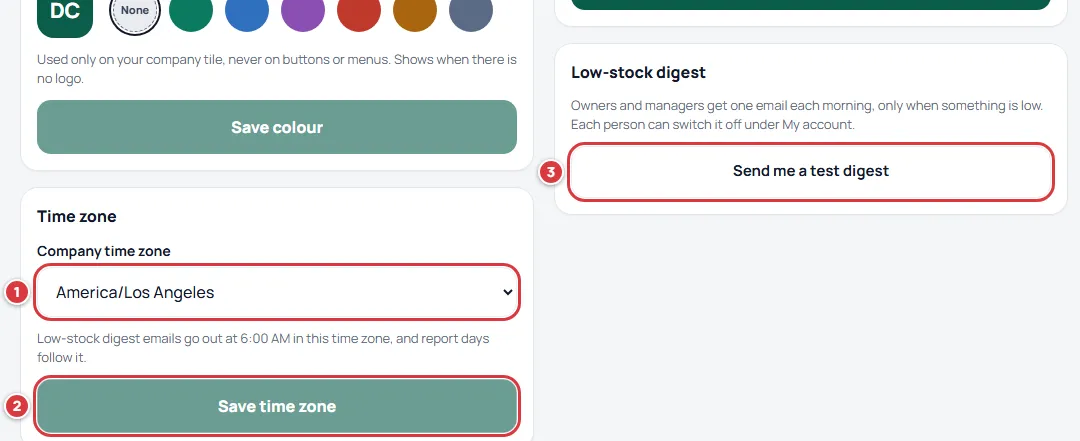
- Under Time zone, choose your place from Company time zone.
- Tap Save time zone. A message says "Time zone saved."
The time zone also decides which day report dates and tool due dates fall on, so choose where your stockroom is. See Company settings.
Turn it off for yourself#
- Open Settings, then My account.
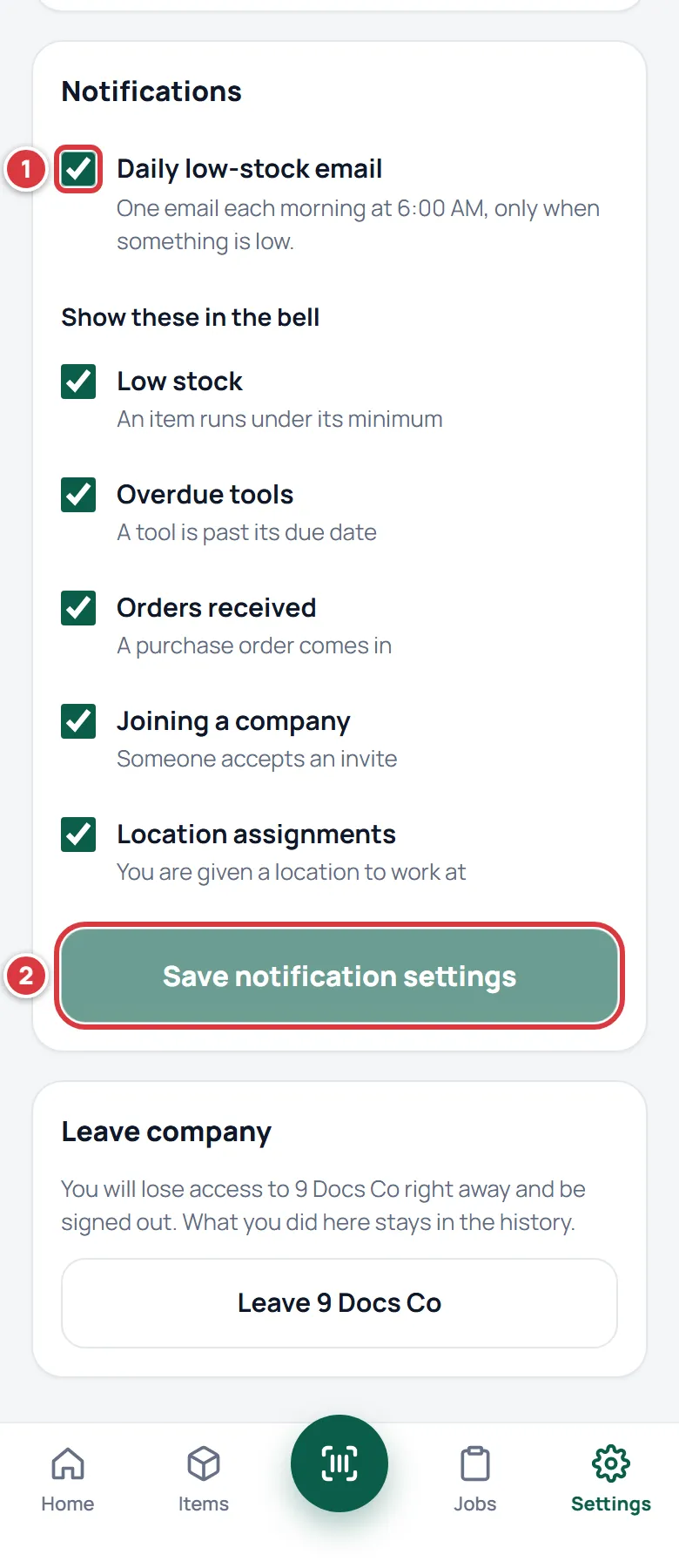
- In Notifications, untick Daily low-stock email.
- Tap Save notification settings.
This only changes your own email. Other people keep getting it. The tick is not shown to techs and viewers, because they never get the digest. See My account.
If the email doesn't come#
No email this morning#
If nothing was under its minimum and no tool was overdue, none is sent. Open Low stock to see. If something was low, check the steps below.
You never get it#
You must be an owner or manager. Check that Daily low-stock email is ticked under My account, then tap Send me a test digest.
The test does not arrive either#
Look in your spam or junk folder, and check the address on your account under My account. The email comes from A9 Stockroom. If it is not there after a few minutes, write to support@a9stockroom.com.
It arrives at the wrong hour#
The 6:00 AM is in the company time zone, not your phone's. Ask the owner to check Company time zone under Company.
It says an item is low that you think is fine#
The digest follows each location's own minimum. Look at the item's minimums for that location. See Minimums and reordering.
An item you know is low is missing#
It needs a minimum above zero, must not be archived and must not be a tool. See Low stock.