Activity and history
See who took, returned, counted or received what and when. Filter by item, folder, person, job or date, export to CSV, and read an item's own history.
Activity is the stockroom's logbook. Every time someone takes, returns, counts, receives or moves stock, a line is added to it. A line is never edited: if a number was wrong, the fix is a new line next to the old one. That is how you find out who took the last of a part, and when.
Everyone who can sign in can read Activity, except that a tech sees only the locations they work at. Managers and owners can also export it.
Open Activity#
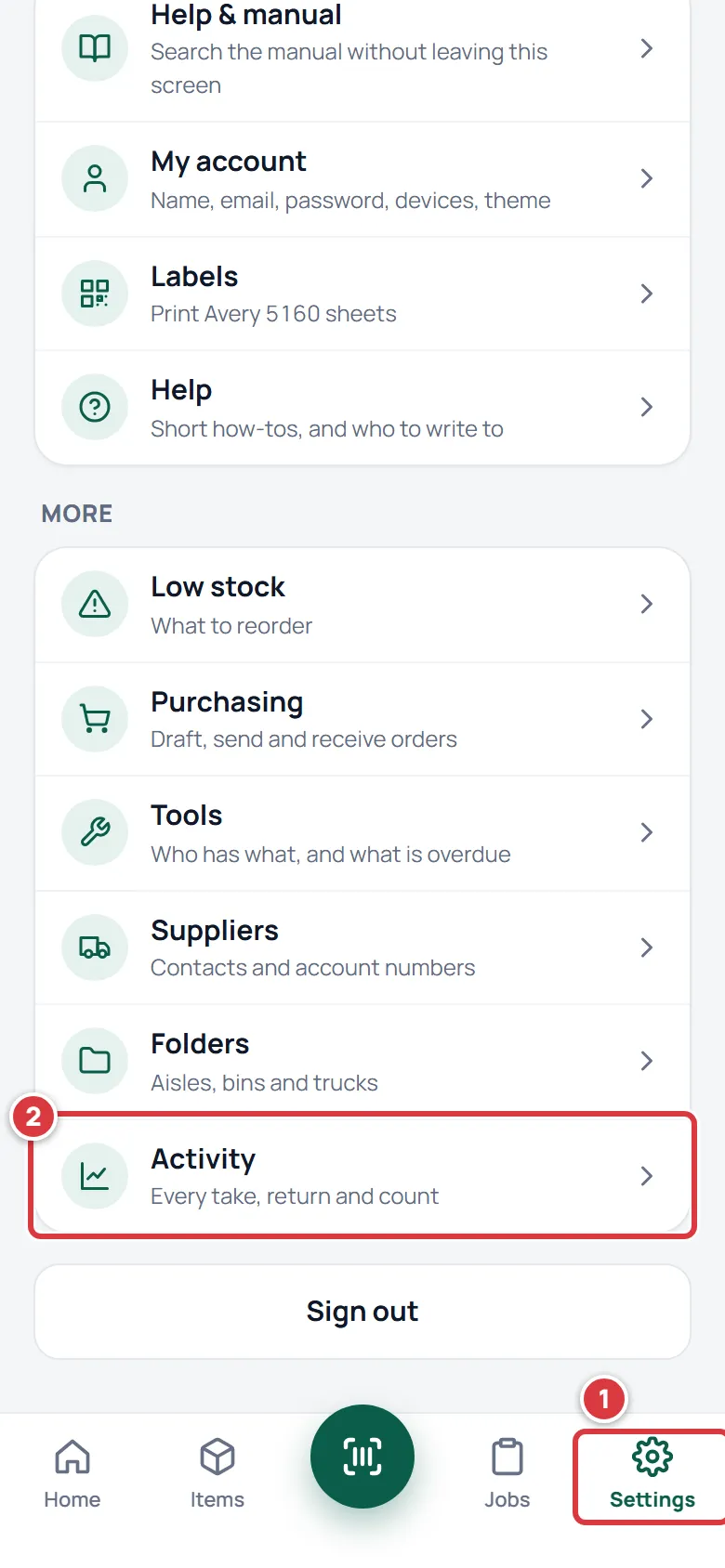
- On a phone, tap Settings at the bottom of the screen.
- Under More, tap Activity.
On a desktop, click Activity in the sidebar.
What you see#
At the top is how many lines there are, for example "278 movements". The newest is first. Each line is a movement: one change to stock.
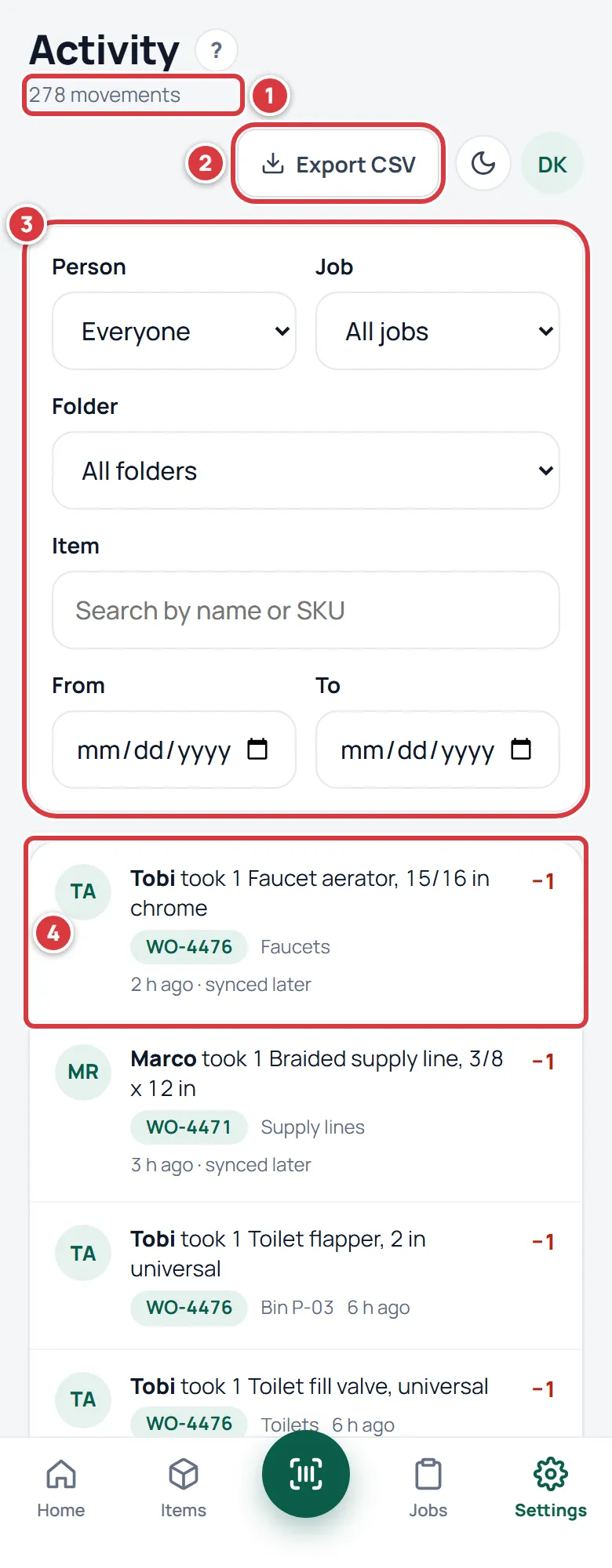
A line shows:
- Who did it, with their first name and their initials.
- What they did, such as "took 1 Faucet aerator, 15/16 in chrome", "returned", "received" or "counted".
- The job, as a small green label like WO-4476, if the stock was charged to one. Tap it to open the job.
- Where: the folder it came out of or went into.
- When: how long ago, or the date for older lines.
- The change on the right. A red minus number is stock going out. A green plus is stock coming in. A double arrow is stock that only moved.
- Undo, on your own takes of the last 15 minutes. It puts the part back and takes it off the job. Once a take has been put back, its line says Undone and the putting back is its own line, a return. See Undo a take.
A count shows the difference it made, for example "counted Drywall screws, +1". A count that changed nothing says "no change".
Activity loads the newest lines first. To see older ones, scroll to the bottom and tap Load more.
Find what you're looking for#
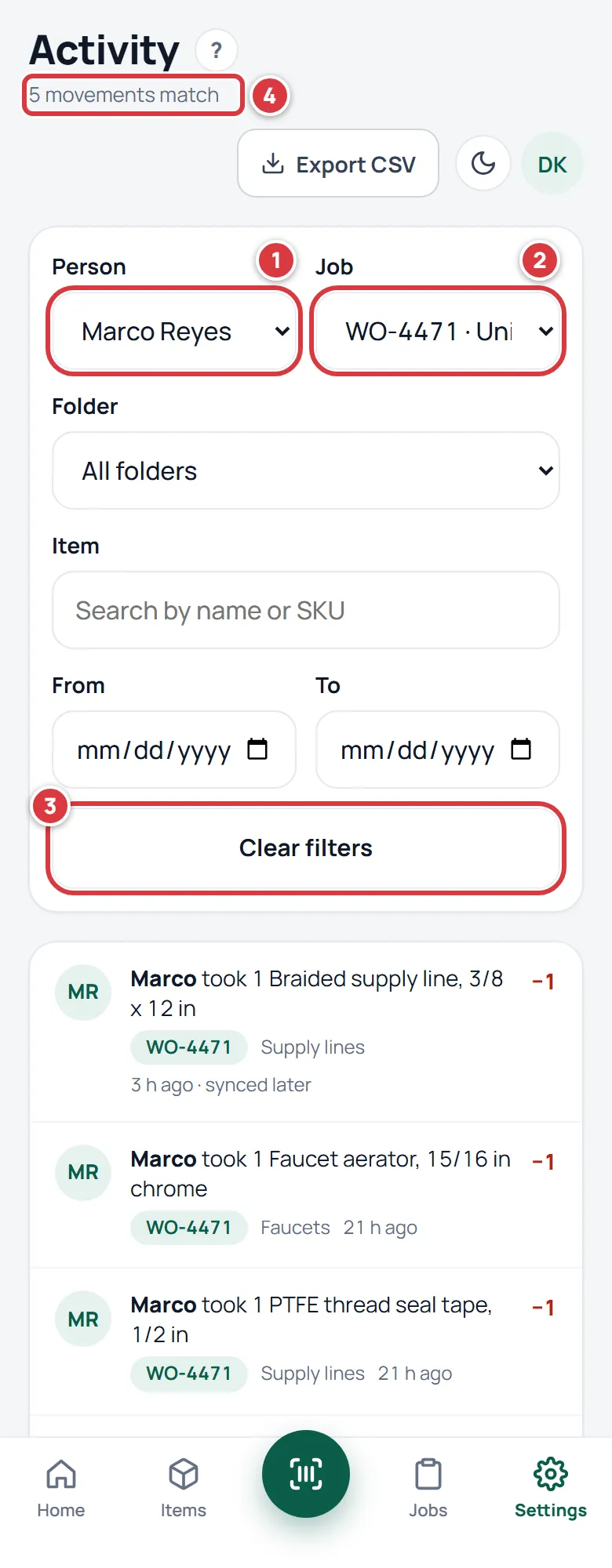
The filters sit above the list. You can use one or several at once. The count at the top changes to say how many lines match.
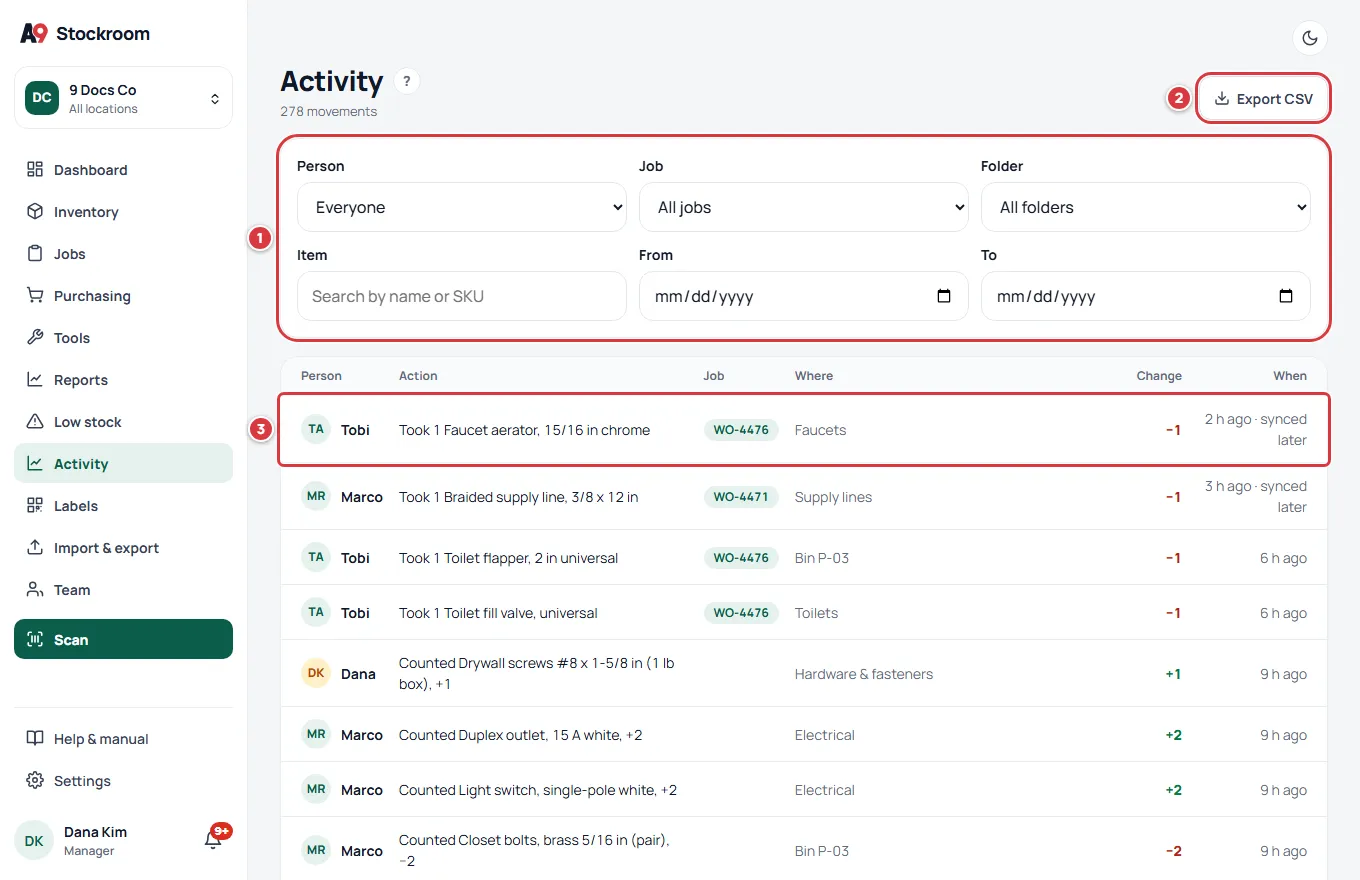
- Pick a name in Person to see only what one person did.
- Pick a job in Job to see only the stock charged to that job.
- Pick a folder in Folder to see everything that went into or out of it.
- Type a name or SKU in Item and pick the item to see one item.
- Set From and To to a range of days. To includes that whole day.
- To start again, tap Clear filters.
If nothing matches, the screen says "Nothing matches those filters". Try a wider range of days, or clear a filter.
When a manager or owner has the Location switcher on one location, Activity shows only that location.
Export to CSV#
A manager or owner can download what they see.
- Set the filters you want, or leave them empty for everything.
- Tap Export CSV.
The file opens in a spreadsheet. It has one row for each line, and these columns: Date, Kind, Item, SKU, Qty, From, To, the From and To location columns, Job, Person and Note. If you set filters first, the file has only the matching lines. A person who has left the team has "(removed)" after their name.
Techs and viewers don't see the Export CSV button.
A change that synced later#
A change made with no signal is added to Activity when the phone gets a signal back. Activity shows the time the person really did it, not the time it arrived. If it reached the stockroom more than 5 minutes after, the line says "synced later".
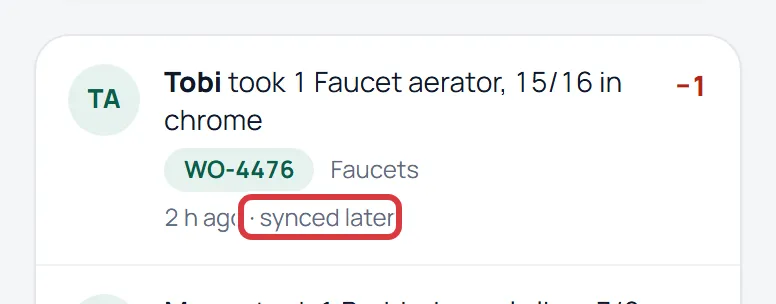
On a desktop, pause the pointer over the time to see when the change reached the stockroom. Changes made with a signal never say "synced later". See Working without signal.
A transfer is one line#
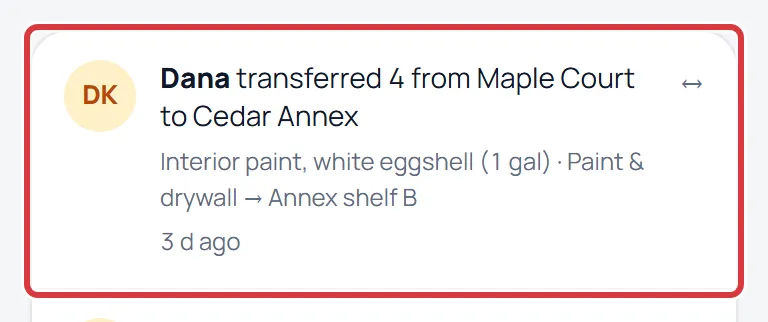
When someone moves stock from one location to another, Activity shows one line, not two: "Dana transferred 4 from Maple Court to Cedar Annex". Under it you see the item and the two folders. A double arrow stands where a number would be, because the stock moved and wasn't used.
See Moving stock.
People who have left#
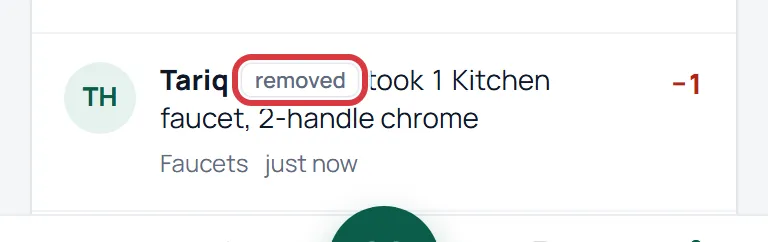
A person who leaves the team, or is removed, keeps their history. Their lines stay in Activity with a small removed tag next to their name. This way a count or a take from last month is still attributed to the right person.
An item's own history#
To see everything that happened to one item:
- Open the item.
- Tap History.
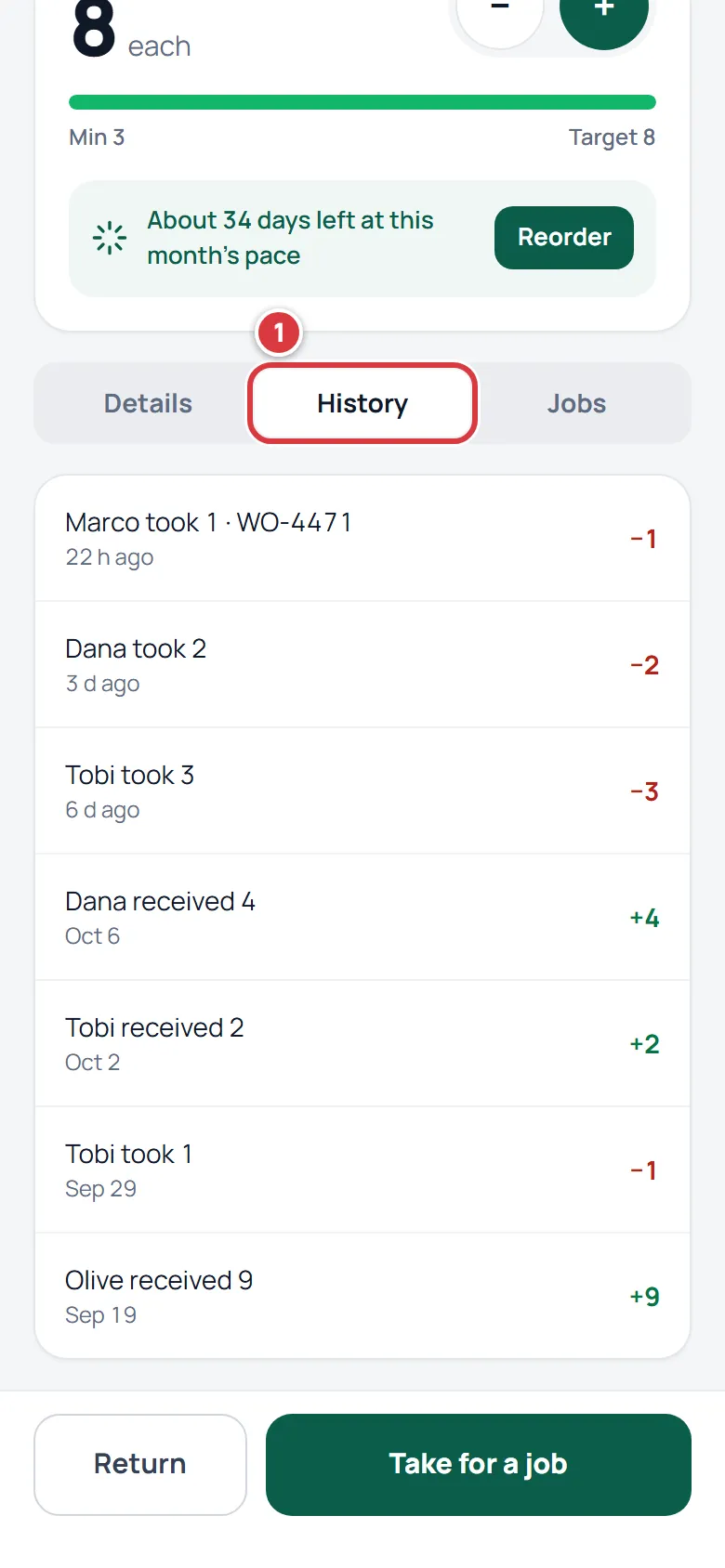
Each line says who did what, how many, the job if there was one, and when. It uses "synced later" the same way Activity does. The Jobs tab next to it lists the jobs the item was used on. See The item screen.
Activity on a desktop#
On a desktop, Activity is a table: Person, Action, Job, Where, Change and When. The filters are in a box above it, in two rows. Export CSV sits at the top right.
No signal#
Activity needs a signal. With no signal the screen says Needs a connection. An item's History tab then shows only the changes that are still waiting on your phone, marked Pending sync. See Working without signal.
If something looks wrong#
- I can't find a line I know happened. Clear the filters, then look again. Techs see only their own locations, and a manager who switched to one location sees only that one. Use From and To to narrow down to a day.
- The time looks wrong. A line made with no signal shows the time the person did it. If it says "synced later", it reached the stockroom afterwards.
- There is no Export CSV button. Only managers and owners can export. Ask one of them. See Roles and permissions.
- A name says removed. That person left the team. Their lines are kept on purpose.
- A number was wrong. Don't look for a way to edit a line. Count the stock and fix the number, and Activity will show the correction as a new line. See Counting stock.