Team
Invite people, choose where each tech works, change a role, remove someone and hand the company to a new owner.
Everyone who uses your A9 Stockroom is on the Team screen. Each person has one role: owner, manager, tech or viewer. The roles page says what each role can do. This page is about managing the people.
The company always has exactly one owner. The owner can do everything on this page. A manager can invite and look after techs and viewers, and nothing more.
What you'll need#
- You are the owner or a manager. Techs and viewers do not see the Team screen.
- The email address the person will sign in with. The invite goes to that address and only that address can use it.
- For a tech: which locations they work at.
- A free place on your plan. See Your plan.
Steps#
Invite a tech, a viewer or a manager#
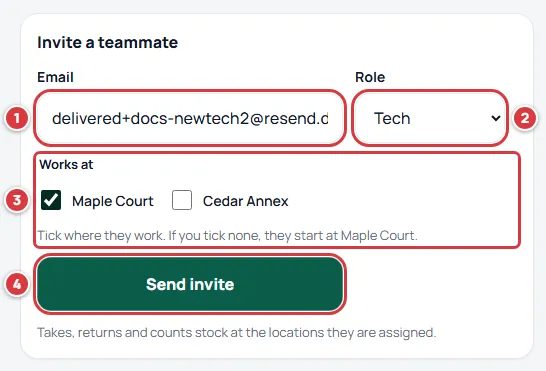
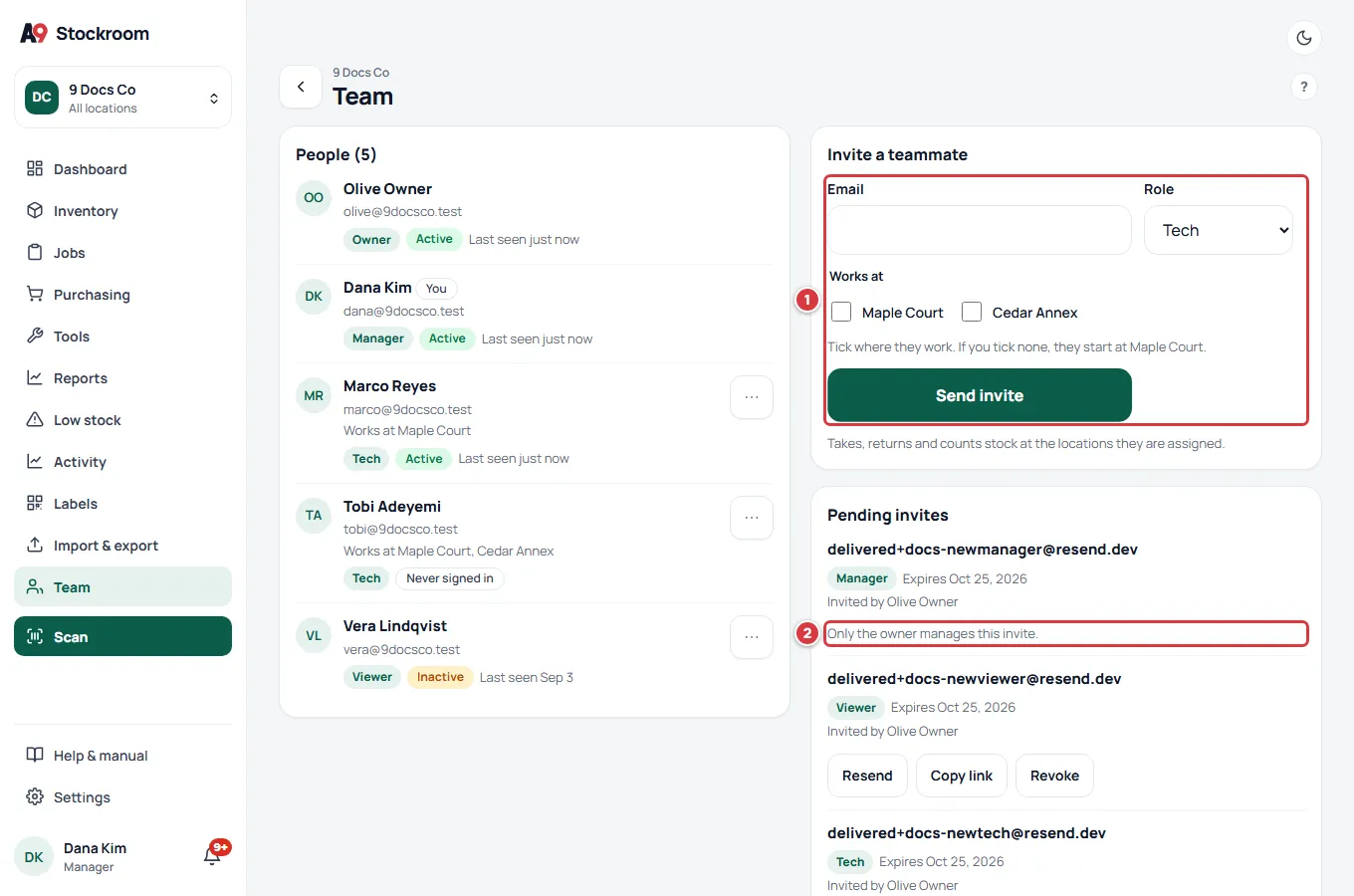
Open Settings, then Team. On a computer, Team is also in the left menu. Find the card called Invite a teammate.
- Type the person's email address in Email.
- Pick their Role. A manager can pick Tech or Viewer. The owner can also pick Manager.
- For a tech, tick the locations they work at under Works at. The box shows only when your company has more than one location. If you tick none, they start at your first location. You can change it later. If your company has just one location, there is nothing to tick: the tech is given that location when they join, and their row on Team then says "Works at" and its name.
- Tap Send invite.
Read what this video shows
- Open Settings, then Team.
- Type the person's email address in Email.
- Choose Tech in Role.
- Tap Send invite.
- A green message at the bottom of the card says the invite was sent.
The person gets an email that says who invited them, the company's name and their role: "Pat invited you to join Acme Supply on A9 Stockroom as tech. The link works for 7 days." It has a button called "Accept the invite".
What the person does with it:
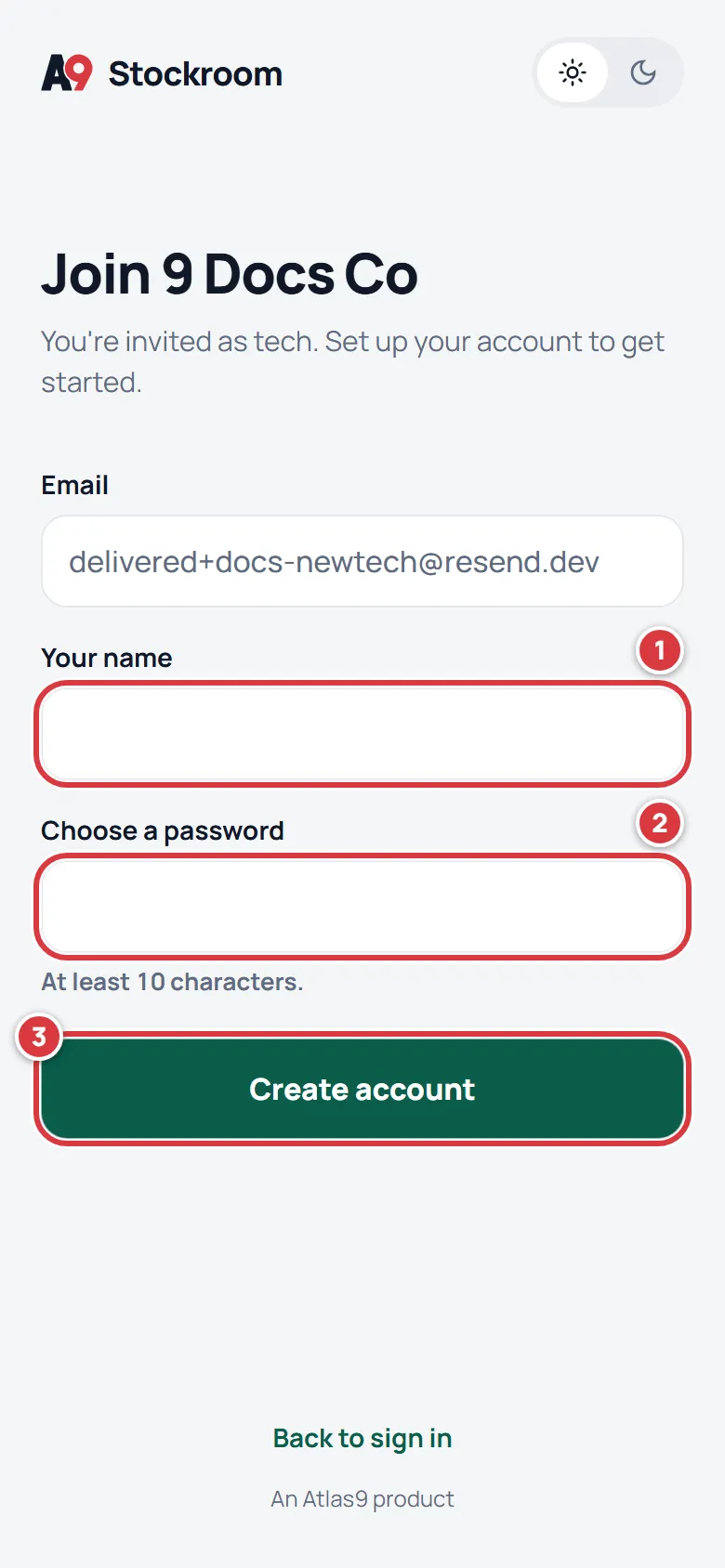
- They tap the button and a page called Join and your company's name opens, with their email already filled in.
- They type Your name and choose a password in Choose a password.
- They tap Create account. They are signed in and land in your company. A tech who was given locations sees a note in the bell saying where they were assigned.
Resend, copy or revoke an invite#
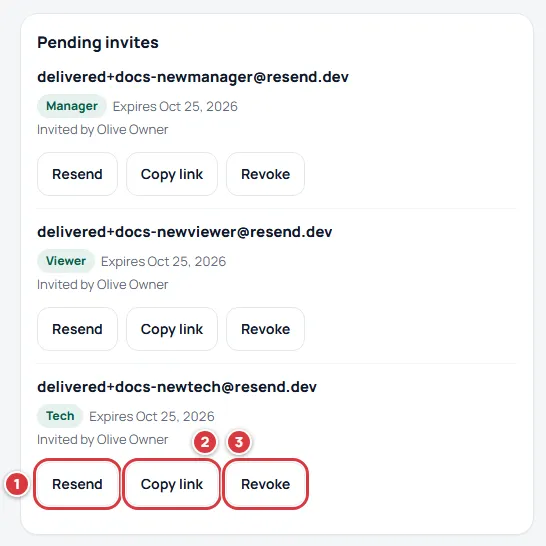
An invite that is not accepted yet sits under Pending invites. Each row shows the email, the role, "Expires" and the date the link stops working (or Expired when it already has), and "Invited by" and your name. It does not list the locations: you see those on the person's row after they join. Use the buttons on the row:
- Resend sends the email again and starts the 7 days over. The link stays the same.
- Copy link copies the link so you can send it yourself, in a text or a chat. The button says Copied for a moment. If your browser will not copy, the link appears in a box labelled Copy this link for you to copy by hand. The link ends in a long string of letters and numbers, and it opens the same Join page the email does.
- Revoke cancels the invite. The link stops working at once and the seat is free again.
A manager can handle only tech and viewer invites. On an invite for a manager, a manager sees "Only the owner manages this invite."
Open a person's menu#
Every person you may change has a button with three dots at the end of their row. It opens a menu:
- The three-dot button.
- Change role.
- "Assign locations". This one shows for techs only.
- Remove from team.
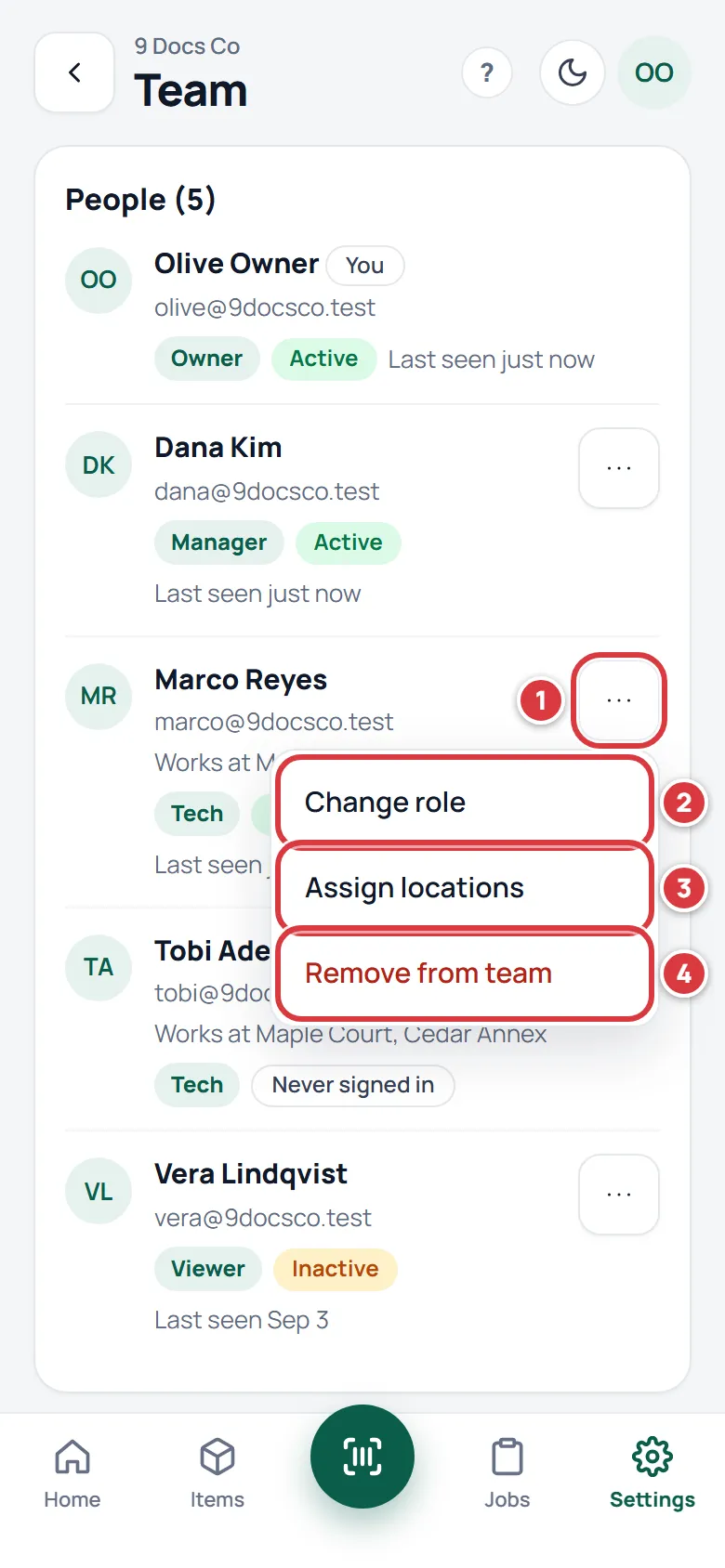
You will not see the button on your own row, on the owner, or (if you are a manager) on another manager.
Choose which locations a tech works at#
A tech sees only the stock, folders and jobs of the locations you tick for them. Owners, managers and viewers see all locations.
Open the person's menu and choose "Assign locations". A sheet called "Assign locations to" and the person's name opens.
- Tick every location the tech works at. Untick the ones they do not.
- Tap Save locations.
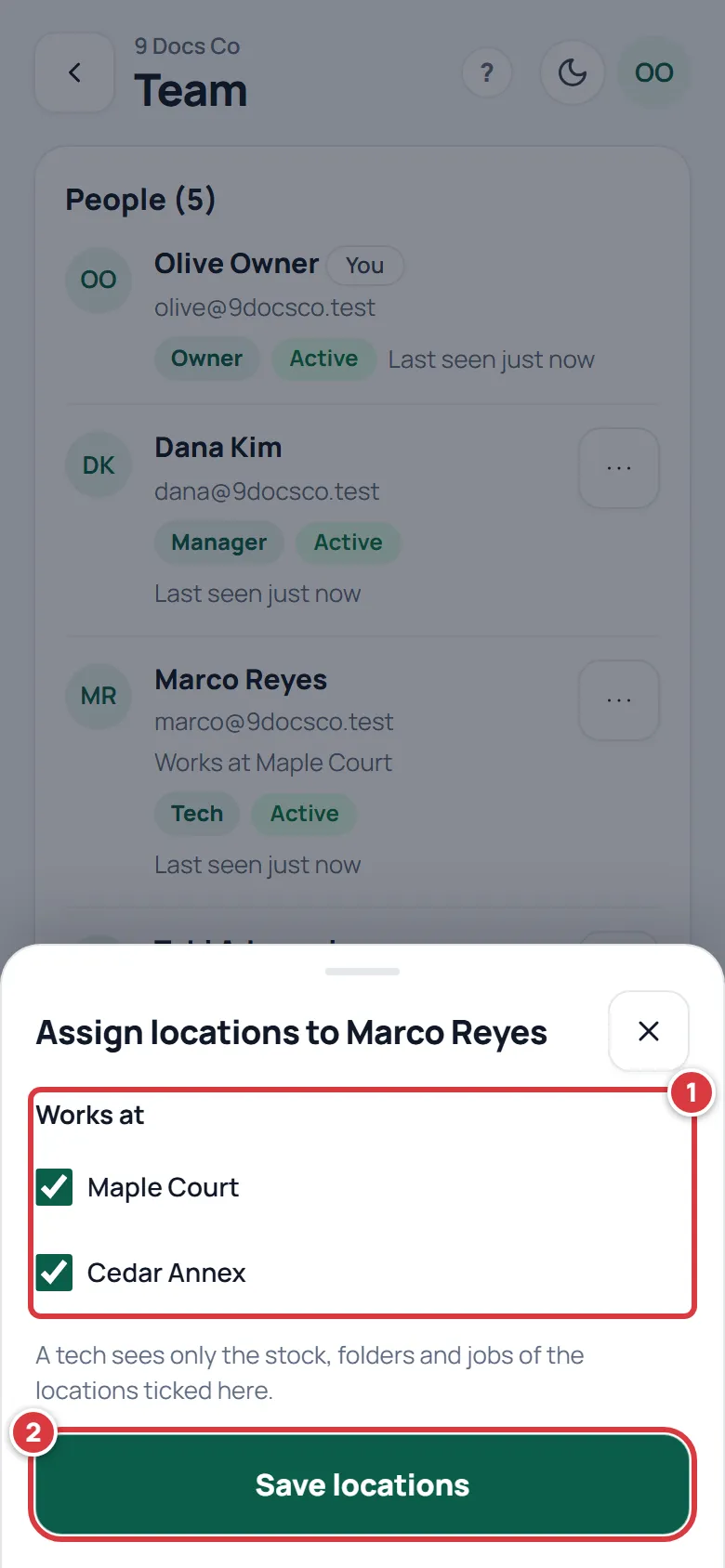
The tech gets a note in their bell for each location they were just given. The tech's row on the Team screen shows "Works at" and the locations, or "No locations assigned".
Change someone's role#
Open the person's menu and choose Change role. A sheet opens with the roles and a line about each.
- Pick the new role. The owner can pick Manager, Tech or Viewer. A manager can pick Tech or Viewer.
- Tap Save role.
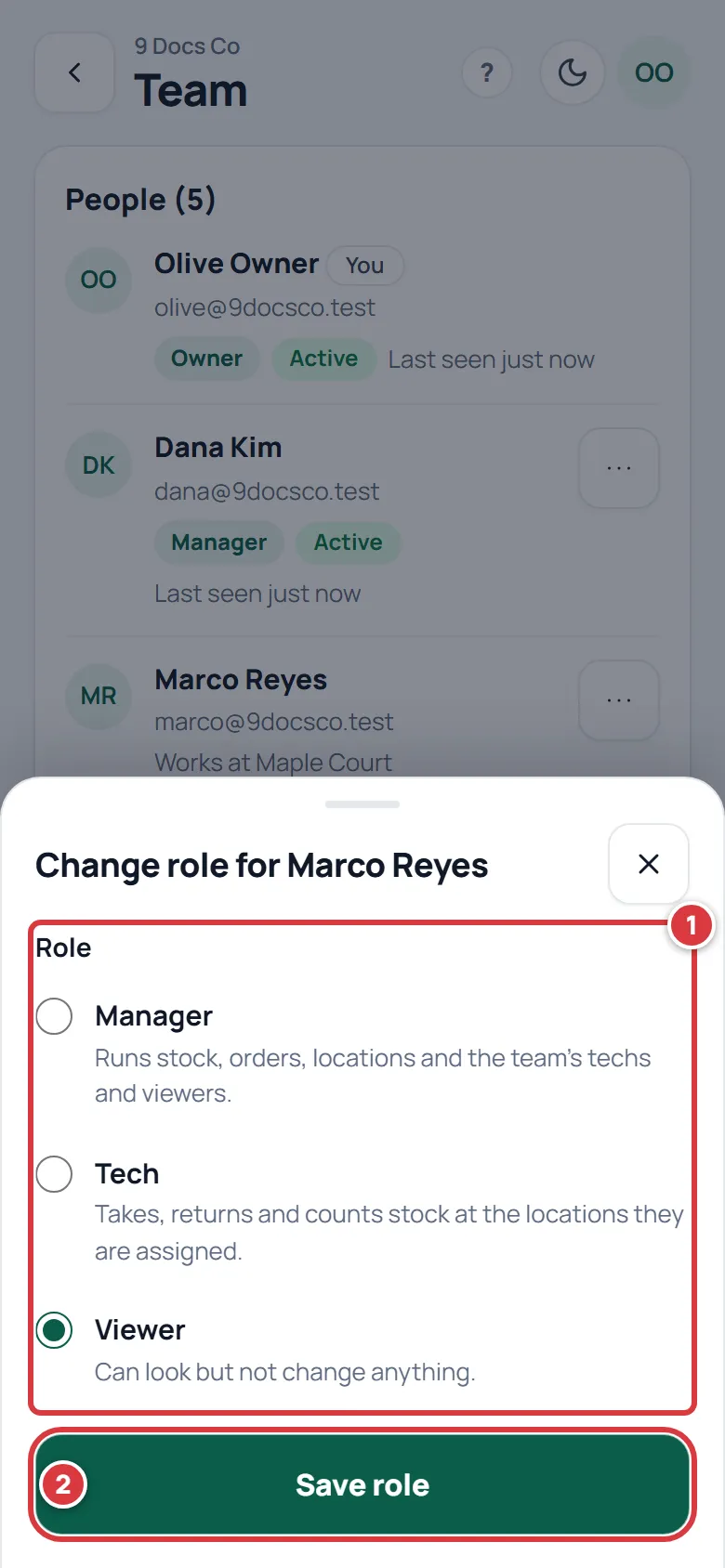
If you make someone a tech, the sheet also lets you tick their locations. Tick none and they start at your first location.
Some changes are not allowed, on purpose:
- Only the owner can make someone a manager, or change a manager back to a tech or viewer.
- Nobody can change their own role.
- The owner's role changes only by transferring ownership, below.
Remove someone#
Open the person's menu and choose Remove from team. A question opens: Remove, and the person's name. It tells you what will happen: they lose access to your company and are signed out of every device right now, and what they did stays in your history, shown as removed.
- Tap Remove from team in the question. Tap Cancel instead to stop.
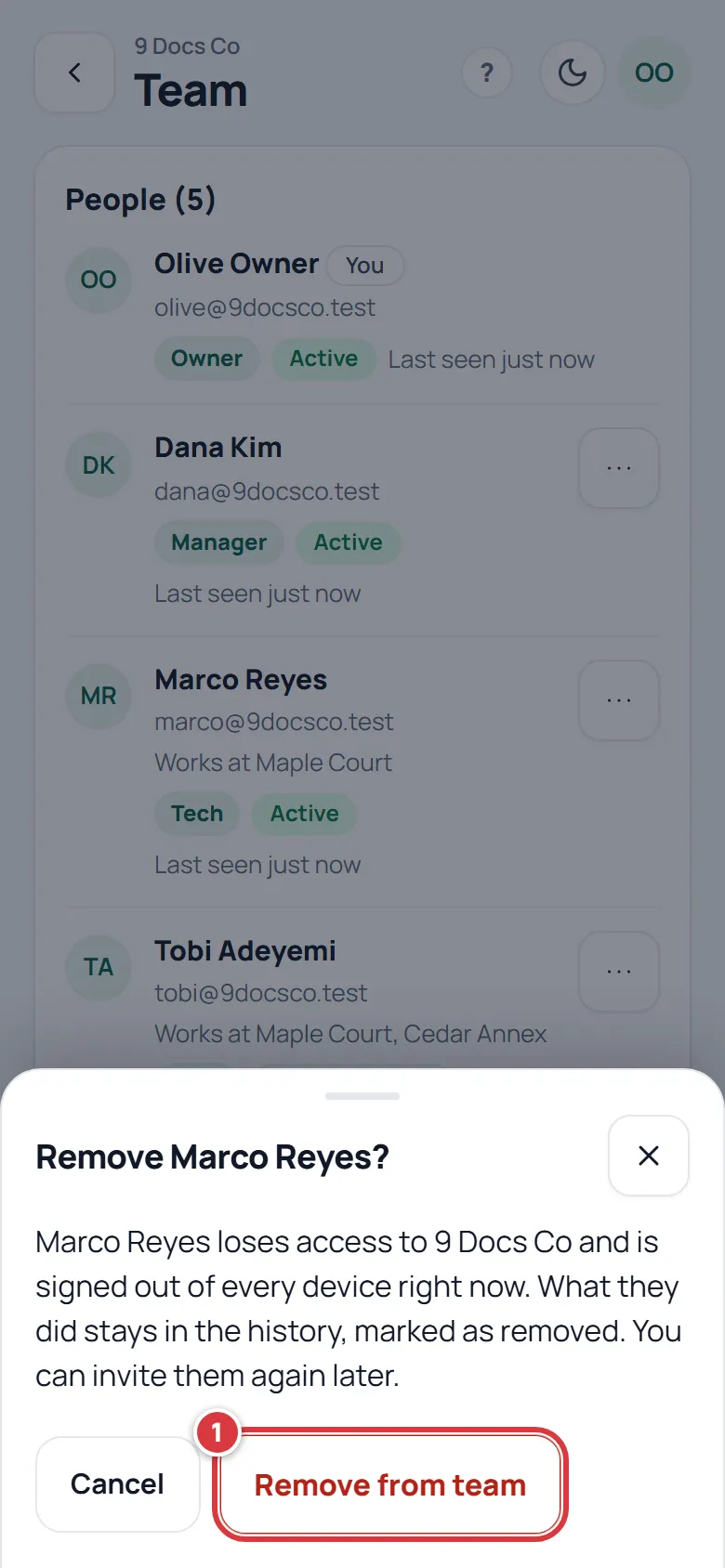
The person's stock history, jobs and tool check-outs stay where they were. You can invite the same person again later.
Transfer ownership#
Use this when the company changes hands or the owner steps down. The new owner has to be a manager first, so make them a manager with Change role if they are not. There is always exactly one owner: the owner becomes a manager at the same moment, and nobody can end up with none.
Open the manager's menu and choose Make owner. A sheet opens with the company's name in it.
- Type the company's name in the box, exactly as it is written. The sheet shows the name for you.
- Tap the button that says Make, the manager's name, and "the owner". It stays grey until the name matches.
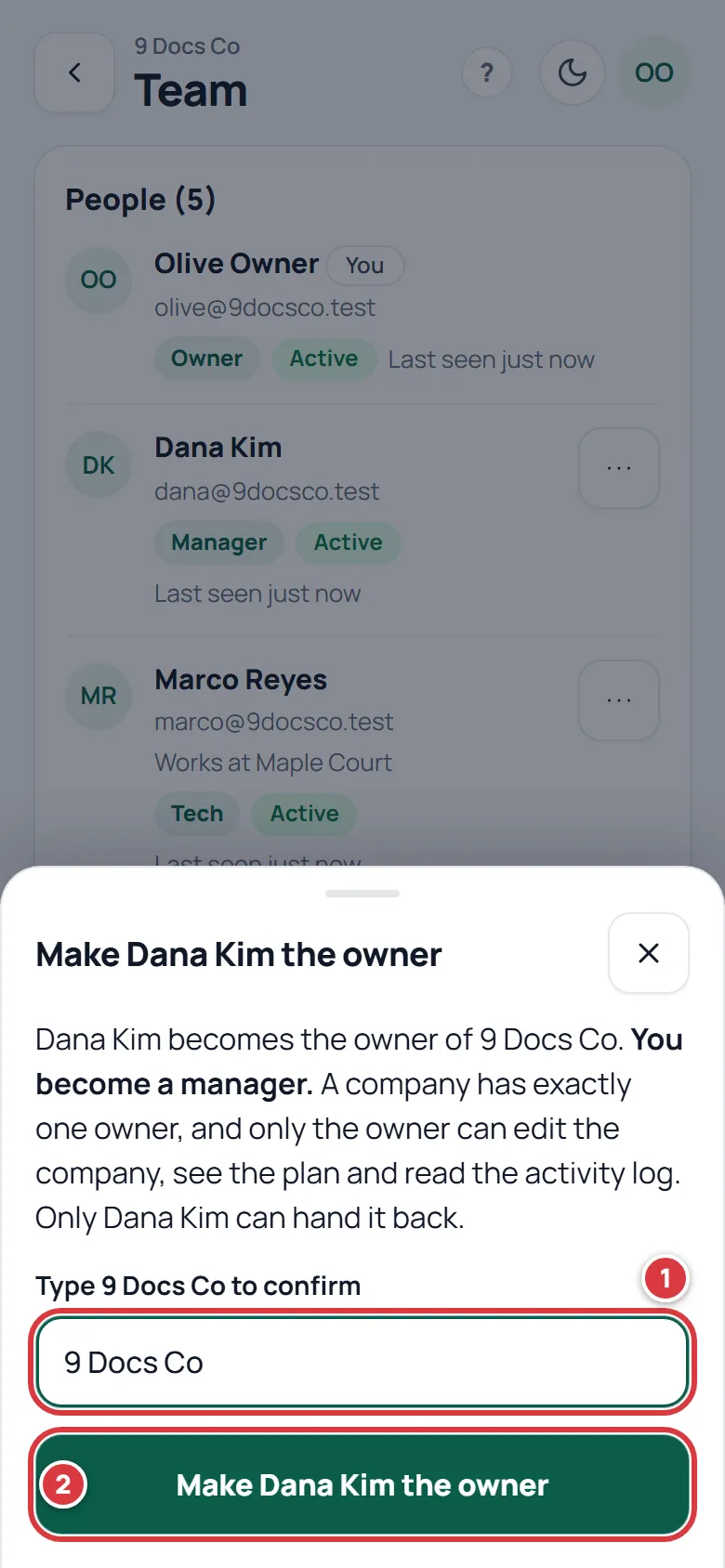
You become a manager. Only the new owner can hand the company back. Only the owner can edit Company settings, see Your plan and read the activity log.
What you'll see#
- After you send an invite, a green message under the card: "Invite sent to" and the address, with the number of days the link works. The invite shows under Pending invites.
- When the person accepts, the invite leaves Pending invites and they appear under People with their role. Their status is Active from their first sign-in.
- After a role change, a removal or a transfer, a short message at the bottom of the screen says what happened, and the list updates.
Who is active#
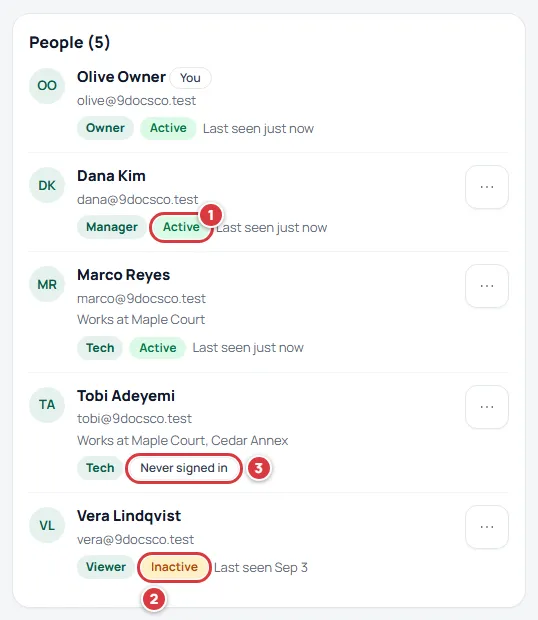
Each person has a status next to their role:
- Active: they used A9 Stockroom in the last 30 days. "Last seen" says how long ago.
- Inactive: the last visit was more than 30 days ago. Nothing is switched off. It is a hint that the person may have left.
- Never signed in: the person has joined but the app has not opened for them yet. You will rarely see it, because it goes away as soon as their first screen loads.
Seat limits#
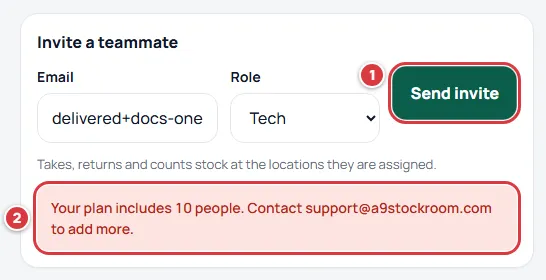
Every person on the team and every invite that has not run out takes a seat. Essentials includes 10 people. Pro has no limit unless your agreement sets one. Revoking an invite, or removing someone, frees a seat.
When all seats are used, Send invite does not send. The card shows the message "Your plan includes" and the number of people, then asks you to write to support@a9stockroom.com to add more. A seat is also needed to bring an invite back that has already expired. See Your plan.
What a manager sees#
A manager sees the same screen with fewer buttons. They can invite techs and viewers, and change, assign and remove techs and viewers. They cannot touch the owner or another manager, or an invite for a manager.
If it didn't work#
- "That person is already on your team." The address already has a seat. Check the list under People.
- "Your plan includes … people." Every seat is used. Revoke an invite nobody needs, or write to support@a9stockroom.com.
- The person says the invite link has expired or was already used. Links work for 7 days and only once. Tap Resend on the invite. If it says Expired it needs a free seat to come back.
- The email never arrived. Ask the person to look in their junk folder. Or tap Copy link and send the link yourself. The link is all they need.
- The person typed the wrong address. The address on an invite cannot be changed. Tap Revoke, then send a new invite to the right address.
- "This email already has an account. Sign in instead." The person already belongs to a company. An email address can be on one company at a time. See Can I create another company?.
- There is no three-dot button on a row. It is your own row, or the owner, or you are a manager and the person is a manager. Only the owner changes managers.
- "You can't change your own role." Ask the owner to change it. The owner changes roles only by transferring ownership.
- "Make them a manager first." Only a manager can become the owner. Use Change role first.
- "Type the company name exactly to confirm." Type the name as it is written on the sheet, with the same capital letters.
- "Use Leave company on My account to remove yourself." You cannot remove yourself here. See My account.
- A tech cannot see the stock they need. Check the tech's row. "No locations assigned" means they have no place to work. Open the menu, choose "Assign locations" and tick the right ones.