The Home screen
A tour of Home, the first screen you see: what each card means, how to switch location, and where the alerts, the scanner and your jobs are. Phone first, then the manager's desktop dashboard.
Home is the first screen after you sign in. It tells you what is running low, which jobs are open, and gives you one big button to scan. Every number on it is for the location you are working at.
Home on your phone#
Start at the top. The numbers on the picture match the list.
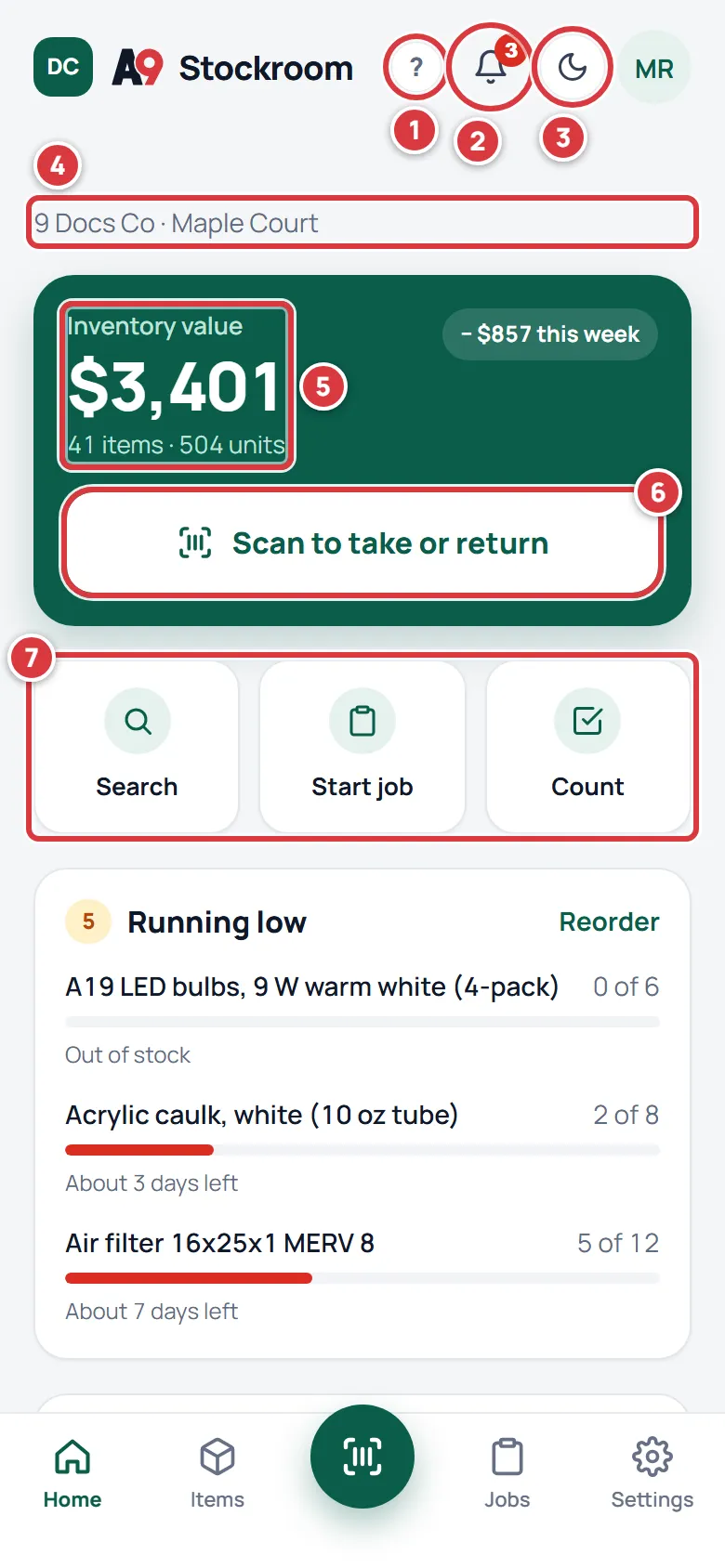
- ? opens the page of this manual that matches the screen you are on, in a new tab. Every main screen has one.
- Alerts, the bell, shows a number when something needs you: an item that ran low, a tool that is overdue, an order that arrived. Tap it to read the list, tap an alert to go straight to it, and tap Mark all read to clear the number. See Notifications.
- Your company and your location, for example "9 Docs Co · Maple Court". If you work at more than one location this is a button that switches. See Switch location below.
- Inventory value is what the stock at your location is worth at the cost you paid. Under it you see how many items (kinds of thing) and how many units (pieces) you have. The small pill says how much the value moved in the last week.
- Scan to take or return opens the scanner. See Scanning.
- Three quick buttons. A tech gets Search, Start job and Count. Managers and owners get Add item in place of Search. Viewers get Search, Jobs and Low stock.
Scroll down: the cards#
Below the buttons are the cards that change from day to day.
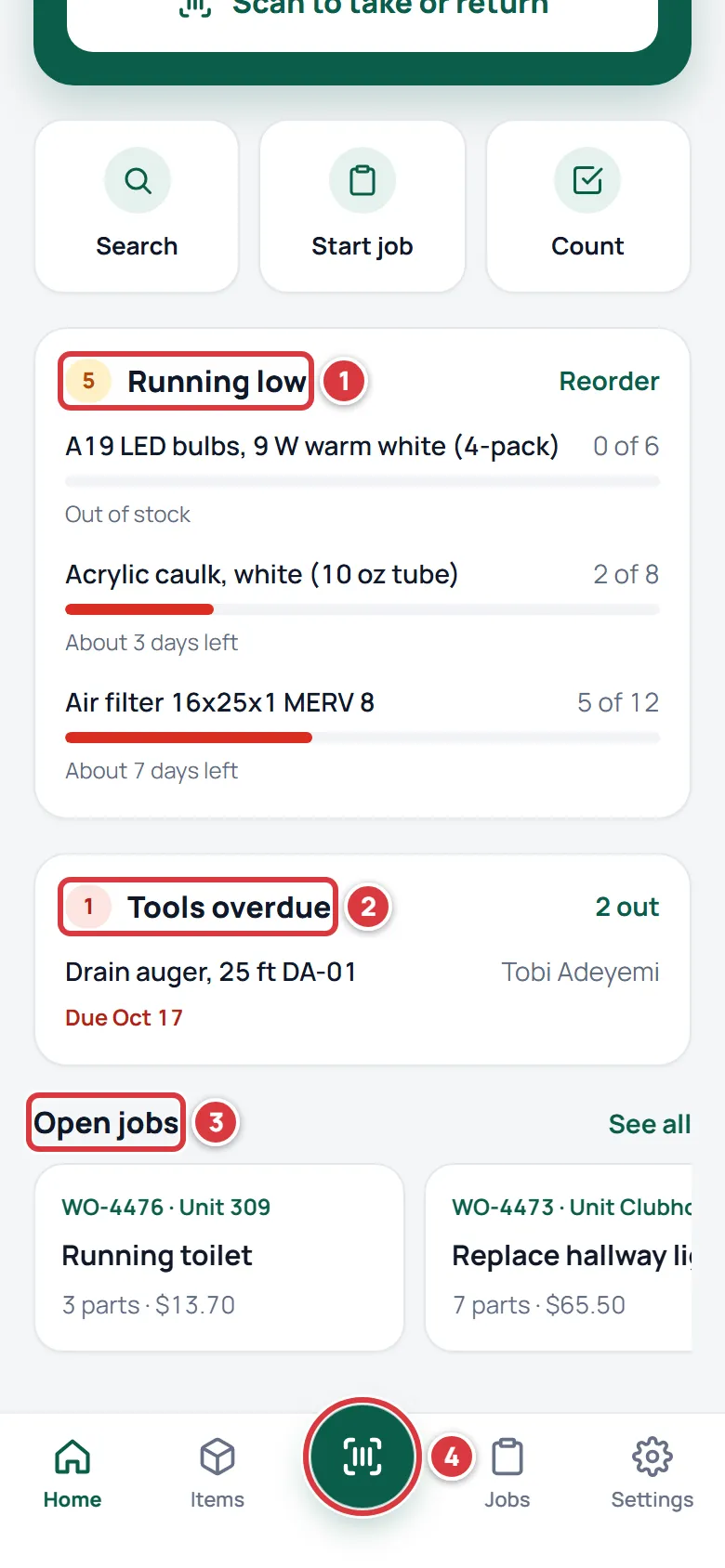
- Running low lists the three items furthest under their minimum. The number in the circle is how many items are low in all. Each row shows what is on hand against the minimum, for example "2 of 8", a bar, and either "Out of stock" or "About 3 days left". Tap a row to open the item. Reorder opens the whole Low stock list. When nothing is low the card is called Stock check and says "Nothing is under its minimum. Nice."
- Tools overdue shows when your company's plan includes tools and you have at least one tool. The red number is how many are late, and "2 out" is how many are checked out in all. Tap "2 out" to open Tools. With nothing late the card is called Tools and says "Nothing is overdue."
- Open jobs is a row of cards you swipe sideways. Each shows the job number, what it is, how many parts have been taken and what they cost so far. See all opens Jobs. With none open you see a short note and Start a job. See Jobs.
- The bar at the bottom is on every screen: Home, Items, the round scan button in the middle, Jobs and Settings. The scan button is marked. Places that do not fit in the bar, such as Low stock, Purchasing, Tools, Folders and Activity, are under More on the Settings screen.
Switch location#
If you work at more than one location, the location name under your greeting is a button.
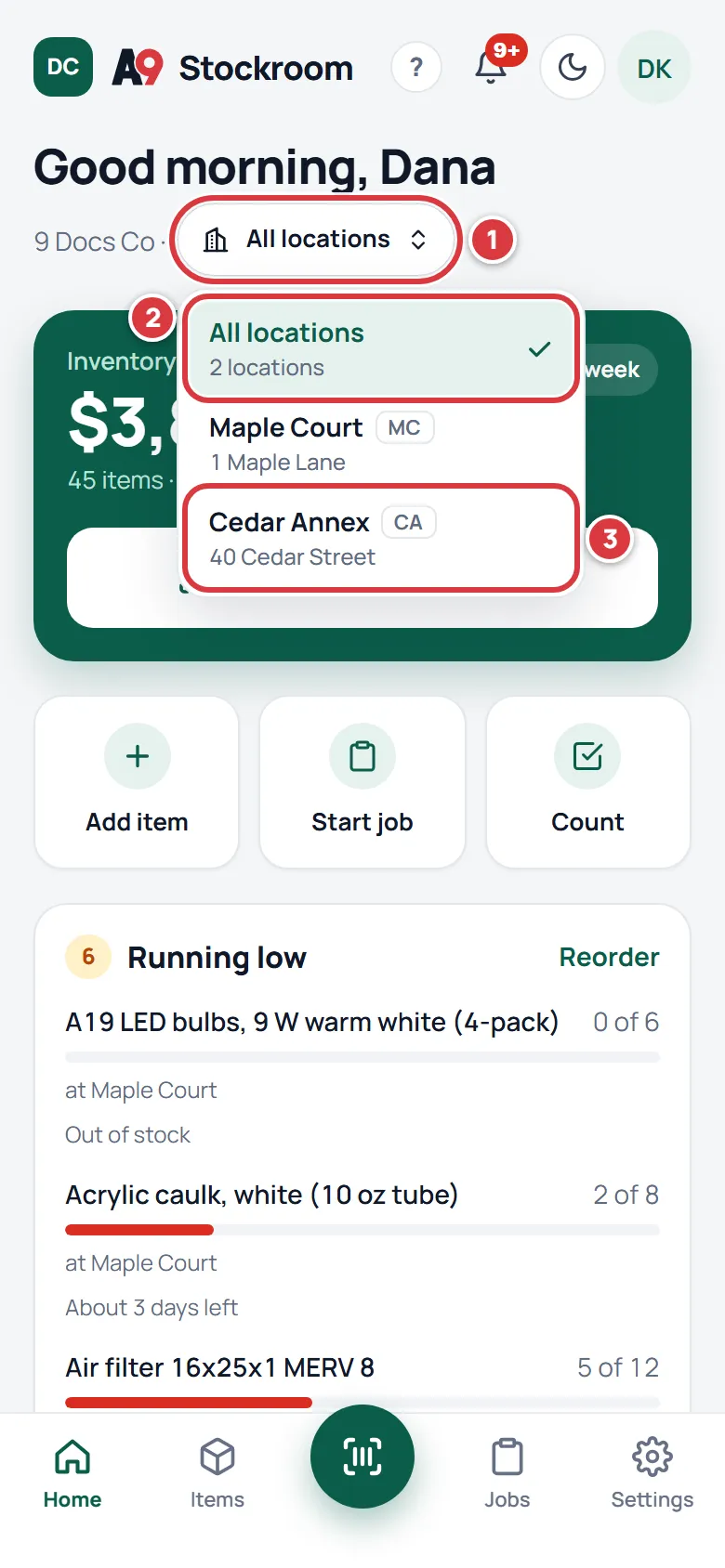
- Tap the location name. A menu opens with every location you can reach, each with its short code.
- All locations adds up everything you can reach. Owners, managers and viewers get it when the company is on the Pro plan. Techs do not: a tech always works at one location at a time, and sees only the locations a manager has assigned to them.
- Tap a location to look at just that one. Home, Items, Folders and Low stock all narrow to it.
Your choice is saved with your account, so it is still there next time you open the app. With All locations on, each low item says where it is low ("at Maple Court"), and an item that is low at one location shows there even if another location has plenty.
If you work at only one location, the name is plain text and there is nothing to switch. See Locations for how a manager adds them.
Home on a desktop#
Owners and managers on a wide screen get a dashboard instead of the phone layout. Techs and viewers always get the phone layout, and so does a manager on a phone. The dashboard has its own page, The dashboard. The short version:
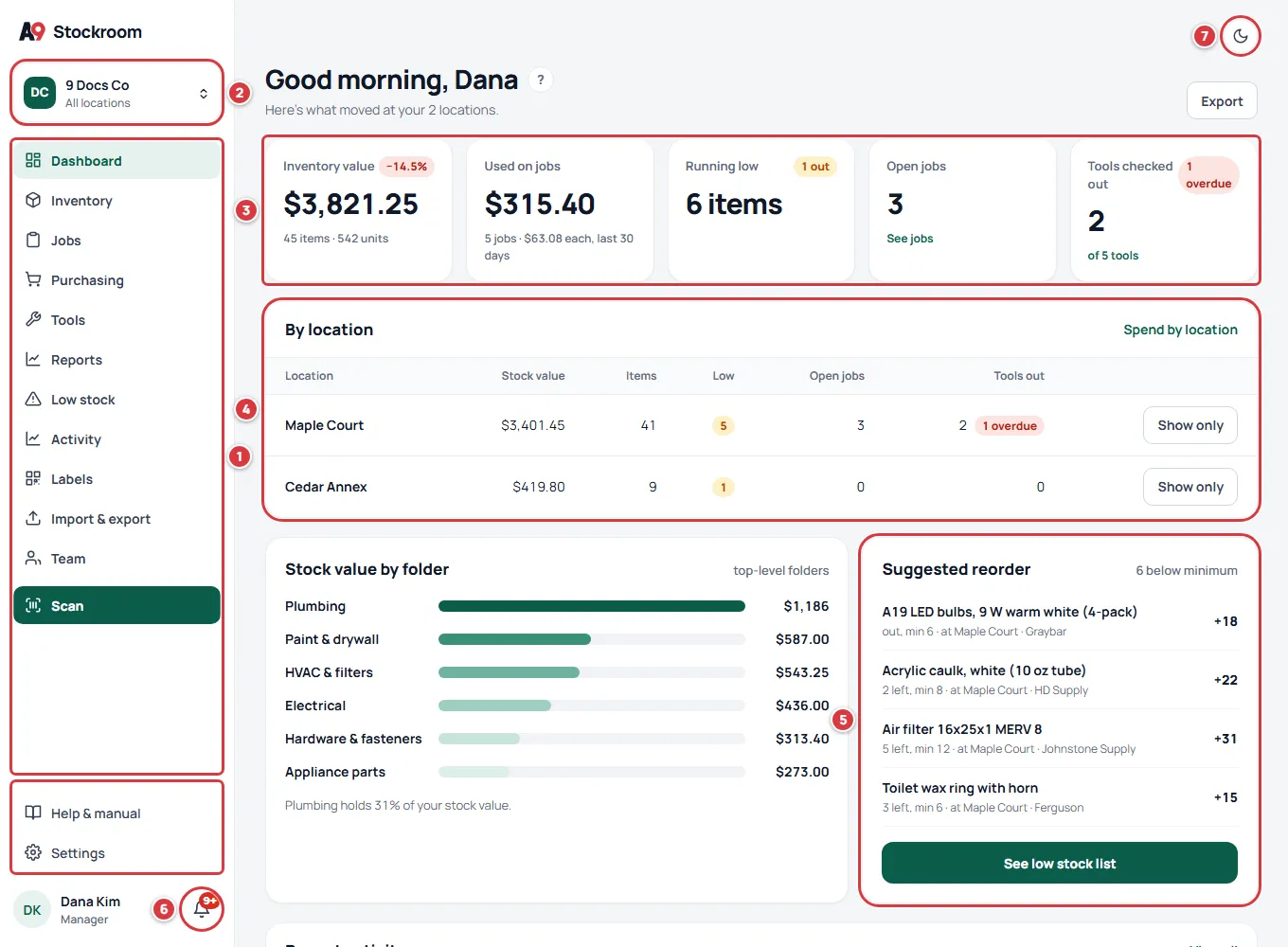
- The menu on the left: Dashboard, Inventory, Jobs, Purchasing, Tools, Reports, Low stock, Activity, Labels, Import & export, Team and Settings, with Scan at the bottom.
- The company and location switcher. It works the same as on the phone.
- The five numbers: Inventory value, Used on jobs, Running low, Open jobs and Tools checked out.
- By location (it uses your company's word, so some companies see By property or By site) breaks the numbers down per location. Show only switches the whole app to that location.
- Suggested reorder lists what to buy first. The number on the right is how many to order to bring that item back up to its target.
- The bell, with the same alerts as on the phone. The ? is next to the greeting.
The dashboard needs a signal; with none, it says so. Home on a phone keeps working without one. See Working without signal.