Moving and transferring stock
Move stock between folders in one location (managers and owners), or transfer it to another location (techs too, between their own). How it shows in History and Activity, and how the location switcher fits in.
What you'll need#
- A Move needs an owner or manager sign-in. A Transfer works for techs, managers and owners. A tech can transfer only between the locations they are assigned to.
- For a transfer, a company with at least two locations. See Locations.
- The folder you are sending to must exist at the other location. A manager adds folders. See Folders.
- Tools are not moved this way. A tool is checked out and in. See Tools.
A move shifts stock from one folder to another inside the same location, such as from the shelf to your truck. A transfer sends stock from a folder at one location to a folder at another. Each location is its own stockroom, with its own numbers, so a transfer lowers one and raises the other.
Steps#
Describe this diagram
Stock arrives by Receive into a folder. Take sends it out to a job, and Return brings what was not used back to a folder. Move shifts it between folders at one location. Transfer sends it from a folder at one location to a folder at another.
Move stock between folders#
Look at one location first. Go to Home, tap the location name under your greeting and pick the location. Then the folder list in the sheet shows only that location's folders. See Switch location.
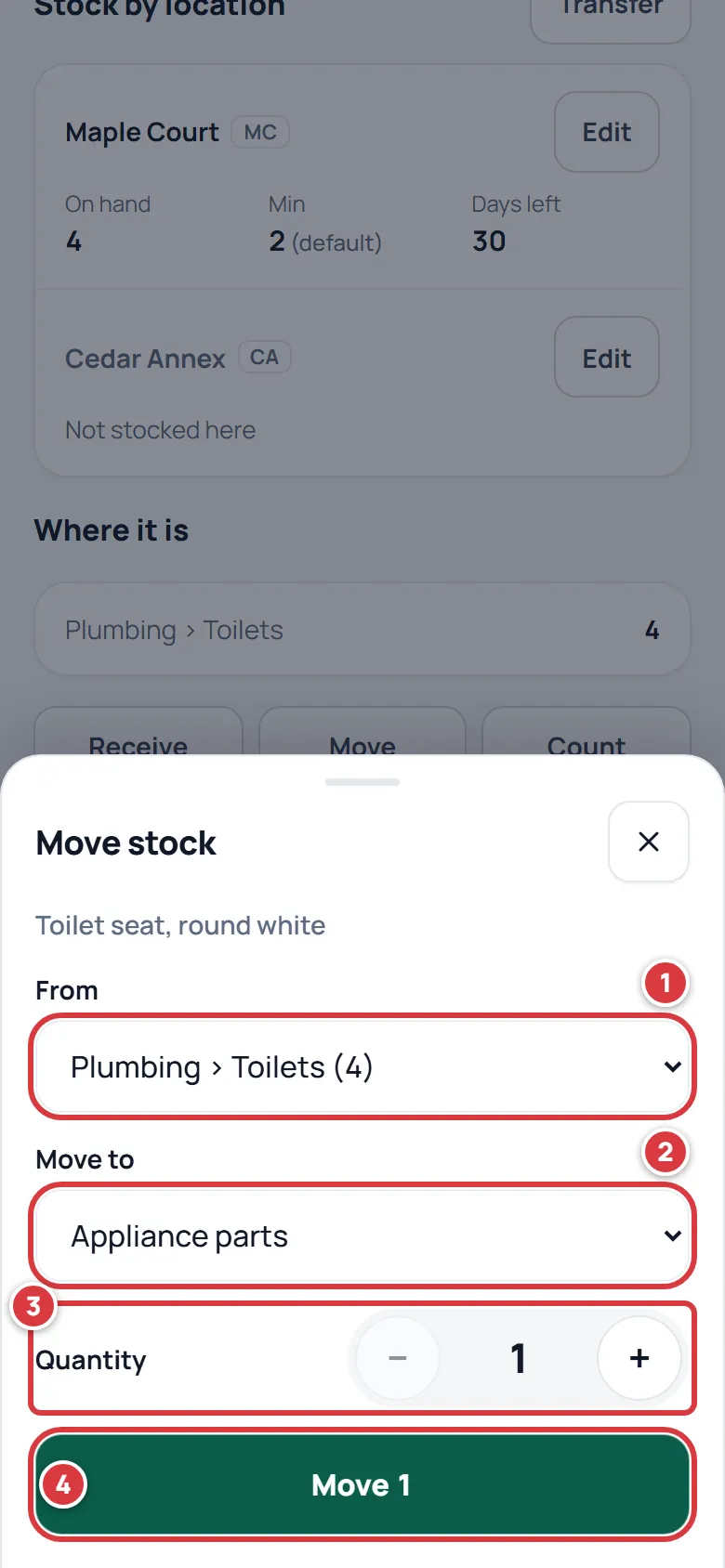
- Open the item. Under Where it is, tap Move. A sheet called "Move stock" opens. Under From, pick the folder the stock is leaving. The number in brackets is how many are there.
- Under Move to, pick the folder it is going to. The list starts at the top of the alphabet, so check it before you go on.
- Under Quantity, set how many. It cannot be more than the folder holds.
- Tap Move and the number, for example "Move 3".
Transfer stock to another location#
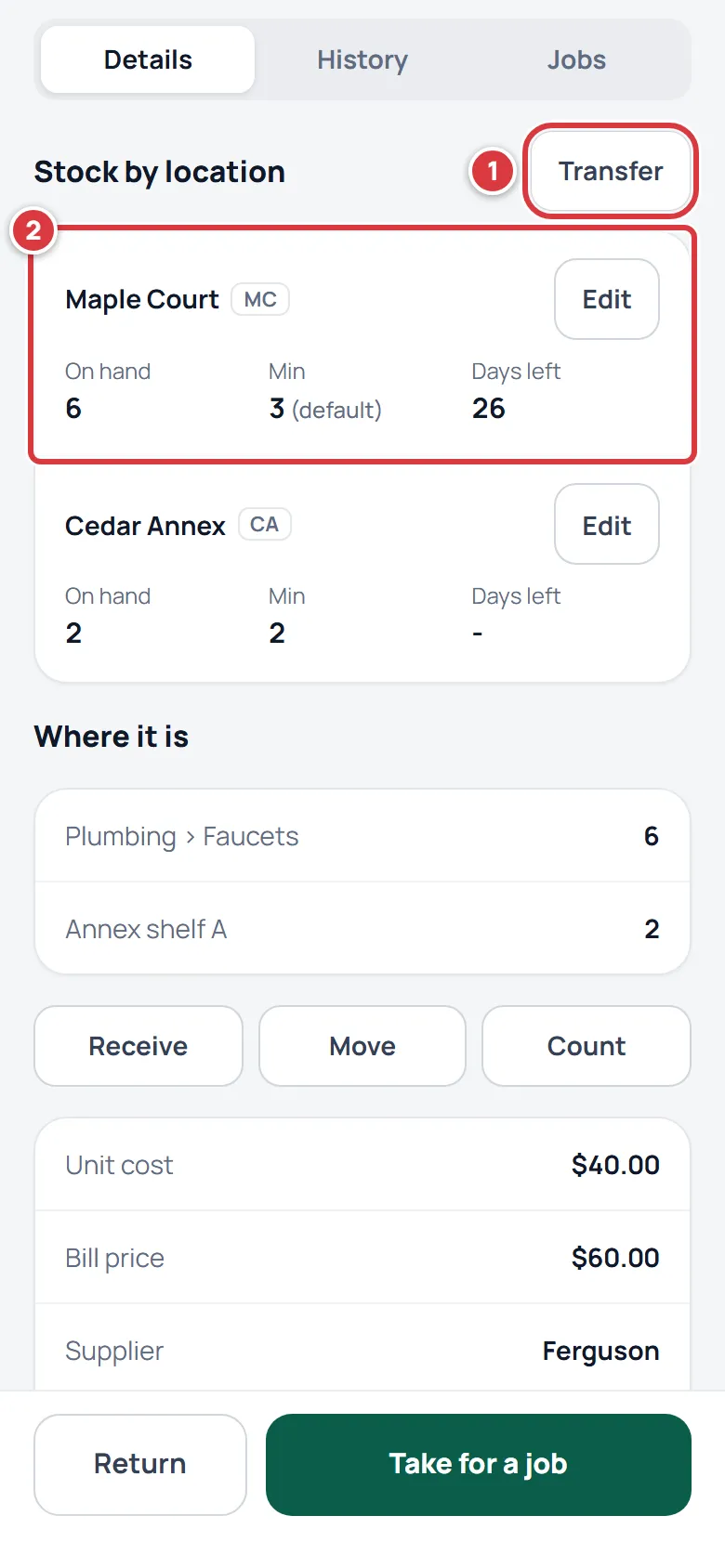
Open the item and scroll to Stock by location. The heading uses your company's word for a location. Each card shows that location's own On hand, Min and Days left.
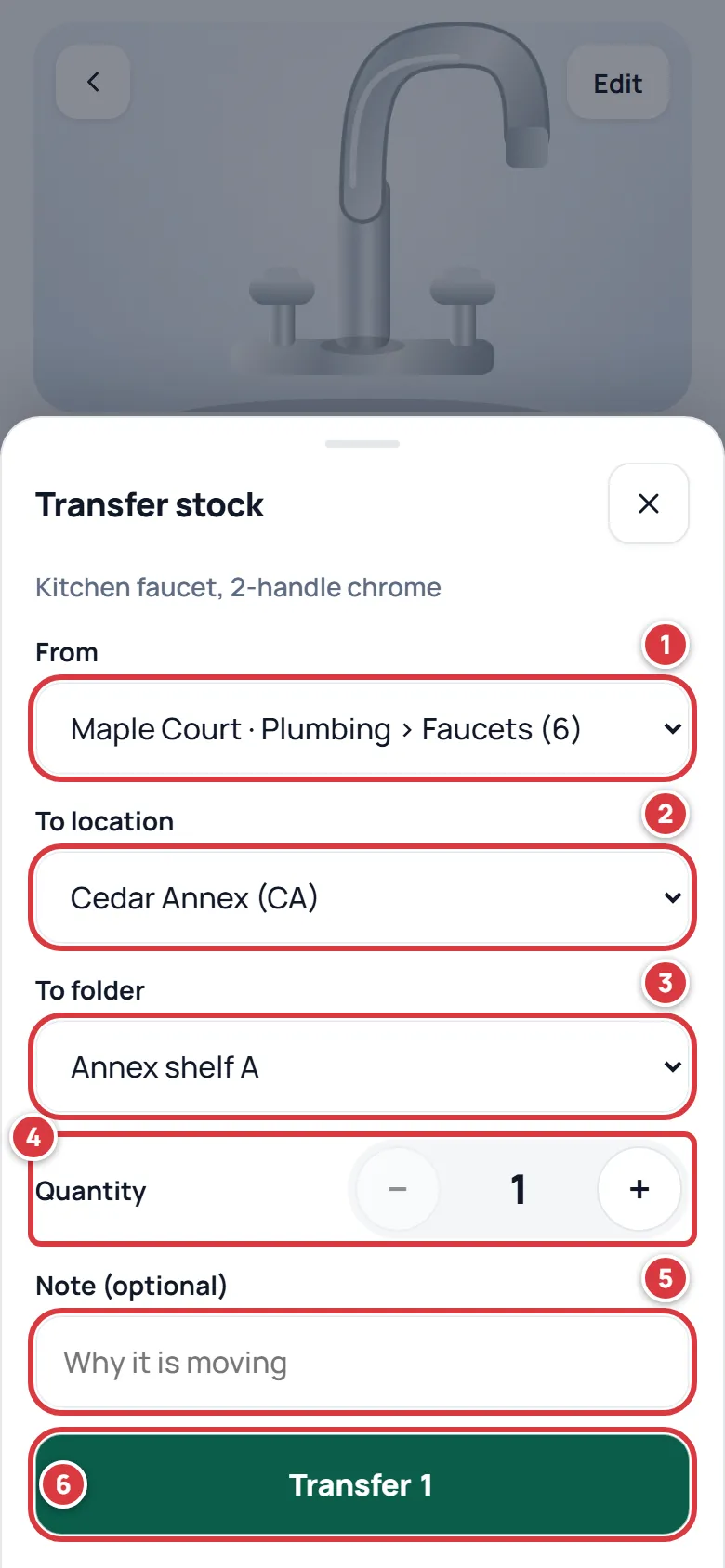
- Tap Transfer. A sheet called "Transfer stock" opens. Under From, pick where the stock leaves, shown as the location, the folder and how many are there.
- Under To location, pick where it is going. The list has every other location you can reach.
- Under To folder, pick the folder at that location.
- Under Quantity, set how many. It cannot be more than the folder holds.
- Add a Note (optional) if it helps, such as why it is moving.
- Tap Transfer and the number, for example "Transfer 8".
A transfer is a single step: the stock leaves one location and arrives at the other together, so nothing is counted twice. If you lose the signal or tap twice, it still happens only once.
See it in History and Activity#
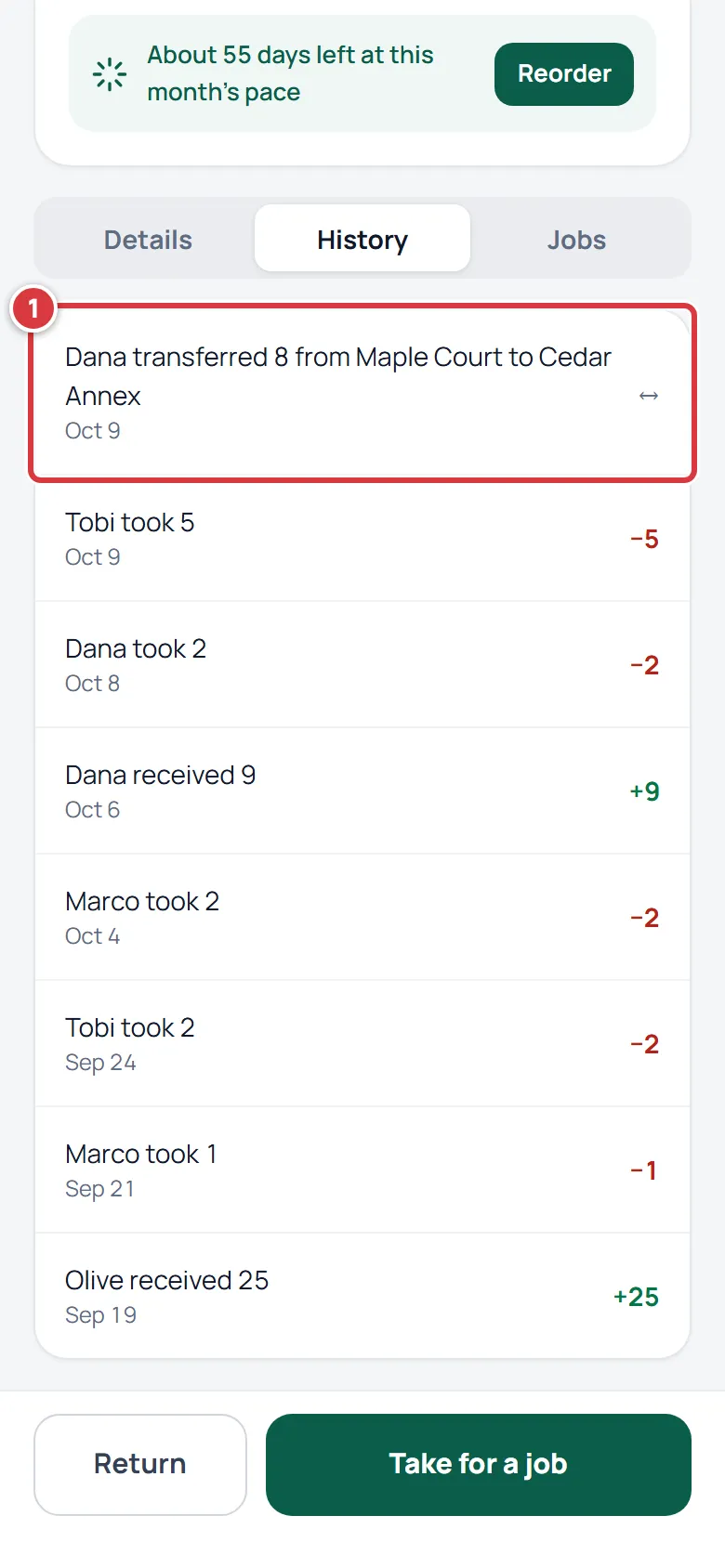
On an item's History tab, a transfer reads "Dana transferred 8 from Maple Court to Cedar Annex", with an arrow where a plus or minus would be. A move reads "Dana moved 3 from Plumbing to Truck 1".
Activity lists everything that happened, newest first. On a phone, open Settings and then Activity under More. On a computer, click Activity in the menu. It needs a signal.
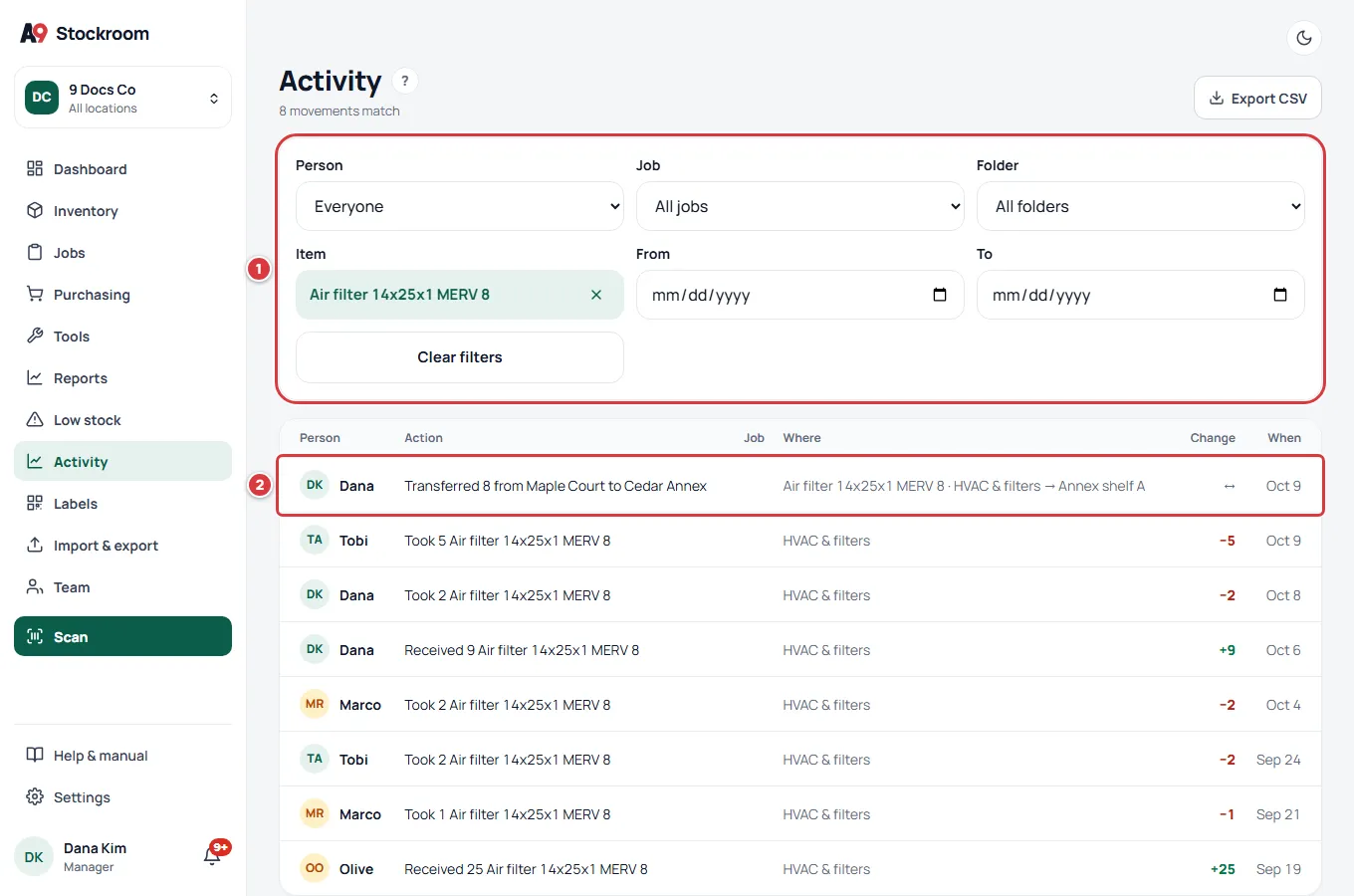
- Use the filters at the top to narrow the list: Person, Job, Folder, Item, From and To dates. Pick an item to see just its history.
- A transfer row says "Transferred 8 from Maple Court to Cedar Annex" and, in the Where column, which folder it left and which it arrived in. See Activity and history.
The location switcher#
The switcher at the top of Home, and at the top of the menu on a computer, chooses which location you are looking at. It narrows the numbers, Items, Folders, Low stock and the Move to list. It does not limit Transfer: that sheet always offers every location you can reach. Techs have no All locations choice. See The Home screen.
What you'll see#
- A green message: "Moved 3" or "Transferred 8 from Maple Court to Cedar Annex".
- Where it is shows the new numbers per folder, and Stock by location shows the new numbers per location.
- An item can become low at the location it left, or stop being low at the one it reached. Each location is judged against its own minimum. If the sending location drops under its minimum, owners and managers get an alert. See Minimums and reordering.
- One line in History and Activity, with your name.
If it didn't work#
There is no Move button#
Only owners and managers can move stock between folders. Ask one, or ask them to change your role. See Roles and permissions.
There is no Transfer button#
You see it only when the company has two or more locations that you can reach. A tech has to be assigned to both. Viewers cannot transfer. A manager can assign you to a location: see Team. It is also missing for tools.
"Not enough in that folder."#
You asked for more than the From folder holds. Lower the number or pick a folder that holds more. If the shelf really has more than the app says, count it: see Counting stock.
"Pick a different location to transfer to."#
From and To location are the same. Use Move for a move inside one location.
"You are not assigned to that location."#
A tech can transfer only between their own locations. Ask a manager to assign you.
"That location is archived." or "That folder is archived."#
Nothing goes into a location that has been archived. Pick another, or ask a manager.
"No folders at Cedar Annex yet"#
The location you picked has no folders. A manager has to add one first. See Folders.
"Couldn't load the folders. Close this and try again."#
The sheet could not get the folder lists. Close it and open Transfer again. With no signal, see Working without signal.
I sent it to the wrong place#
Make the opposite move or transfer. Each one is recorded with who made it, so nothing is lost.