Low stock
See everything that is under its minimum, how many to order, and how long it will last, then turn the lines you pick into purchase orders.
The Low stock screen is your shopping list. It shows every item that is under its minimum, grouped by supplier, with how many to order to get back up to the reorder-to level. Everyone can open it. Owners and managers on the Pro plan can also turn it into purchase orders in one tap.
How an item gets onto the list is explained in Minimums and reordering.
What you'll need#
- Any role to look at the list. Owners and managers are the ones who see the tick boxes and Create PO.
- The Pro plan, to create purchase orders. On Essentials the list still works and shows a note about the plan. See Your plan.
- For orders that sort by supplier: items with a supplier set. See Suppliers.
Steps#
Open Low stock#
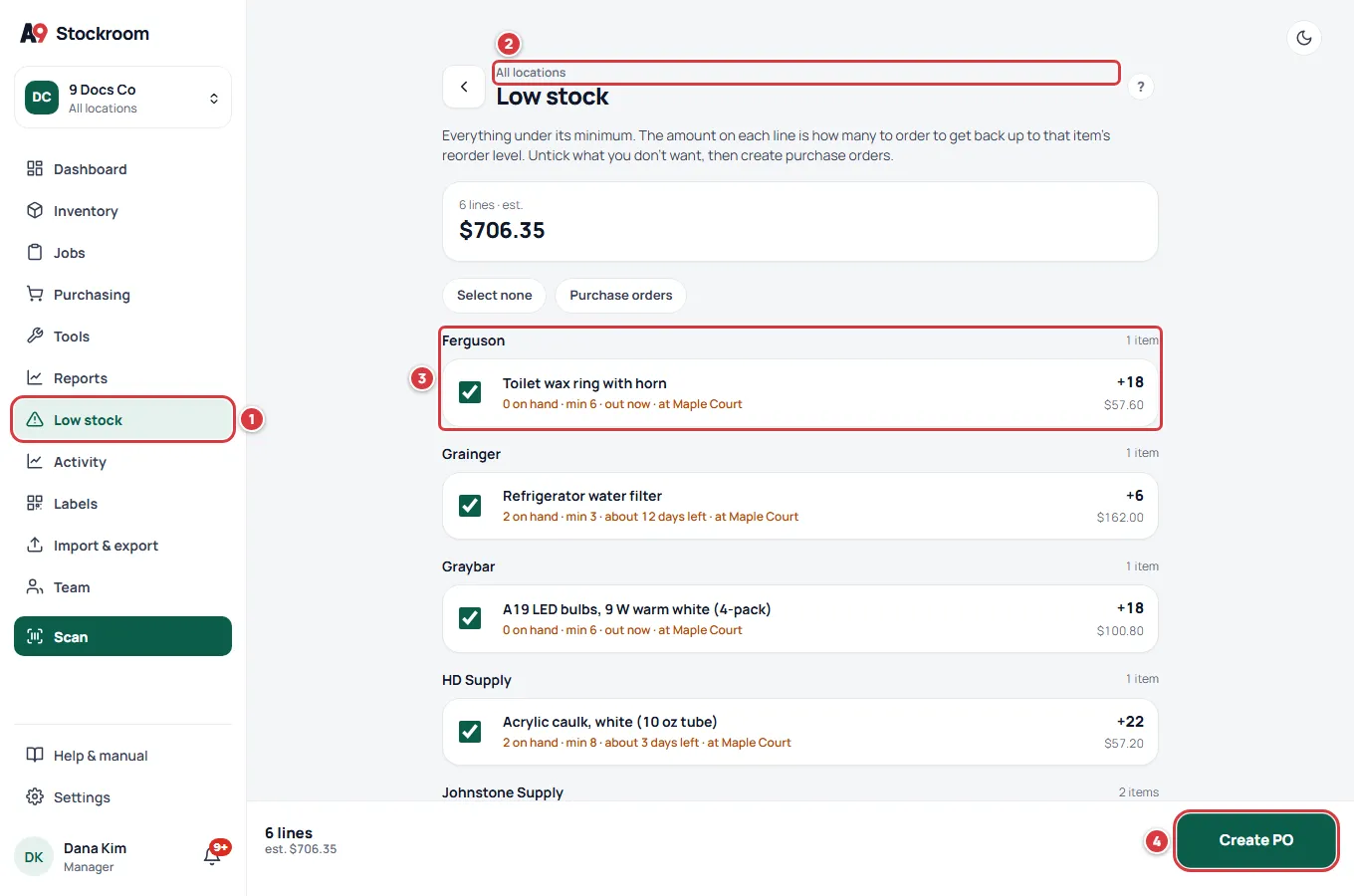
- On a phone, tap Settings, scroll to the More list and tap Low stock. On a computer, click Low stock in the left menu.
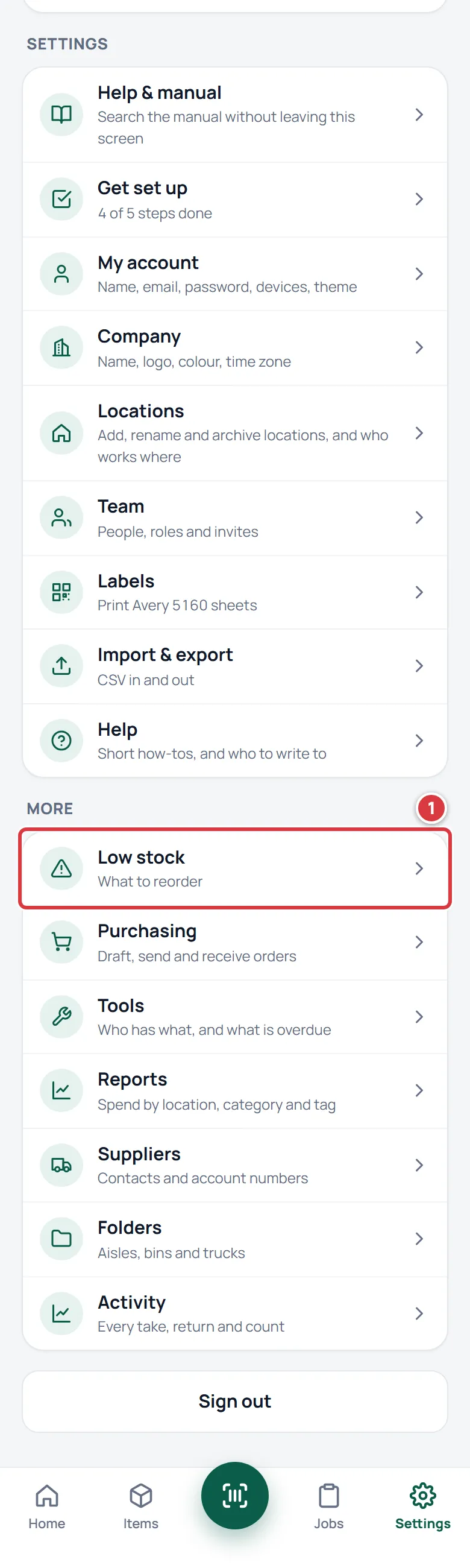
You can also tap Reorder on Home, or on an item that shows a days-left forecast.
The screen opens with the location name above the title, then the list.
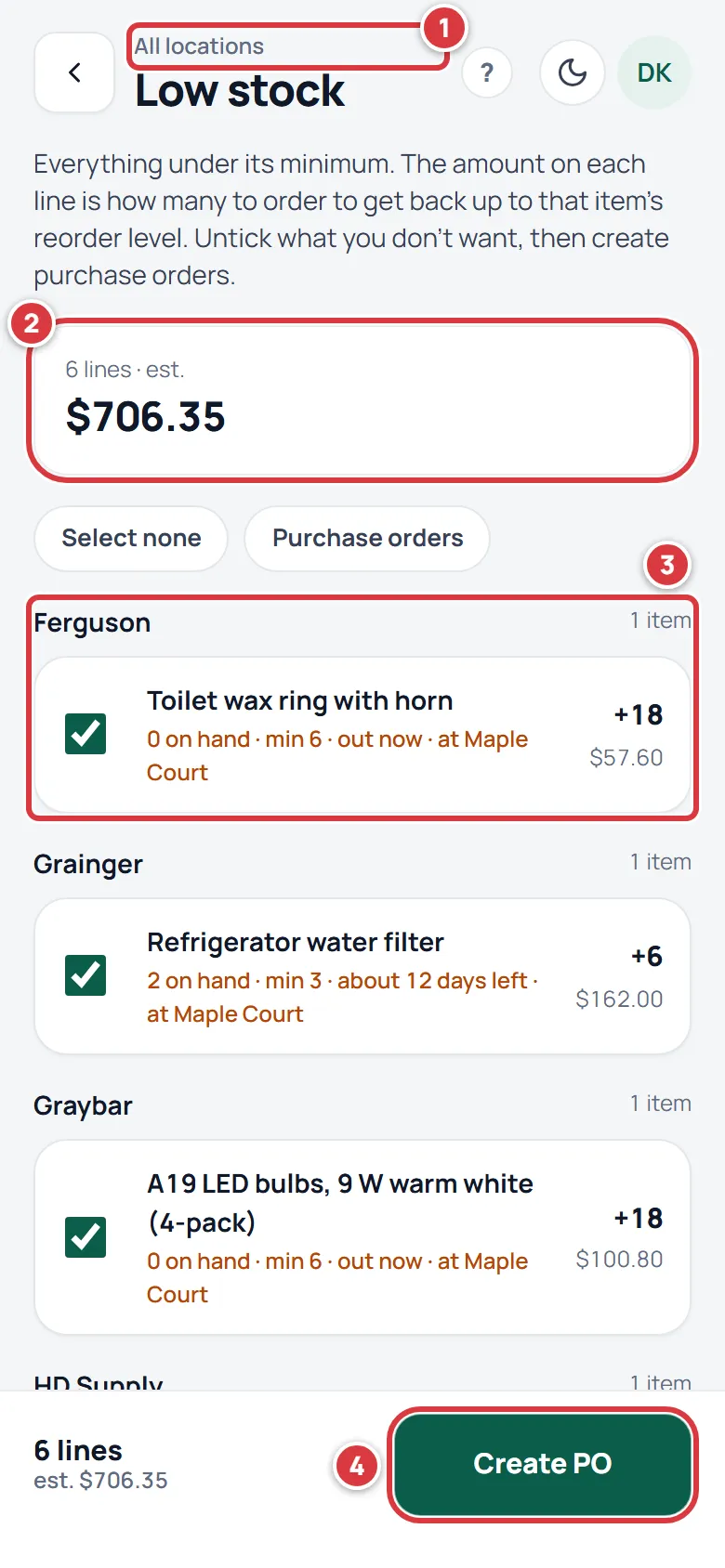
- The location on show, or All locations.
- How many lines there are and the estimated cost of ordering all of them.
- A supplier's group, with its lines under it.
- Create PO, at the bottom, for owners and managers on Pro.
On a computer it is the same screen, with the menu on the left.
Read a line#
Each line is one item.
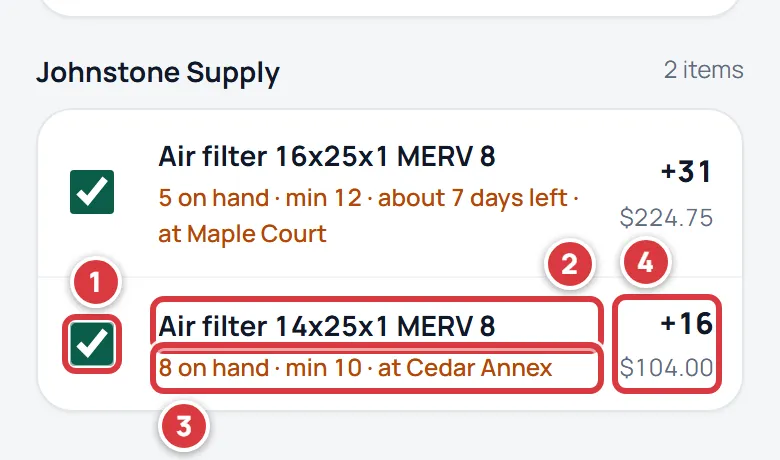
- The tick box, for owners and managers. A ticked line goes into the purchase orders.
- The item's name. Tap the line to open the item.
- How it stands: the number on hand, the minimum, and, when there is enough history, how long it will last ("about 7 days left", or "out now" when none is left). On All locations the line ends with "at" and the location where it is lowest.
- How many to order, like +16, with what that costs under it. The quantity is the reorder-to level minus what is on hand. The cost is that quantity times the item's unit cost. If the line says At reorder level or No reorder level, there is nothing to suggest; set Reorder to on the item.
The groups are in order of supplier name, A to Z, and a group called No supplier set comes last. Inside a group the worst lines are first: the ones furthest under their minimum.
Look at one location#
Low stock follows the location you chose in the switcher. Pick one location, and only the lines that are low at that location show, measured against that location's minimums.
On a phone, tap Home, tap the location name under your greeting and pick one. On a computer, click the company and location name at the top of the left menu and pick one.
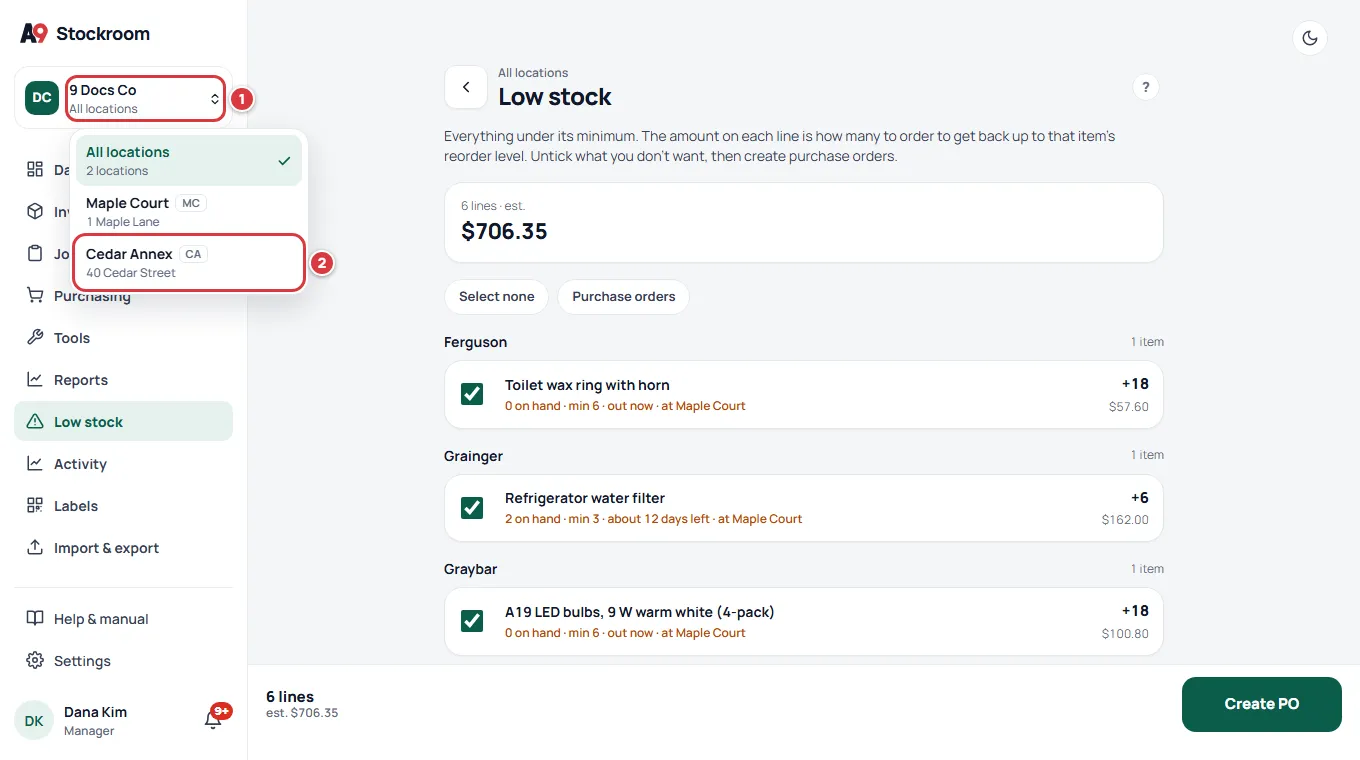
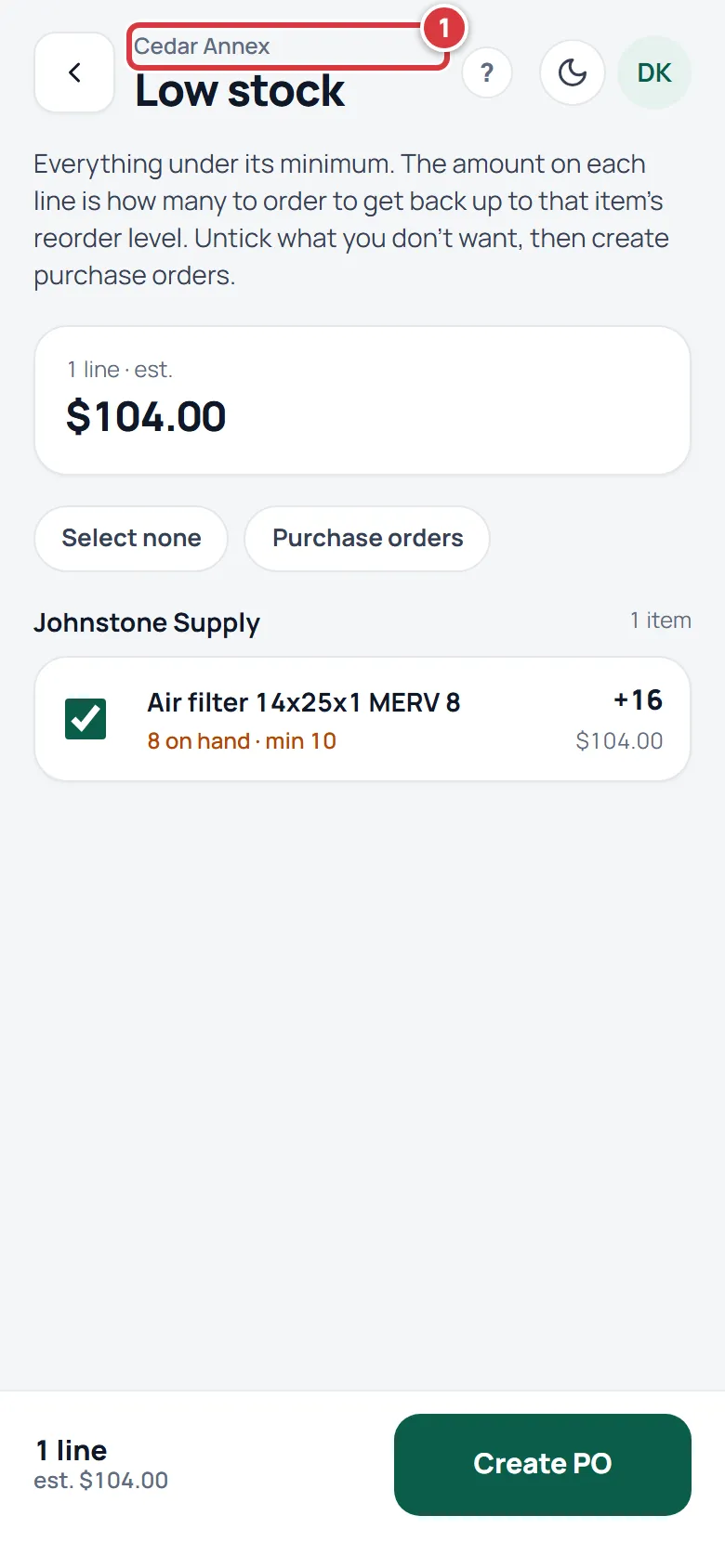
Go back to All locations to see every location at once. All locations needs the Pro plan. See Switch location.
Create purchase orders from Low stock#
This needs the Pro plan and the Owner or Manager role.
- Open Low stock.
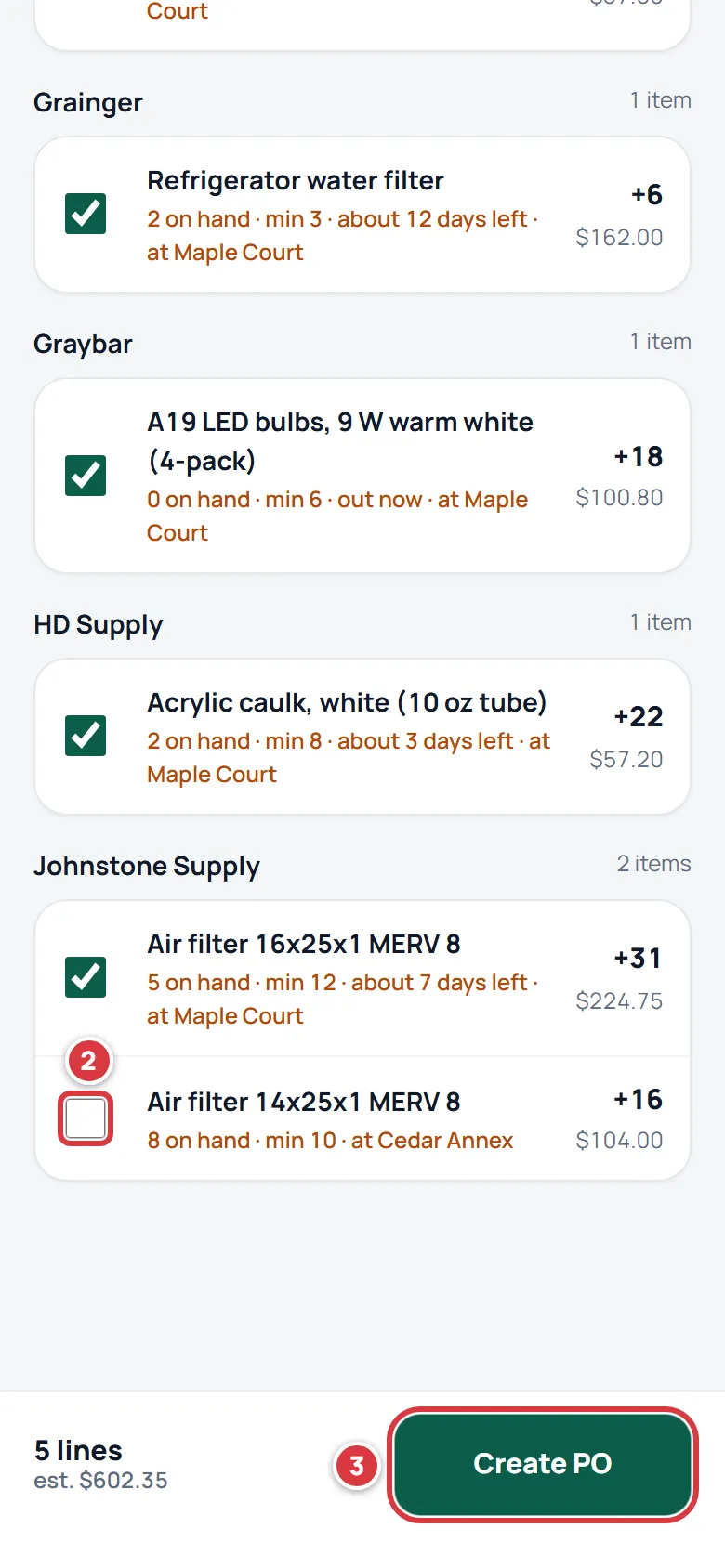
- Untick the lines you do not want to order now. Select none unticks everything. The same button then says Select all.
- Tap Create PO. It shows how many lines are ticked and what they cost.
- If your company has more than one location, check Ships to. It starts as the location on show, or where the first ticked line is low.
- Choose Into folder, or leave it on Choose when receiving.
- Tap Create draft POs.
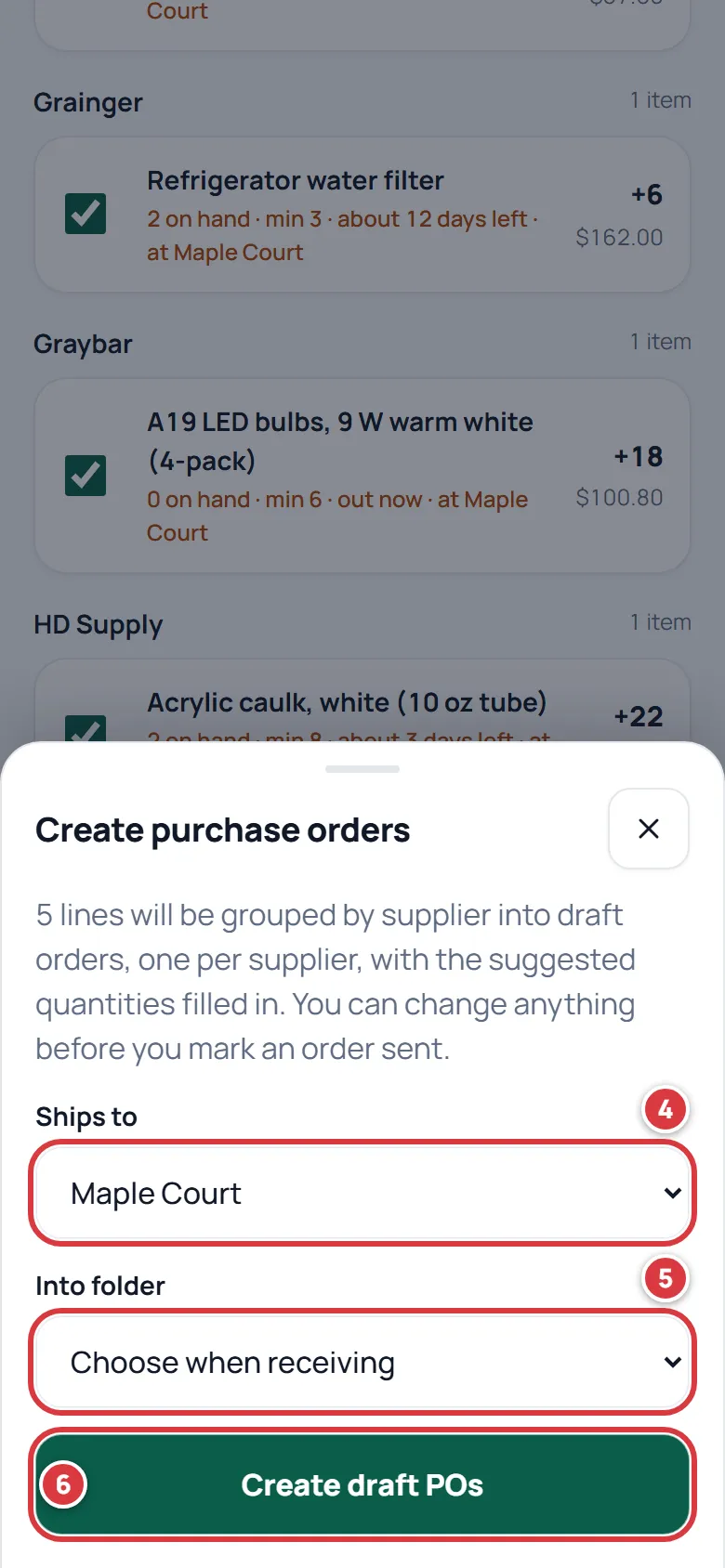
One draft order is made for each supplier among the lines you ticked. You can change anything before you send it. The rest of the order, sending it, receiving it and cancelling it, is on Purchase orders.
The quantities are worked out from the location in Ships to. Choose the location that matches the lines you ticked.
On All locations the list can mix lines that are low at different locations, such as one item low at Cedar Annex and two low at Maple Court. Ships to then starts at the location of the first ticked line, which fits only some of them. Make one order per location: pick the location in the switcher first, so Low stock shows only its lines, then tap Create PO. Into folder lists only the folders at the location in Ships to; a location with no folders shows only Choose when receiving, and you will need to add a folder there before you can receive (Folders).
Get the list by email#
Owners and managers get a daily email that lists what is low. See The daily digest email.
What you'll see#
- After Create draft POs with one supplier, the new order opens. With several suppliers, the Purchasing screen opens with a note like "3 draft purchase orders created, one per supplier."
- When nothing is under a minimum, the screen says Nothing is low.
- A company that has no items yet sees the first-items screen instead of a list. See Items.
If it didn't work#
An item is not on the list#
An item shows only when its stock is under a minimum that is more than zero, it is not a tool or archived, and it is carried at the location on show. See How low is decided.
There are no tick boxes or Create PO#
Your role is Tech or Viewer, or your company is on Essentials. On Essentials the screen says "Purchase orders are part of the Pro plan." See Your plan.
Create PO is greyed out#
No lines are ticked. Tick at least one.
It says the purchase orders could not be created#
The message is "Couldn't create the purchase orders. Try again." Check your signal and tap Create draft POs again. A message that says your role can't create purchase orders means you are not an owner or a manager.
A line says No reorder level#
The item has no Reorder to number, so there is nothing to suggest. A purchase order made from it is for enough to reach the minimum. Set Reorder to on the item to change that. See Minimums and reordering.
A line has no days left#
There are not enough takes in the last 30 days to work it out. See The days-left forecast.
An item is low at the other location#
Pick All locations, or the other location, in the switcher. Each location is measured on its own.