Taking stock for a job
Start or pick a job, scan or open the part, take what you need, and see it charged to the job. Also what happens with no job, and what to do when there is not enough stock.
What you'll need#
- A tech, manager or owner sign-in. Viewers can look but not take.
- A work order number, like WO-4471, if the parts belong to a job.
- The part: its QR label or barcode, or its name to search for. See Finding things.
- No signal is fine. Taking works without one and sends itself later. See Working without signal.
Steps#
Start the job#
A job is a work order you charge parts to. While a job is open, everything you take is charged to it.
Tap Start job on Home, or open Jobs and tap Start job there. Pick the kind at the top: Work order, PO or Other. (A company that says "Property" also sees Unit turn and a Unit box. For a work order, leave Unit empty.) Then fill in the form.
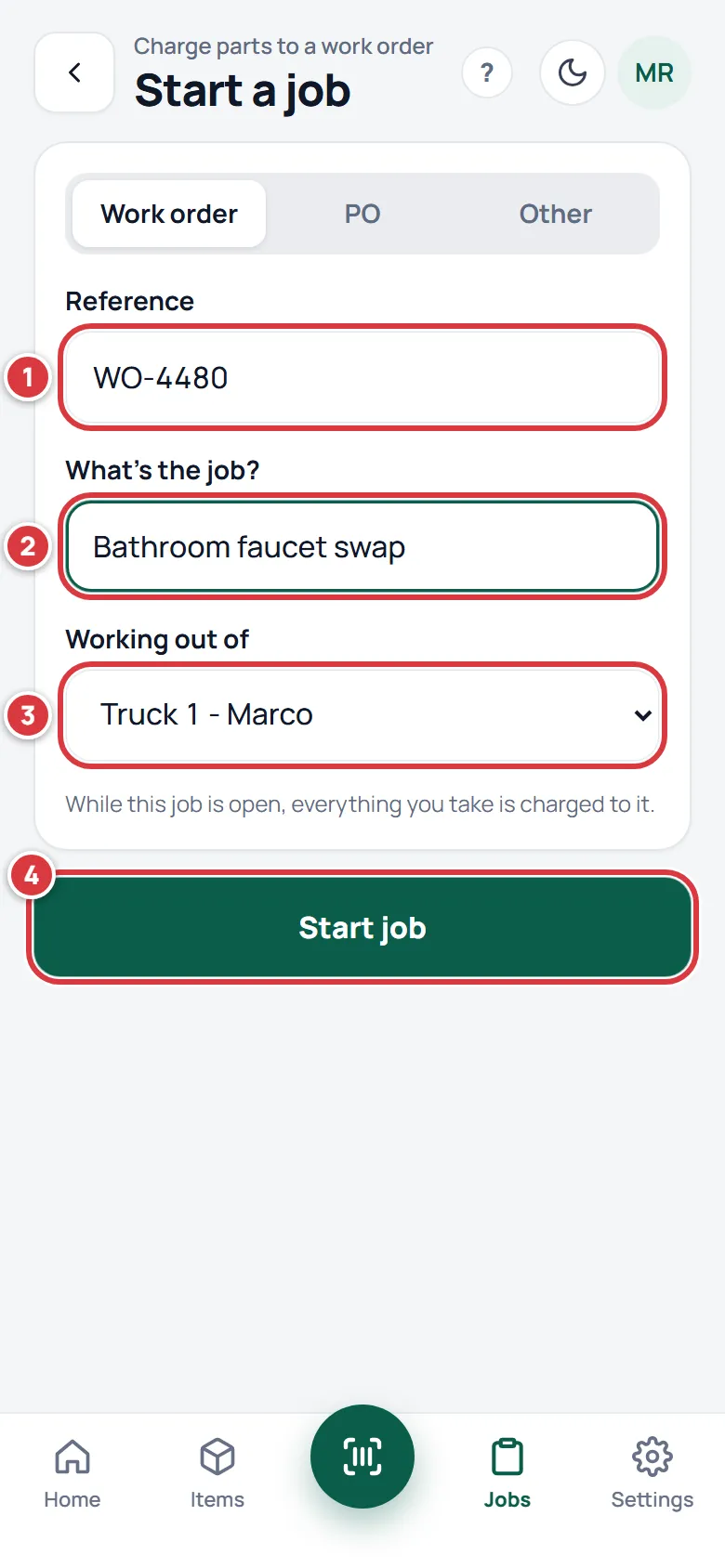
- Type the Reference: the work order number, such as WO-4480. You must fill this in.
- Under What's the job? type a few words, such as "Bathroom faucet swap". This is optional.
- Under Working out of, pick the folder you carry parts in, such as your truck. This is optional. Parts you return go back to it first.
- Tap Start job. The job's page opens, empty.
If you have more than one job open, the scanner charges the one you opened most recently. To charge a different one, use Take for a job on the item's page (see below). See Jobs for closing a job and for the bill-back total.
Take with the scanner#
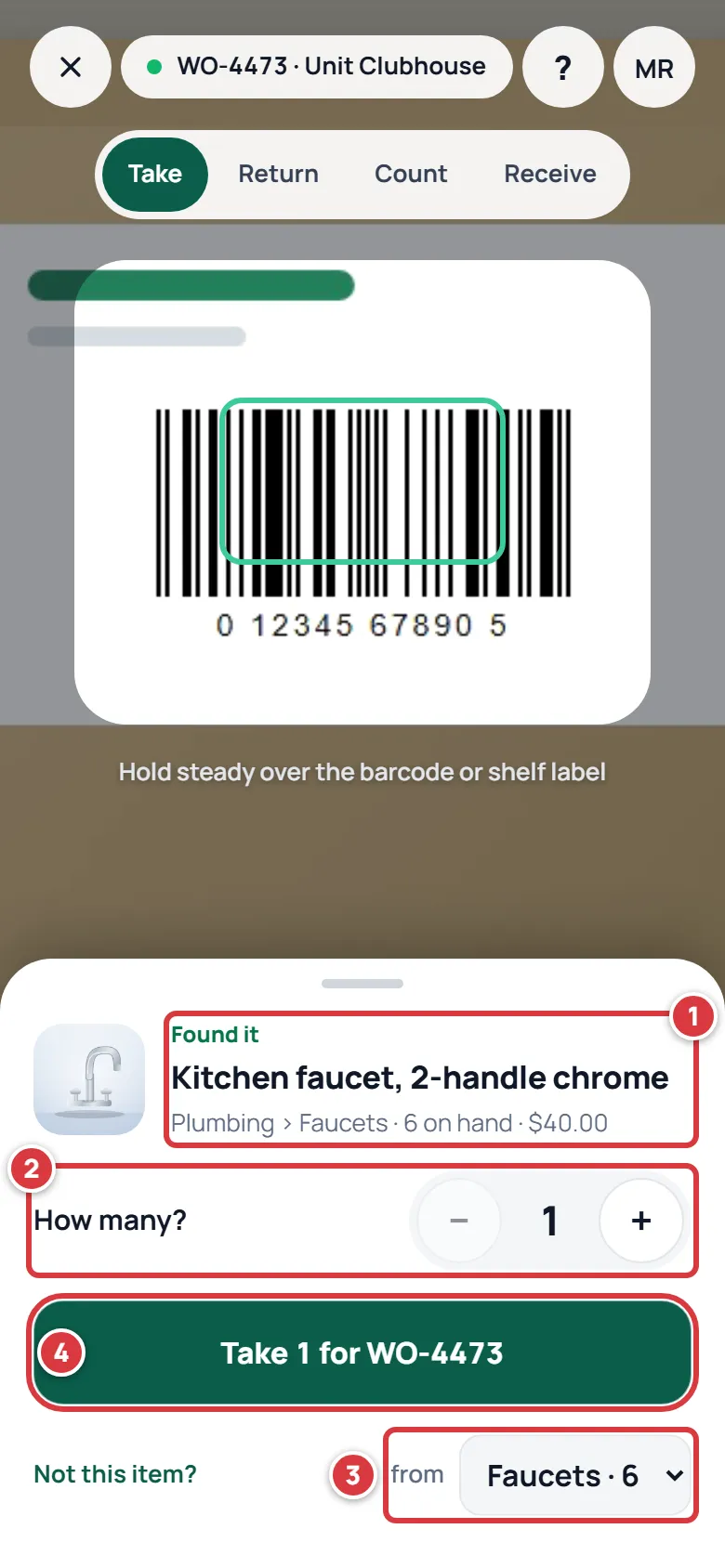
Open the scanner (the round button in the bar at the bottom). Check that the chip at the top shows your job and that Take is selected. See Scanning.
- Hold the camera over the label or barcode. A sheet slides up with "Found it" and the item's name.
- Under How many?, set the number with the minus and plus.
- If the part is in more than one folder, pick the one you are taking from, in the box at the lower right.
- Tap the big button. It says what it will do: "Take 2 for WO-4480".
Take from the item's page#
Use this when you cannot scan, or when you want to charge a job other than the newest.
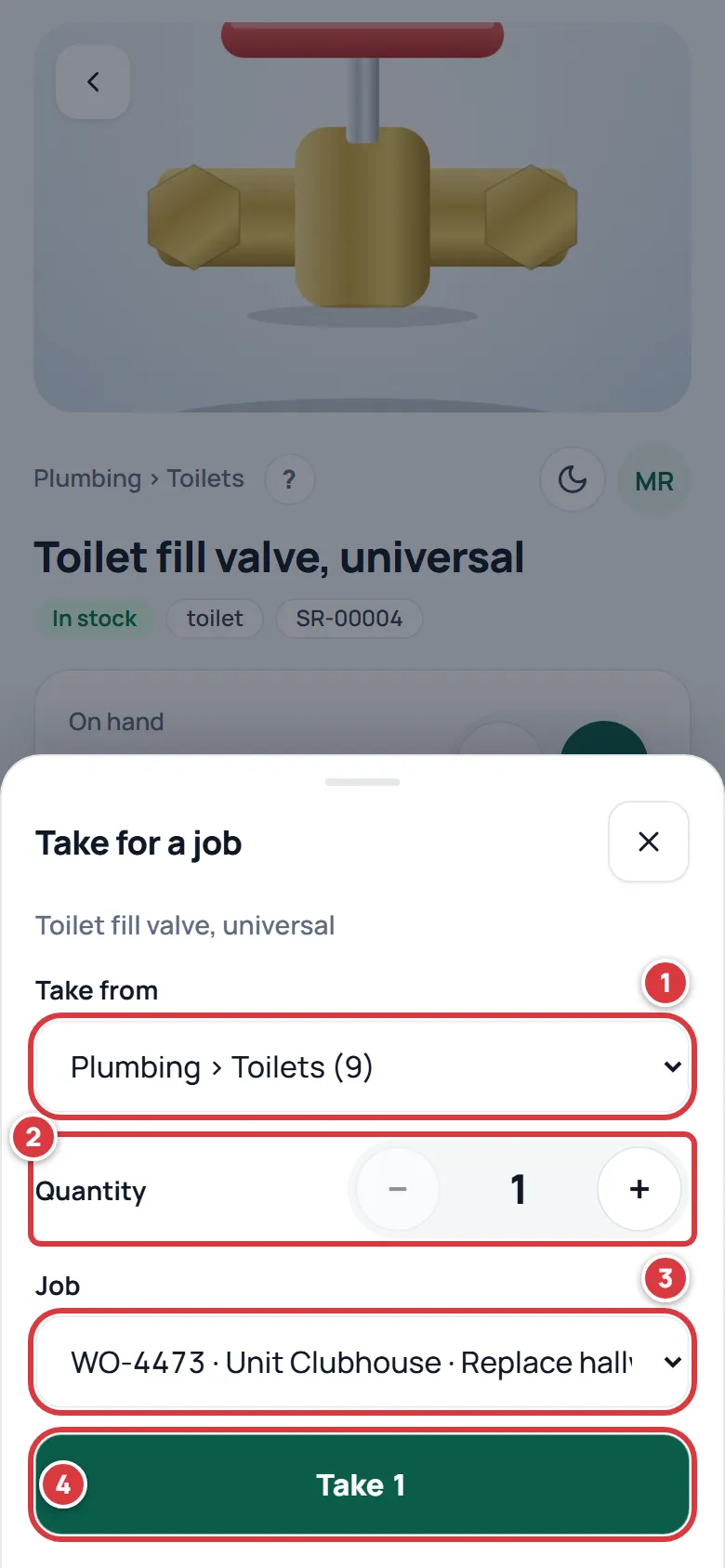
- Open the item and tap Take for a job at the bottom. A sheet opens.
- Under Take from, pick the folder. The number in brackets is how many are there.
- Under Quantity, set how many.
- Under Job, check the job. It starts as your newest open job. Pick another, or No job. Then tap Take and the number, for example "Take 2".
The round minus on the item's card is a quicker way to take one. It takes one from the folder with the most and charges your open job. See The item screen.
Take with no job#
If you have no job open, the chip on the scanner says No job, and the big button says just "Take 1". The take still works and still shows in the item's history. It is charged to nothing, so no job's cost goes up.
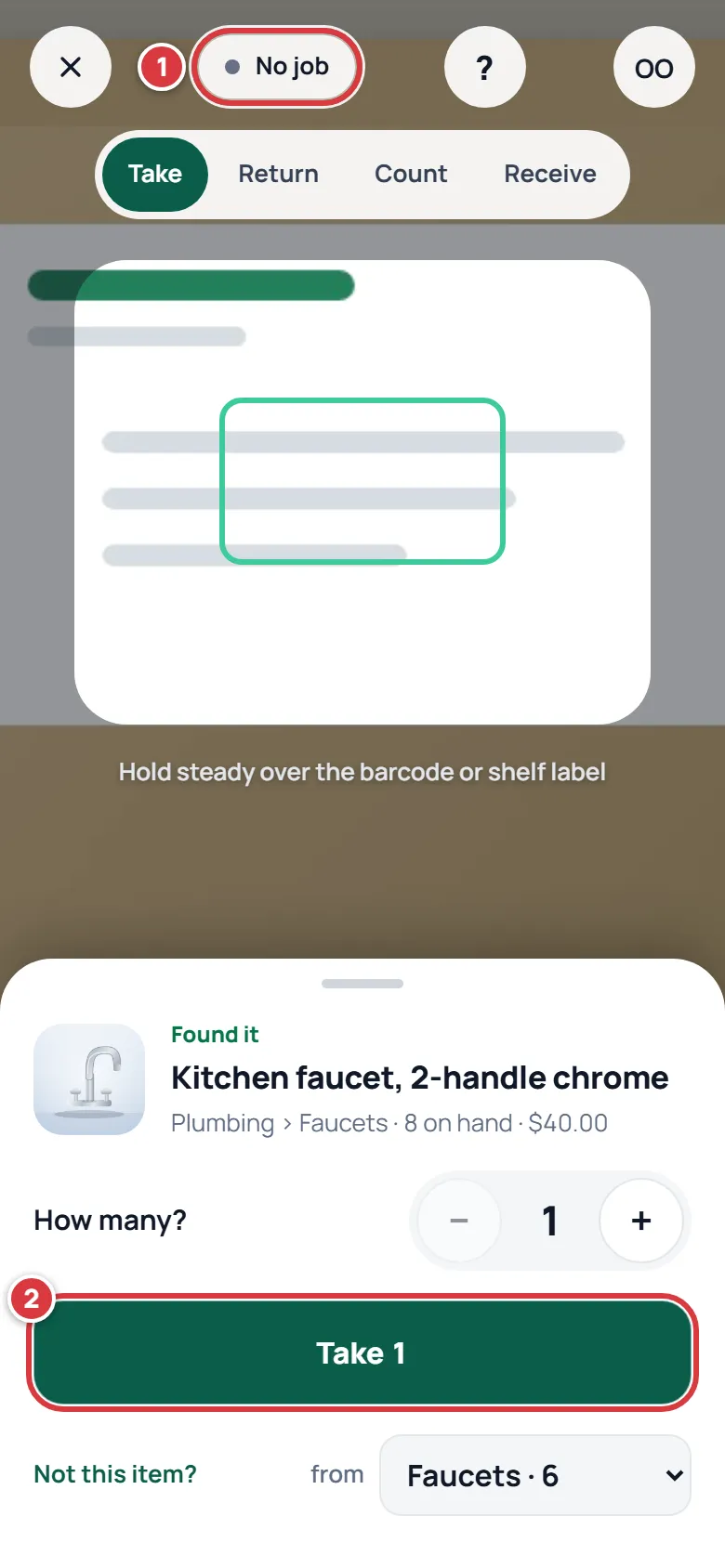
To charge a job, start it before you take.
See what was charged#
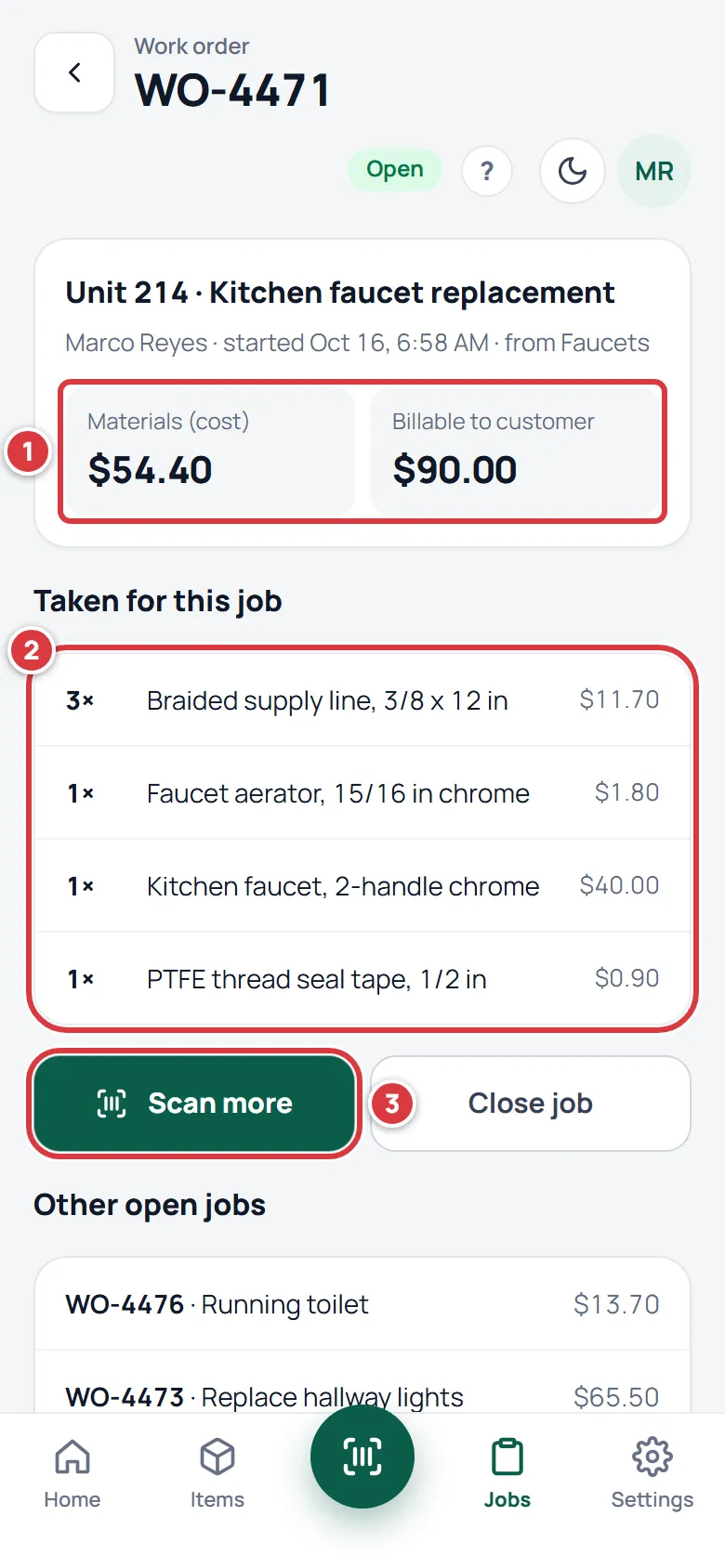
- Open Jobs and tap the job. Or tap its card in Open jobs on Home.
- Taken for this job lists every part, with how many and what they cost.
- The two numbers at the top are the materials cost and what you can bill for them.
- To add more, tap Scan more.
What you'll see#
- On the scanner, a green message at the bottom: "Took 2 · 4 left". On an item's page: "Took 2 · charged to WO-4480". Both have Undo for a few seconds. Your take stays undoable from Activity for 15 minutes. See Undo a take.
- The item's On hand goes down, and the item's History says "Marco took 2 · WO-4480".
- The job lists the part, and its cost goes up. On Home, the job's card shows more parts and a higher cost. See The Home screen.
- If your take left the item under its minimum, owners and managers get an alert. See Notifications.
If it didn't work#
If there is not enough stock#
The app does not let a shelf go below zero. If you ask for more than is there, it says so in plain words and nothing is taken.
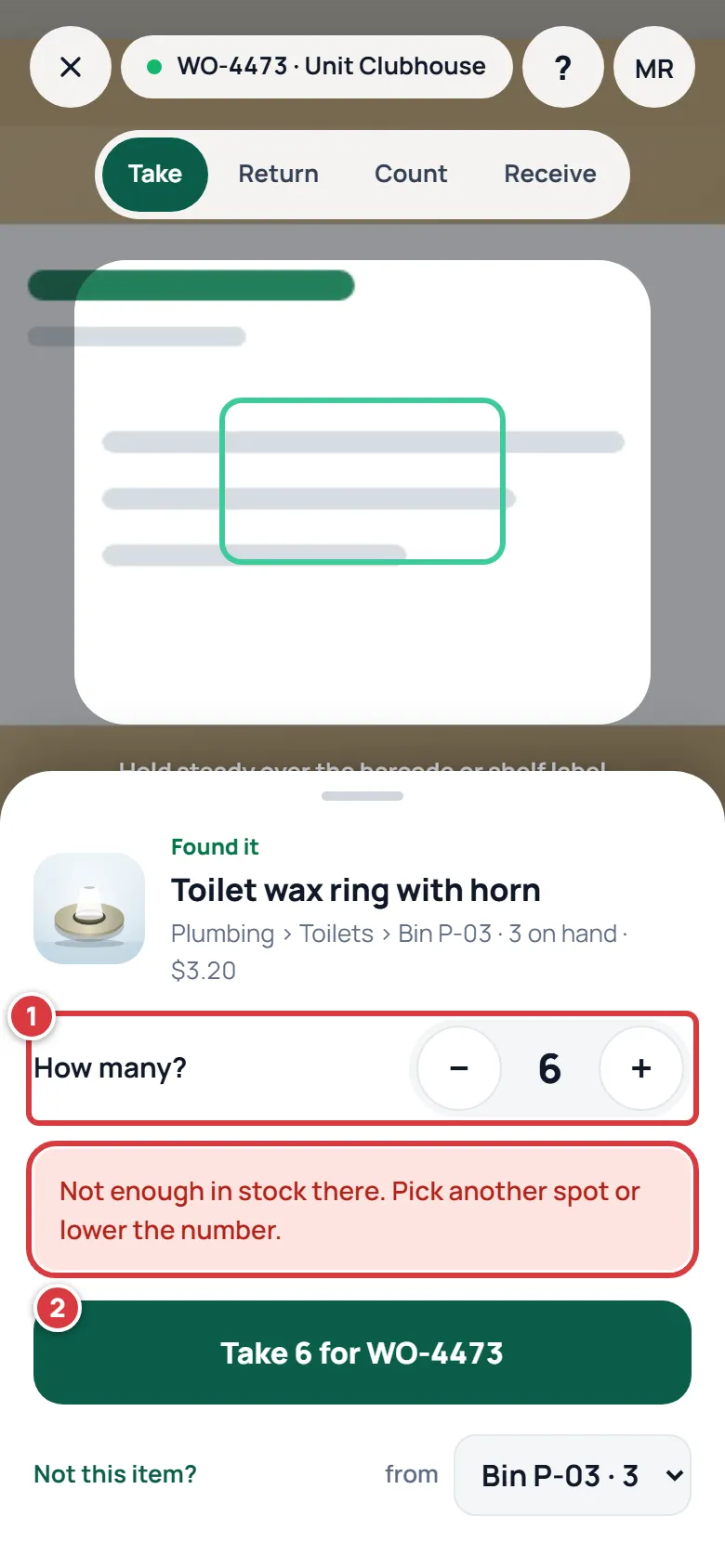
- On the scanner you see "Not enough in stock there. Pick another spot or lower the number."
- In the item's Take for a job sheet the number stops at what is in the folder, and a note says "That's everything there is in that folder."
- With nothing on hand, the scanner says "None on hand to take."
Fix it: lower the number, or pick another folder that holds some. If the shelf really has more than the app says, count it: see Counting stock. If a take made with no signal was refused when it synced, because someone else took the last ones first, it waits under Needs attention with the reason. See Working without signal.
"That job is closed. Start or reopen a job first."#
The job was closed, so it takes no more parts. Start a new job, or ask a manager to reopen the old one.
The chip shows the wrong job#
The chip shows the job you opened most recently that is still open. Close the ones you have finished, or choose the job in the Take for a job sheet on the item's page.
Nothing shows on the job after I took something#
Check that the chip said your job when you took, or that Job was set in the sheet. A take with No job is not charged to any job.
"We can't find that item any more"#
The item was archived or removed since you opened it. Ask a manager.
"Your role can't do that."#
Viewers cannot take. Ask an owner or manager to change your role. See Roles and permissions.
"Couldn't save. Check your connection and try again."#
The take did not reach the stockroom. Try again. With no signal, see Working without signal.