Troubleshooting and FAQ
Quick fixes for the problems people hit most: signing in, scanning, wrong numbers, sync, your team and plan, and imports. Each answer links to the page with every step.
Find your problem by its group, then follow the numbered steps. The messages in quotes are the exact words the app shows, so you can match them to your screen. Still stuck? Write to support@a9stockroom.com and say what you were trying to do and what the screen said.
Signing in#
I can't sign in#
Read the message under the sign-in form. It tells you which of these it is.
- "That email and password don't match." Check the address first: it is the one your invite was sent to. Then tap Forgot? and choose a new password (see "I forgot my password" below).
- "Confirm your email first. We just sent you a new link." Open the new email from A9 Stockroom, tap its confirm link, then sign in again. Check your spam folder if you cannot find it.
- "Too many tries. Wait a minute and try again." Wait a minute, then try once more. Typing the wrong password again and again keeps the lock on.
- "You're offline. Signing in needs a connection." Get a signal or Wi-Fi first.
- "This phone has been offline for a while. Sign in with a connection to keep going." The phone kept its saved copy as long as it safely could. Sign in with a connection to carry on.
There is no public sign-up. If you have no account yet, you need an invite from your manager: the sign-in screen says "We're onboarding teams by invitation during early access." See Signing in.
I forgot my password#
- On the sign-in screen, tap Forgot?.
- Type your email and tap Send reset link. The screen says "If you@example.com has an account, a reset link is on its way. It works for 1 hour."
- Open the email and tap its link. Type a new password and tap Save password.
- Sign in with the new password.
If the link says "This reset link has expired. Ask for a new one.", start again from step 1. Resetting a password signs out every other device. See Signing in.
My invite link says it expired#
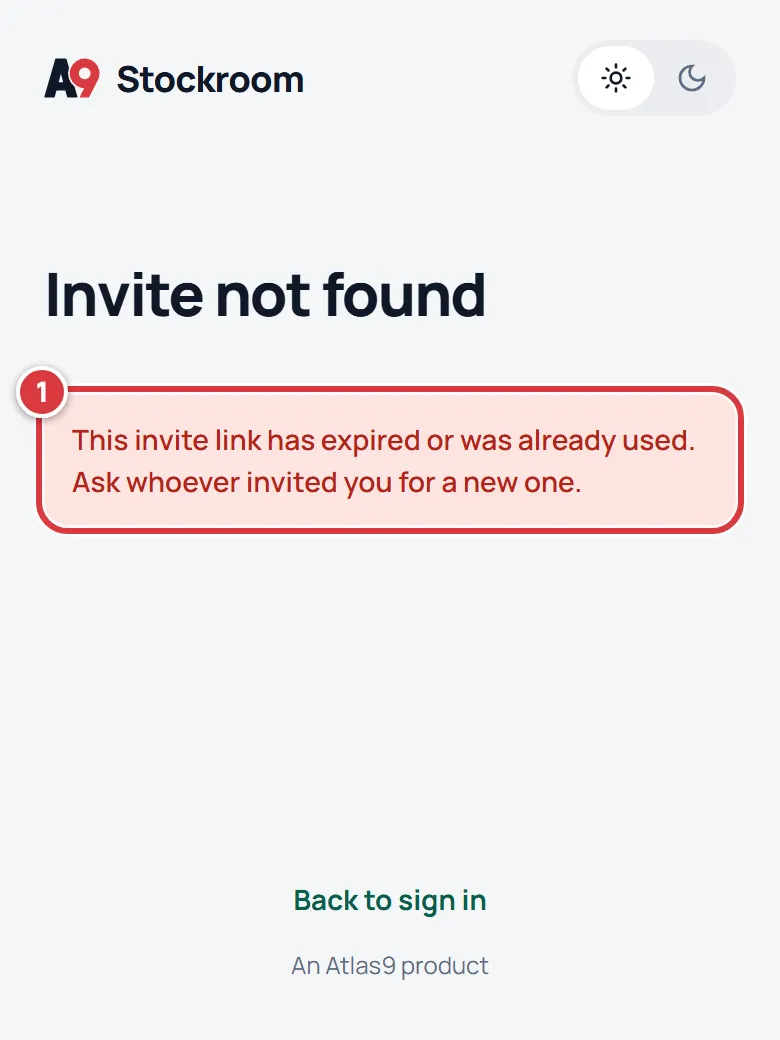
The page says "Invite not found. This invite link has expired or was already used. Ask whoever invited you for a new one." An invite link works for 7 days and only once. If you already created your account from it, just sign in.
If you need a new link, ask your manager or owner to do this:
- Open Settings, then Team.
- Find the person under Pending invites. An old one shows Expired.
- Tap Resend. The email goes out again and the 7 days start over. The link is the same one as before.
- If the email went to the wrong address, tap Revoke and send a new invite with the right address.
See Team.
The email never arrived#
This goes for invites, confirm-your-email and reset emails.
- Look in the spam or junk folder for a message from A9 Stockroom.
- Check the address was spelled right. An owner or manager can see it under Pending invites on Team.
- Ask for it again: tap Resend on the invite, tap Send reset link again, or sign in to get a new confirmation link.
- If you are inviting someone, tap Copy link on the pending invite and send the link yourself by text.
Asking too often shows "Too many tries. Wait a minute and try again." See Team.
I lost my phone#
Do this from any other device, or ask a manager:
- Sign in on a computer or another phone.
- Open Settings, then My account, and find Signed-in devices.
- Tap Sign out next to the lost phone. To end every device except the one you are on, tap Sign out everywhere else.
- Tap Change password as well. Changing the password signs out every other device.
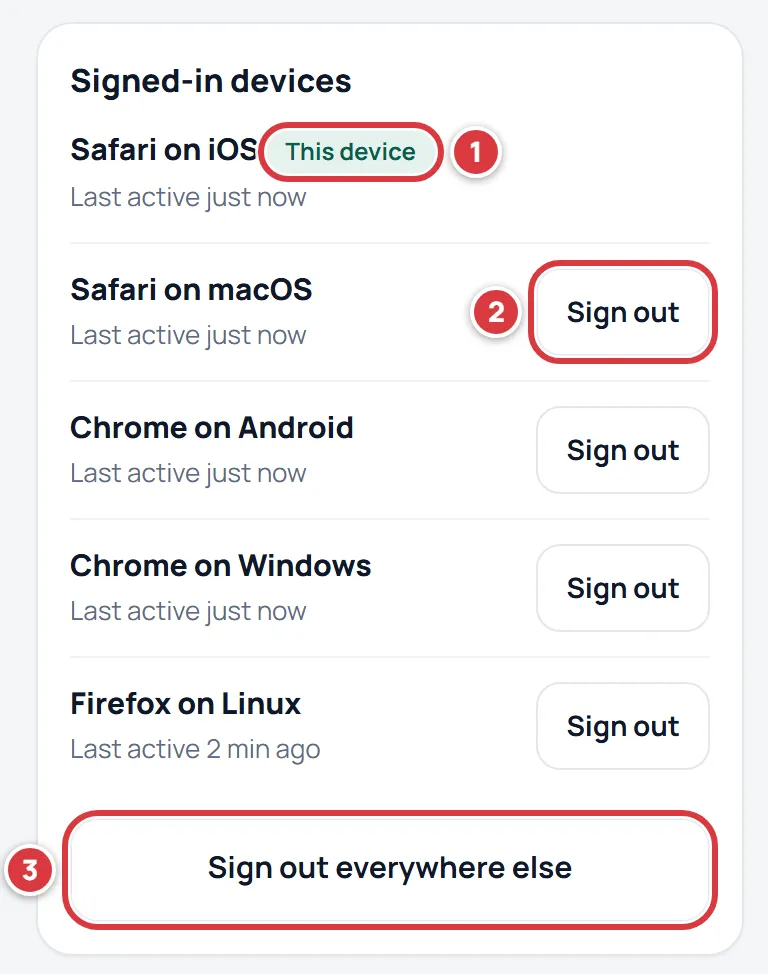
If you cannot sign in anywhere, an owner or manager can open Settings, then Team, open the menu beside your name and choose Remove from team. You are signed out of every device right away and your history stays. They can then invite you again. Anything still waiting to sync on the lost phone stays on that phone. See My account and Privacy and security.
I got an email saying my address was changed#
If you asked for it, there is nothing to do. If you did not, open the link in the email ("this wasn't me"). It puts your old address back and signs out every device. The page then tells you to reset your password, so do that next. The link works for 7 days. See My account.
The app looks out of date#
A new version waits until you say you are ready, so nothing reloads in the middle of a job.
- Look for Update ready, tap to refresh at the bottom of the screen and tap it. The app reloads on the new version.
- If you do not see it, close the app fully and open it again with a signal. The app looks for a new version whenever it comes to the front.
- If a screen says "This page did not load. Something changed while it was open.", tap Reload.
A phone with no signal cannot update; it keeps working from its saved copy and updates when it is back online. See Install on your phone or computer.
Scanning and labels#
The camera won't open#
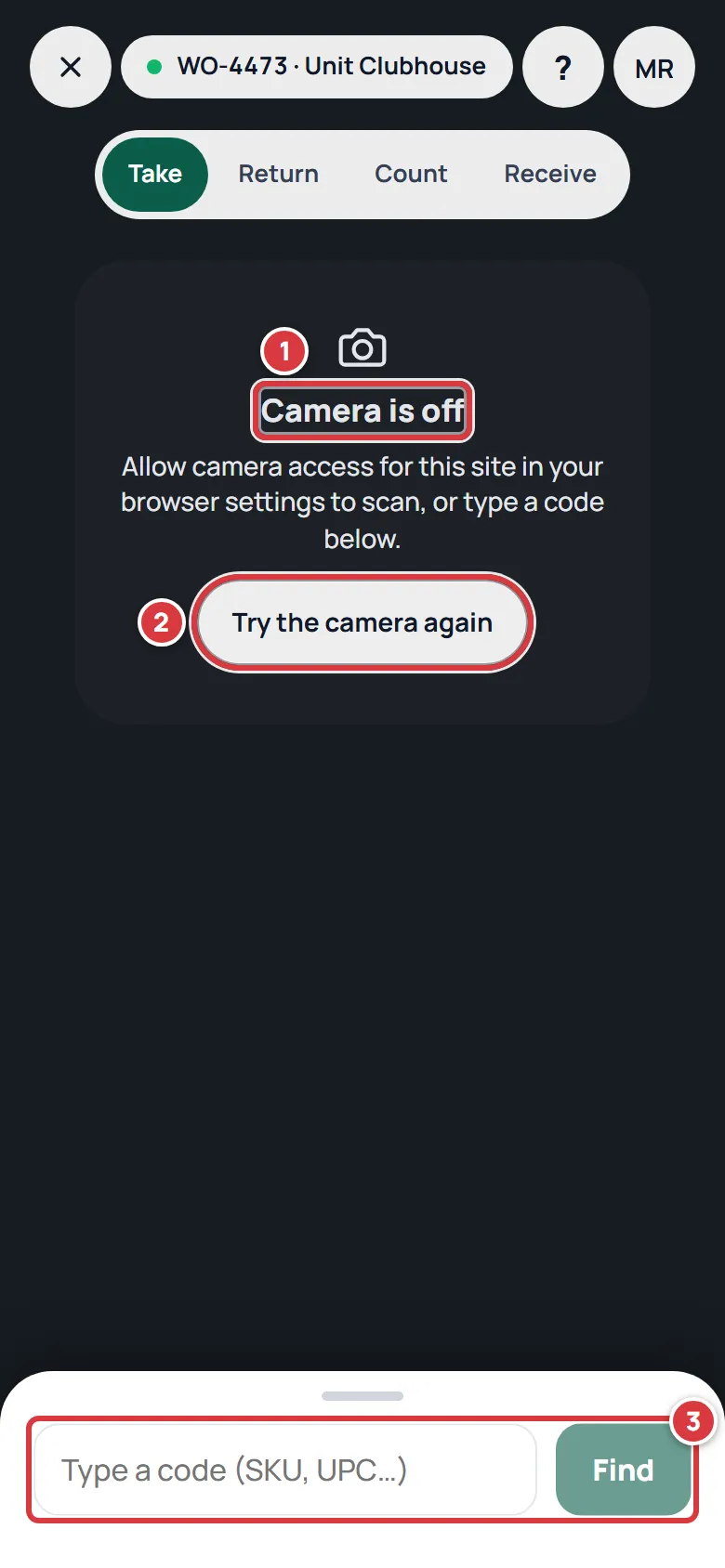
The Scan screen shows one of two messages.
- "Camera is off. Allow camera access for this site in your browser settings to scan, or type a code below." Open your phone's or browser's settings for this site, set Camera to allow, come back and tap Try the camera again. The steps for each phone are in Install on your phone or computer.
- "No camera here. This device or page can't open a camera. Type a code below instead." Use a phone or a computer with a camera, and open the app from its normal address.
- Meanwhile, type the SKU or barcode number in the box that says Type a code (SKU, UPC…) and tap Find.
See Scanning.
A label won't scan#
- Hold the phone steady, about a hand's width away, until the item opens. The screen says "Hold steady over the barcode or shelf label".
- If the Flashlight button is there, turn it on. It only shows on phones that have a torch.
- Check the label is flat, clean and fully in the frame.
- Type the code instead: use the Type a code (SKU, UPC…) box and tap Find. The SKU is printed on the label and on the item's page.
- A9 Stockroom reads QR codes and EAN-13, EAN-8, UPC-A, UPC-E and Code 128 barcodes. Another kind of barcode has to be typed.
- If labels you printed are hard to read, they may be printed too small: see "Labels print too small".
See Scanning.
The scan says there is no item with this barcode#
The sheet says "No item with this barcode" (for a barcode) or "That label isn't in your stockroom" (for a QR label).
- Tap Scan again and check you scanned the right thing.
- A QR label from another company, or for an item that was deleted, gives the second message.
- If it is a real part that is not set up yet, a manager can tap Add a new item from this barcode. Techs do not see that button; ask a manager.
- If the item exists but the barcode is not on it, a manager can type the number into UPC / barcode on the item's Edit screen.
I can't print labels#
- Open Settings, then Labels (on a computer, Labels in the menu).
- Choose what to print: Pick items and tick some, or A whole folder and pick one. Until you do, the screen says "Nothing to print yet" and Print is greyed out.
- If it says "No labels for that choice", the folder has no items in it yet.
- If it says "We couldn't make the labels", check your connection and change the selection. Labels need a signal.
- Tap Print. When the print window closes, answer Labels printed? with Yes or Not yet.
A viewer does not see the Labels row in Settings on a phone. Ask a teammate to print. See Labels and printing.
Labels print too small#
If printing is too small, the page was shrunk to fit. The Labels screen says "Avery 5160: 30 labels per US Letter sheet. Print at 100%, no margins."
- Open Labels and tap Print.
- In the print window, set the scale to 100% (some browsers call it Scale, Actual size, or "Fit to page" which you must turn off).
- Set margins to None and the paper to US Letter.
- Check the preview before you print. Print a test on plain paper first and hold it against a label sheet.
You need Avery 5160 sheets. See Labels and printing.
Stock numbers#
My stock count went negative#
A9 Stockroom never lets a count go below zero. A take that would is refused, and a count can only be set to zero or more.
- If a take was refused, the sheet says "Not enough in stock there. Pick another spot or lower the number." Lower the number, or choose another folder in the box beside Take from.
- If a change from an offline phone was refused, you will see "Only 0 left at the shelf when this synced; you took 1." under Needs attention. See "A change is stuck and won't sync".
- If what you see is a minus sign next to dollars on Home, such as "− $857 this week", that is the change in the inventory's value this week, not a count.
- If the number on the shelf is not the number on screen, fix it with a count: tap Scan, choose Count, scan the item, set the number you see on the shelf and tap Set count to.
See Counting stock.
It says "None on hand to take"#
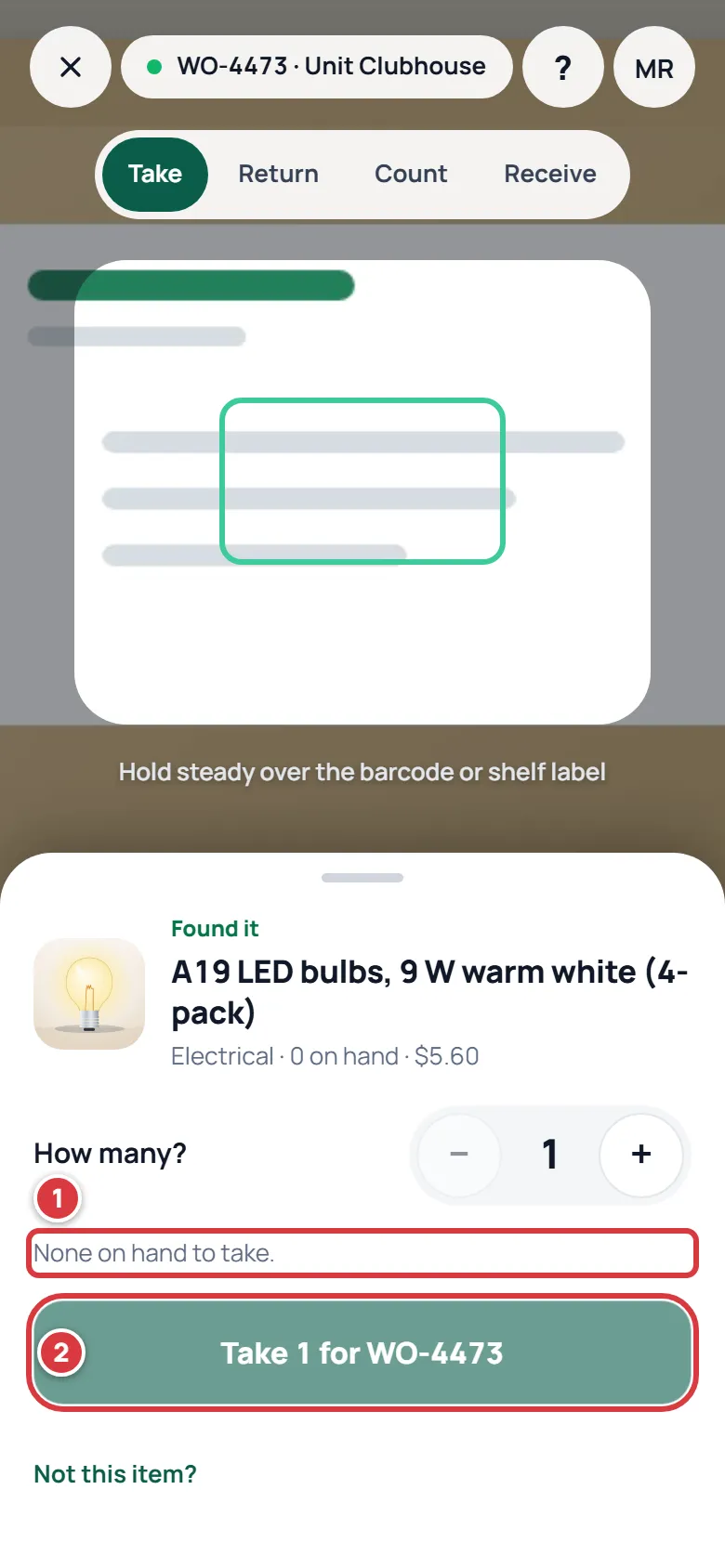
- Check you are in the right location (see "I'm in the wrong location").
- Look at the item's page. If it is stocked in another folder or location, open it and take from there.
- If the shelf really has some, tap Count, set the real number and tap Set count to. Then take it.
- If a delivery has arrived, tap Receive and add it.
I took the wrong quantity#
- Open the item and tap Return. The sheet is titled "Return to stock".
- Set the number to bring back and pick the same job in Job, so the job's cost drops too. Tap Return with the number.
- Returns from Scan do not ask for a job. Use the item's own Return button when the take was charged to a job.
- If the shelf count itself is wrong, use Scan, Count instead.
Owners and managers can also adjust a number up or down. See Returning stock and Counting stock.
An item shows low but I have plenty#
An item is low when what you have is under its minimum. Check three things.
- Open the item and look at Min qty. A minimum of 0 means never low.
- Each location has its own number. Under Stock by location a location shows Low when it has less than its own minimum, whatever the other locations hold. "All locations" shows each item at its worst location.
- A manager can change a location's number: tap Edit on that location, set Minimum, and tap Save. An empty box uses the item's own number.
See Minimums and reordering and Low stock.
A number on Home doesn't match the item#
- Look at the location at the top of Home. Every total on Home follows it. A tech's totals only include their own locations.
- Inventory value is quantity times unit cost. An item with no cost adds nothing.
- If the bar says Offline, showing data from a time, you are looking at the saved copy from then. Get a signal and the numbers refresh.
See The Home screen.
Search doesn't find my item#
- The search box looks at name, SKU, UPC, supplier part number and tags. It matches the words in the order you type them, so "wax ring" finds "Toilet wax ring" but "ring wax" does not.
- Check the filter chips under the box. If Low stock or a tag is selected, tap All.
- An archived item is hidden from lists and search. A manager can bring it back with Restore this item on its Edit screen.
- An item that is not stocked at your location still shows up, with none on hand. If it shows none, check the location.
See Finding things.
I'm in the wrong location#
- Go to Home. Next to the company name is the name of the location you are in.
- Tap it and pick the right one. On a computer, use the company box at the top of the menu.
- Everything on screen follows that choice, and the app remembers it.
If you do not see a location name to tap, you only have one location. If you cannot find the one you need, see the next question. A tech sees only the locations they are assigned to. See Locations.
I can't see a folder or location a teammate can#
A tech sees only the locations they have been given. An owner or manager can give you more:
- Open Settings, then Team.
- Open the menu beside your name and choose Assign locations (it uses your company's word).
- Tick the locations and tap Save locations.
Or open Settings, then Locations, and tick the person's name under Who works where. See Team.
A tool shows overdue but I returned it#
A tool is overdue until someone checks it in.
- Open the tool (scan its label, or find it under Tools).
- Tap Check in. Only the person who has it, or a manager, can do this.
- If you did check it in, open Sync from your account menu. The check-in may still be waiting for a signal.
- A manager can change the date with Edit due date, or Clear the due date.
See Tools.
My photo won't upload#
- Photos are added on an item's Edit screen. Tap Take photo or Choose. An item can hold up to 8.
- The phone shrinks each picture before sending it, so large pictures are fine. "Couldn't upload that photo. Try again." usually means no signal.
- "Up to 8 photos per item." means the item is full. Remove one with its Delete photo button first.
- Photos need a connection. When you are offline the Edit screen asks for one.
For your own profile picture or the company logo, "That file isn't a JPEG or PNG image." means a different file type; "That image is too big. Pick a smaller one." means choose a smaller file. See Photos.
Offline and sync#
The offline bar won't go away#
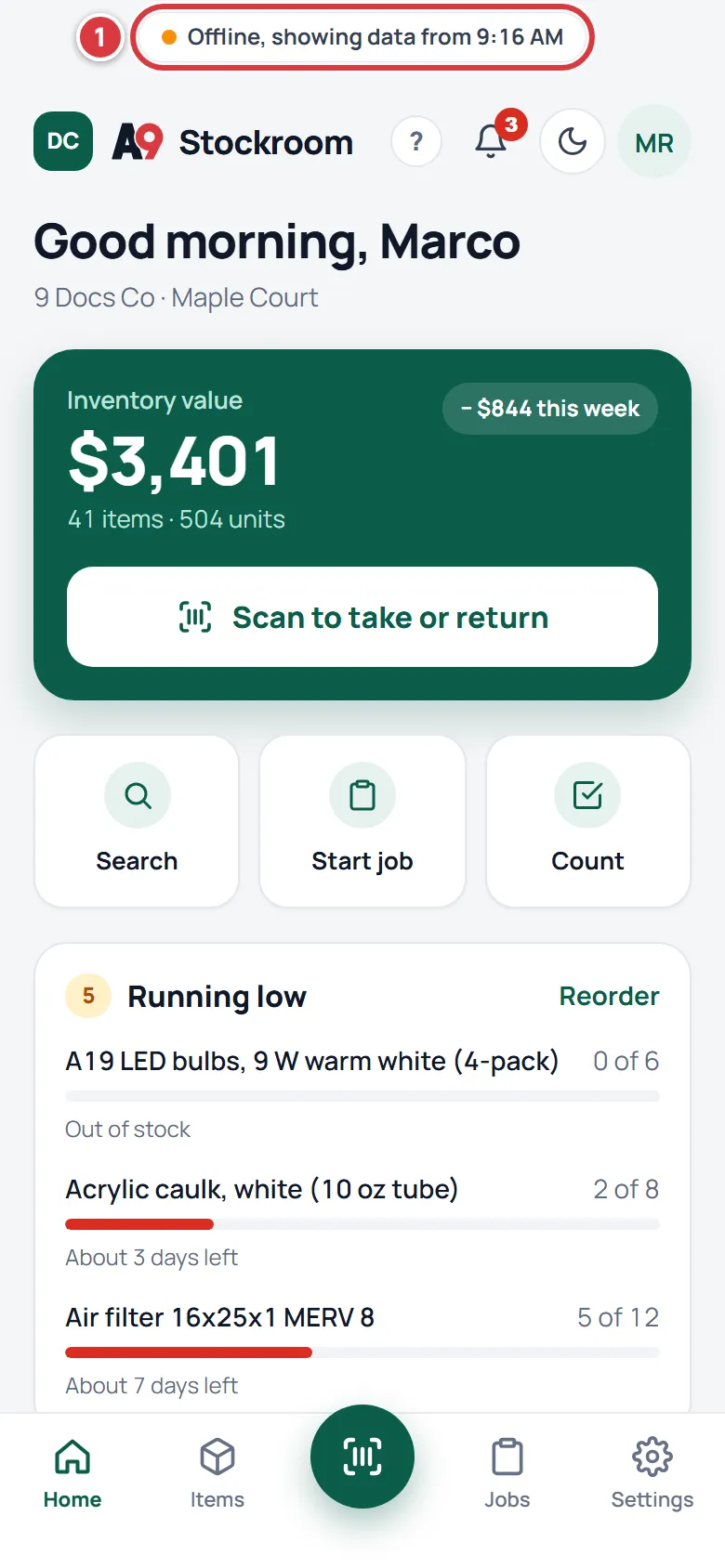
The bar clears as soon as the phone reaches the server.
- Check the phone really has a signal: turn off Airplane mode, switch between Wi-Fi and mobile data.
- Tap the bar. The Sync sheet opens and says Online or Offline.
- When it says Online, tap Sync now.
- Open any screen that loads data. Any reply from the server counts as online.
While the bar shows, scanning, taking, returning, counting and checking tools in and out still work. Settings, Reports and Labels need a signal. See Working without signal.
A change is stuck and won't sync#
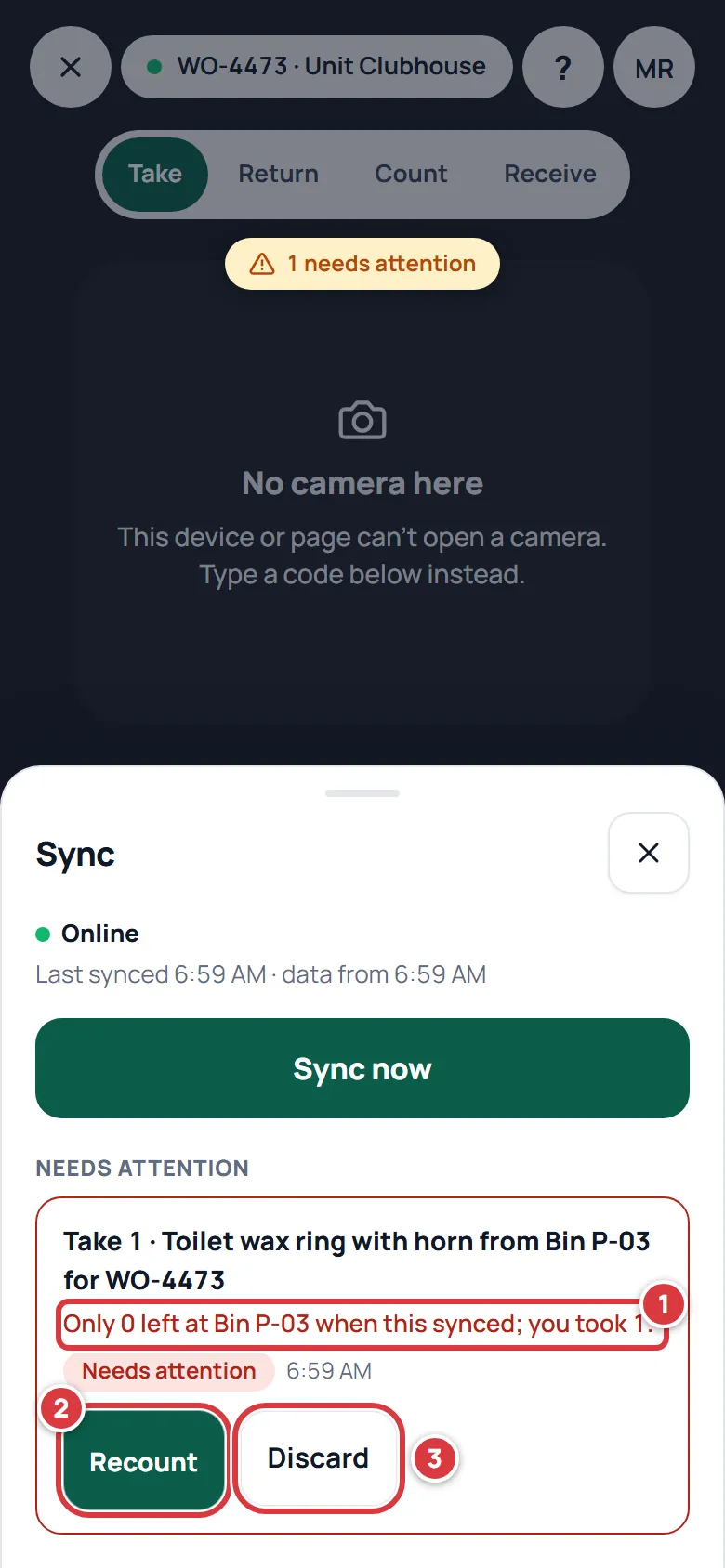
Open the account menu (your initials, in the top corner of any screen), tap Sync, and look at the sheet.
- A change under Waiting to sync (shown as Pending sync) is fine. It sends itself when there is a signal. Tap Sync now to hurry it.
- A change under Needs attention was refused. The red line says why, and the buttons are your choices. Nothing is dropped until you pick Discard.
| What it says | What to do |
|---|---|
| "Only 2 left at Bin P-03 when this synced; you took 3." | Tap the button that starts with Take and ends with instead to take what is left, tap Recount to set the real number, or Discard. |
| "That job was closed before this synced." | Keep, without the job records the take with no job. Or Discard. |
| "The job this belongs to didn't sync, so this can't go through." | Discard it, then start the job again. |
| "Someone else checked that tool out first." | Discard. |
| "That item isn't there any more." or "That folder isn't there any more." | Discard. |
| "That location was archived before this synced." | Discard. |
| "Your role can't do that." | Discard, and ask a manager. |
| "Your company is read-only right now. Try again when access is back." | Try again later, or Discard. |
Recount asks "How many are on the shelf now?", then Save count and retry saves the count and tries the change again. See Working without signal.
My scan didn't sync#
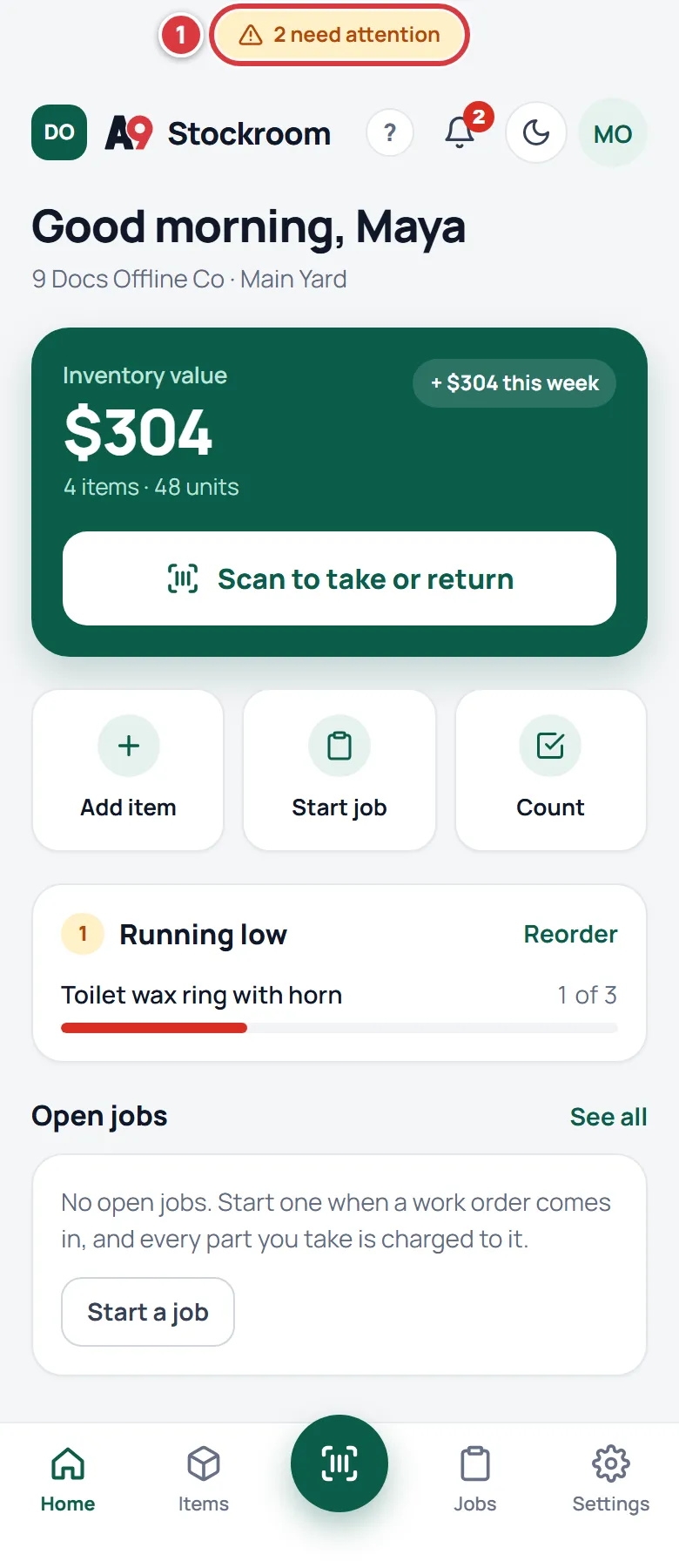
- Look for a chip at the top of the screen. "3 waiting to sync" means they are still on your phone and will send when you have a signal. "1 needs attention" means one was refused.
- Tap the chip and use Sync now, or follow the steps in "A change is stuck and won't sync". With a signal, the sheet says Everything is synced. when nothing is waiting and nothing needs attention.
- A scan only changes stock when you tap Take, Return, Set count to or Receive. Finding an item does not change anything.
- Check the item in Activity. A change that reached the server shows "synced later" when it was made more than 5 minutes before it arrived.
See Working without signal and Activity and history.
I was signed out with changes still waiting#
Sign in again with the same account. Changes that were waiting are kept for the person who made them and send once you are signed in with a connection. If you were removed from the company, they cannot be sent. See Working without signal.
Team and plan#
I can't invite someone#
- "Your plan includes 10 people. Contact support@a9stockroom.com to add more." The count includes people and open invites. Revoke an invite nobody needs, or ask support to raise the limit. An expired invite does not use a seat, but bringing it back with Resend does.
- "Your role can't invite that role." Managers can invite techs and viewers. Only the owner can invite a manager.
- "That person is already on your team." They already have access.
- "Check the email address." The address has a typo.
- "This company is read-only right now." See "The company says it's read-only".
I can't remove a manager#
Only the owner can remove or demote a manager. Managers can remove techs and viewers, not other managers.
- As the owner, open Settings, then Team.
- Tap the menu beside the manager's name.
- Choose Remove from team and confirm. They are signed out right away and their history stays.
The owner cannot be removed. To step down, choose Make owner on a manager. You become a manager and they become the owner. See Team.
I can't see Purchasing, Tools or Reports#

There are two reasons.
- Your plan. On the Essentials plan these screens say "This is part of the Pro plan. Contact support@a9stockroom.com to upgrade." The owner can write to support to upgrade.
- Your role. Reports is for owners and managers only.
On a phone these three are under Settings, in the More list. On a computer they are in the menu. A Pro badge shows beside them when your plan does not include them. See Your plan and Roles and permissions.
The company says it's read-only#
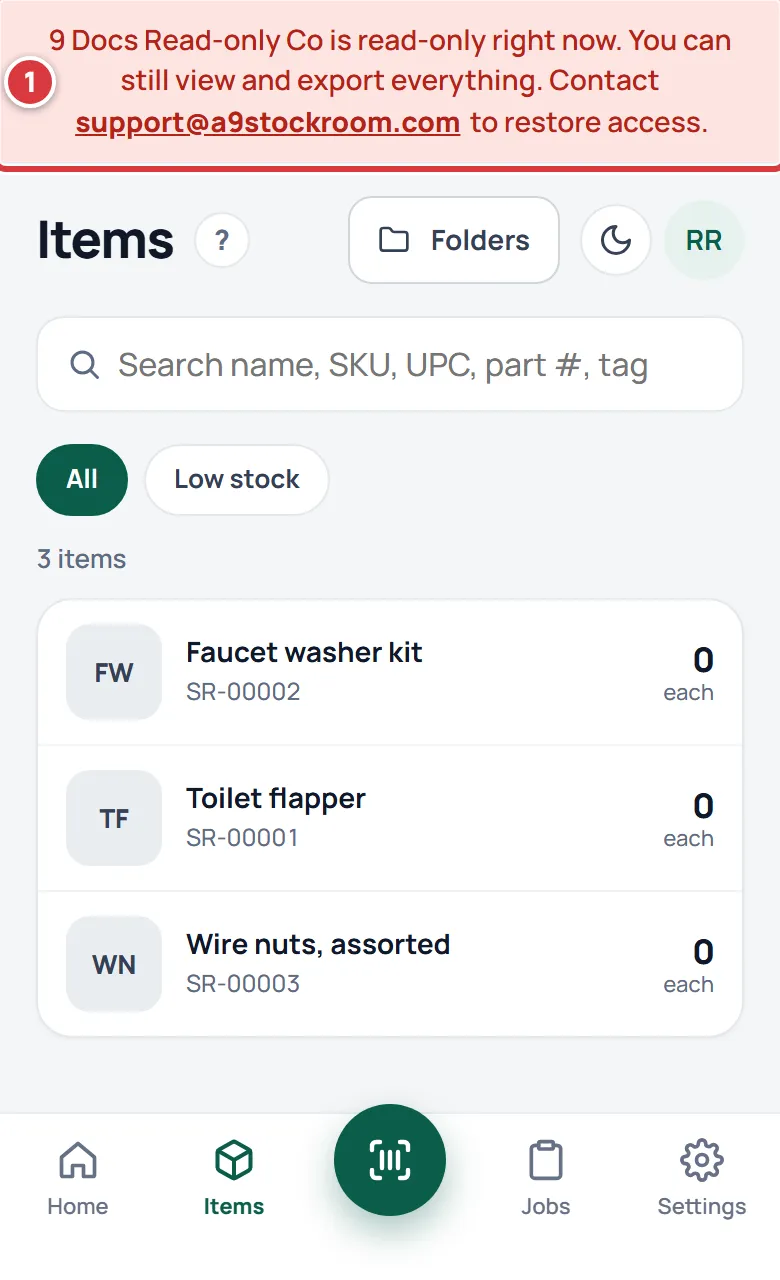
The banner reads "… is read-only right now. You can still view and export everything. Contact support@a9stockroom.com to restore access." or "This subscription has ended, so … is read-only." Nothing can be added or changed until access is restored.
- Tell your owner. Only the owner sees the plan under Settings, then Plan.
- The owner writes to support@a9stockroom.com.
- Meanwhile you can still sign in, look at everything, and export. The owner can use Export everything and anyone who manages items can use Export all items (CSV).
- Changes made on a phone while the company was read-only wait under Needs attention. Use Try again once access is back.
Before it goes read-only, you see "Payment is overdue." with the number of days that remain. See Your plan.
I can't change the location word#
Only the owner can. A manager sees "Only the owner can change these settings."
- As the owner, open Settings, then Company.
- Under Locations, choose the word in What do you call your locations?.
- Tap Save word. Every screen now uses it.
If the company is read-only, nothing can be changed. See Company settings and the Glossary.
I can't open Company, Team or Plan#
Company and Team are for owners and managers: others see "Owners and managers only". Plan is for the owner only: others see "Owners only". Settings rows you cannot use are hidden. See Roles and permissions.
Can I make another company?#
Companies are set up by A9 Stockroom during early access. Inside your company you add locations yourself. See Can I create another company?.
Import and export#
Some rows of my import failed#
The preview shows "These rows can't be imported. Everything else can." The rest goes in.
- Tap Download the error report. Each line names the row number and the reason.
- Open the file you imported, fix those rows in Excel, and save as CSV.
- Import again with only the fixed rows, or the whole fixed file.
- If you imported already, the same list is under Recent imports with Error report.
Rows that share a name and folder with an earlier row are merged: the quantity is added to that item. See Moving from Sortly.
My import file is too big or won't open#
- "That file has more than 5000 rows. Split it and import the parts one at a time."
- "That file is bigger than 8 MB. Split it and import the parts one at a time." The limit is 8 MB.
- "That file was kept for an hour and has expired. Choose it again." Pick the file again.
- "The file has a quote that is never closed (row 12). Open it in Excel, save it again as CSV, and try again."
See Moving from Sortly.
I imported the wrong file#
- Open Settings, then Import & export.
- Under Recent imports, tap Undo this import. Confirm.
- You have 24 hours. If anyone has used the stock since, it says "This import can't be undone." and lists why.
See Moving from Sortly.
The daily email didn't arrive#
The daily email goes to owners and managers only, at 6:00 AM in the company's time zone, and only when something is low.
- Open Settings, then My account. Under Notifications check Daily low-stock email is ticked, and tap Save notification settings.
- Owners and managers can tap Send me a test digest under Settings, then Company.
- Check the spam folder.
- If nothing is low, no email is sent. The test sends a note saying so.
How do I get all my data out?#
The owner opens Settings, then Company, and taps Export everything. A zip of every list is built in the background and emailed as a link that works for 7 days. It still works when the company is read-only. To delete an account or the whole company's data, write to support@a9stockroom.com. See Getting your data out and Privacy and security.