What's new
What changed in A9 Stockroom since the first version, in plain words, newest first.
The sections below are newest first. Everything from "The manual" down shipped on October 17, 2026. If a change affects how you do something, the page for it is linked.
Fixes from the manual's reviews#
- Undo after a take. For 15 minutes you can put a take back from the green message or from your own line in Activity. It goes back to the folder it came from and comes off the job's cost. It works with no signal too. See Undo a take.
- The scanner's Return now has a Job box, like the item's page. It starts on the job of your latest take of that part, so a scanned return lowers that job's cost. See Returning stock.
- The Account menu (My account, Sync, Sign out) is in the top corner of every screen on a phone, not only Home. On a computer it stays at the bottom of the left sidebar.
- Labels print on one page, in the right place, whatever your company's plan or status. The trial banner, the menus and the Offline label no longer print, and a purchase order keeps its own page margin. See Labels and printing.
- The Import screen and the stockroom now agree on the size of a file: up to 8 MB. See Moving from Sortly.
- The title of the Locations screen fits on a phone, and so does every other title, whichever word your company uses for a location.
The manual, after a first-time review#
- Search understands more of the ways people ask: "log in the first time", "add an employee", "move stock to the other building", "call them sites" and "what's running low" now land on the right steps.
- New steps for undoing a take and for finding out which job a part was charged to.
- Adding a part with a picture is now spelled out in one place: Add photos to a new item.
- Where the Account menu lives is now said wherever a page sends you to Sync or Sign out.
The manual#
- This manual. Every screen, step by step, with pictures, and a search box (press /).
- A small ? in the header of each main screen opens the page for that screen in a new tab.
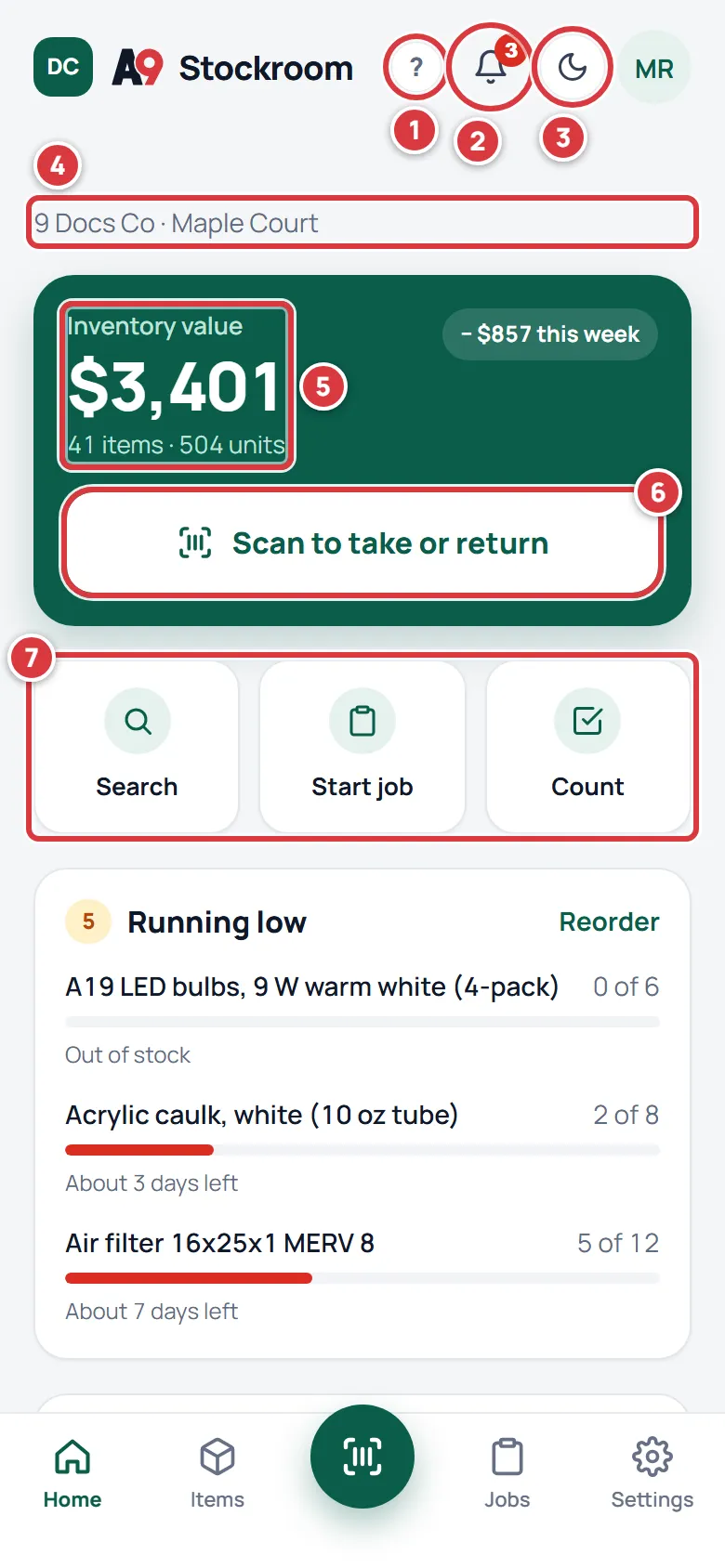
- Settings, then Help, links to the manual from each short how-to.
- Printable one-page cards for your first day and your first week.
Polish from a first-time walkthrough#
- Importing a large file is faster and more reliable: the file is sent once, and kept for 60 minutes while you check the preview. See Moving from Sortly.
- Labels printed? asks whether the labels really printed before it ticks the setup step, because a browser cannot tell a print from a cancel.
- A job's Billable to line says "tenant" only for companies that call their locations "property". Everyone else sees "customer".
- The phone learns about jobs you start, close or reopen straight away, so the scanner's job chip is right even with no signal.
- Pictures in Help are always the current ones.
Ready for a brand-new company#
- A new company starts empty on purpose, with a Get set up checklist that ticks itself from what you really do. See Setting up your company.
- A new tech sees three short cards the first time they sign in.
- Import shows the first rows and what will happen before anything is saved, lists problem rows with their row number, and can be undone for 24 hours. See Moving from Sortly.
- Owners can Export everything: a zip of every list in the company, emailed as a link that lasts 7 days. See Getting your data out.
- Settings, then Help, has short how-tos that work without a signal.
Works without signal#
- Scanning, taking, returning, counting, starting jobs and checking tools in and out keep working with no signal. Changes wait on your phone and send themselves when the signal is back.
- An Offline bar shows what is waiting. The Sync sheet lists what is waiting and anything that Needs attention, with the reason. See Working without signal.
- Activity shows "synced later" on a change that was made more than 5 minutes before it reached the server.
Your account, your team, your locations#
- Settings is one place for My account, Company, Locations, Team and Your plan.
- Each location is its own stockroom, with its own counts and its own minimums. Low stock, forecasts, the daily email and suggested orders all look at each location separately. See Locations and Minimums and reordering.
- Transfer stock from one location to another as a single line in Activity. See Moving stock.
- Owners pick the word their company uses for a location: Property, Location, Site, Facility, Store or Branch. See Company settings.
- Add a logo and a brand colour, and set your time zone.
- Team: change roles, assign techs to locations, resend or revoke invites, remove someone (their history stays) and transfer ownership. See Team.
- My account: name and photo, change your email (the old address gets a "this wasn't me" link), change your password, see and sign out your other devices. See My account.
Plans and limits#
- Essentials and Pro, with a seat limit and a location limit, a trial, and a banner that says plainly when payment is overdue, or the company is read-only. See Your plan.
Pro: orders, tools, reports and several locations#
- Suppliers and purchase orders: create them from Low stock, edit, mark sent, print, download a CSV, and receive in full or in part. See Purchase orders.
- Tools: check a tool out to a person with a due date, check it back in, and see what is overdue. See Tools.
- Reports: what parts cost, by location, category, tag and unit turn, with a CSV. See Reports.
- The bell shows alerts for low stock, overdue tools, received orders and new assignments. See Notifications.
- A tech sees only the locations they are assigned to.
The first version#
- Folders (shelves, bins, trucks) nested as deep as you like, and items with photos, tags, units, costs and minimums.
- Scan a QR label or a barcode to take, return, count or receive. See Scanning.
- Jobs: charge the parts you take to a work order and see what it cost. See Jobs.
- Low stock, a days-left forecast, a health bar for each folder, and a daily email.
- Activity: who did what, with filters and a CSV.
- Print QR labels on Avery 5160 sheets. See Labels and printing.
- Import from a Sortly export. See Moving from Sortly.
- Four roles: owner, manager, tech and viewer. See Roles and permissions.
- Sign in with an emailed invite. A light look, and a dark look that follows your phone or computer.