Moving from Sortly
Export your inventory from Sortly, bring it into A9 Stockroom from a CSV file, check it before anything is saved, fix problem rows and undo it if you must.
If your stock lives in Sortly, you do not have to type it in again. Sortly can export everything as a CSV file, which is a plain table that Excel opens. A9 Stockroom reads that file, shows you what it is going to do, and only then saves it. The same steps work for a CSV from any other program, or one you made in Excel.
Describe this diagram
The flow has five steps. 1: export a CSV from Sortly. 2: choose the file in A9 Stockroom. 3: check the columns and the preview. 4: import, in one step. 5: check the result. Two side paths: rows with problems are downloaded as a list, fixed, and the file is imported again; and a wrong import can be undone within the time limit while nothing has moved.
What you'll need#
- An owner or manager sign-in. Techs and viewers see "Ask a manager" on this screen.
- Your Sortly account, on a computer.
- The location the stock belongs to, picked in the location switcher at the top. The import fills the location you are looking at.
- A CSV file with a header row, one item per line. A file can be up to 8 MB and have up to 5000 rows. Split a bigger file and import the parts one at a time.
- About ten minutes.
Steps#
The Import & export screen numbers its own cards 1 to 5: Choose a CSV file, Check the first rows, Match the columns, Import into and What will happen. They are steps 2, 3, 4, 5 and 6 below, because step 1 happens in Sortly.
1. Export from Sortly#
Sortly's screens change from time to time. These steps follow Sortly's own help page, How to Export Your Inventory in Sortly, so check it if a name below is not where you expect.
- Sign in to Sortly on a computer.
- Open "Reports" and choose "Inventory Summary". It includes every item and field, with its folders.
- Click "Export".
- Choose "CSV". Do not choose "Excel (XLSX)": A9 Stockroom reads CSV. If you only have an Excel file, open it in Excel and use Save As to save a CSV copy.
- Click "Export" again to download the file, and save it where you can find it.
Sortly puts photos in the file as web links, not as pictures. A9 Stockroom does not fetch links, so photos do not come across. You add them on each item afterwards (see Photos).
2. Choose the file#
- Open Import & export. On a phone it is in Settings. On a computer it is in the menu on the left.
- Tap Choose a .csv file and pick the file you saved.
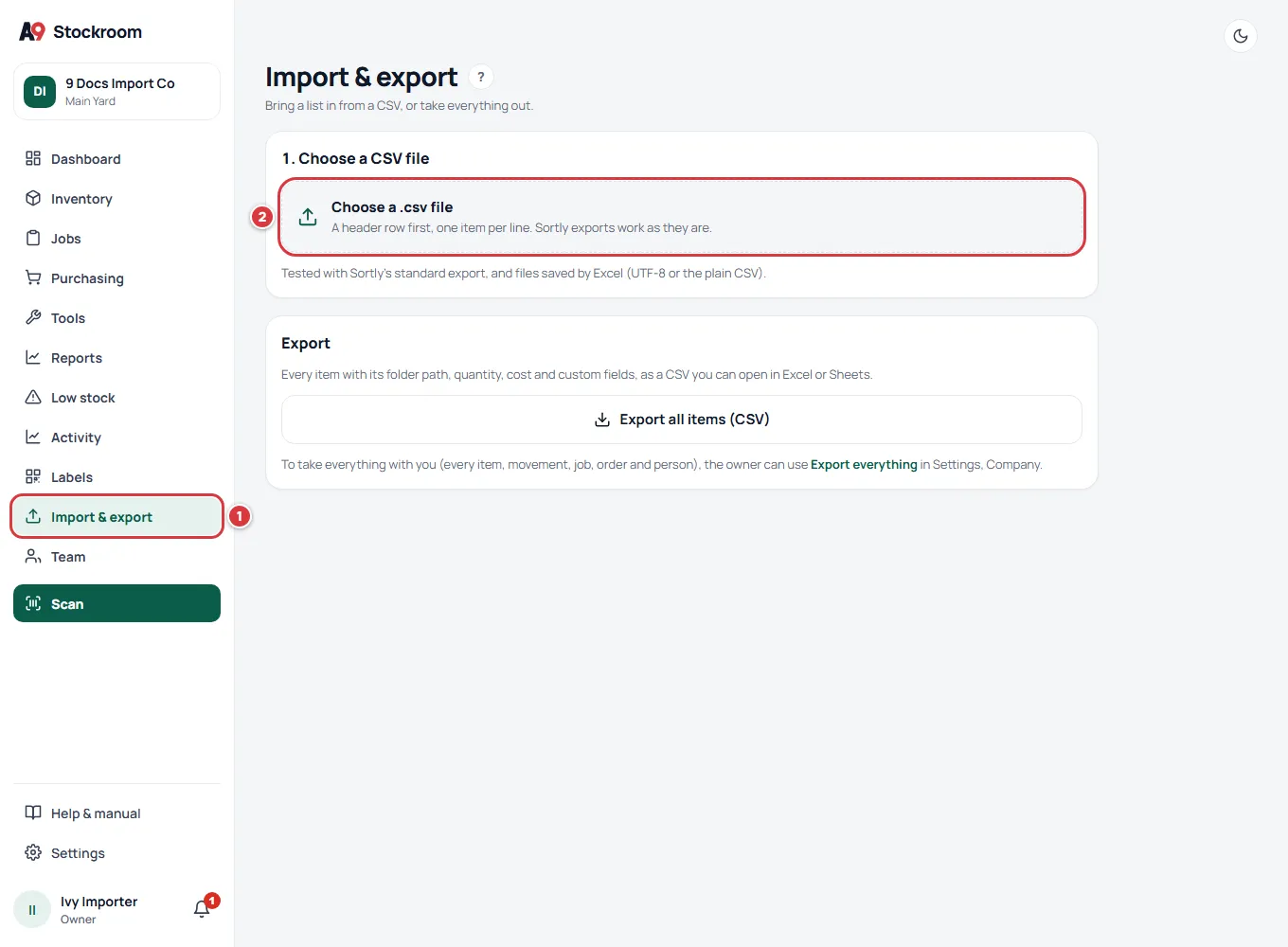
A9 Stockroom sends the file once and keeps it for 60 minutes while you check it. After that, choose it again. It reads files saved as UTF-8, with or without a byte-order mark, as Excel's plain CSV (Windows-1252) and as Excel's Unicode text (UTF-16), so accents and symbols come out right.
3. Check the first rows#
The screen shows the start of your file before anything is saved.
- The name of your file and how many rows were found.
- Sortly export detected, when the file looks like Sortly's. If it says Custom layout instead, nothing is wrong. You will match the columns yourself in the next step.
- The first 20 rows, exactly as they are in the file. Scroll sideways to see more columns.
- How many rows there are in all: "Showing 20 of" and the total.
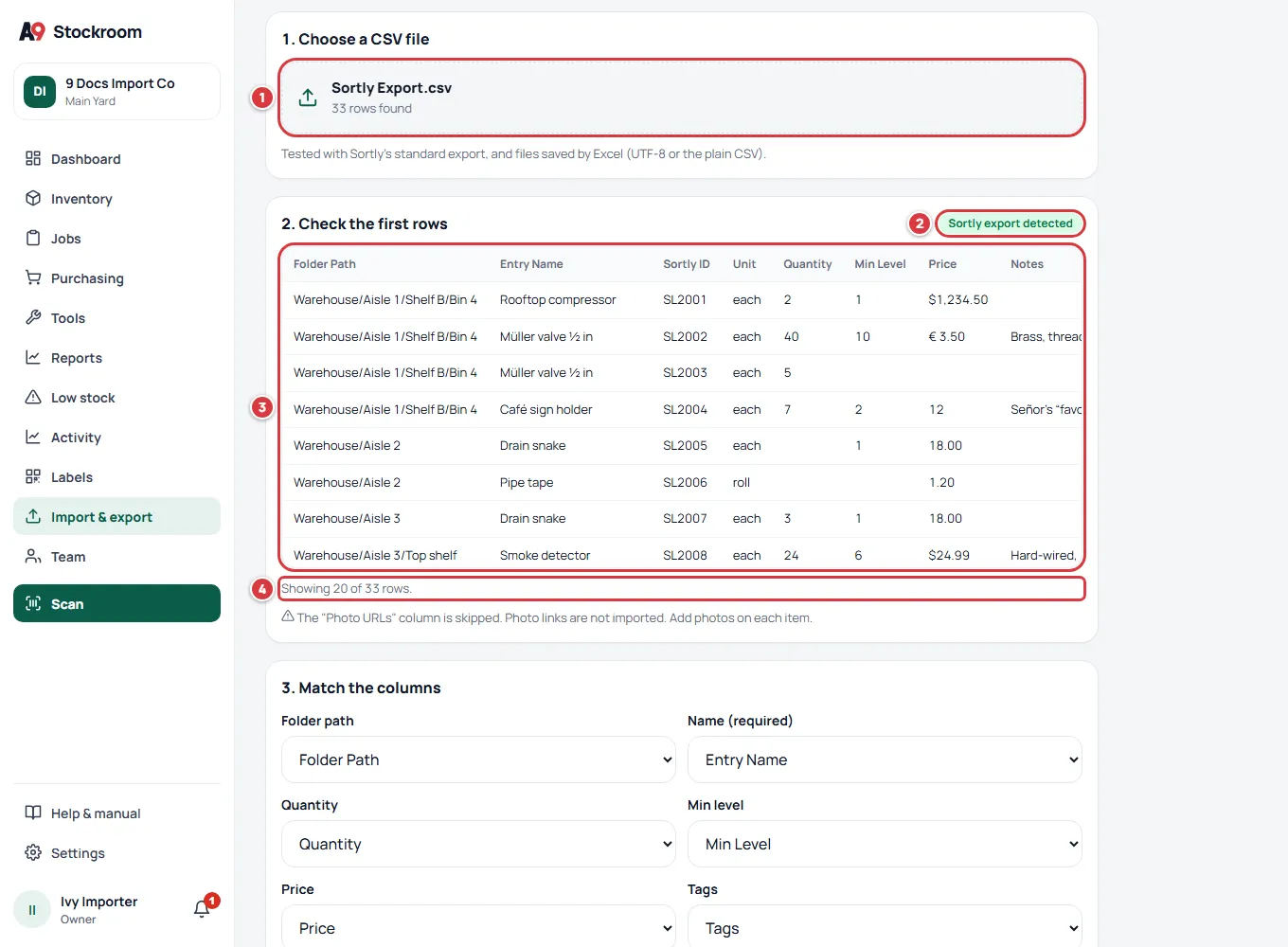
If your file has a photo column, a note says so: the column is skipped, because photo links are not imported.
4. Match the columns#
A9 Stockroom guesses which of your columns is which. Look at each box and change it if the guess is wrong. Choose Don't import for a box you want to leave empty.
- The boxes. Name is the only one that must be filled in.
- Other columns: columns A9 Stockroom does not recognize. Tick a column to keep it as a custom field on every item. Columns that hold data start ticked. Untick any you do not want.
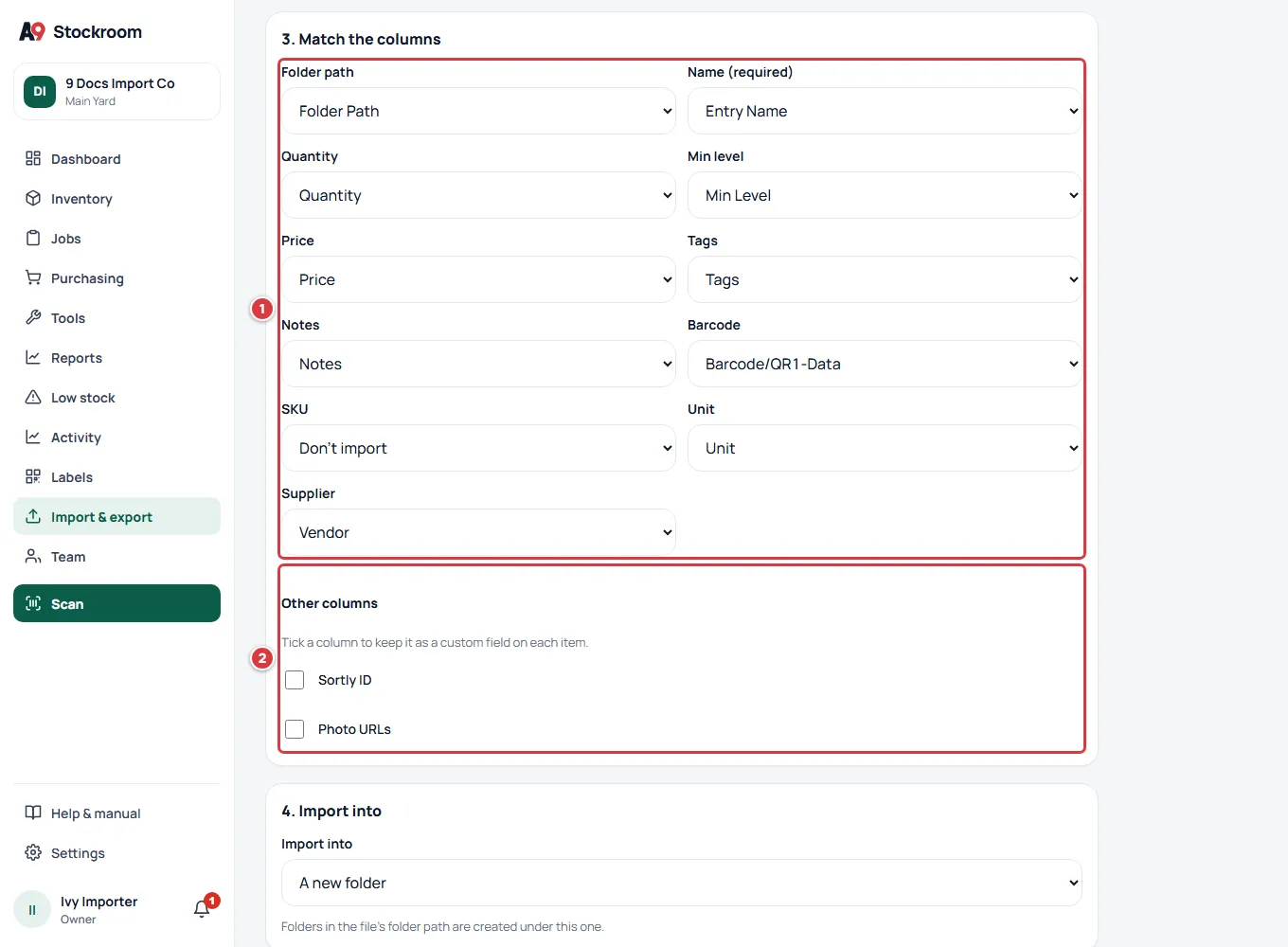
These are all the things the importer understands, and what it does with them:
- Name (required): the item's name. A row with no name cannot be imported.
- Folder path: where the item goes. Write the folders from the outside in, separated by a slash, a backslash, an arrow (>) or a ›. Missing folders are made. With no folder path the item goes in the folder you chose in step 5.
- Quantity: how many you have now. Whole numbers only. A comma for thousands is fine ("1,200").
- Min level: the item's minimum. Low stock is measured against it.
- Price: what one unit costs you. A currency sign or code is fine ("$1,234.50", "€ 3.50", "USD 2.40").
- Tags: one or more tags, separated by commas, semicolons or a bar.
- Notes: free text.
- Barcode: the code on the item. If an item with the same code is already in A9 Stockroom, this row updates it.
- SKU: your own item code. If an item with the same SKU is already in A9 Stockroom, this row updates it. New items without one get a code from A9 Stockroom.
- Unit: how the item is counted, such as each, box or roll. Without a unit, items count as each.
- Supplier: the supplier's name. It is added to your suppliers.
Anything else: if you tick it under Other columns, it is kept as a custom field named after the column. If you leave it unticked, it is ignored. A column of Sortly's own ids ("Sortly ID") is not kept unless you tick it. The photo column ("Photo URLs") is listed there too, unticked: leave it that way, because photo links are not turned into pictures. A Sortly export has no column for your own item code, so SKU starts as Don't import and new items get a code from A9 Stockroom.
A row is matched to an item you already have by SKU first, then by barcode, then by the same name in the same folder. If it matches, the row updates that item: filled cells overwrite, empty cells leave the old value alone and new tags are added. If it does not match, the row makes a new item. Two rows with the same name in the same folder are one item, and their quantities add up.
5. Choose where it goes#
- Under Import into, keep A new folder, or pick a folder you already have.
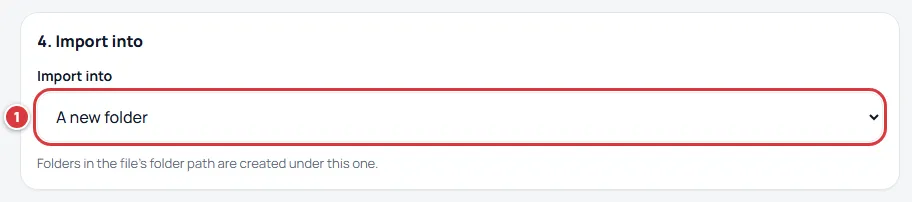
A new folder makes one folder named after your file, in the location you are looking at, with your Sortly folders inside it. If you are looking at all locations, the import goes to your first location, so pick the right location in the switcher first. If you choose an existing folder, your folders are made inside it, and the import goes to that folder's location.
6. Read what will happen, then import#
The last card says what the import will do. A9 Stockroom works this out as soon as you change a choice. Nothing has been saved.
- The counts: how many items to create, to update and to skip (rows that would change nothing), how many new folders, and how many rows have errors.
- The problem rows, each with its row number and the reason. The row number is the one you see in Excel, with the header line as row 1. Everything else can still go in.
- Download the error report, if there are problem rows. The next section says what to do with it.
- The button at the bottom, Import and a number of items. Tap it.
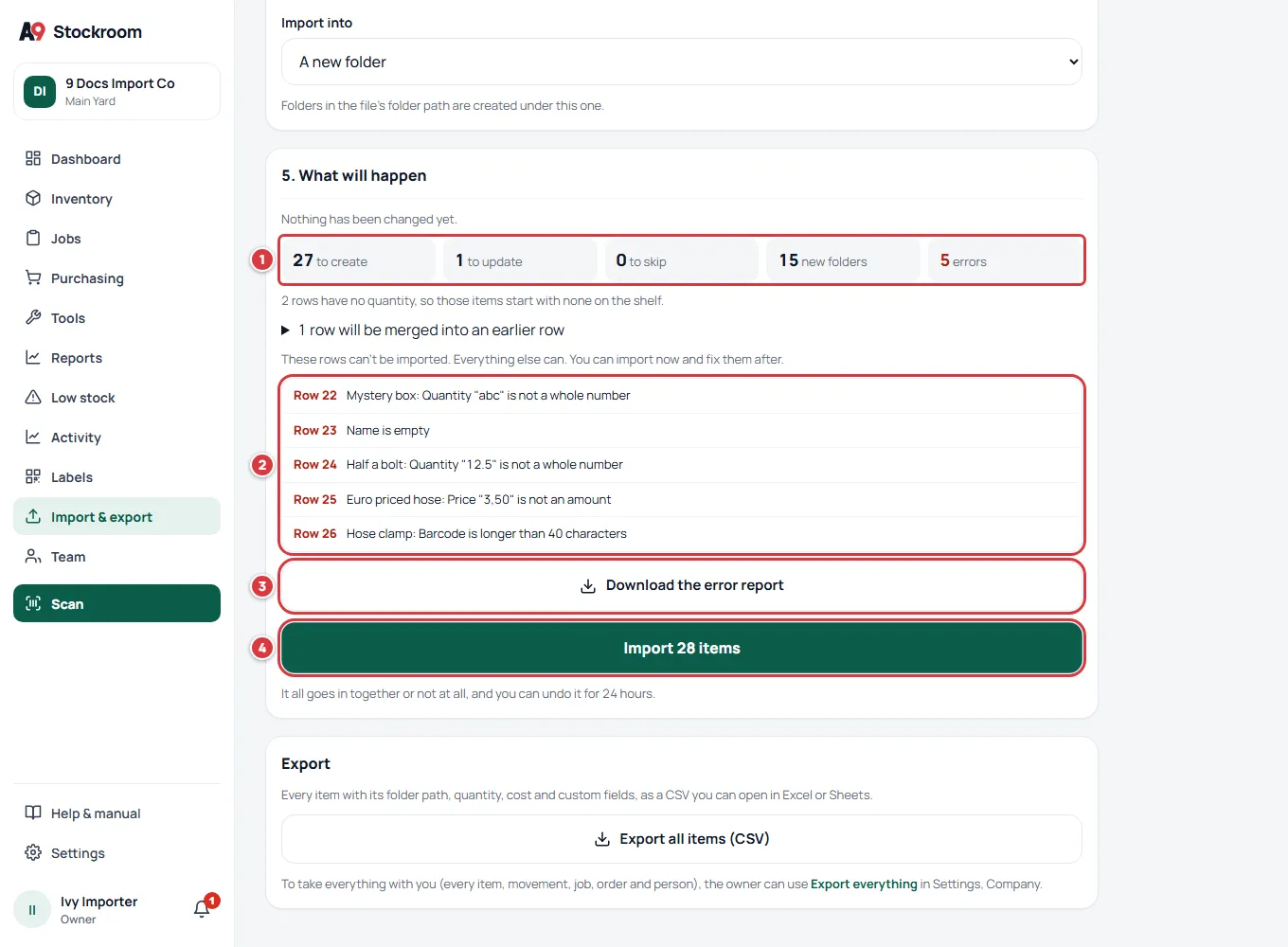
Two notes may show under the counts. One says how many rows have no quantity: those items are made with nothing on the shelf. The other says how many rows will be merged into an earlier row with the same name and folder. Tap that line to see which rows.
A merged row counts as to update, even in a company that has no items yet, because it adds its quantity to an item the file already makes. So a first import can show "1 to update". The number on the Import button is the items to create plus the items to update, so it can be one more than the number of items you end up with.
The import goes in all together or not at all. If it stops for any reason, nothing was changed and you can try again.
Read what this video shows
- Open Import & export.
- Choose the file, here called Sortly Export.csv.
- The first rows and the counts of what will happen show up.
- Scroll down to Match the columns.
- Scroll to the Import button and tap it.
- A card called Import finished lists what was created.
7. Check the result#
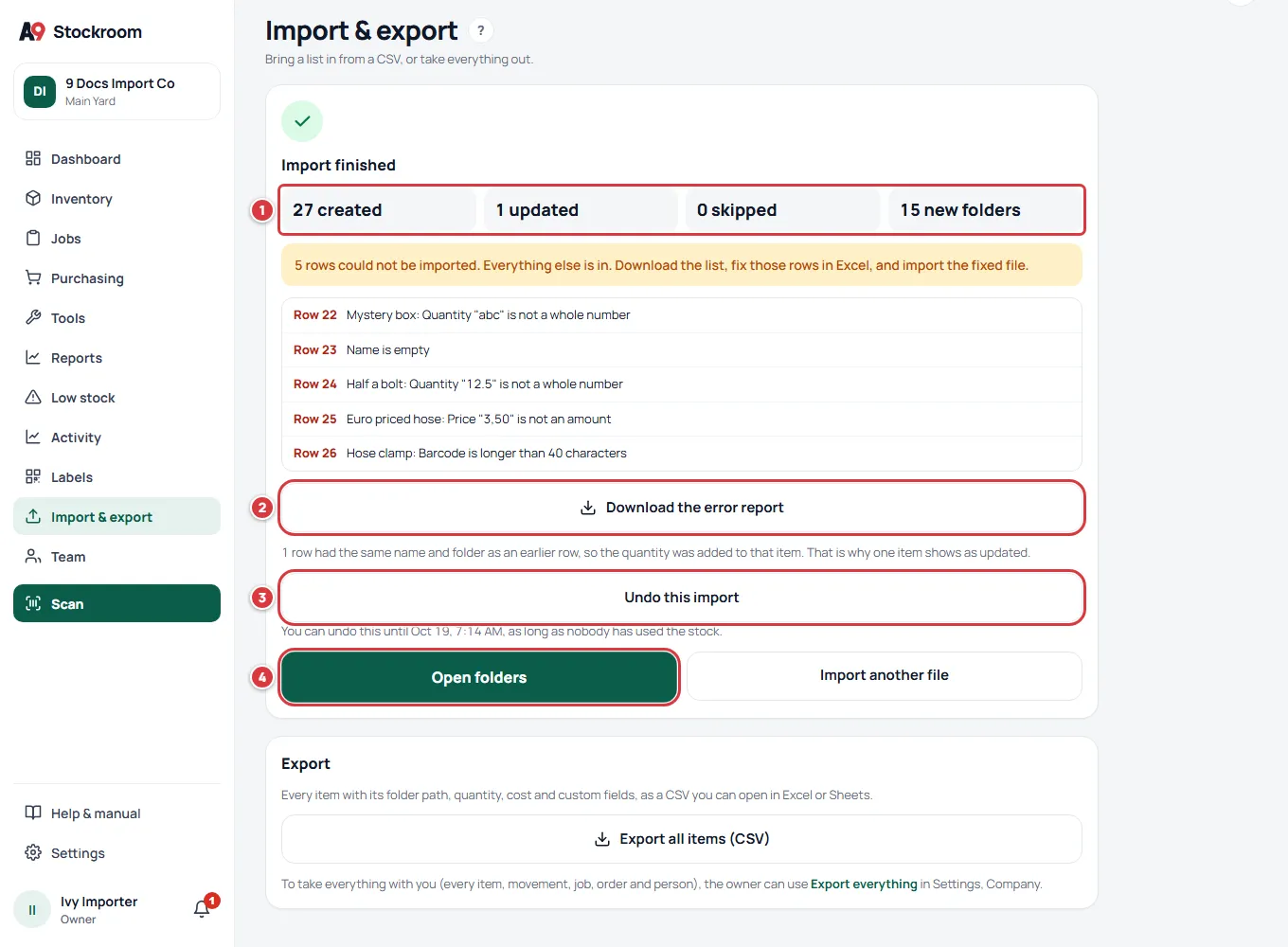
When it is done, the card says Import finished and shows how many items were created, updated and skipped, and how many folders are new.
- The counts. A merged row shows as "1 updated", with a line that says so.
- If some rows did not import, a note says how many, with the list and Download the error report.
- Undo this import, for the next 24 hours. Under it the screen says "You can undo this until" and the date and time.
- Open folders shows what you imported. It is only on this card. When you leave the screen it goes: open Inventory, then Folders, and look for the folder named after your file.
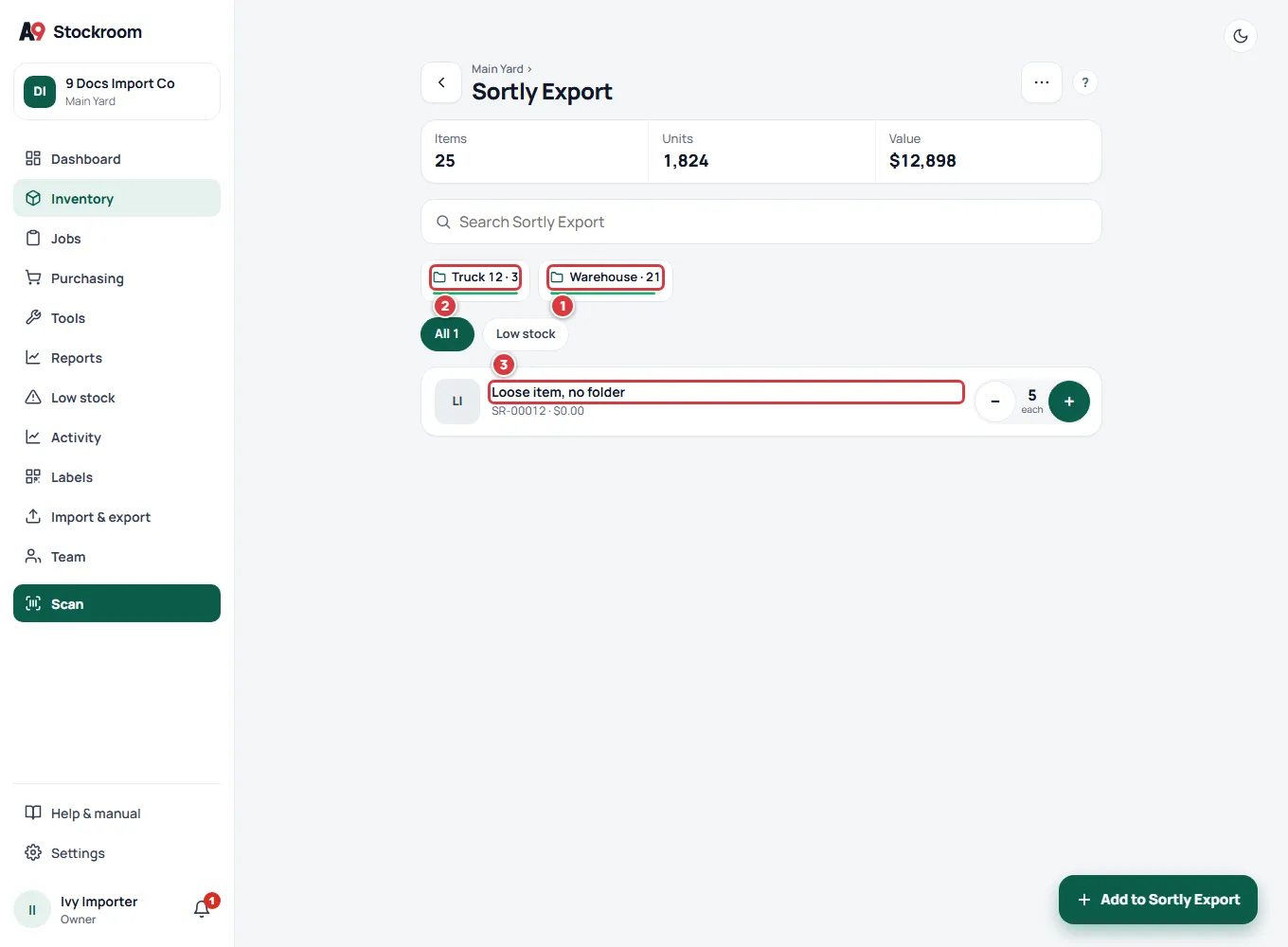
Open the new folder to look. Your Sortly folders are inside it, and an item that had no folder is in the folder itself.
The opening quantities go in as stock received. Activity shows each one as received, with a note such as "Imported (row 33)". Where the quantity was zero, the item is placed in its folder with none on the shelf.
Rows with an empty quantity are different. The item is made, but it is not put in any folder: its page says "Not stocked in a folder yet", and the folder it would have gone in (Aisle 2, say) is made but empty. So these items are in Inventory with none on hand, and not inside your new folder, which is why the new folder can show fewer items than Inventory does (for example 25 and 27). To fix one, open it and tap Receive to put the real number in a folder. The item count on Settings, Locations is lower again, because it counts only items that have stock there.
Fix problem rows and import them again#
Problem rows are not imported, but everything else is. To bring the problem rows in:
- Tap Download the error report. You get a CSV file with one line for each problem row: the row number, the reason, and then the row as it was in your file.
- Open it in Excel. Fix each row so it matches its reason, then delete the first two columns, Row and Reason, and save the file as CSV.
- Import the fixed file with the same steps. Under Import into, pick the folder the first import made, so the fixed items sit with the others.
The reasons you will meet most:
- "Quantity … is not a whole number": write a whole number, like 12. Fractions and words cannot be stock.
- "Price … is not an amount": write the price with a dot, like 3.50. A comma as a decimal point ("3,50") is refused, because it could mean different things.
- "Name is empty": add the item's name, or delete the row.
- "Barcode is longer than 40 characters": the Barcode column holds the wrong text. Shorten it or clear it.
- "Row has … values but the header has … columns": a comma inside a cell broke the row. Put the cell in quotes, or remove the comma.
The Recent imports card, under the file chooser on the same screen, keeps your last imports, each with an Error report button. That report lists the row, the item and the reason, which is a good checklist, but it does not carry the original columns, so for fixing and importing again use the report from the preview or result card as above.
Undo an import#
If you imported the wrong file, you can take the whole import back for 24 hours, as long as nothing has moved.
- Tap Undo this import, on the Import finished card or on the import in Recent imports.
- Confirm the question. It is your browser's own question box: "Undo this import? The items, folders and starting quantities it made are removed." Choose Cancel to leave the import as it is.
The items, the folders and the opening quantities that import made are removed. Suppliers, tags and custom fields it added stay, and so do any changes it made to items you already had.
An import cannot be undone once anyone has used its stock: an item taken, returned, counted, moved or received. It also cannot be undone if one of its items is on a purchase order or has been set up as a tool, or if other items have been put in a folder the import made. In those cases nothing is removed, and the screen says "This import can't be undone." and lists why. After 24 hours it cannot be undone at all. Remove what you do not want item by item.
What you'll see#
- Before you import: the first 20 rows, the counts, and any problem rows with their numbers. Nothing is saved.
- After you import: Import finished, the counts, a new folder named after your file, and your items in it. In your folders you see the quantities from the file.
- After an undo: "Undone" on the import under Recent imports, and the items and folders it made are gone.
Next, set up what a file cannot carry: photos, minimums for the items that matter most, and labels to stick on the shelves.
If it didn't work#
- "We couldn't read that file. Choose a .csv with a header row." The file is not a CSV, or has no header line. Open it in Excel and save it as CSV. An Excel file (.xlsx) must be saved as CSV first.
- "The file has a quote that is never closed." A quote mark in a cell was never closed. The message gives the row. Open the file in Excel, save it again as CSV, and try again.
- "That file has more than … rows. Split it and import the parts one at a time." The limit is 5000 rows. Cut the file in parts and import each.
- "That file is bigger than 8 MB. Split it and import the parts one at a time." The limit is 8 MB. Cut the file in parts and import each.
- "That file was kept for an hour and has expired. Choose it again." You waited longer than 60 minutes. Choose the file again.
- The Import button is grey. Make sure the Name box has a column chosen. The button also stays grey when there is nothing to create or update.
- Everything went into the wrong location. Undo the import, switch to the right location, and import again.
- "This import can't be undone." The reasons are listed under it. Something from that import has been used. Remove the items you do not want one by one.
- The screen says importing is paused while the company is read-only. The plan is paused. See Your plan.
- Photos are missing. Photo links are not imported. Add photos to each item.