Scanning
Scan QR labels and barcodes with your camera to take, return, count or receive stock, and what to do when the camera will not open or a code will not scan.
What you'll need#
- A phone with a camera, or a computer with a webcam. The first time, your browser asks to let A9 Stockroom use the camera. Tap Allow.
- A label or a barcode to point at. A QR label is the square code a manager prints from Labels and printing and sticks on a shelf, bin or part. A barcode is the striped code already on a product. The scanner reads QR codes and the common product barcodes: UPC, EAN and Code 128.
- Good light, and a steady hand.
- If you are taking stock for a job, start the job first. See Taking stock for a job.
Steps#
Tap the round scan button in the bar at the bottom of the screen. On Home you can also tap Scan to take or return. On a computer, click Scan in the menu. The scanner fills the screen and the camera starts.
Aim the camera#
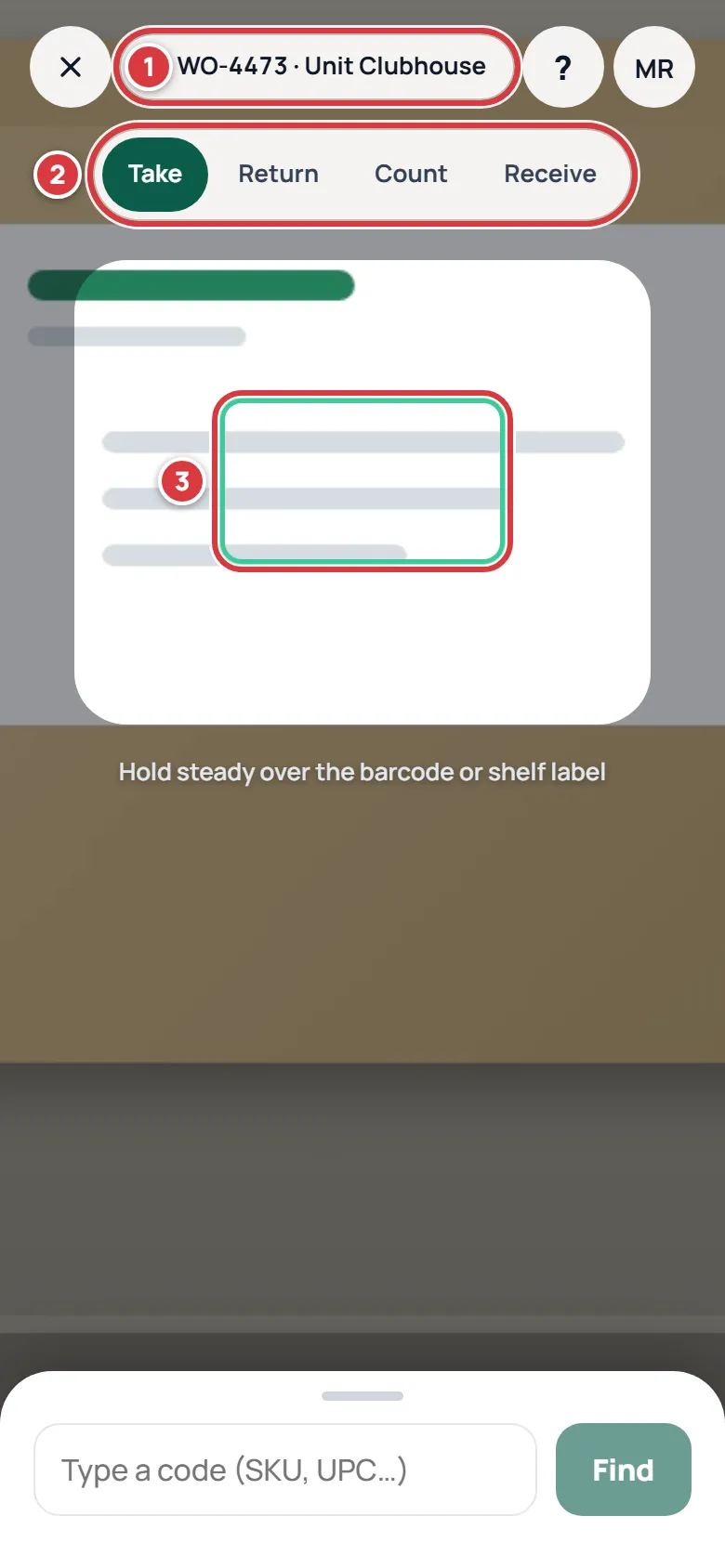
- Look at the chip at the top. It shows the job that Take will charge, such as "WO-4473", or No job if you have none open. Taking with no job is allowed. See Taking stock for a job.
- Pick a mode: Take, Return, Count or Receive. The mode stays on while you scan the next item.
- Hold the camera steady so the code sits inside the frame. The hint says "Hold steady over the barcode or shelf label." It reads on its own; there is no shutter button.
| Mode | Use it to | The big button says |
|---|---|---|
| Take | Take parts out, charged to the job in the chip | "Take 1 for WO-4473", or "Take 1" with no job |
| Return | Put parts back that you did not use, off the job they were taken for | "Return 1 to Toilets" |
| Count | Set how many are on the shelf now | "Set count to 6" |
| Receive | Add a delivery | "Receive 1 into Toilets" |
Confirm what it found#
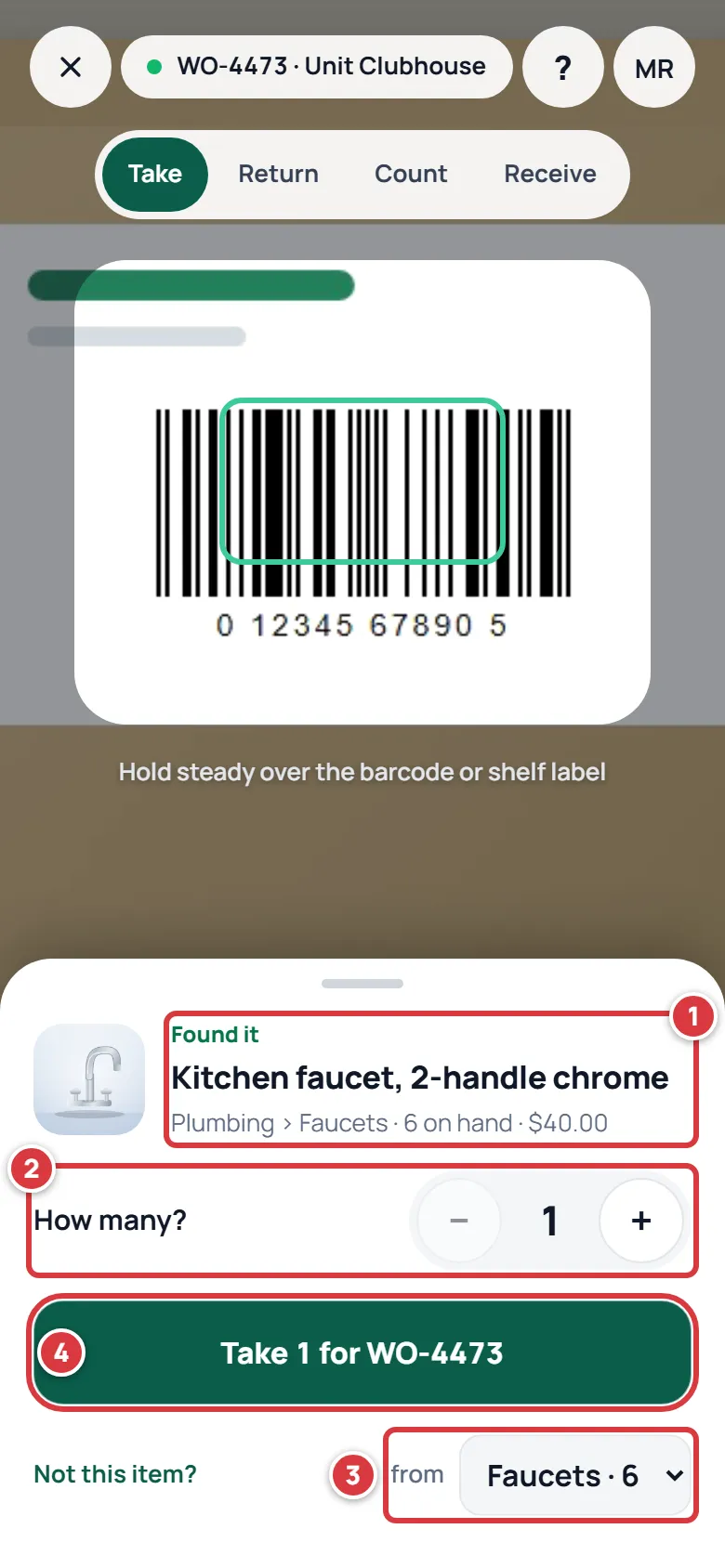
- A sheet slides up that says "Found it", with the item's name, where it is, how many are on hand and what it costs. Tap the name if you want to open the item.
- Under How many?, use the minus and plus to set the number. It starts at 1. In Count mode it starts at what the app thinks is on the shelf.
- If the stock is in a different folder from the one shown, pick it from the box at the lower right. The word beside the box tells you what it is for: from, to or in.
- Tap the big button. It names what it will do, for example "Take 1 for WO-4473".
Tap Not this item? to close the sheet and scan again. For each mode in detail, see Taking stock for a job, Returning stock, Counting stock and Receiving stock.
Read what this video shows
- On Home, tap Scan to take or return.
- Hold the camera over the barcode. The sheet slides up with "Found it" and the item's name.
- Tap the big button that says Take 1 for the job. The sheet closes.
- A green message at the bottom says "Took 1" and how many are left. Tap Undo in it if that was the wrong part.
Type a code when it will not scan#
- Tap the box under the camera that says "Type a code (SKU, UPC…)".
- Type the item's SKU, its UPC, or its supplier's part number. The SKU is printed under the name on the QR label and shown on the item's page.
- Tap Find. The same sheet opens as for a scan.
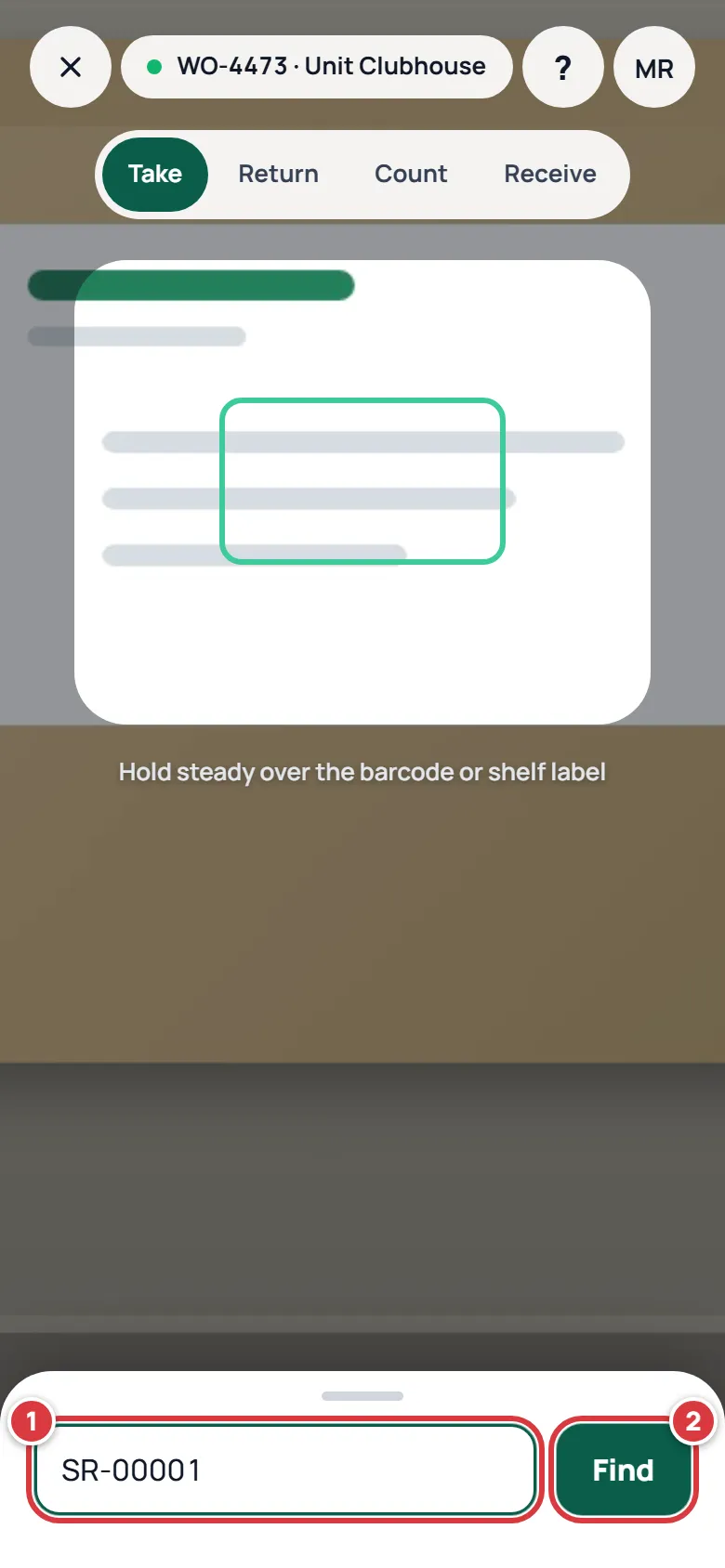
Capital letters do not matter. A UPC with or without a leading zero finds the same item.
Add an item from a barcode nobody has entered#
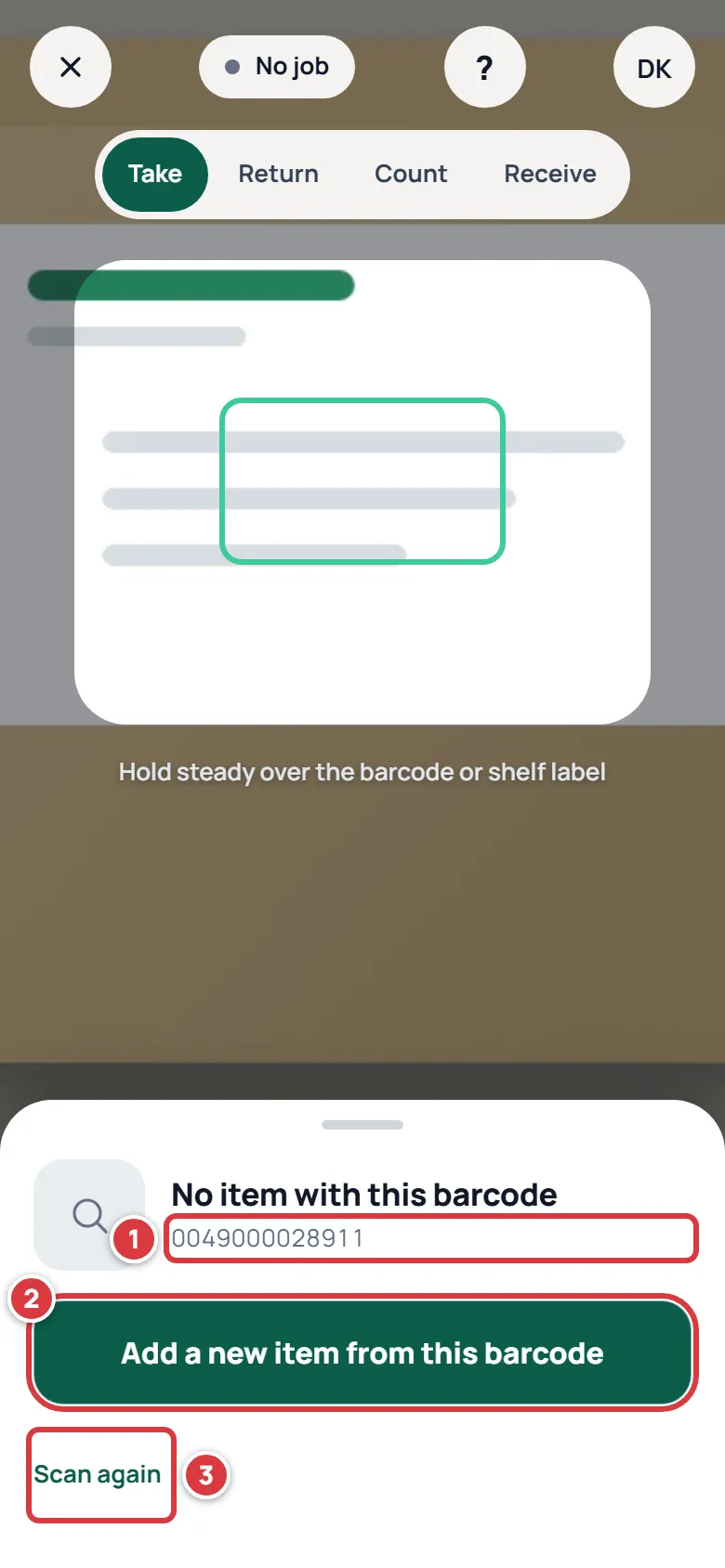
If the scanner reads a barcode that is not in the stockroom, it says "No item with this barcode" and shows the number. A manager or owner sees Add a new item from this barcode. Tap it and the new-item form opens with the UPC already filled in. A tech sees Scan again, and can ask a manager to add the item.
Use the flashlight#
- If your phone lets the app switch on the light, a round Flashlight button sits in the top row next to the ?. Tap it to turn the light on, and tap it again to turn it off.
- If you do not see the button, your phone or browser does not offer the light to the app. Use the room light instead.
What you'll see#
- A sheet that says "Found it", then a short green message at the bottom of the screen when you confirm: "Took 1 · 5 left", "Returned 1 to Toilets · off WO-4473", "Count set to 6" or "Received 1 into Toilets". After a take, the message has Undo. See Undo a take.
- The sheet closes and the camera stays on, ready for the next code, in the same mode.
- The new number on the item's page, on Home and in the job. See The item screen.
- A QR label for a folder opens that folder. A label for a tool opens that tool. See Tools.
- A viewer sees the item with Open item and "View only", and cannot change stock.
If it didn't work#
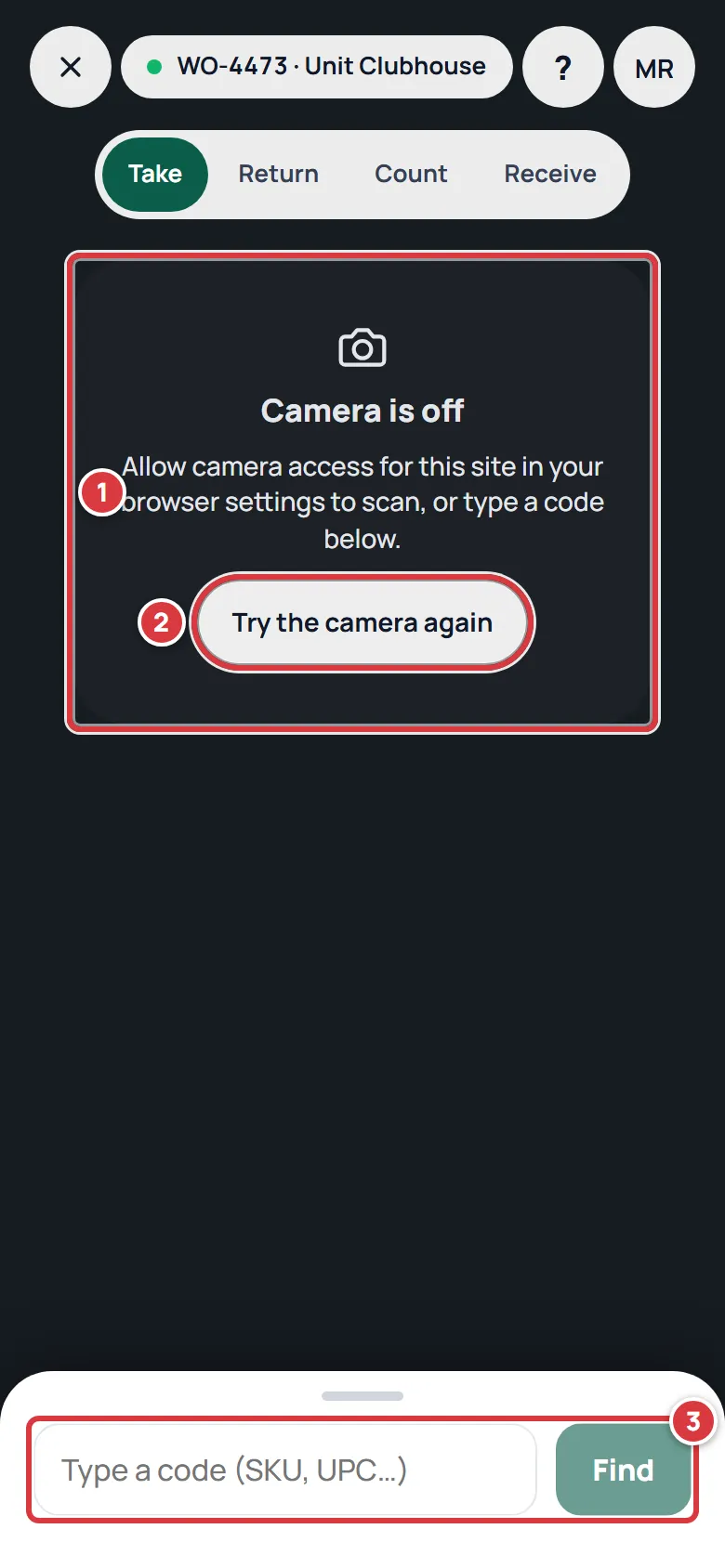
The screen says "Camera is off"#
Your browser has blocked the camera for A9 Stockroom. Allow it, then tap Try the camera again. The exact words differ a little between phones and versions.
- iPhone or iPad: Open the Settings app, find Safari, then Camera, and choose Ask or Allow. If A9 Stockroom is on your Home Screen, close it and open it again.
- Android, in Chrome: Tap the icon at the left of the address bar, then Permissions, then Camera, and choose Allow. If you installed the app, press and hold its icon, tap App info, then Permissions, then Camera, and choose Allow.
- A computer, in Chrome or Edge: Click the camera icon at the right end of the address bar and choose Always allow, then reload the page.
- A computer, in Safari: In the Safari menu open Settings, then Websites, then Camera, and set this site to Allow.
You can keep working in the meantime. The box under the screen still finds items by their code. See Install on your phone or computer for the steps with pictures.
The screen says "No camera here"#
The phone or computer could not open a camera. The usual causes are another app that is using it (a video call, the camera app, another browser tab) or a computer with no webcam. Close the other app and reload the page. If it still will not open, type the code instead.
A code that won't scan#
- Glare: A shiny label throws the light back. Tilt the phone a little, or put your hand between the label and the lamp. If the flashlight is on, turn it off.
- Too dark: Turn the flashlight on if you have the button, or move to the light.
- Too close or too far: Move the phone back and forward until the code is sharp and fills most of the frame. A phone cannot focus on something touching the lens.
- Worn or torn label: Type the SKU or UPC instead. Then ask a manager to print a new label.
- It still will not read: Hold still a moment longer. A blurry or bent barcode may never read. Type the number under it.
"No item with this barcode"#
The barcode is real but nobody has entered it. Tap Scan again if you scanned the wrong thing. Otherwise ask a manager to add the item, or to put this number in the item's UPC box so it scans next time. See Items.
"That label isn't in your stockroom"#
The QR label is for something that was deleted, or it belongs to another company. Ask a manager.
"Couldn't look that up. Check your connection."#
The scanner could not reach the stockroom. If you have no signal, see Working without signal.
A red message under "How many?"#
The app tells you in plain words why it said no. See If there is not enough stock.