Signing in
Accept your invite and choose a password, sign in, reset a forgotten password, sign out, and what to do when an invite link has run out.
There is no public sign-up. You join a company when its owner or a manager invites you. The invite arrives as an email with a link. After that, you sign in with your email and your password.
What you'll need#
- Your invite email, if this is your first time. The link in it works for 7 days.
- The phone or computer you will use. Signing in needs a connection (a signal or Wi-Fi). Once you are in, most of the app keeps working without one: see Working without signal.
- A password you will remember. The screen tells you the shortest one it accepts. A few words in a row works well.
Steps: accept an invite#
Open the email that says you were invited to join your company on A9 Stockroom. Tap the "Accept the invite" button in it.
The page says Join and your company's name, and tells you the role you were invited as. Your email address is already filled in. You cannot change it, because the invite belongs to that address.
Type your name in Your name.
Choose a password in Choose a password.
Tap Create account.
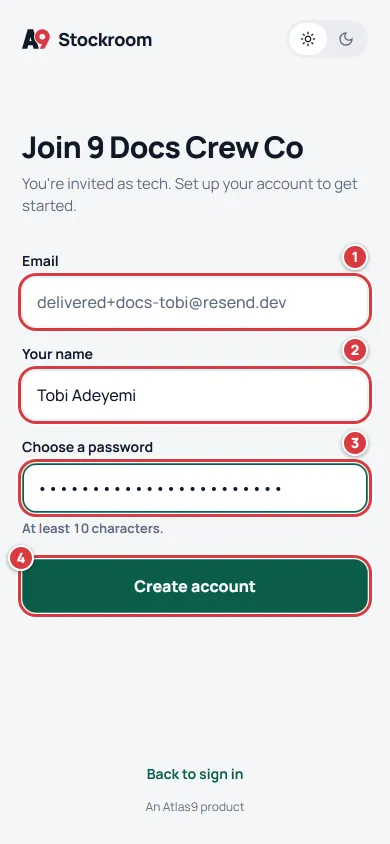
Your email is filled in for you. Marks 2 and 3 are the two things you type.
You are signed in as soon as the account is made. A new tech sees three short cards first: see Your first day.
Steps: sign in#
Open A9 Stockroom. If you put it on your home screen, tap its icon. Otherwise open
app.a9stockroom.comin your browser.Type your email in Work email.
Type your password in Password.
Tap Sign in.
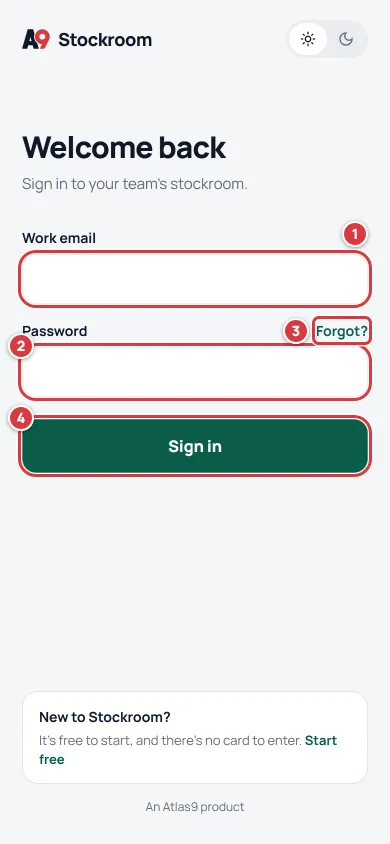
The sign-in screen. Mark 3 is the way to reset a forgotten password.
If you were just asked to confirm your email, open the email that A9 Stockroom sent and tap its link. The page says Email confirmed. Go back and sign in again.
The app remembers you on that phone, so most days you open it and you are already in.
Steps: reset a forgotten password#
On the sign-in screen, tap Forgot?, next to the password.
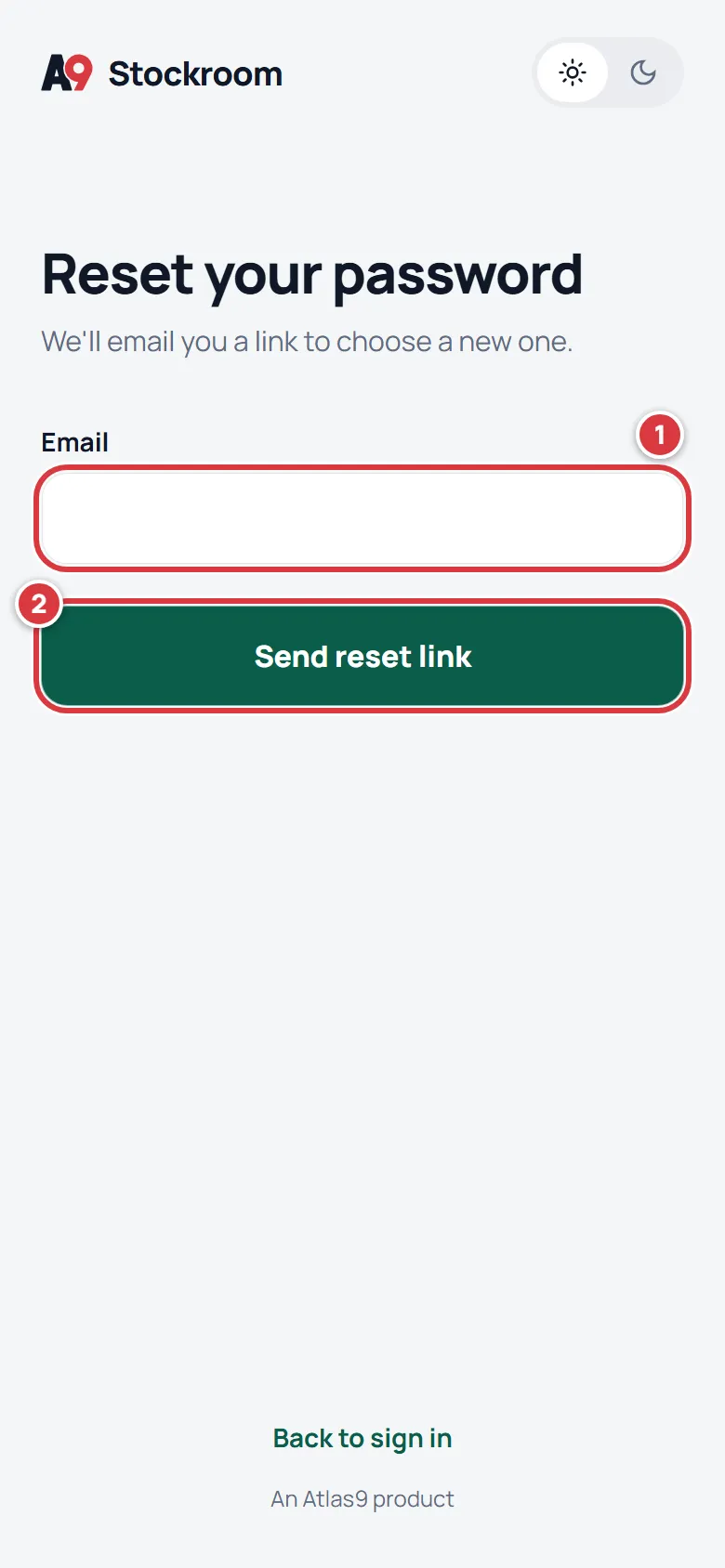
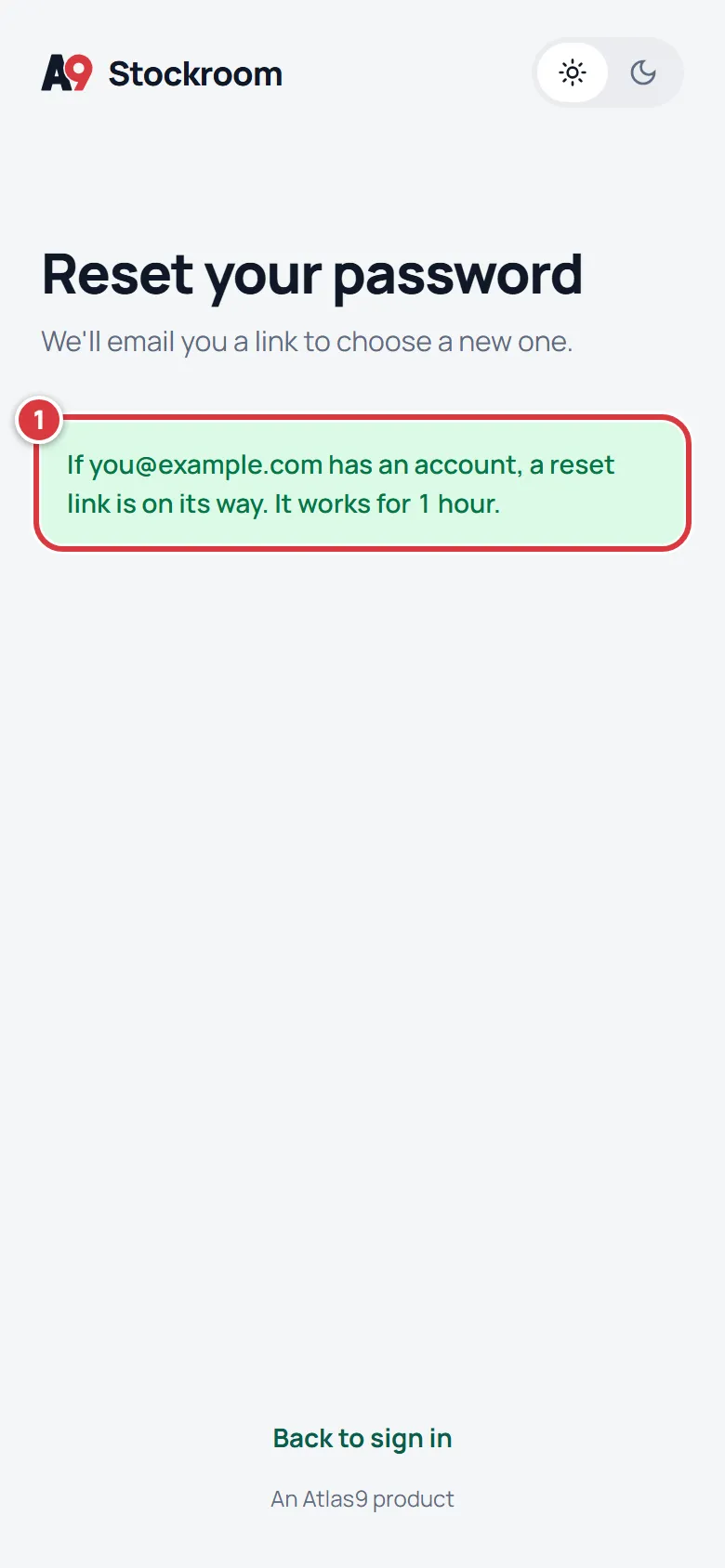
Type your email and tap Send reset link.
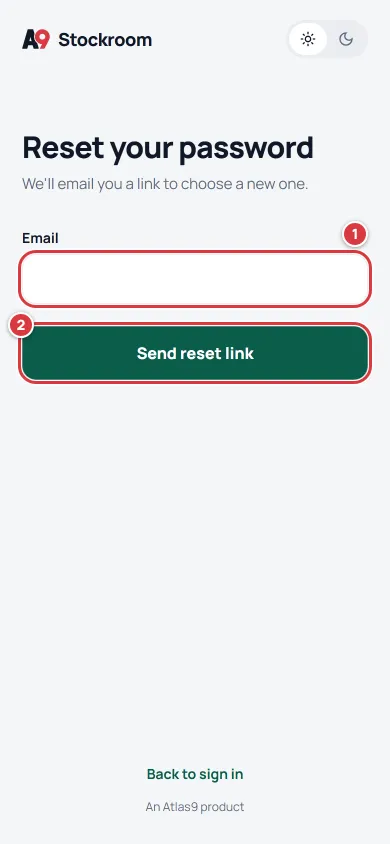
Type the email you sign in with. The screen says a reset link is on its way. This is the same message whether or not the email has an account, on purpose.
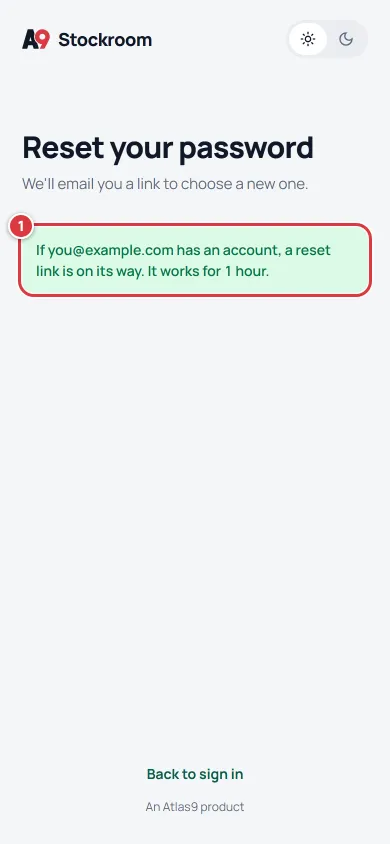
Now check your email. The message says how long the link works. Open the email "Reset your A9 Stockroom password" and tap its "Choose a new password" button.
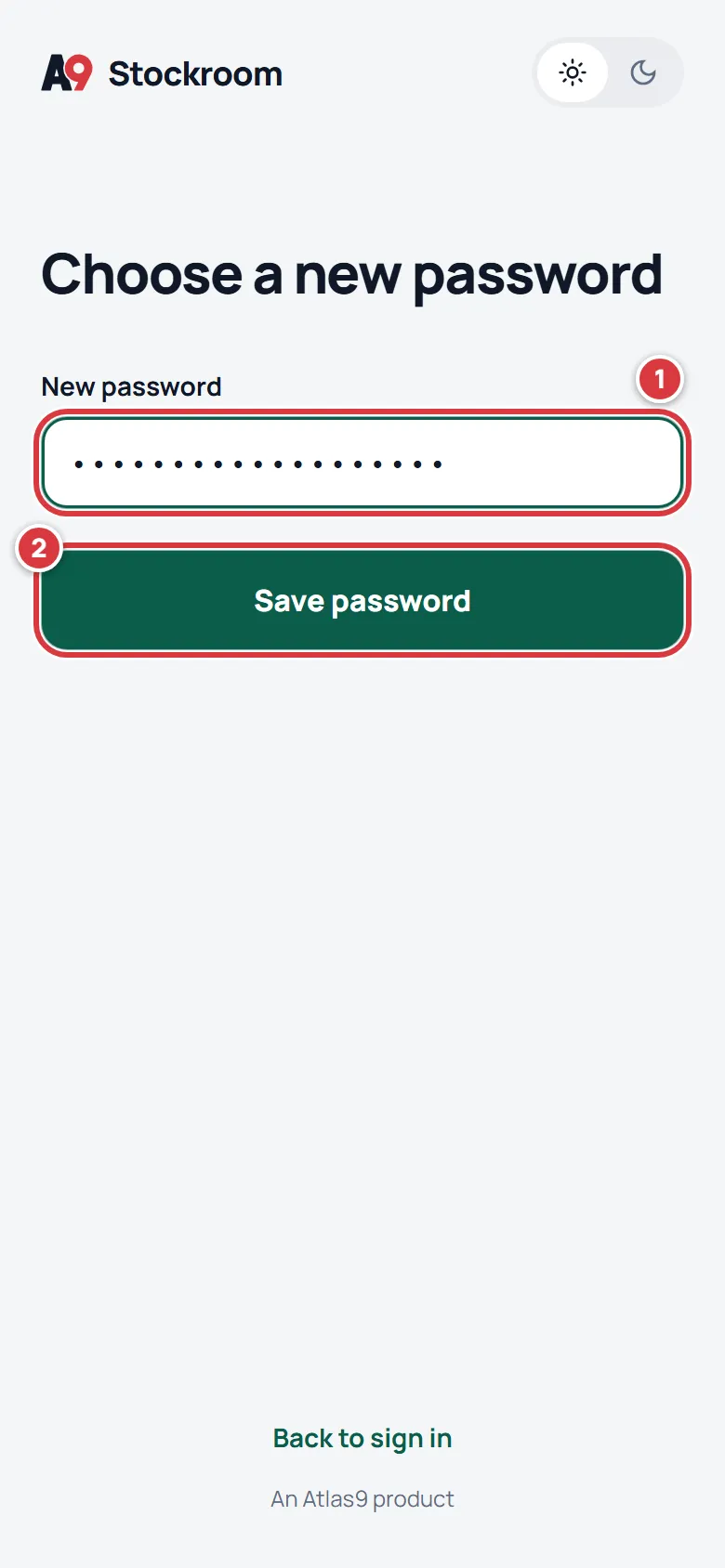
Type a new password in New password and tap Save password.
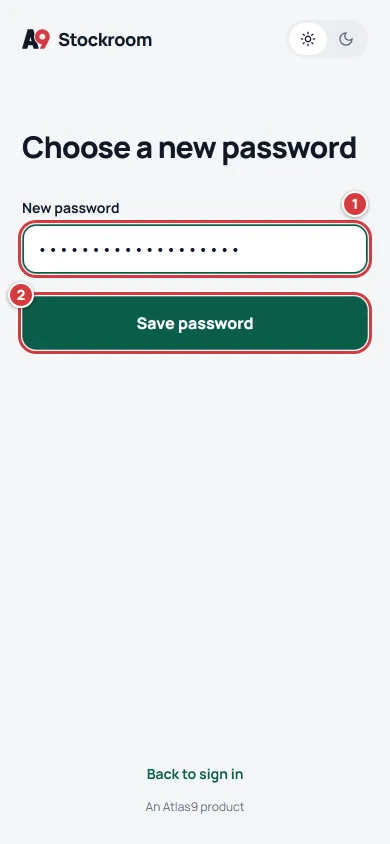
The page that the emailed link opens. The screen says Password saved. Sign in with your new password. Sign in as above.
Resetting a password signs you out on every other phone and computer. That is deliberate, in case someone else had your password.
Steps: sign out#
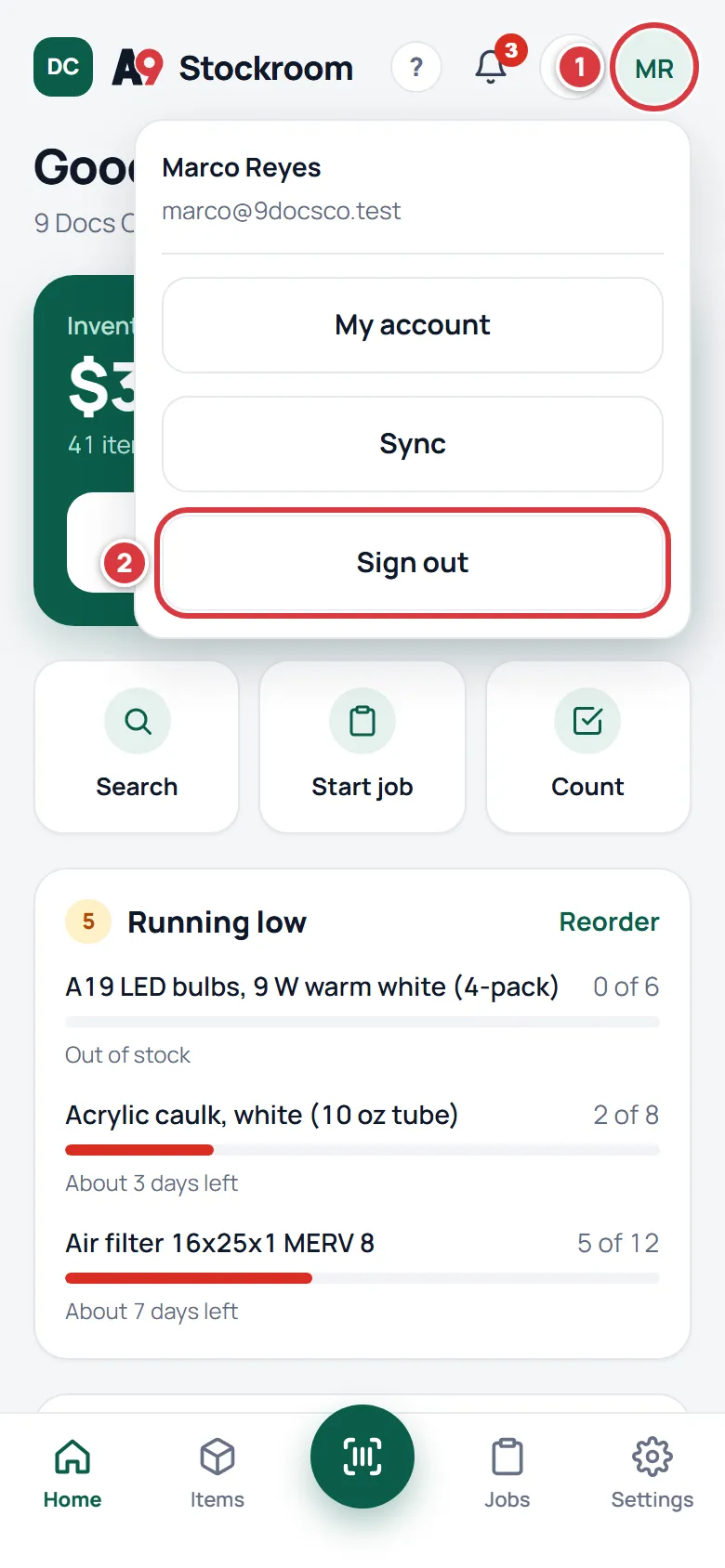
Tap your initials in the top corner of any screen. The button is called Account menu. On a computer it is at the bottom of the left sidebar.
Tap Sign out. You can also scroll to the bottom of Settings and tap Sign out there.
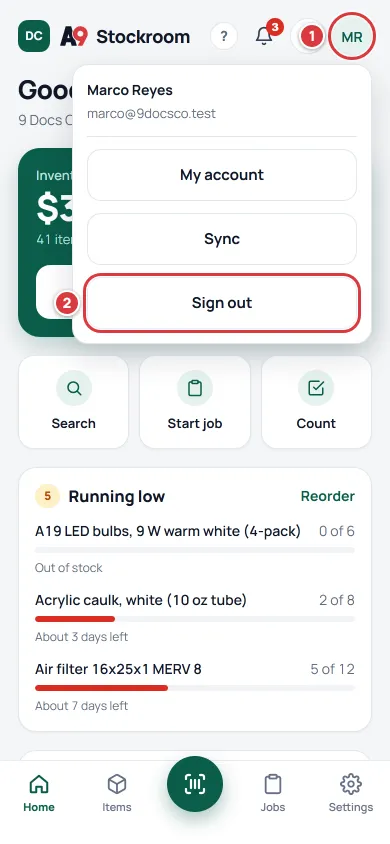
Your initials open the menu. Sign out is the last button.
Signing out clears the stockroom from the phone, so nobody who picks it up can see it. If some of your changes have not reached the server yet, the app sends them first. If it cannot, it asks "Sign out anyway?" because those changes would be lost. Choose Cancel, get a signal, and try again.
The invite link has run out, or was already used#
An invite link stops working after 7 days, once it has been used, or if the person who sent it cancelled it. All three look the same:
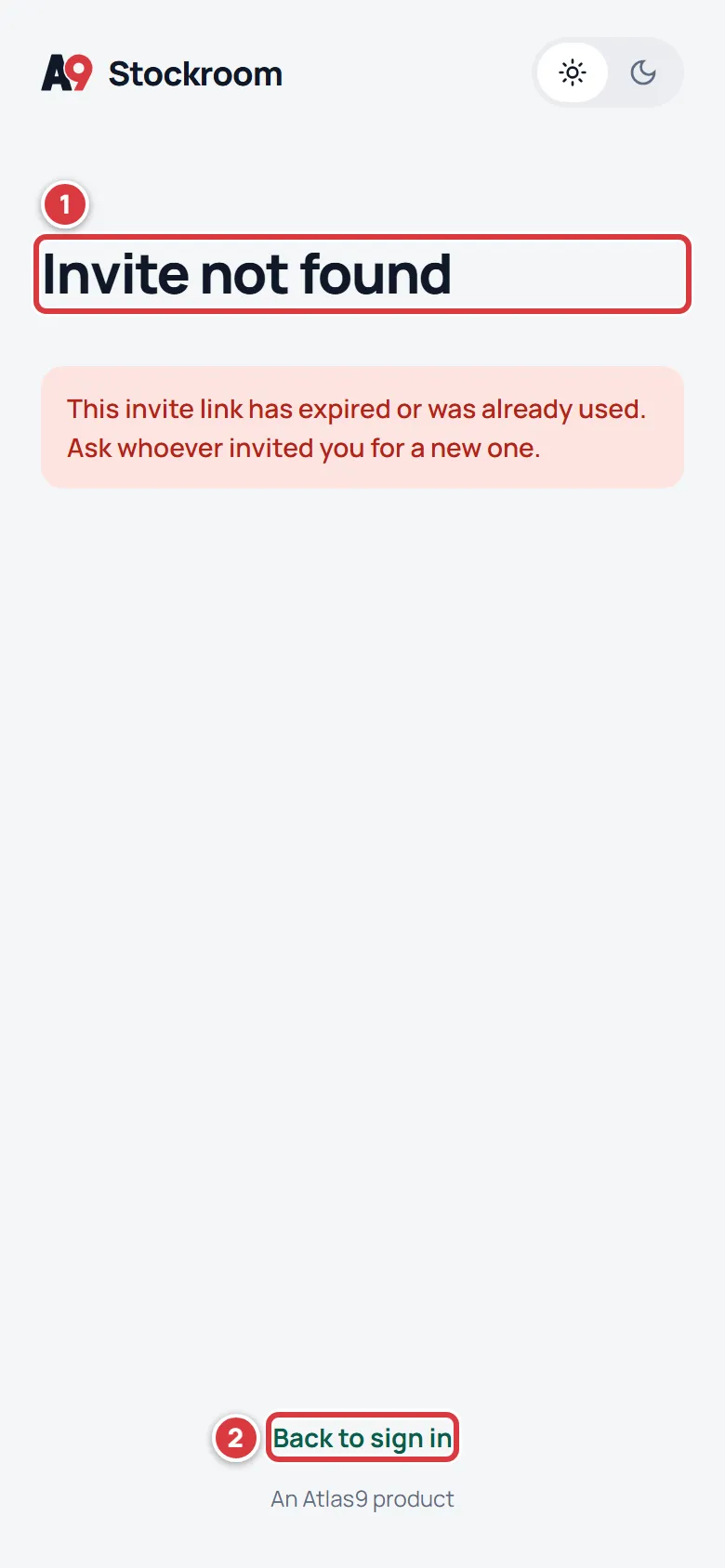
Ask whoever invited you to send a new one: an owner or a manager can do it from Settings, then Team. They can resend your invite, which starts another 7 days, or send a new one. If you already made your account with the link, don't use it again: just sign in.
If you are removed from a company#
An owner or a manager can remove a person from the company. When that happens, the phone signs you out and clears its copy of the stockroom. Your past work stays in the company's history under your name.
If you sign in afterwards and land back on the sign-in screen with no message, you have probably been removed. Ask the owner or a manager. If they invite you again, use the new link.
What you'll see#
- After Create account or Sign in: the Home screen, with your company's name under your greeting.
- After Sign out: the sign-in screen, "Welcome back".
- After a reset: Password saved, then the sign-in screen.
If it didn't work#
- "That email and password don't match." Check the email for typos, then try Forgot?. Passwords are case sensitive.
- "Too many tries. Wait a minute and try again." Too many attempts in a row. Wait one minute, then try once, carefully.
- "You're offline. Signing in needs a connection." Get a signal or Wi-Fi first. A phone that has been offline for a long time asks you to sign in again once it is back online: "This phone has been offline for a while."
- "Confirm your email first. We just sent you a new link." Open the email from A9 Stockroom and tap its link, then sign in again. Look in your spam folder too.
- "This email already has an account. Sign in instead." The email on the invite already belongs to a person on a team. Use Sign in with that email. If you need to work for two companies with one email, write to support@a9stockroom.com.
- "This reset link has expired. Ask for a new one." Reset links work for a short time. Start again from Forgot?.
- "Invite not found." See above: ask for a new invite.
- "Something went wrong. Try again." when you create your account. Check your connection and try once more. If it keeps happening, the company's account may be read-only. Ask whoever invited you to contact support@a9stockroom.com.
- The reset email does not arrive. It can take a minute. Check spam, make sure you typed the email the company invited you with, and wait before asking for another.