Notifications
The bell shows alerts for low stock, overdue tools, received orders and new assignments. What each alert means, who gets it, and how to mark it read.
The bell is where A9 Stockroom tells you something happened. Alerts are for you alone: each person has their own list. The alerts are in the app only. There are no push notifications to your phone's lock screen.
Open your alerts#
- On a phone, open Home. The bell is in the header, between the ? and your initials. On a desktop it is at the bottom of the sidebar, next to your name.
- Look at the red number on the bell. It is how many alerts you haven't read. It stops at 9, and shows "9+" for more.
- Tap the bell. The Alerts sheet opens with your newest alerts at the top.
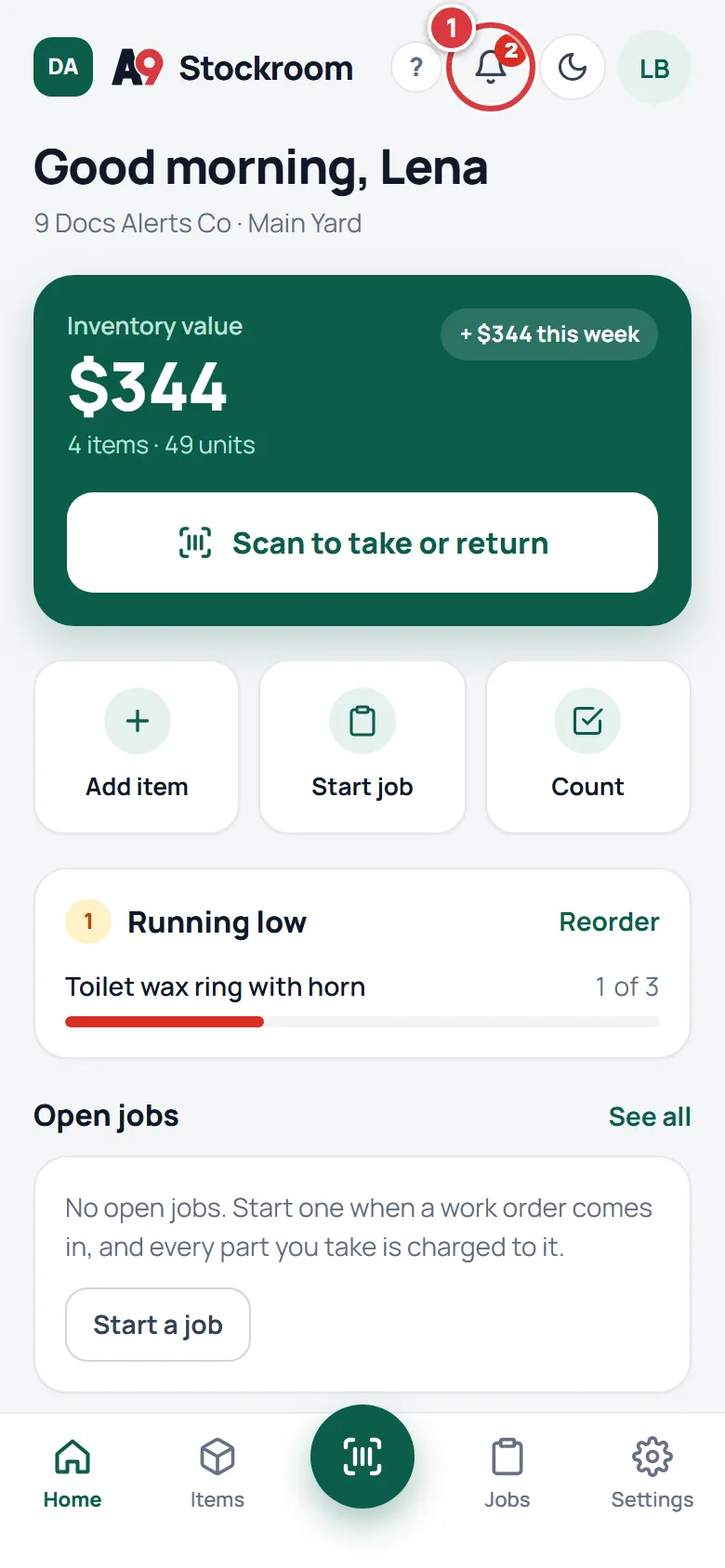
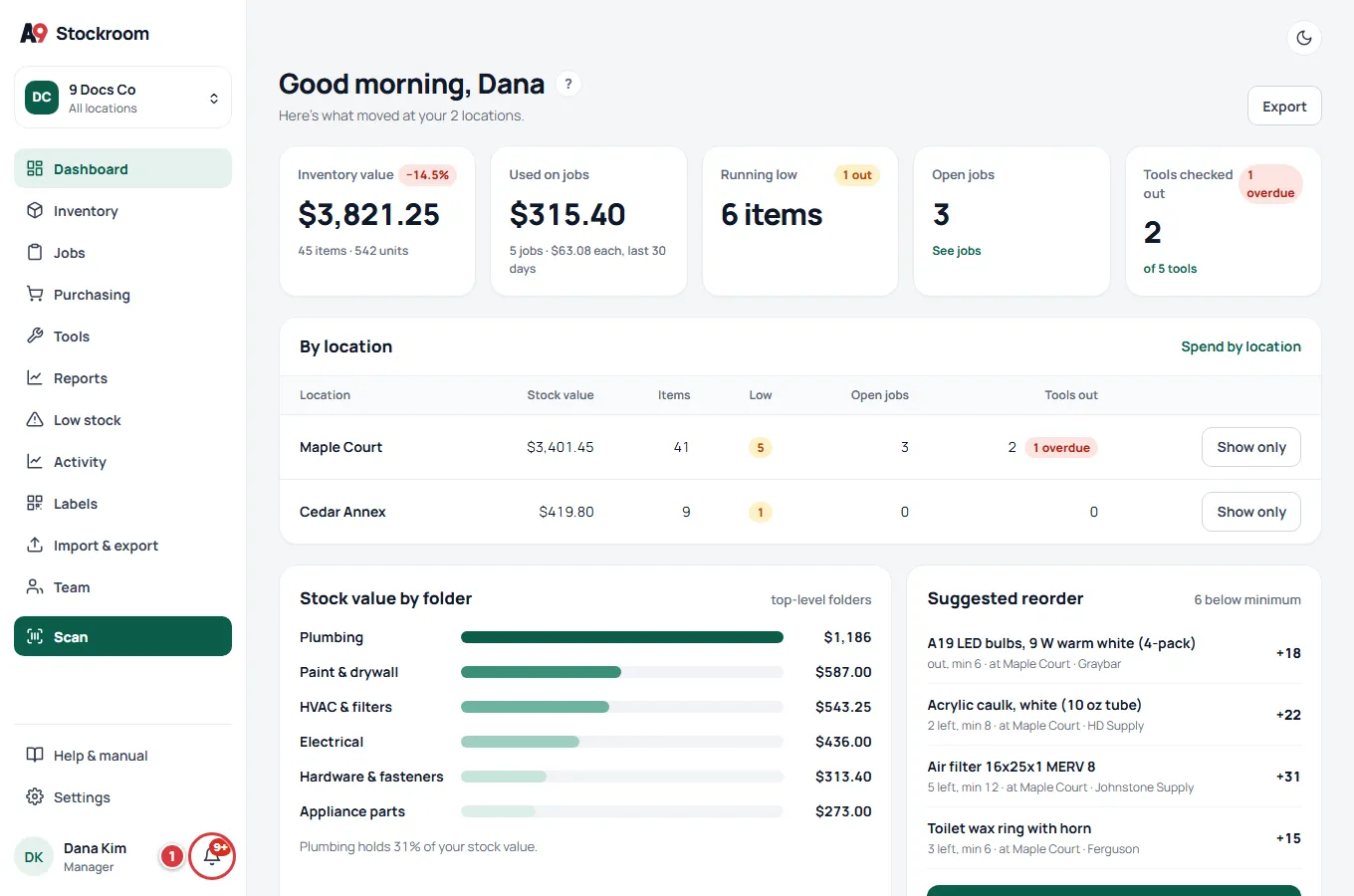
An unread alert has a green dot and bold text. The app looks for new alerts every minute and each time you tap the bell, so you don't need to refresh.
What each alert means#
Tap an alert to go to what it is about. For example, a low-stock alert opens the item.
| Alert | What it says | What it means | Who gets it |
|---|---|---|---|
| Low stock | "Toilet wax ring with horn is low" and "1 on hand, minimum 3" | A change to the stock (a take or a count, for example) took an item under its minimum. With more than one location, the alert names the location. It is sent once, when the item goes from fine to low. Changing a minimum does not send one: an item that becomes low because you raised its minimum is on Low stock and in the daily email, not in the bell. | Owners and managers |
| Tool overdue | "Drain auger, 25 ft (DA-01) is overdue" | A tool is past its due date and is not back. | The person who has the tool, and owners and managers |
| Order received | "PO-0004 received" or "PO-0003 partly received" | Someone received stock against a purchase order, in full or in part. | The person who made the order, and owners and managers. Not the person who received it. |
| Assigned to a location | "You were assigned to Maple Court" | A manager gave you a location to work at, or you joined with one. | You |
| Joined | "You joined 9 Docs Co" | You accepted an invite to a company. | You |
Techs see only the last two, and overdue-tool alerts for tools they hold. A tech does not get low-stock or order alerts.
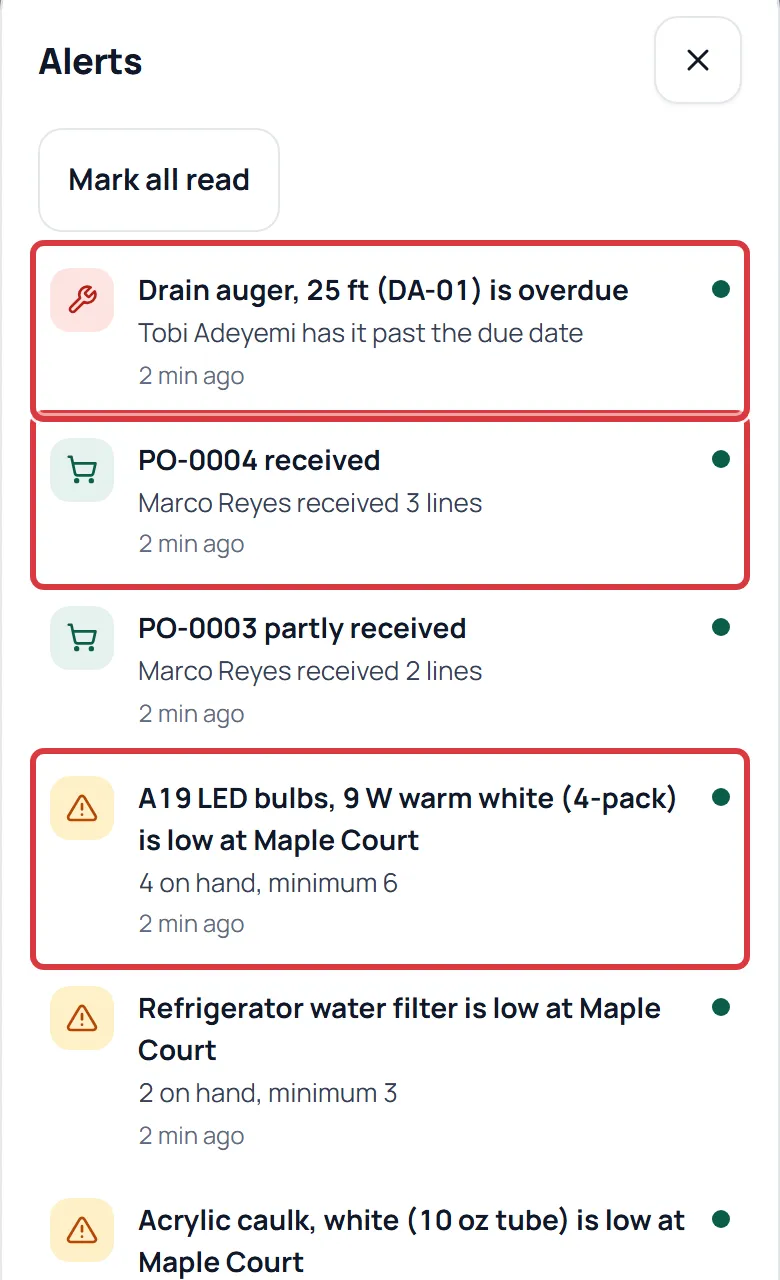
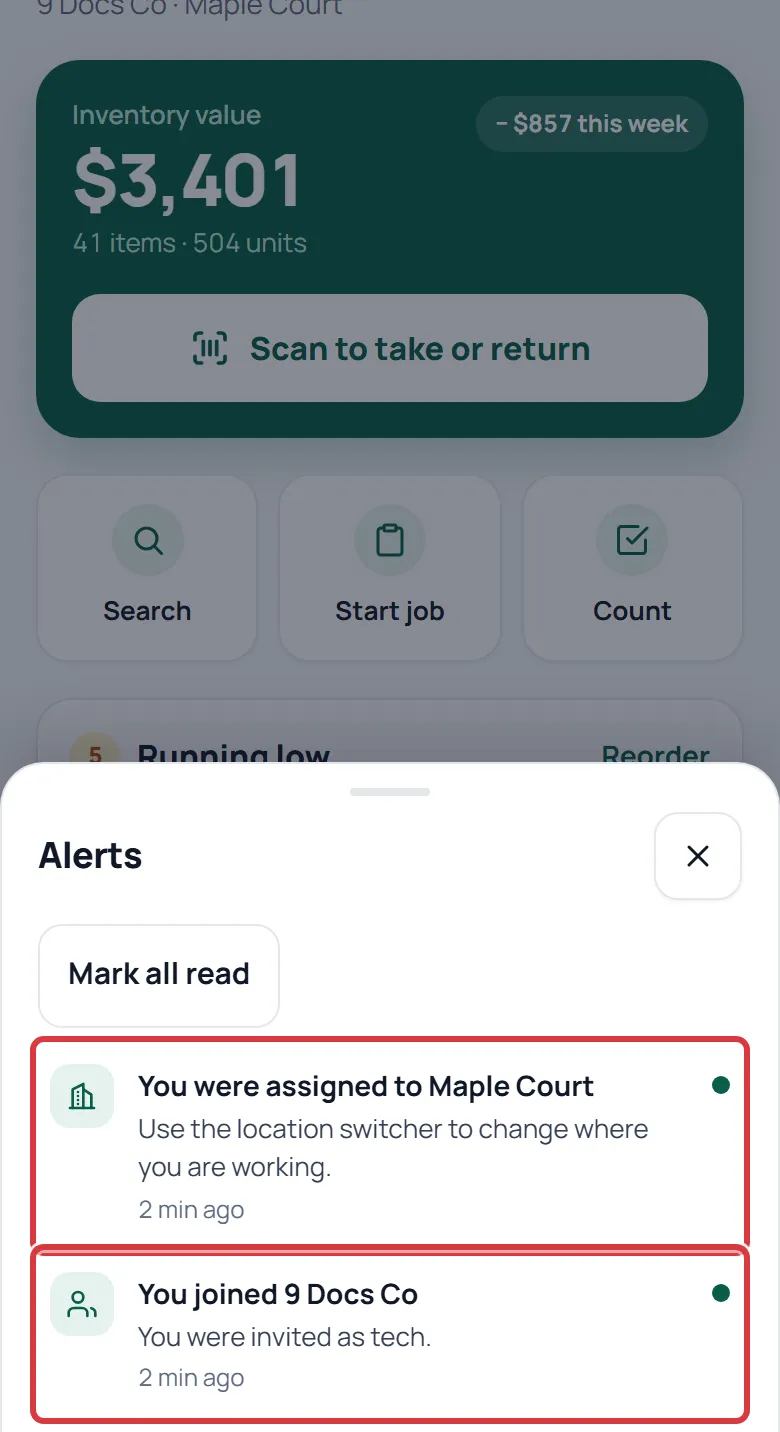
An alert does not change after it is made. If a tool comes back, its overdue alert stays in your list until you read it. See Tools and Low stock.
Tools and orders are part of the Pro plan, so those alerts only appear for Pro companies. See Your plan.
Mark alerts as read#
- Open the bell.
- Tap Mark all read to clear every unread alert at once. Or tap one alert. It opens what it is about and is marked read.
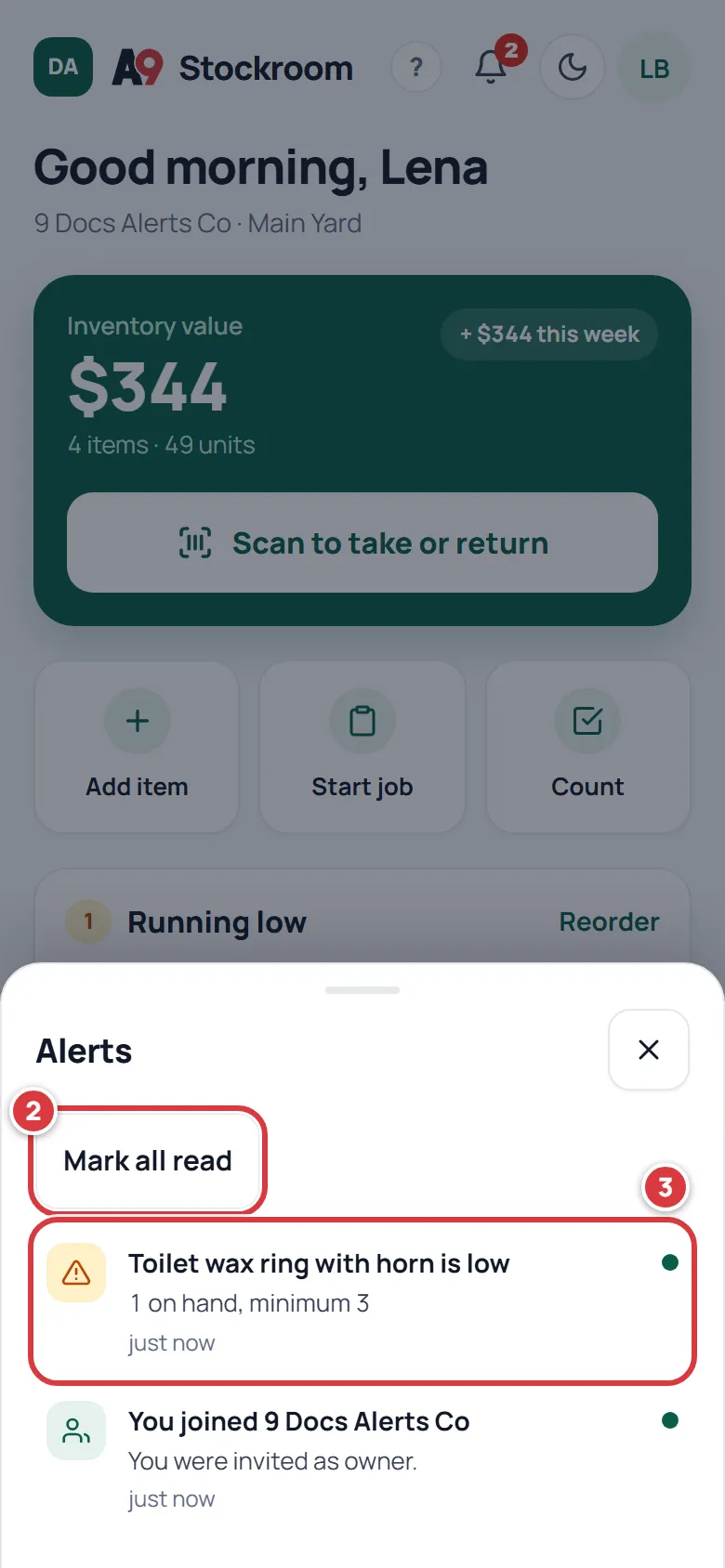
After that, the red number goes away and the green dots disappear.
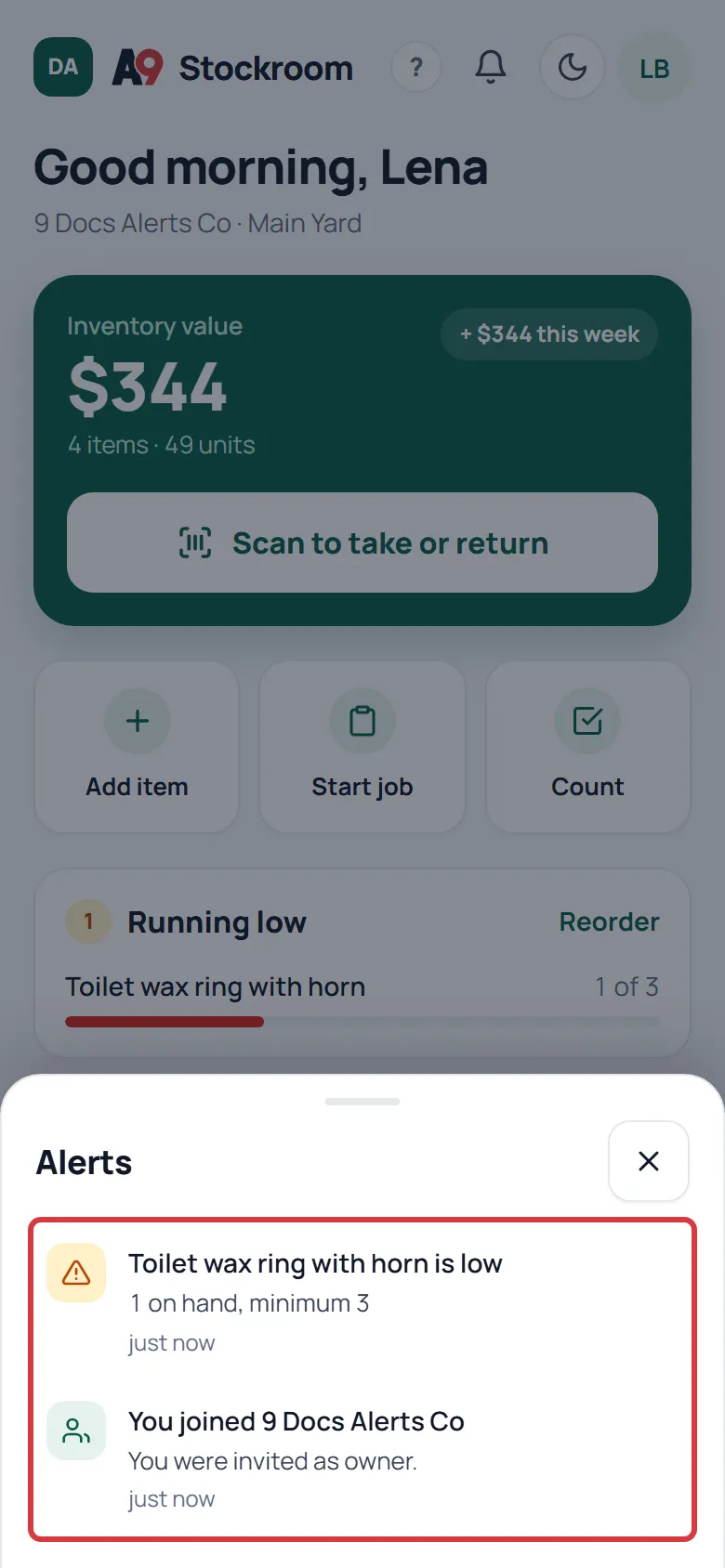
The list shows your recent alerts. Reading an alert doesn't delete it.
Choose which alerts you see#
You can switch off the kinds you don't want in the bell.
- Open your initials (Account menu), then My account.
- Find Notifications. Under Show these in the bell, untick the kinds you don't want: Low stock, Overdue tools, Orders received, Joining a company and Location assignments.
- Tap Save notification settings.
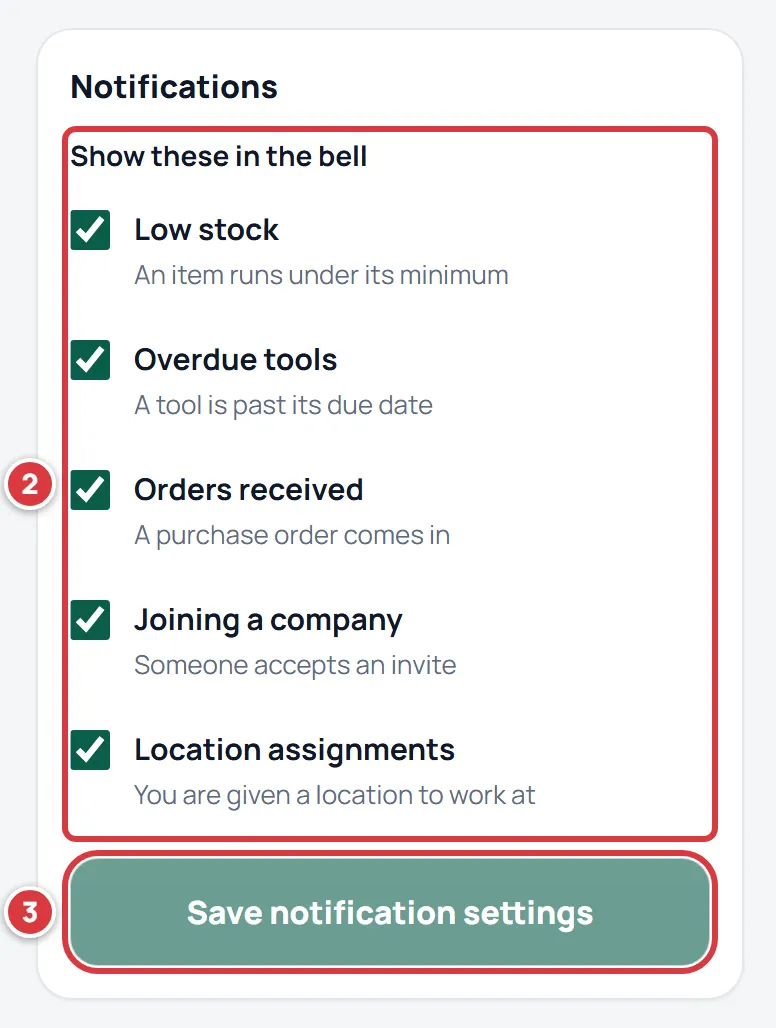
This only changes your own bell. Owners and managers have one more setting there: Daily low-stock email. It is a separate email each morning, not an alert. See The daily digest and My account.
What the bell does not do#
- It does not send push notifications to your phone.
- It does not send an email for each alert. The only email is the daily low-stock email, for owners and managers.
- It does not work with no signal. With no signal the list is empty until you are back online. See Working without signal.
- It does not show other people's alerts. Each person's list is their own.
Troubleshooting#
- The bell has no number but I expected an alert. Open the bell. The list loads when you open it. If the alert is not there, check My account, Notifications: the kind may be switched off. Also check that you are the kind of person who gets that alert (see the table).
- I don't get low-stock alerts. Only owners and managers get them. A tech can see what is low on Home and in Low stock.
- An alert is about something I already fixed. Alerts don't update. Tap Mark all read or tap the alert to clear it.
- The bell shows nothing yet. The sheet says "Nothing yet. Low stock, overdue tools, received orders and new assignments show up here." Nothing has happened yet that you get an alert for.