The dashboard
A tour of Home on a computer screen: what each card and number means, how the location switcher narrows it, what Export does, and what a new company sees.
The dashboard is Home for owners and managers on a computer. It answers "how is the stockroom doing?" at a glance: what the stock is worth, what is running low, what is out on jobs, and what just moved.
On a screen about 1024 pixels wide or more, owners and managers get the dashboard. On a phone, or on a narrow window, Home is the phone version with big buttons for taking and returning stock: see The Home screen. Techs and viewers always see the phone version. The dashboard is worked out when you open it, so it needs a signal: with none, it says so instead of showing old numbers.
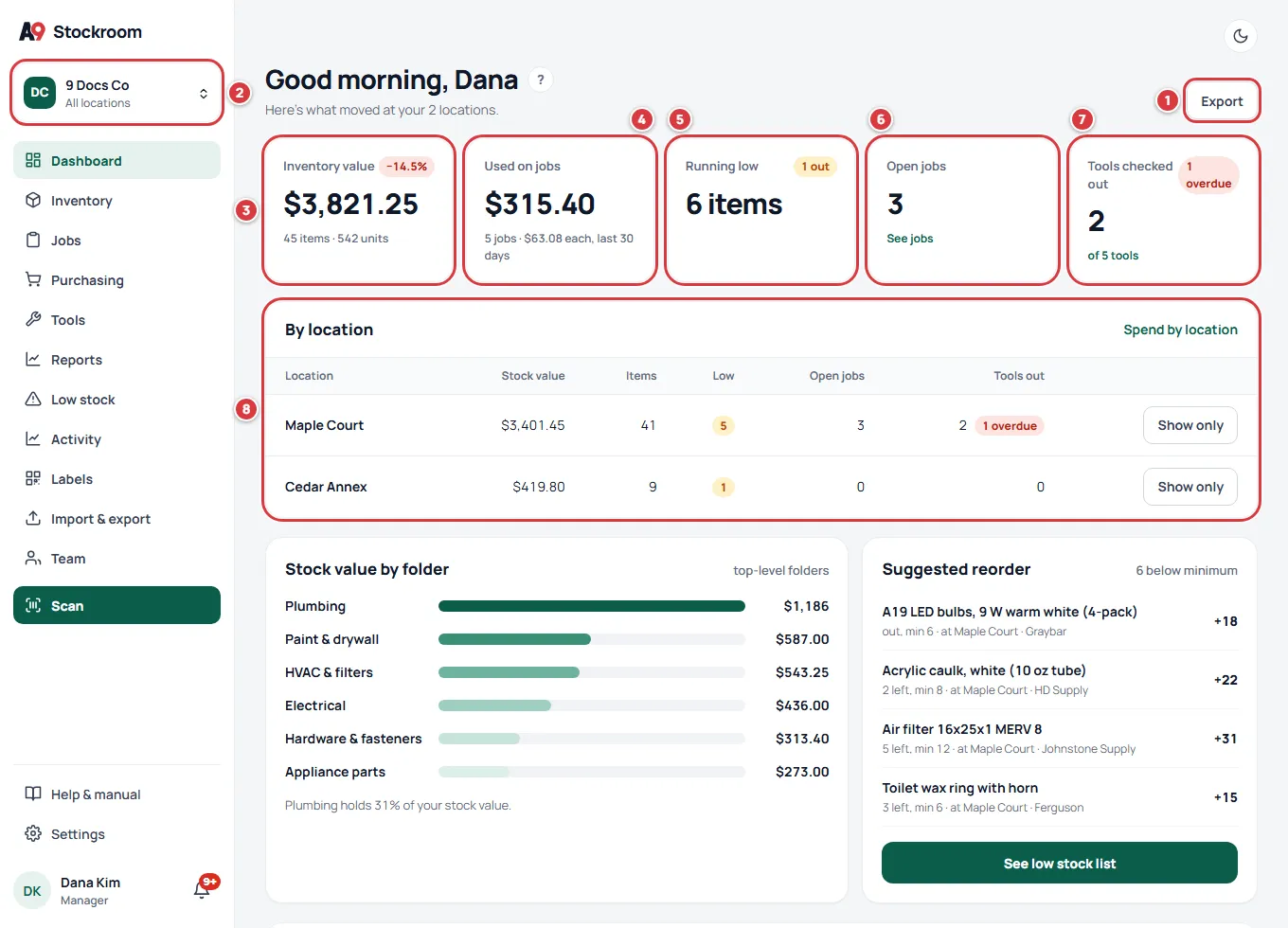
The top of the page#
- Export downloads a CSV of your items, for a spreadsheet or a backup. It is for owners and managers. It is the same file as the item export under Import & export: see Getting your data out. It is not a copy of the dashboard numbers: for spend, use Reports.
- The location switcher is the company tile at the top of the left menu. See The location switcher.
Above the numbers, the page says "Good morning", "Good afternoon" or "Good evening" by the clock on your device, and "Here's what moved at" and the place the numbers are for: one location's name, or "your 2 locations", or your company name if you only have one. The small ? beside the greeting opens this page.
Each card and number#
The numbers cover the locations on show: everything with All locations, or just one location when you have picked it.
3. Inventory value#
What your stock is worth: units on hand times each item's Unit cost, added up. Archived items are left out. Under it you see how many items and how many units that is.
The small chip beside the title is the change over the last 7 days: green for up, red for down. It is a percentage when there was stock a week ago, and a dollar amount if there was none. Moving stock between folders in the same location does not change it. A transfer between locations does, for each location it touches: the one that sent it goes down and the one that received it goes up.
4. Used on jobs#
The cost of the parts charged to jobs that were opened in the last 30 days. Under it: how many jobs that is and the average per job. It reads "No jobs in the last 30 days" if there were none. See Jobs.
5. Running low#
How many items are under their minimum right now. The chip shows how many of them are out of stock (zero on hand). The rule is the same one Low stock uses, location by location: an item is low at a location when that location holds less than its minimum there. With All locations, an item shows once, at the location where it is worst. See Low stock and Minimums and reordering.
6. Open jobs#
How many jobs are open. See jobs opens the list.
7. Tools checked out#
Pro plan. How many tools are out, how many of your tools that is ("of 5 tools"), and a red chip if any are overdue. See tools opens the list. On Essentials this card is not shown. See Tools.
8. By location#
Pro plan. Shows with All locations when your company has more than one location. One row per location, with Stock value, Items, Low, Open jobs and Tools out (and how many of those are overdue). If you use another word for a location, the card says that word, for example By site.
- Show only on a row switches the whole dashboard to that location. It is the same as choosing it in the location switcher.
- Spend by location opens Reports on the by-location view.
On Essentials there is no All locations view, so this card does not appear.
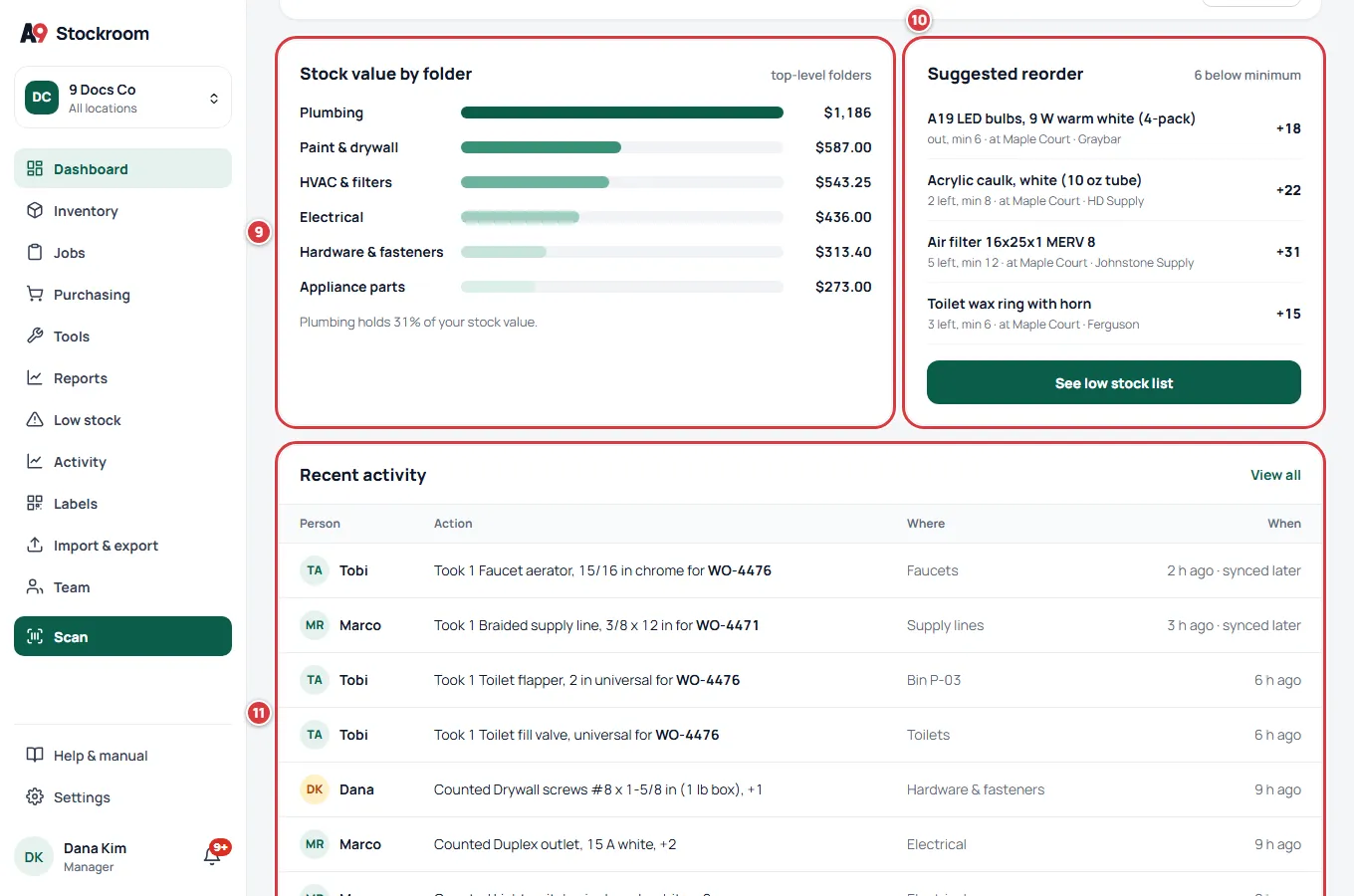
9. Stock value by folder#
Bars for your top-level folders (up to six), biggest first, with each one's stock value. A line underneath says how much of your stock value the biggest holds. Tap a bar to open that folder.
10. Suggested reorder#
The four items furthest below their minimum, with how many are left, the minimum, the location (with All locations) and the supplier. The + number is how many to order to get back up to the reorder level. The heading shows how many items are below their minimum in all. See low stock list opens the whole list, where you can make purchase orders: see Purchase orders.
11. Recent activity#
The last eight things anyone did: who, what, where and when. A note such as "synced later" means the person did it with no signal and it reached the server afterwards. View all opens Activity. See Activity and history.
The location switcher#
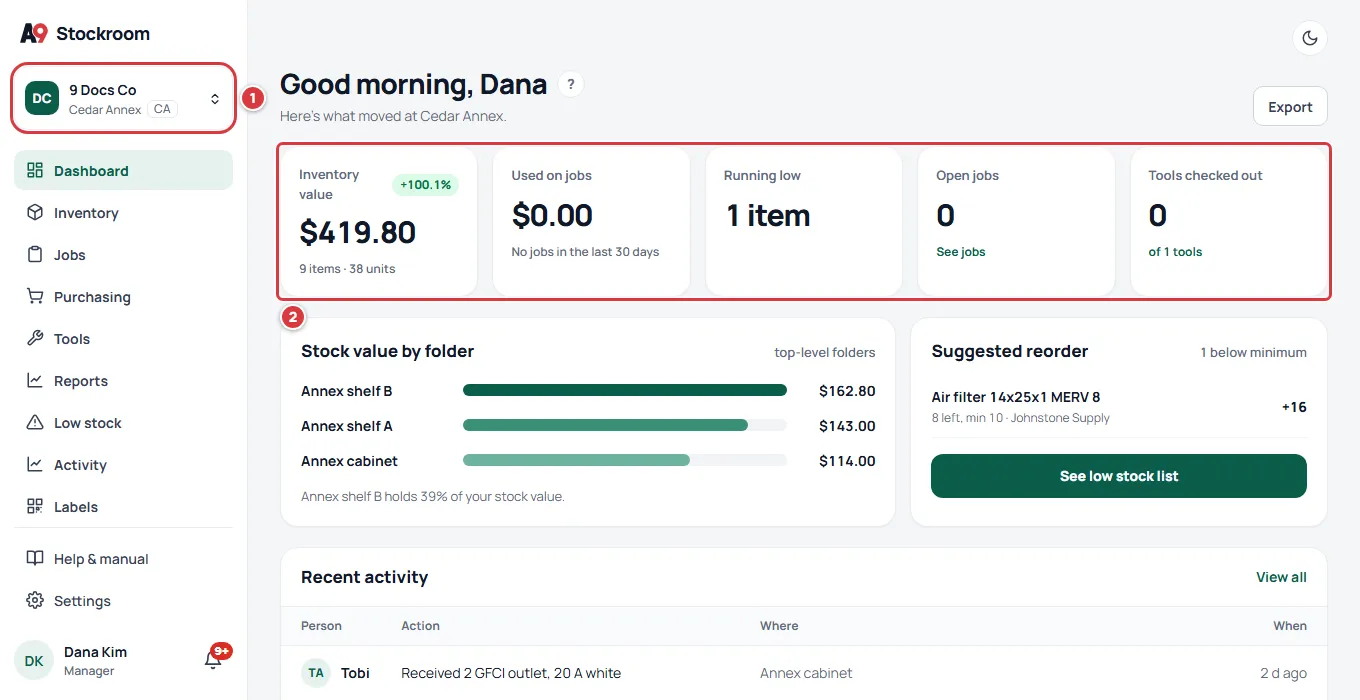
The company tile at the top of the left menu shows the company's name and what you are looking at: All locations, or one location with its code. Tap it to choose another. Your choice is saved on you, so it is still there next time, and it applies to the dashboard, lists and reports alike.
- With All locations everything is added up across your locations, and the By location card shows each one.
- With one location chosen, every number is for that location only, and the By location card goes away.
- All locations is part of the Pro plan. On Essentials you work in one location at a time.
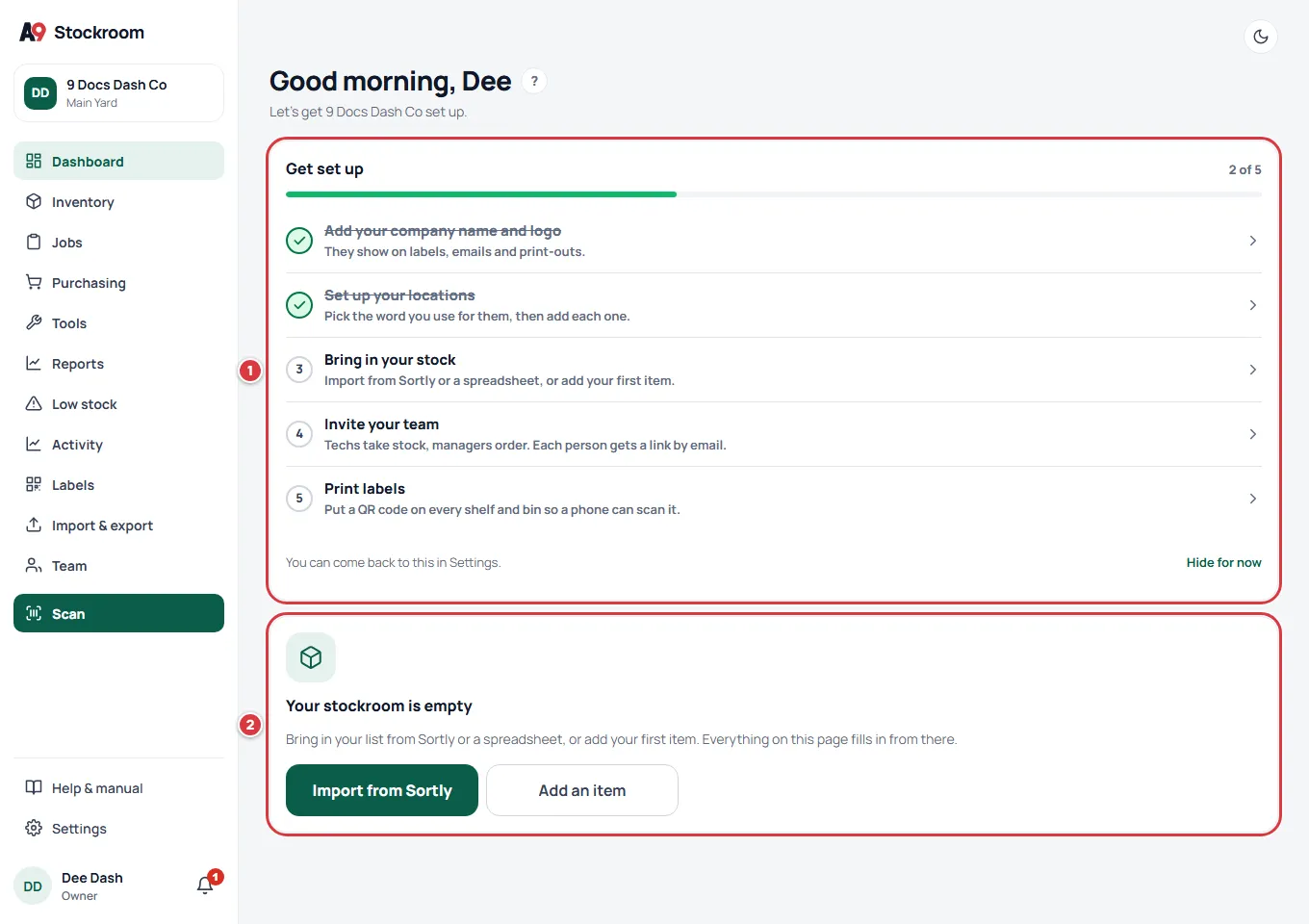
A new company#
A company with no items and no open jobs does not see a wall of zeros. It sees "Let's get" and the company name "set up", the Get set up checklist, and a card that says Your stockroom is empty with buttons to Import from Sortly and Add an item. The checklist ticks itself as you do the real work, and Hide for now puts it away: it is still under Settings. As soon as the company has an item or an open job, the dashboard shows its numbers. See Setting up your company.
Questions#
Why does a number look wrong?#
- Check the location switcher first. A single location shows only that location.
- Costs come from each item's Unit cost. An item with no cost adds nothing to Inventory value. See Items.
- Running low only counts items that have a minimum above zero. Archived items and tools are not counted.
The dashboard looks like the phone version#
The dashboard shows on a window about 1024 pixels wide or more, for owners and managers. Make the window wider, or zoom out. See The Home screen for the phone version.
Where are the Tools numbers?#
The Tools card is part of the Pro plan. See Your plan.