Settings reference
Every setting in A9 Stockroom, grouped by the screen it lives on: what it does, who can change it, and what it is until someone changes it.
Use this page to find where a setting lives and who is allowed to change it. Each entry starts with the name you see on screen. "Who can change it" lists the roles that can, and "Default" is what the setting is until someone changes it. The roles are explained in Roles and permissions.
If a setting is missing from your screen, it is almost always your role. Open Settings and look at the rows you can see: a tech sees fewer rows than a manager, and a manager sees fewer than the owner.
The Settings screen#
On a phone, tap Settings in the bottom bar. On a computer, choose Settings in the menu on the left. Each row opens one place. Below them, More holds the screens that do not fit in the bottom bar of a phone.
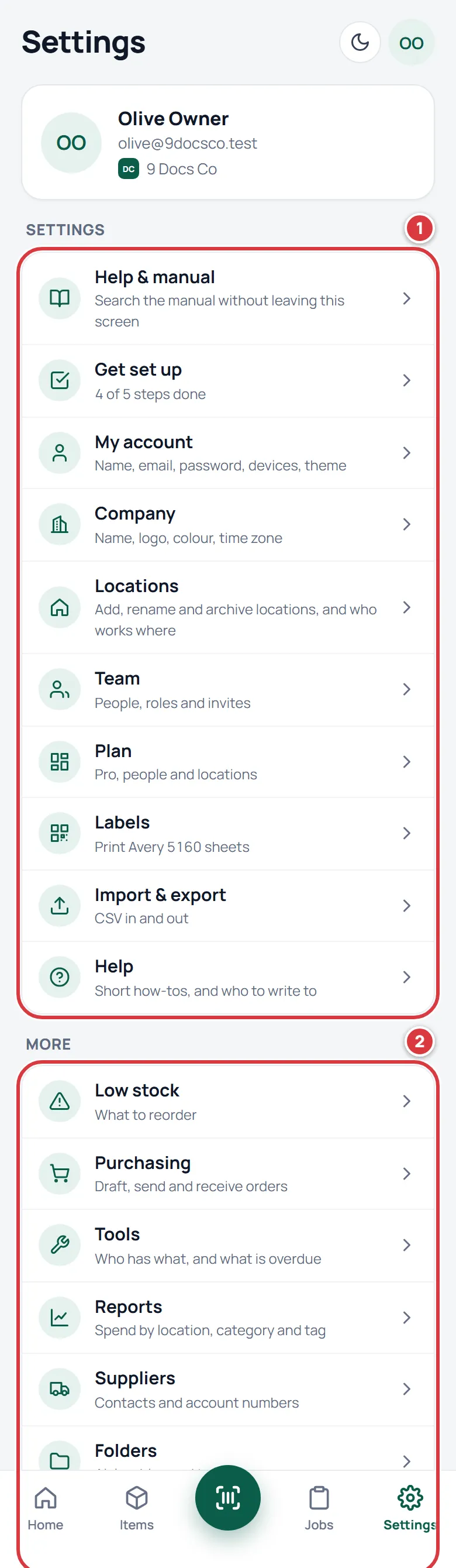
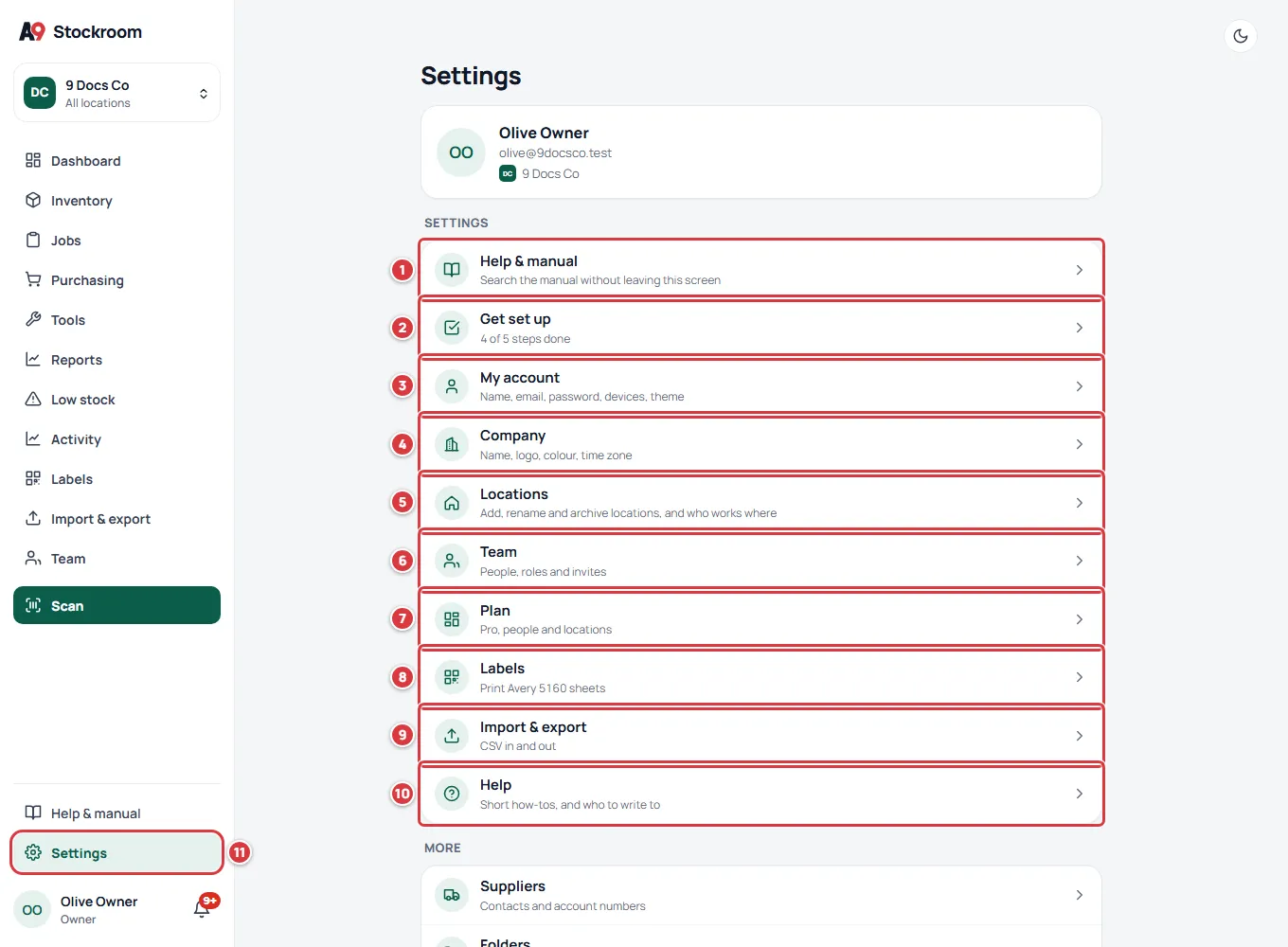
- Get set up: the checklist that ticks itself as you do each step. Who sees it: owners and managers, until every step is done. See Setting up your company.
- My account: your own name, email, password, devices, theme and alerts. Who sees it: everyone. See My account.
- Company: the company's name, logo, colour, time zone and word for a location. Who sees it: owners and managers. Only the owner can change what is on it. See Company settings.
- Locations: add, rename and archive locations, and choose who works where. The row is named with your company's own word, so it may say Sites, Facilities, Stores, Branches or Properties. Who sees it: owners and managers. See Locations.
- Team: people, roles and invites. Who sees it: owners and managers. See Team.
- Plan: what the company has and how much is used. Who sees it: the owner. See Your plan.
- Labels: print QR labels. Who sees it: everyone except viewers (on a phone). See Labels and printing.
- Import & export: bring a list in from a CSV file, or take the items out. Who sees it: owners and managers. See Moving from Sortly.
- Help: short how-tos that work without a signal, and who to write to. Who sees it: everyone.
- Sign out: ends your session on this device.
The More list repeats screens you also reach from the bottom bar or the menu: Low stock, Purchasing, Tools, Reports (owners and managers), Suppliers, Folders and Activity. Purchasing, Tools and Reports are Pro features and carry a Pro badge on the Essentials plan. See Your plan.
My account#
Everyone can change everything on this screen, viewers included. It is the only Settings screen a tech can edit. Full steps: My account.
- Add a picture (or Change picture): your photo, shown in the corner of the screen and in the team list. Remove picture puts your initials back. Who can change it: you. Default: your initials.
- Your name: the name teammates see in Activity and the team list. Press Save name. Who can change it: you. Default: the name you gave when you accepted your invite.
- New email address and Current password: the email you sign in with. Change email sends a link to the new address; nothing changes until you open it, and the link works for 24 hours. The old address gets a note with a way to undo the change. Cancel email change withdraws a change that is waiting. Who can change it: you. Default: the address you were invited at.
- Current password, New password and Confirm new password: press Change password. Changing it signs out every other device. Who can change it: you. Default: the password you chose when you joined.
- Signed-in devices: every device you are signed in on. Sign out ends one of them. Sign out everywhere else ends all but this one. Who can change it: you. Default: every device you have signed in on stays signed in until you sign out.
- Theme: Light, Dark or Auto. Auto follows your device. Your choice is saved on your account, so it follows you to every device. Who can change it: you. Default: Auto.
- Daily low-stock email: one email each morning at 6:00 AM, only when something is low. Who can change it: you, and only if you are an owner or a manager (techs and viewers do not see it). Default: on. See The daily digest email.
- Show these in the bell: which alerts appear under the bell. The five kinds are Low stock, Overdue tools, Orders received, Joining a company and Location assignments. Press Save notification settings. Who can change it: you. Default: all five on. See Notifications.
- Leave company: removes you from the company and signs you out. Your history stays. Who can use it: everyone except the owner, who must make a manager the owner first. Default: not applicable.
Company#
Owners can edit every card on this screen. A manager sees the same facts with nothing to press and the note "Only the owner can change these settings." Full steps: Company settings.
- Company name: the name shown on screens, emails and printouts. Press Save name. Who can change it: the owner. Default: the name A9 Stockroom set up your company with.
- Logo: Upload logo, Change logo or Remove logo. A square picture works best and is shrunk to 256 px. It appears in the menu, in emails and on printouts. Who can change it: the owner. Default: none, so your company's initials show.
- Brand colour: pick one of the six colours shown, or None, then Save colour. It colours only the company's own tile, never buttons or menus. Who can change it: the owner. Default: None.
- Company time zone: sets the day boundary for reports and the hour the daily email goes out. Press Save time zone. Who can change it: the owner. Default: Pacific time (America/Los Angeles), unless A9 Stockroom set another when it created your company.
- What do you call your locations?: the word every screen, email and report uses for a place you stock. The choices are Property, Location, Site, Facility, Store and Branch. Press Save word. Who can change it: the owner. Default: Property. "Unit turn" jobs only appear for Property. See the Glossary.
- Send me a test digest: sends you the daily email now, so you can see what it looks like. Who can use it: owners and managers. Default: not applicable.
- Export everything: builds a zip of every list in the company and emails you a link. Who can use it: the owner. It still works when the company is read-only. See Getting your data out.
- Activity log: who changed what on the team, the company and its locations, newest first. Show more loads older lines. Who can see it: the owner. Default: not applicable.
Locations#
Owners and managers can change everything here. Full steps: Locations.
- Add location (the button carries your company's word): opens a sheet with Name, Address (optional), Code (optional) and, only when the word is Property, Units. Who can change it: owners and managers, up to the number of locations your plan includes. Default: Address (optional) and Code (optional) empty, Units 0.
- Edit: change those fields, or press Delete location. Delete only works for a location that has nothing in it; otherwise archive it. Who can change it: owners and managers.
- Archive and Unarchive: an archived location leaves the switcher, lists, Home, reports and the daily email, and stops counting toward your plan. Its stock must be moved out first. Show archived lists the archived ones. Who can change it: owners and managers.
- Who works where: a tick for each location a tech works at. A tech sees only the folders, jobs and stock of the locations ticked. Owners and managers always see every location. Who can change it: owners and managers. Default: a new tech starts at the first location unless you tick others when you invite them.
Team#
Full steps: Team.
- Invite a teammate: Email, Role and, for techs, Works at. Press Send invite. The link works for 7 days. Who can change it: owners and managers can invite a tech or a viewer; only the owner can invite a manager. Default: the role is Tech; if you tick no location, the tech starts at the first one.
- Pending invites: Resend sends the email again and starts the 7 days over. Copy link copies the invite link so you can send it yourself. Revoke kills the link. Who can change it: owners and managers for tech and viewer invites; only the owner for a manager invite.
- Change role: Manager, Tech or Viewer. Who can change it: owners and managers for techs and viewers; only the owner for managers. Nobody changes their own role.
- Assign locations (an entry in the menu beside a tech, named with your company's word): where a tech works. Press Save locations. Who can change it: owners and managers.
- Make owner: hands the company to a manager. You type the company's name to confirm, and you become a manager. A company has exactly one owner. Who can change it: the owner.
- Remove from team: the person loses access and is signed out of every device at once. What they did stays in the history. Who can change it: owners and managers for techs and viewers; only the owner for managers.
Plan#
- Plan: shows Essentials or Pro, its status (Trial, Active, Payment overdue, Read-only or Cancelled), how many people and locations are in use, and Contact support. Who can see it: the owner. Who can change it: nobody in the app. Plan changes go through support@a9stockroom.com. Default: set by A9 Stockroom when it created your company. See Your plan.
Labels#
Full steps: Labels and printing.
- Pick items and A whole folder: what to print. Who can change it: anyone who opens the screen. Default: Pick items.
- Print: prints sheets of Avery 5160 labels, 30 to a US Letter sheet, at most 300 labels in one go. Print at 100%, with no margins.
Import & export#
Owners and managers only. Full steps: Moving from Sortly.
- Match the columns: which column of your file is the name, quantity, cost and so on. A9 Stockroom guesses them for you; change a choice from its list, or choose Don't import to skip a column. Default: the guessed match. Tick Other columns to keep them as custom fields.
- Import into: the folder the file's folders are made under. Default: A new folder.
- Undo this import: takes a finished import back. It works for 24 hours, and only while nobody has used the stock. Who can use it: owners and managers.
- Export all items (CSV): every item with its folder, quantity, cost and custom fields. Who can use it: owners and managers.
Items and folders (managers)#
These are set on an item's own form, not under Settings. Owners and managers can change them. A tech can add photos to an item but cannot edit it. Full steps: Items.
- Unit: what you count the item in. Default:
each. - Unit cost ($) and Bill price ($): what you pay and what you charge back. Default: 0.
- Min qty: the item is Low stock when what is on hand drops under this. Default: 0, which means it is never low. See Minimums and reordering.
- Reorder to: the level to order up to. The suggested order is this number minus what is on hand. Default: 0.
- Minimum and Reorder to at one location: press Edit on a location under Stock by location. Leave a box empty to use the item's own number. Who can change it: owners and managers. Default: the item's own Min qty and Reorder to.
- This is a tool (checked out by unit, not counted): turns the item into a tool you check out and in. Only shown on the Pro plan. Default: off. See Tools.
- Starting quantity and Folder: how many you already have, and where. Only when you add an item. Default: none.
- Supplier, Supplier part #, UPC / barcode, Tags, Notes: free text. Default: empty.
- Add a field: makes a custom field every item can fill in (text, number, date or a list of choices). Who can change it: owners and managers.
- Archive this item and Restore this item: hide an item from lists and search, or bring it back. Its history stays.
- Photos: up to 8 per item.
On the phone#
- Take, Return, Count and Receive at the top of Scan: what scanning does next. Who can change it: anyone except a viewer. Default: Take. See Scanning.
- The location switcher at the top of Home: narrows every list and total to one location, or to All locations. Your choice is remembered on your account. Who can use it: anyone with more than one location. Only owners and managers on the Pro plan get All locations; a tech always sees just their own. Default: All locations for owners and managers on Pro.
- Account menu (your initials in the top corner of every screen on a phone, and at the bottom of the sidebar on a computer): My account, Sync and Sign out. Sync opens the list of changes waiting to send. See Working without signal.
What no one can change#
- The four roles and what each can do. See Roles and permissions.
- The plan and its limits, which A9 Stockroom sets with you. See Your plan.
- The email address an invite was sent to. Revoke the invite and send a new one.