Setting up your company
Work through the Get set up checklist: what each of the five steps ticks from, where it sends you, how to hide it and where to find it again.
A new company arrives empty on purpose. The first time an owner or a manager opens it, the Get set up checklist is at the top of Home. It has five steps. Each step ticks by itself when the work is really done. You never tick anything yourself, so the list is always true, even if you did a step a different way.
Only owners and managers see the checklist. Techs and viewers never do.
What you'll need#
- To be the owner or a manager of the company.
- A few minutes for each step, and for some steps something to hand: your company name and logo, the list of your locations, your stock list (a Sortly export or a spreadsheet), the emails of the people you want to invite, and a printer.
Steps: open the checklist#
On a phone, the checklist is the first card on Home. On a computer it sits at the top of the dashboard. A company with no items also shows Your stockroom is empty underneath.
Sign in as the owner. See Signing in if you have not yet.
Open Home. The card says Get set up and counts your steps, like 0 of 5.
Tap a step to go to the screen where you do it.
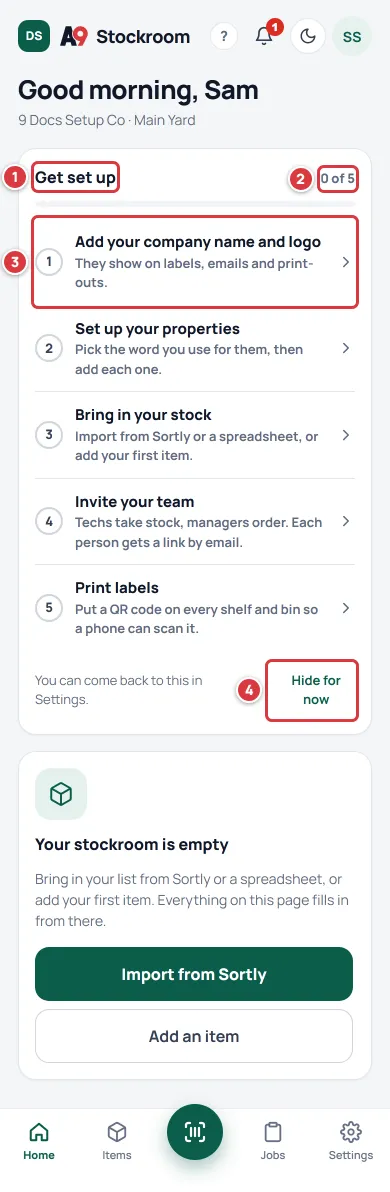
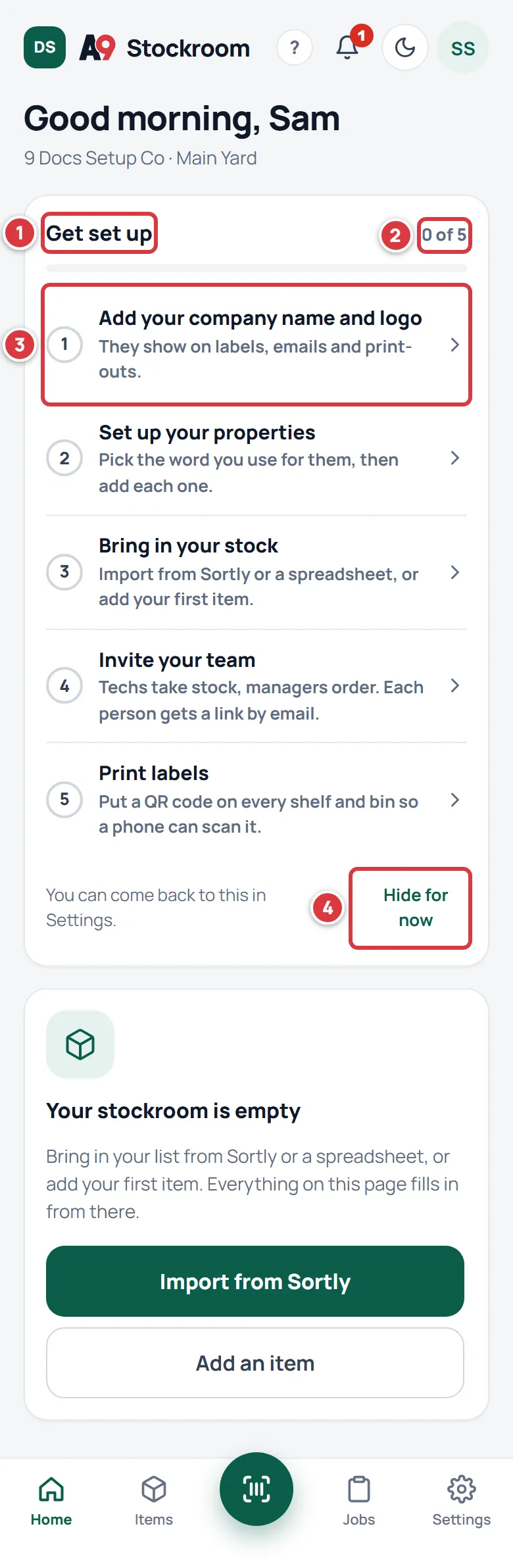
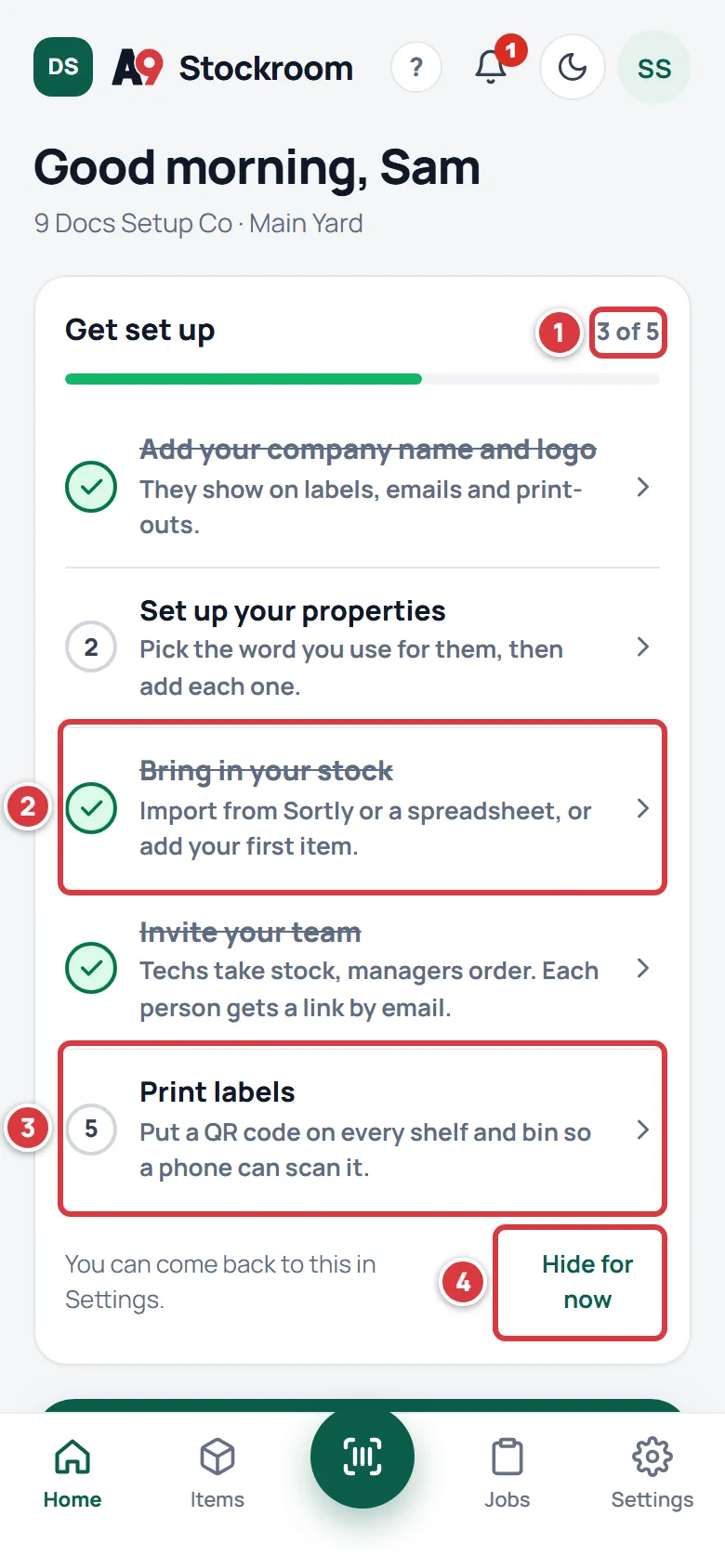
A new company on a phone. Each row is a step: tap it to go there. 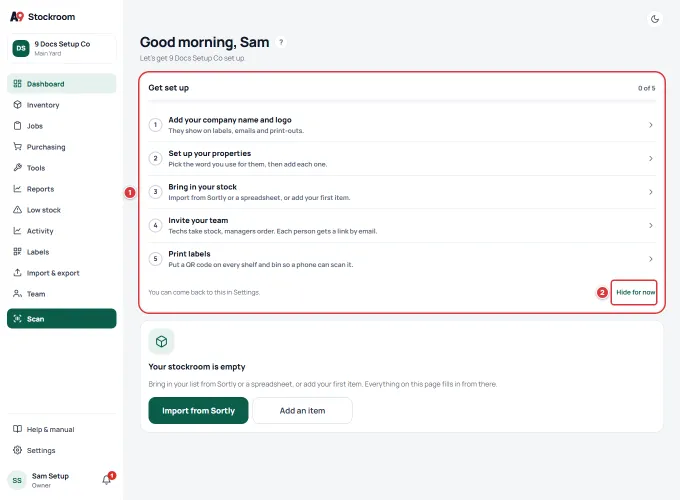
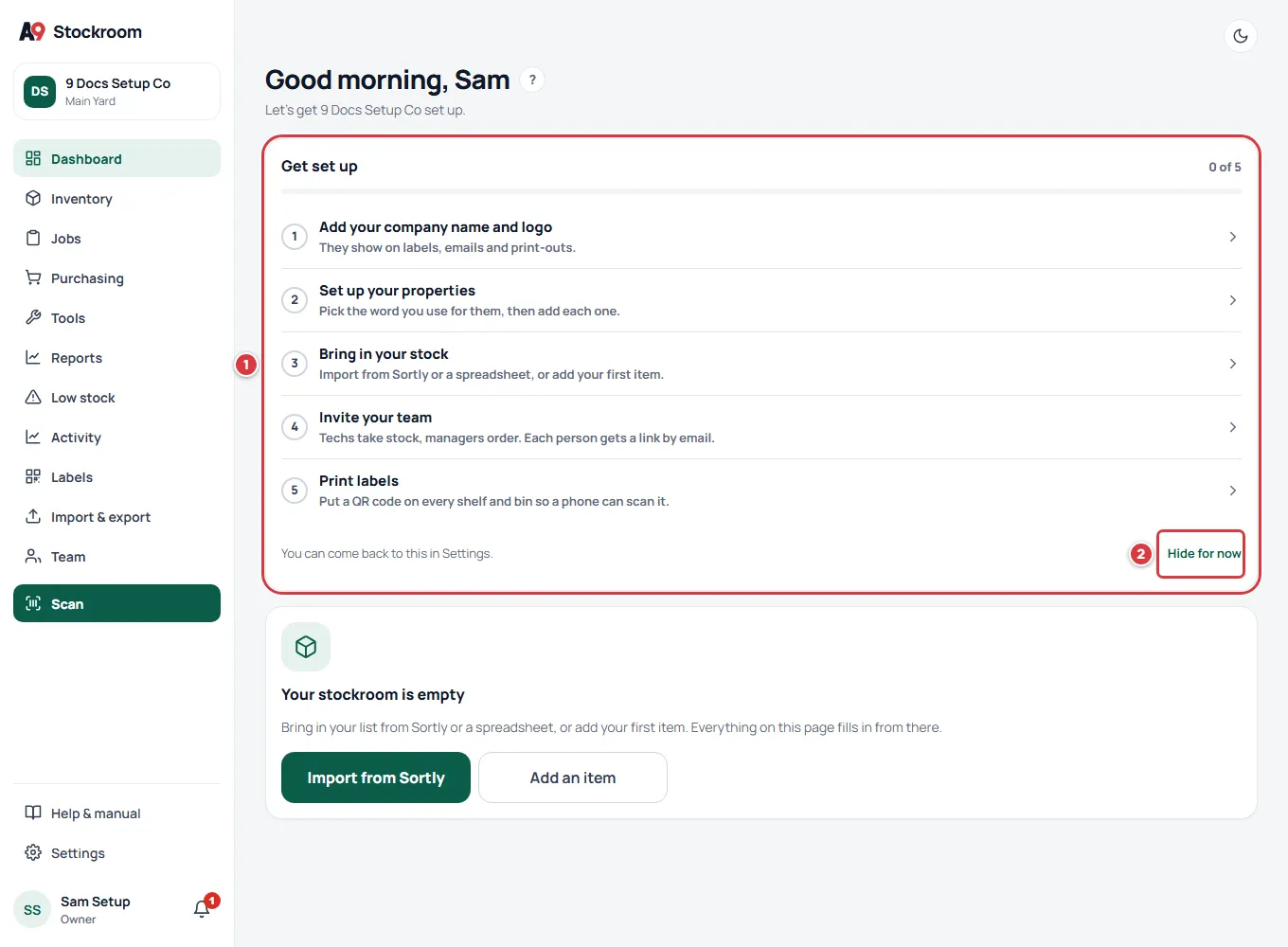
The same card at the top of the dashboard on a computer.
Steps: do the five steps#
Step 1: Add your company name and logo#
- Tap Add your company name and logo. It opens Company in Settings.
- Change what needs changing: the name, the logo, the brand colour or the time zone. Save it with its own button (Save name, Upload logo, Save colour or Save time zone).
What ticks it: saving any change on the Company screen, or adding a logo. Saving the word for locations counts too. More: Company settings.
Step 2: Set up your locations#
- Tap "Set up your locations". It opens Company in Settings, where the word for a location is chosen.
- Under What do you call your locations?, choose the word your team uses and tap Save word.
- Open Settings, then Locations, and add each place your stock lives, or rename the first one.
What ticks it: any one of these: you pick a word other than Property, you add a second location, or you add or rename one. More: Locations.
Step 3: Bring in your stock#
- Tap Bring in your stock. It opens Import & export.
- Import your list from Sortly or a spreadsheet. Or add your first item by hand: tap Items, then Add item.
What ticks it: the company has at least one item that is not archived. More: Moving from Sortly and Items.
While there are no items at all, Home shows Your stockroom is empty instead of zeros, with two buttons: Import from Sortly and Add an item. So do Low stock and the dashboard. People who cannot add items (techs and viewers) see "Nothing here yet" and are told a manager needs to add the first ones.
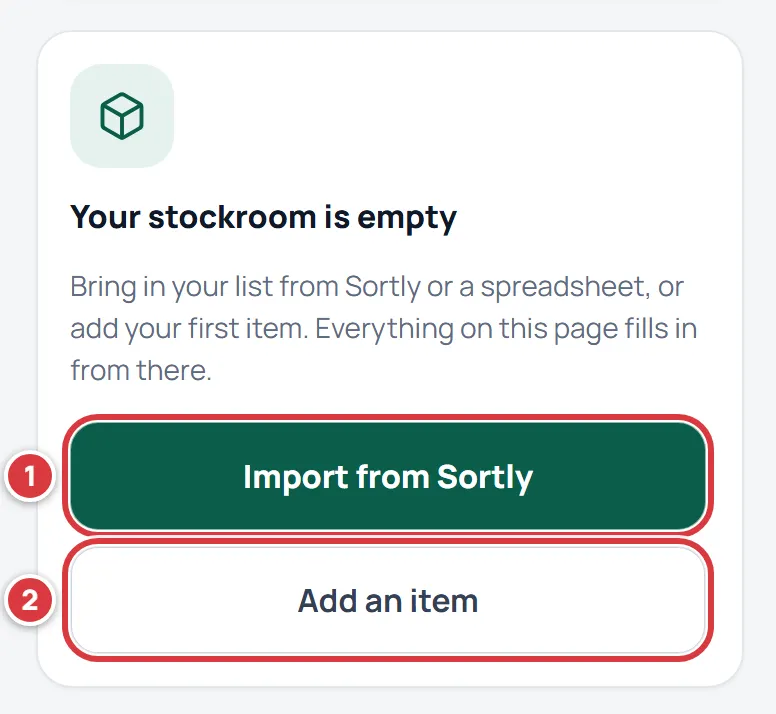
Step 4: Invite your team#
- Tap Invite your team. It opens Team in Settings.
- Invite a person with their email and a role. They get a link that works for 7 days.
What ticks it: someone has joined, or you have sent an invite. More: Team.
Step 5: Print labels#
- Tap Print labels. It opens Labels.
- Pick items (or a whole folder) and tap Print. Put a QR code on every shelf and bin so a phone can scan it.
- When the print window closes, the app asks Labels printed? Tap Yes once the labels are out of the printer. If you cancelled the print, tap Not yet.
What ticks it: you answered Yes to Labels printed? A browser cannot tell a print from a cancelled print, so the app asks. More: Labels and printing.
Watch the ticks arrive#
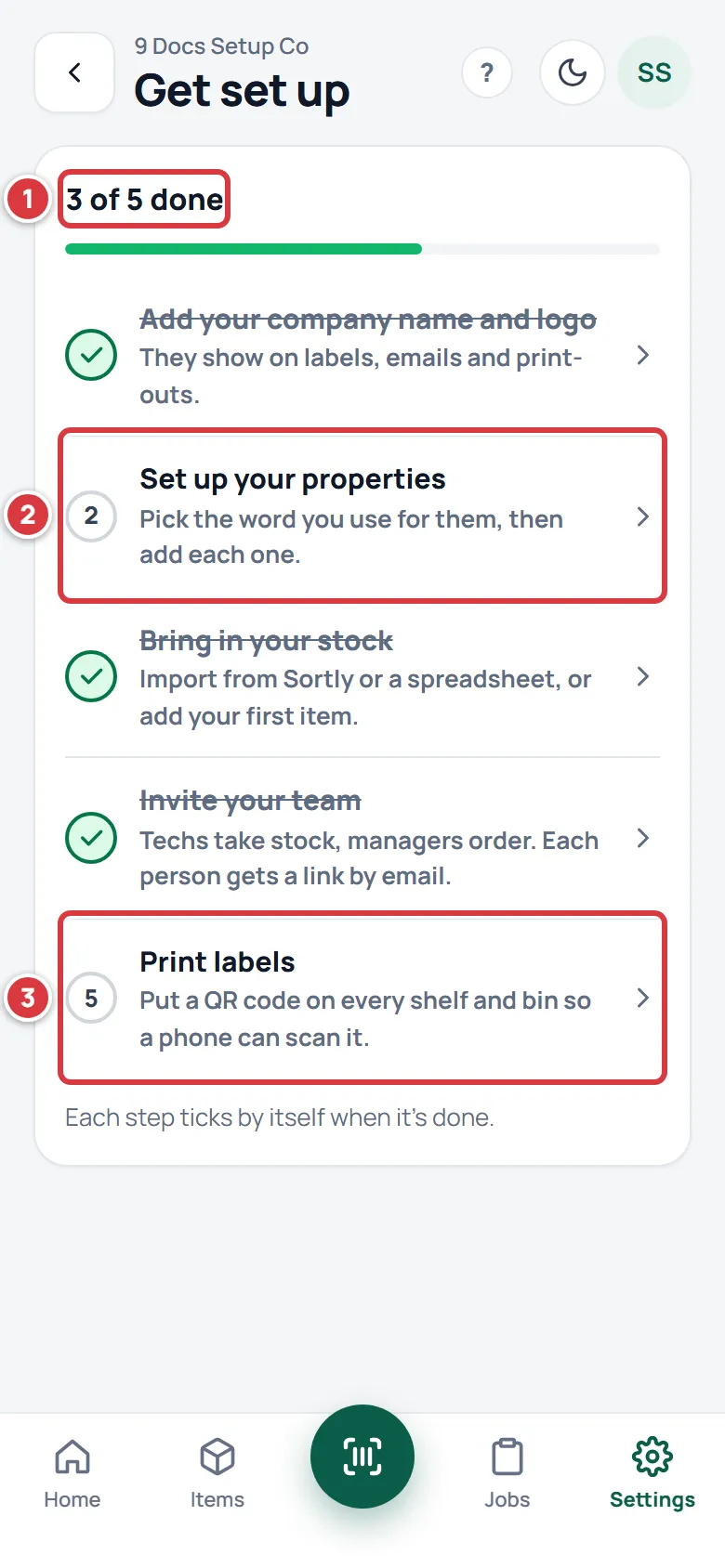
Each finished step gets a green tick and a line through it, and the count and the bar move.
Steps: hide the checklist, and find it again#
At the bottom of the card, tap Hide for now. The card goes away.
It is hidden for everyone in the company who sees it, not just you.
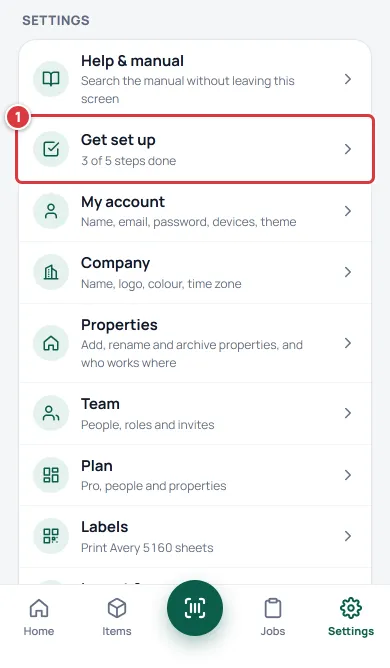
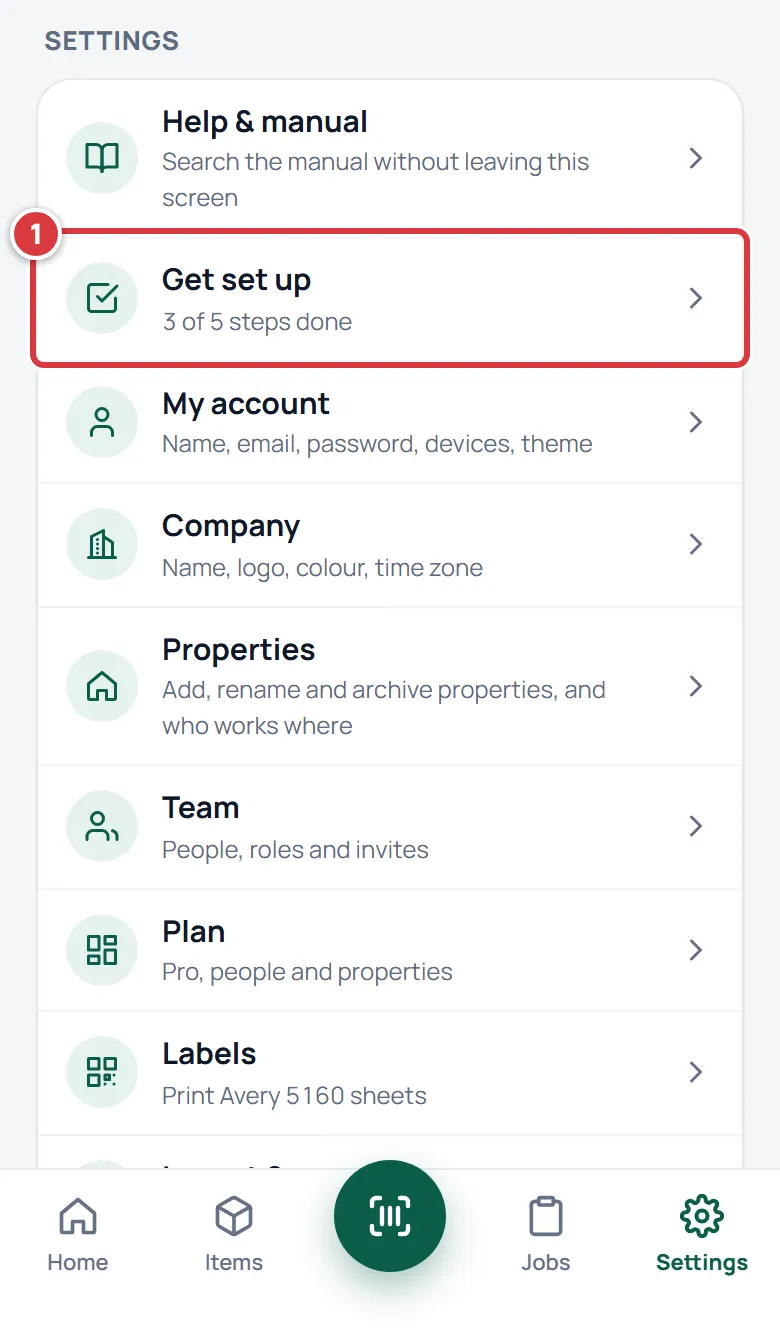
To bring it back, open Settings. The first row is Get set up, with how many steps are done. It stays there until all five are ticked.
Hiding the card does not lose the checklist: it stays in Settings. Tap Get set up. The same five steps are there, under 3 of 5 done (or whatever your count is). The note at the bottom says Each step ticks by itself when it's done.
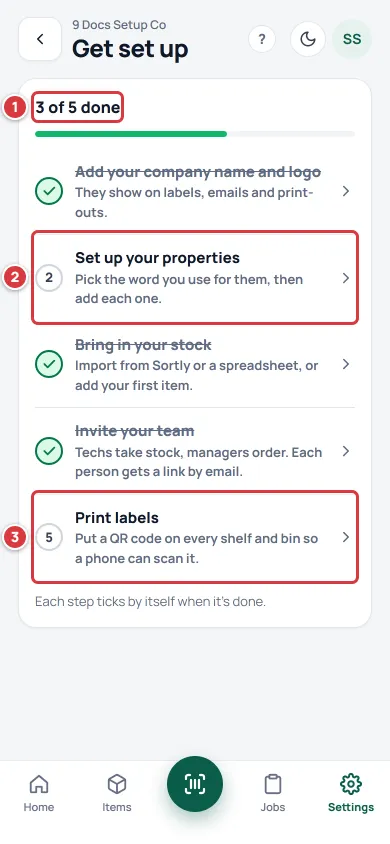
Settings, then Get set up. Tap a step to go to it.
When all five are ticked, the screen says You're all set, and the card and the Settings row go away for good.
What you'll see#
- Get set up on Home with a count that goes up by itself as you finish steps.
- Your stockroom is empty until the first item exists, and then your real numbers.
- A Get set up row in Settings while a step is still open.
- Nothing at all, once all five are done.
If it didn't work#
- A step didn't tick. Each step ticks from the real data, not from tapping it. Check the rule above for that step (for example: a saved change on Company, or one item that is not archived). Then open Home again, because the count is read when the screen opens.
- I can't see the checklist. Only the owner and managers see it, and it goes away when you tap Hide for now or when all five steps are done. Look in Settings for the Get set up row. If there is no row, every step is already ticked.
- Print labels won't tick. The app waits for your answer to Labels printed? on the Labels screen. Print again, then tap Yes when it asks.
- It says "properties" and I'd rather it said something else. That is the starting word. Do step 2 and every screen follows. See the glossary: the word for a location.
- The Invite your team step did not tick after I invited someone. Open Team and check that the invite is listed. The step ticks as soon as an invite has been sent.
- I hid it by mistake. Settings, then Get set up. The card on Home stays hidden, but the same steps are in Settings.