The item screen
A tour of an item's page: the photo, how many are on hand, the minus and plus buttons, Take and Return, where it is, the forecast, history and the QR label. Phone first, then desktop.
Open an item by tapping it in a list or by scanning it. The page is the same on a phone and a computer; on a computer it sits in one centred column. Which buttons you see depends on your role, and the page says so where it matters.
The top of the page#
The photo fills the top. If the item has more than one, swipe sideways; a count like "1 / 3" shows in the corner. With none it says "No photo yet". The arrow at the top left goes back. Managers and owners also see Edit on the photo, which opens the item's form. See Photos.
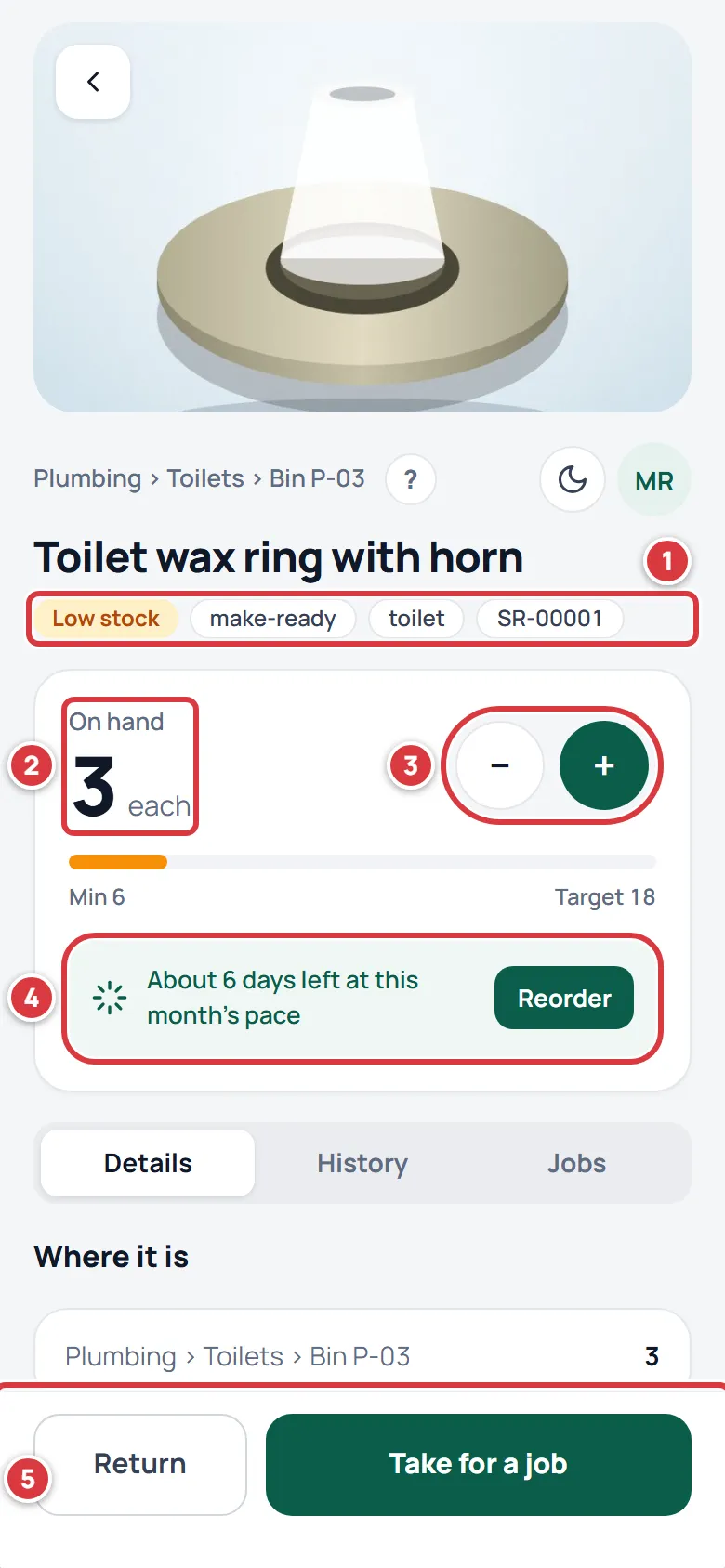
- The status and the tags. The status is one of In stock, Low stock, Out of stock or Tool. If you work at more than one location it can say where, such as "Low at Cedar Annex". After it come the item's tags and its SKU, which is its code. Above the name is the folder it sits in, such as "Plumbing › Toilets › Bin P-03".
- On hand is how many there are, with the unit (each, box, pair). Across several locations it adds up the ones you can reach. Under it a bar shows Min and Target. Below the minimum the item counts as low. The target is the level a reorder brings it back up to.
- The round minus and plus. Minus takes one from the folder that holds the most and charges it to your open job. Plus adds one, recorded as received. Both happen at once. Viewers do not see them.
- The forecast, for example "About 6 days left at this month's pace". It is worked out from what was taken in the last 30 days, and it only shows when there are enough takes to give a useful answer. A new item, or one nobody takes, has no forecast line. Reorder opens the Low stock list.
- The bar at the bottom: Return and Take for a job. See Taking stock for a job and Returning stock. Viewers and tools do not have this bar.
Under the card are three tabs: Details, History and Jobs.
Details#
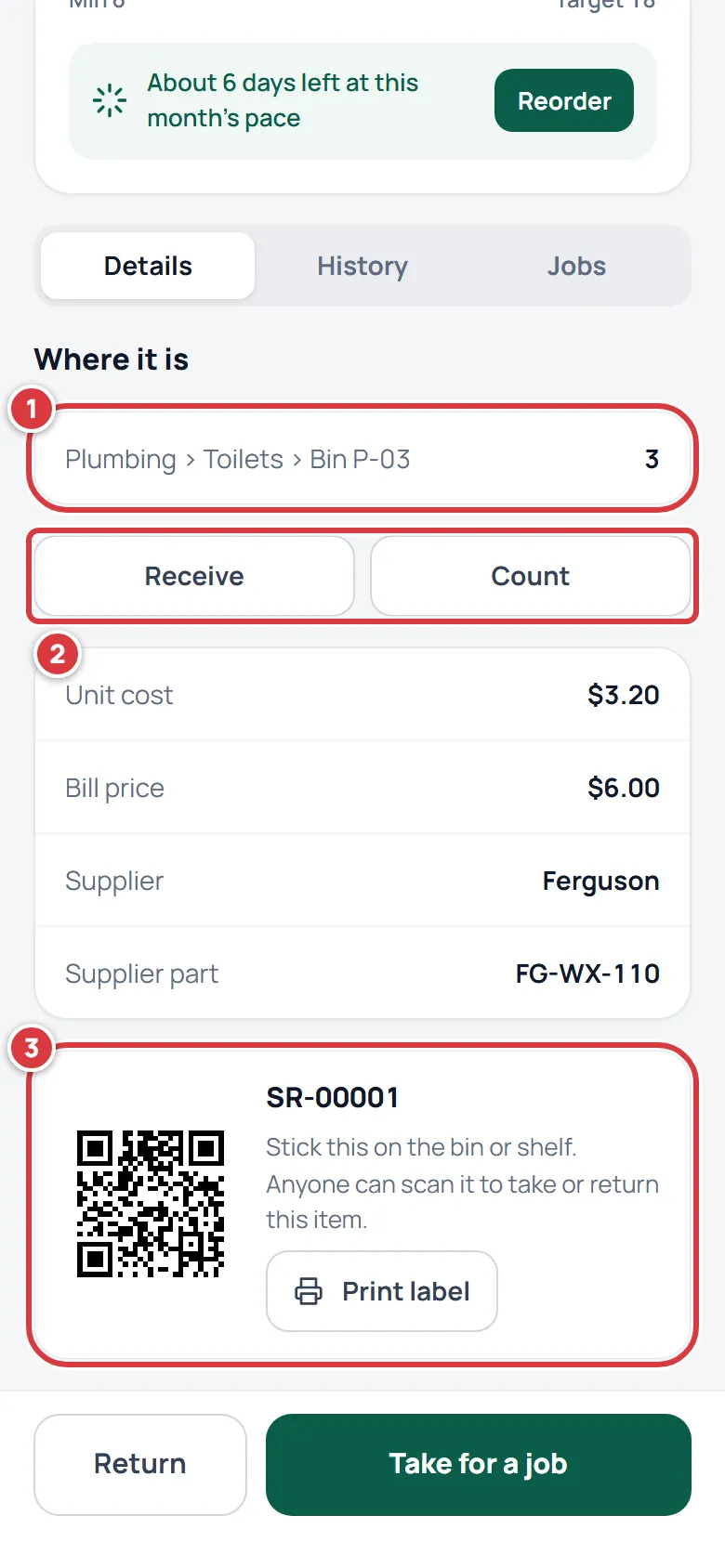
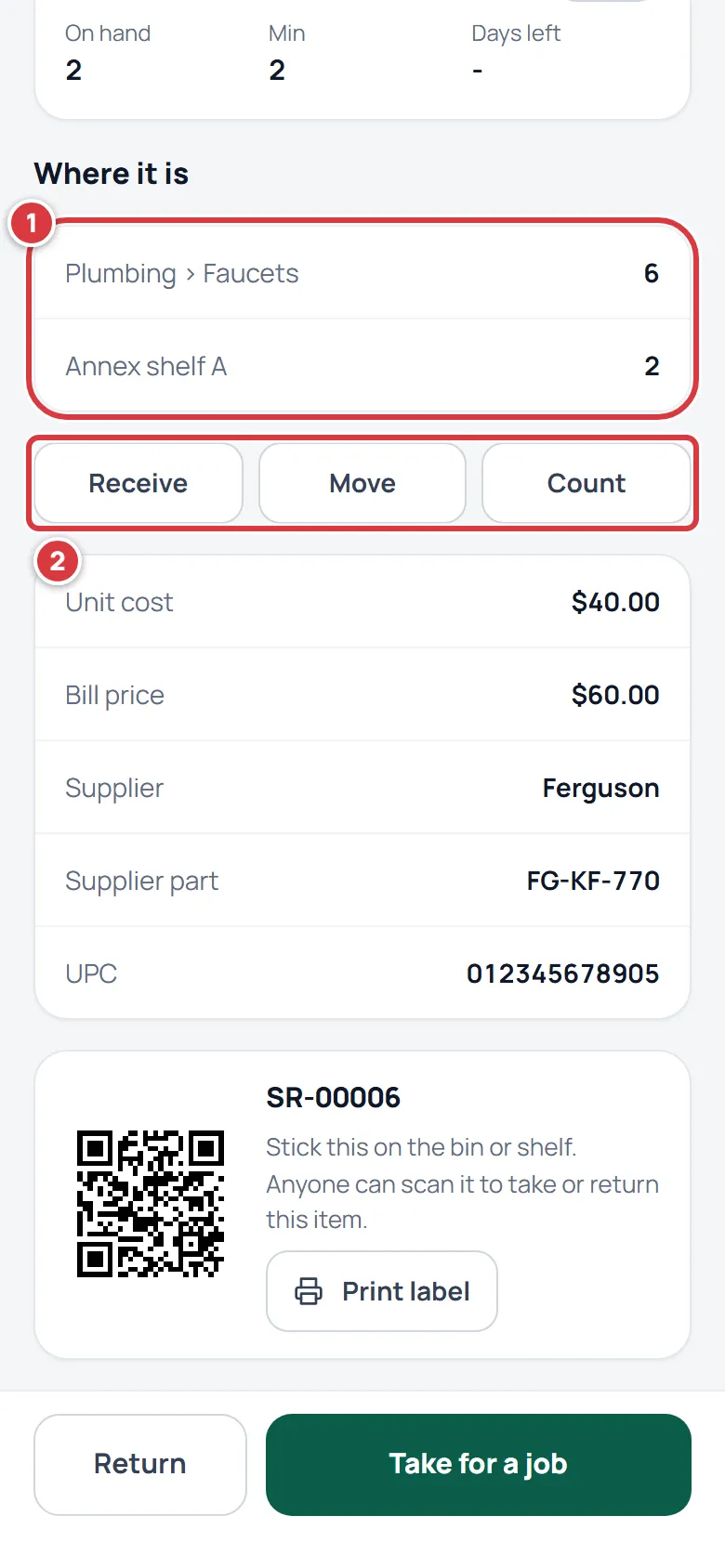
- Where it is lists every folder that holds the item, and how many are in each. Tap a folder to open it.
- Receive and Count are under the list. Managers and owners also get Move. They are explained in Receiving stock, Counting stock and Moving and transferring stock.
- The QR label card shows the item's SKU and its QR code. A QR code is the square barcode a phone camera reads. Print label opens the Labels screen with this item ticked. See Labels and printing.
Between the buttons and the label are the item's numbers: Unit cost (what you pay), Bill price (what you charge on a job), Supplier, Supplier part and UPC, plus any notes and any extra fields your company has added.
Stock by location#
The Stock by location card shows when the item is at more than one location, and always for managers and owners. The heading uses your company's word, so you may see Stock by property or Stock by site. Each location is its own stockroom, with its own count and its own minimum.
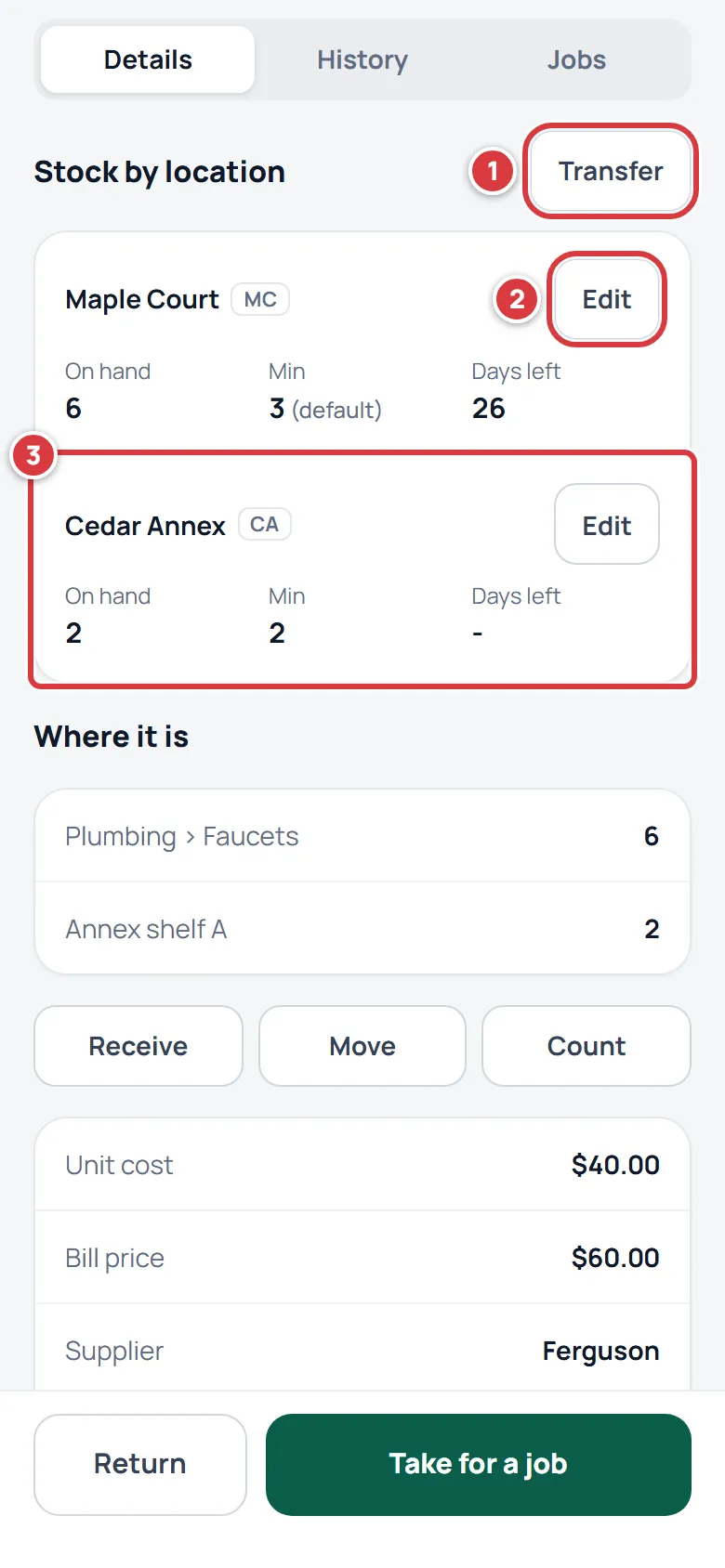
- Transfer sends stock from one location to another. A tech sees it when they are assigned to two or more locations. See Moving and transferring stock.
- Edit sets the minimum and the reorder-to level for that one location. Managers and owners only. See Minimums and reordering.
- A location's card: On hand there, Min there, and Days left. "3 (default)" means the location uses the item's own minimum. A dash means there is not enough history for a forecast. A Low pill means that location is under its own minimum, whatever the other locations hold.
History and Jobs#
The History tab lists everything that happened to the item, newest first: who, what, how many, and when.
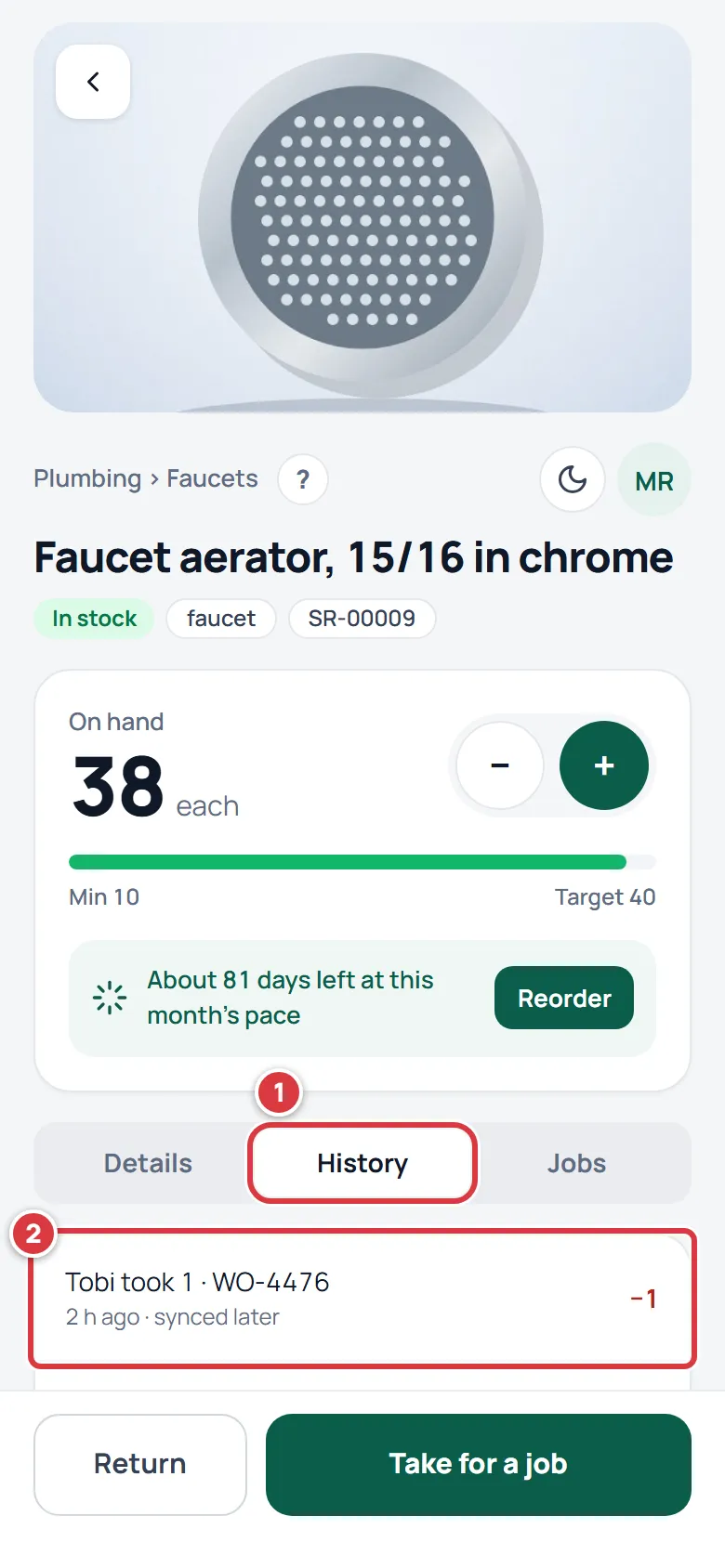
- A row reads like "Marco took 1 · WO-4471" or "Marco counted Electrical". The number on the right is the change: plus when stock went up, minus when it went down. A move between folders shows an arrow.
- "synced later" means the change was made on a phone with no signal and reached the stockroom more than 5 minutes after it was made. The time shown is when the person did it.
- Pending sync means the change is still waiting on this phone. See Working without signal.
The Jobs tab lists the jobs this item was taken for and how many went on each. "Not used on a job yet" means none.
Tools#
A tool has no On hand number, because tools are checked out and in one at a time. In place of the card it has Units.
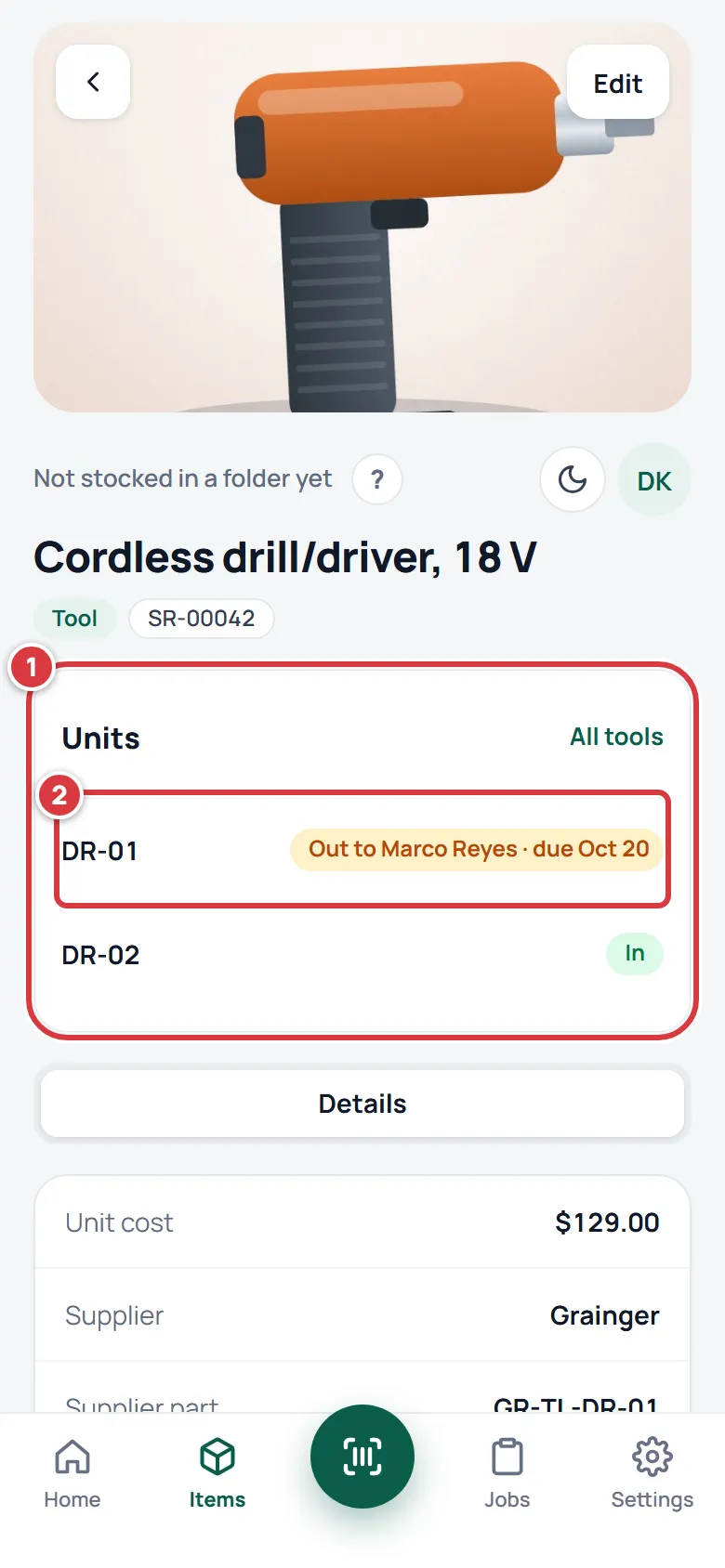
- The Units card lists each tool by its asset tag and shows whether it is in, or out to someone and when it is due. All tools opens the Tools screen.
- Tap a unit to open it. Checking a tool out and in is on Tools.
On a computer#
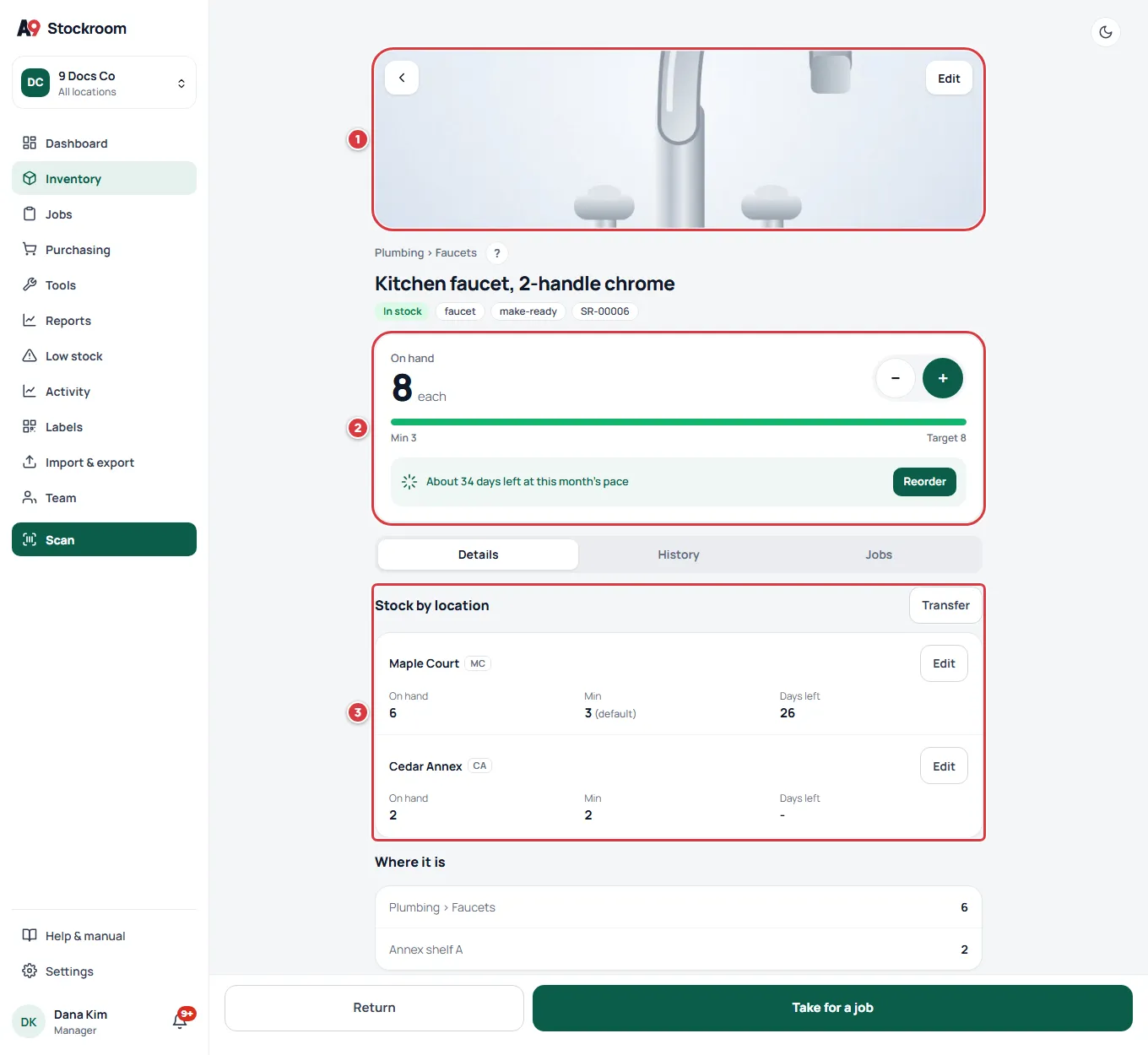
Everything above is here in one column: the photo and Edit (1), the On hand card with the forecast (2), and the tabs with Stock by location (3). The Return and Take for a job bar stays at the bottom while you scroll. The menu on the left replaces the bar at the bottom of the phone.
What your role sees#
- Techs, managers and owners get the minus and plus, Return, Take for a job, Receive and Count.
- Managers and owners also get Edit, Move, and the Edit buttons on Stock by location.
- Viewers see the page, its history and its label, and cannot change anything.
The full list is in Roles and permissions.