Install on your phone or computer
Put A9 Stockroom on an iPhone, an Android phone or a computer so it opens like an app, and let it use the camera for scanning.
A9 Stockroom runs in your browser, so there is nothing to download from an app store. You can also install it: it gets its own icon, opens full screen with no browser bar, and is quicker to reach when you are holding a part in your other hand. Installing is optional. See I don't want to install it.
What you'll need#
- A phone or computer with an internet connection for the first visit.
- The right browser. On an iPhone or iPad, Safari. On an Android phone, Chrome. On a computer, Chrome or Edge.
- The address of your stockroom:
app.a9stockroom.com. Sign in once in the browser first: see Signing in. - For scanning, a camera, and your permission for the app to use it.
Steps: add to the Home Screen on an iPhone or iPad#
Use Safari. Other apps that open links inside themselves (Mail, Messages, Facebook) cannot add an app to the home screen. If you came from one of those, look for "Open in Safari" (often a compass icon) and use it first.
- Open
app.a9stockroom.comin Safari and sign in. - Tap the Share button. It is a square with an arrow pointing up. On many iPhones it is in the toolbar at the bottom. If you do not see it, tap the three dots button at the bottom right of the screen first, then Share.
- Scroll down the list that opens and tap "Add to Home Screen".
- The name is filled in as Stockroom. Tap "Add" at the top right.
- Go to your home screen. The A9 Stockroom icon is there. Tap it to open the app.
Steps: install on an Android phone#
Use Chrome.
- Open
app.a9stockroom.comin Chrome and sign in. - Tap the three dots button at the top right.
- Tap "Install app". On some phones the menu says "Add to Home screen" instead. If a bar at the bottom of the screen already offers to install the app, you can tap that.
- A box asks you to confirm. Tap "Install".
- The icon, labelled Stockroom, is added to your home screen and your app list. Tap it to open the app.
Steps: install on a computer (Chrome or Edge)#
Open
app.a9stockroom.comin Chrome or Edge and sign in.Look at the right end of the address bar. An install icon appears there once the page has loaded. In Chrome it is a monitor with a down arrow. In Edge it is a square with a plus.

Chrome: the install icon at the right end of the address bar. Your address reads app.a9stockroom.com. 
Edge: the install icon sits in the same place. Click the icon. A small box asks you to confirm. Click "Install".
A9 Stockroom opens in its own window, and gets a shortcut where your computer lists its apps, such as the Start menu. You can pin it to your taskbar or Dock like any other app.


No icon? Use the browser's menu instead: in Chrome open the three dots menu, then "Cast, save, and share", then "Install page as app". In Edge open the three dots menu, then "Apps", then "Install this site as an app". If neither is there, see below.
Steps: let the app use the camera#
Scanning needs the camera. The first time you open Scan, your phone or browser asks whether this site may use it.
- Tap the round Scan button in the bottom bar of the app.
- When the question appears, choose "Allow". If you are given a choice of how long, "Allow while using the app" or "While visiting the site" is the right one.
- The camera opens. Hold it over a barcode or QR label.
The question looks different on each device:
- iPhone and iPad: a box that names the site and asks to access the camera. Tap "Allow". An app on your home screen may ask again each time you open it.
- Android: a box that asks to allow the site to use your camera. Tap "Allow" (or "Allow while visiting the site").
- Computer: a bar under the address bar asks to use your camera. Click "Allow". A computer needs a webcam.
The camera won't open#
If you chose "Don't allow" or "Block" by mistake, or the camera has been blocked before, Scan says that the camera is off and what to do:
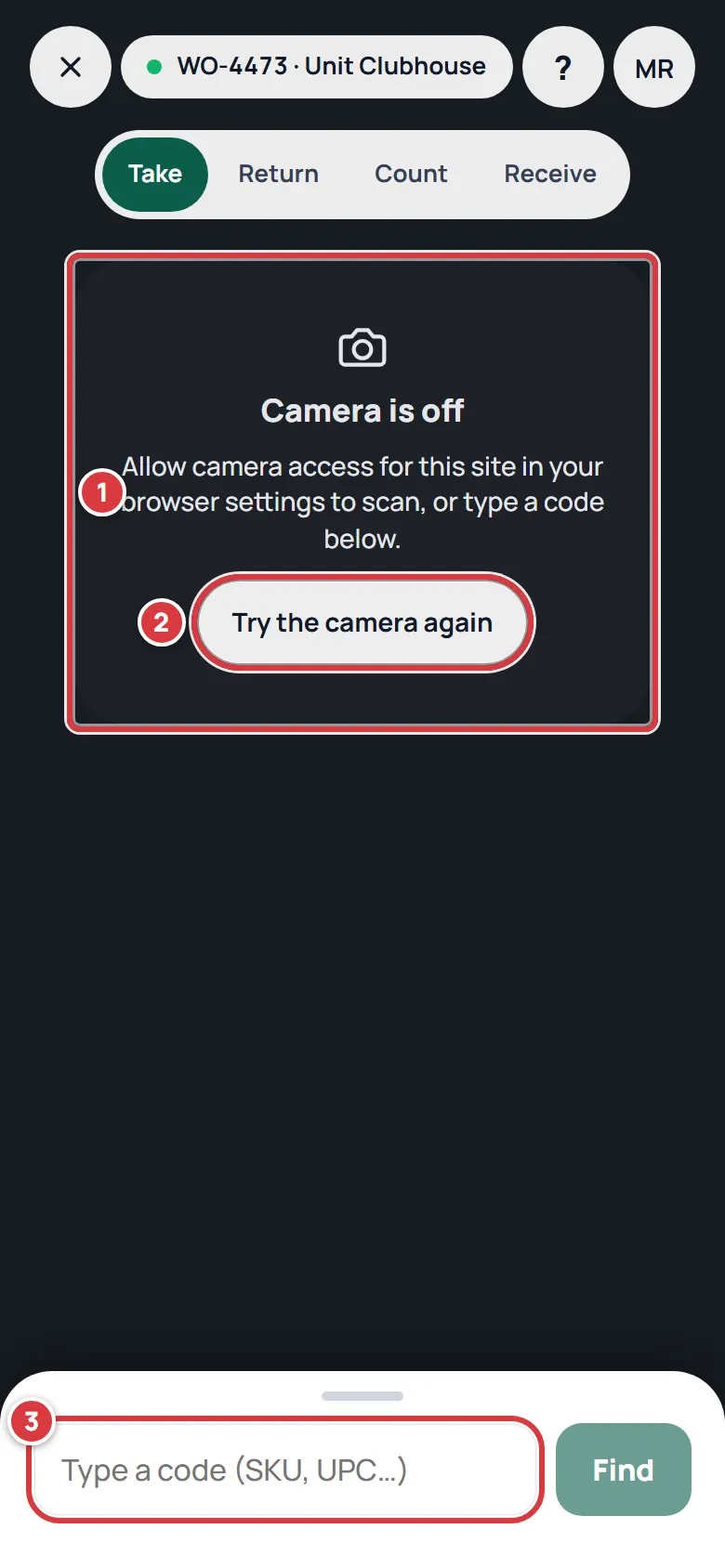
- Allow the camera for this site, in your phone or browser settings:
- iPhone or iPad: open the Settings app, then Apps, then Safari, then Camera, and choose "Allow" or "Ask". On older versions it is Settings, then Safari, then Camera. If you use the app from your home screen, also check Settings, then the app's name.
- Android: open Settings, then Apps, then Chrome (or Stockroom), then Permissions, then Camera, and choose "Allow only while using the app".
- Computer: click the icon at the left of the address bar (a padlock or sliders), find Camera and switch it to Allow, then reload.
- Go back to A9 Stockroom and tap Try the camera again.
Until then you can still work: type the SKU or barcode number in Type a code and tap Find.
If the screen says "No camera here", the device or page cannot open a camera at all. Type codes instead.
What an installed app looks like#
An installed A9 Stockroom opens full screen, with no address bar and no browser tabs, so you see more of the stockroom. On a phone it has its own icon:

It is the same app, the same data, the same sign-in. Anything you do on your phone shows up on a computer, and the other way round.
Updating the app#
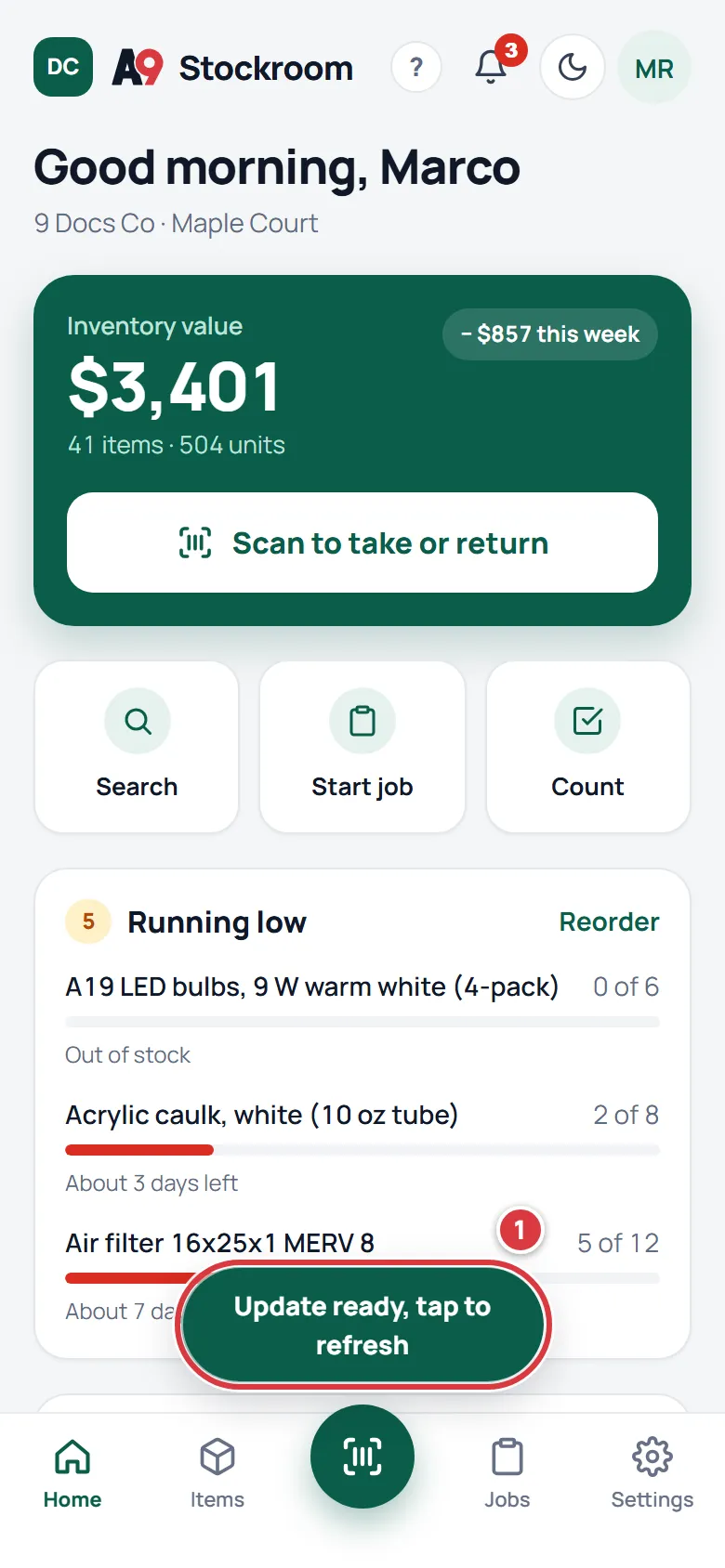
The app checks for a new version each time you open it. When one is ready, a button appears at the bottom of the screen:
- Finish what you are doing.
- Tap Update ready, tap to refresh. The app reloads with the new version.
If you never see the button, close the app completely and open it again with a signal.
I don't want to install it#
Then don't. A9 Stockroom works the same in your browser. Scanning, taking stock, jobs and working without signal all work there too. Add the page to your bookmarks, or keep the tab open. You can install it any time later.
To remove an installed app, remove it the way you remove any other app on that device: press and hold the icon on a phone, or open the app and use its menu on a computer.
What you'll see#
- An A9 Stockroom icon on your home screen, in your app list, or as a shortcut on your computer.
- The app opens in its own window or full screen, with no address bar.
- Scan opens a live camera the first time you allow it, and it keeps working after that.
If it didn't work#
- There is no "Add to Home Screen" on my iPhone. Open the page in Safari itself, not inside another app, and tap Share again.
- There is no "Install app" on my Android phone. Use Chrome, not a link opened inside another app. Reload the page, and look in the three dots menu again. It does not offer to install an app that is already installed.
- There is no install icon on my computer. Use Chrome or Edge. Reload the page and wait a moment. If the app is already installed, the icon changes to an open-in-app button. Private (incognito or InPrivate) windows do not offer it.
- The camera does not open. See The camera won't open.
- The installed app asks me to sign in again. That is normal the first time you open it from the home screen: it is a fresh window. Sign in, and it will remember you after that.
- The app looks out of date. Look for Update ready, tap to refresh and tap it. If it is not there, close the app and open it again with a signal.