Company settings
Change your company's name, logo, colour and time zone, and choose the word your team uses for a place where stock is kept.
Company settings are the few things that make A9 Stockroom look like your company: its name, logo and colour, the time zone your days follow, and the word you use for a place that holds stock. Only the owner can change them. Managers can read them and cannot edit.
What you'll need#
- You are the owner of the company. A manager who opens the same screen sees the settings but no buttons (see the end of the steps).
- A logo, if you have one. Any picture works: A9 Stockroom cuts it to a square from the middle and shrinks it to 256 pixels on each side, so the file stays well under 512 KB. A square picture with your mark in the middle looks best.
- Two minutes. Nothing here changes your stock.
Steps#
Open Company settings#
Open Settings, then Company. On a computer, Settings is in the menu on the left.
Change the name, logo, colour, time zone or word#
The screen has five cards, one for each setting. Each card has its own save button, so you can change one and leave the rest.
- Name: type the new name in Company name, then tap Save name. The new name shows in the header and the menu, on printouts and in emails.
- Logo: tap Upload logo and choose a picture. It saves as soon as you choose it. With a logo in place the button says Change logo, and Remove logo brings back your initials.
- Brand colour: pick one of the six colours, or None, then tap Save colour. The colour fills the round tile that shows your initials. It never colours buttons or menus, and it only shows when you have no logo.
- Time zone: choose your time zone in Company time zone, then tap Save time zone. Report days follow this time zone, and the daily low-stock email goes out in the morning by this clock.
- Locations: choose the word your team uses for a place that holds stock, then tap Save word. The next section shows how.
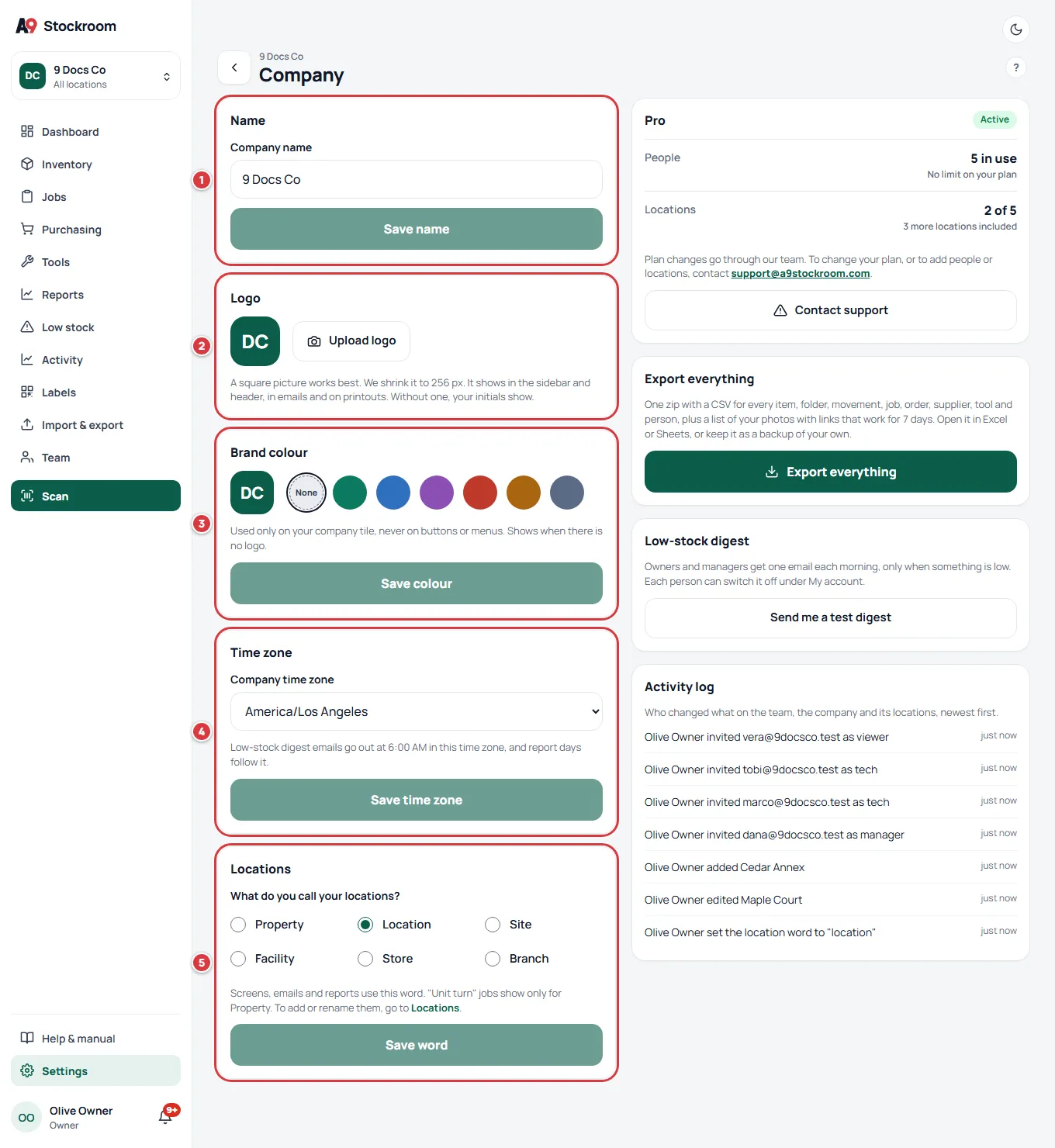
Add a logo and pick a colour#
- Tap Upload logo and choose a picture. Wait for the message Logo saved.
- Tap one of the colour circles, or None.
- Tap Save colour.
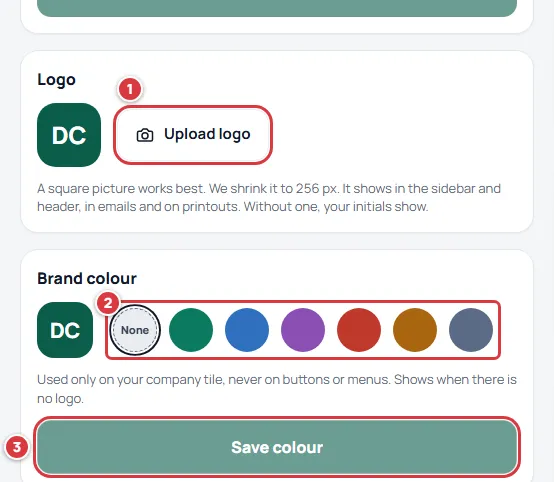
Choose the word for a location#
Each place that holds stock is a location. Some companies call it something else, and A9 Stockroom can use your word everywhere. The six choices are:
| Word | One | Many |
|---|---|---|
| Property | property | properties |
| Location | location | locations |
| Site | site | sites |
| Facility | facility | facilities |
| Store | store | stores |
| Branch | branch | branches |
- On Company, find the card named Locations.
- Under What do you call your locations?, choose the word you want. Only one can be chosen at a time.
- Tap Save word.
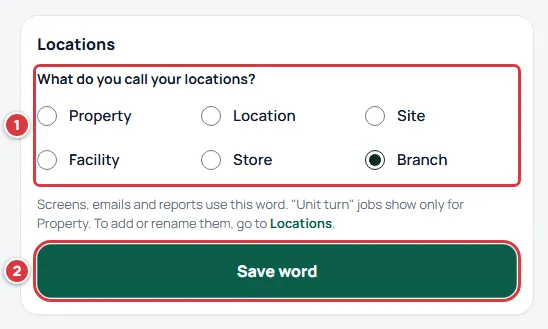
When you save, the screen says Done. Every screen now says and the word you chose. What changes:
- Headings, buttons, filters and the menu. The Locations entry in Settings, the location switcher and every "add a location" button use your word.
- Reports. The report that adds up spend by location is headed with your word, and so is the file you get from Export CSV. The Activity CSV names its location column the same way.
- Messages from the app. The notice you get at your plan limit ("Your plan includes … sites") uses it too.
- The first step of Get set up ("Set up your sites"), the row in Settings that opens your locations (Sites, for example), the location line on the Plan card, and the "Stock by site" heading on an item.
- A few small help lines still say "locations": the line under Invite a teammate on Team ("Takes, returns and counts stock at the locations they are assigned.") and the line at the top of the Activity log. They are not wrong, only not renamed.
- Extra wording for Property only. If you choose Property, the app also shows Units on each location, a job type called "Unit turn", and "Billable to tenant" on jobs. With any other word you see "Billable to customer" and no unit turns. Nobody outside a property company ever sees "unit turn" or "tenant".
You can change the word again whenever you like. Nothing is renamed in your data, and every location keeps its own name.
Look at who changed what#
Owners also see an Activity log on this screen. It lists, newest first, who changed the team, the company and its locations, who imported a file, and when. A line looks like: Nina renamed the company to Newcomer Facilities. Tap Show more to go further back.
Take everything out#
The Export everything card is on this screen too. It makes a zip of all your company's lists and emails you a link. See Getting your data out.
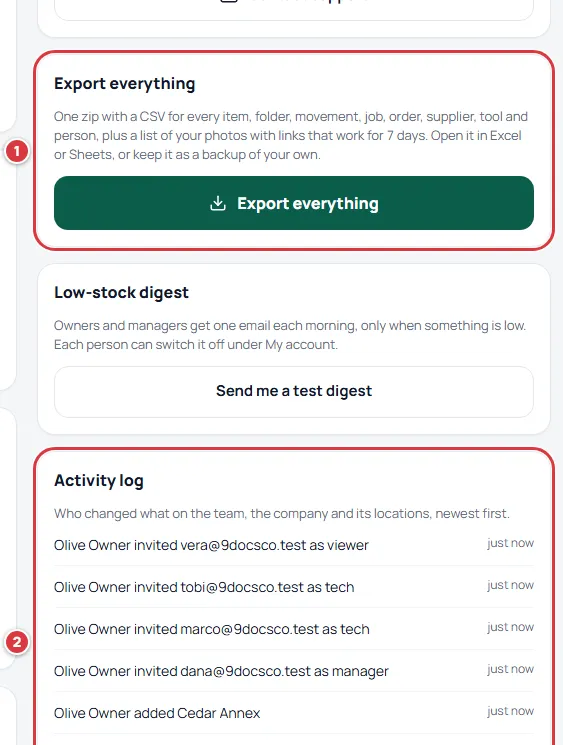
The low-stock email test#
Under Low-stock digest, Send me a test digest sends yourself the morning email right now, so you can see what it looks like. Owners and managers can both use it. Each person turns the real email on or off under My account.
What you'll see#
- After each save, a short green message under the card: Company name saved., Logo saved., Brand colour saved., Time zone saved. or the word message above.
- The new name and logo in the header and the menu straight away.
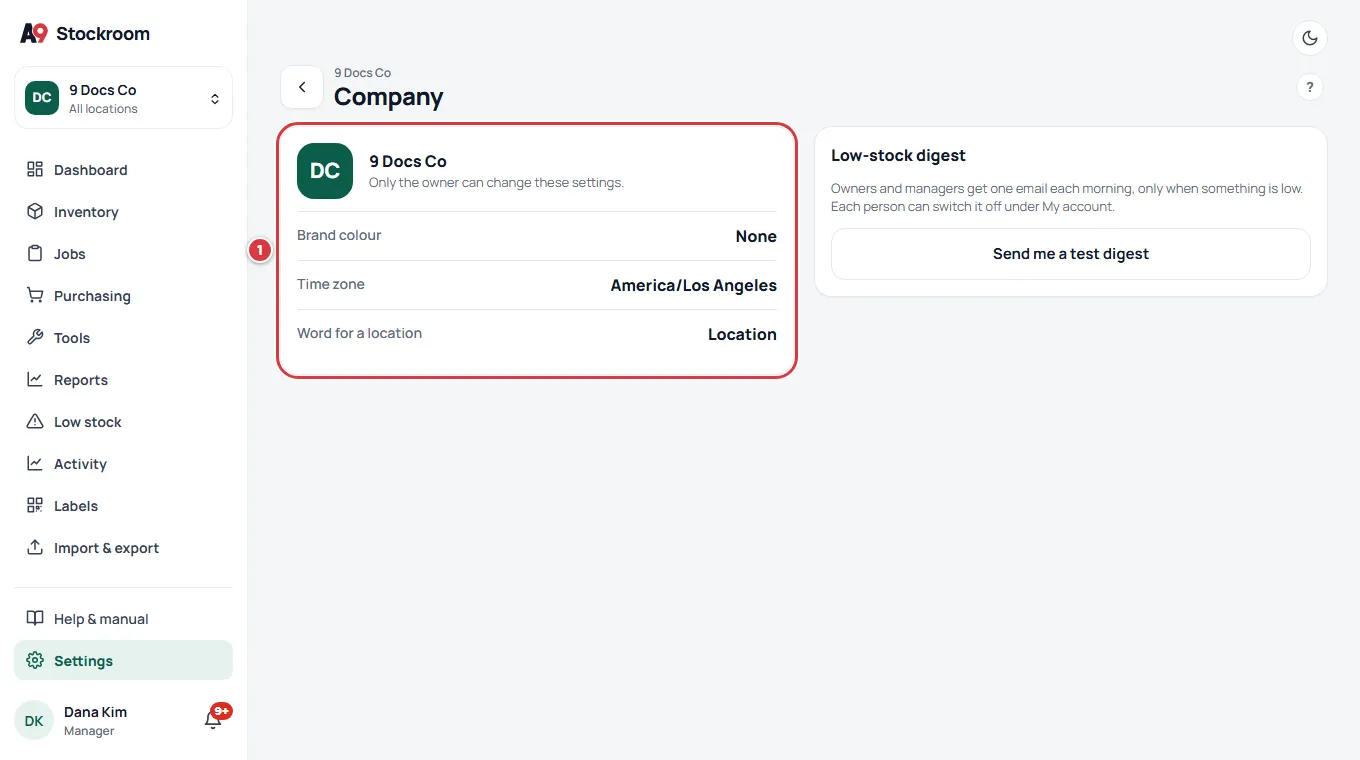
- A manager who opens Company sees your company's name, brand colour, time zone and word, and the line "Only the owner can change these settings." They have no save buttons, no Activity log and no Export everything.
If it didn't work#
- The Save button is grey. Each save button wakes up only when you have changed something on its card. Change the field or pick a different choice and it turns green.
- "That image is too big. Pick a smaller one." Pick a smaller picture, or save a smaller copy of it. A photo straight from a phone camera is fine: A9 Stockroom shrinks it before it sends it.
- "The image has to be square." Open the picture in any editor and crop it square, then upload it again.
- "That file isn't a JPEG or PNG image." The browser could not read the file as a picture. Save it as a JPEG or PNG and try again.
- A message says you can't do that, or you see "Owners and managers only". Only the owner can edit company settings. If you are a manager and a setting needs to change, ask the owner. To hand the company to someone else, the owner can transfer ownership.
- The word did not change on one screen. Reload the page.
- A save failed with "This company is read-only." The company's plan is paused. See Your plan.