Glossary
Every word A9 Stockroom uses, in plain language, in alphabetical order, with a link to the page that explains it, including how the word for a location changes.
One line for each word you will meet in the app. Press / to search them, or jump to a letter: A, B, C, D, F, I, J, L, M, N, O, P, Q, R, S, T, U, V, W.
A#
Activity#
The list of every change to the stockroom, newest first: who did what, to which item, and when. A line marked "synced later" was made on a phone more than 5 minutes before it reached the server. See Activity and history.
Adjust#
A movement that raises or lowers a number by an amount you choose, to fix it. Only managers and the owner can adjust. To set a number to what you counted, use Count instead. See Counting stock.
Alerts#
The bell at the top of the screen is the alerts button. It opens a list called Alerts: low stock, overdue tools, received purchase orders and new location assignments. See Notifications.
Archive#
Hides an item or a location from lists and pickers without deleting it. Its history stays. See Items and Locations.
Area#
A kind of folder: an aisle, a room or a section of a shelf. The other kinds are Bin and Truck. See Folder.
Asset tag#
The number or code on one physical tool, like DR-01, so you can tell two drills apart. See Tool unit.
B#
Bell#
See Alerts.
Bill price#
What you charge for one unit of an item when its parts are billed back on a job. It is set on the item, next to its cost. See Billable to and Items.
Bill-back#
Charging the cost of parts used on a job to the customer. See Billable to.
Billable to#
On a job, the total of what the parts on it can be billed to the customer (or to the tenant, when your company's word is Property), worked out from each item's bill price. Materials (cost) next to it is what the parts cost you. See Jobs.
Bin#
A kind of folder: a bin, a drawer or a tote. The other kinds are Area and Truck. See Folder.
Branch#
One of the words a company can use for a location. See Location.
C#
Check in#
Handing a tool back, so it shows as In and anyone can check it out again. See Tools.
Check out#
Signing a tool out to a person, with a due date if you want one. While it is out it shows who has it. See Tools.
Company#
Your organisation's account in A9 Stockroom: its name, logo, team, locations and plan. The owner looks after it. See Company settings.
Count#
Telling the app the real number you found on the shelf. The app records the difference as a movement, with your name on it. See Counting stock.
D#
Days left#
How long an item will last at the pace it has been used lately, worked out from the last 30 days of takes. Low stock shows it as "About 3 days left". See Minimums and reordering.
Digest#
The daily email about low stock. It goes to owners and managers each morning, only when something is low. Each person can turn it off under My account. See The daily digest.
Due date#
The day a checked-out tool is meant to be back. After that day it is overdue. See Overdue.
F#
Facility#
One of the words a company can use for a location. See Location.
Folder#
A place inside a location where stock sits: a shelf, a bin, a cabinet, a truck. Folders can hold other folders. See Folders.
I#
Invite#
An emailed link that lets one person join your company, with a role. It works for 7 days and once. See Team and Signing in.
Item#
A kind of thing you stock: a part, a material, a supply or a tool. It has a name, a SKU, a unit, a cost and a minimum. See Items.
J#
Job#
A piece of work you charge parts to: a work order, a unit turn, a purchase order or something else. While a job is open, every part you take goes onto it. See Jobs.
L#
Label#
A printed sticker with a QR code for an item, a folder or a tool. Labels print on Avery 5160 sheets, 30 to a sheet. See Labels and printing.
Location#
A separate stockroom inside your company: a building, a site, a store. Each location has its own counts and its own minimums. The owner chooses the word the company uses for it, and every screen, email and report follows. The choices are:
| Word | One | Many |
|---|---|---|
| Property | property | properties |
| Location | location | locations |
| Site | site | sites |
| Facility | facility | facilities |
| Store | store | stores |
| Branch | branch | branches |
Where the owner picks it, under Settings, then Company:
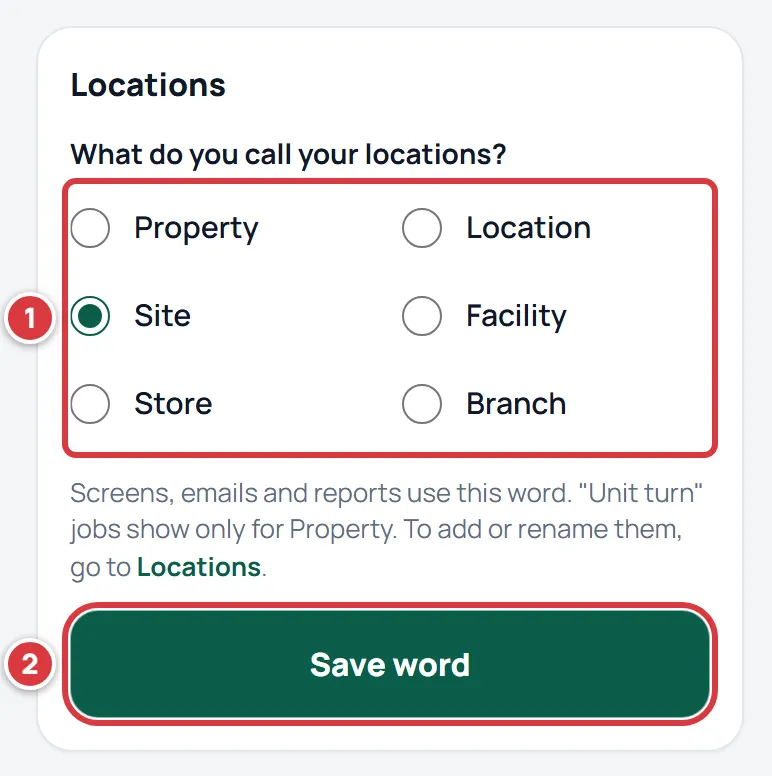
A new company starts out with Property until the owner chooses. This manual says "location". Read it as your own word. See Company settings and Locations.
Low stock#
An item whose number on hand has dropped under its minimum. Low stock shows what to reorder, and the Home screen warns you. See Low stock.
M#
Manager#
A role: runs the stockroom and looks after techs and viewers. See Roles and permissions.
Minimum#
The number an item should not fall under. Below it, the item is low. An item has a minimum of its own (Min qty), and each location can set a different one. See Minimums and reordering.
Move#
A movement that takes stock from one folder and puts it in another, inside one location. Managers and the owner can move. Between locations it is a transfer. See Moving stock.
Movement#
Any change to a number. Every change is a movement, one line in Activity, and stock changes no other way. The kinds are receive, take, return, count, adjust, move and transfer. See Activity and history.
N#
Needs attention#
A change that the stockroom could not accept, shown in red with the reason, in the Sync sheet and on the item. For example, someone else took the last one while you were offline. Nothing is dropped: you decide what to do. See Working without signal.
O#
Offline bar#
The strip at the top of the screen when something is different about your connection. The Offline pill means the phone has no signal and is showing its saved copy. The chip next to it counts changes waiting to send. See Working without signal.
Overdue#
A tool that is still out after its due date. It shows in red, and on Home as "Tools overdue". See Tools.
Owner#
A role: runs the company. There is exactly one per company. See Roles and permissions.
P#
Pending#
A change you made that is saved on your phone and has not reached the stockroom yet. It is tagged Pending sync and counted in "waiting to sync". See Working without signal.
Plan#
Essentials or Pro. The plan decides which features, how many people and how many locations your company has. See Your plan.
Property#
One of the words a company can use for a location, and the one a new company starts with. Companies that use it also get unit turns and "tenant". See Location.
Purchase order#
A written order to a supplier, numbered PO-0001, PO-0002 and so on for your company. It has a status: Draft (still being written), Sent (to the supplier), Partly received, Received or Cancelled. See Purchase orders.
Q#
QR#
The square code on a label. Scanning it opens the item, folder or tool it belongs to. See Scanning.
R#
Read-only#
A company whose subscription is paused or has ended is read-only: everyone can look and owners and managers can export, and nobody can change anything. A banner says so. The Plan screen shows the status Read-only. See Your plan.
Receive#
Adding stock that has arrived, into a folder: a delivery, against a purchase order or on its own. See Receiving stock.
Reorder to#
The level to order up to. The suggested order for an item is its Reorder to minus what is on hand. See Minimums and reordering.
Return#
Putting unused parts back into a folder after a job. See Returning stock.
S#
Seat#
One person on your team. Essentials includes up to 10; Pro has no limit unless your agreement sets one. An invite that has not been used yet holds a seat. See Your plan.
Site#
One of the words a company can use for a location. See Location.
SKU#
A short code for an item, like SR-00006. The app gives every item one, and you can search by it. See Items.
Store#
One of the words a company can use for a location. See Location.
Suggested reorder#
How many of an item to order: Reorder to minus what is on hand, never below zero. Low stock and Create PO use it. See Minimums and reordering.
Supplier#
Who you buy from, with contacts and an account number. A purchase order goes to one supplier. See Suppliers.
Sync sheet#
The panel that lists changes waiting to send and any that need attention. Open it from the Offline pill, from the chip, or from Sync in the account menu. See Working without signal.
T#
Tag#
A word you put on items, like #make-ready, so you can group and filter them. See Finding things.
Take#
Using a part: it leaves the folder and, if a job is open, is charged to that job. See Taking stock for a job.
Tech#
A role: does the work, at the locations they are assigned to. See Roles and permissions.
Tenant#
The person a job's parts are billed to when your company's word is Property. Everyone else sees "customer". See Billable to.
Tool#
An item you check out to people instead of counting. Needs the Pro plan. See Tools.
Tool unit#
One physical tool, with its own asset tag. A tool item can have several units: two drills, say. See Tools.
Transfer#
A movement that sends stock from one location to another, as one line in Activity. See Moving stock.
Trial#
A free period at the start of a plan. A banner counts down the days left. By default a trial lasts 60 days. See Your plan.
Truck#
A kind of folder: the stock you carry on a service truck or van. The other kinds are Area and Bin. See Folder.
U#
Unit#
What an item is counted in: each, box, gallon, roll. Set on the item. See Items.
Unit turn#
A kind of job for getting an apartment ready between tenants. It is only offered when your company's word is Property. See Jobs.
UPC#
The barcode number printed on a product's packaging. Put it on the item and scanning the box finds it. See Scanning.
V#
Viewer#
A role: looks, and prints labels, but never changes anything. See Roles and permissions.
W#
Work order#
The kind of job that matches a work order in your maintenance system. Its reference is the work order's number, like WO-4471. See Jobs.