Minimums and reordering
Set the minimum and reorder-to level for an item and for each location, and see how low stock, days left and suggested reorder are worked out.
Two numbers on each item decide when you reorder. The minimum is the line: when the stock is under it, the item is low. Reorder to is the target: what you want to be back at when you order. Everything else on this page, the Low stock screen, the daily email, the days-left forecast and the suggested order, is worked out from those two numbers.
Each location is its own stockroom, so each location can have its own minimum and its own reorder-to level. An item is low at Cedar Annex when Cedar Annex is under Cedar Annex's minimum, whatever another location holds.
Set the item's default minimum and reorder-to#
The numbers on the item itself are the defaults. Every location uses them unless it has its own.
Open the item, tap Edit and scroll to the numbers. Then:
- Type the Min qty. Use a whole number. Leave it empty, or put 0, for none.
- Type Reorder to, also a whole number.
- Tap Save changes.
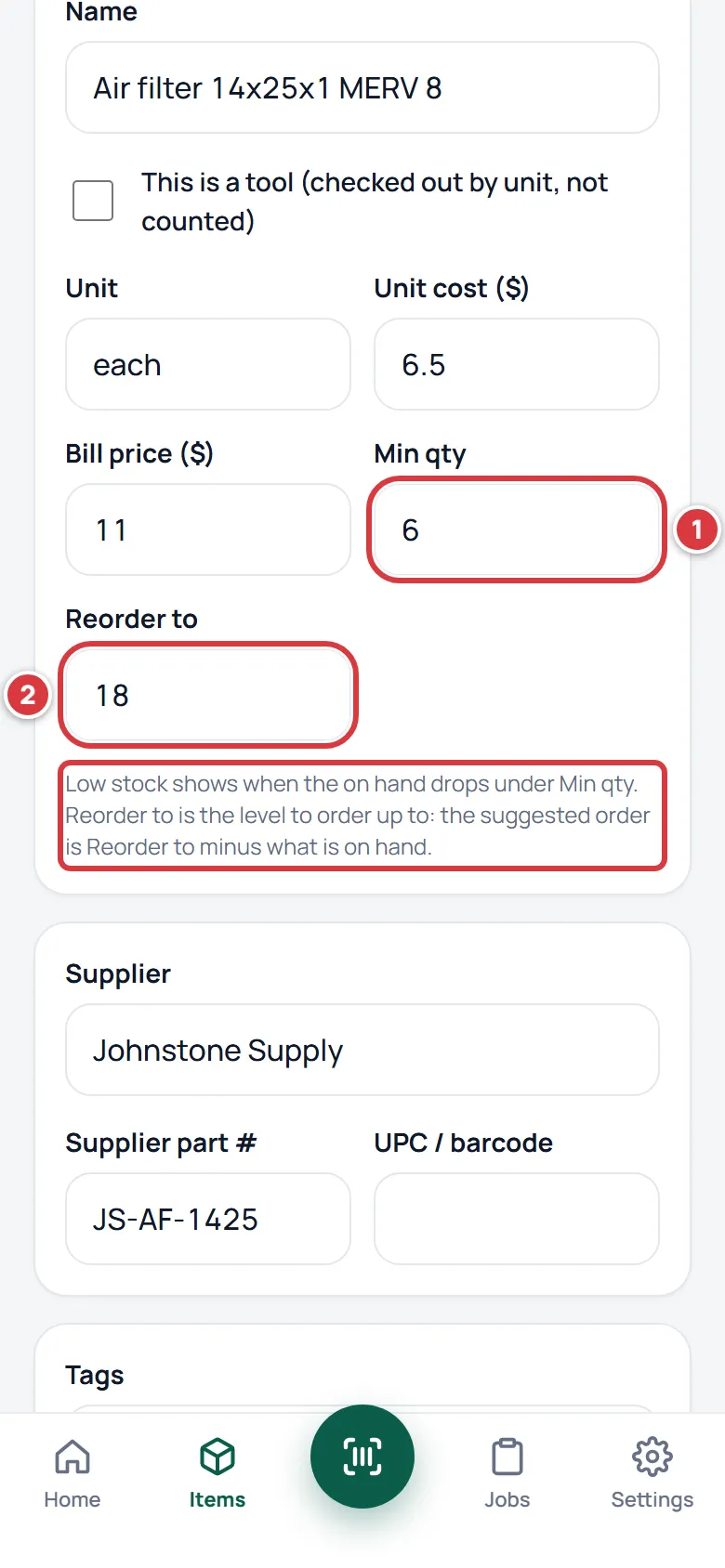
Putting 0 or nothing in Min qty means the item is never low. See Items for the other fields.
Set a minimum for one location#
Use this when a location needs a different minimum from the default: a small annex that needs fewer, or a busy site that needs more. Only owners and managers see the buttons for it.
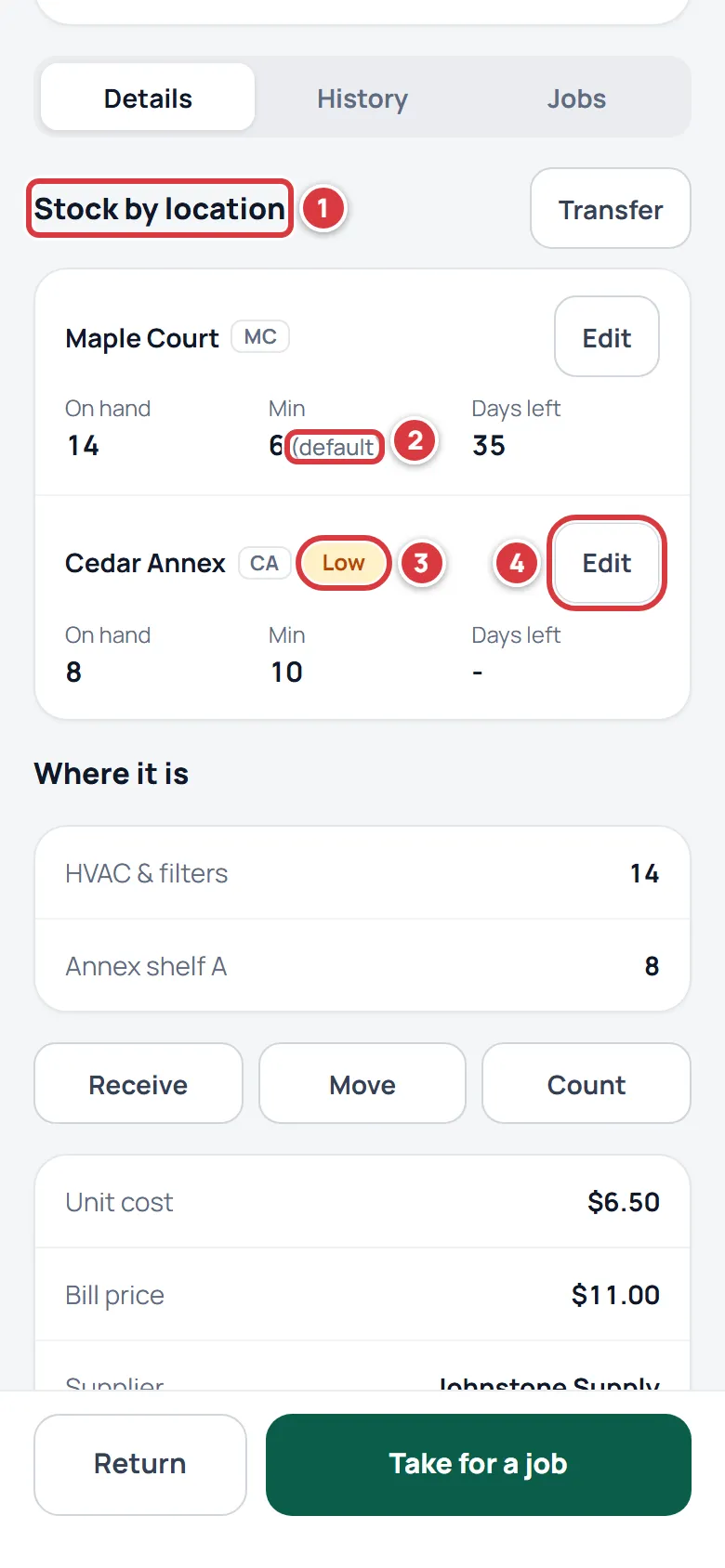
On the item screen, Stock by location has a row for each location. (The heading uses your company's word, so you may see Stock by property or Stock by site.) Read a row from left to right:
- The title, Stock by location. Each row shows the location's name and code.
- Min is the minimum that applies at that location. If it says "(default)", the location is using the item's own number.
- Low shows when the location is under its minimum. Days left is the forecast for that location.
- Edit opens the editor for that location.
To change a location's numbers:
Open the item, find Stock by location and tap Edit on the location's row. Then:
- Type the Minimum.
- Type the Reorder to level for that location.
- To go back to the item's number, tap Use default next to a box.
- Tap Save.
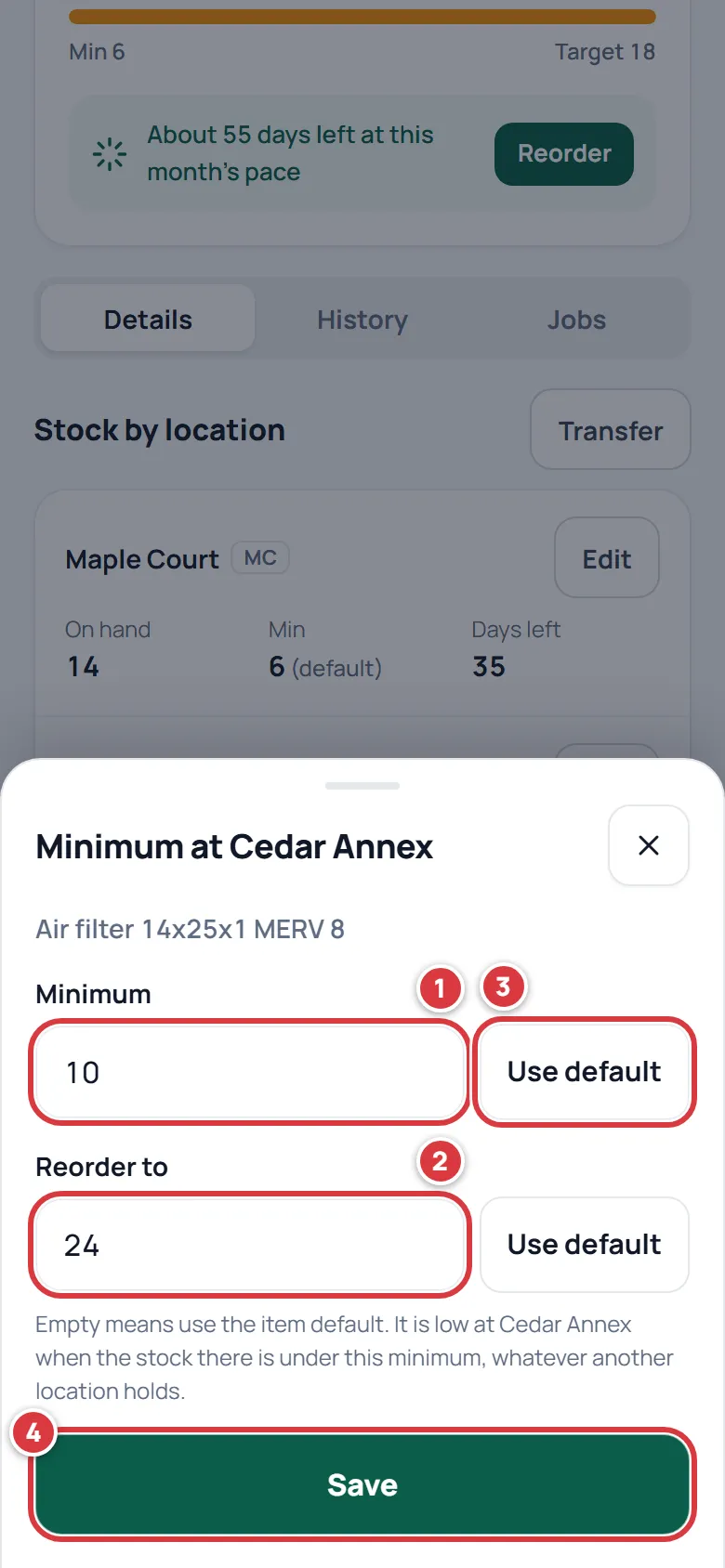
The numbers are whole numbers. An empty box means "use the item's default". A row that says Not stocked here has no numbers: the item has never been stocked at that location, and it is never low there. Setting a minimum for the location makes it count there.
Stock by location shows on every item that is not a tool for owners and managers. A tech or viewer only sees it on an item that is stocked at more than one location they can reach.
How low is decided#
An item is low at a location when all of these are true:
- The stock at that location is under the minimum that applies there. Equal to the minimum is not low.
- The minimum is more than zero.
- The item is not a tool and is not archived.
- The item is carried at that location: it has been stocked in a folder there, or the location has its own minimum for it. An item nobody ever stocked at Cedar Annex is not low there, even if the item's default minimum is 6. A company with a single location carries every item.
The minimum that applies is the location's own if it has one, otherwise the item's default.
All locations shows each item at its worst location#
With All locations on, an item appears once, at the location where it is lowest compared with its minimum, and the row says which.
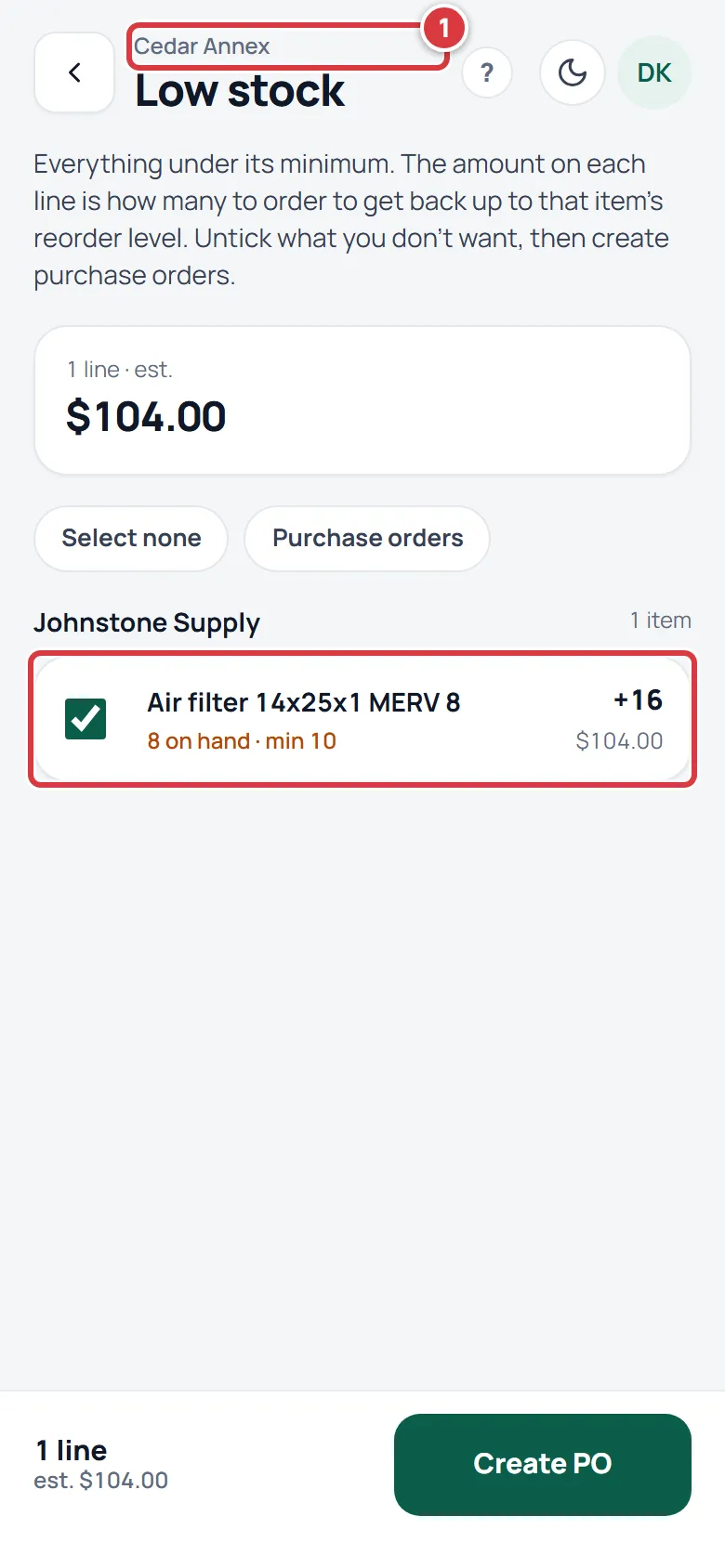
Say the air filter has a default minimum of 6. Maple Court holds 14, which is fine. Cedar Annex has its own minimum of 10 and holds 8. The item is low at Cedar Annex. On All locations it shows once, as "at Cedar Annex", even though the company as a whole holds plenty.
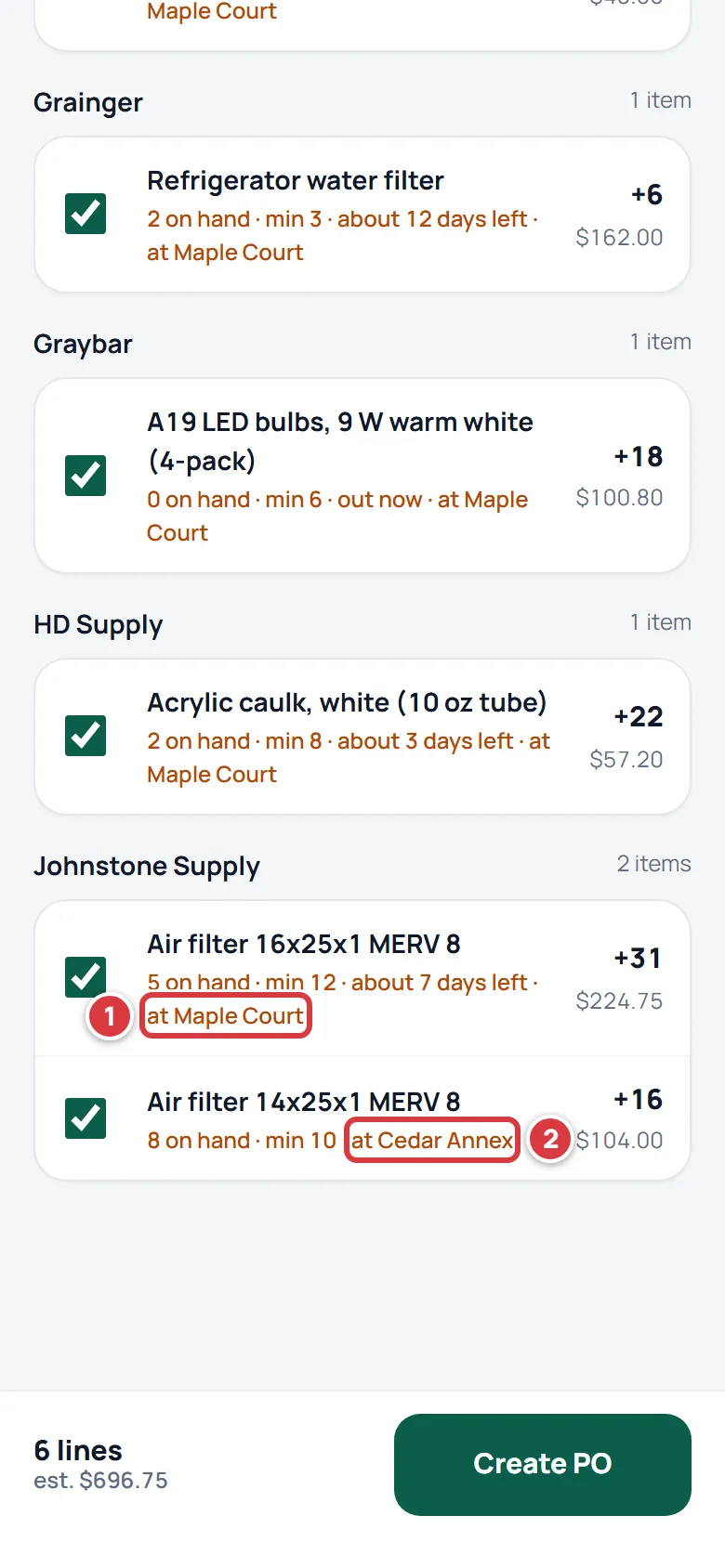
Pick one location in the switcher and the screen shows only that location's lines, against that location's minimums. See Switch location.
The days-left forecast#
The forecast says how long the stock will last at the pace you have been using it. It is worked out from what people took in the last 30 days. Returns, receives, counts and moves do not count as use.
- It needs at least three takes in those 30 days. With fewer, the app shows nothing rather than guessing: a dash in the Days left column and no forecast line.
- The daily pace is the units taken in those 30 days divided by 30.
- Days left is the stock on hand divided by that pace, rounded, and never less than 1 day. If nothing is on hand it is 0.
- At a location, only takes from that location's folders count.
On the item screen the On hand card says "About" and a number of days "left at this month's pace". The bar above it shows the minimum and the target.
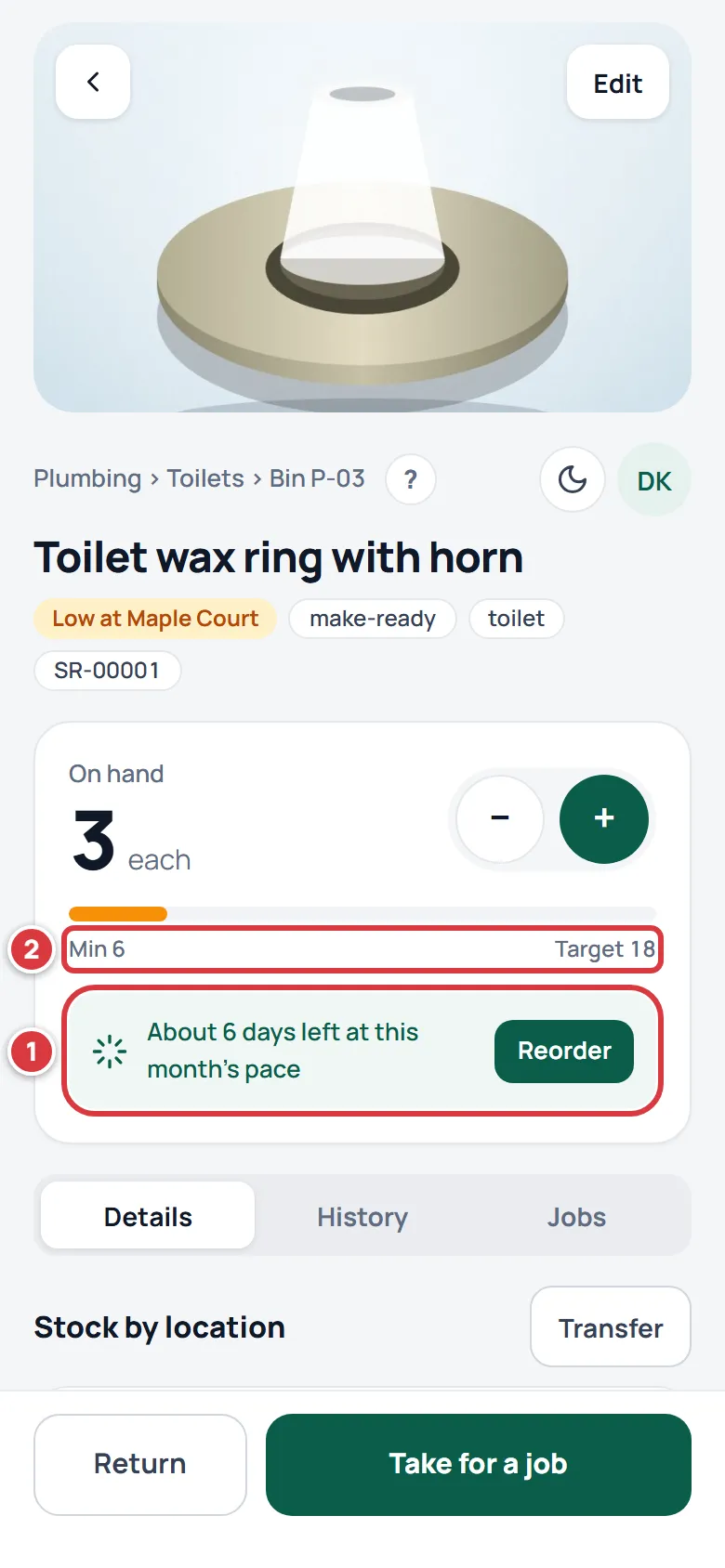
The same forecast is on the Low stock screen and in Days left in the table above. The item screen's forecast adds every location together; the table and Low stock read one location each.
Suggested reorder#
The suggested order is the reorder-to level minus what is on hand, and never less than zero.
Suggested order = Reorder to − On hand, or zero if that is negative.
If Reorder to is 18 and 3 are on hand, the suggestion is 15. It uses the Reorder to that applies at that location, and the stock at that location. On the Low stock screen the suggestion is the "+15" on a line, with its cost under it: the suggestion times the item's unit cost.
A line with nothing to suggest says At reorder level or No reorder level. If Reorder to is empty, set it so the suggestion means something. When you create a purchase order from Low stock and an item has no reorder-to level, the order is for enough to get back to the minimum, and at least one. See Low stock and Purchase orders.
A purchase order from Low stock works out each quantity from the location it ships to. Pick the location that matches the lines you ticked.
Everything reads the same rule#
These all use the rules above, per location:
- The Low pill and the "Low at" line on item lists and item screens.
- The Low stock screen and the Running low card on Home.
- The bell. Owners and managers get an alert when stock moves an item under its minimum (a take or a count, for example): "is low at" and the location, with the stock and the minimum. Saving a new minimum does not send one, even if it makes the item low straight away. That item shows on Low stock and in the daily email at once, and the bell speaks up the next time its stock drops. See Notifications.
- The daily email, which lists low items by location. See The daily digest email.
- The suggested reorder and Create PO.
If it didn't work#
An item I expect to be low is not on Low stock#
Check each in turn:
- Does it have a minimum above zero, on the item or for that location?
- Is the stock under the minimum, not equal to it?
- Is it a tool or archived? Those are never low.
- Is it carried at that location? An item that was never stocked there is not low there.
- Is the right location on show? On All locations it appears once, at its worst location.
I changed the item's minimum but a location did not change#
That location has its own minimum. Open Stock by location, tap Edit for it and tap Use default next to the box.
Days left is a dash or missing#
There are fewer than three takes in the last 30 days at that location, so there is nothing honest to say yet. It appears once people have taken it a few times.
The Edit button is not there#
Only owners and managers can change minimums. A tech or viewer sees the numbers only.
The editor says to use whole numbers#
Type whole numbers like 6 or 24, with no decimals. Leave the box empty to use the item's default.
Suggested order says No reorder level#
The item has no Reorder to level. Edit the item and set it, or set it for the location.