Getting your data out
Download your items, activity, reports and orders as CSV files, take everything in one zip with Export everything, and ask for your data to be deleted.
Your data is yours. You can take a copy at any time, in files that open in Excel or Google Sheets. There are two kinds of export. A CSV is a plain table of one list, from the screen that shows it. Export everything is a zip of all your company's lists at once, and only the owner can ask for it.
What you'll need#
- For a CSV of items, activity or reports: you are an owner or a manager.
- For Export everything: you are the owner, and you can open your email.
- A spreadsheet program, such as Excel or Google Sheets, to open the files.
Steps#
Export your items as a CSV#
- Open Import & export and tap Export all items (CSV). On a computer, Export at the top right of the dashboard does the same thing.


You get one line for every item that is not archived: its folder, name, SKU, quantity, unit, minimum, reorder level, costs, supplier, barcode, tags, notes and where it is stocked, then one column for each custom field you made.
Export Activity as a CSV#
- Open Activity and tap Export CSV. The file has the same lines as the screen. If you set filters first, the file holds only what matches them.

Export Reports (spend) as a CSV#
- Open Reports and tap Export CSV. The file is the view you are looking at: by location, category or tag, for the dates you picked. Reports are part of the Pro plan.

Export one purchase order as a CSV#
- Open the order in Purchasing and tap Export CSV, next to Print. The file lists the order's lines, and it is named after the order, like PO-0001.

Ask for Export everything#
This is how you get all your data out in one go: one zip with every list in the company.
- Open Settings, then Company. In the Export everything card, tap Export everything.
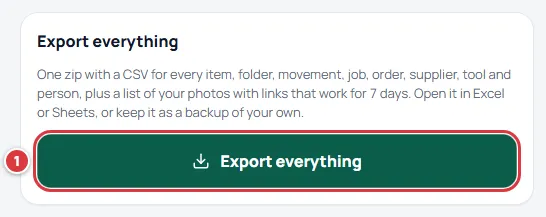
The button changes to Building… and a note says that a link is on its way to your email address when it is ready. You can leave the page. It usually takes about a minute, and longer for a company with a long history. Only one export is built at a time.
Download the zip#
- When it is ready, tap Download the zip on the same card. Or open the link in the email, which says that your export is ready.
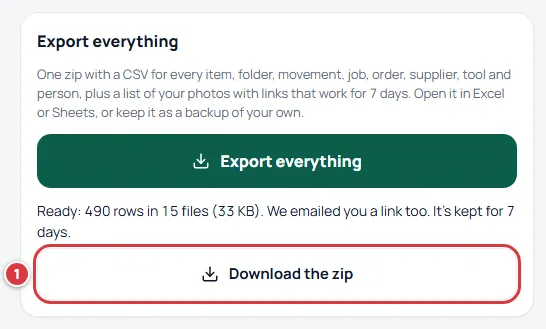
The card says how many rows and files there are and how big the zip is. The zip, and the link in the email, work for 7 days. After that, make a new one.
What you'll see#
- A CSV: a file called a9-stockroom-items.csv, activity.csv, spend-by-location.csv (the name follows the view) or the order's number, saved to your downloads folder. Open it in Excel or Sheets.
- Export everything: Building…, then a note under the card with the rows and files, and an email from A9 Stockroom with the download link. The zip opens like any zip file.
What's in the zip#
One CSV for each kind of thing in your company:
- Places and stock: locations, folders, items, custom fields, stock (how many of each item in each folder), and the minimums set for each location.
- What happened: movements (every take, return, receive, count, move and transfer, with who and when), jobs, tool units and tool check-outs.
- Buying: purchase orders, purchase order lines and suppliers.
- People: members, with each person's name, email, role, when they joined, where a tech works, and whether they get the daily email.
- Photos: a photos manifest, a list of every item photo with a link. The pictures themselves are not in the zip. Each link opens a photo without signing in, for 7 days, the same as the zip, so download the photos you want in that time.
A plain README and a manifest are in the zip too, listing every file with its row count. The first row of each file holds the column names. Dates are in UTC and money is in dollars as a plain number. Items you archived are in the file and say when they were archived.
If the company is read-only#
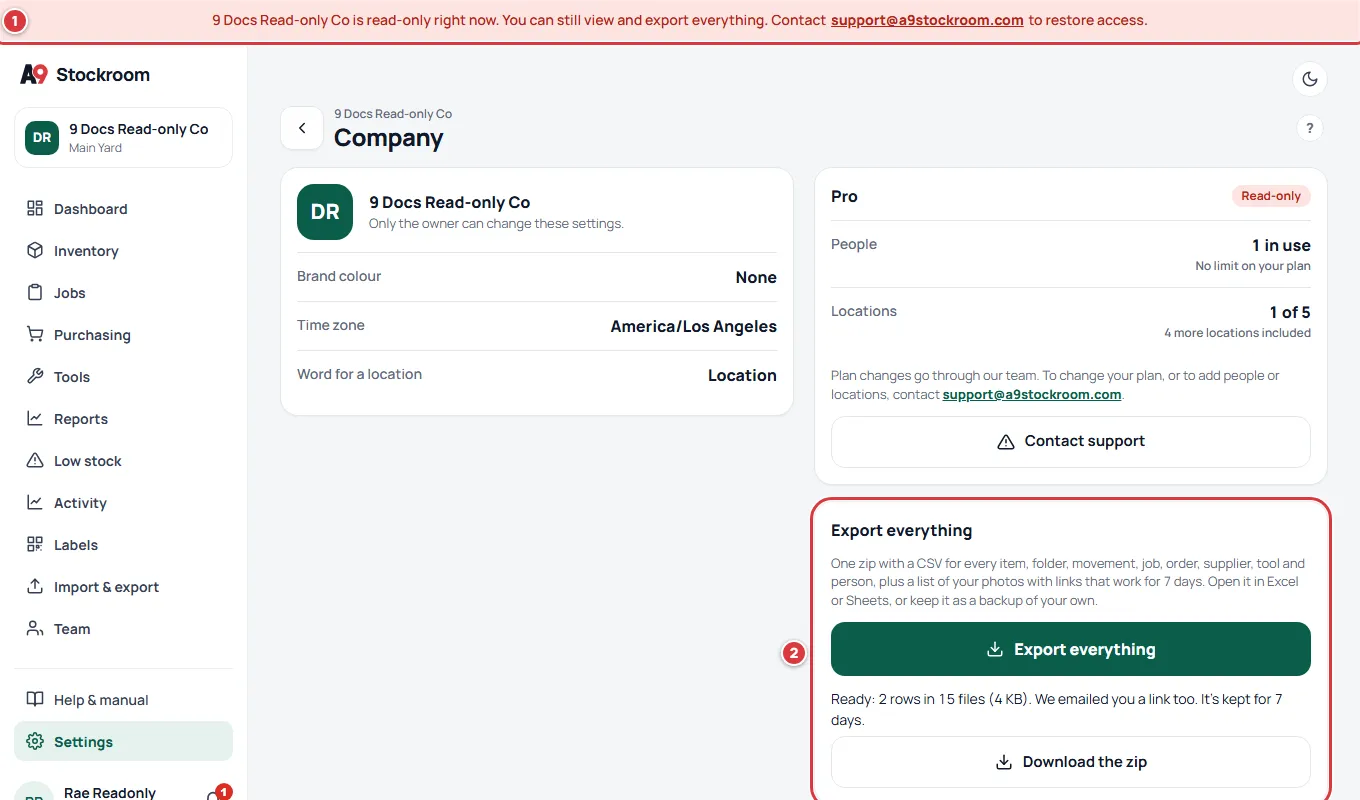
When a company is paused for payment, or the subscription has ended, nothing can be changed, but you can still take your data out. Export everything and the CSV buttons keep working. Importing is paused. See Your plan.
Ask for your data to be deleted#
A9 Stockroom has no delete button. Deleting a company, or a person's account, is done by Atlas9 when you ask.
- Take an export first, with Export everything. Check that you can open it.
- Write to support@a9stockroom.com from the owner's email address and say what you want deleted: your account, or the whole company.
- Atlas9 confirms who you are, then deletes the data. What we keep, for how long and how fast we work is on our privacy page.
If it didn't work#
- Nothing downloaded. Look in your Downloads folder, and check that your browser is allowed to download files from this site. On a phone, the file is in your Files or Downloads app.
- There is no Export CSV button on Reports. Reports are part of Pro, and only owners and managers see them. On Essentials the screen has a Pro badge.
- I am a manager and I cannot see Export everything. Only the owner can export everything.
- The button says Building… for a long time. A company with a long history takes longer. You can leave the page. If it fails, the card says "The export could not be built. Try again; if it keeps failing, write to support@a9stockroom.com."
- "An export is already being built." One export runs at a time. Wait for the email.
- No email came. Look in your junk folder. The card still has Download the zip while the export is kept.
- "This download link has expired." The link works for 7 days. Ask the owner to run Export everything again.
- A photo link does not open. Photo links stop working after 7 days. Run a new export.