Returning stock
Bring parts you did not use back to a folder, from the scanner, from the item's page, or from a job, and take them off that job's cost.
What you'll need#
- A tech, manager or owner sign-in. Viewers cannot return stock.
- The part, in your hand or on your truck.
- The folder it goes back to. If you started the job with a Working out of folder, the app offers that one first.
- To take the part off a job's cost, name the job when you return it. The scanner and the item's page both ask for it under Job.
Steps#
Undo a take: I took the wrong part#
For 15 minutes after you take something, you can put it back with Undo. It puts the part back in the folder it came out of and takes it off the job's cost, in one tap. Both lines stay in History, so everyone can see what happened.
- Right after the take, tap Undo in the green message ("Took 1 · 4 left"). The message stays for a few seconds.
- Missed it? Open Activity, or the item's History tab, and find your take. Tap Undo on its line. Only your own takes show Undo, and only for 15 minutes.
- A message says "Put back 1", and the take's line now says Undone. A take can be undone once.
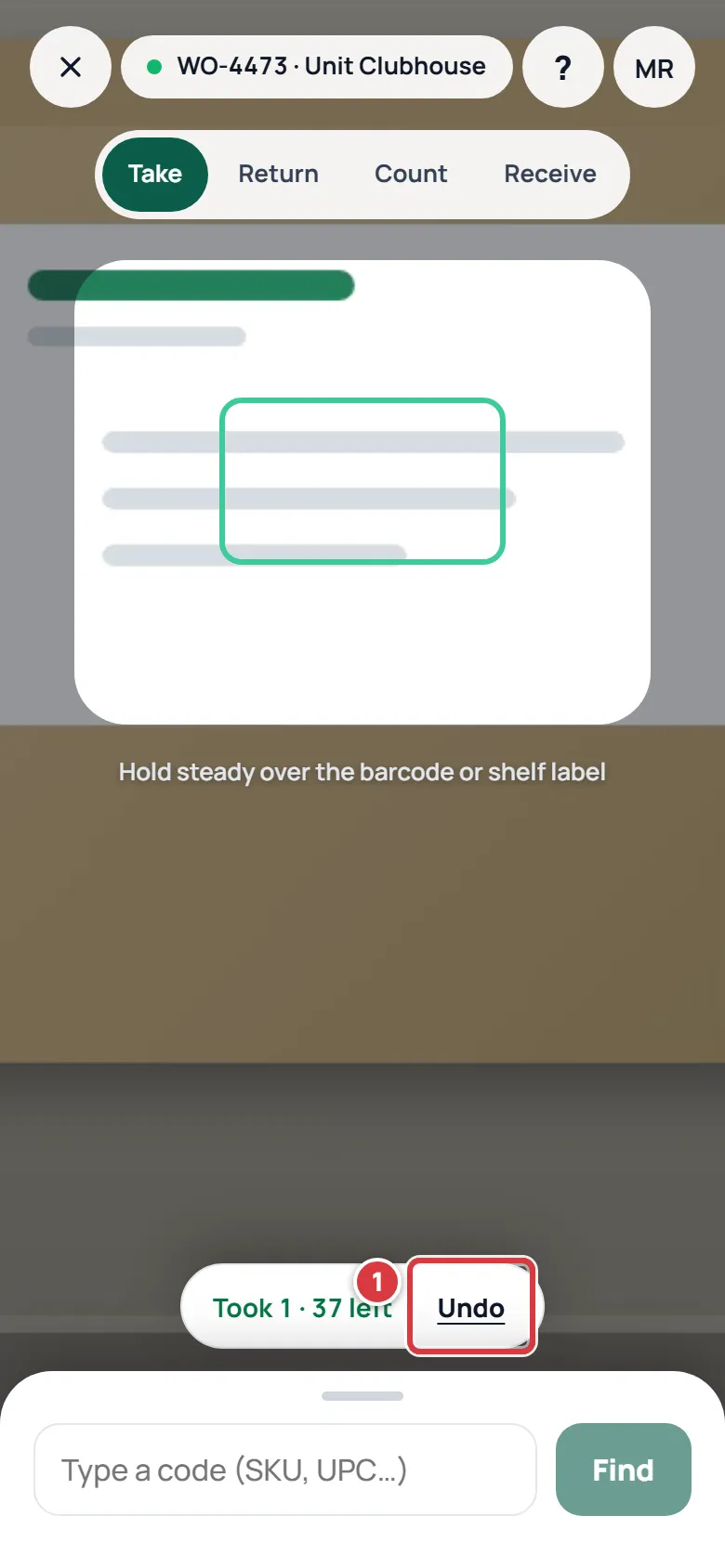
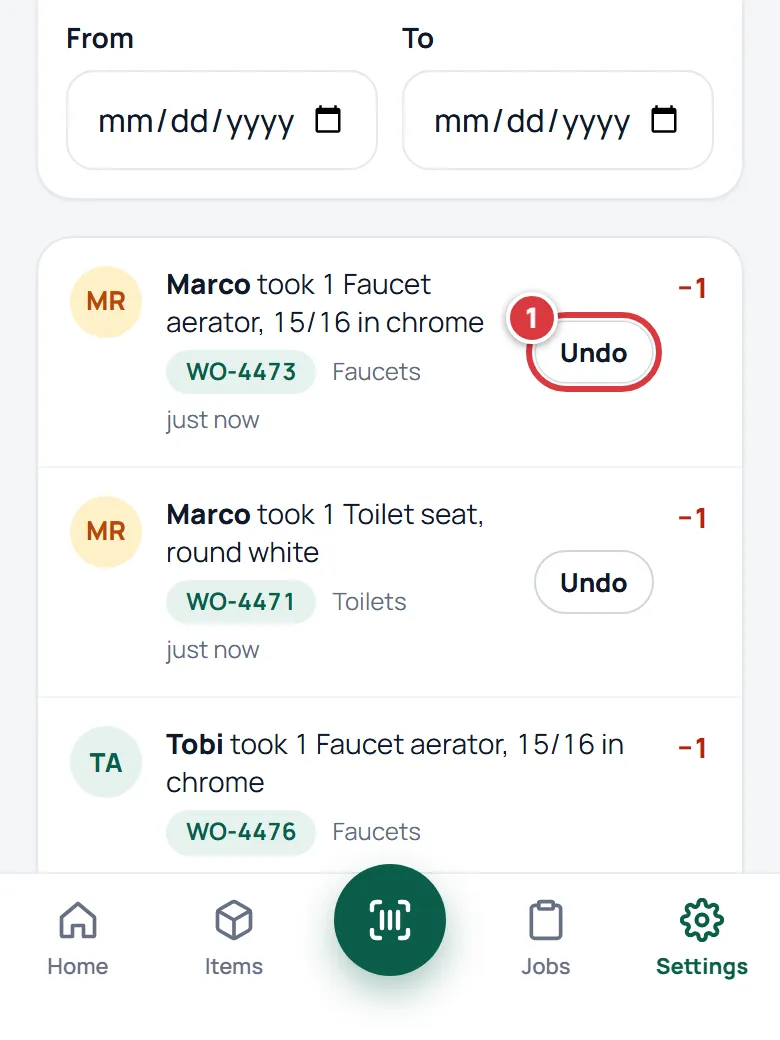
Undo works with no signal too. It waits with your other changes, in the order you made them, and goes through when you are back online. See Working without signal.
If the 15 minutes have passed, or Undo says it could not put the part back, return the part instead (see below). The job has to be open: a closed job takes no more changes, and a manager can reopen it from the job's page.
If you took the right part but charged the wrong job, Undo the take, then take it again for the right job. See Jobs.
Return with the scanner#
This is the fastest way. It puts the part back in a folder.
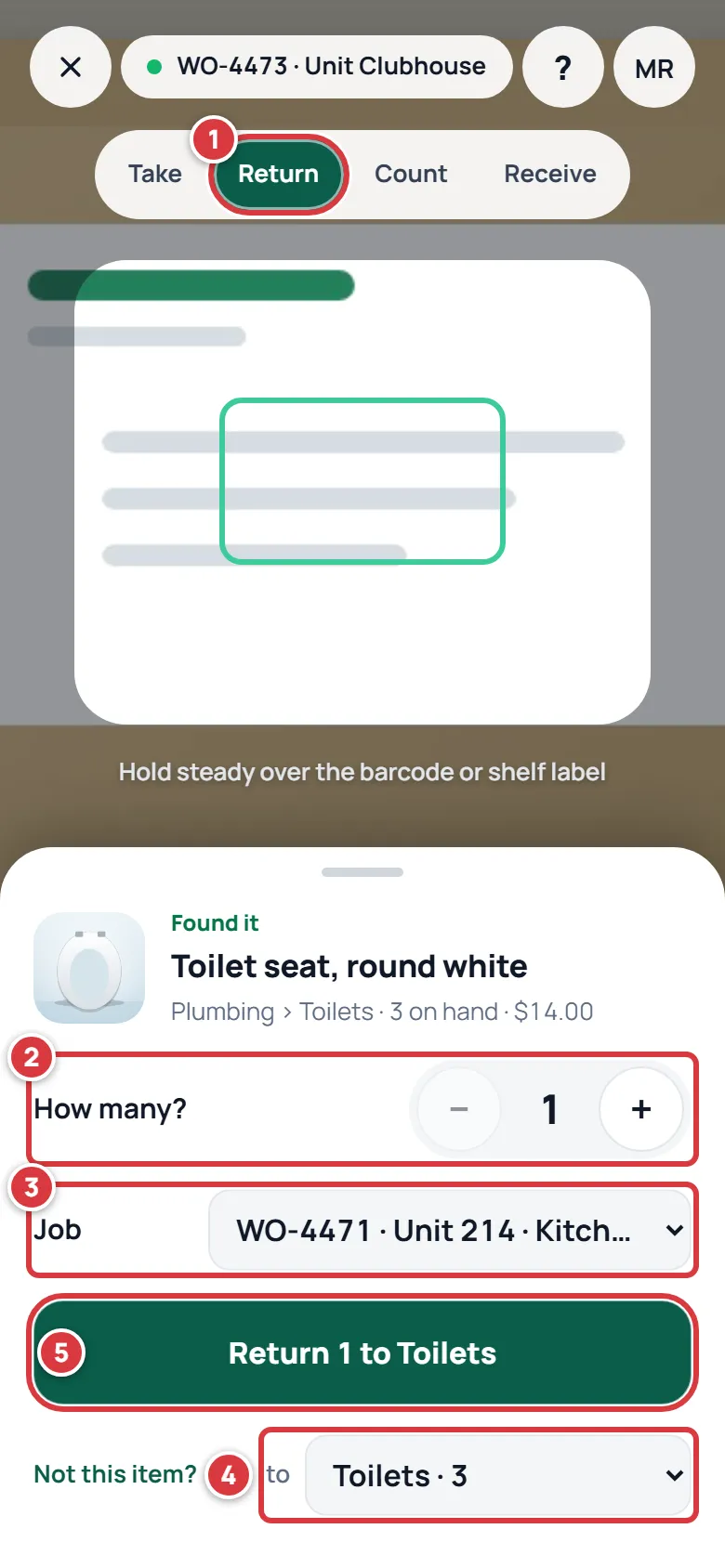
- Open the scanner and tap Return at the top. See Scanning.
- Scan the part and set How many? to the number you are bringing back.
- Check Job. It starts on the job of your latest take of this part, if that job is still open, so the job's cost goes down. Pick another job from the list, or No job if the part did not belong to a job.
- Check the folder in the box at the lower right, where it says "to". Pick another if you are putting the part somewhere else.
- Tap the big button. It says what it will do, for example "Return 1 to Toilets".
Return from the item's page, and take it off a job#
- Open the item and tap Return at the bottom. A sheet called "Return to stock" opens.
- Under Return to, pick the folder it goes back to.
- Under Quantity, set how many.
- Under Job, pick the job the part was taken for. It starts as your newest open job. Pick No job if the part did not belong to a job. Then tap Return and the number, for example "Return 1".
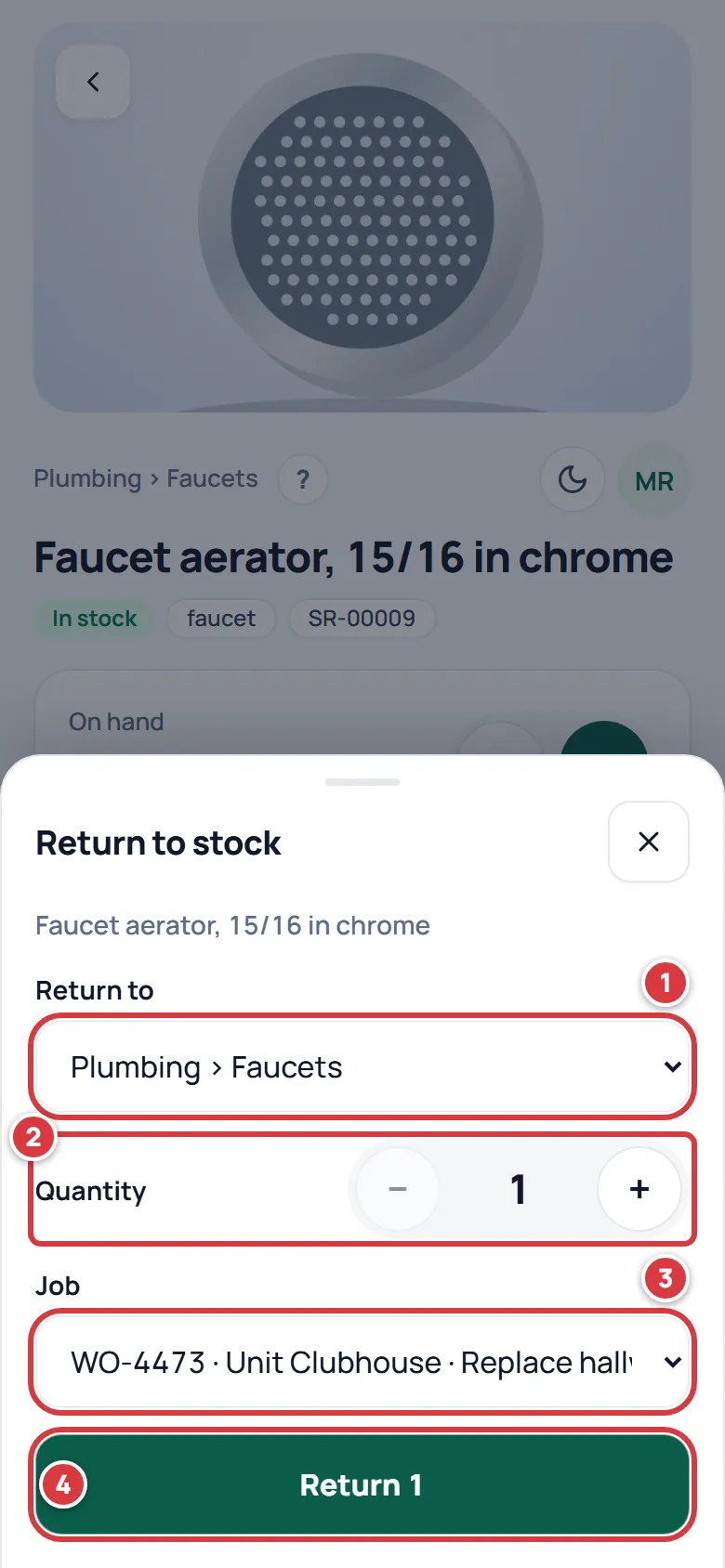
A return counts against the job's parts: the job's page shows what was taken minus what was returned. The count for a part never goes below zero, so returning more than was taken does not give the job a credit.
Return parts from a job#
- Open Jobs and tap the job.
- In Taken for this job, tap the part you are returning. Its page opens.
- Tap Return, then follow the steps above. Check that Job shows this job.
See Taking stock for a job for the job's page.
A tool is not returned this way#
Tools are checked in, not returned. See Tools.
What you'll see#
- A green message: "Returned 1 to Toilets · off WO-4473" on the scanner, or "Returned 1 · off WO-4473" on the item's page. Without a job it says only "Returned 1 to Toilets".
- The item's On hand goes up by that number, and the item's History says "Marco returned 1", with the job number when you chose one.
- If you chose a job, its line in Taken for this job drops, and its cost goes down.
If it didn't work#
The job's cost did not go down#
You probably chose No job, or Job started on No job because you had not taken the part for a job lately. A return with no job does not change any job. The part is back on the shelf, which is the main thing. Next time, check Job before you tap the big button.
I put it in the wrong folder#
Count the wrong folder and the right one, so each matches what is on the shelf. A manager can also use Move. See Counting stock and Moving and transferring stock.
I returned too many#
Count the folder so it shows what is really there. See Counting stock.
There is no Return button#
Viewers do not have it. Tools do not either, because a tool is checked in. Ask an owner or manager if your role should be different. See Roles and permissions.
The job I want is not in the list#
The Job box lists open jobs only. A closed job takes no more changes. A manager can reopen it from the job's page. See Jobs.
A message says it could not connect#
The return did not go through. Try again. With no signal, see Working without signal.