Receiving stock
Record a delivery, or parts you brought in, against an item with the scanner or the item's page, or against a purchase order so the order stays right.
What you'll need#
- A tech, manager or owner sign-in. Viewers cannot receive.
- The delivery in front of you, so you can count what really arrived.
- The folder it is going into.
- For a delivery you ordered through A9 Stockroom, the order must be marked as sent. A manager does that. See Purchase orders.
- A signal, if you receive against an order. Receiving with the scanner or the item's page works without one. See Working without signal.
Steps#
Choose the way that fits what arrived. If it is a delivery for a purchase order, use the order, so the order knows what came in. The scanner and the item's page add stock to the folder but do not touch any order.
Receive with the scanner#
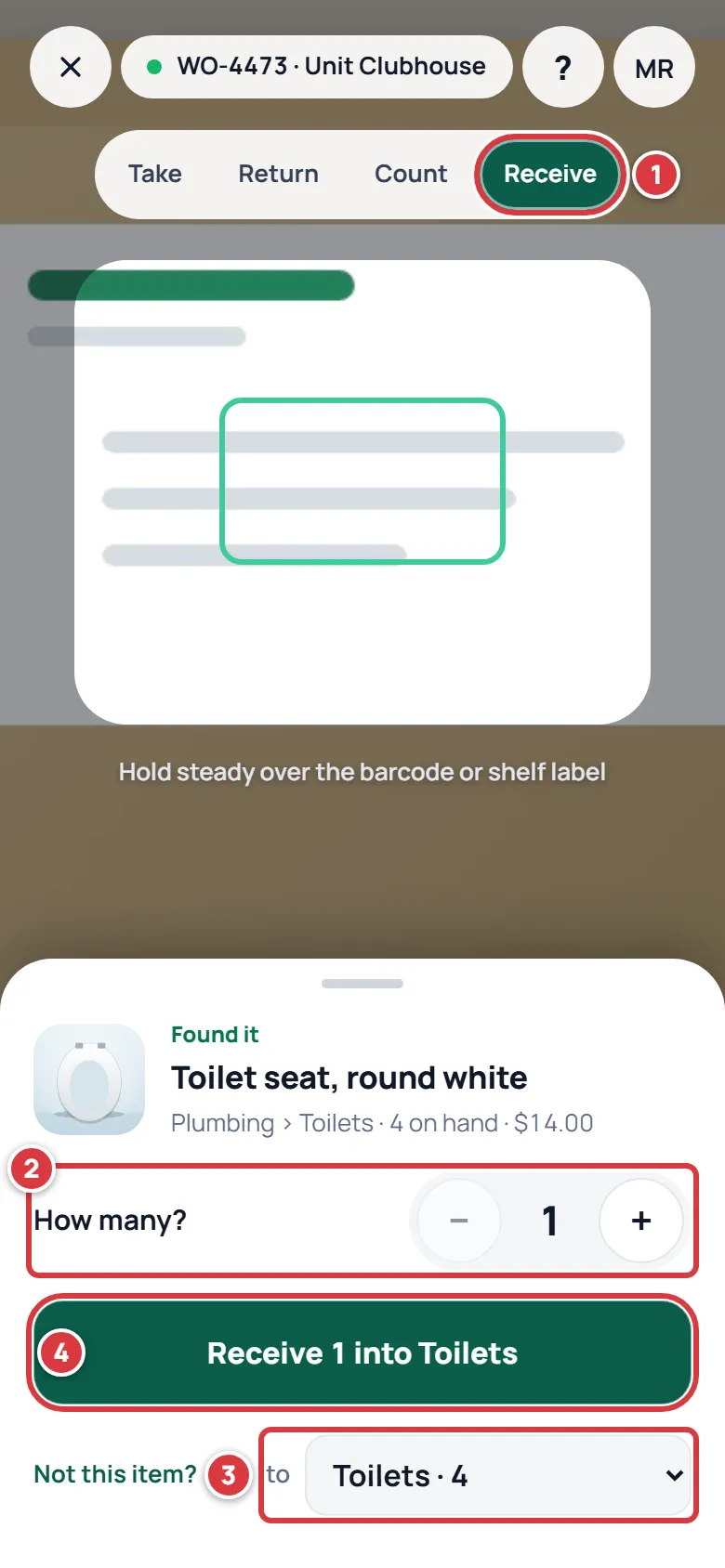
- Open the scanner and tap Receive at the top. See Scanning.
- Scan the part. Under How many?, set how many arrived.
- Check the folder in the box at the lower right, where it says "to". Pick another if it is going somewhere else.
- Tap the big button. It says what it will do, for example "Receive 12 into Toilets".
Receive from the item's page#
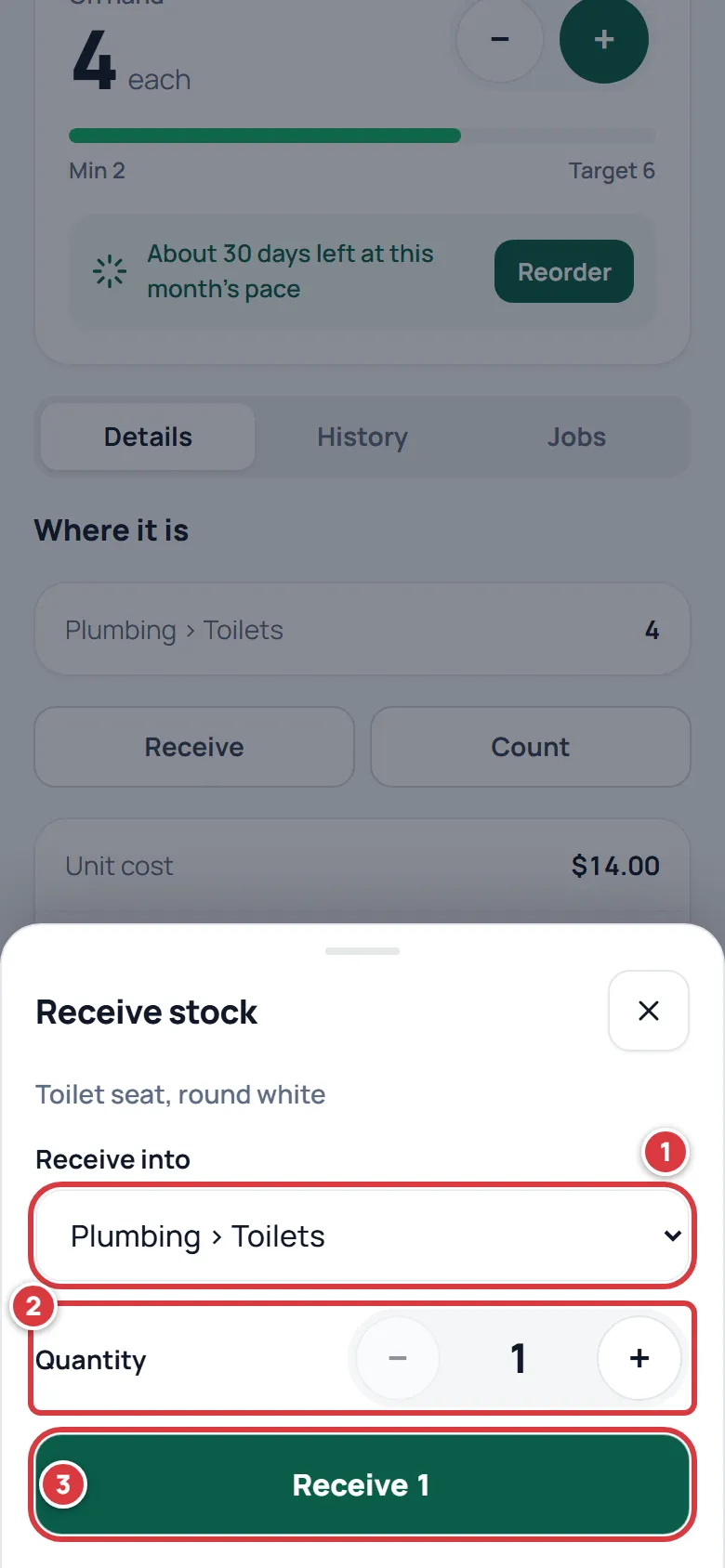
- Open the item. Under Where it is, tap Receive. A sheet opens. Under Receive into, pick the folder.
- Under Quantity, set how many arrived.
- Tap Receive and the number, for example "Receive 12".
The round plus on an item's card adds one at once, recorded as received, to the folder that holds the most. It is a quick way to add a single unit.
Receive against a purchase order#
- Open Purchasing and tap the order. On a phone, Purchasing is under More on the Settings screen. Only orders marked Sent or Partly received can be received. Scroll to Receive. Under Into folder, pick where the delivery goes. If the order already names a folder, it is filled in.
- Each line shows how many have been received and how many are still to go. Receiving now starts at the amount still to go. Change it to what really arrived. Leave a line at 0 if it did not come.
- Tap Receive.
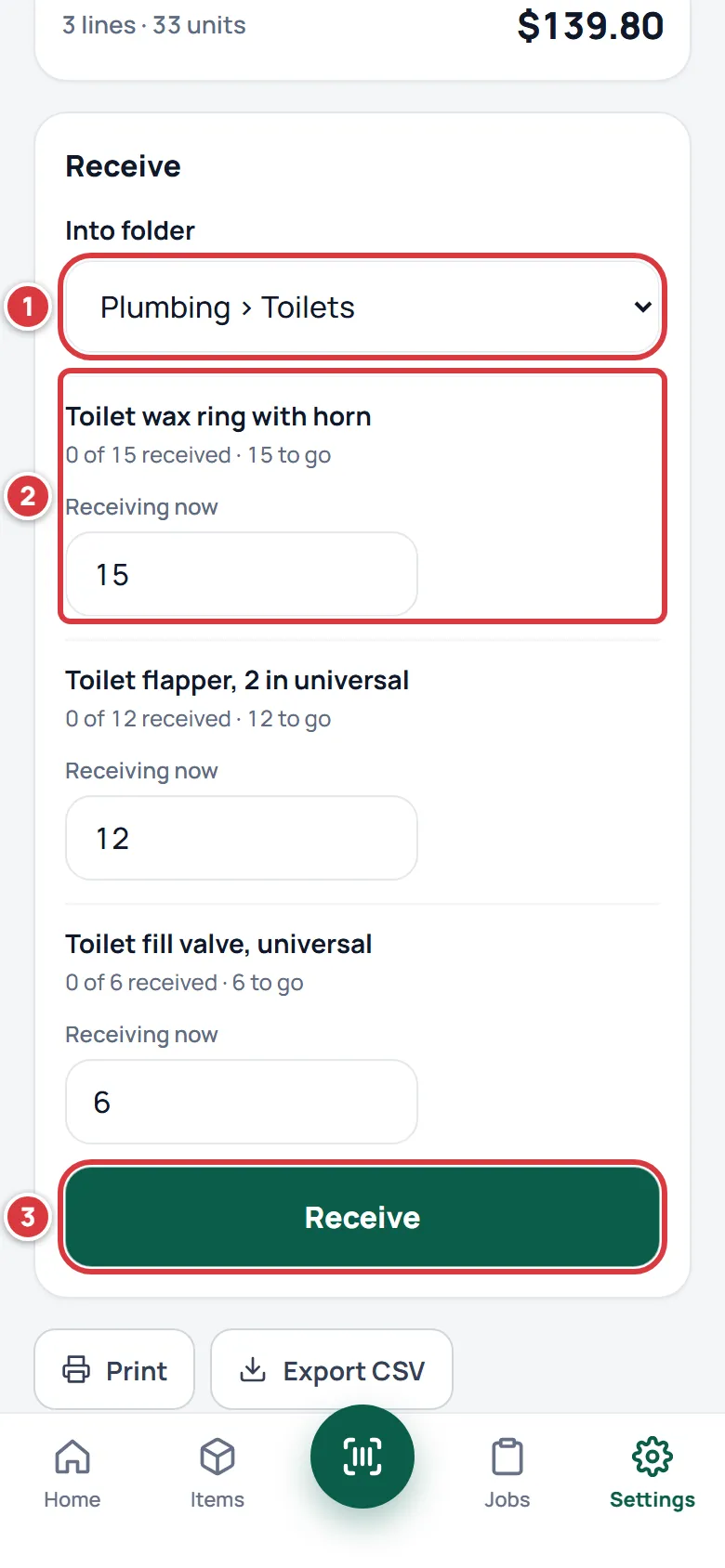
If only part of the delivery came, enter what came. The order moves to Partly received and stays open for the rest. See Purchase orders for creating, sending and cancelling orders.
What you'll see#
- A green message: "Received 12 into Toilets" on the scanner, "Received 12" on the item's page, or "Received 3 lines." on an order.
- The item's On hand goes up, and the item's History says "Marco received 12". An item that was low may stop showing as low.
- On an order, each line's received number goes up and the order's status changes to Partly received or Received.
- When you receive against an order, the person who made the order and the managers get an alert. See Notifications.
If it didn't work#
There is no Receive button#
Viewers do not have it. Tools do not either: a tool is added by a manager as a unit. See Tools.
The order has no Receive panel#
The panel shows only when the order is Sent or Partly received. A Draft has not been sent yet: ask a manager to mark it sent. An order that is Received or Cancelled takes nothing more. Or your company's plan may not include purchase orders: see Your plan.
"Choose the folder this order goes into."#
Pick a folder under Into folder, then tap Receive again. If the list has no folders in it, the order's location has none yet: switch to that location, add a folder (Folders), then open the order again.
"This order isn't waiting to be received."#
Someone else already received it, or a manager cancelled it. Reload the order to see.
"That folder belongs to another location."#
The folder you picked is at a different location from the order. Pick a folder at the order's location.
I received too many#
Count the folder so it shows what is really there. See Counting stock.
I received it with the scanner, but the order still says it is waiting#
The scanner does not know about orders. The stock is on the shelf, but the order still wants its delivery. Do not receive it again on the order, or the stock is counted twice. Ask a manager. Next time, receive on the order.