Counting stock
Count what is really on the shelf and tell the app, which is also how you fix a wrong number. Covers Count mode, the item's Count button, what History shows, and why stock cannot go negative.
What you'll need#
- A tech, manager or owner sign-in. Viewers cannot count.
- The part in front of you, so you can count it.
- The folder you are counting. A count is for one folder at a time. An item that sits in two folders needs two counts.
Steps#
A count is simple. You tell the app how many you counted in a folder, and the app works out the difference from what it had and records that.
Start from Home#
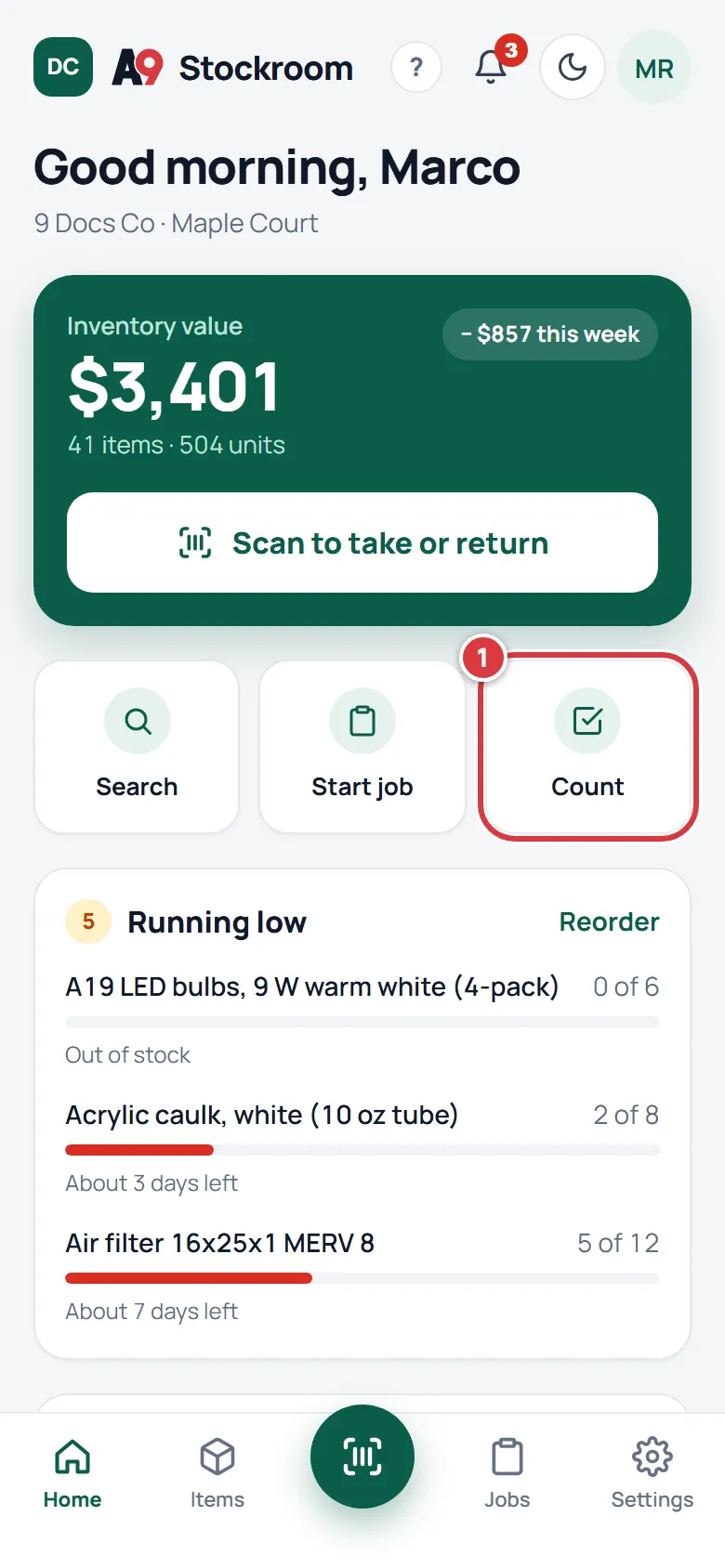
Tap Count on Home. The scanner opens with Count already selected.
Count with the scanner#
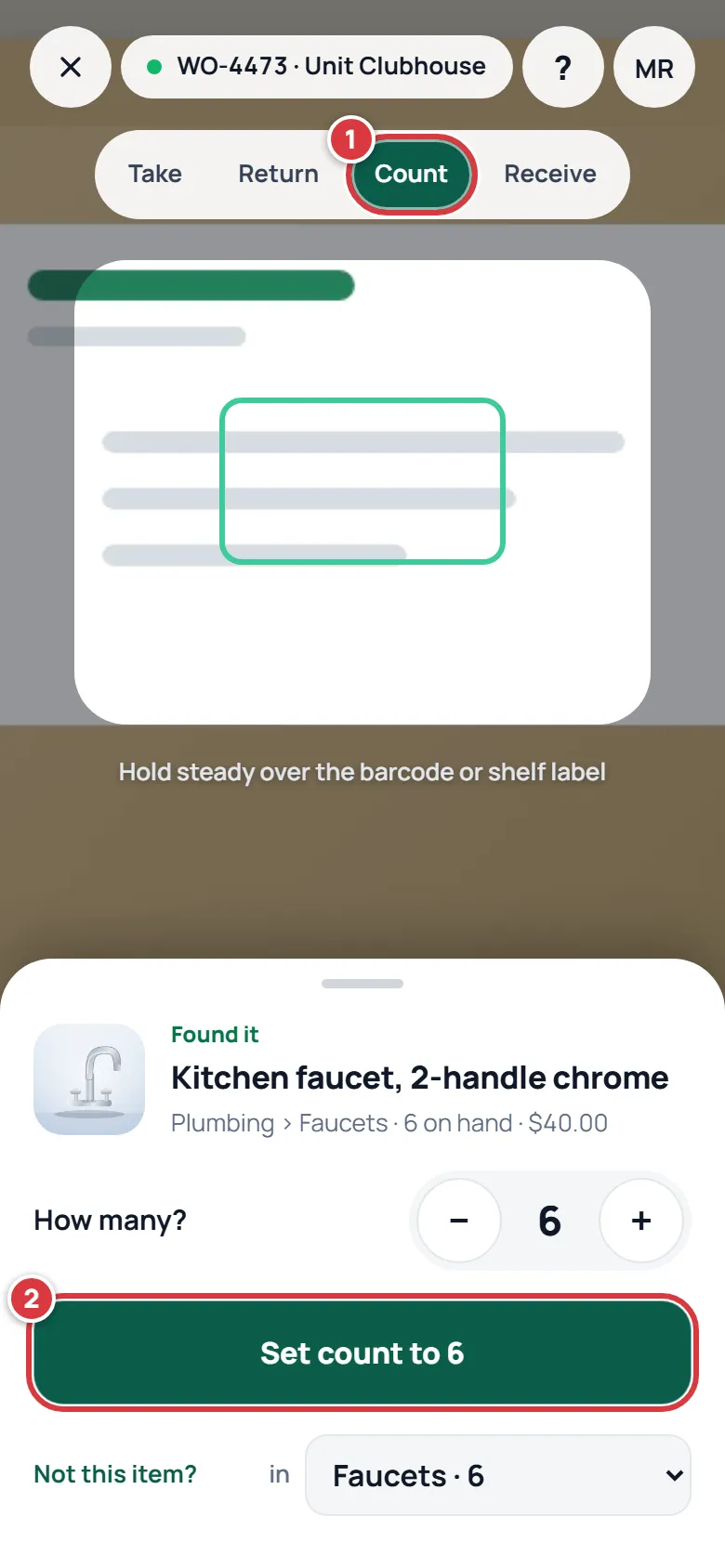
- Open the scanner and tap Count at the top. See Scanning.
- Scan the part. Under How many?, set the number you counted, then tap Set count to and the number, for example "Set count to 6".
The number starts at what the app thinks is in the folder shown in the box at the lower right, where it says "in". If you are counting a different folder, pick it first. The number changes to what the app thinks is in that folder.
Count from the item's page#
- Open the item. Under Where it is, tap Count. A sheet opens. Under Folder, pick the folder you are counting. The number in brackets is what the app has now.
- Under Counted on the shelf, set what you counted. It starts at the app's number.
- Tap Set count to and the number.
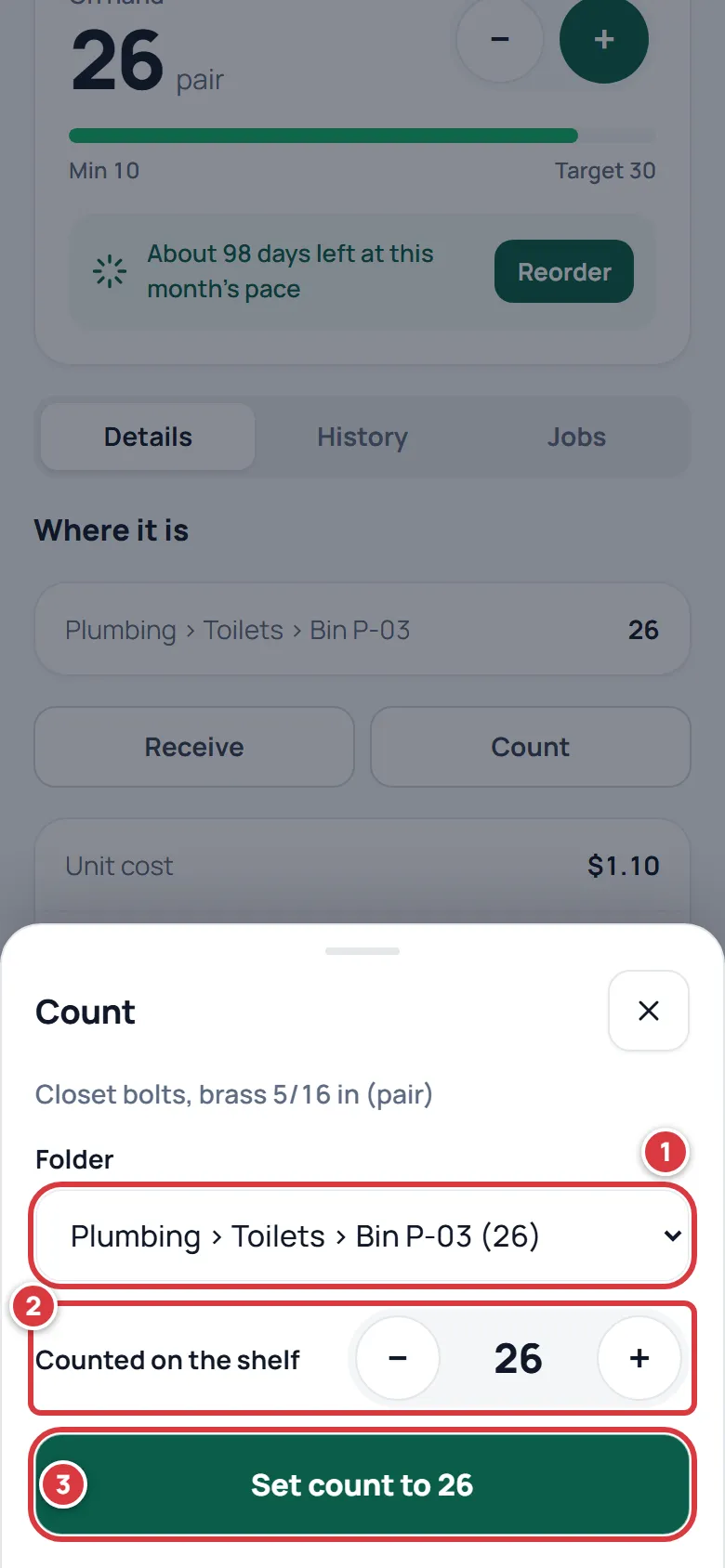
You can count a folder that does not hold the item yet. The count puts the item there. A count of zero says the folder has none.
Fix a wrong number#
Count is also how you fix a number that looks wrong. If the app says 8 and you count 6, count 6. You do not have to work out what went wrong first. The app records a change of minus 2 with your name and the time, so the history stays honest. Everyone who can count can do this: techs, managers and owners.
There is no separate Adjust button. Count does that job. Managers and owners also have Move, which changes where stock sits, not how much there is. See Moving and transferring stock.
If the number is wrong because a take or a return went to the wrong place, count both folders so each one matches the shelf.
What you'll see#
- A green message: "Count set to 6" on the scanner, or "Counted 6" on the item's page.
- The item's On hand matches what you counted. If that puts the item under its minimum, owners and managers get an alert. If it lifts the item above the minimum, it stops showing as low.
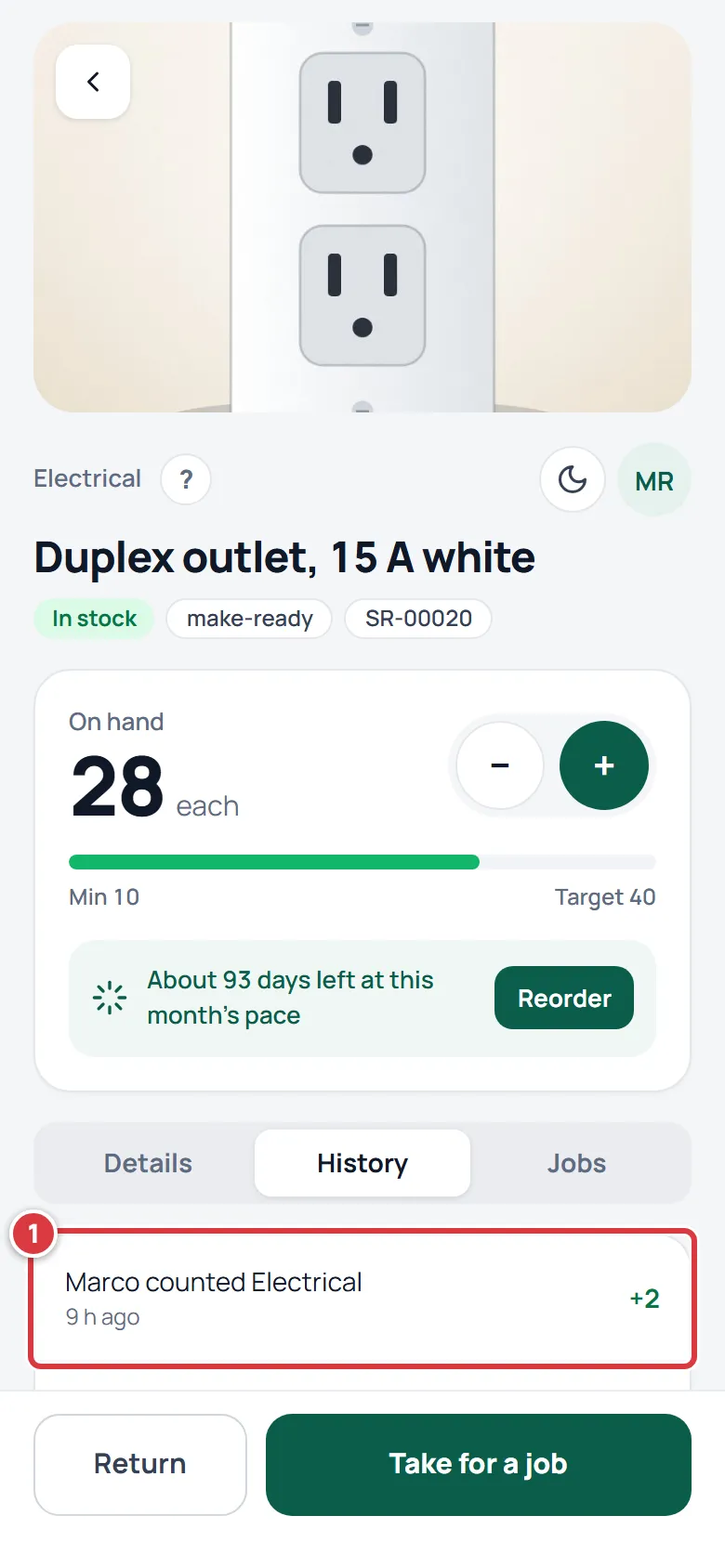
- In History you see a row like "Marco counted Electrical" with the change on the right: plus 2, minus 2, or 0 when you found no difference ("counted Toilets, no change").
Why stock cannot go negative#
It cannot. The app refuses any take or move that is bigger than what is in the folder, and it says "Not enough in stock there." A count cannot be below zero either. If you think you saw a negative number, it was probably one of these:
- A minus sign in History. That is the change, not the stock: "−3" means three went out.
- A take with no signal. The phone shows the lower number straight away, never lower than zero, and History marks the take Pending sync. If someone else took the last ones first, the take is refused when it reaches the stockroom and waits under Needs attention. See Working without signal.
- Out of stock, which means zero.
If a number is wrong in either direction, count it.
If it didn't work#
There is no Count button#
Viewers do not have it. Tools do not either, because a tool is counted by unit, not by quantity. See Tools.
The app still shows the old number#
Reload the page, or wait a moment for the phone to catch up. A count made without a signal is marked Pending sync in History until it reaches the stockroom. See Working without signal.
I counted the wrong folder#
Count the wrong folder again so it shows what is really there, and count the right folder too. Each count is recorded with who made it, so nothing is lost.
The count made it look low#
That is the true number. Reorder it from Low stock, or ask a manager to change the minimum. See Minimums and reordering.
"Your role can't do that."#
Viewers cannot count. Ask an owner or manager to change your role. See Roles and permissions.