Your first day
Accept your invite, put the app on your phone, find a part, scan it, take it for a job, and keep going when there is no signal.
This page walks you through a first shift, in the order you will do things. Every step has a picture. You do not need to have used an inventory app before.
The idea is simple. Parts live in folders (a shelf, a bin, a truck). When you use a part, you take it for a job (a work order). The app subtracts it from the folder and adds it to the job's cost. When you have parts left over, you return them. Each of these is one line in the stockroom's history, with your name on it.
What you'll need#
- Your phone, with a camera.
- The invite email from your manager. The link in it works for 7 days.
- A work order number to charge parts to (like WO-4471). If you do not have one yet, ask your manager.
- About ten minutes the first time.
Steps: accept your invite#
Open the invite email and tap "Accept the invite".
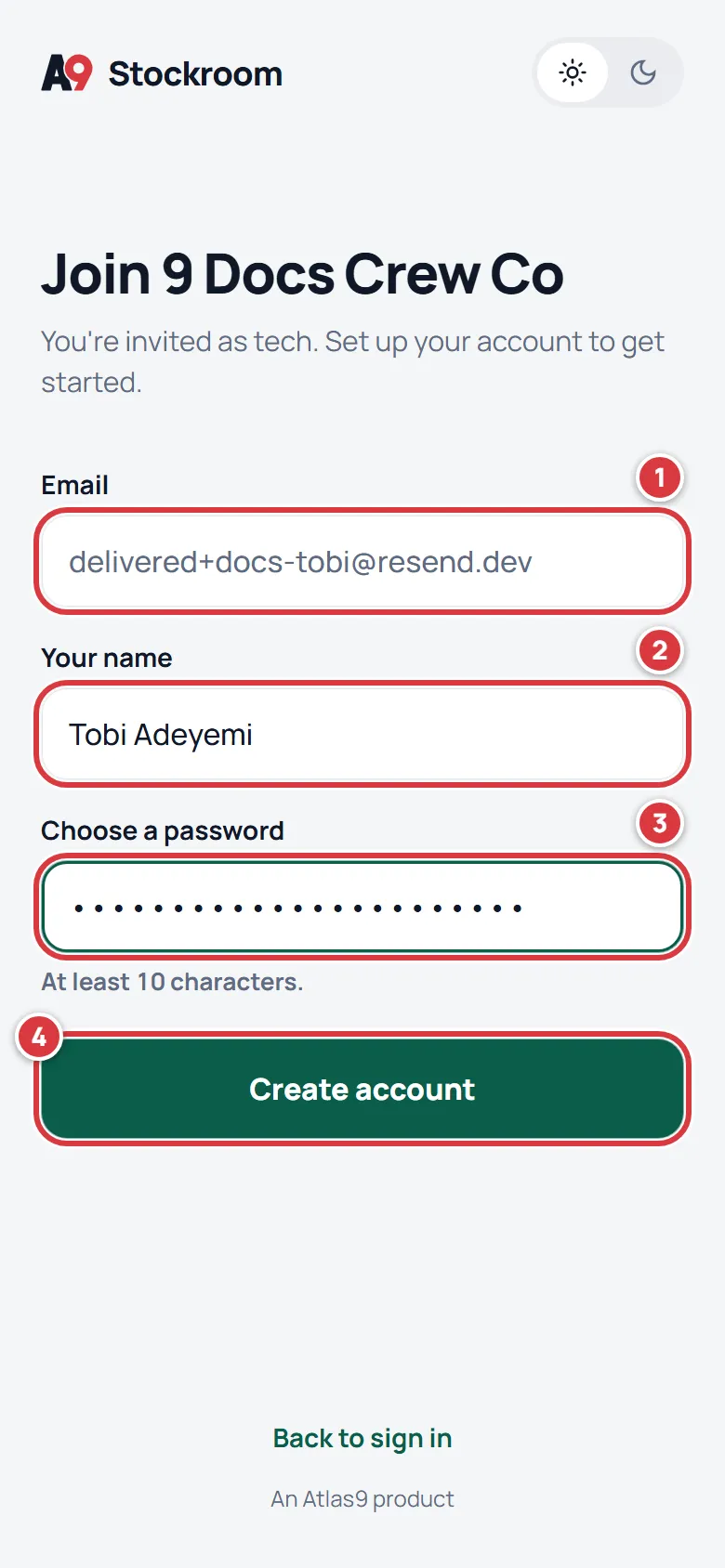
Your email is filled in already. Type your name, choose a password, and tap Create account.
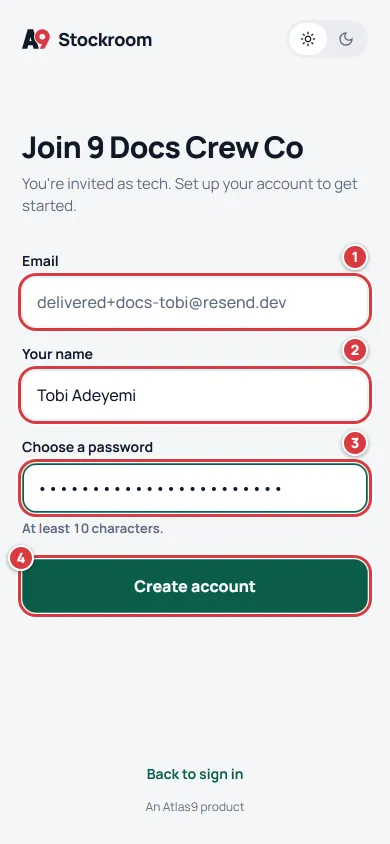
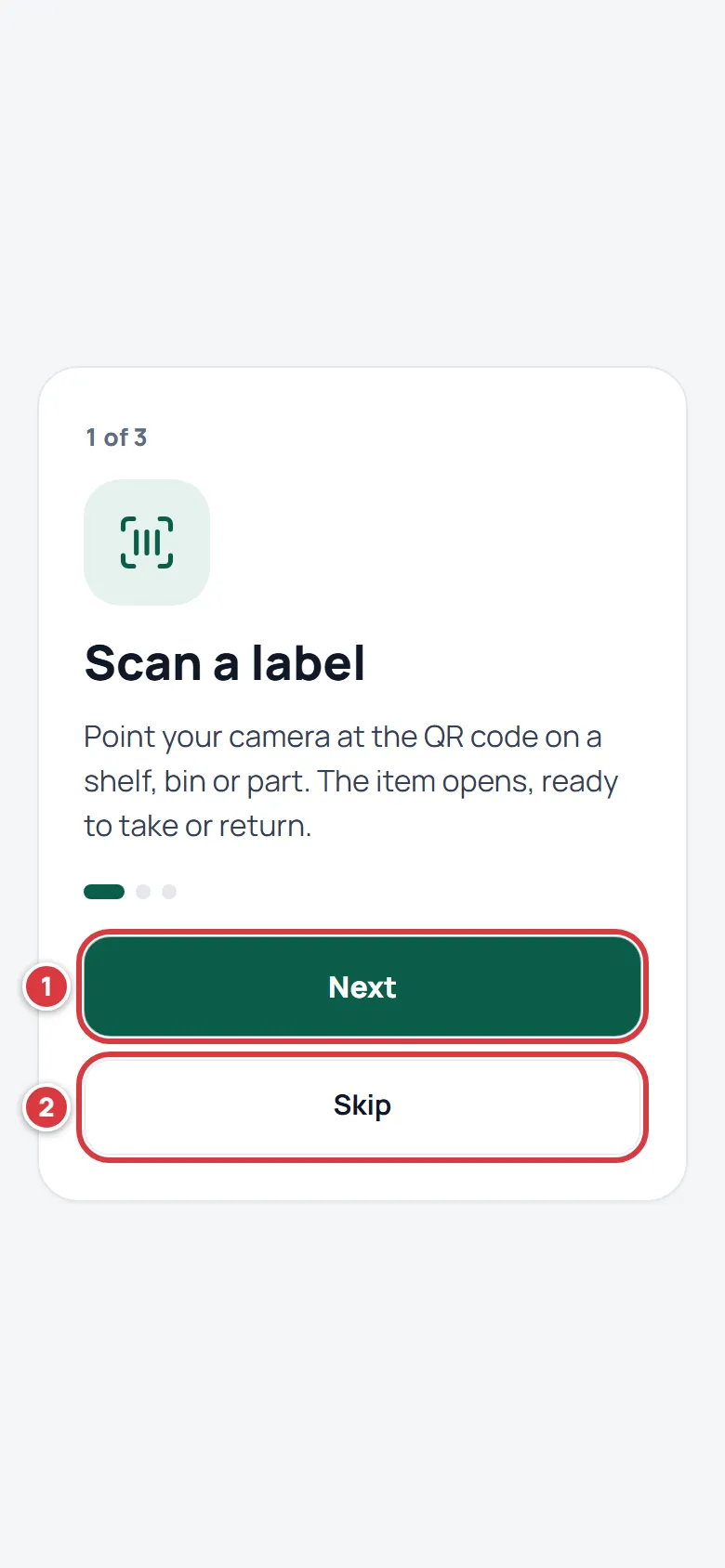
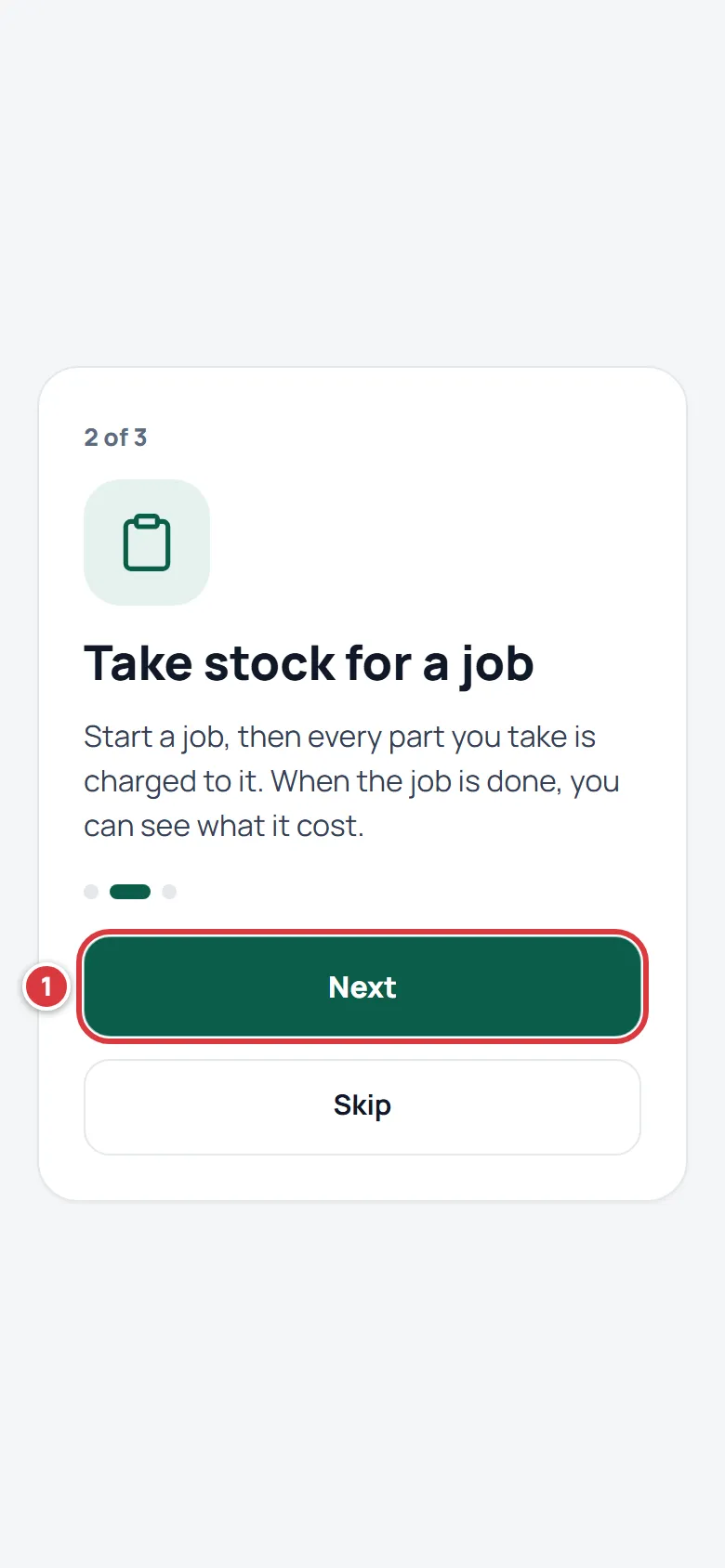
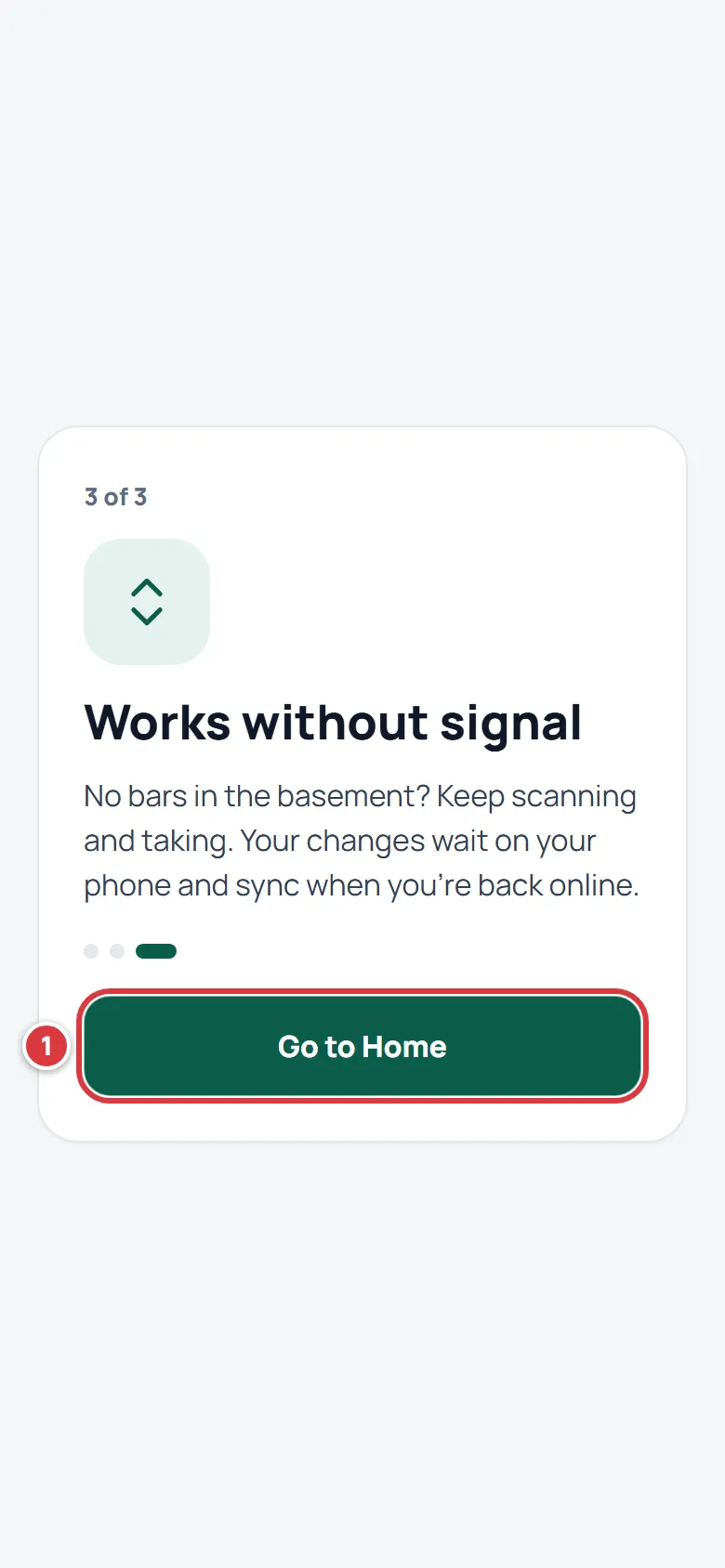
Marks 2 and 3 are the two things you type. Mark 4 makes your account. The first time you are in, three short cards show you what the app is for. Tap Next to move on, or Skip to leave them. On the last card, tap Go to Home. You see these cards once.
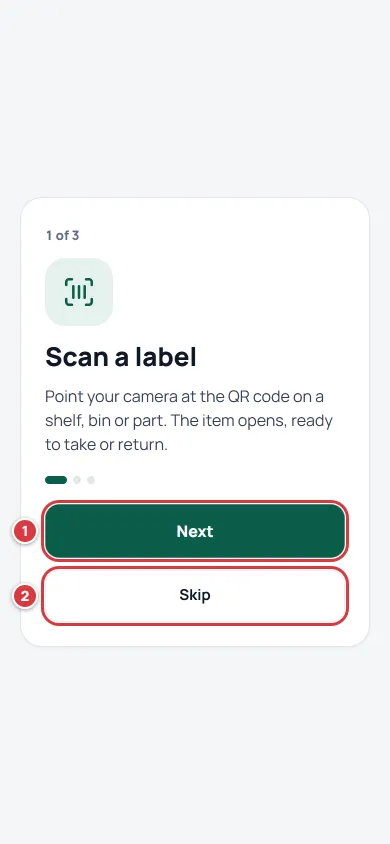
Card 1 of 3: scan a label. 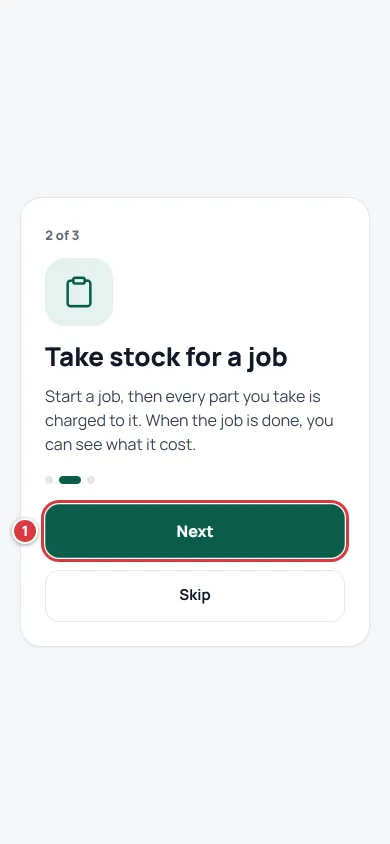
Card 2 of 3: take stock for a job. 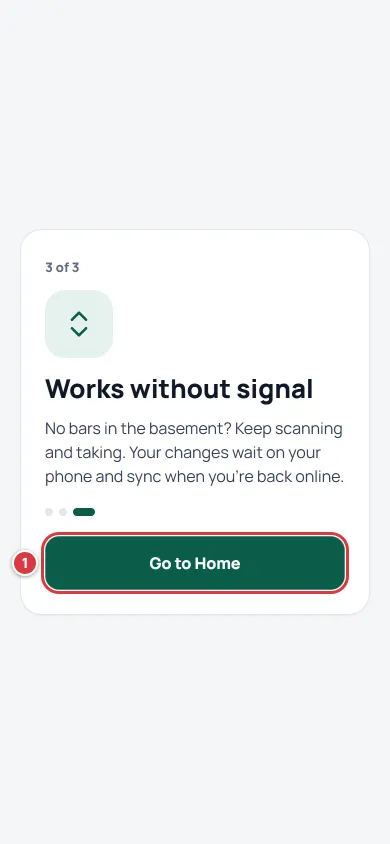
Card 3 of 3: it works without signal. Go to Home takes you in.
More about invites, passwords and signing in again: Signing in.
Steps: put it on your phone#
Open the app from your home screen like any other app. It opens full screen, with no browser bar, and it is quicker to find when you are in a hurry. Setting it up takes under a minute: see Install on your phone or computer. You can do the rest of this page in your browser first and install later.
Steps: find an item#
Tap Items at the bottom of the screen.
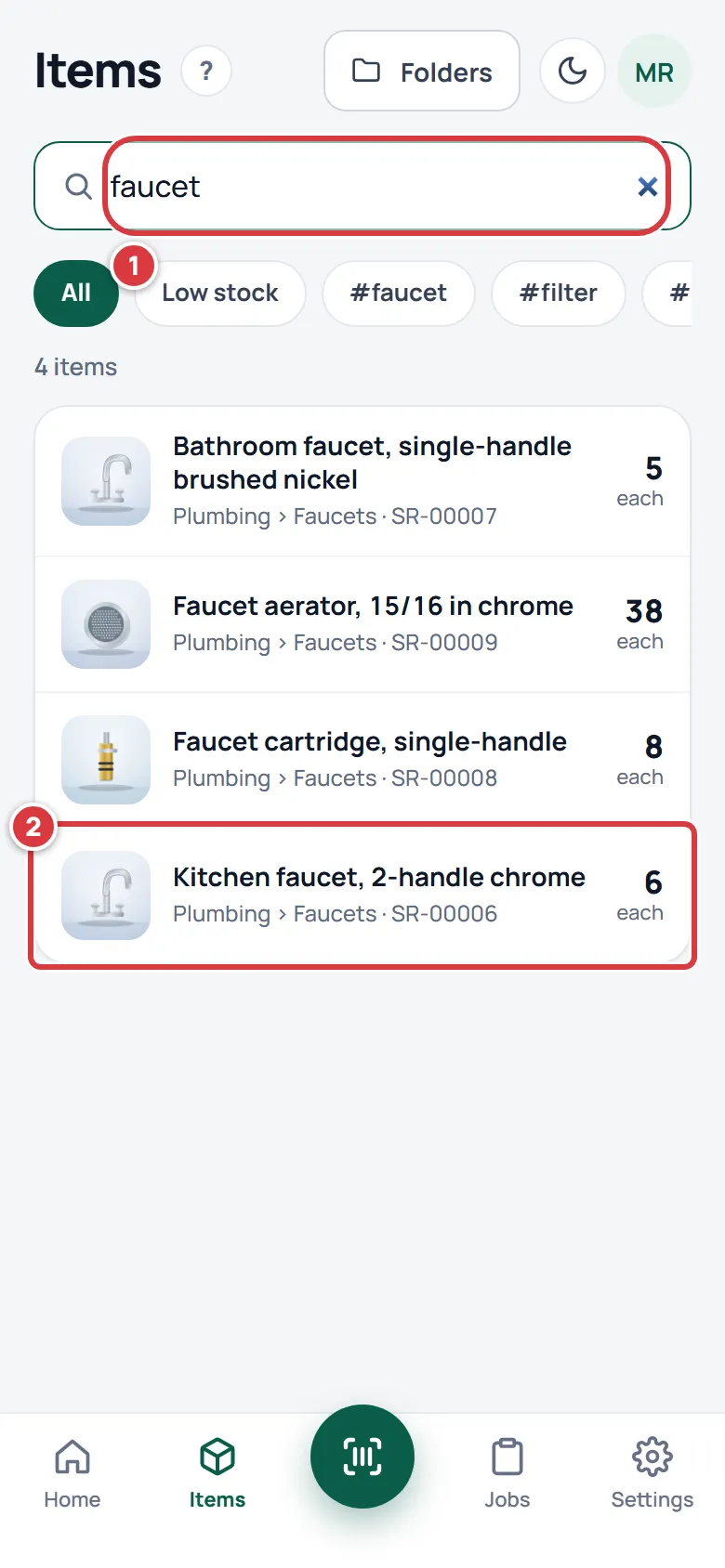
Tap the search box and type part of a name, a SKU (the item's code, like SR-00006), a barcode number or a tag. The list narrows as you type.
Tap the item you want. Its row shows where it lives and how many are on hand.
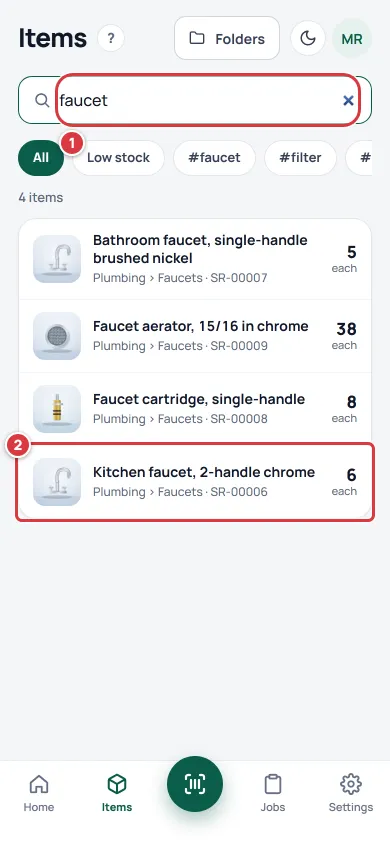
Type a few letters, then tap the row.
More ways to find things, including filters: Finding things.
Steps: start a job#
A job is the work order you are charging parts to. While a job is open, every part you take is charged to it, so the job's cost adds up on its own.
Tap Start job on the Home screen. On the Jobs tab it is the green Start job button at the top.
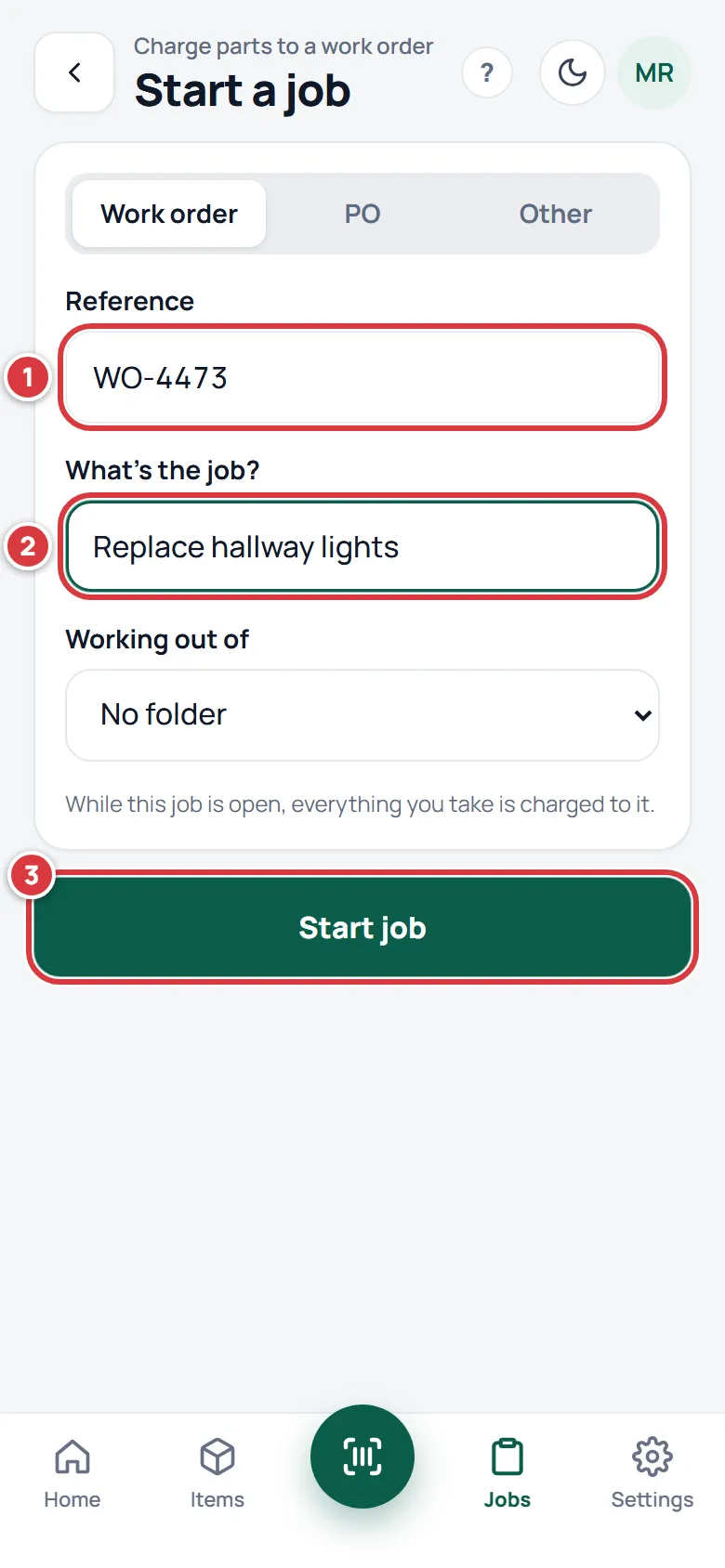
Type your work order number in Reference.
In What's the job?, say what you are doing, in a few words.
If you are working out of a truck or a bin, pick it under Working out of. You can leave it as is.
Tap Start job.
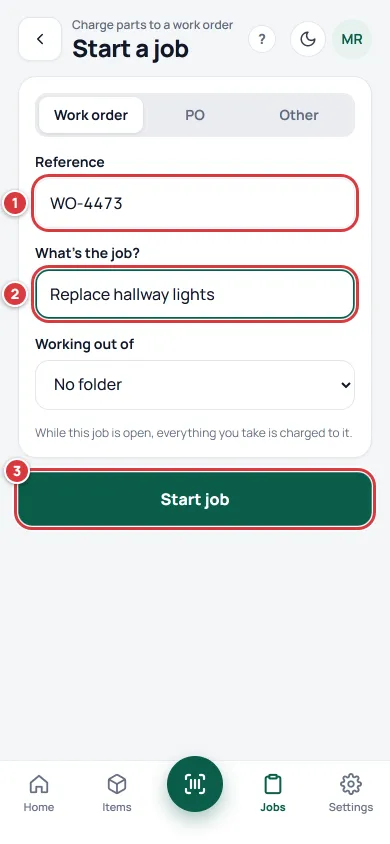
The form before you tap Start job.
If you also see a Unit turn kind and a Unit box, your company calls its locations "Property". Leave the kind on Work order and leave Unit empty; those two are for getting a unit ready for a new tenant (see Jobs). The Start job button stays pale until Reference has something in it.
If your manager already opened a job for you, you can skip this. Your newest open job is the one parts go to.
Steps: scan a part and take it#
Tap the round Scan button in the middle of the bottom bar. The first time, your phone asks if A9 Stockroom may use the camera. Choose Allow. (If you missed it, see the camera won't open.)
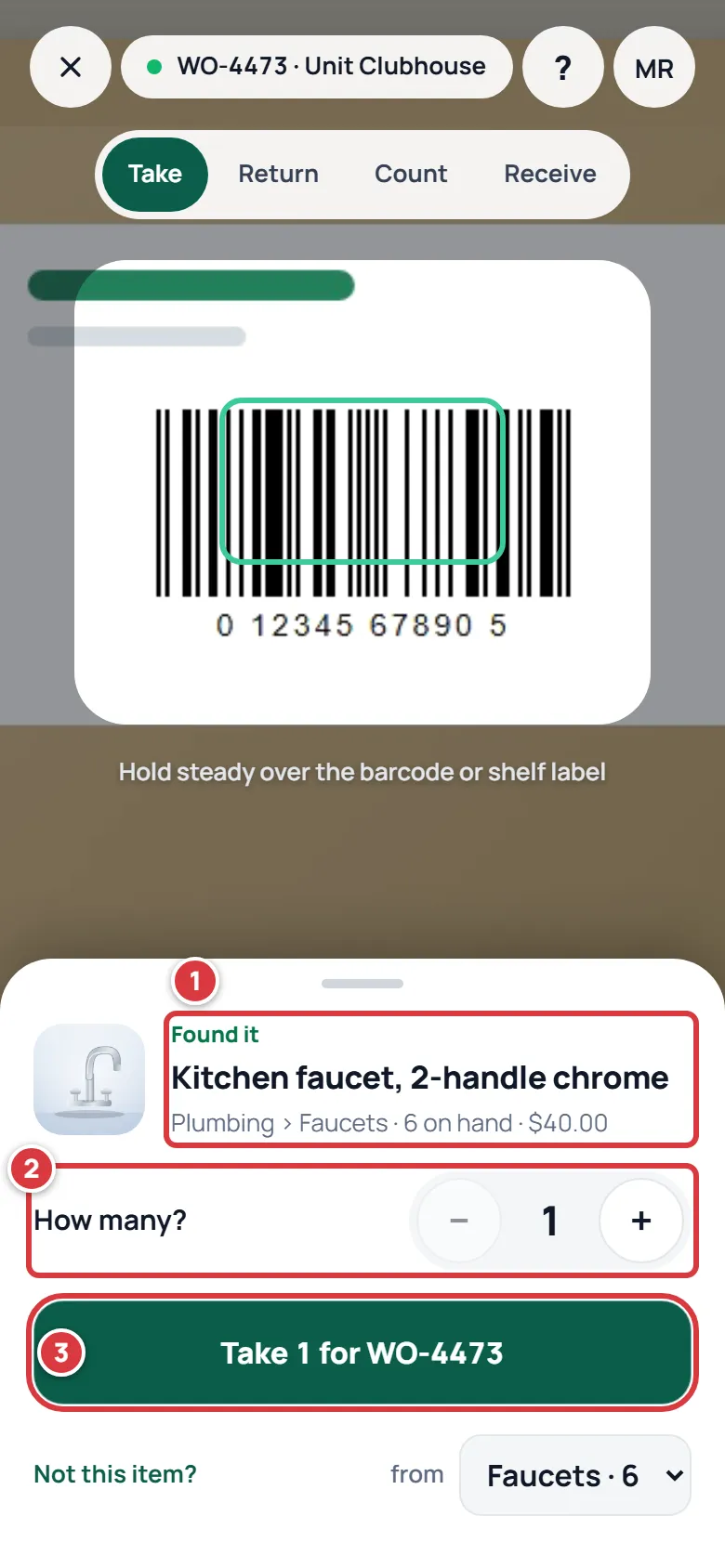
Look at the top of the screen. The pill shows the job your parts will be charged to (1). The row of four buttons is the mode: leave it on Take (2). Point the camera at a barcode or a QR label so it sits inside the frame (3).
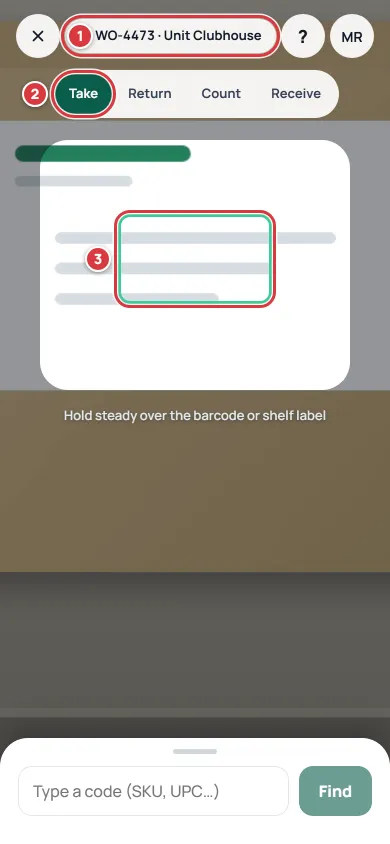
Hold the code inside the frame. It reads by itself. If the pill says "No job", parts are not charged to any job. Start one first (see above).
A card slides up with Found it and the item's name (1). Under How many? (2) choose how many you are taking. The big green button (3) names your job. Tap the Take button to finish.
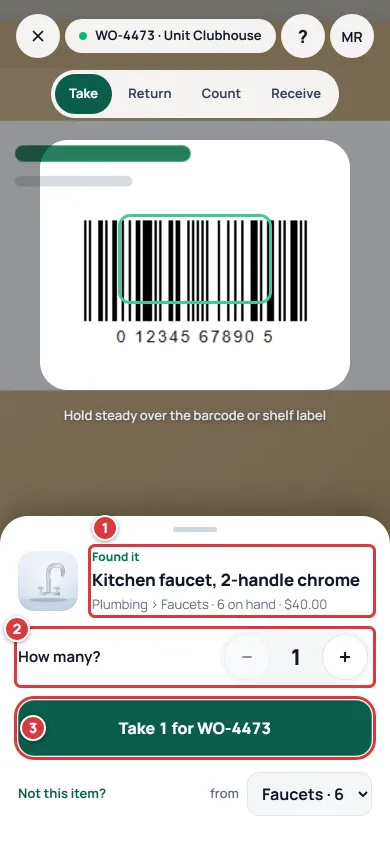
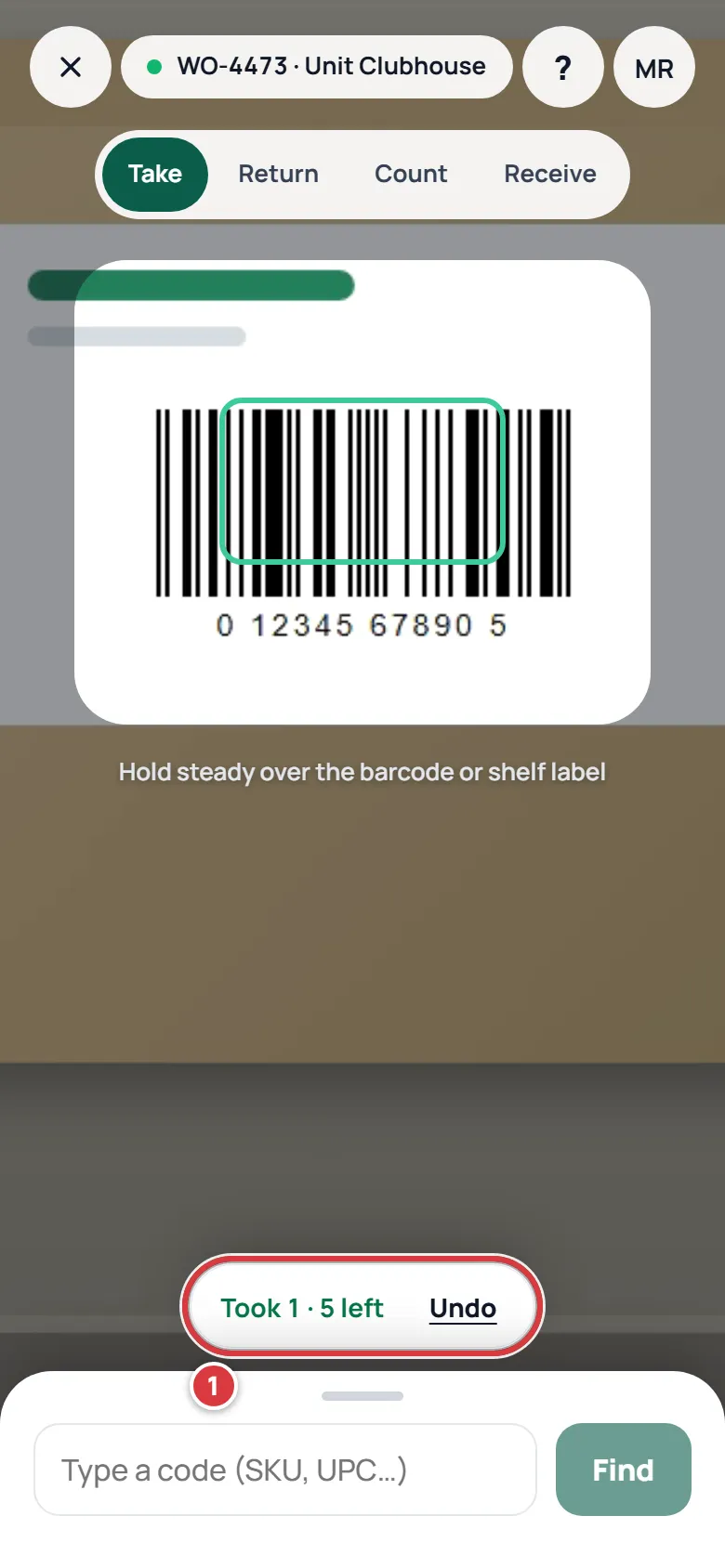
Check the name and the number, then tap Take. A message at the bottom says how many you took and how many are left.
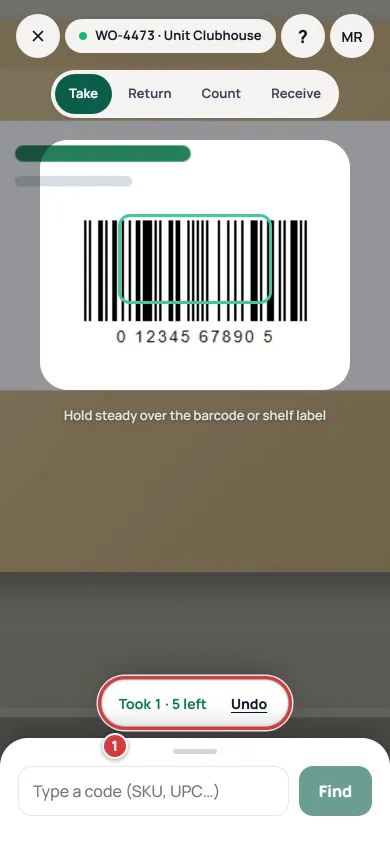
Mark 1 is your confirmation: Took 1 · 5 left.
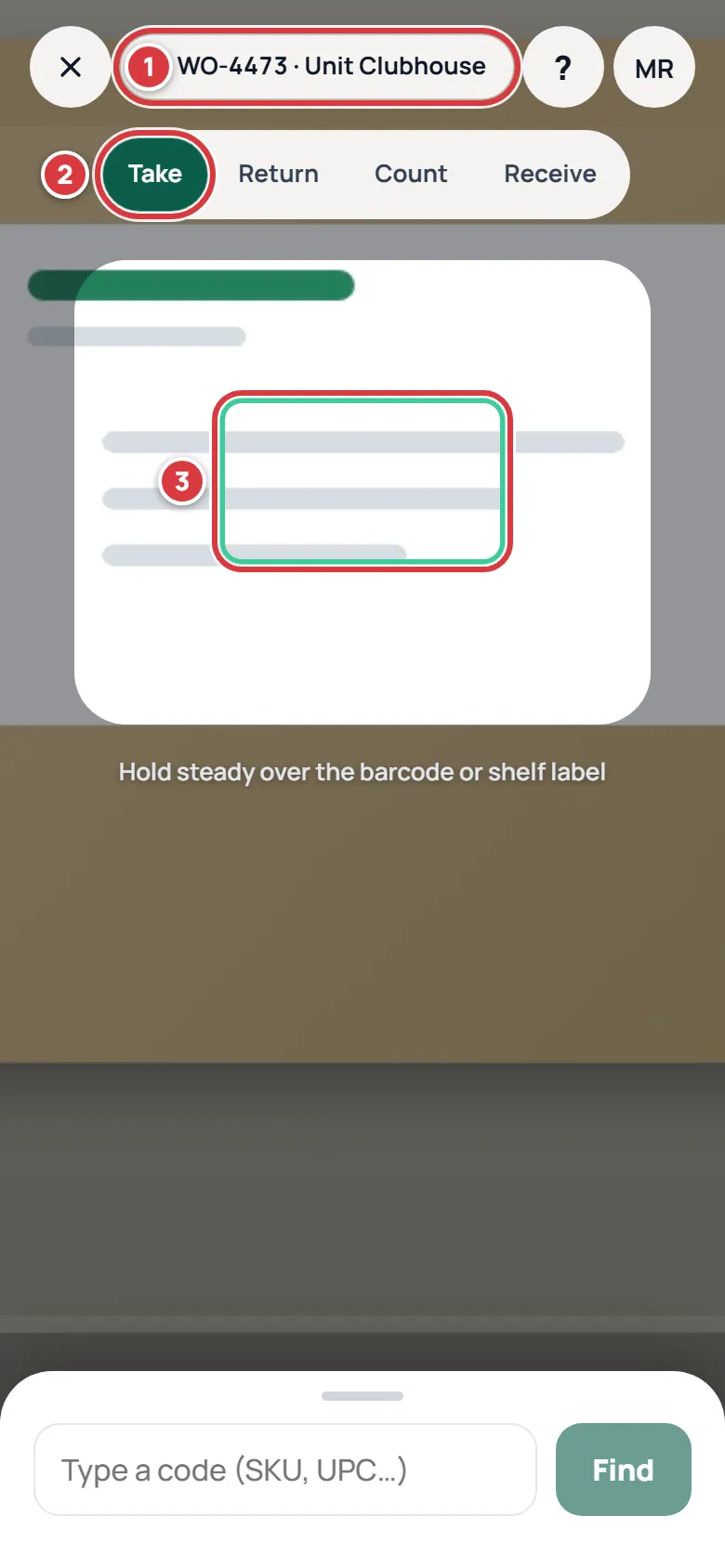
Read what this video shows
- The Home screen. Tap Scan to take or return.
- The camera opens with the job pill at the top. It reads the barcode and a card slides up: "Found it", the item's name and how many are on hand.
- Tap the green button, "Take 1 for" and the job's reference.
- A message says "Took 1" and how many are left.
Can't scan a label that is torn or smudged? Type the SKU or barcode number in Type a code and tap Find. Scanning in detail: Scanning. Taking in detail: Taking stock for a job.
Steps: check what the job has cost#
Tap Jobs, then tap your job.
At the top, Materials (cost) is what the parts you took cost so far. Next to it is the amount you can bill for them: Billable to tenant, or Billable to customer in a company that does not say "Property". Taken for this job lists every part, how many, and what they cost. Parts you took twice show as one line, such as "2×".
Scan more takes you back to the camera for this job. Close job finishes it when the work is done.
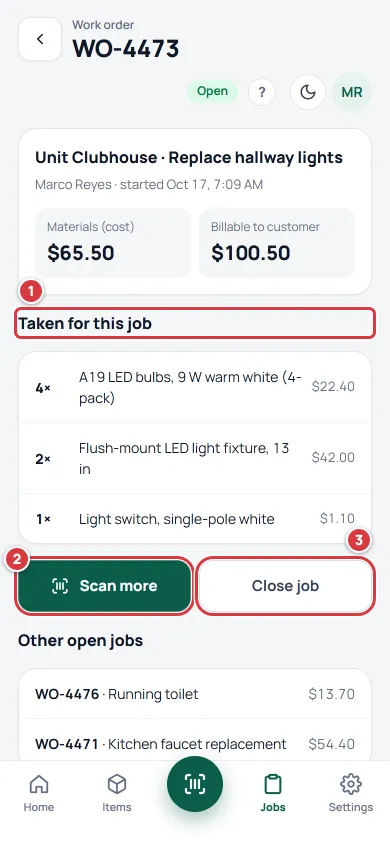
A job's page. Tap Scan more to add parts, Close job when you are done.
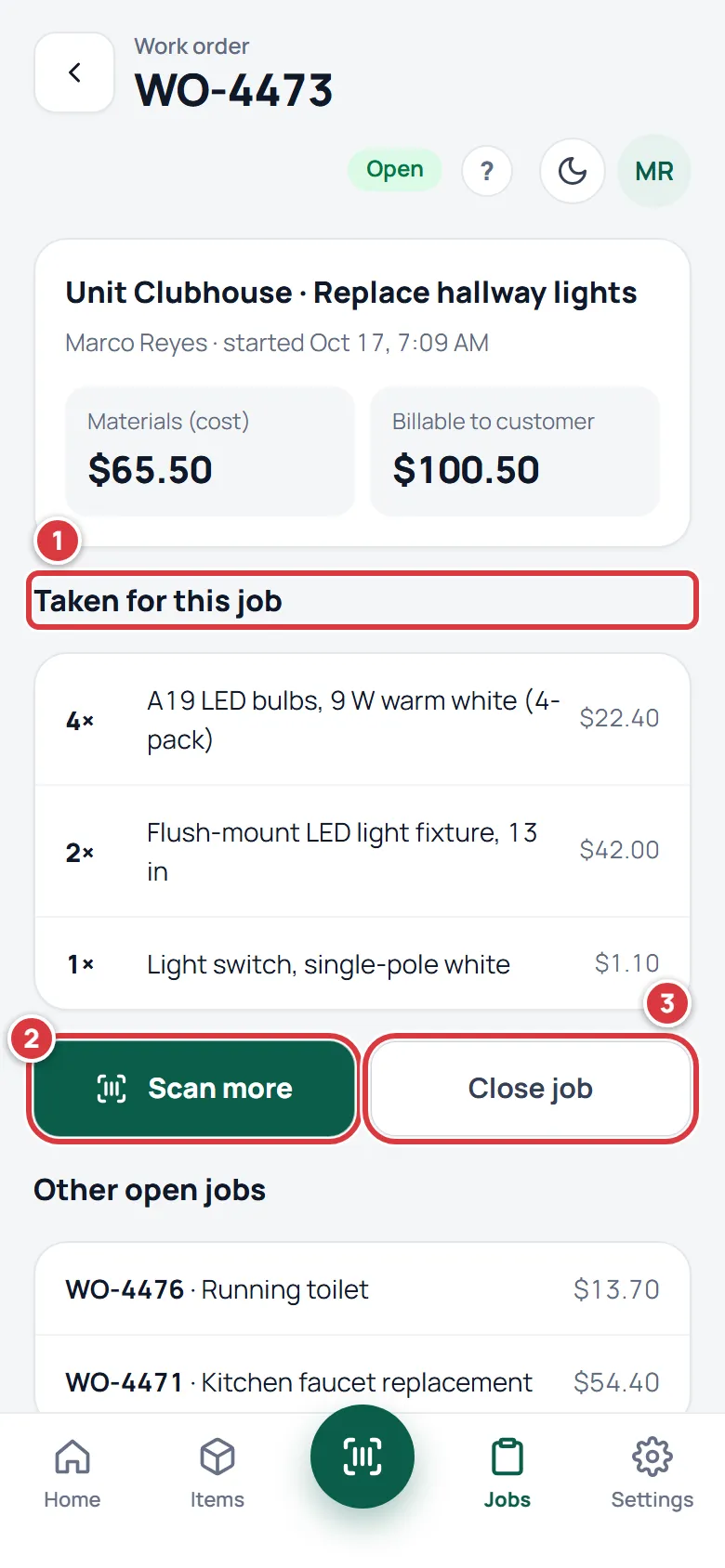
More about jobs: Jobs.
Steps: keep going with no signal#
Basements, roofs and plant rooms often have no signal. Keep working. Scanning, taking, returning, counting, starting jobs and checking tools in and out all work offline.
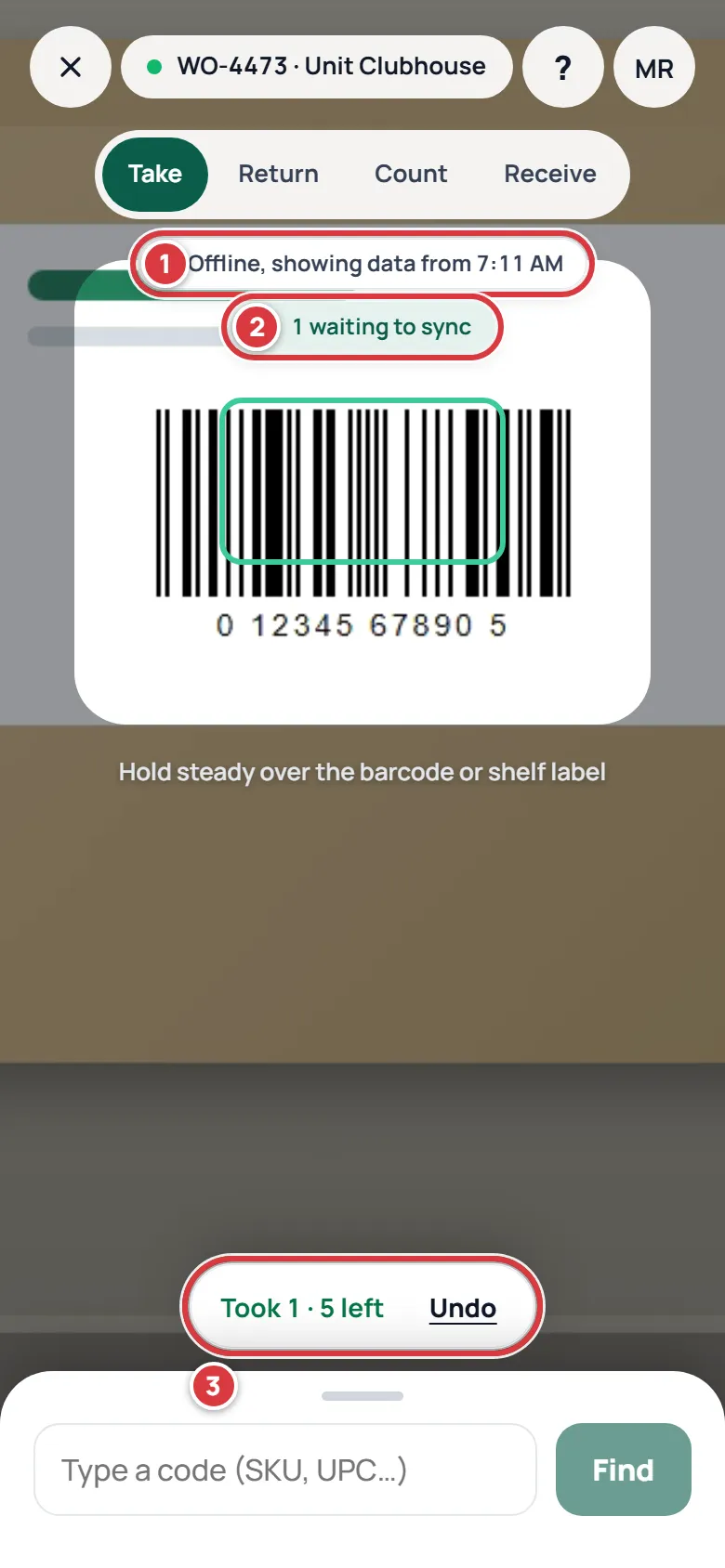
When the signal drops, a pill at the top of the screen says "Offline, showing data from" and a time. You do not have to do anything.
Scan and take as usual. Each change is saved on your phone and the screen shows what you did.
A small chip shows how many changes are waiting, like "1 waiting to sync".
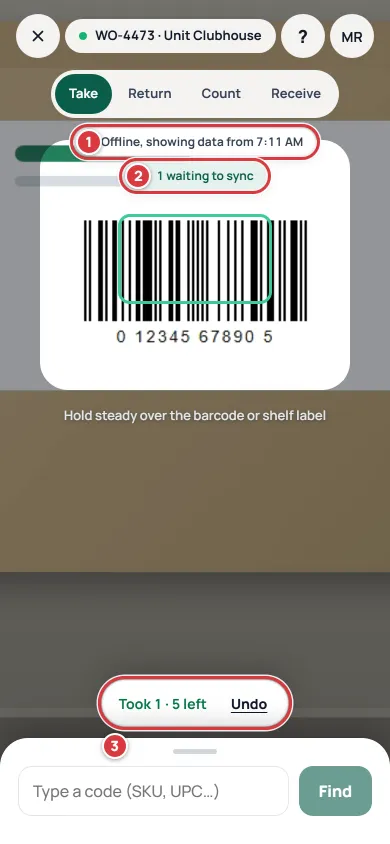
Offline: your take is saved on the phone and waits to be sent. When you have a signal again, the phone sends everything by itself. The chip goes away, usually within a few seconds.
To be sure, tap your initials (Account menu) in the top corner, then Sync. The sheet says Online and Everything is synced. Then open your job: the part count and the cost include the take you made with no signal.
If the stockroom cannot accept a change (someone else took the last one while you were offline, for example), it shows under Needs attention with the reason, and you decide what to do. Nothing is thrown away. The whole story is in Working without signal.
What you'll see#
- After the invite: the Home screen with your name and company, and a Scan to take or return button.
- After a take: a message with how many are left, and the part on your job's list.
- With no signal: an "Offline, showing data from" pill, and a chip counting what is waiting. Both go away when the phone is back online and everything has been sent.
If it didn't work#
- The invite link says "Invite not found". The link has run out or was already used. Ask your manager to send another: The invite link has run out.
- The camera does not open, or the screen says "Camera is off". The browser needs your permission to use the camera. Allow camera access for this site in the browser's settings, then tap Try the camera again. Step by step: the camera won't open. In the meantime you can type the code in Type a code and tap Find.
- The screen says "No item with this barcode" or "That label isn't in your stockroom". That code is not in the stockroom, or you scanned the wrong label. Tap Scan again. If it is a new part, ask a manager to add it. Type the SKU if the label is worn.
- The button reads Take but not your job. The pill at the top says "No job". Start a job first (see above), then scan again.
- "Not enough in stock there. Pick another spot or lower the number." The folder you chose has fewer than you tried to take. Use the folder picker next to the word "from" under the Take button, or lower the number.
- "That job is closed. Start or reopen a job first." Start a new job. Only a manager can reopen a closed one.
- You took the wrong thing. Open the item from Items and use Return to stock, or scan it again in Return mode. See Returning stock.
- Nothing has synced after you got your signal back. Open your initials menu (top corner of any screen) and tap Sync to see what is waiting and why. See Working without signal.