Suppliers
Keep the list of who you buy from: add a supplier, edit its contact details, archive it, and link your items to it so orders sort by supplier.
A supplier is a company you buy from: Ferguson, Graybar, your local hardware store. Stockroom keeps their name, email, phone and your account number with them. Link an item to its supplier and Low stock groups it under that name, and a purchase order for that supplier is made in one go.
Suppliers are part of the Pro plan, together with purchase orders. Everyone with Pro can look at the list. Owners and managers add, edit and archive.
What you'll need#
- The Pro plan. See Your plan.
- The Owner or Manager role to add or change a supplier. Techs and viewers see the list and no buttons.
- A signal. The Suppliers screen needs a connection.
Steps#
Open Suppliers#
Suppliers lives under Purchasing.
- On a phone, tap Settings, then Purchasing in the More list. On a computer, click Purchasing in the left menu.
- Tap Suppliers, at the top. On a computer it is at the top right.
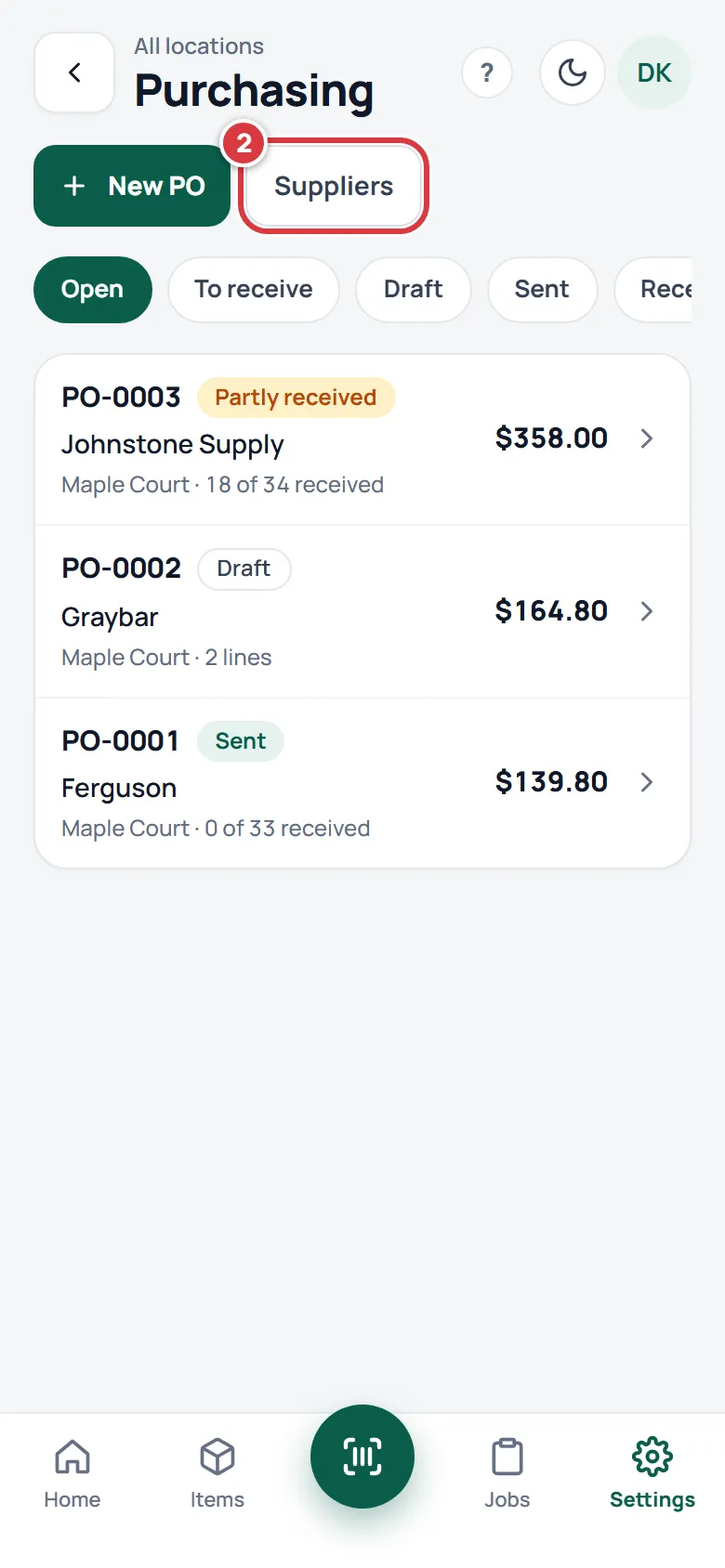
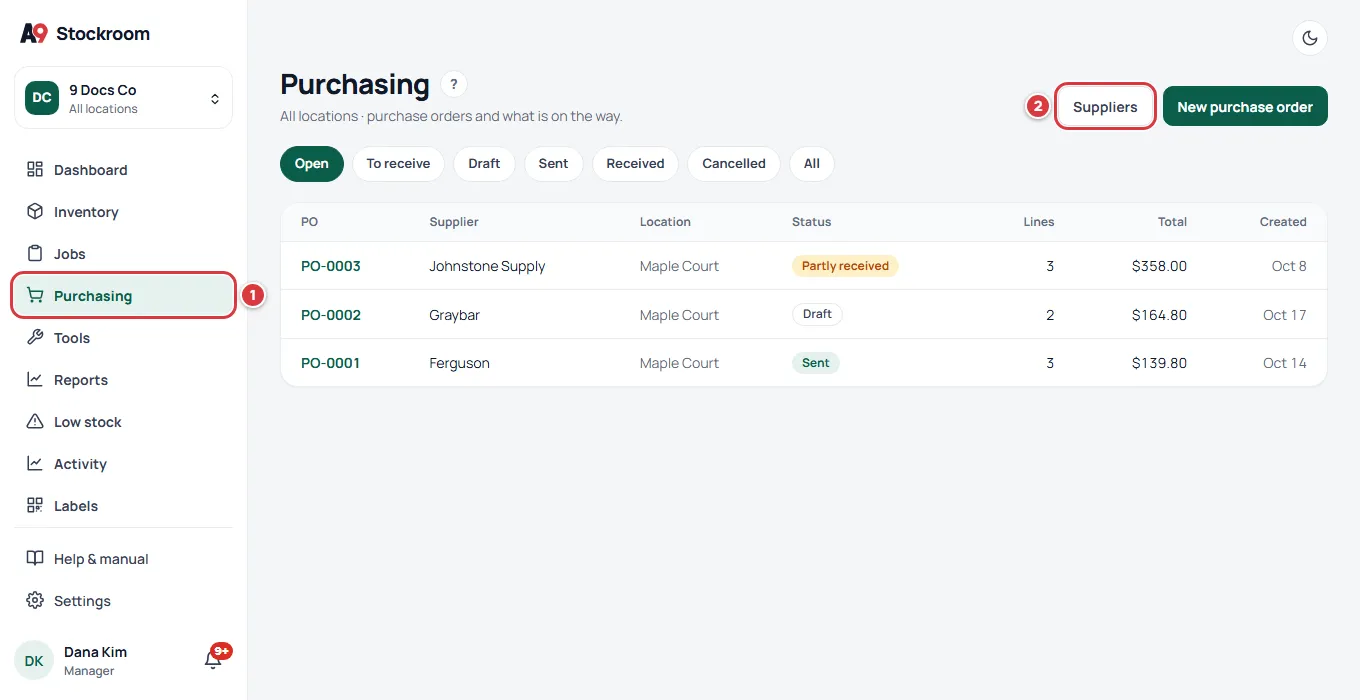
On a phone you can also find Suppliers in the More list under Settings.
Add a supplier#
- Open Suppliers.
- Tap Add supplier.
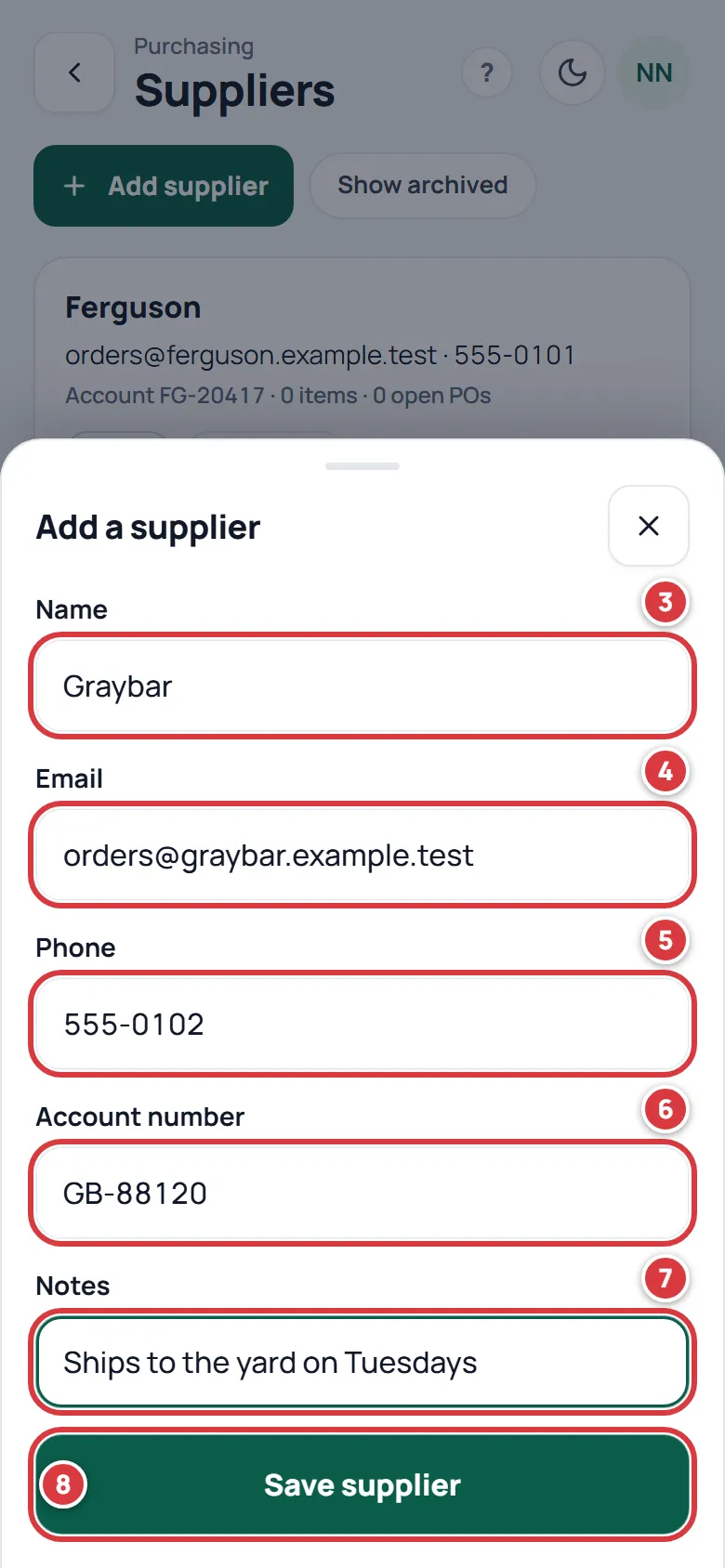
- Type the Name. It is the only box you must fill in.
- Type the Email, the address you use for orders.
- Type the Phone.
- Type your Account number with them.
- Type any Notes, for example "Ships to the yard on Tuesdays".
- Tap Save supplier.
The sheet closes, a message says the supplier is saved, and it is in the list.
Stockroom does not send anything to the supplier's email. The email and phone are there for you and your team. See Purchase orders.
What the Suppliers screen shows#
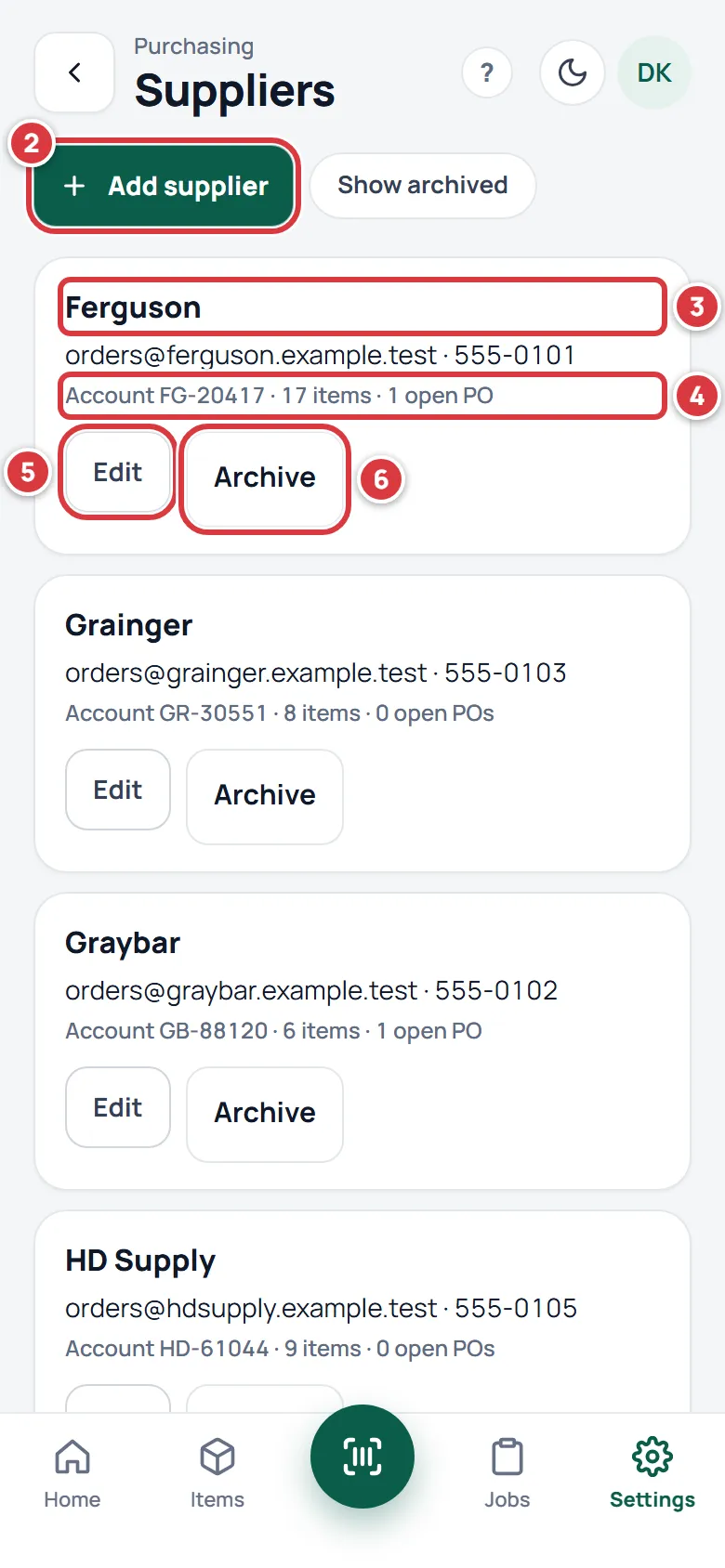
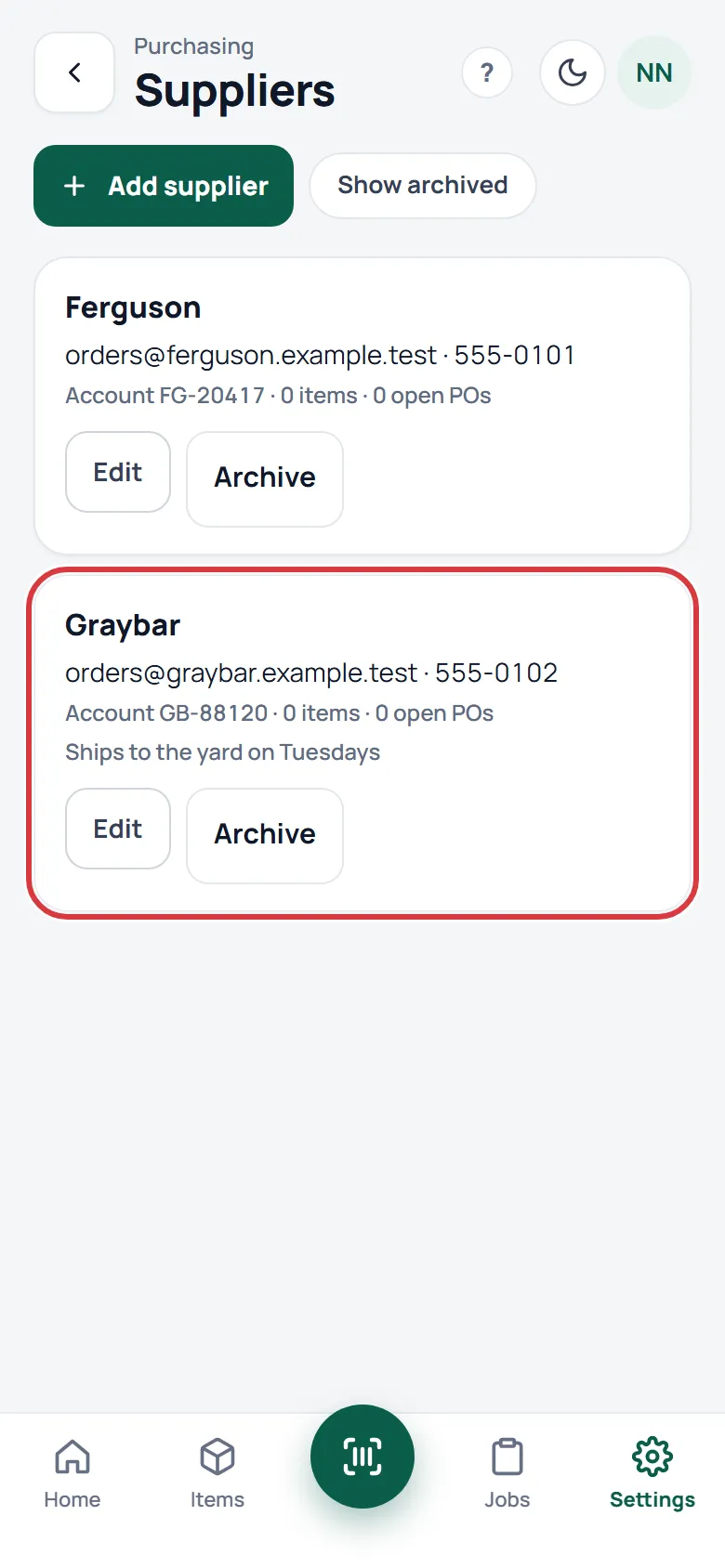
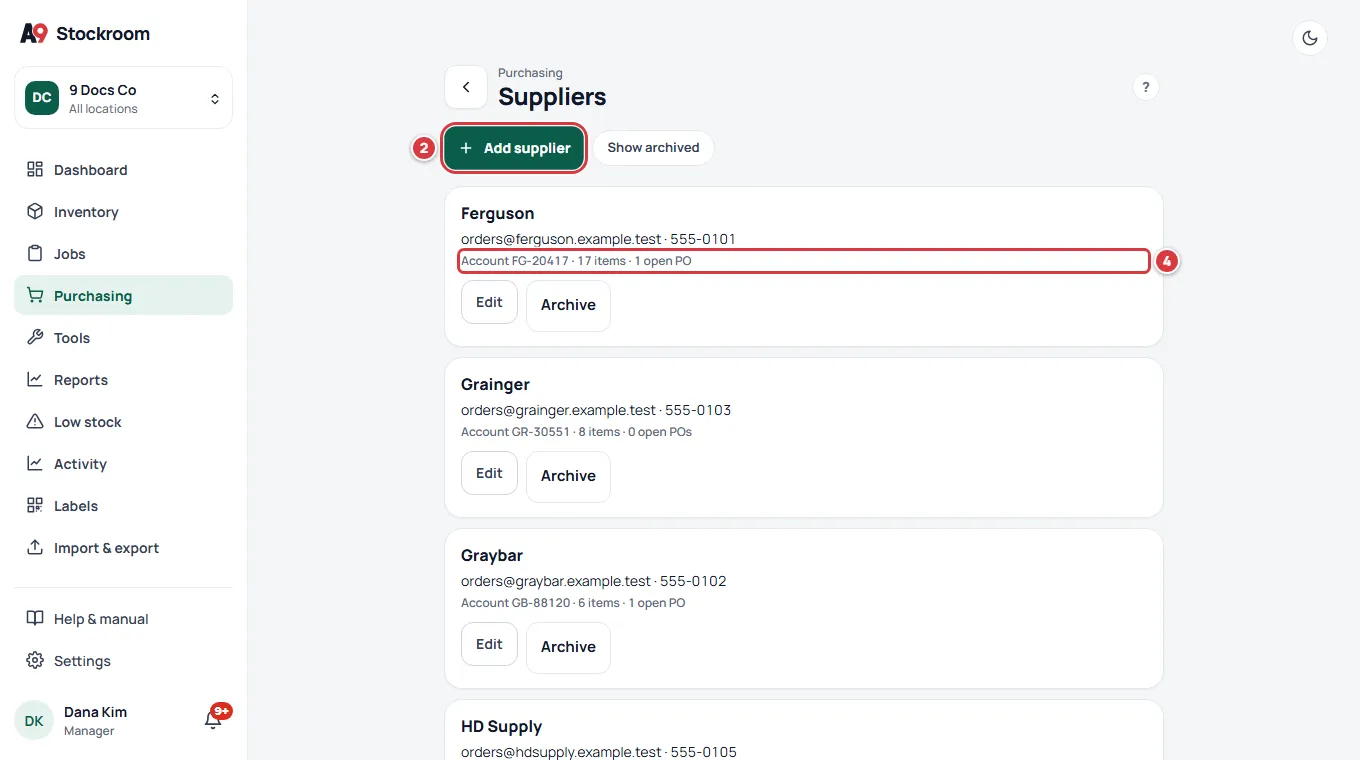
In the picture under Add supplier, 3 is the supplier's name, and under it are the email and phone, or "No contact details". Then comes a line like "Account FG-20417 · 17 items · 1 open PO", which is 4:
- Account is your account number with them.
- The number of items is how many items, not archived, are linked to this supplier.
- The number of open POs is how many purchase orders for this supplier are still draft, sent or partly received. A received or cancelled order is not counted.
Notes show under it. Edit (5) and Archive (6) are for owners and managers.
The screen shows counts only. To see the orders themselves, go to Purchasing. See Purchase orders.
Edit a supplier#
Tap Edit on the supplier. Then:
- Change the Name, or any other box.
- Tap Save supplier.
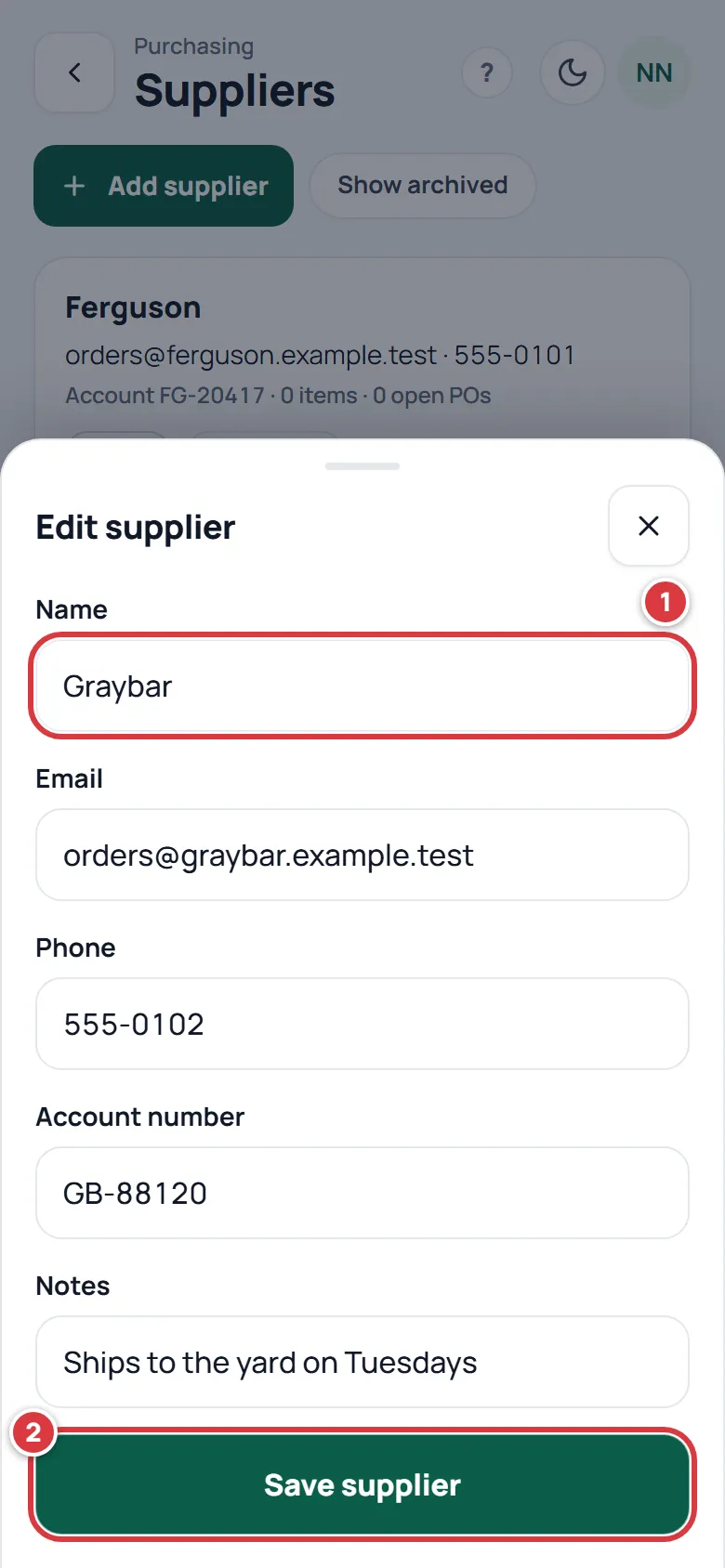
If you rename a supplier, its items show the new name too.
Archive a supplier#
Archive a supplier you no longer buy from. Tap Archive on its row. A message says it is archived and it leaves the list. Its items keep the name. An archived supplier is not offered when you start a purchase order.
Bring an archived supplier back#
- Tap Show archived, next to Add supplier.
- Tap Restore on the supplier.
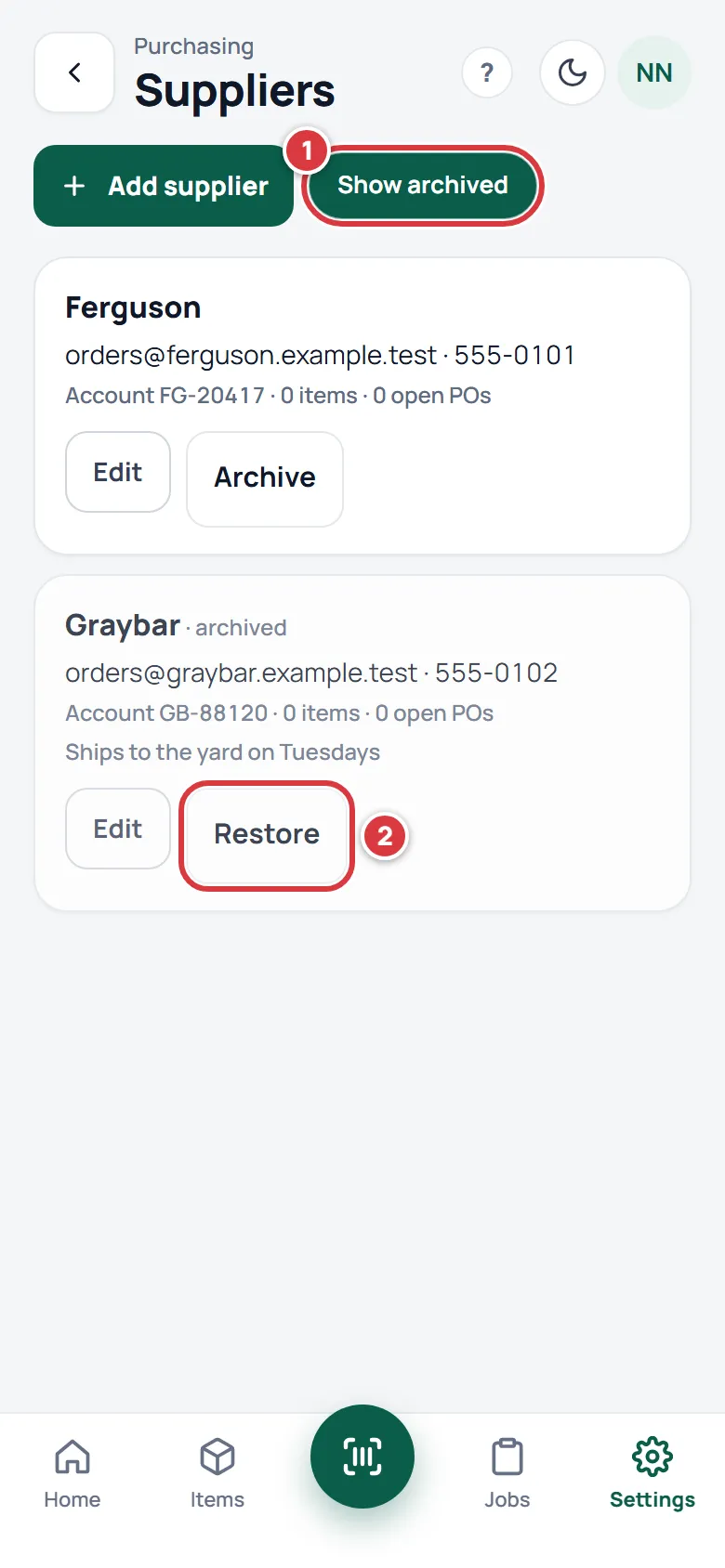
A message says the supplier is restored. Typing an archived supplier's name on an item also brings it back.
Link an item to a supplier#
Items are linked to a supplier by name, on the item.
Open the item and tap Edit. Then:
- Type the supplier's name in Supplier. Choose from the names it suggests.
- If you know it, type their number for the part in Supplier part #.
- Tap Save changes.
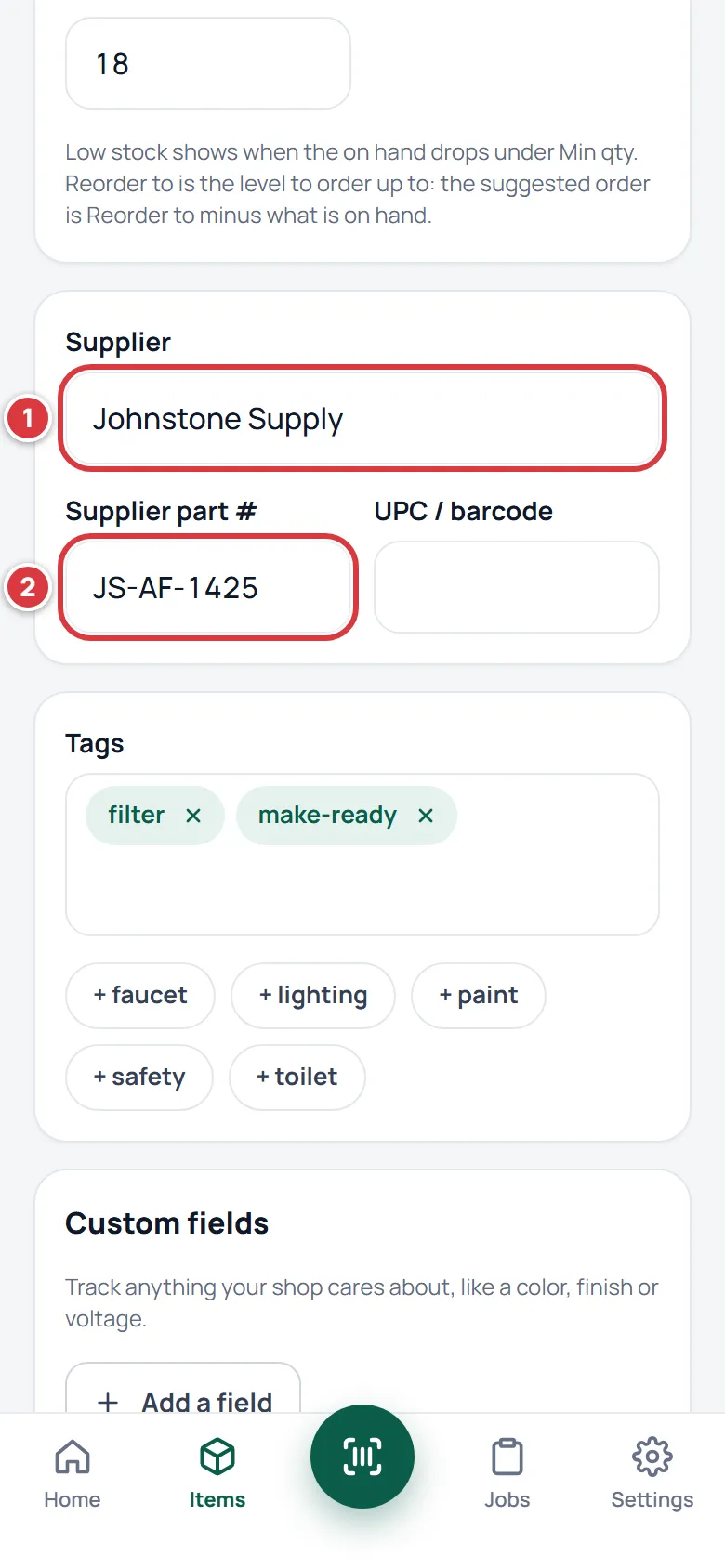
If the name matches a supplier you have, in any capitals, the item is linked to it. If it is a new name, a new supplier is added to your list for you. Empty the box to unlink the item. See Items.
On a computer#
The Suppliers screen is the same on a computer, with the menu on the left.
What you'll see#
- After Save supplier, a message says "saved." with the supplier's name, and the supplier is in the list.
- The counts on each supplier change as you link items and make orders.
- On Low stock, items with this supplier are grouped under its name. An item with no supplier is under No supplier set. See Low stock.
If it didn't work#
It says a supplier with that name already exists#
Two suppliers cannot have the same name, whatever the capitals. The name may belong to an archived supplier: tap Show archived and Restore it.
It says to check the email address#
The Email needs the shape of an address, like orders@example.com. Fix it or empty the box.
It says to give the supplier a name#
The Name is empty. Type one.
The screen says this is part of the Pro plan#
Suppliers and purchase orders are not on Essentials. The screen shows the plan's note and a Contact support button. See Your plan.
There is no Add supplier button#
Your role is Tech or Viewer. Ask a manager or an owner.
An item did not link to the supplier I meant#
The name you typed did not match, so a new supplier with that spelling was added. Edit the item and type the exact name, or pick it from the suggestions. Then archive the extra supplier.
A supplier is missing when I start a purchase order#
It is archived. Restore it from Show archived.
The page says it needs a connection#
The Suppliers screen needs a signal. Go back online and open it again.