Finding things
Find an item four ways: search, the Low stock and tag filters, a scan, or by browsing folders. Then switch location to look somewhere else.
What you'll need#
- A signed-in phone or computer.
- Something you know about the part: part of its name, its SKU (the code under the QR label), its UPC (the barcode number), the supplier's part number, or a tag.
- For a scan, a camera and the label or barcode. See Scanning.
Steps#
Search for an item#
The Items screen is the home of the item list. Mark 1 below is the search box, mark 2 the row of filter chips, mark 3 the Folders button and mark 4 one item.
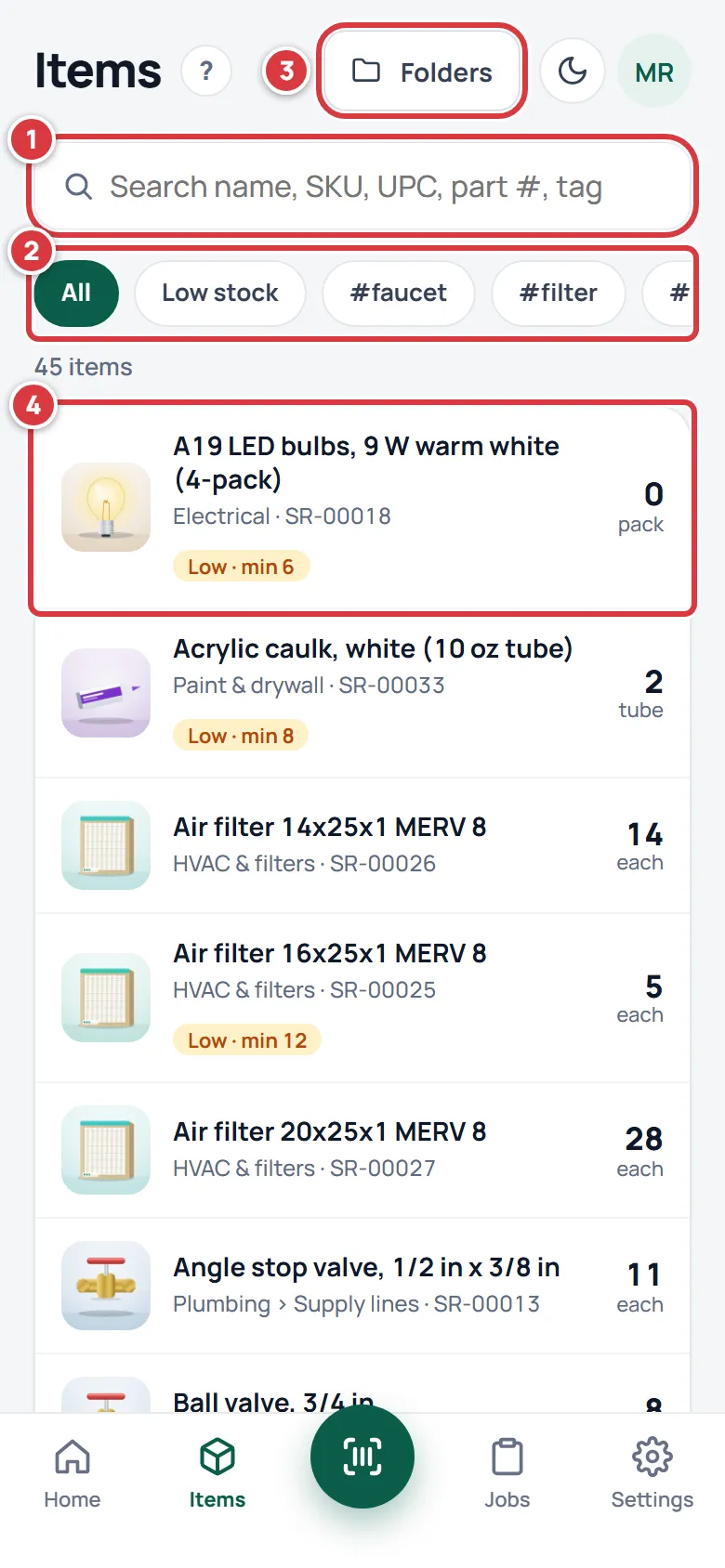
- Tap Items in the bar at the bottom of the screen. On a computer, click Inventory in the menu.
- Tap the search box that says "Search name, SKU, UPC, part #, tag".
- Type a few letters. The list gets shorter as you type, and the count above it tells you how many items match.
- Tap the item you want. See The item screen.
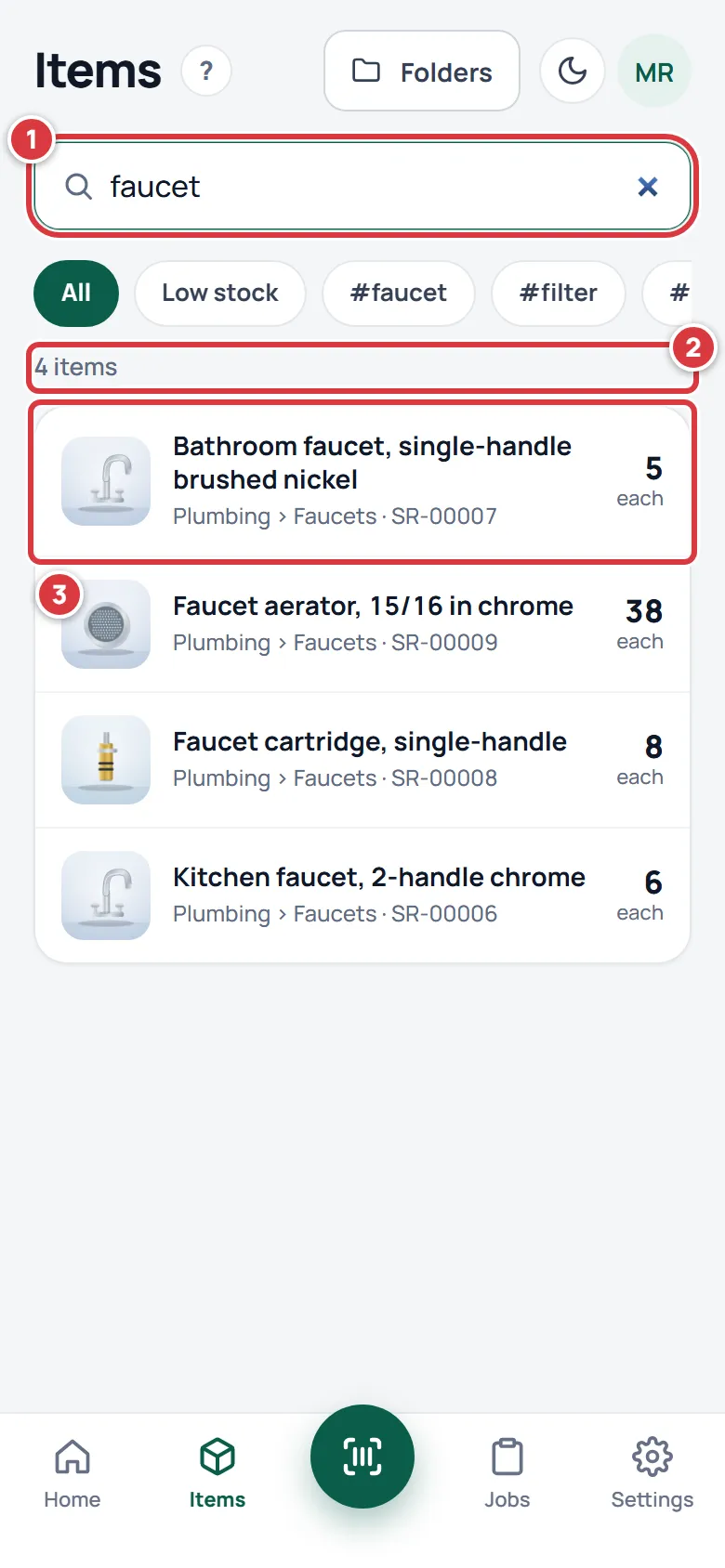
Search looks at five things, and a few letters from the middle of a word is enough. Capital letters do not matter.
| Search finds | Example |
|---|---|
| The item's name | faucet finds "Kitchen faucet, 2-handle chrome" |
| The SKU | SR-00006 |
| The UPC, the number under the barcode | 012345678905 |
| The supplier's part number, shown as Supplier part on the item | FG-KF |
| A tag | make-ready |
Search does not look in folder names, notes or the supplier's name. To find things by where they are, use folders.
Show only what is running low, or one tag#
- Under the search box is a row of chips. Swipe it sideways to see them all.
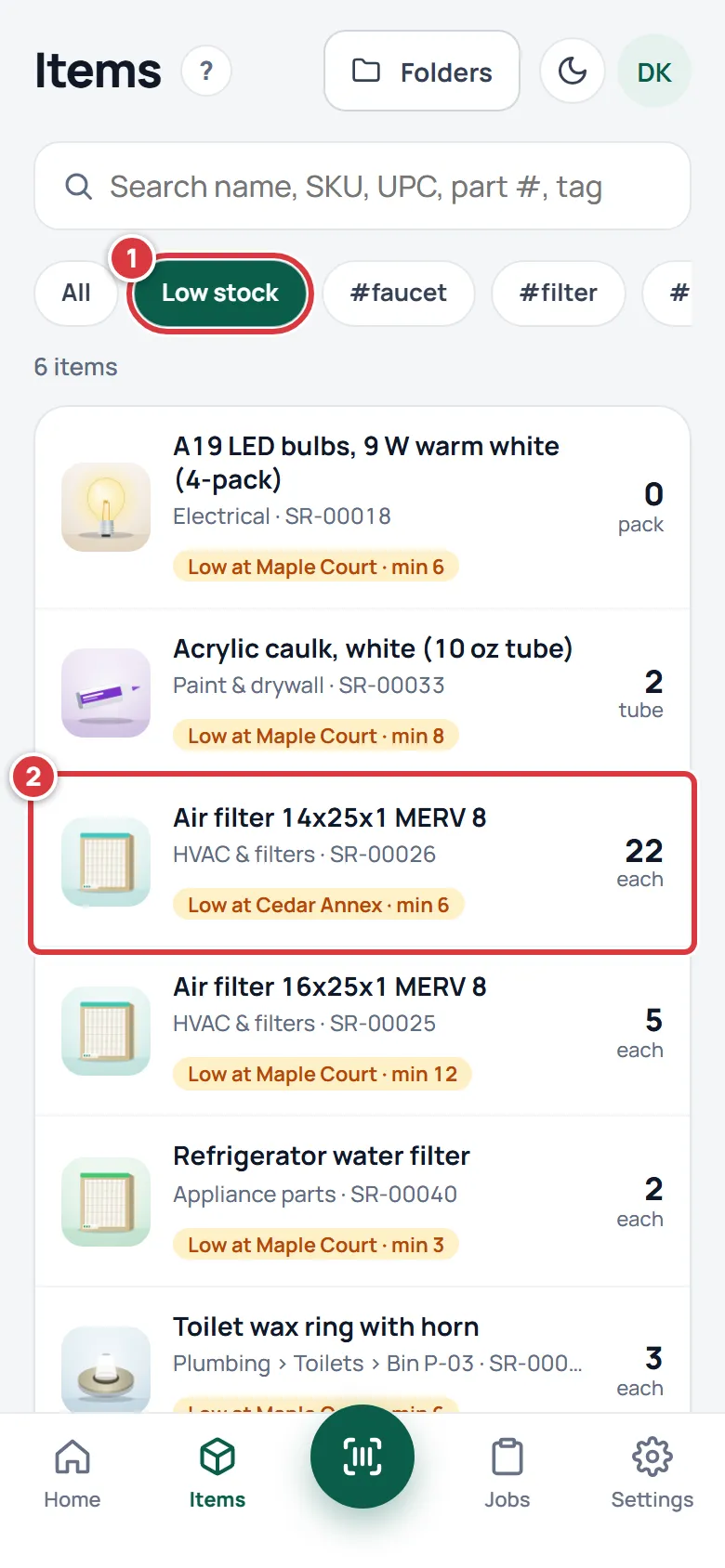
- Tap Low stock to see only items that are under their minimum. Tap All to see everything again.
- Tap a tag chip, such as the one that says #make-ready, to see only items with that tag. You can use one chip at a time, and you can type in the search box as well.
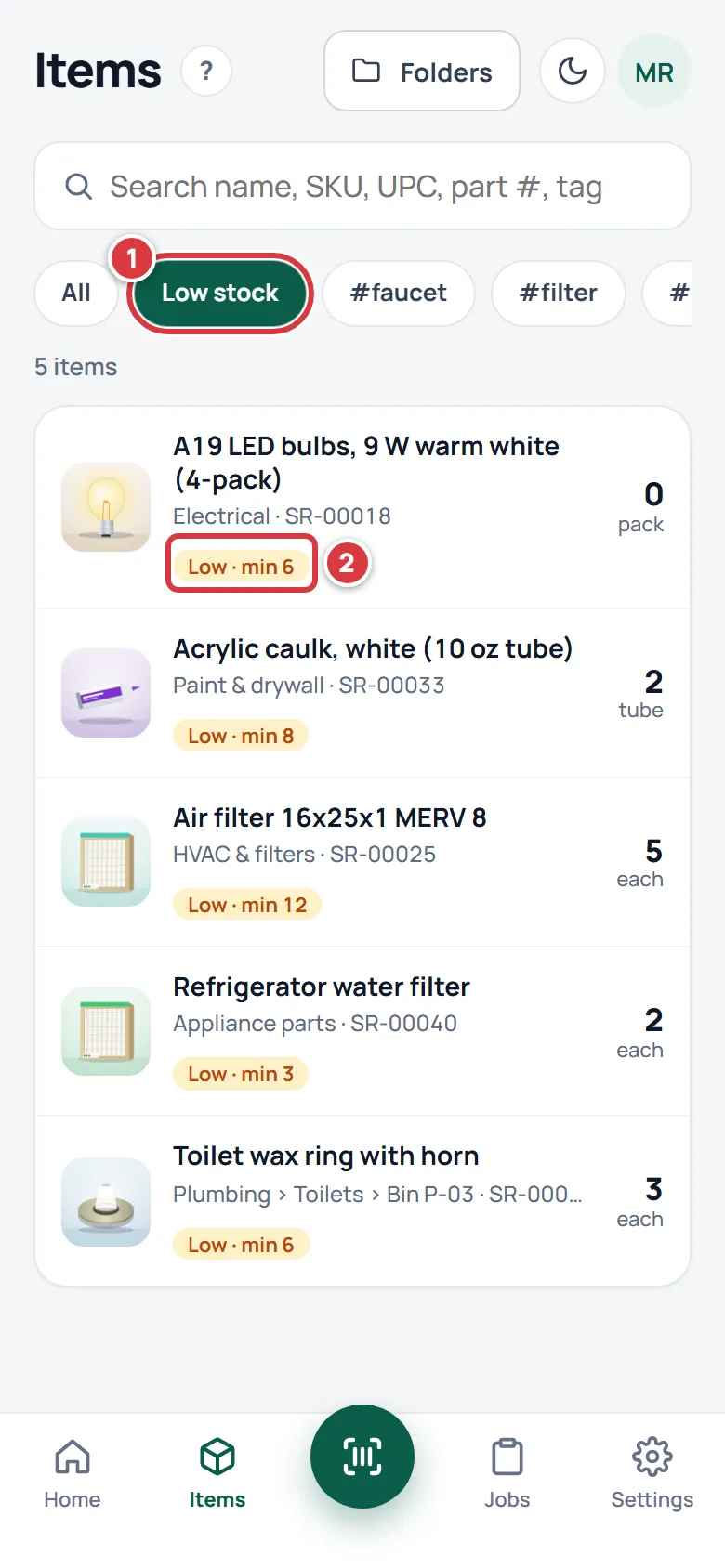

Tags are set by a manager when they add an item. The chips show every tag the company uses.
Browse by folder#
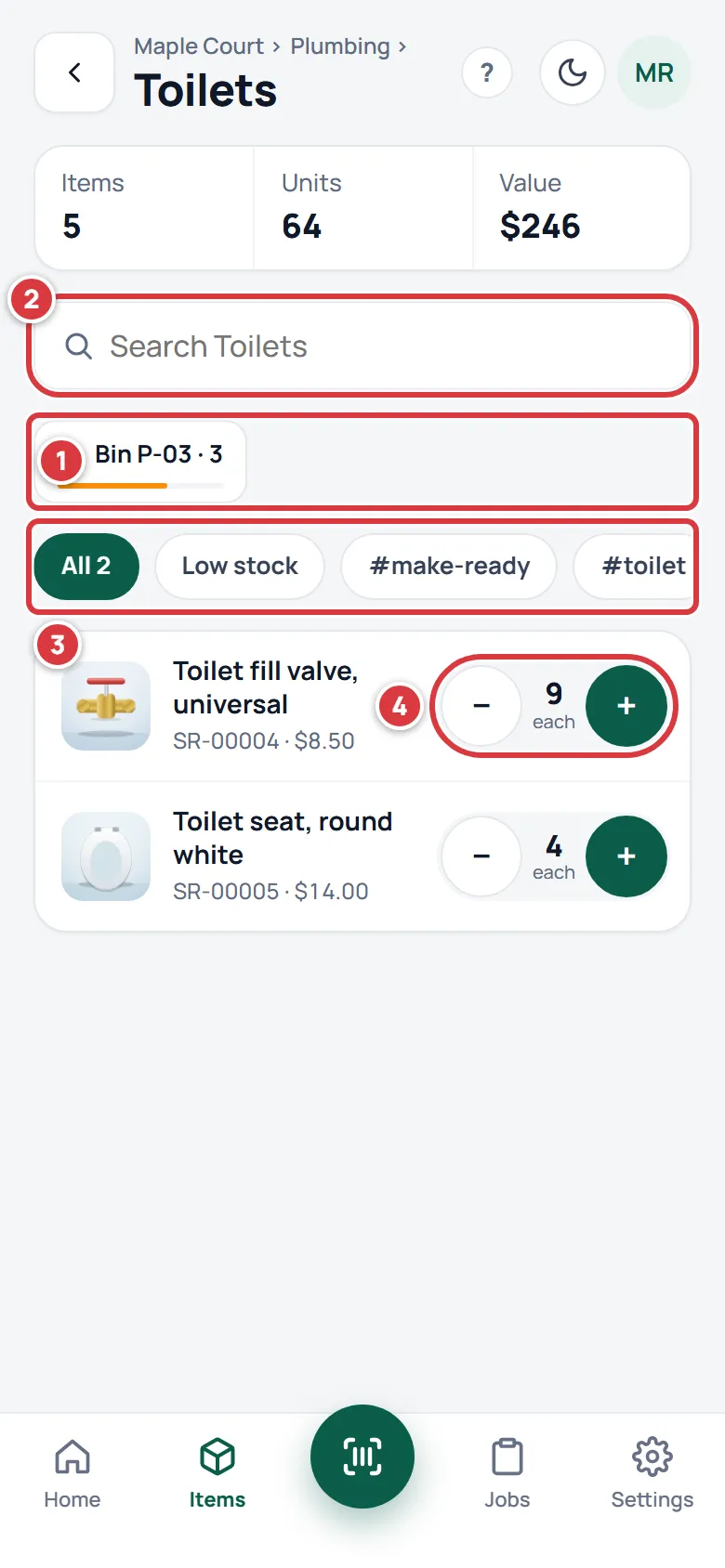
A folder is a place stock lives: an aisle, a shelf, a bin, a truck. Folders can sit inside folders.
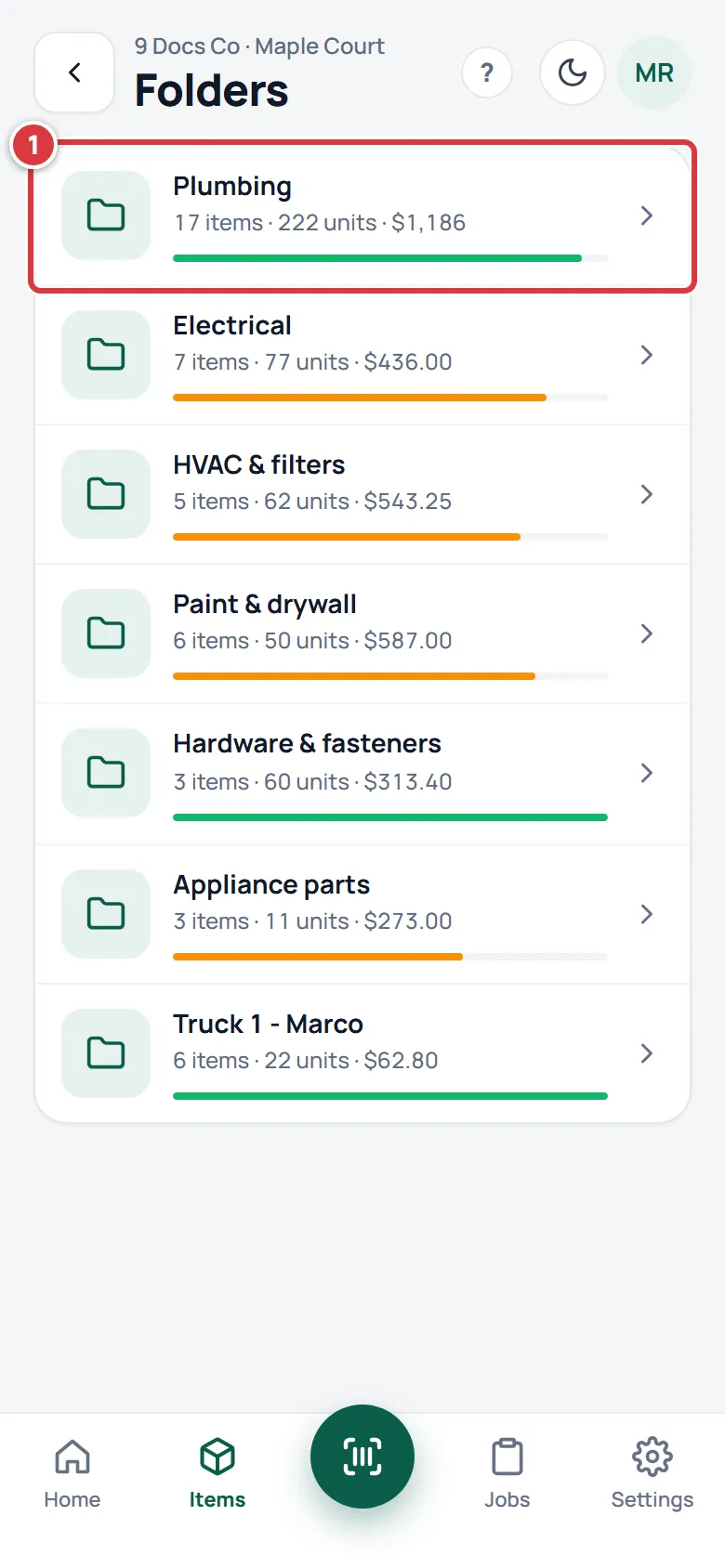
- On Items, tap Folders at the top right.
- Tap a folder. At the top you see how many items and units it holds and what they are worth. A thin bar under a folder's name shows how many of its items are at or above their minimum.
- Tap a sub-folder chip to go deeper. Tap a name in the line above the title, or the back arrow, to go back up.
- A folder lists the items that sit directly in it. The search box in a folder (it says "Search" and the folder's name) looks only inside that folder. The chips under it work the same as on Items.
Scan to find#
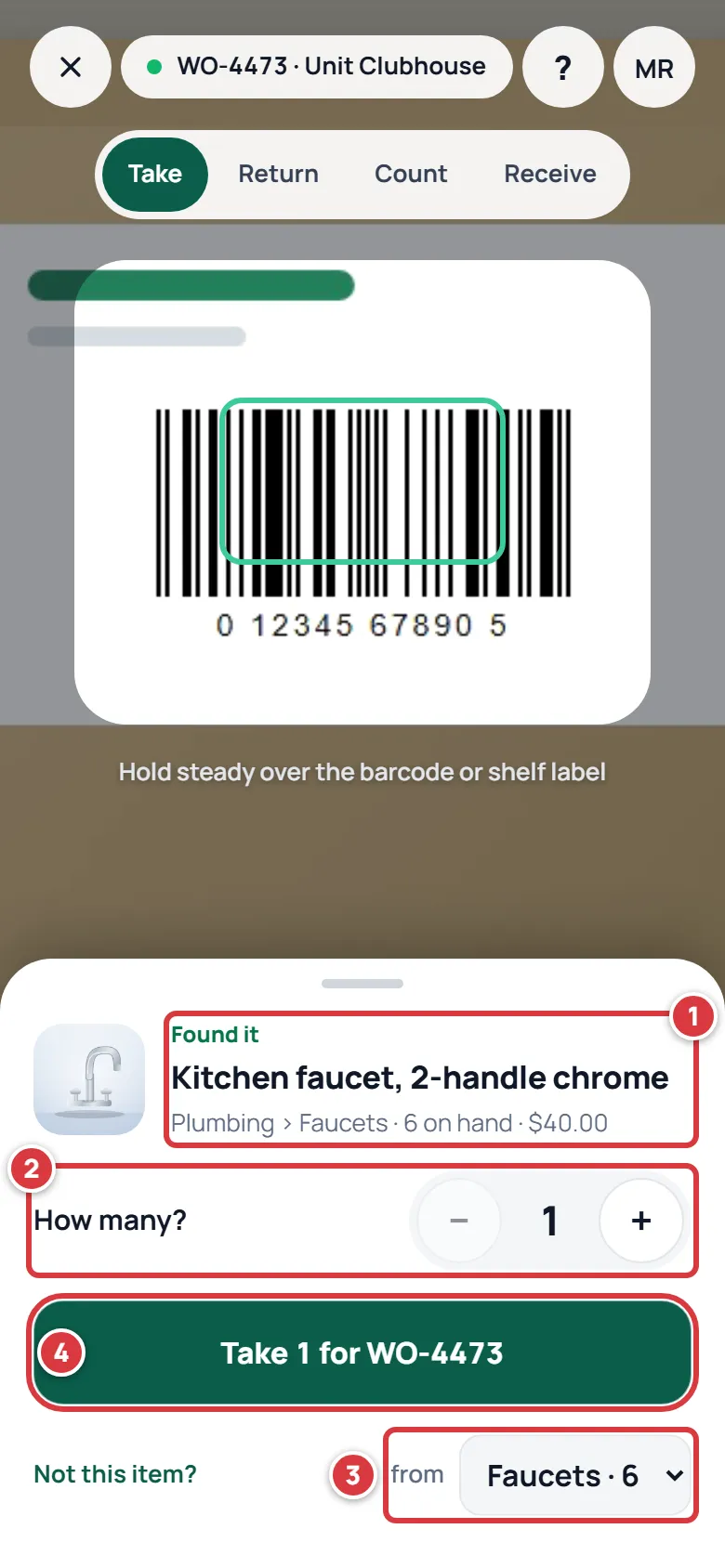
- Tap the round scan button in the bar at the bottom. On a computer, click Scan in the menu.
- Hold the camera over the item's QR label or its barcode.
- A sheet slides up with "Found it" and the item's name. Tap the name to open the item.
A folder's QR label opens that folder, and a tool's label opens that tool. If the camera will not work or a label is worn, type the code into the box under the camera and tap Find. See Scanning.
Look at another location#
If you work at more than one location, you choose which one you are looking at. The choice narrows the numbers, the Low stock filter, Folders and the lists.
- Go to Home.
- Tap the location name under your greeting. On a computer, click the company and location name at the top of the menu.
- Pick a location from the menu.
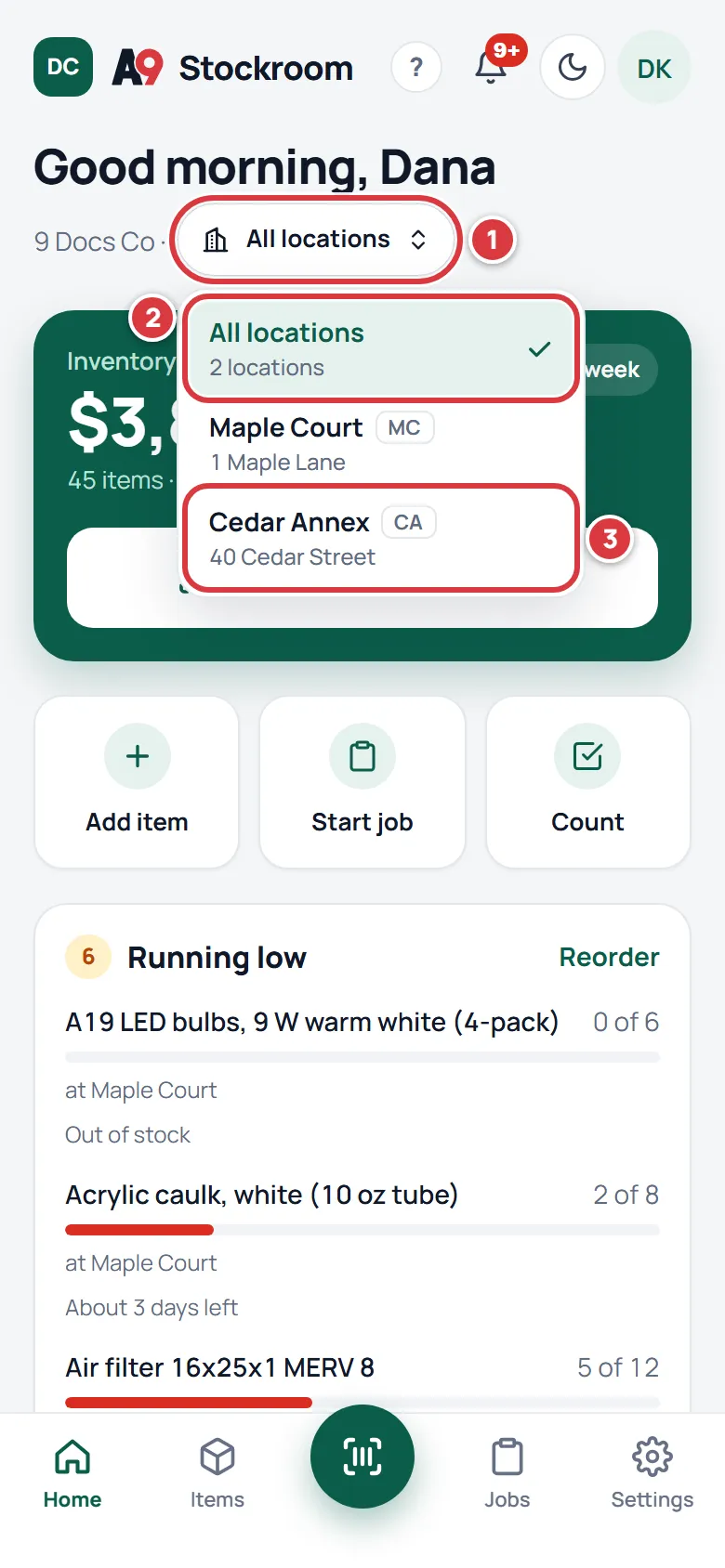
All locations adds everything up and shows each item at the place where it is lowest. In the list, that reads like "Low at Cedar Annex".
What you'll see#
- A shorter list, with a count above it. Items that are under their minimum have an amber pill.
- If nothing matches, the screen says "Nothing matches" and "Try a different search or filter."
- Tapping an item opens its page. Tapping a folder opens the folder.
If it didn't work#
Search does not find an item that exists#
Search reads names, SKUs, UPCs, supplier part numbers and tags, not folder names or notes. Try a shorter word, or type the SKU. A filter chip may still be on: tap All. You may also be looking at a different location; see below.
The list stops after a while#
Long lists load in pages. Tap Load more at the bottom.
Someone else can see an item that you cannot#
Check the location under your greeting. You may be looking at a different one. A tech sees only the locations a manager has assigned to them; ask a manager if one is missing. See Team.
The item is archived#
Archived items are hidden from lists. A manager can bring one back. See Items.
There is no chip for the tag you want#
Tag chips show only tags that at least one item has. A manager adds tags when they edit an item.
The scan finds nothing#
Try the typed code box, and see A code that won't scan.