Tools
Check a tool out to yourself or to someone else, set a due date, check it back in, and see what is overdue. Tools are part of the Pro plan.
A tool is something you lend out and get back, like a drill or a ladder. A tool is not counted like a part. Each physical tool is a unit with its own asset tag, like DR-01, and you check each unit out to a person.
Tools are part of the Pro plan. If your company is on Essentials, the Tools screen tells you so instead of opening. See Your plan.
What you'll need#
- A tech, manager or owner role to check tools in and out. A viewer can look at the list but not change it.
- A company on the Pro plan.
- A tool someone has added. Managers and owners add tools (see "Add a tool" below).
Steps#
Find the tools#
- Tap Settings at the bottom of the screen.
- Under More, tap Tools.
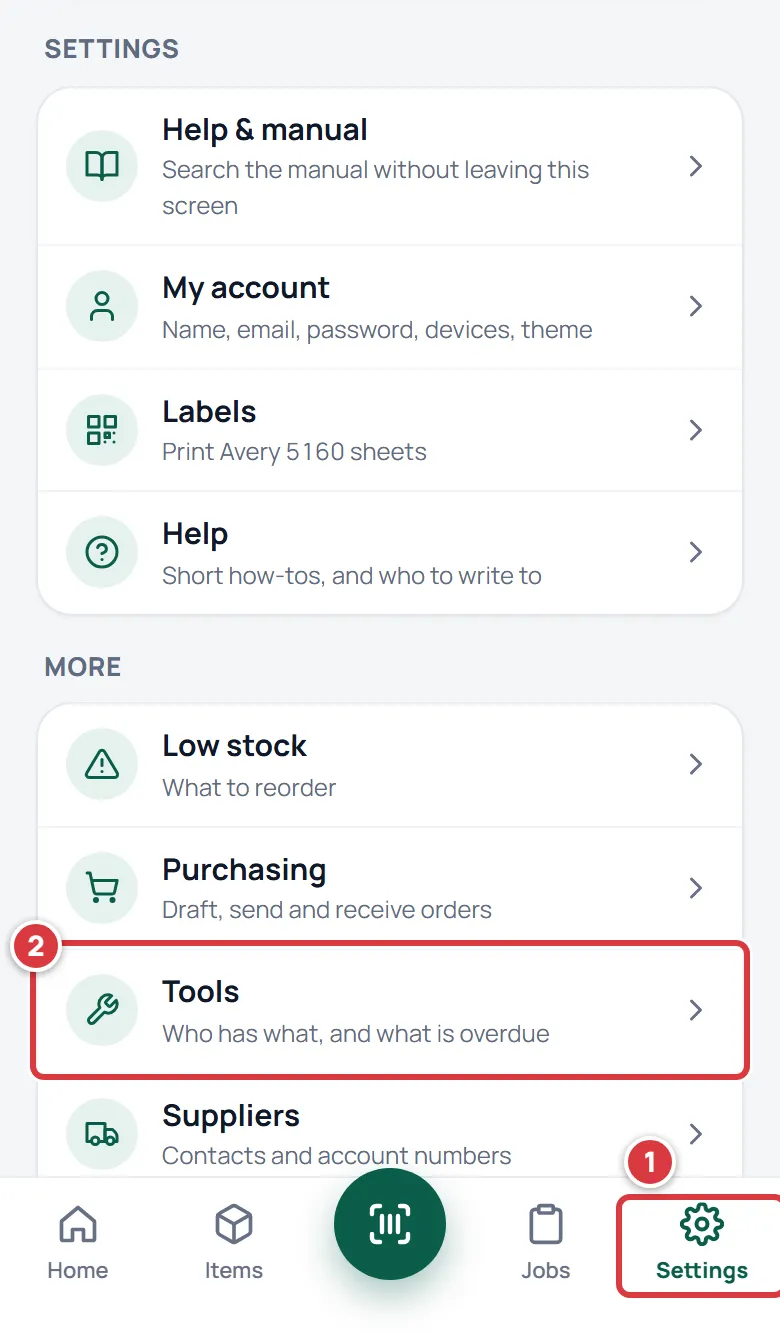
On a desktop, click Tools in the sidebar. Home also has a Tools card with a shortcut.
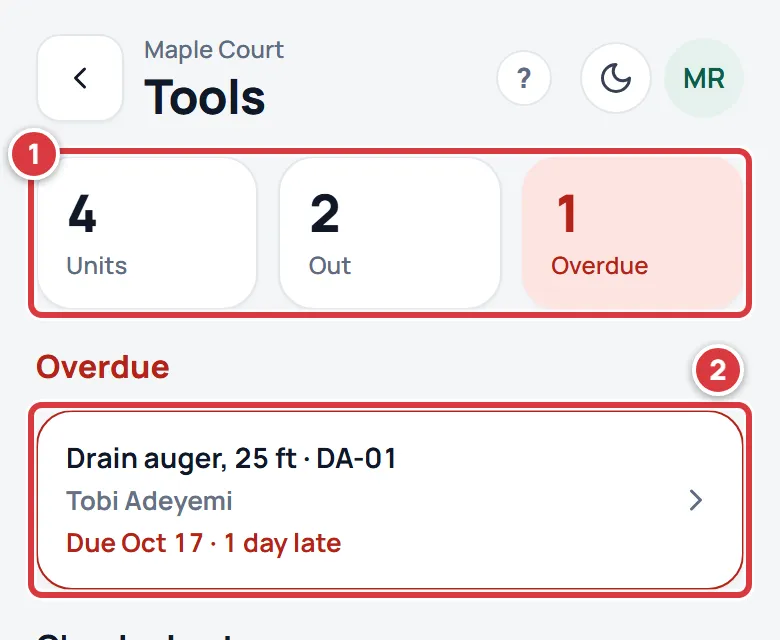
The Tools screen shows how many units there are, how many are out and how many are overdue. Below that are Overdue, Checked out and All tools. You only see tools at the locations you work at.
Check a tool out to yourself#
- Open Tools.
- Under All tools, tap the unit you want. It is the line with the asset tag, like MM-01.
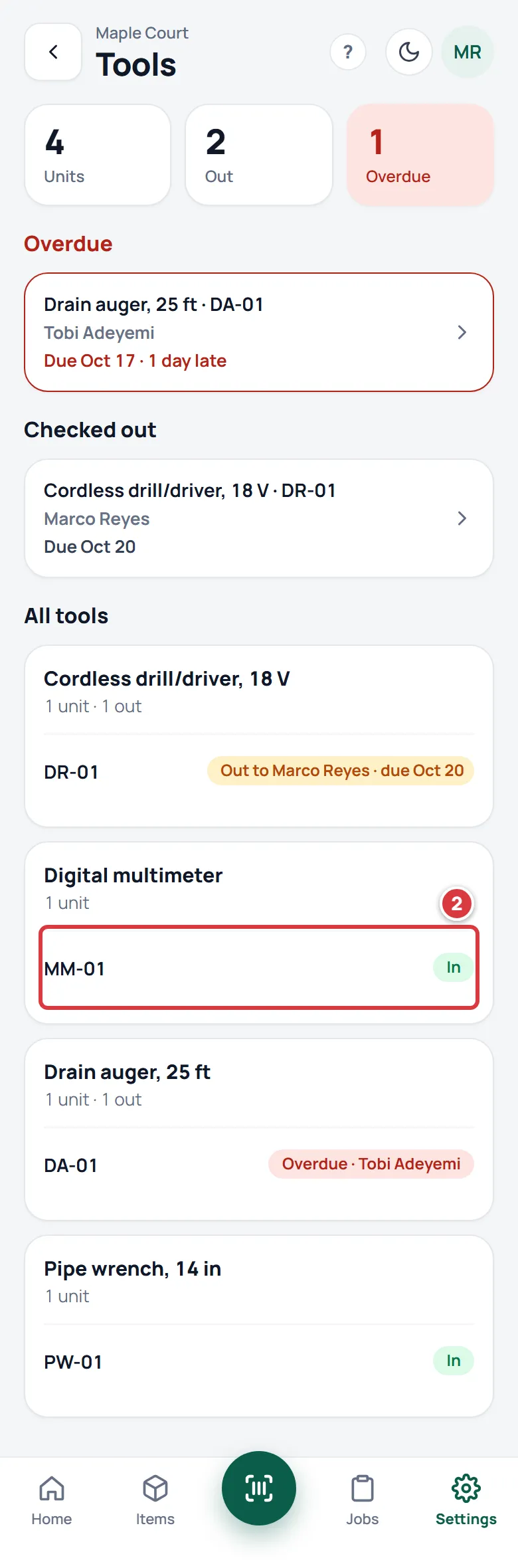
- Tap Check out.
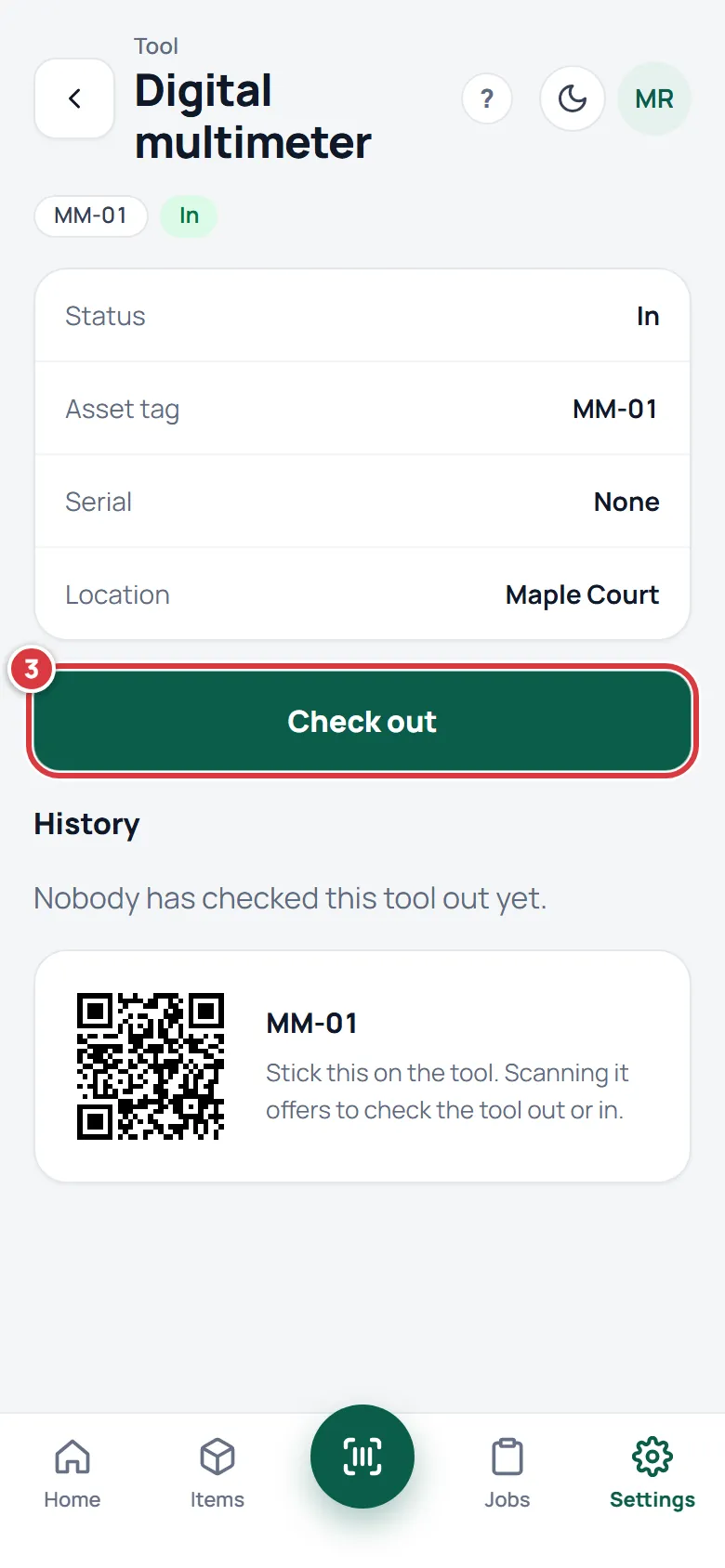
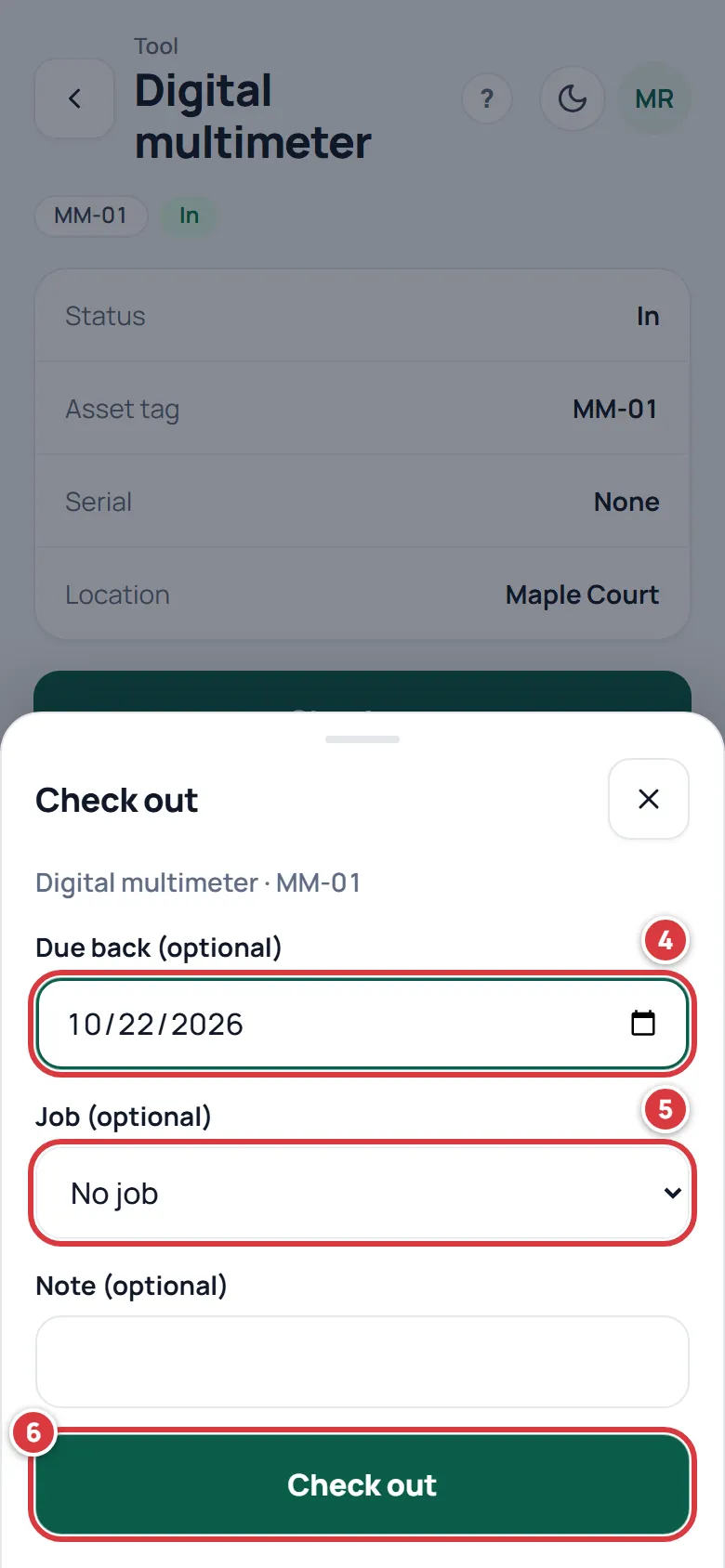
- Pick the day it is due back in Due back (optional). You can leave it empty.
- If the tool is for a job, pick the job in Job (optional). You can add a note too.
- Tap Check out.
Check a tool out for someone else#
Managers and owners can hand a tool to anyone in the company. A tech can only check a tool out to themselves.
- Open Tools and tap the unit.
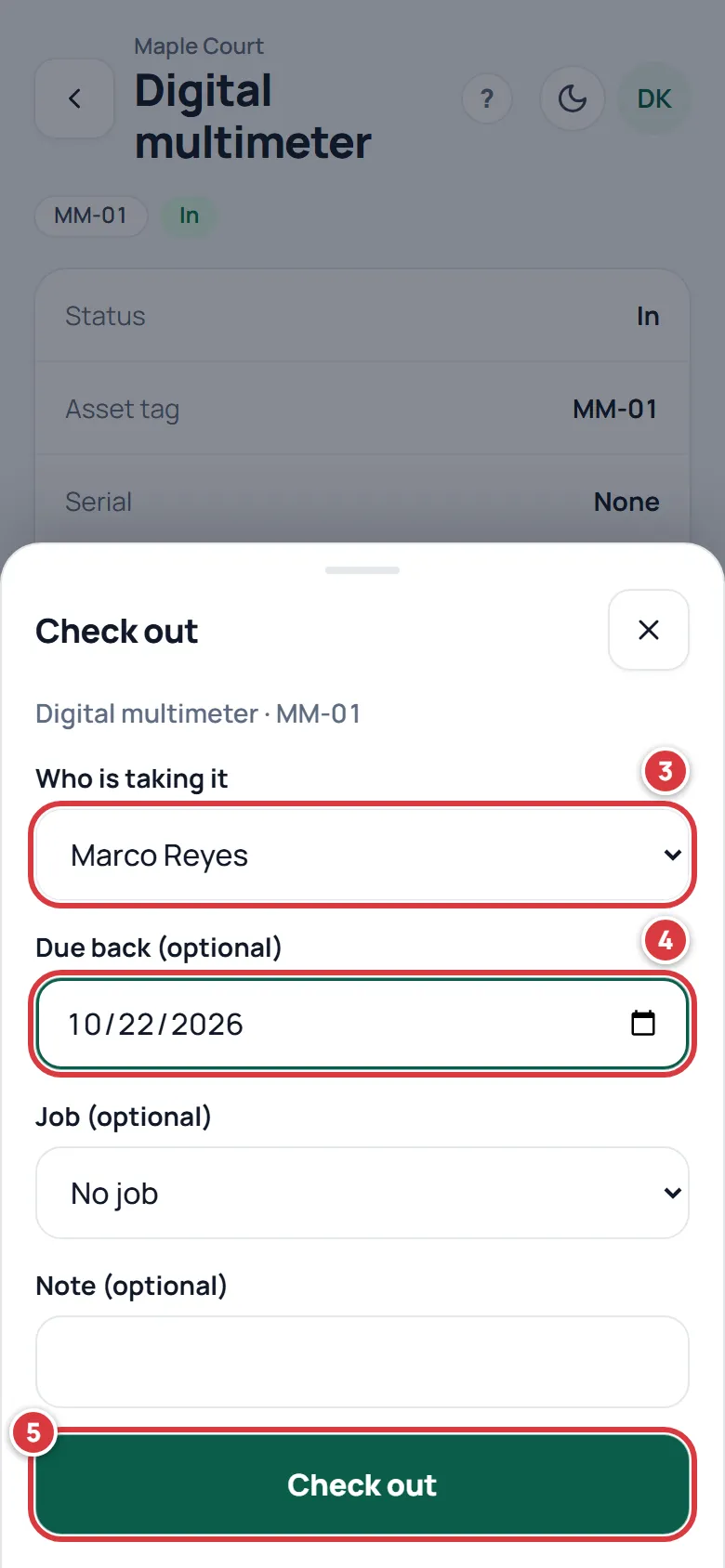
- Tap Check out.
- Pick the person in Who is taking it.
- Pick the day it is due back in Due back (optional).
- Tap Check out.
Scan a tool's QR label#
A tool's own page shows a QR label. Stick it on the tool, and anyone can scan it.
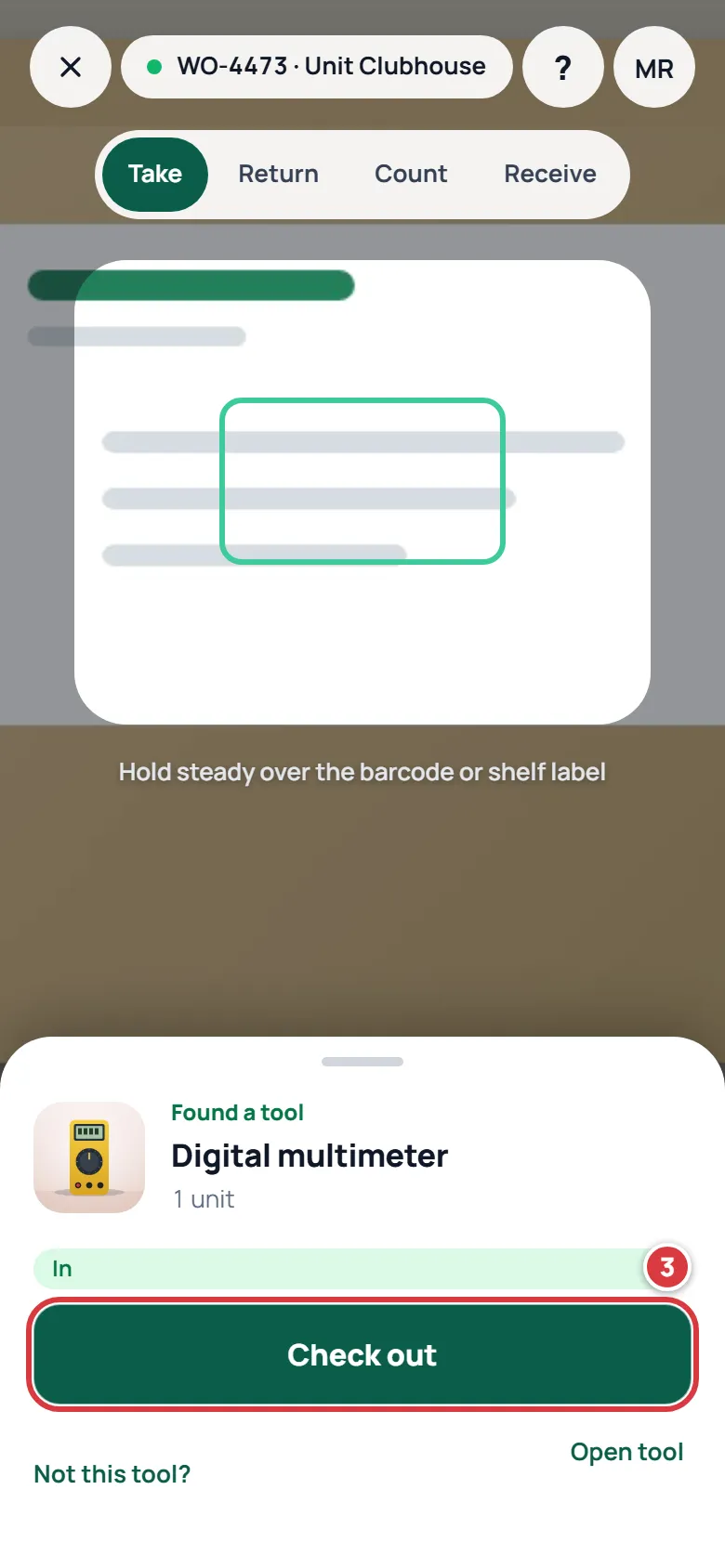
- Tap Scan at the bottom of the screen.
- Point the camera at the QR label. A label on a tool opens that tool's page. A label for the tool's item opens a sheet that says Found a tool and lists its units. If there is more than one unit, tap the one you want.
- Tap Check out. If the tool is already out, you see Check in instead.
Check a tool in#
- Open the tool. Tap it under Checked out or Overdue on the Tools screen, or tap it on Home.
- Tap Check in.
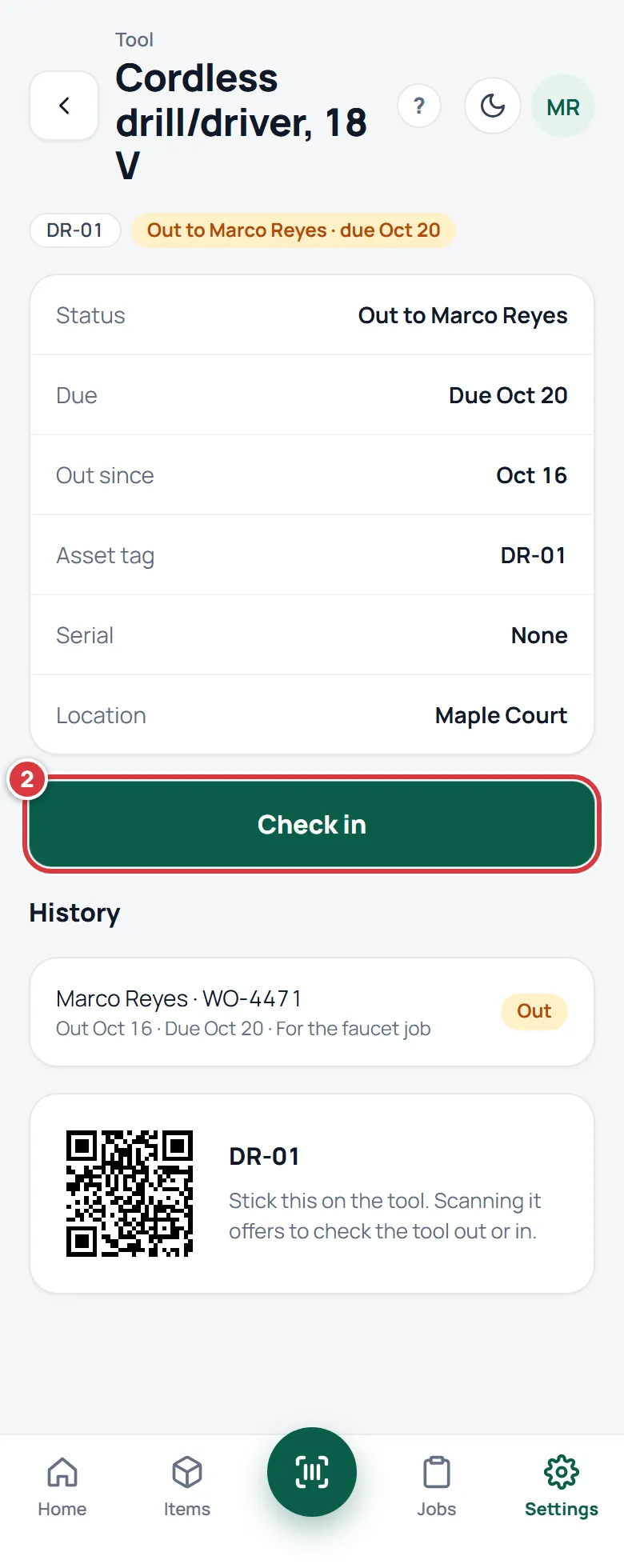
Only the person who has the tool, or a manager or owner, can check it in. If someone else has it, you see their name and "They or a manager can check it in."
Change a due date#
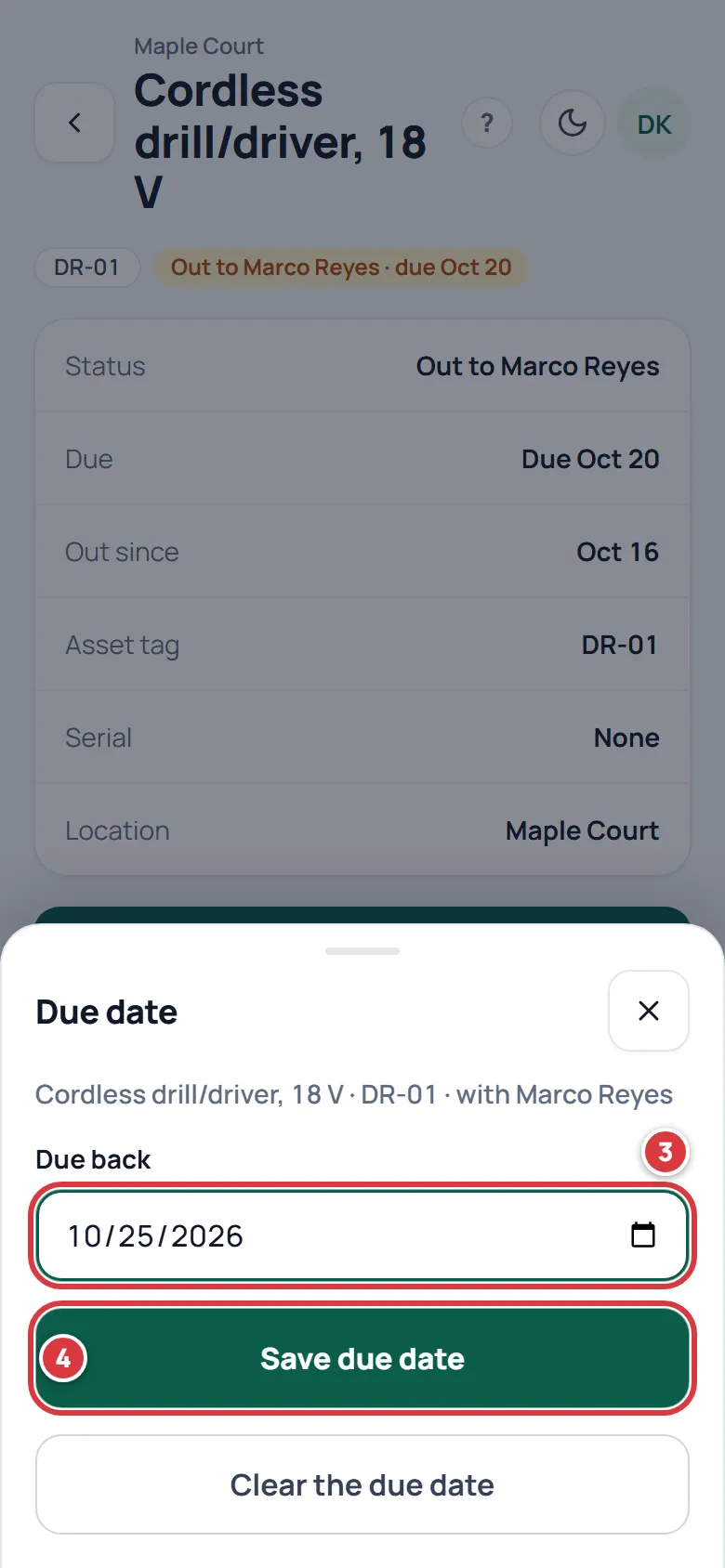
Managers and owners can change the due date of a tool that is out.
- Open the tool.
- Tap Edit due date.
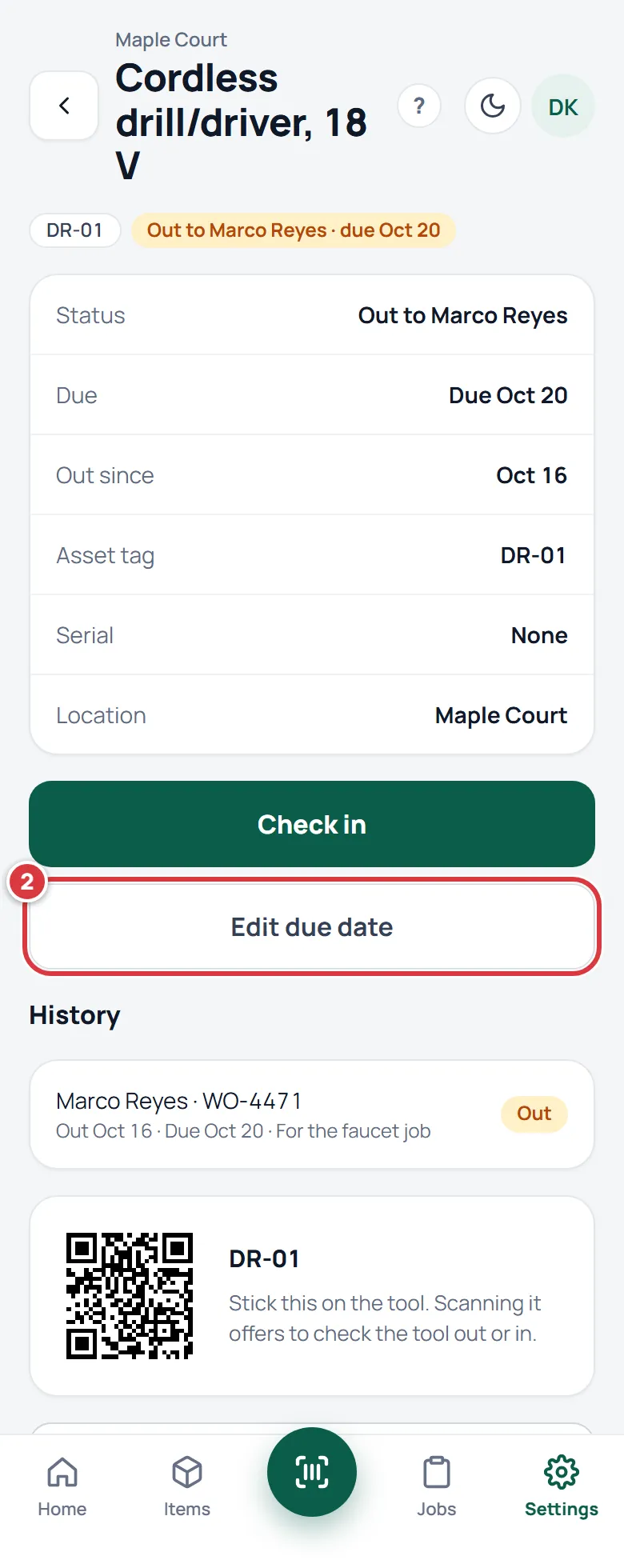
- Pick the new day in Due back.
- Tap Save due date. To take the due date off, tap Clear the due date.
See a tool's history#
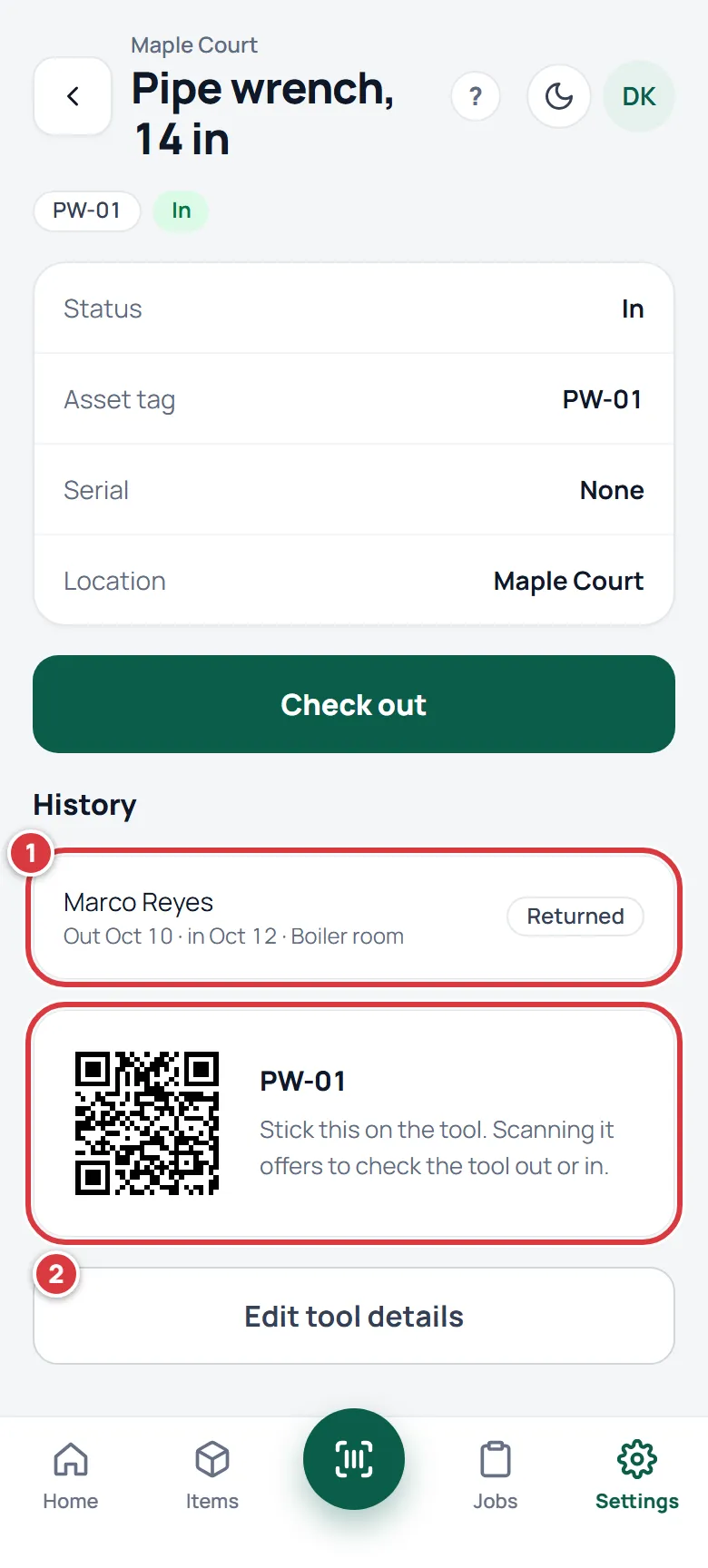
Open the tool and scroll down.
- History lists every time the tool was checked out: who had it, which job, the dates and any note. A returned tool shows Returned. One that is still out shows Out.
- Under it is the tool's QR label.
Add a tool#
Managers and owners add tools.
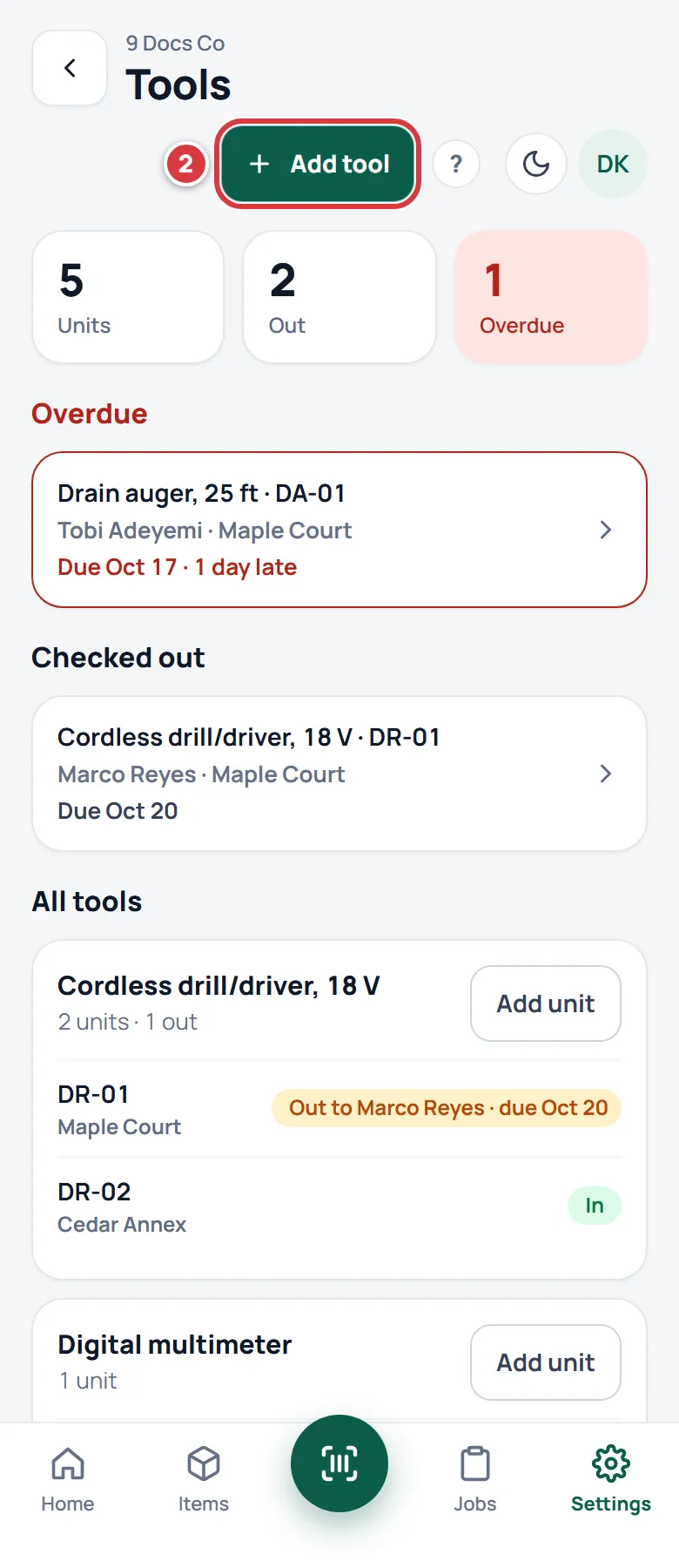
- Open Tools.
- Tap Add tool.
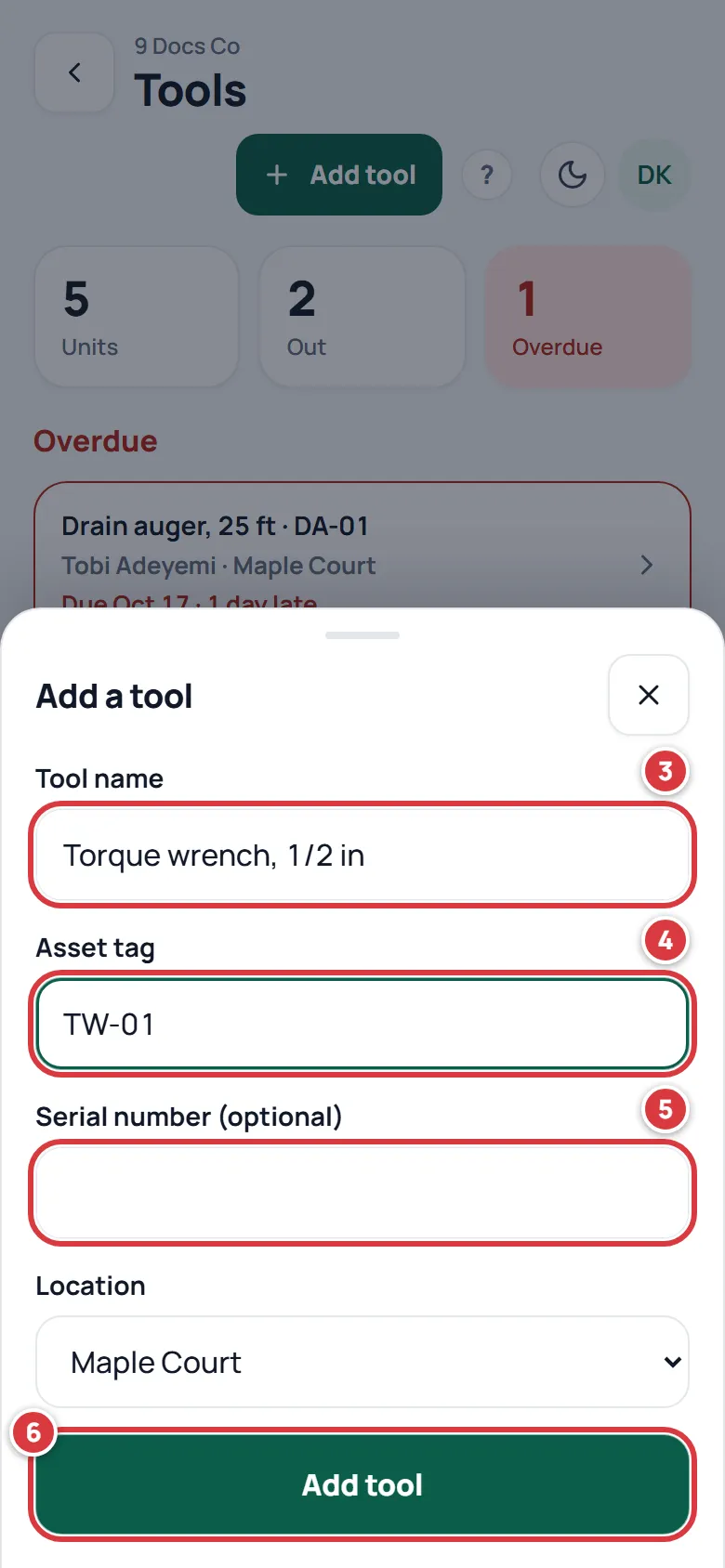
- Type the Tool name, for example "Torque wrench, 1/2 in".
- Type the Asset tag. This is the short code on the tool. Each one must be different.
- If it has one, type the Serial number (optional).
- Tap Add tool. If your company has more than one location, pick the Location first.
You can also tick This is a tool (checked out by unit, not counted) on an item's form. See Items. Then add its units from the Tools screen.
Add another unit of a tool#
When you buy a second drill, add it as a second unit of the same tool.
- Open Tools.
- Tap Add unit next to the tool's name.
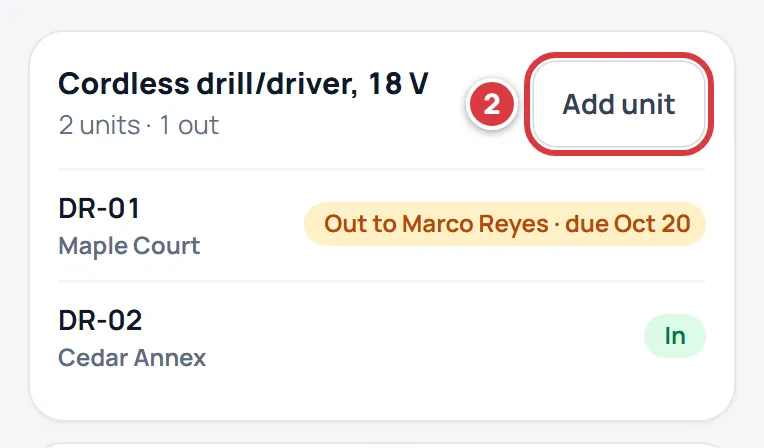
- Type the Asset tag and, if you like, the serial number.
- Tap Add unit.
What you'll see#
- After Check out, the tool's page says it is checked out, shows Out to and your name, and the due date if you set one. A short message at the bottom says the tool "checked out".
- The tool moves into Checked out on the Tools screen, and the Out number goes up by one.
- After Check in, the page says In, the message says the tool "is back in", and the history shows Returned.
- If you check out with no signal, the change waits on your phone and shows as pending. It sends when the signal is back. See Working without signal.
Overdue: what shows where#
A tool is overdue when its due date has passed and it is not checked in. A tool with no due date is never overdue.
- The Tools screen. The numbers at the top turn red, and an Overdue list shows each late tool with the person and "1 day late" (or more).
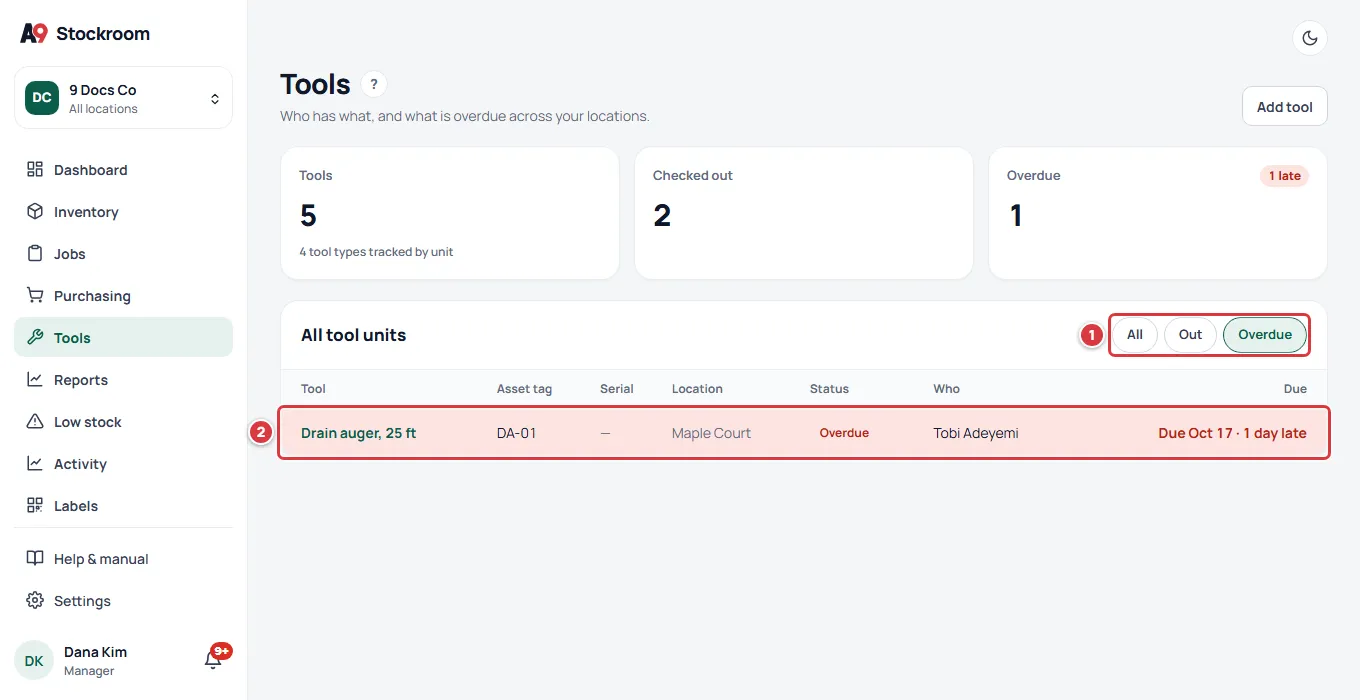
- The desktop table. The late tool's row is red and its status says Overdue. The Overdue button above the table shows only late tools.
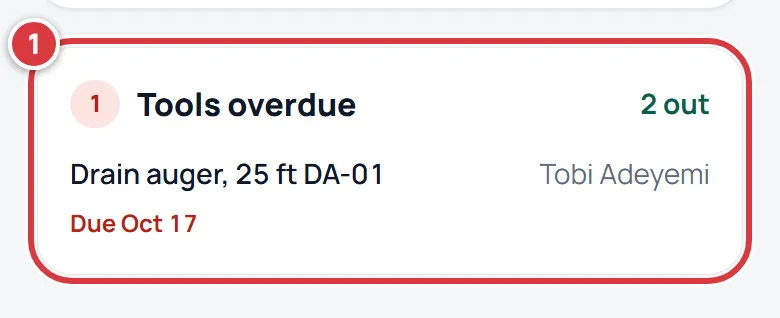
- Home. The Tools overdue card lists the late tools and who has them. If nothing is late it says "Nothing is overdue."
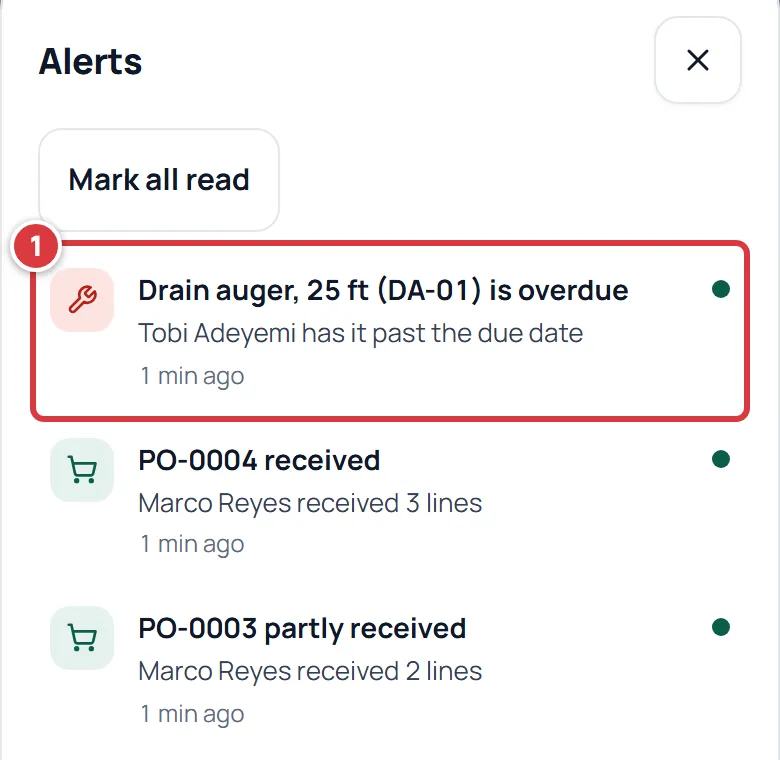
- The bell. The person who has the tool, and every owner and manager, gets an alert, "Drain auger, 25 ft (DA-01) is overdue". It appears the first time anyone in your company opens the app after the due date passes. See Notifications.
- The morning email. Owners and managers who get the daily email see an "Overdue tools" list in it. See The daily digest.
An alert stays in the bell after the tool comes back. It does not change when you check the tool in.
If it didn't work#
- The page says "This is part of the Pro plan". Your company is on Essentials. Ask the owner, or write to support@a9stockroom.com. See Your plan.
- There is no Check out button, and the page says "View only". Your role is Viewer. Ask a manager or owner to change it. See Roles and permissions.
- There is no Check in button. Someone else has the tool. Only they, or a manager or owner, can check it in. Ask them.
- "Someone just checked this tool out. Reload to see who has it." Another person got to it first. Reload the page and look at who has it.
- I don't see a tool that I know we have. You only see tools at the locations you work at. Use the location switcher at the top, or ask a manager to add you to the location. See Locations.
- "Another tool already has that asset tag." Asset tags must be different. Pick another one.
- "Check the tool in before you archive it." You can only archive a tool that is in. Check it in first, then tap Edit tool details, then Archive this unit.
- I checked a tool out to the wrong person. A manager or owner can check it in, then check it out again to the right person.
- There is no Add tool button. Only managers and owners add tools and units.
- I didn't get an overdue alert. Alerts go to the person who has the tool and to owners and managers. You can also turn them off in My account, under Notifications. See My account.
- Changing a due date or adding a tool says "Couldn't save". Those need a signal. Checking tools in and out work without one.