Labels and printing
Print QR labels for items or a whole folder on Avery 5160 sheets, from a phone or a computer, and fix a label that comes out too small or will not scan.
A label is a small sticker with a QR code and a name. Stick one on a shelf, a bin or a truck, and anyone can scan it with the phone to find that folder or item. A9 Stockroom prints them on Avery 5160 sheets: 30 labels per US Letter sheet, in 3 columns of 10, each label 2 5/8 inches by 1 inch.
Anyone with a role on the company can open Labels and print. A viewer's phone does not list Labels under Settings, but the left menu on a computer does.
What you'll need#
- A printer that prints US Letter pages from your browser. See Printers that work.
- Avery 5160 label sheets, or another sheet with the same layout: 30 labels, 2 5/8 inches by 1 inch.
- The items or the folder you want labels for. Add them first: see Items and Folders.
- A few minutes. Do a test on plain paper first.
Print labels#
The short version, for when you know what you are doing. The sections below explain each way in full.
- Open Settings, then Labels.
- Pick the items, or switch to A whole folder and pick a folder.
- Check the preview, then tap Print.
- In the print window, choose Letter paper, no margins and 100% scale.
- When the window closes, tap Yes on Labels printed? once the labels are out of the printer.
Steps: print labels for chosen items#
- Open Settings, then Labels. On a computer, choose Labels in the left menu. The screen is called Print labels.
- Make sure Pick items is selected.
- Type in the search box to find an item by name, SKU or barcode. Tick the items you want. Select all shown ticks everything the search shows, and Clear unticks everything.
- Look at the preview under the list. It shows each sheet and every label. It says how many labels are on how many sheets.
- Tap Print.
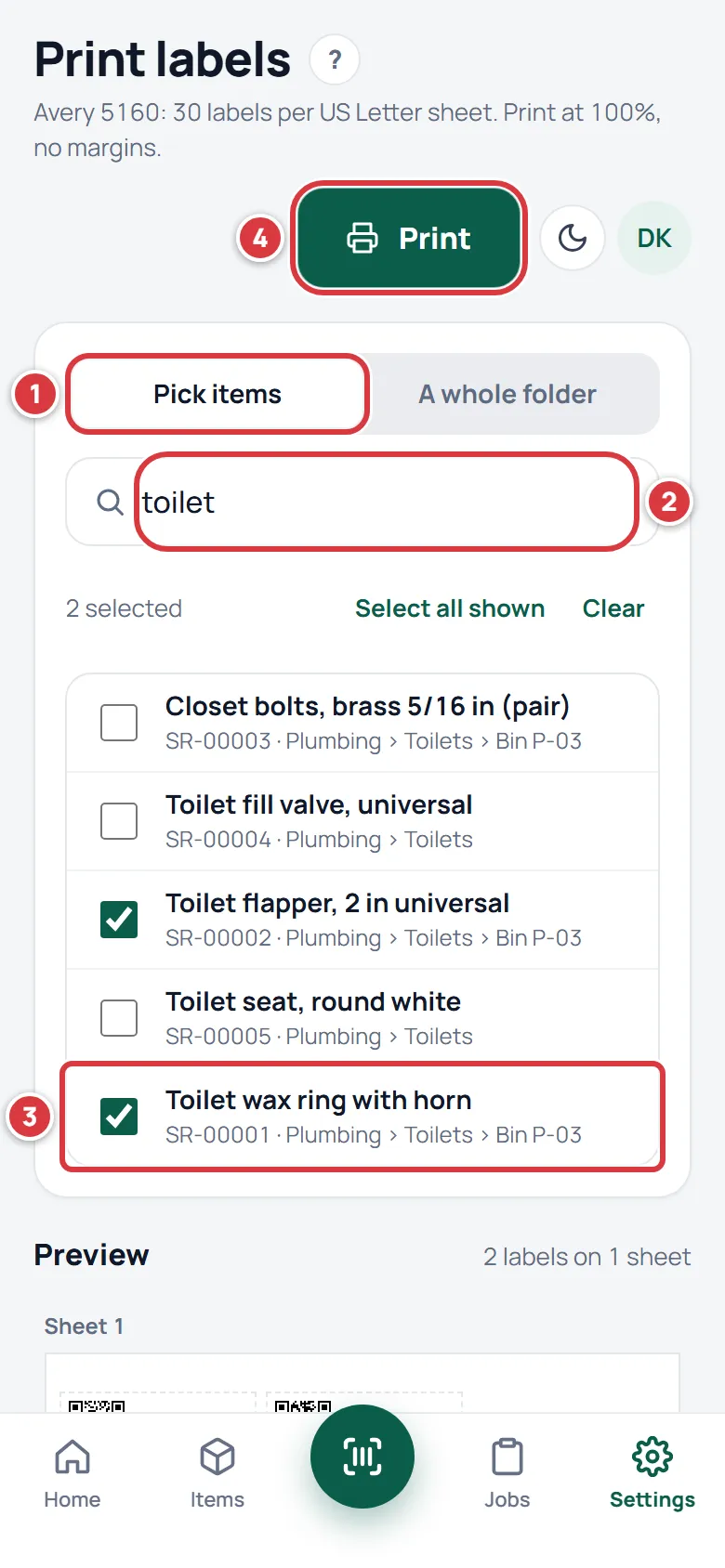
- In the print window, choose your printer, and set the paper size to Letter, margins to None and scale to 100% (see Print at 100% with no margins). Print.
- When the print window closes, a card asks Labels printed? Tap Yes when the labels are out of the printer. See Say that the labels printed.
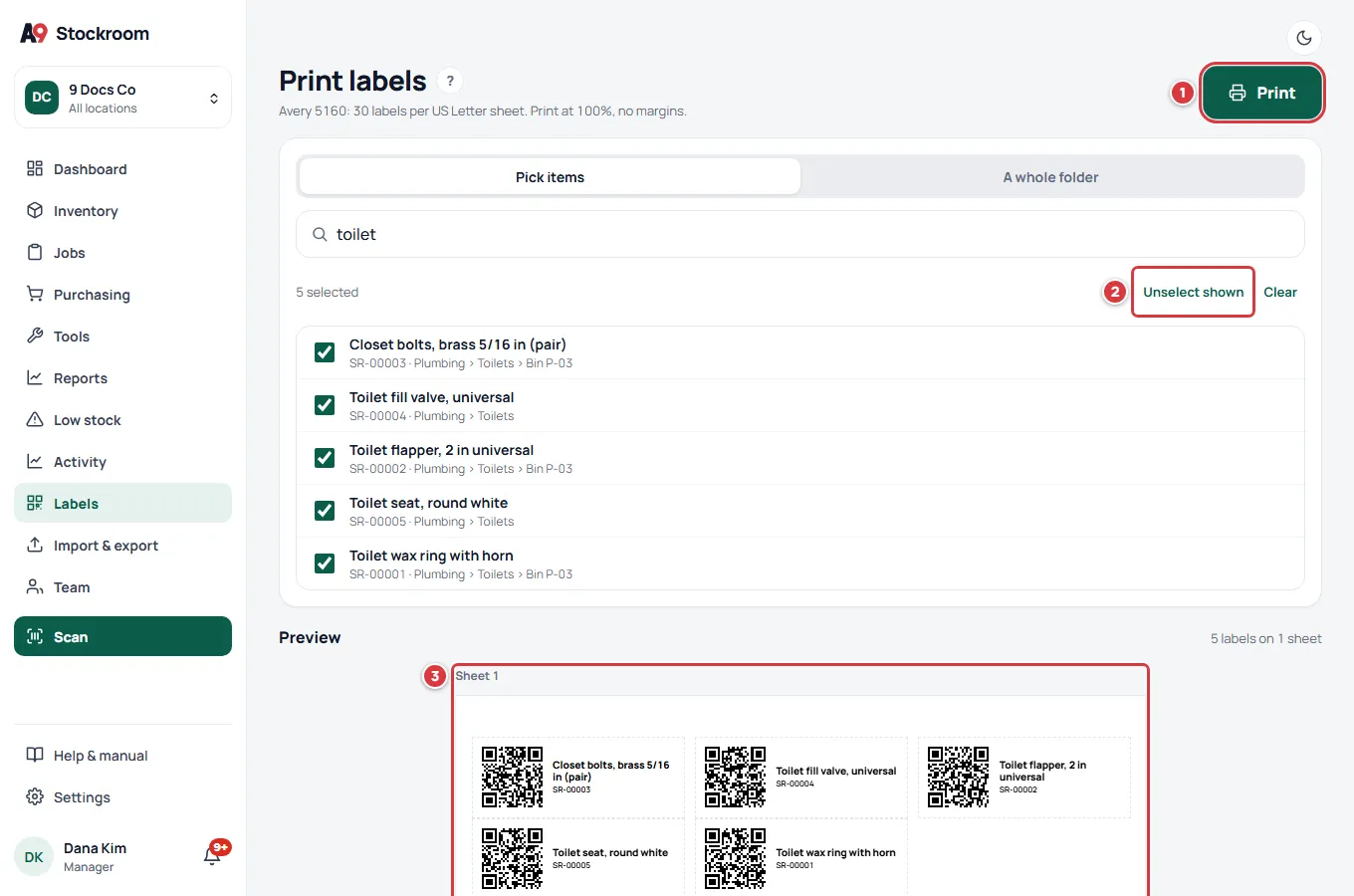
The most you can print at one time is 300 labels. Pick items stops adding items before that and says so. Print in two goes if you need more.
Steps: print labels for a whole folder#
Use this to label a whole shelf, bin or truck in one go.
- Open Labels, then tap A whole folder.
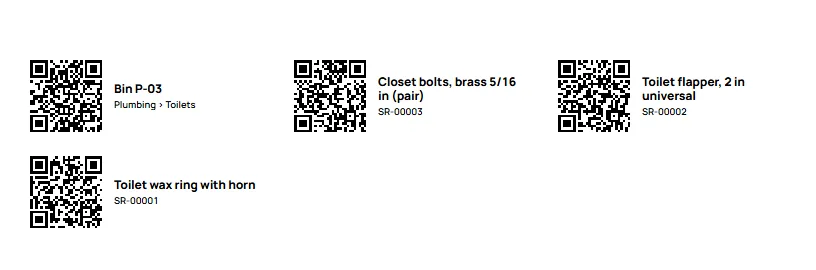
- Under Folder, choose the folder. Folders show their full path, such as Plumbing › Toilets › Bin P-03.
- Look at the preview. The first label is the folder's own label. The rest are one label for every item stocked in that folder and in the folders inside it.
- Tap Print.
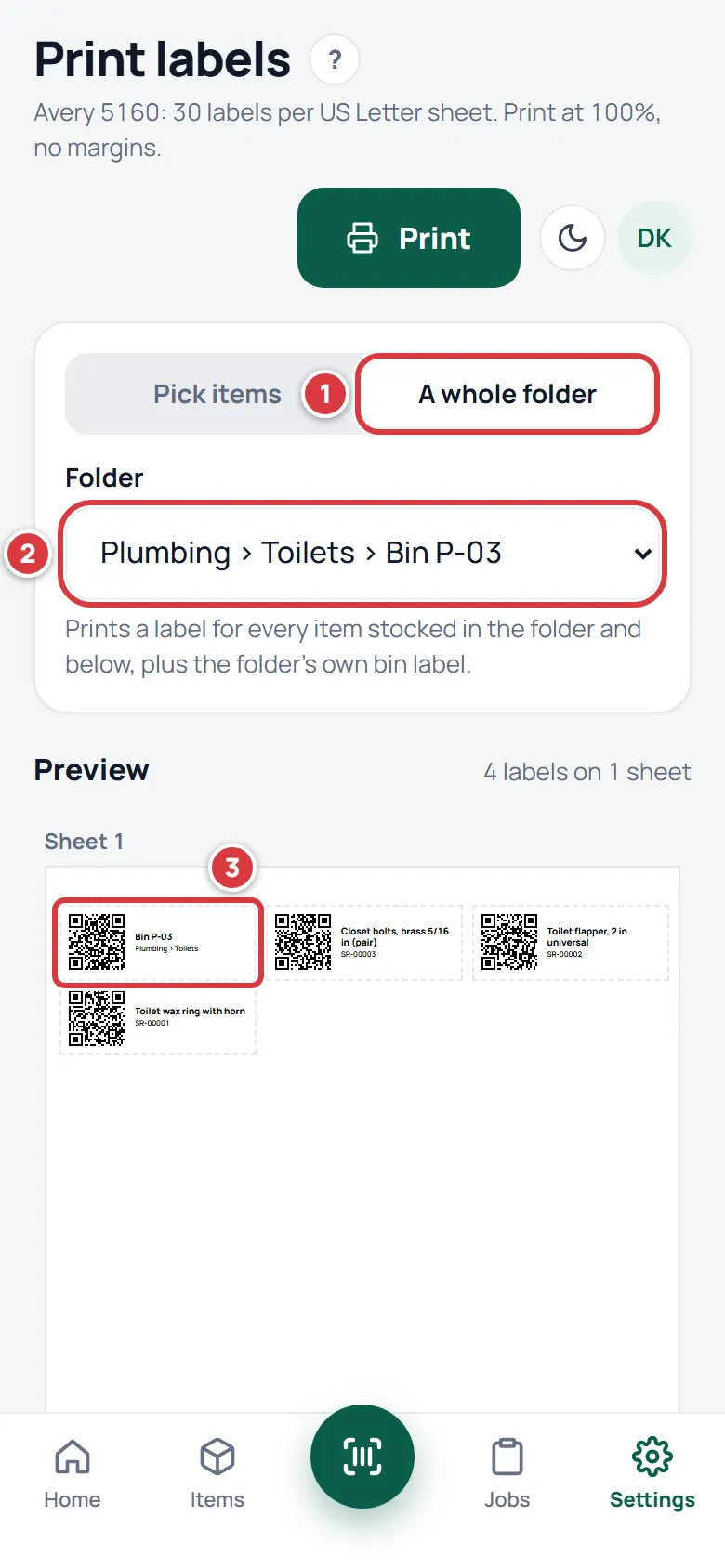
If the folder has too many items for one print, the screen says "We couldn't make the labels". Choose a smaller folder inside it, and print those one at a time.
Steps: print one item's label#
- Open the item.
- Scroll to the label card. It shows the item's QR code and its SKU.
- Tap Print label. Labels opens with that item chosen.
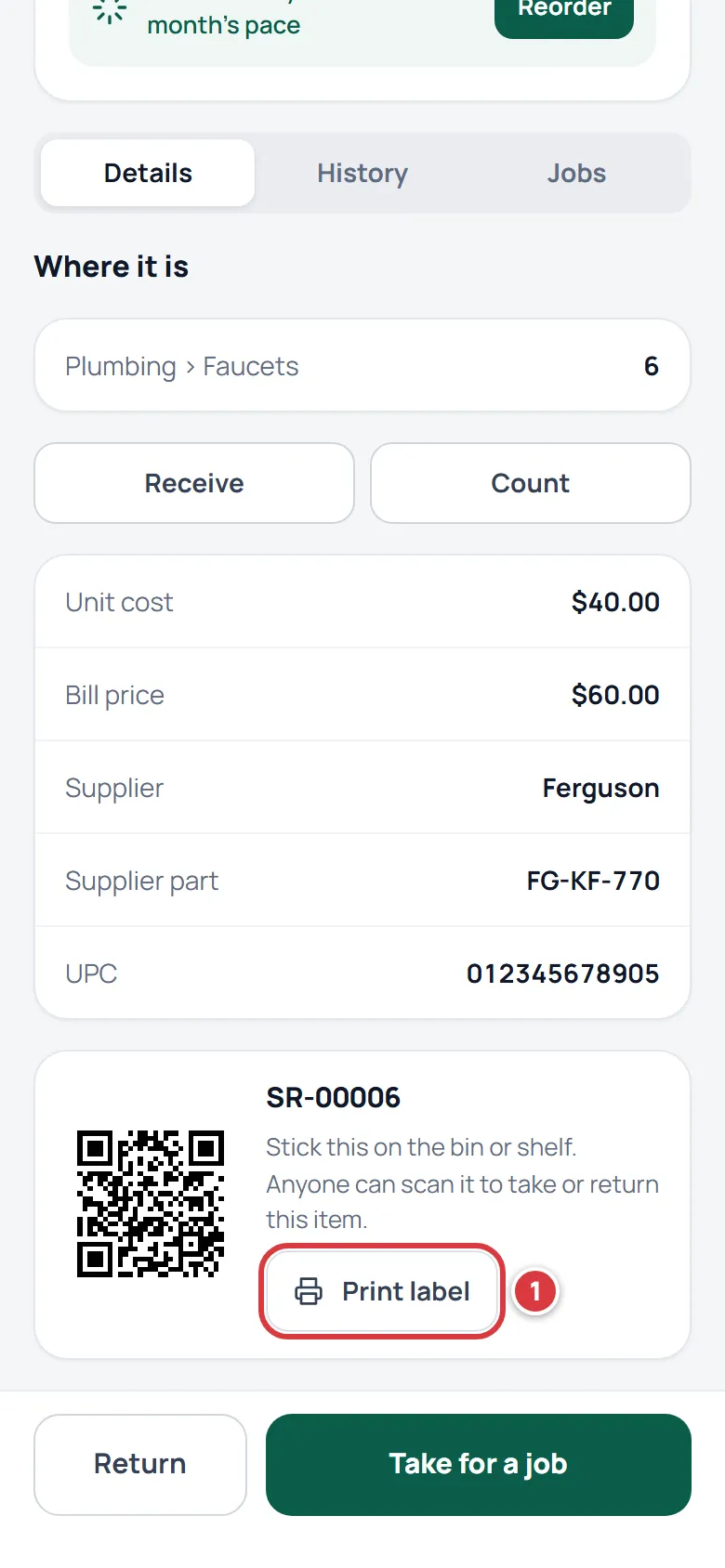
Then tap Print as above.
Steps: say that the labels printed#
The browser cannot tell the difference between printing and cancelling, so A9 Stockroom asks.
- When the print window closes, a card titled Labels printed? appears at the top of Labels.
- If the labels came out, tap Yes. A short "Thanks, noted." appears.
- If you cancelled, tap Not yet. Nothing is saved, and you can press Print again.
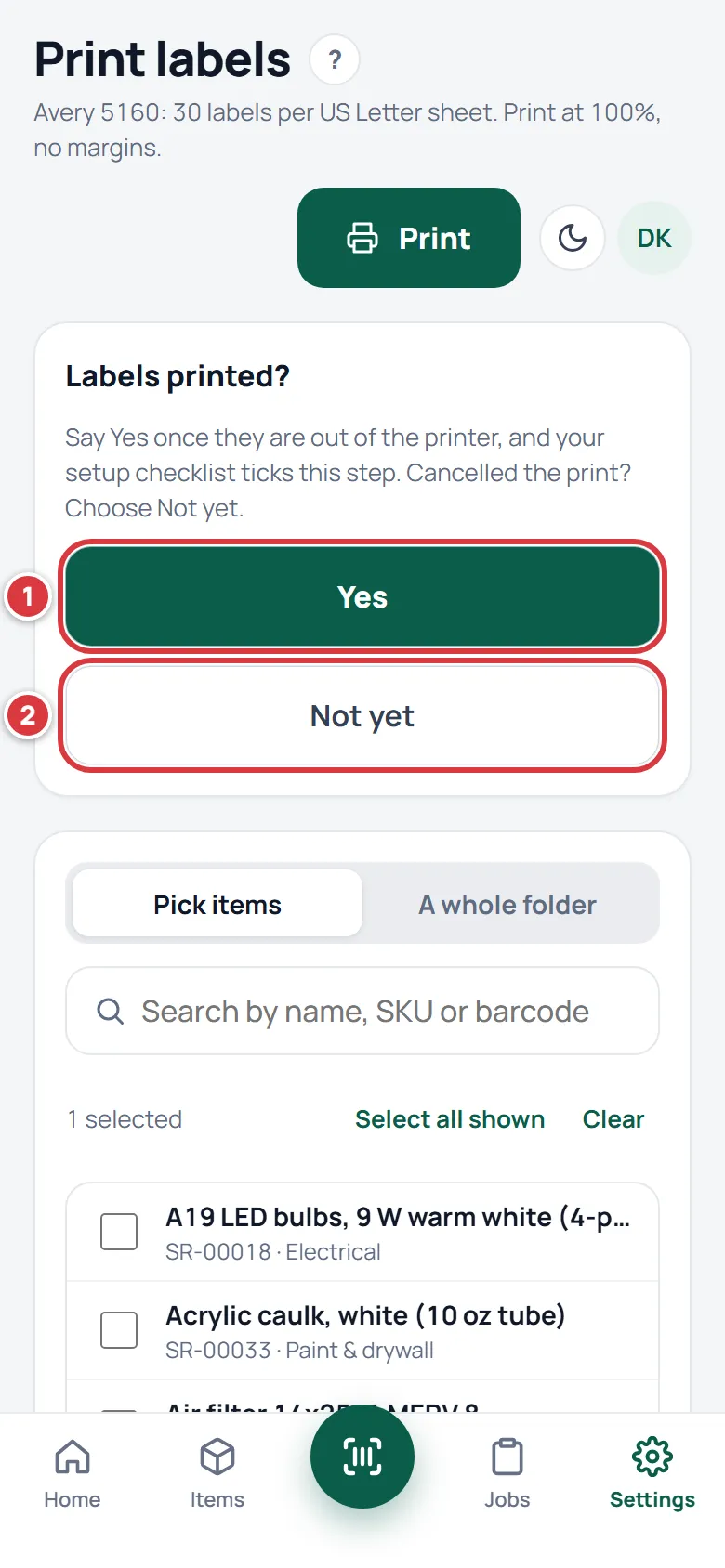
Tapping Yes ticks the Print labels step on the Get set up checklist, which owners and managers see on Home and under Settings. See Setting up your company. It is one step for the whole company: once anyone taps Yes, it is done.
What you'll see#
- Each label has the QR code on the left and, on the right, the name in bold (cut off after two lines if it is long) and below it the SKU. A folder label shows the folder's name and the folders it sits in, or Bin, Truck or Area if it is at the top.
- Black on white, whatever theme the screen is in.
- Only the labels print. The trial or payment banner, the menus, the Offline label and any message on the screen stay off the paper, so a company in its trial prints the same sheet as any other.
- If your company has a logo, it prints small in the top corner of each sheet, above the first label.
- 30 labels to a sheet, starting at the top left. A sheet always starts at the top left. There is no way to skip positions, so do not feed a part-used sheet back in: it will print over the labels that are already gone. Use a fresh sheet.
What the QR code holds#
Every item and folder has a short code that A9 Stockroom made. The QR code is a web address that ends in that code: /i/ and the code for an item, /f/ and the code for a folder. That is all it holds. It does not hold the item's name, price, UPC or how many are in stock.
So a printed label never goes out of date. You can rename an item, change its cost or move it, and the old sticker still finds it.
- Scanned with the A9 Stockroom scanner, an item label opens the item, ready to take, return, count or receive, and a folder label opens that folder. See Scanning.
- Scanned with the phone's own camera, it opens the web address in the browser, where you sign in.
- The scanner also reads the barcode already printed on a product, if you saved it as the item's UPC, so you do not need a label for those.
A tool unit has its own QR code on its screen, so you can put it on the tool. It does not print on label sheets from Labels.
Printers that work#
Labels print through your browser's normal print window. If a device can print a Letter page from its browser, it can print labels. In practice that means:
- An office laser or inkjet printer, loaded with Avery 5160 sheets (or another sheet with the same layout), on a computer.
- The same printer reached from a phone through the phone's printing, if your phone and printer support it.
- "Save as PDF" in the print window, then print the PDF from any computer.
Be clear about what we know:
- What we checked: the page is made to the Avery 5160 layout on US Letter. A full sheet of 30 labels printed to PDF made one Letter page, with the first label 3/16 inch from the left edge and 1/2 inch from the top, which is where the stickers are, for a company in its trial as for any other. A test of 45 labels made two pages.
- What we did not check: any particular printer model, how a printer's own driver treats margins, printing from a phone to a printer, or printing from the installed app rather than the browser. Those depend on your device. Always print one test page on plain paper first.
- Not supported: label-roll printers such as thermal label printers. A9 Stockroom does not make pages for rolls. Print to a sheet, or stick to sheet labels.
Print from a phone or a computer#
A computer is easier. It shows the whole preview, and its print window has the Margins and Scale controls you need to get the size right.
On a phone, the screens work the same way: pick the items, tap Print, and the phone's own print window opens. Which printers it offers, and whether it lets you set scale and margins, depends on the phone and its printer. If your phone will not print the labels at the right size, save the print as a PDF (or open Labels on a computer) and print from there.
Print at 100% with no margins#
The labels only line up with the stickers when the sheet prints at full size. In the print window, set:
- Paper size: Letter.
- Margins: None.
- Scale: 100%, or "Actual size". Not "Fit to page".
- Headers and footers: off.
- Quality: normal or better. "Draft" or "Toner save" can make the QR code too faint to scan.
The page note on the Print labels screen says the same: "Print at 100%, no margins."
If it didn't work#
The labels come out too small, or the rows drift off the stickers#
The print window scaled the page. Set Scale to 100% (not "Fit to page"), Margins to None, and Paper size to Letter, then print again. Print one test on plain paper and hold it over a label sheet against the light to check it lines up.
There is a blank strip at the top, and the last row is cut off#
Same cause: margins are not None, or the paper size is A4. Use Letter and Margins: None.
Print is greyed out#
Nothing is chosen yet. Tick one or more items, or choose a folder. It also stays off while the labels are still being made.
The screen says "We couldn't make the labels"#
Check your signal and change the selection to try again. If you chose a folder, it may have too many items for one print: choose a smaller folder.
It says "No labels for that choice"#
That folder has no items stocked in it. A folder with stock still gets its own folder label.
Scanning a printed label fails#
Try these, in order. Hold the phone steady with the whole QR code inside the frame. Clean the label, and make sure it is flat, not curled over a corner or a ridge. Check the print was not in draft mode and the ink is dark. Use the torch in the scanner if the light is poor. If the QR code is damaged, print a new label. See Scanning for the full list.
Labels printed? did not appear#
The print window may not have reported that it closed. Press Print again, then close the window. You can also open Get set up: the step ticks once someone taps Yes.
Tapping Yes says "That didn't go through"#
Check your signal and tap Yes again. A viewer cannot save this step.
My item's name is cut off on the label#
A label shows two lines of the name. Shorten the name on the item, or accept the cut: the SKU is on the line below.