My account
Change your name, picture, email and password, see where you are signed in, pick a theme and your alerts, and leave a company.
My account is the screen for you, not for the company. Everyone has it, whatever their role, viewers too. It holds your name and picture, your email and password, the devices you are signed in on, your look and your alerts.
What you'll need#
- Your current password, to change your email or your password.
- Your inbox, to confirm a new email address.
- Nothing else. Nothing on this screen changes your company's stock.
Steps#
Open My account#
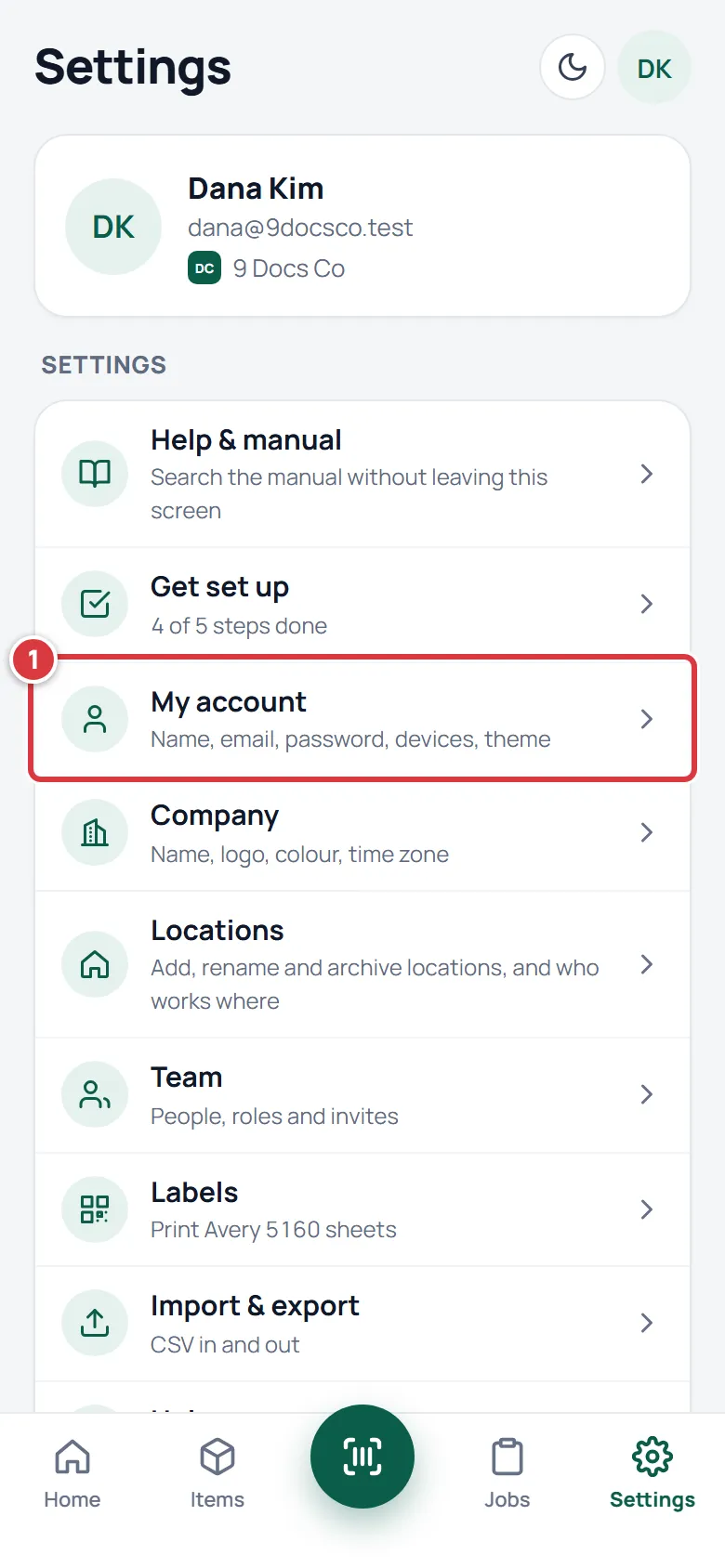
- Open Settings, then tap My account. On a computer, Settings is in the menu on the left.
Change your name or your picture#
- Tap Add a picture and choose a picture. If you already have one the button says Change picture. It saves as soon as you choose it, and Remove picture takes it away.
- Edit your name in Your name.
- Tap Save name.
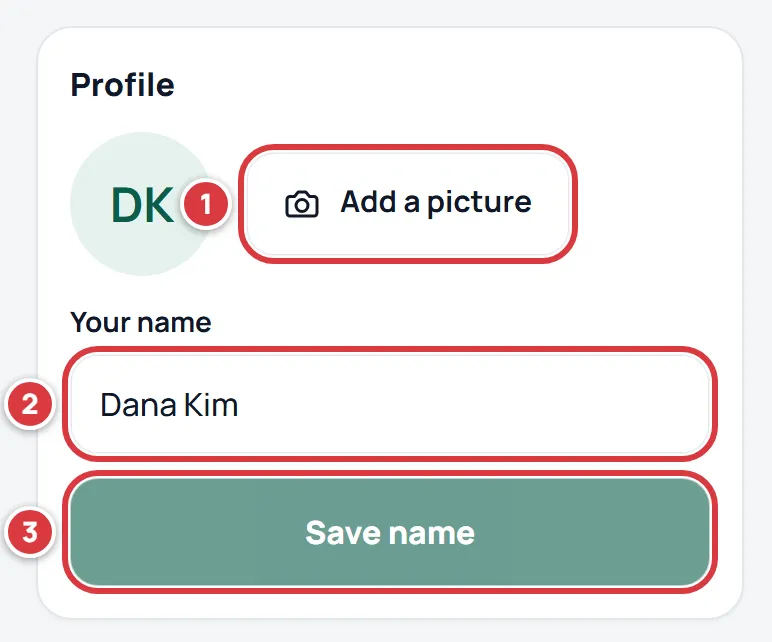
Any picture works. A9 Stockroom cuts it to a square from the middle and shrinks it to 256 pixels on each side. Your picture shows next to your name in the team list and in the header. Without one, your initials show.
Change your email#
- Type your new address in New email address.
- Type your password in Current password.
- Tap Change email.
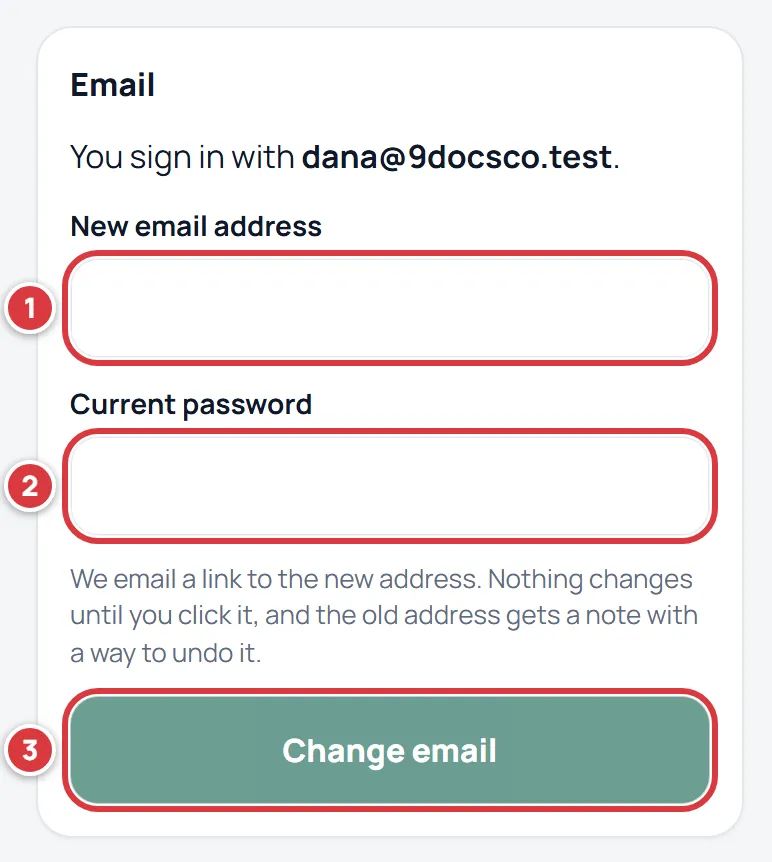
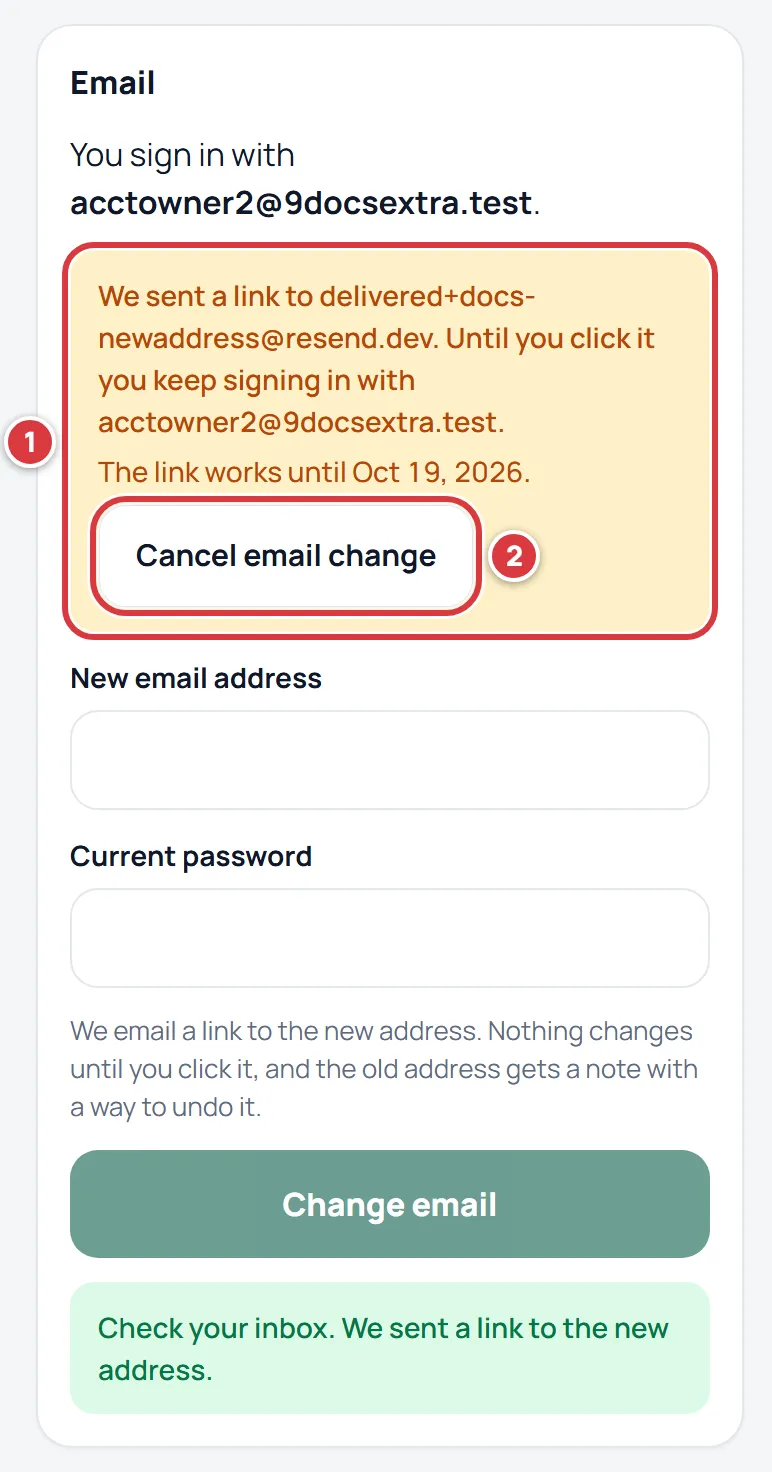
Nothing changes yet. A9 Stockroom sends a link to the new address. It works for 24 hours. Until you use it, you keep signing in with your old address. A yellow note says so, and Cancel email change stops the change.
Then:
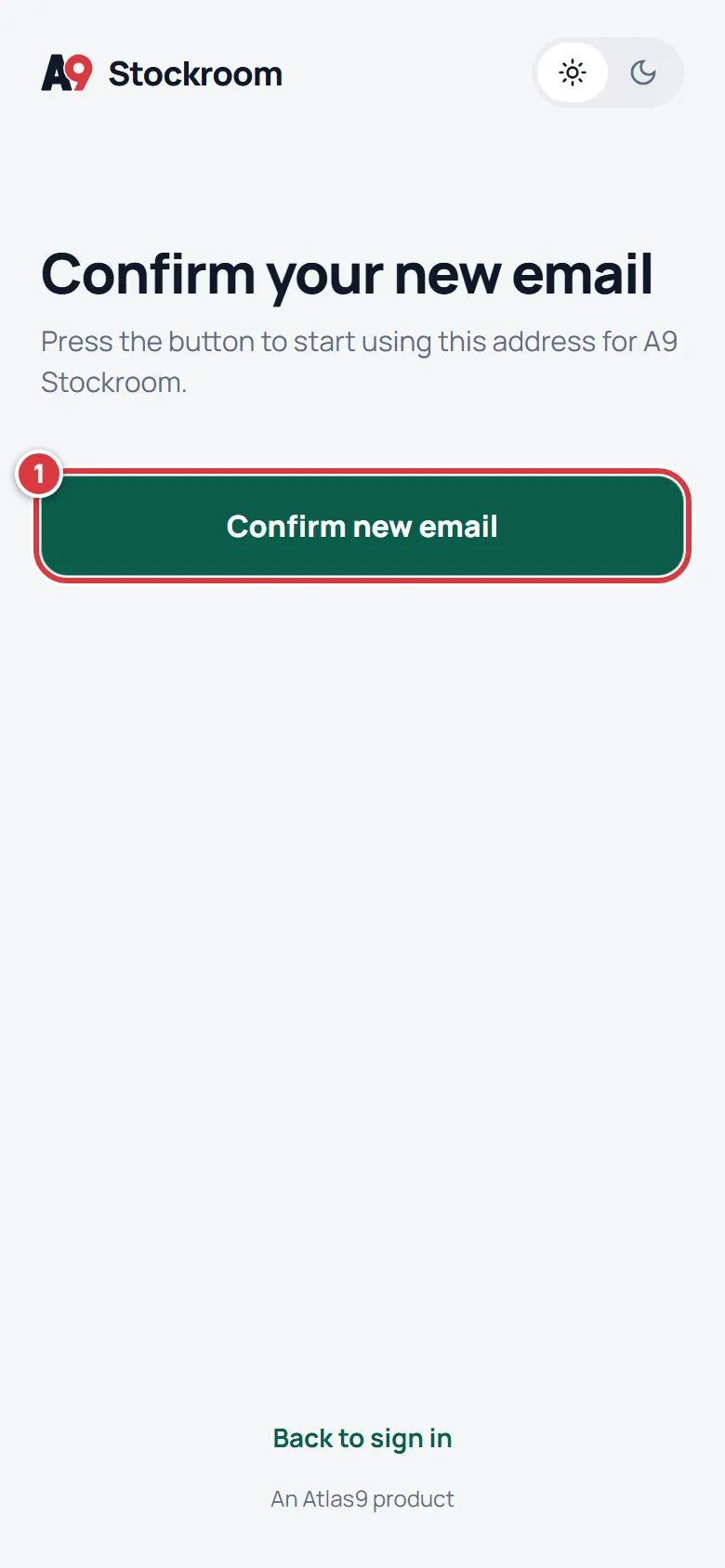
- Open the email at the new address and tap its button. A page called Confirm your new email opens. Tap Confirm new email. The change happens only when you tap, so an email program that opens links to check them cannot do it for you.
- The page says your email is now the new address. Sign in with it from now on.
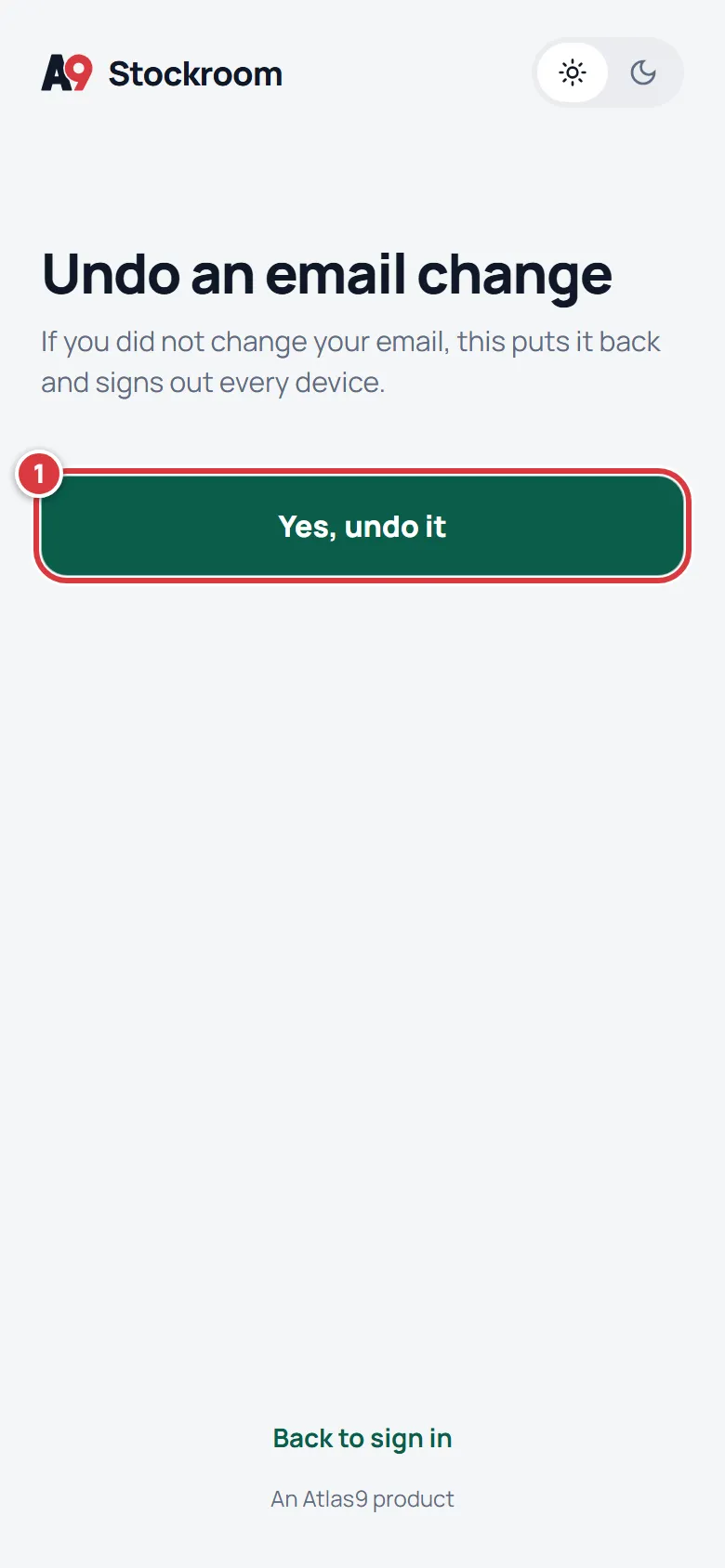
- The old address gets a note, "Your A9 Stockroom email was changed", with a button called "This wasn't me". If it was not you, that button is the way back. It works for 7 days. It opens a page called Undo an email change. Tapping Yes, undo it puts your old address back and signs out every device. The page then offers Reset your password, because someone else may have had access.
Change your password#
- Type your password in Current password.
- Type the new one in New password.
- Type it again in Confirm new password.
- Tap Change password.
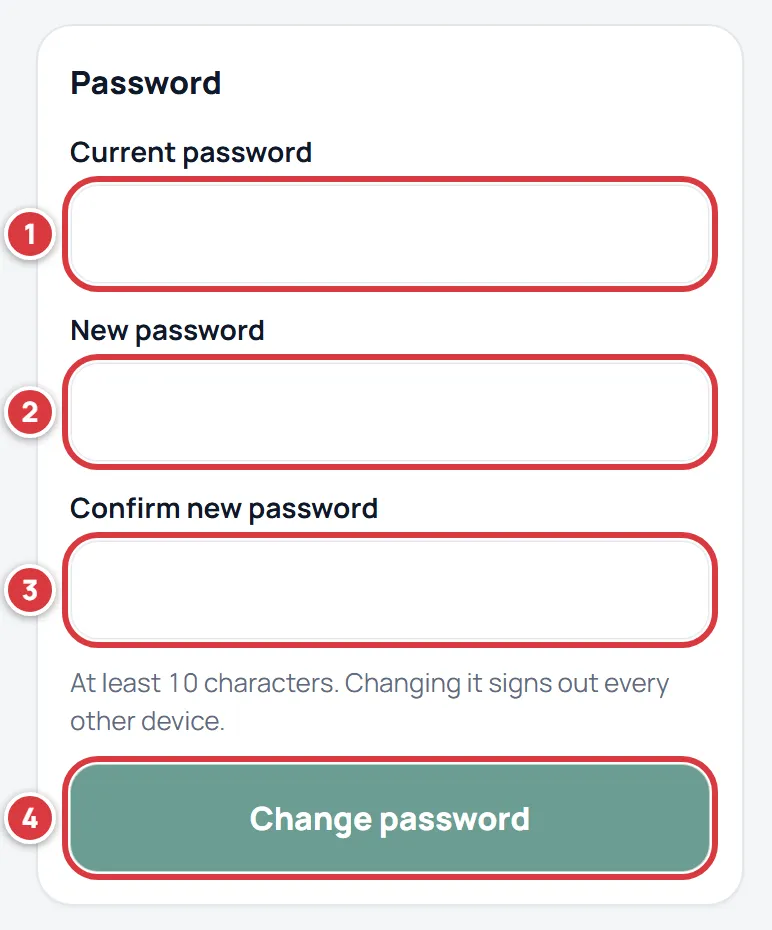
Changing your password signs out every other device. This one stays signed in.
If you have forgotten your password, you cannot use this screen. On the sign-in screen tap Forgot?, type your email and follow the link you are sent. That also signs out every device.
See where you are signed in#
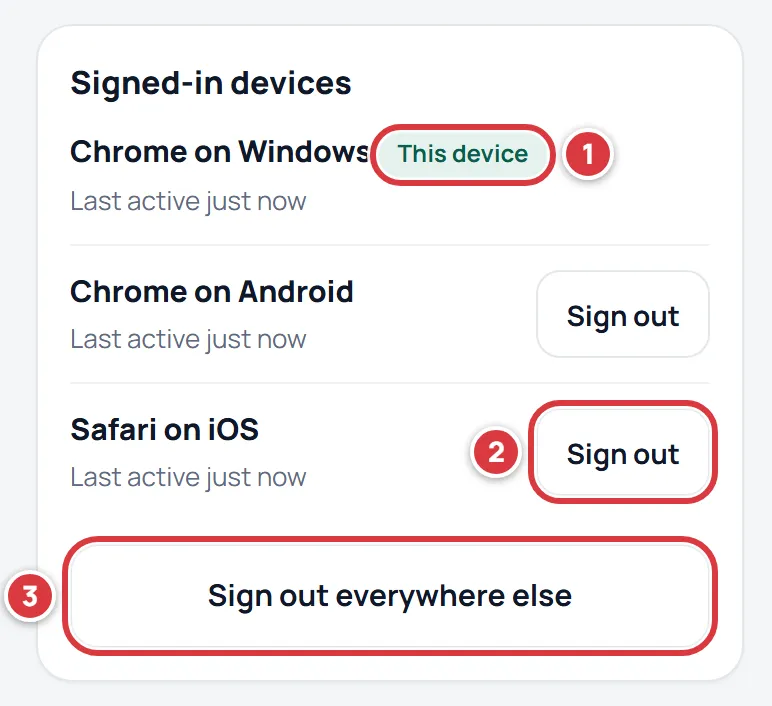
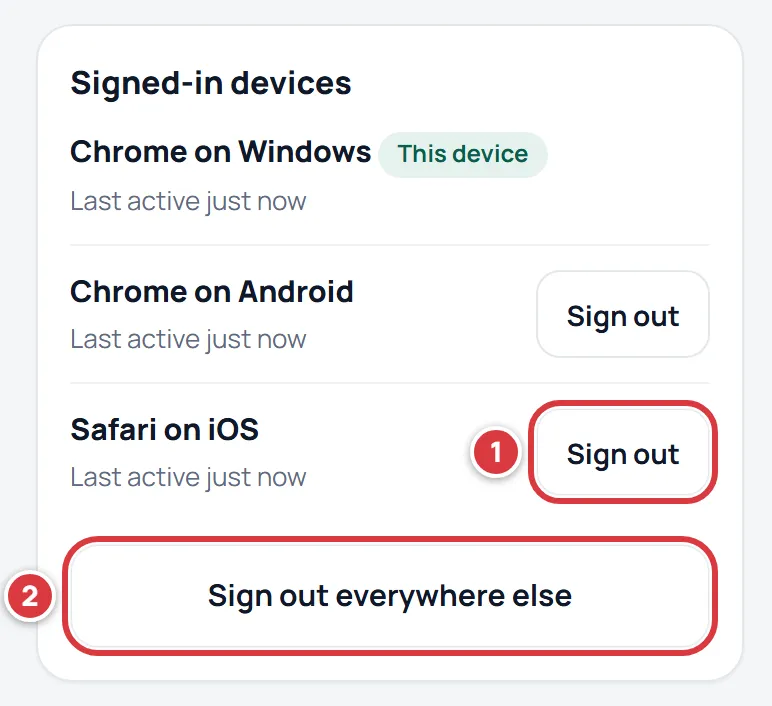
The Signed-in devices card lists every place your account is signed in. Each row says what kind of device it is, like "Safari on iOS" or "Chrome on Windows", and when it was last used.
- This device is the one you are holding. It has no sign-out button here: use Sign out at the bottom of Settings for it.
- Tap Sign out on any other device you do not use or do not know. That device is signed out right away.
- Tap Sign out everywhere else to sign out all of them but this one.
My phone was lost: sign it out#
Do this from another device: a computer, or someone else's phone. Go to app.a9stockroom.com and sign in. If you cannot, tap Forgot? and choose a new password from the link in your email. That signs out every device, the lost phone too, and you can stop there.
Once you are in, open Settings, then My account, and look at Signed-in devices.
- Find the lost phone. It is the row that says what kind of phone it is (for example "Safari on iOS"), with its "Last active" time. Tap Sign out on that row.
- Not sure which row it is? Tap Sign out everywhere else. Every device but the one you are using is signed out. Anyone holding the lost phone needs your password to get in again.
- Change your password. The password steps are above.
If the phone had changes on it that had not synced yet (stock you took with no signal), those stay on the phone. They do not reach A9 Stockroom unless you get the phone back and sign in on it. Check Activity and recount anything that looks wrong.
Choose Light, Dark or Auto#
- Under Theme, tap Light, Dark or Auto. Auto follows your device's own setting.
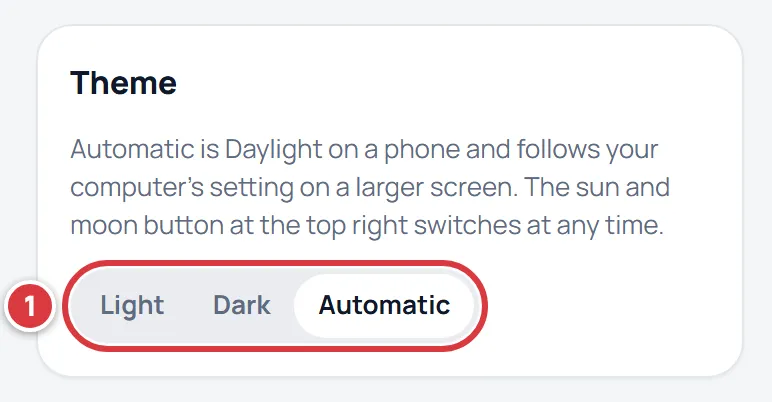
The choice is saved on your account, so it is the same on your phone and your computer.
Choose your alerts#
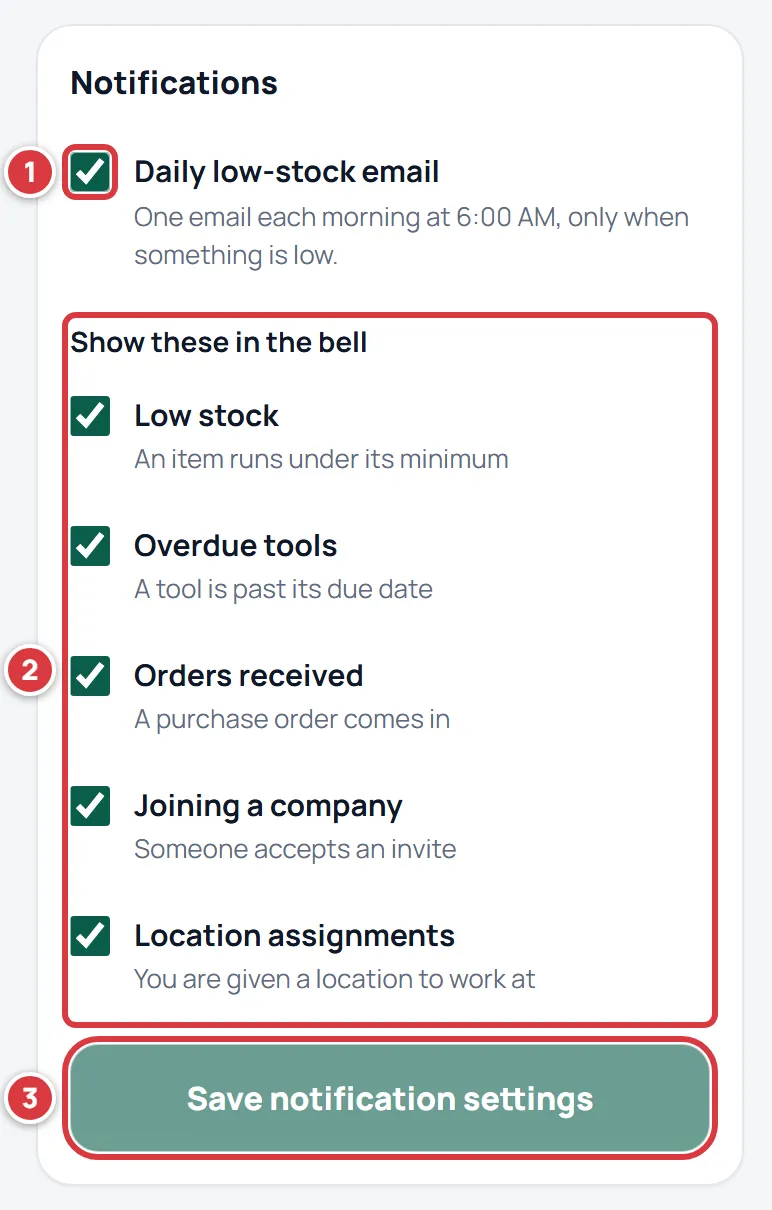
The Notifications card has two parts.
- Daily low-stock email: one email each morning, only on a day something is low. It shows for owners and managers. Techs and viewers do not get this email.
- Show these in the bell: untick a kind of alert and it no longer shows in the bell. The kinds are Low stock, Overdue tools, Orders received, Joining a company and Location assignments.
- Tap Save notification settings.
Notifications explains what each alert means.
Leave a company#
The Leave company card is for everyone except the owner.
- Tap the button that says Leave and your company's name.
- A question appears with two buttons. Stay keeps you where you are. Yes, leave takes you out.
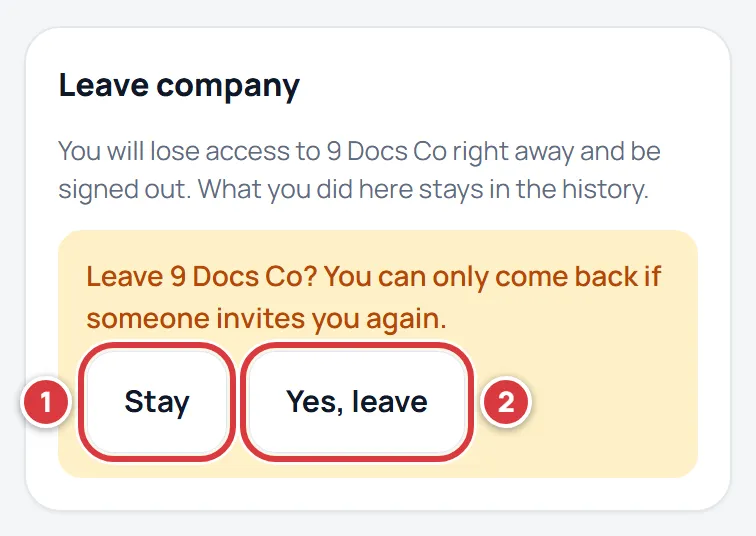
When you leave, you lose access at once and are signed out. What you did stays in the company's history. You can come back only if someone invites you again. The owner cannot leave: the owner first transfers ownership to a manager. See also Can I create another company?.
What you'll see#
- Name saved. or Picture saved. under the Profile card.
- Check your inbox. We sent a link to the new address. after you ask for a new email, and a note with Cancel email change until you use the link.
- Password changed. Your other devices were signed out. after a new password.
- Signed out and the device's name after you sign out one device, or "Signed out 2 other devices." after Sign out everywhere else.
- Notification settings saved.
If it didn't work#
- "That password isn't right." You typed the wrong current password. Try again, or tap Forgot? on the sign-in screen.
- "That email address already has an account." Someone already uses that address. Choose another.
- "That is already your email address." The new address is the same as your old one.
- The link in the new inbox says it has expired or was already used. The link works for 24 hours and once. Sign in with your old address and start the change again.
- No email came. Check the junk folder and the spelling of the address. If it is wrong, tap Cancel email change and start again.
- "The two new passwords don't match." Type the new password again in Confirm new password.
- "Too many tries. Wait a minute and try again." Wait a minute, then try again.
- "That file isn't a JPEG or PNG image." or "That image is too big. Pick a smaller one." Choose a different picture.
- There is no daily email choice. It is for owners and managers only.
- There is no Leave button, only a note that you own the company. The owner cannot leave. Make a manager the owner first.
- You were signed out of everything without asking. A password change, a password reset, the "This wasn't me" link or being removed from the team each sign you out of every device. Sign in again. If you did not do any of these, change your password and look at Signed-in devices.
- "Use Sign out for this device." You cannot sign out the device you are using from the list. Use Sign out at the bottom of Settings.