Folders
Add a folder or a sub-folder, choose its kind, rename or move it, read the folder page, print its QR label, and archive it when it is empty.
A folder is a place stock lives: an aisle, a shelf, a bin, a truck. Folders nest, so "Plumbing" can hold "Toilets", and "Toilets" can hold "Bin P-03". Every folder belongs to one location. Owners and managers make and change folders. Everyone can look inside them.
Stock is never "in" the company in general. It is always in a folder. When you take a part, you take it from a folder; when a delivery arrives, you receive it into one.
What you'll need#
- The Owner or Manager role. Techs and viewers can open folders but do not see New folder or Folder options. See Roles and permissions.
- To know which location the folder is for. A new folder goes into the location you are looking at. See Where a new folder goes.
- A signal is not needed to look inside a folder. Adding and changing folders needs one.
Steps#
Add a folder#
This adds a top-level folder: one that is not inside another.
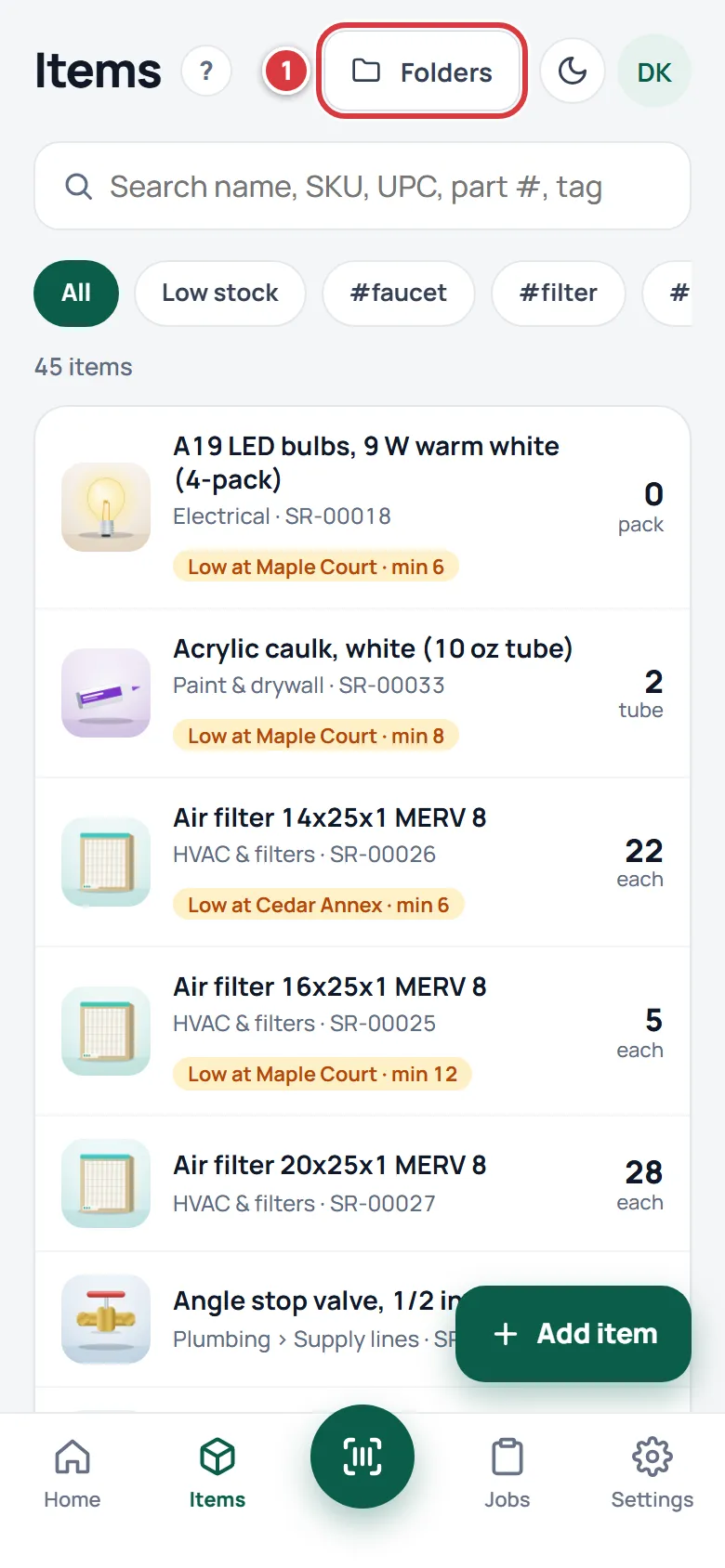
- On the Items screen, tap Folders, at the top right. On a computer, see Add a folder on a computer.
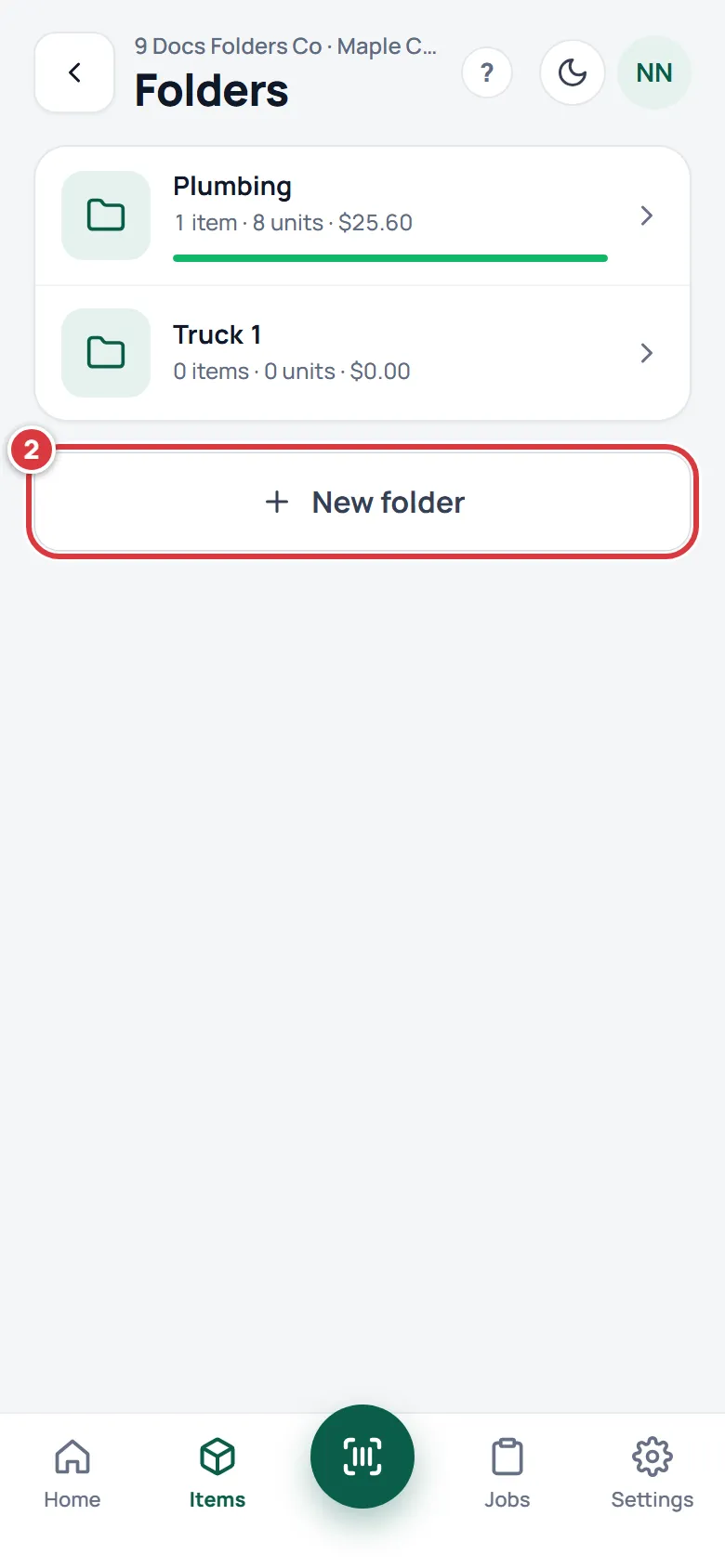
- Tap New folder, under the list.
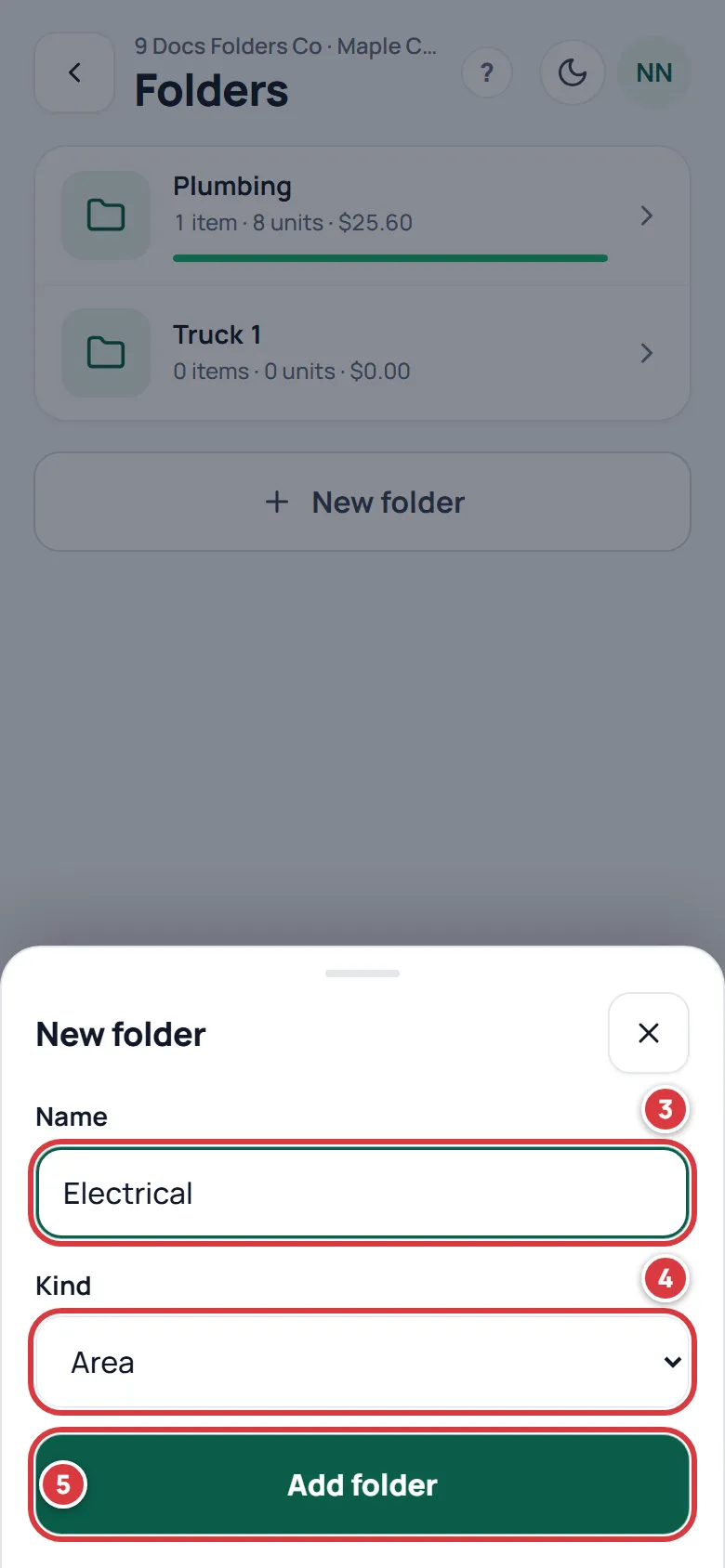
- Type the Name, for example "Electrical" or "Truck 1".
- Choose the Kind: Area, Bin or Truck. If you are not sure, leave it on Area.
- Tap Add folder.
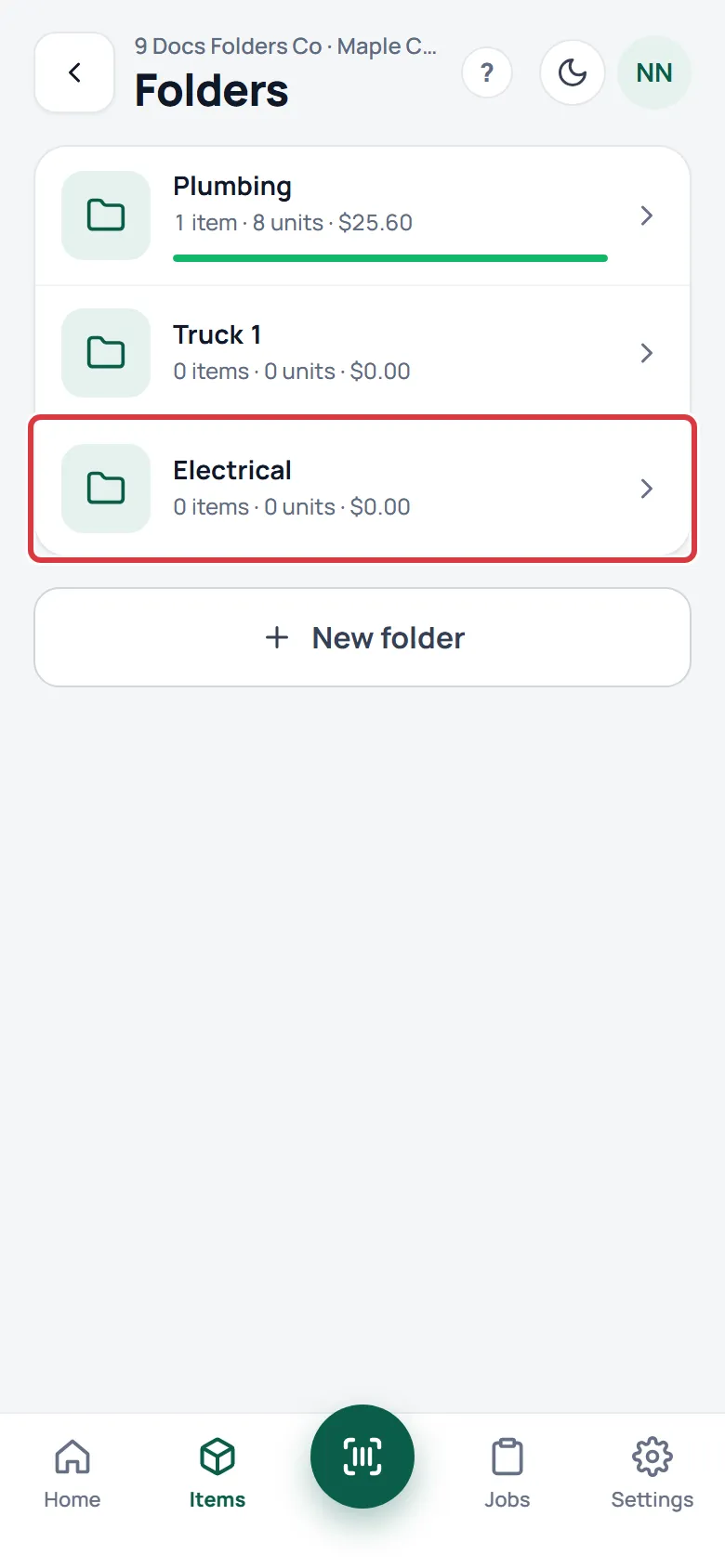
The sheet closes and the new folder is in the list, with "0 items".
Add a sub-folder#
A sub-folder sits inside another folder. It always belongs to the same location as the folder that holds it.
Open the folder that will hold the new one. Then:
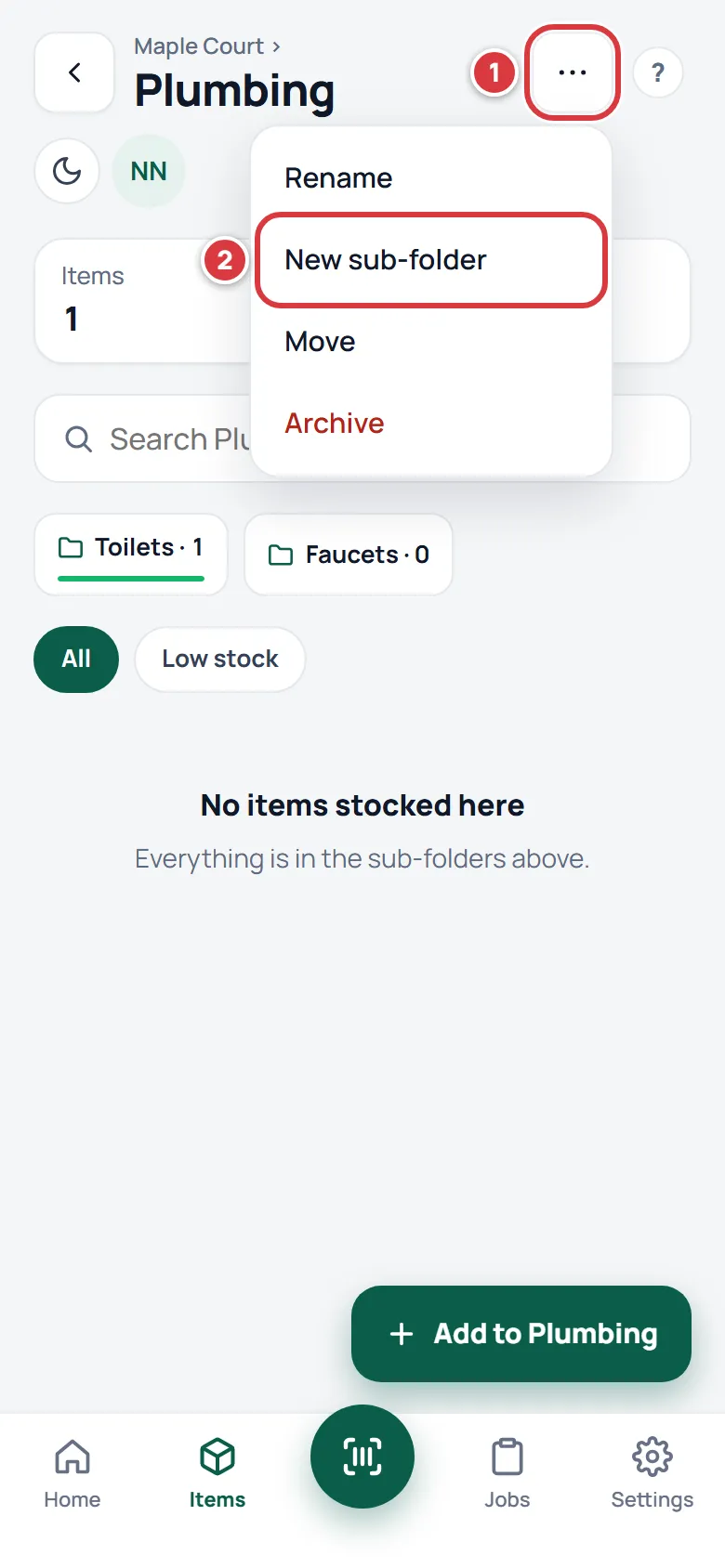
- Tap Folder options, the three dots at the top right.
- Tap New sub-folder.
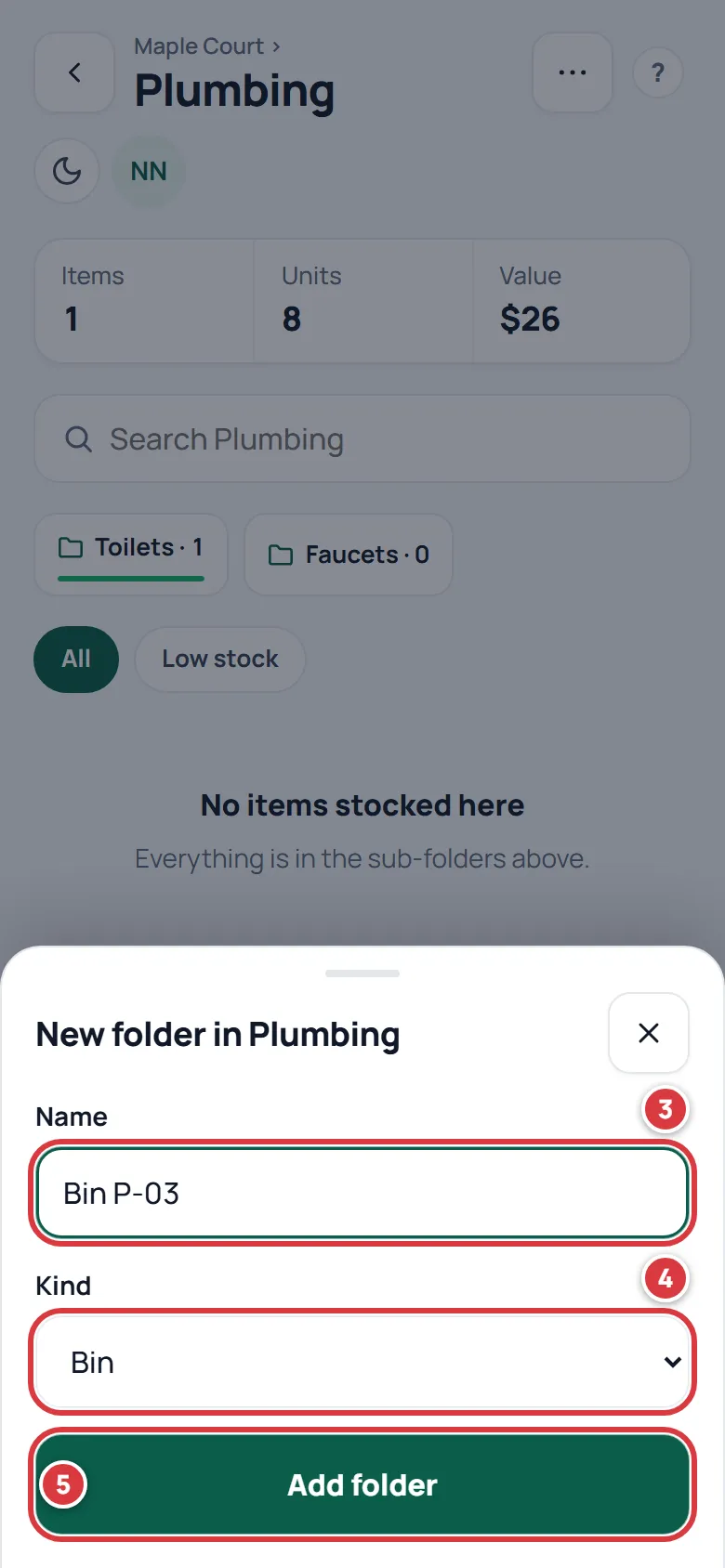
- Type the Name. The sheet is called "New folder in" and the name of the folder you are in.
- Choose the Kind.
- Tap Add folder.
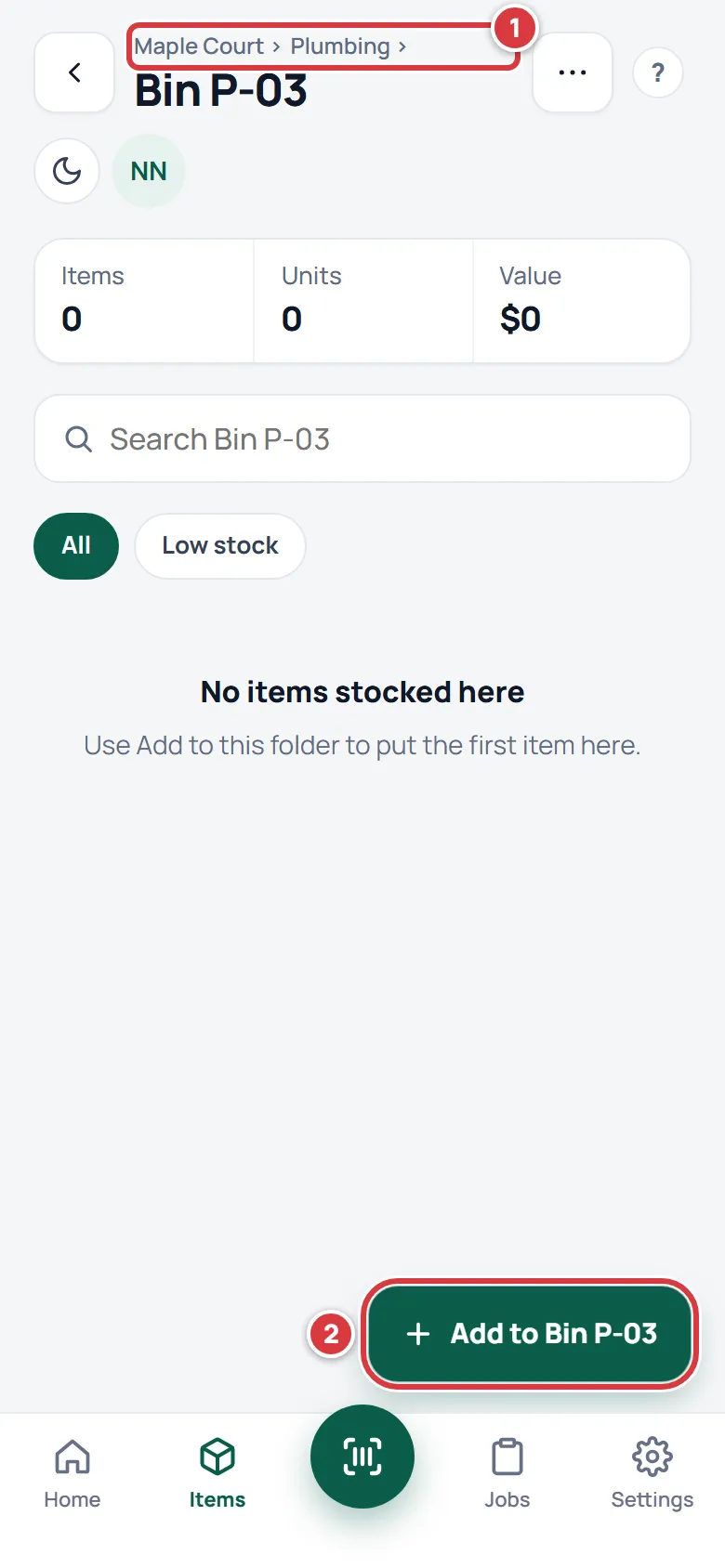
The new folder opens. Above its name is the path, from the location down. Use Add to and the folder's name to put the first item in it.
Add a folder on a computer#
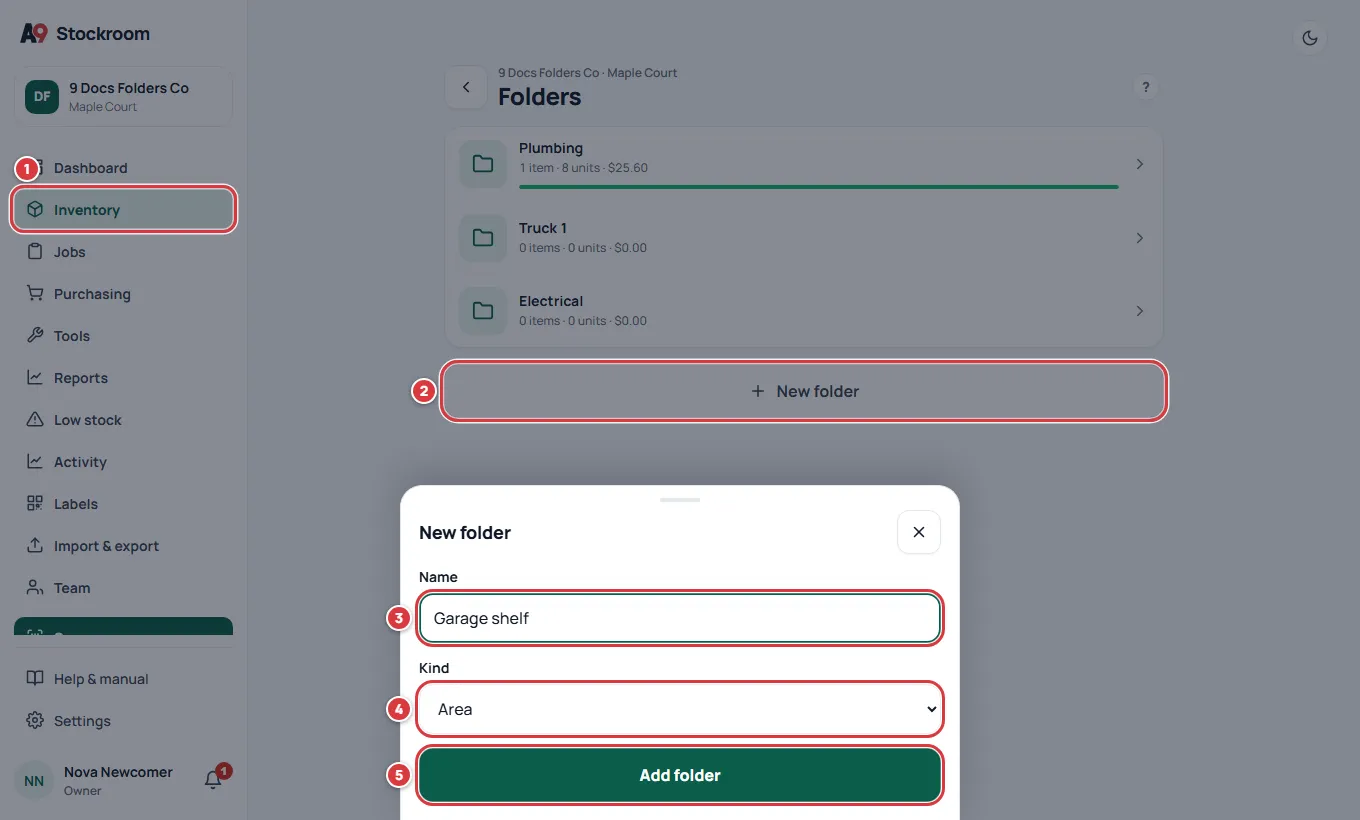
- Click Inventory in the left menu, then Folders at the top of the page.
- Click New folder.
- Type the Name.
- Choose the Kind.
- Click Add folder.
Rename a folder#
Open the folder, tap Folder options, then Rename. Then:
- Change the Name.
- Tap Save.
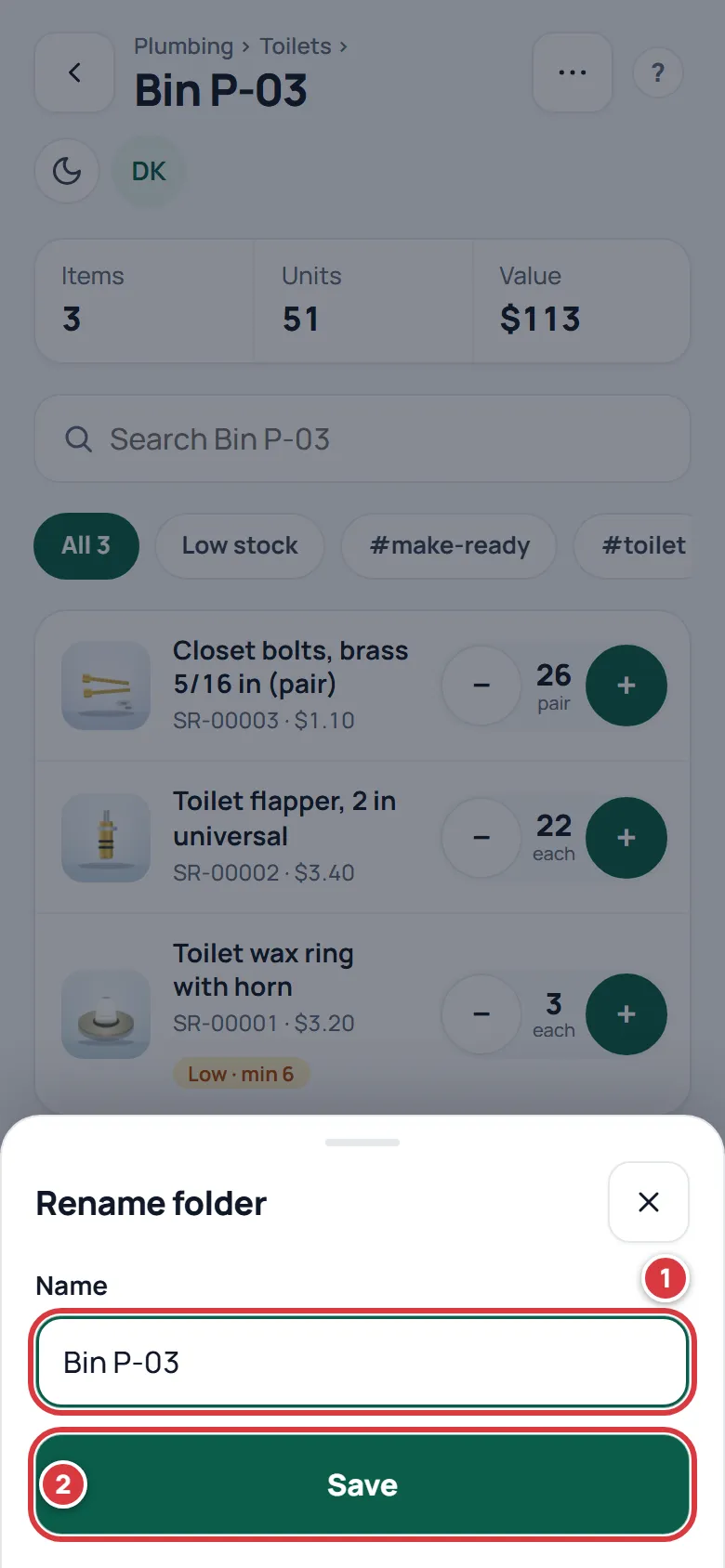
The new name shows at once on the folder, in its path, on item screens and in the pickers. A label already printed with the old name still scans to the right folder.
Move a folder#
Moving a folder takes it, and everything in it, to a new place in the same location.
Open the folder, tap Folder options, then Move. Then:
- Choose where under Move into. Top level takes it out of any folder.
- Tap Move.
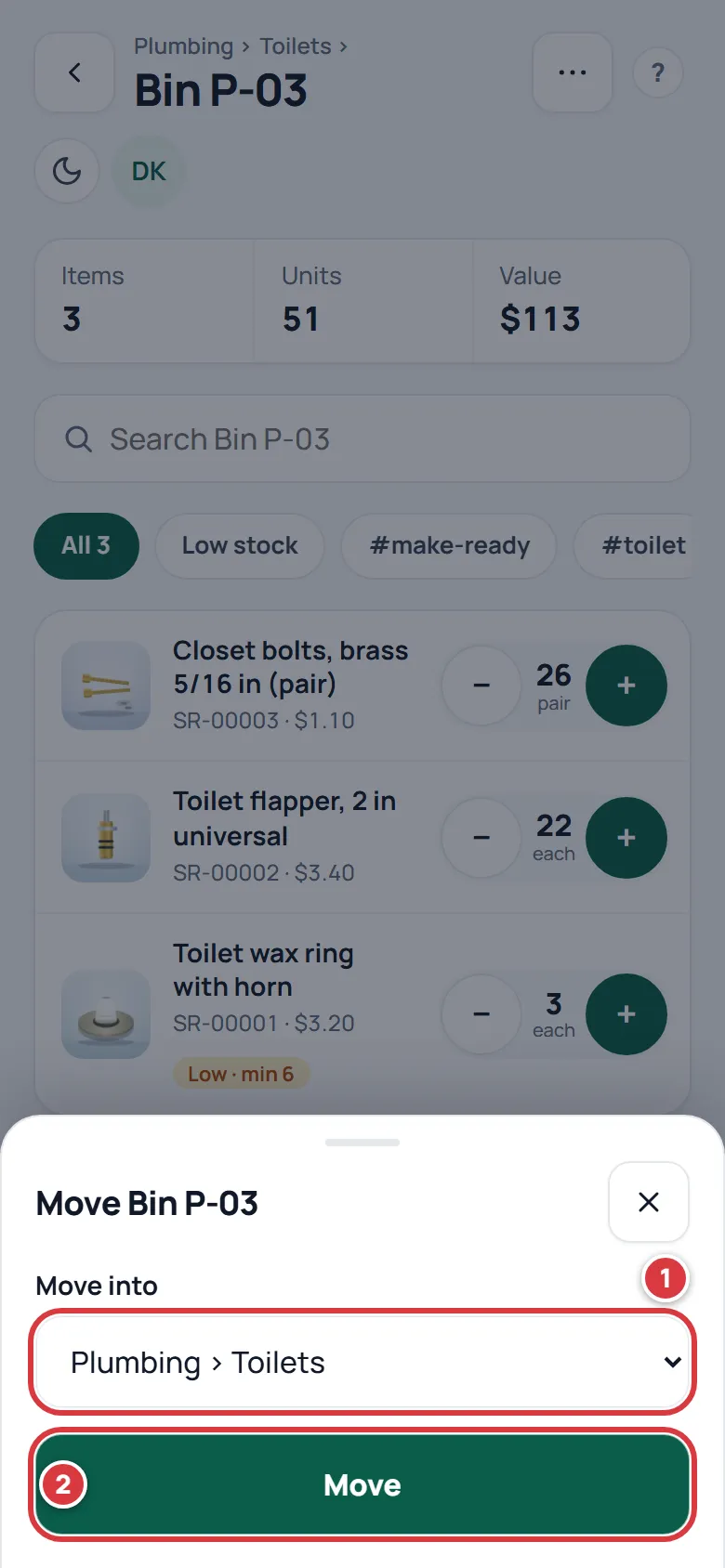
A folder can only move inside its own location. To get stock into another location, transfer it. See Moving stock.
Put stock in a folder#
A folder starts empty. You can fill it three ways:
- On the folder, tap Add to and the folder's name. The new item form opens with this folder already chosen. See Items.
- On an item, use Receive or Move and pick the folder. See Receiving stock and Moving stock.
- On a new item, type a Starting quantity and choose the Folder.
Delete a folder: archive it#
Archiving is how you remove a folder. There is no delete: the folder disappears from every list, and its history stays.
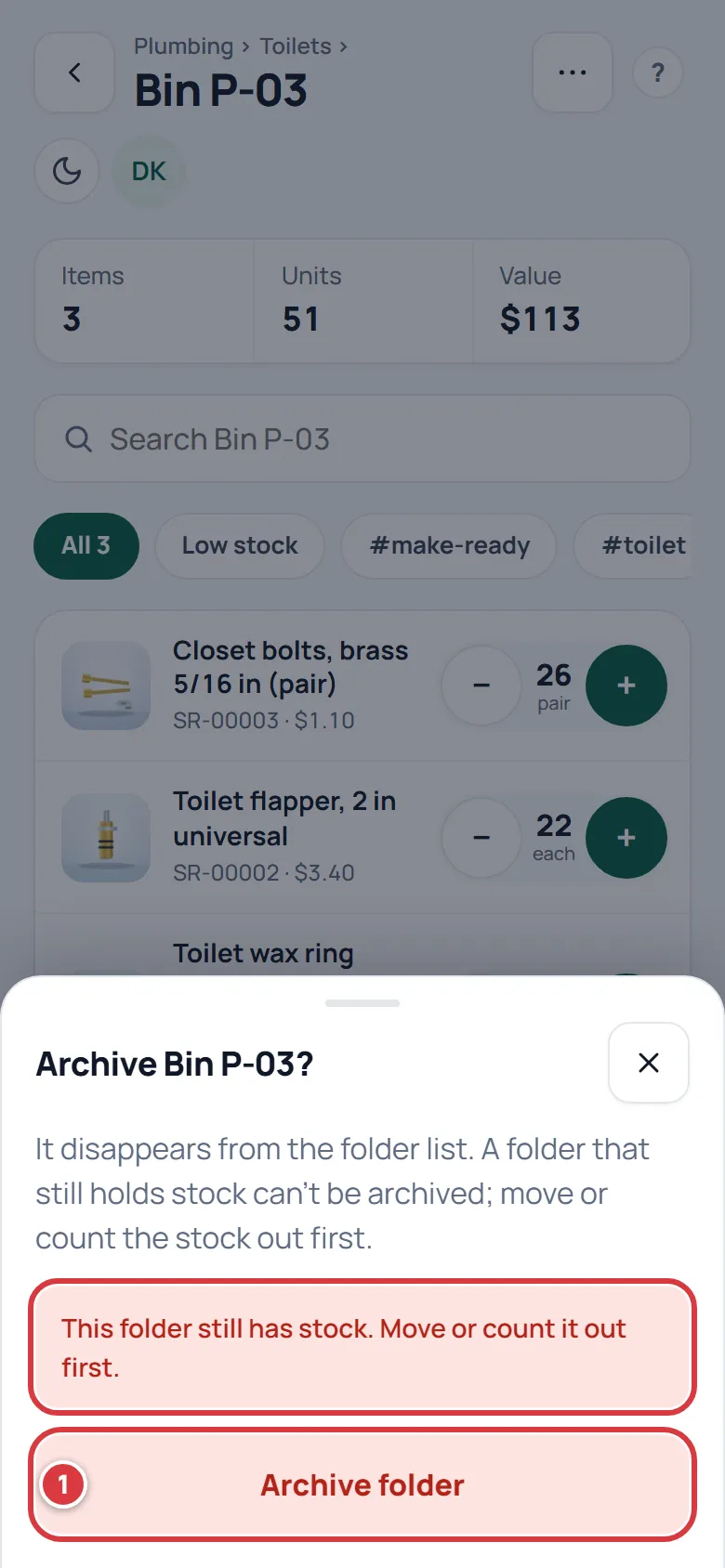
A folder can only be archived when it holds no stock, and nothing inside it does either. If it holds even one unit, the app refuses. Move the stock out, or count it down to zero first. See Moving stock and Counting stock.
Open the folder, tap Folder options, then Archive. Then:
- Tap Archive folder.
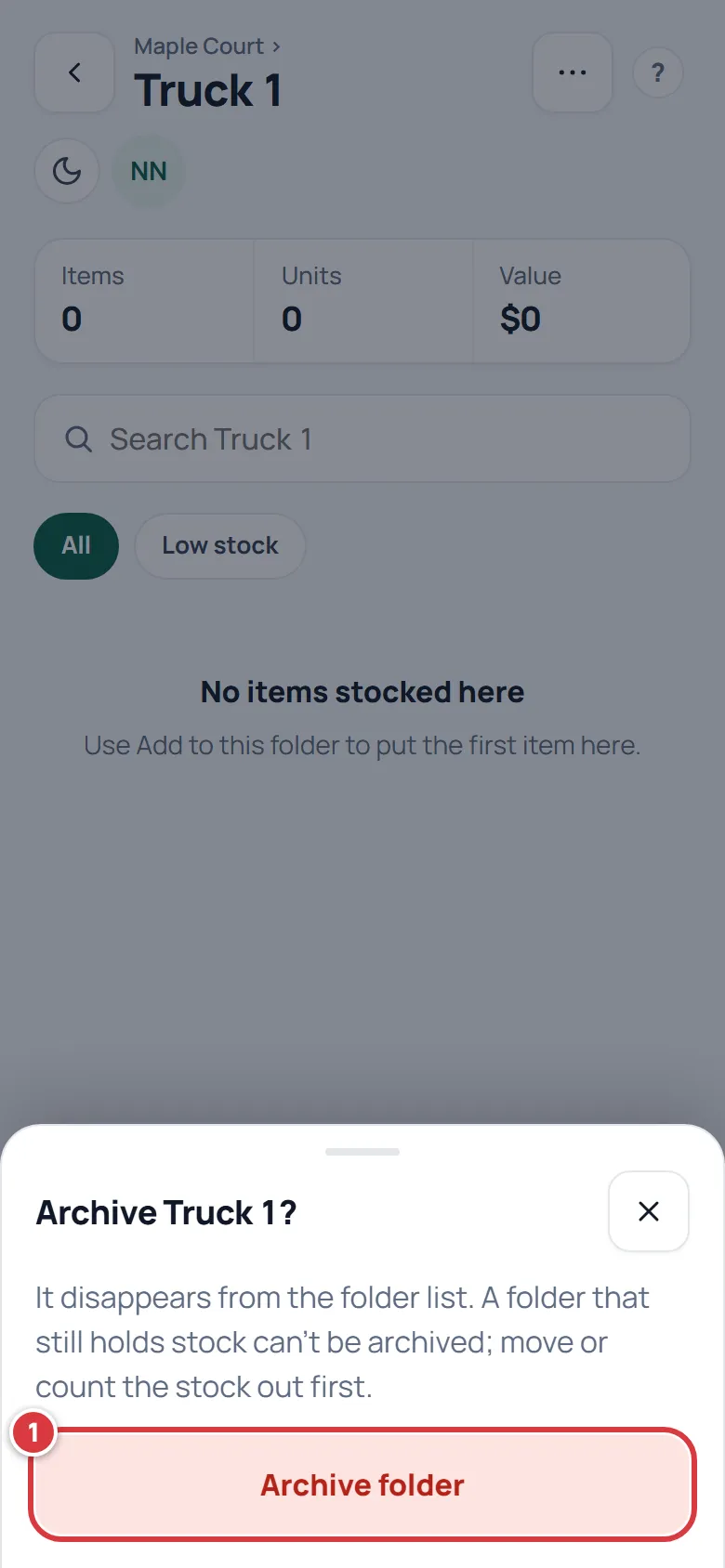
You go back to the folder above it, or to the list. Archiving a folder also hides the folders inside it. There is no button in the app to bring an archived folder back, so add a new folder with the same name if you archived the wrong one.
Print a folder's QR label#
A folder's label is a QR code you stick on the shelf, the bin or the truck door. Scanning it opens the folder.
Tap Settings, then Labels. On a computer, click Labels in the left menu. Then:
- Tap A whole folder.
- Choose the Folder.
- Look at the preview. It starts with the folder's own label, followed by a label for every item stocked in it and below.
- Tap Print.
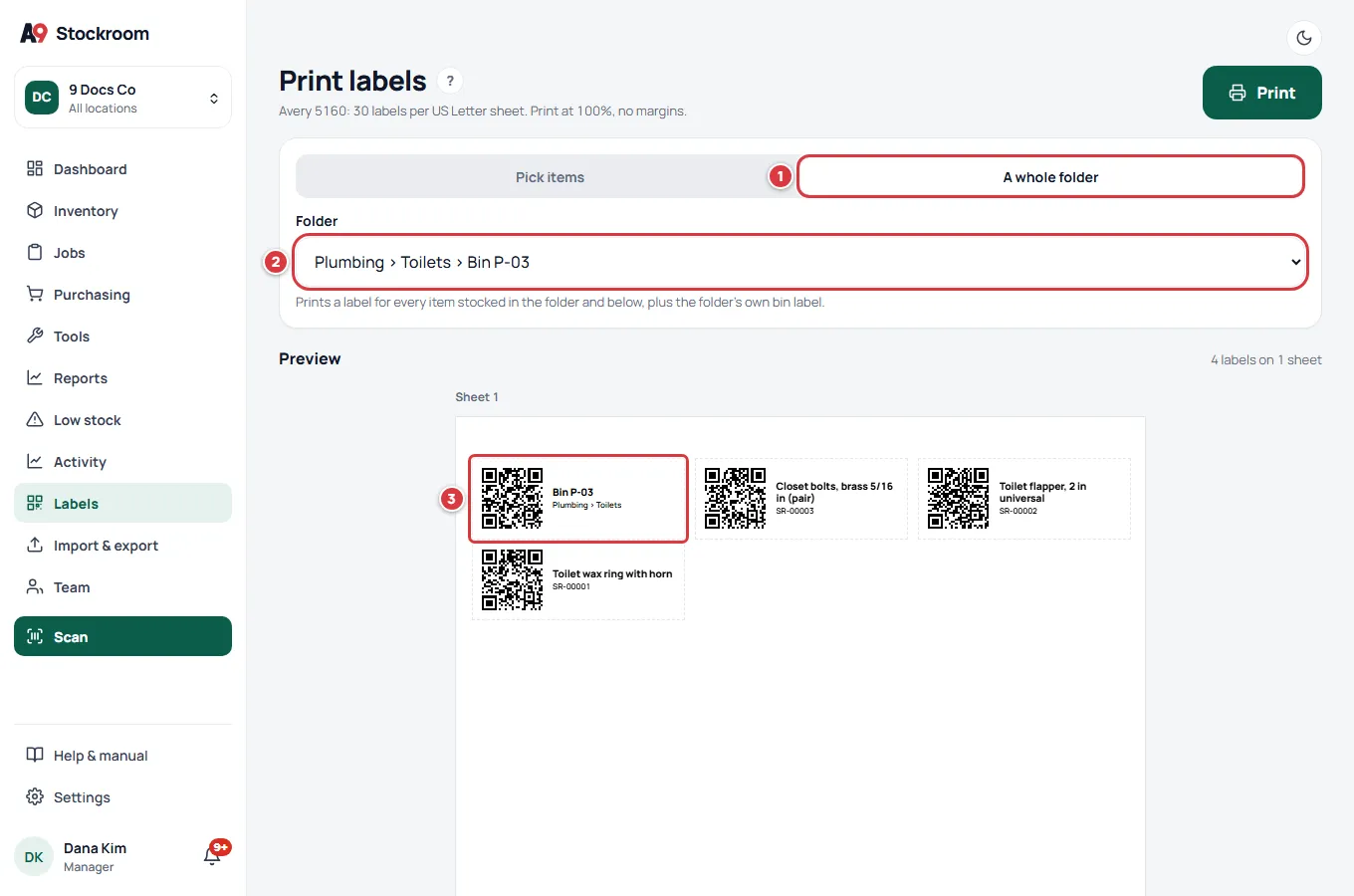
The folder's own label shows its name, the path above it and, for a top-level folder, its kind. See Labels and printing for sheets, printers and sizes.
What you'll see#
- After Add folder, the folder is in the list. It shows "0 items · 0 units · $0.00" until you put stock in it.
- After Rename or Move, the folder keeps its stock. Its path changes if you moved it.
- After Archive folder, the folder is gone from the list and from the pickers on item screens.
The folder page#
Tap a folder in the list to open it. The folder page shows what is in it.
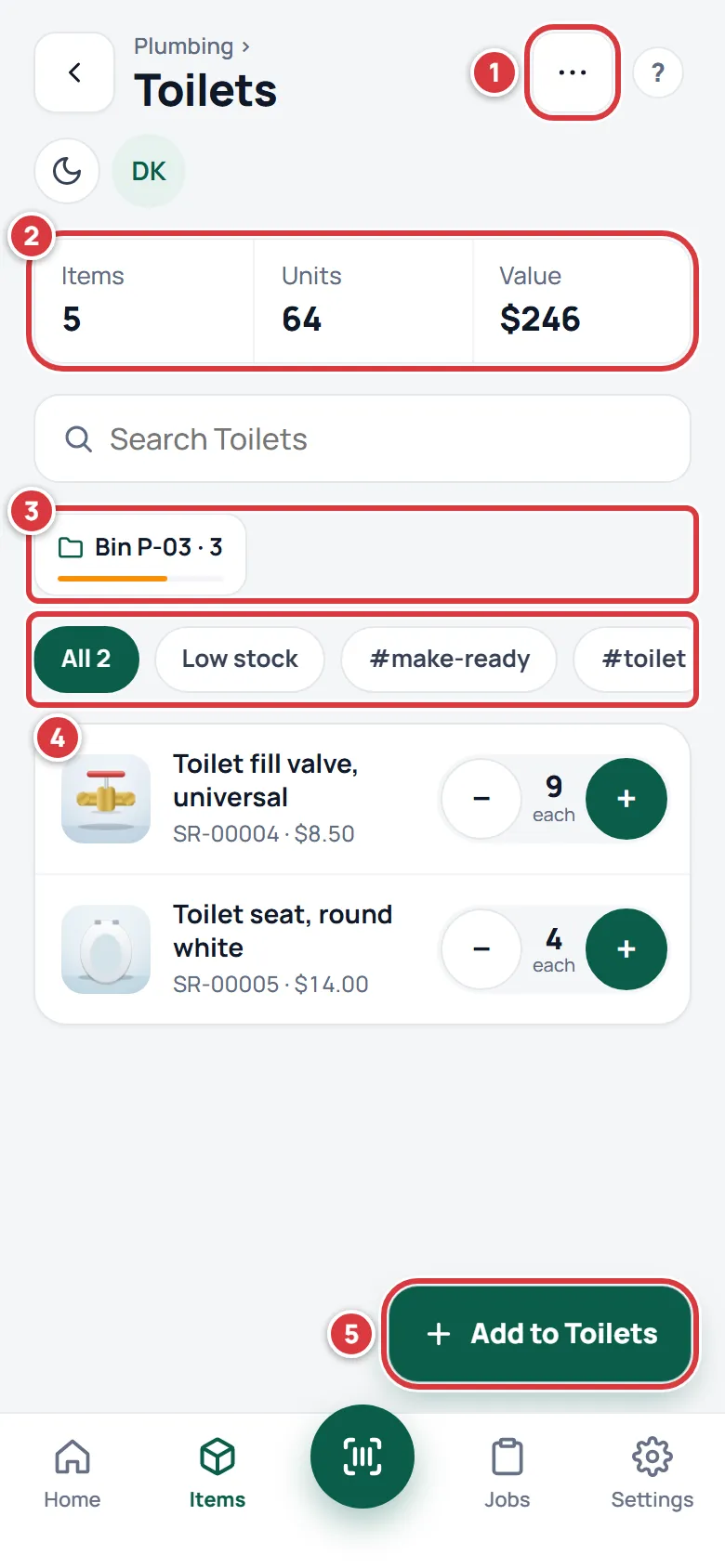
- Folder options, for managers and owners: Rename, New sub-folder, Move and Archive.
- The totals. Items is how many different items are stocked in the folder and in the folders inside it. Units is how many pieces. Value is units times their unit cost.
- The sub-folder chips, with the number of items in each. The thin bar under a name is its health: the share of its items that are at or above their minimum. A full green bar means nothing is low. A shorter or amber bar means some items are low. Tap a chip to open that folder.
- The filter chips: All, Low stock and one for each tag in the folder. The search box above them looks in this folder only.
- Add to and the folder's name, for managers and owners.
The list under the chips shows the items stocked directly in this folder, not the ones in its sub-folders. If everything is in the sub-folders, the page says so.
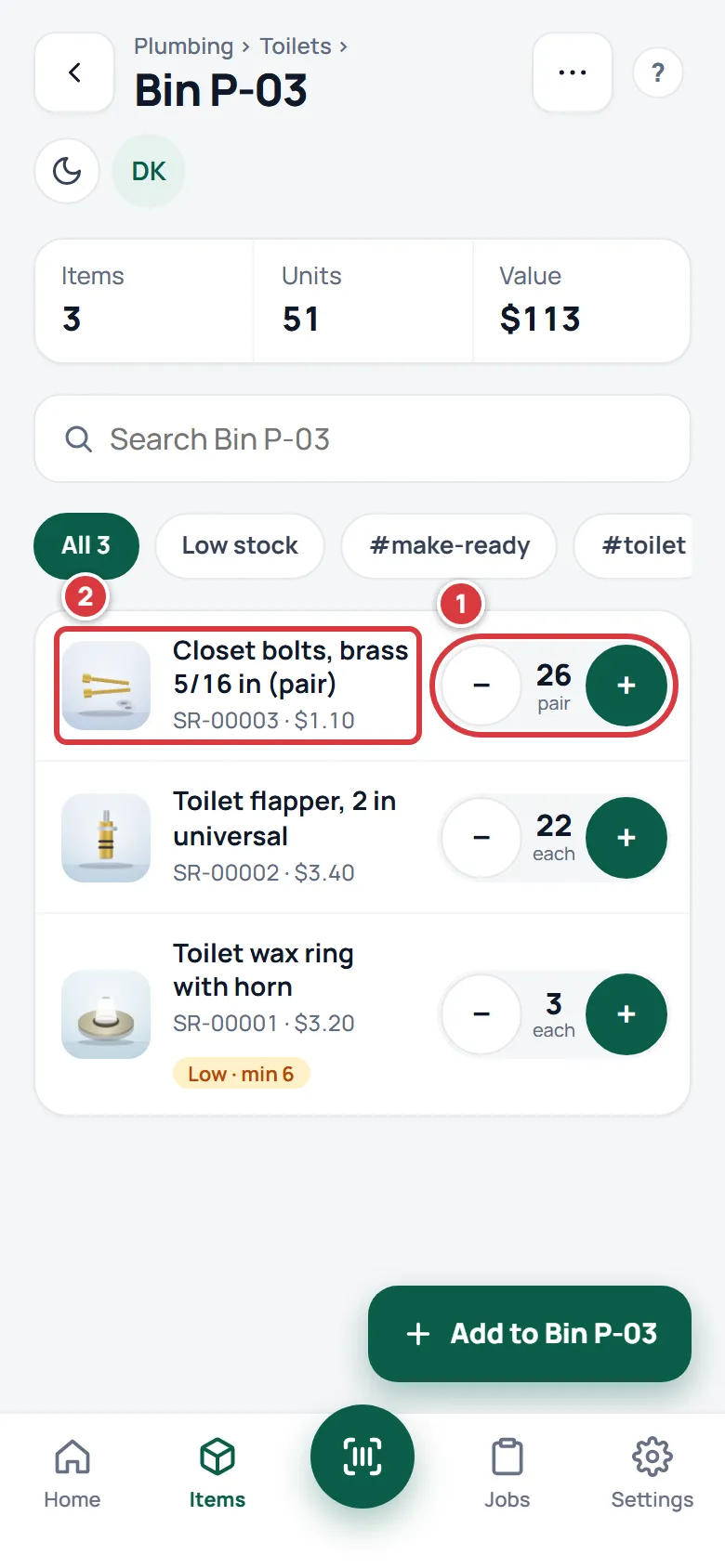
On each row, 1 is the minus and plus for taking or adding one piece. 2 opens the item. Techs get the same buttons. Viewers see the numbers only.
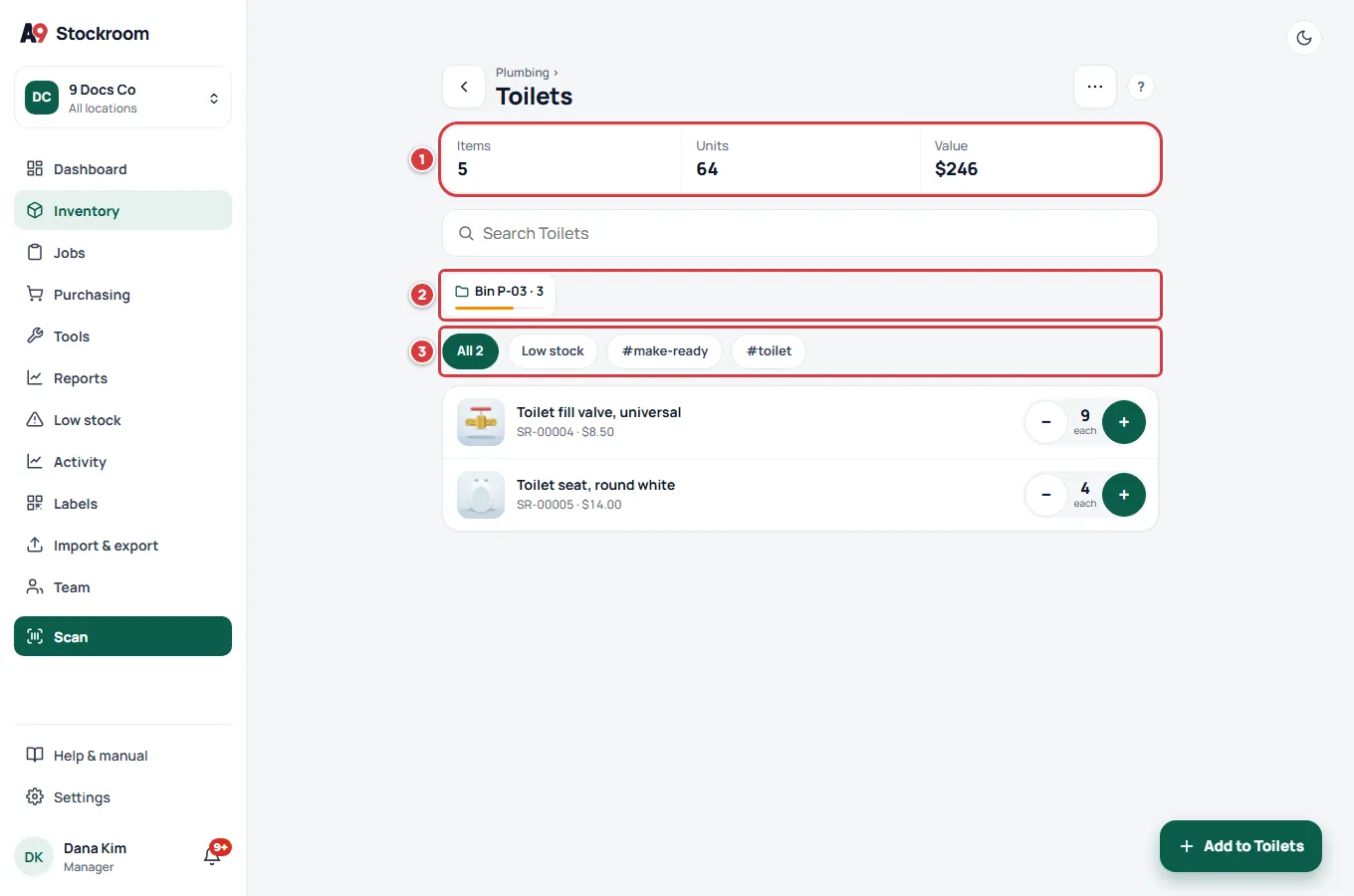
On a computer the folder page has the same parts, with the menu on the left.
Kinds#
The kind is Area, Bin or Truck. It is a label to help people. It does not change how stock works, and you cannot change it after the folder is made. It shows on the printed label of a top-level folder.
- Area: an aisle, a room, a shelf, a cabinet.
- Bin: one bin or box.
- Truck: a truck or a van. A job can work out of a truck folder, so what a tech takes comes off the truck. See Jobs.
Where a new folder goes#
A new top-level folder goes into the location you are looking at. If All locations is on, it goes into your first location: the one at the top of the location menu, which is the one that was added first, not the first in alphabetical order. On All locations the Folders list does not say which location a folder is in; pick one location in the switcher to see only its folders. To put a folder somewhere else, switch location first. See Locations.
A sub-folder always goes into the same location as the folder it is inside.
If it didn't work#
Archive folder says the folder still has stock#
The message is "This folder still has stock. Move or count it out first." The folder, or a folder inside it, holds at least one unit. Open it, move or count the stock to zero, then try again.
Move says it did not save#
A folder can only move inside its own location. If All locations is on, the list also shows folders from other locations; pick one in the same location as the folder you are moving.
I can't see New folder or Folder options#
Your role is Tech or Viewer. Ask a manager or an owner.
The new folder went into the wrong location#
Folders cannot change location. Archive the new folder (it is empty) and add it again after you switch to the right location.
I archived a folder by mistake#
The app has no way to bring an archived folder back. Add a new folder with the same name and move stock into it. Write to support@a9stockroom.com if you need the old one back.
The folder I want is not in the Labels list#
The Labels list only has live folders in the locations you can see. Check that the location is right and the folder is not archived.