Working without signal
Keep scanning and taking stock with no signal. What waits on your phone, what needs a signal, and how to fix a change that didn't sync.
A basement, a roof or a dead zone should not stop your work. Scanning, taking, returning and counting all work with no signal. Your changes wait on your phone and send themselves when the signal is back.
Describe this diagram
With a signal, each change goes straight through. With no signal, an Offline bar appears and each change waits on your phone as a pending row. When the signal returns, the waiting changes are sent in order. Most sync. Any that can't are listed under Needs attention, with the reason.
What you'll need#
- A phone with A9 Stockroom signed in, in its browser or installed. Installing is optional: see Install on your phone or computer.
- A signal when you start. Open the app once with a signal and let Home load. Your phone then saves the app and a copy of your stockroom: your items, folders, open jobs and tools. It keeps that copy up to date whenever you have a signal.
- Nothing else. There is nothing to switch on.
Steps#
Read what this video shows
- The phone has a signal and shows Home. It saves a copy of the stockroom.
- The signal drops. An Offline label appears at the top.
- Tap Scan to take or return and scan an item.
- Tap the big Take button.
- A label at the top says "1 waiting to sync".
- The signal comes back. The label goes away: the change has synced.
Work with no signal#
- Keep working. Scan an item, tap Take, Return, Count or Receive, or open an item and use the buttons on it. You can also start and close jobs and check tools in and out.
- Look at the top of the screen. The label that starts with Offline tells you that you have no signal. It reads "Offline, showing data from" and the time of the copy your phone is showing.
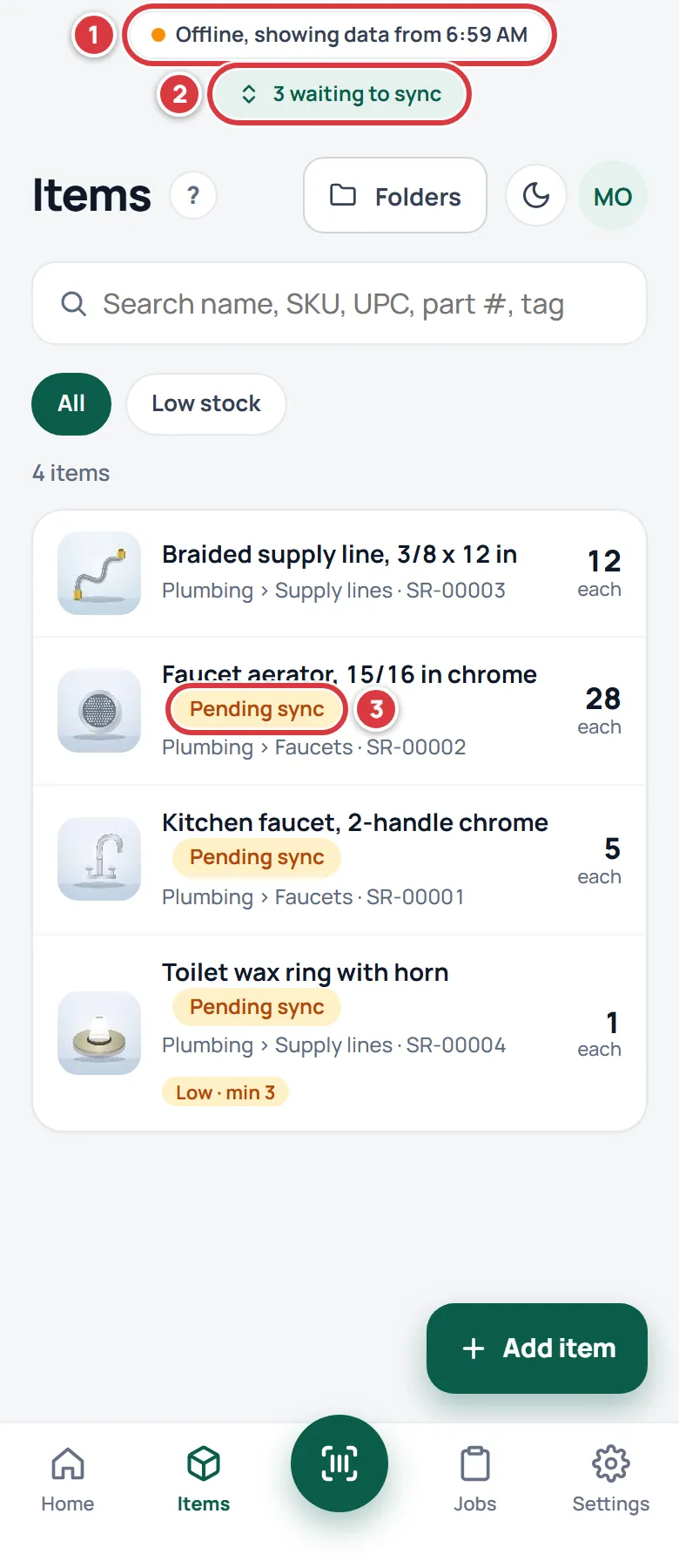
- Each change you make is saved on your phone first. A label at the top counts them, "3 waiting to sync".
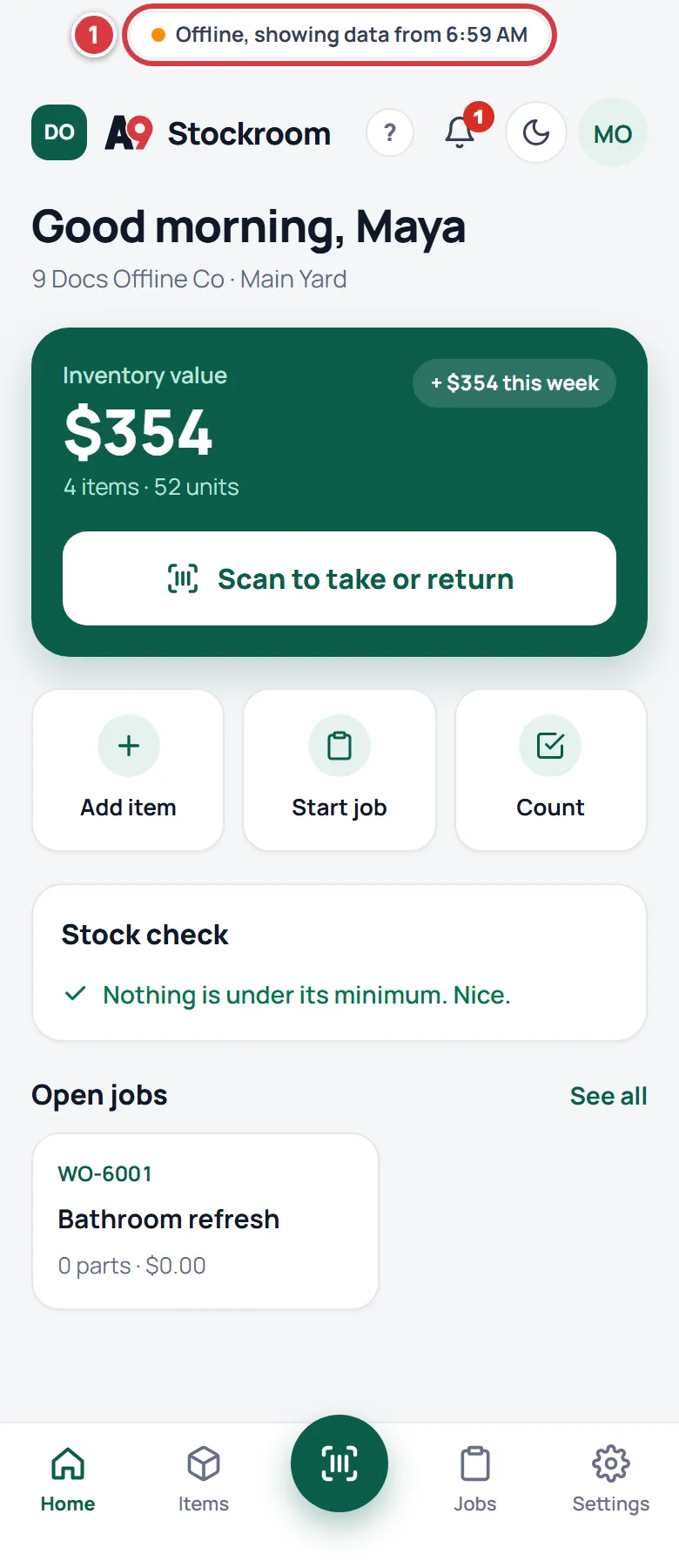
The items you changed show a Pending sync tag until the change reaches the stockroom. The numbers on screen already include your changes, so what you see is what you did. On a job's page, the Materials (cost) total at the top counts a waiting take straight away, but the list under Taken for this job may not show it until it has been sent.
Close the app, switch off your phone, or walk to another floor. The waiting changes stay on your phone.
See what is waiting#
Tap the label at the top. The Sync sheet opens. It lists every change that is waiting, in the order you made them, with the time you made it.
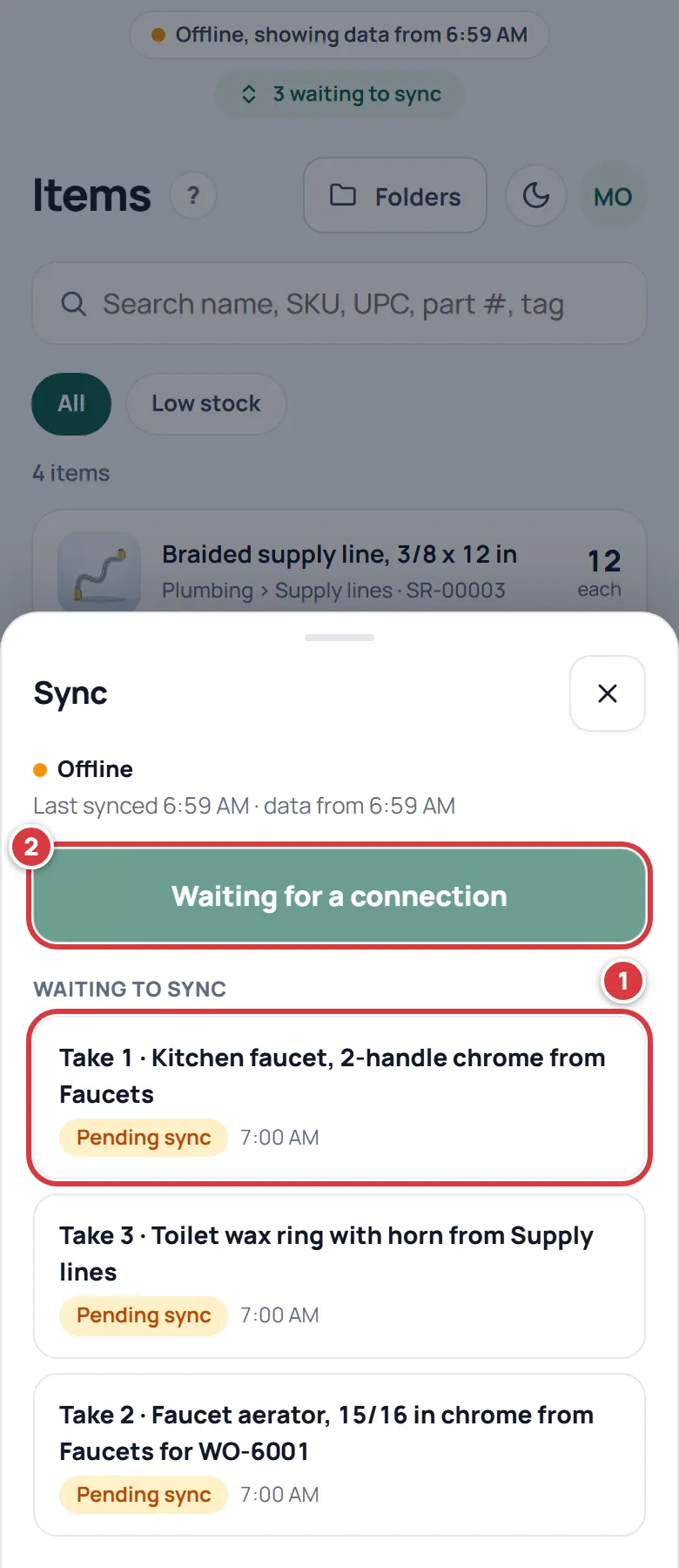
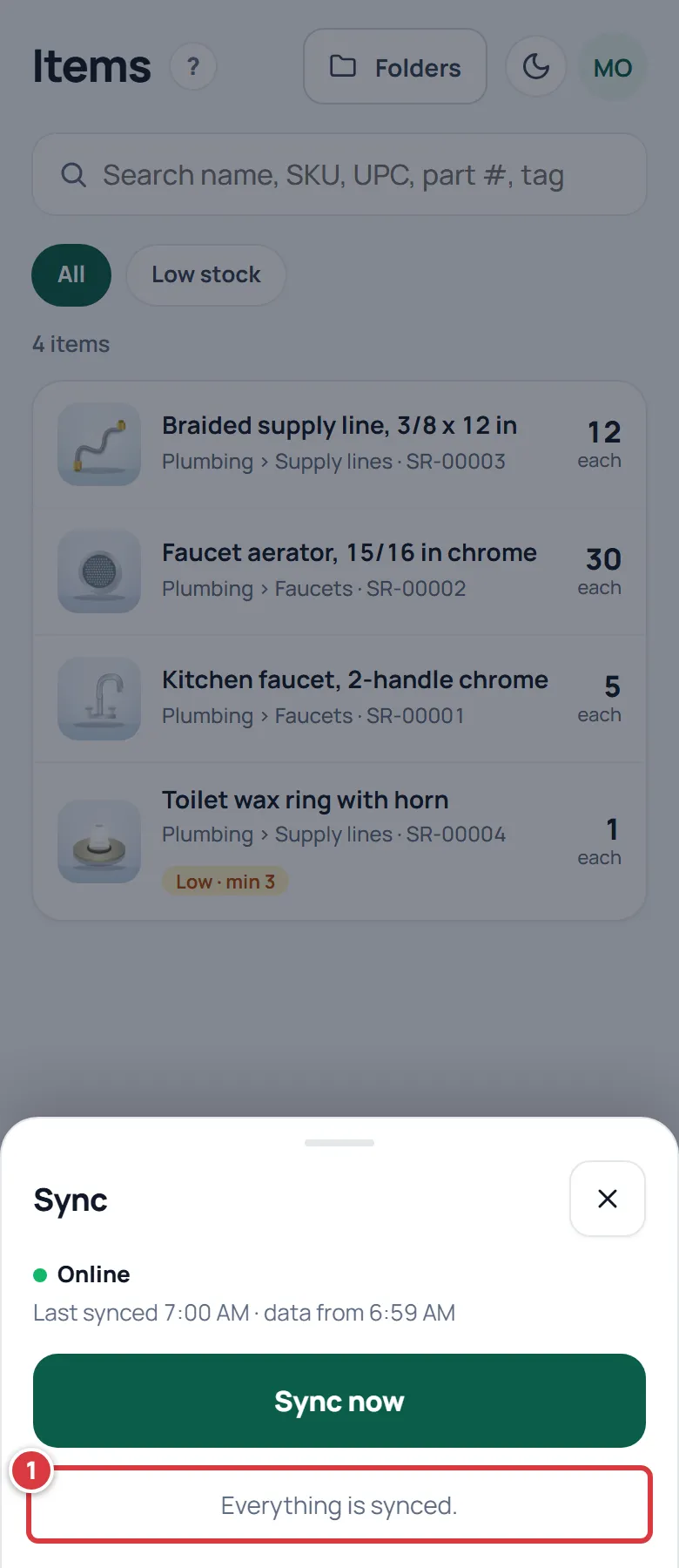
When you have a signal again, the changes are sent by themselves. You can also tap Sync now. The sheet says Online or Offline and when it last synced.
Check that your changes synced#
With a signal, the waiting-to-sync label goes away, usually within a few seconds. To be sure, tap your initials (Account menu) in the top corner of any screen, then Sync. The sheet says Online and Everything is synced., with nothing listed under Waiting to sync or Needs attention. The part is then on the job: open Jobs, tap the job, and the list and cost include it.
Fix a change that didn't sync#
A scan that didn't sync (a take, return or count you scanned) is not lost. The phone sent it and the stockroom said no, usually because someone else changed something while you had no signal. Your phone keeps it under Needs attention and tells you why.
- Tap the label at the top. It says "2 need attention" with a warning mark.
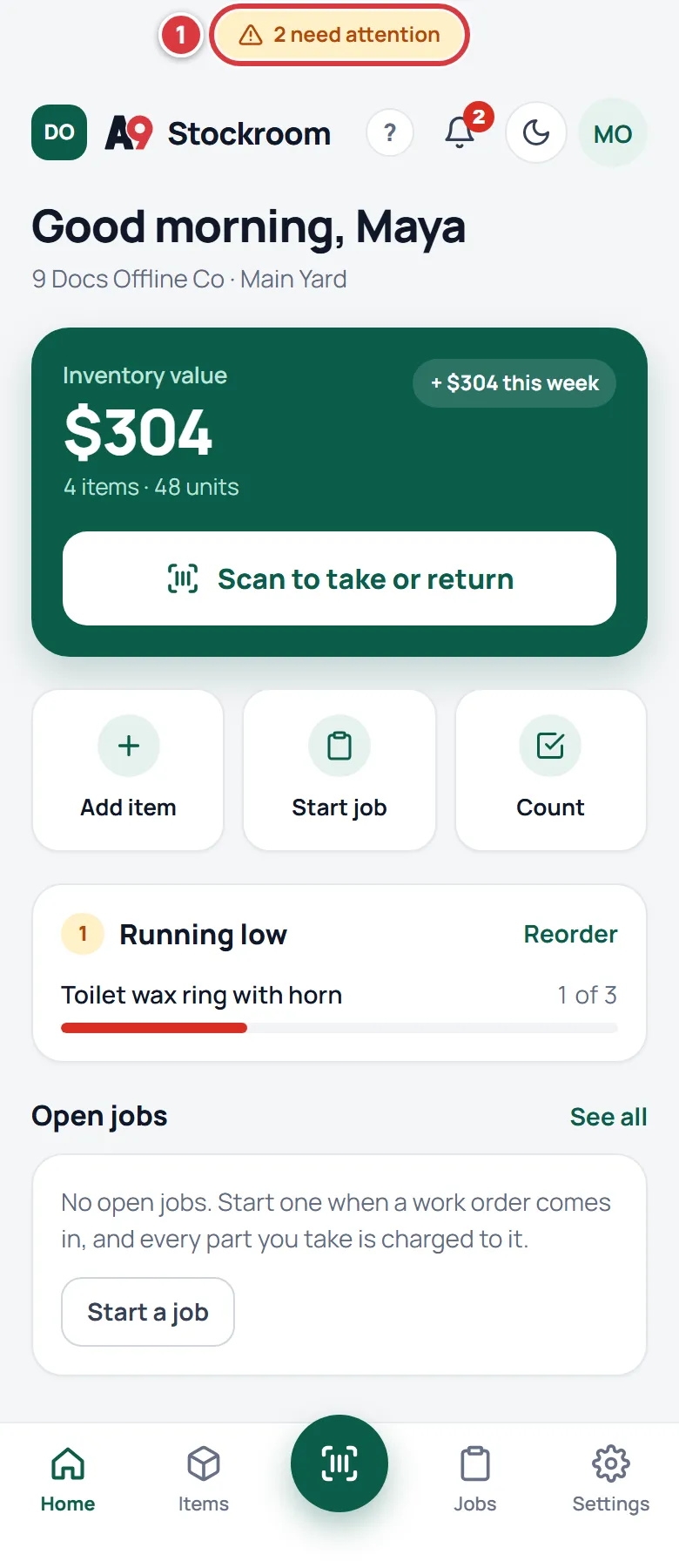
You can also tap your initials (Account menu) in the top corner of any screen, then Sync. On a computer the menu is at the bottom of the left sidebar.
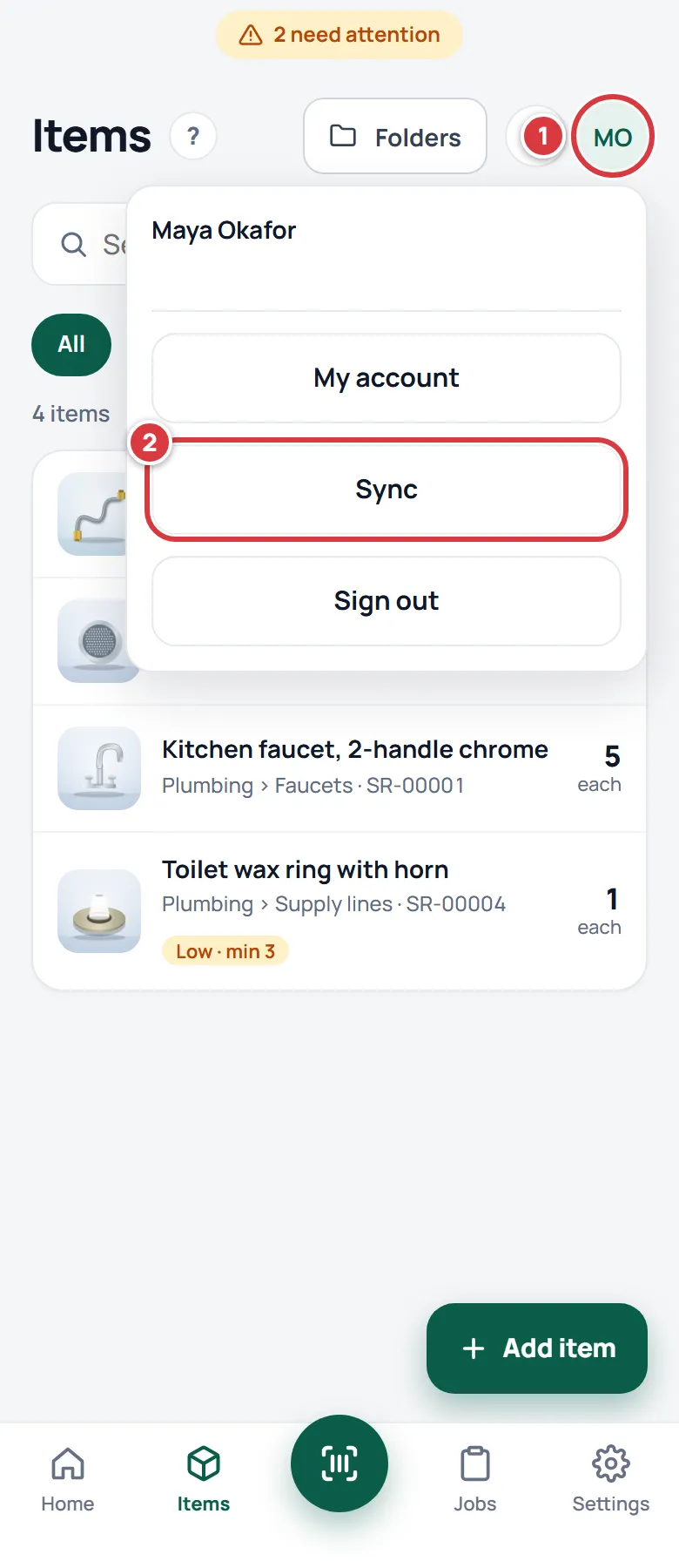
- Under Needs attention, read the line under the change. It says what went wrong.
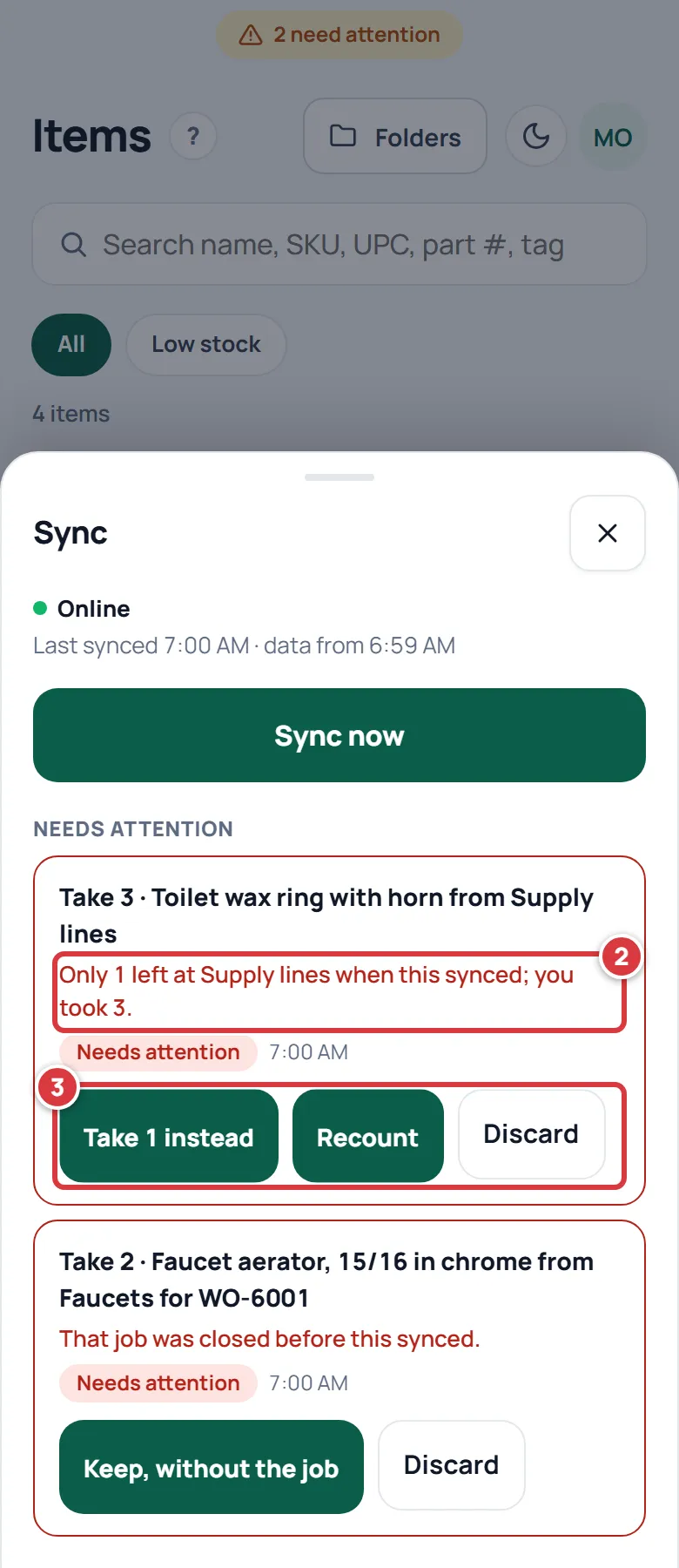
- Tap the button that fits. Which buttons you get depends on the reason. The cases are below.
The shelf had less than you took#
The reason says, for example, "Only 1 left at Supply lines when this synced; you took 3." Someone else took stock while you were offline. You get up to three buttons.
- "Take 1 instead". It takes what is left. The number is how many are left. This button is missing when none are left.
- Recount. Use it when the shelf really has more than the app thinks. Count what is on the shelf now, after your take. You type that number, and the phone fixes the count first and then sends your take.
- Discard. Drop the change. Use it when you didn't really take it, or you will do it again.
To recount:
- Tap Recount. Type the number on the shelf now, in the box that asks "How many are on" the folder "now?".
- Tap Save count and retry. If you change your mind, tap Cancel.
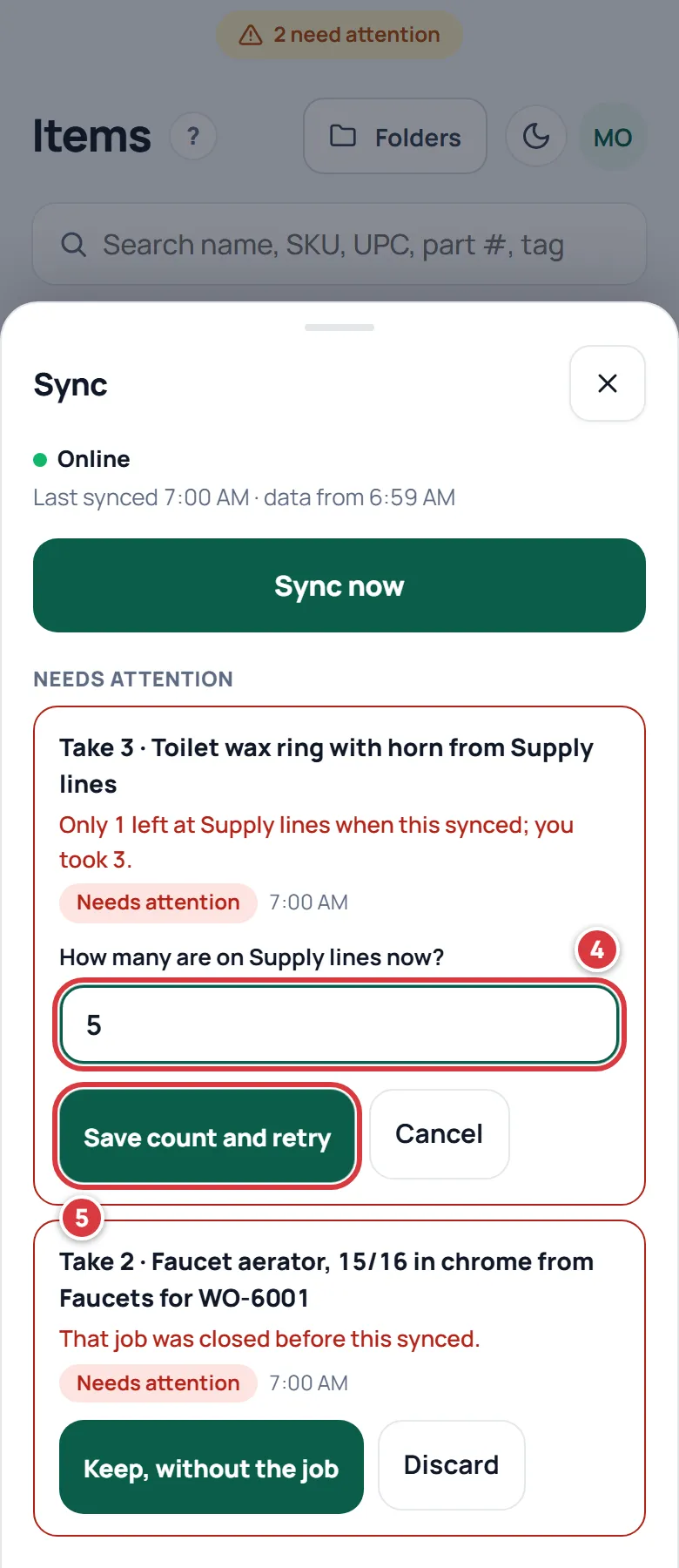
If the number you type is still too low for your take, the change comes back under Needs attention.
The job was closed#
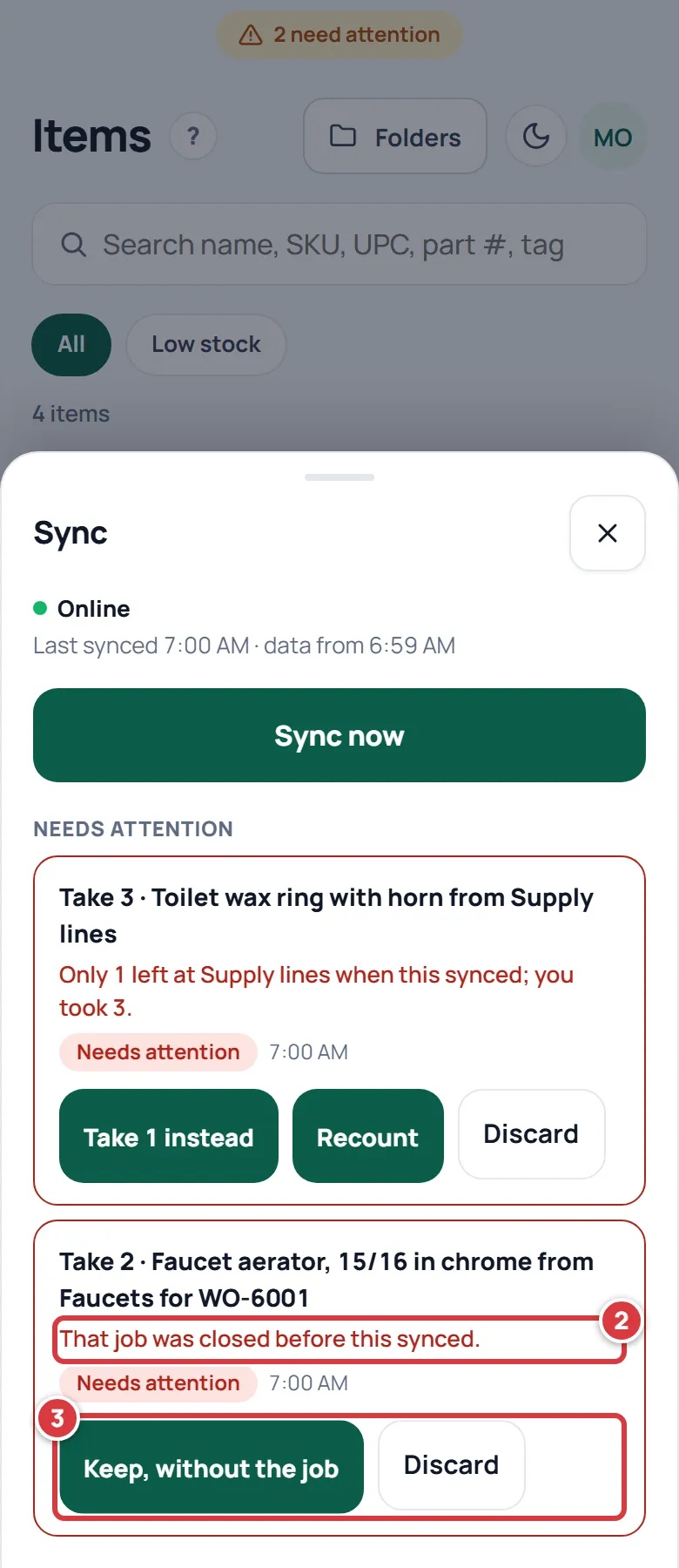
The reason says "That job was closed before this synced." Someone closed the job while you were offline. You get two buttons.
- Keep, without the job. The take goes through, charged to no job. Use it when the part was really taken and a manager can sort out the job.
- Discard. Drop the change.
An item, a folder or a job is gone#
The reason says "That item isn't there any more.", "That folder isn't there any more." or "That job isn't there any more." Someone removed it while you were offline. The only button is Discard. Take the part again from the item that replaced it, if there is one.
Any other reason#
- "That location was archived before this synced.", "Your role can't do that.", "Someone else checked that tool out first." and "The job this belongs to didn't sync, so this can't go through." can only be discarded. Tap Discard. Then redo it the right way if you still need to.
- "Your company is read-only right now. Try again when access is back." gives you Try again and Discard. A company is read-only when its plan has lapsed. See Your plan.
When you have dealt with every change, the sheet says Everything is synced. and the label at the top goes away.
Update the app#
A new version of A9 Stockroom is downloaded in the background when you have a signal. When it is ready, a bar says Update ready, tap to refresh.
- Finish what you are doing. Nothing reloads by itself, so you will never lose your place.
- Tap Update ready, tap to refresh. The app reloads with the new version.
If you ignore the bar, you keep working on the old version until you tap it or close the app. Updating needs a signal.
Sign in again after a long time away#
If your phone has had no signal for a long time, the app asks you to sign in again with a signal. The sign-in screen says "This phone has been offline for a while. Sign in with a connection to keep going."
Changes that are still waiting are kept safe. Sign in as yourself and they are sent. If someone else signs in on the same phone, the waiting changes are thrown away.
Sign out with no signal#
- Tap your initials (Account menu) in the top corner of any screen, then Sign out.
- If changes are still waiting, the phone asks "N changes haven't synced yet. Signing out now will lose them. Sign out anyway?" Tap Cancel in that box to keep them, and wait for a signal if you can.
Signing out with no signal works. The phone forgets your stockroom at once, and it finishes signing you out when it next has a signal. If you were removed from your company, the same happens by itself: the saved copy on the phone is wiped.
What you'll see#
- With no signal, an Offline label at the top, with the time of the copy on your phone.
- After each change, a count of what is waiting, and Pending sync on the items you changed.
- With a signal again, the count goes down to nothing. If a change is refused, the label turns yellow and says it Needs attention.
- In Activity, a change you made offline shows the time you made it, with "synced later" if it reached the stockroom more than 5 minutes after. See Activity and history.
What works with no signal#
- Finding things: Home, Items, folders, search, and scanning a label or a barcode.
- Taking, returning, counting and receiving stock, and moving stock for managers.
- Transfers between locations.
- Starting a job and closing a job, and the scanner's job chip. See Jobs.
- Checking a tool out and in. See Tools.
- Low stock.
- Help under Settings.
What needs a signal#
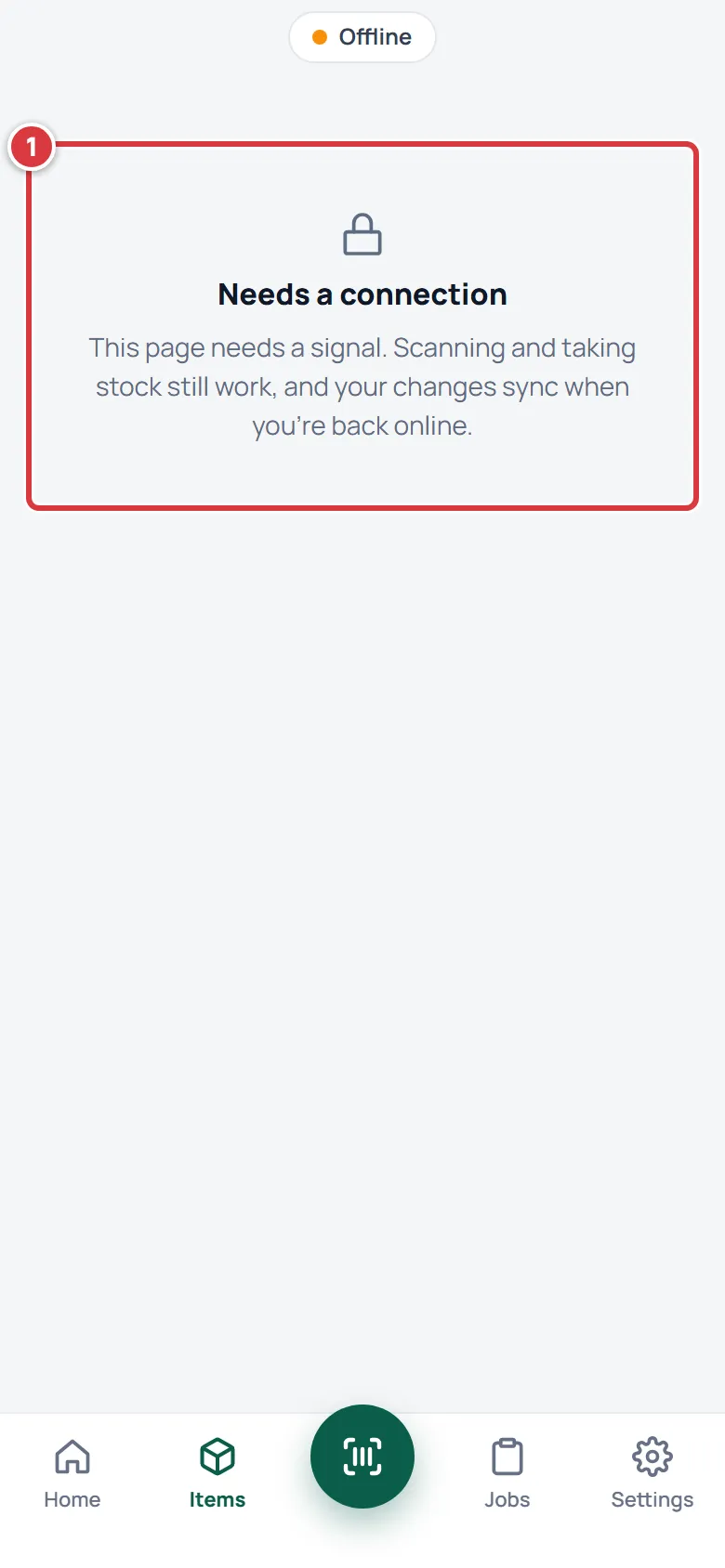
These pages say Needs a connection when you open them with no signal.
- Purchase orders and suppliers, including receiving against a purchase order.
- Reports, Activity and Labels.
- Import and export.
- Settings, such as your account, the team and the company. Help is the exception.
- Adding or editing an item, which includes its photos. See Photos.
- The bell. It is empty until you have a signal.
- Changing your location. The choice waits for a signal.
If it didn't work#
- The label at the top says changes are waiting and nothing happens. You have no signal, or a very weak one. Tap the label, then Sync now. If the button says Waiting for a connection, you are still offline. Move to where there is signal and wait a moment.
- I'm not sure a change was saved. Open the Sync sheet. If it says Everything is synced., it reached the stockroom. If the change is in the list, it is safe on your phone.
- My scan didn't sync. See "Fix a change that didn't sync" above. Open Sync and look under Needs attention.
- A change is in Needs attention and I don't want to lose it. Don't tap Discard. Read the reason. For too little stock, tap Recount or "Take 1 instead". For a closed job, tap Keep, without the job.
- I tapped Discard by mistake. The change is gone. Do it again by hand: scan the item and take it.
- The numbers don't match what I see on the shelf. Count the shelf and fix it. See Counting stock.
- The page says Needs a connection. That page can't work with no signal. Go back, or get a signal.
- Offline doesn't work after I installed the app. Open the app once with a signal and let Home load completely, so the phone can save the app and your stockroom. Then try again with no signal.
- I'm asked to sign in and I have no signal. The phone needs a signal to sign you in. Your waiting changes are safe. Sign in as the same person when you have a signal.
- The Update ready bar doesn't go away. Tap it.