Stockroom
Your first day
Scan it, take it for a job, keep going with no signal. One page to keep in the truck.
Before your shift#
- Open the invite email, tap the link, choose a password and tap Create account. The link works for 7 days.
- Put A9 Stockroom on your home screen: Install on your phone or computer.
- Get a work order number (like WO-4471) from your manager.
Take a part for a job#
- Tap Start job on Home. Type the work order in Reference. Tap Start job.
- Tap the round Scan button. Allow the camera the first time.
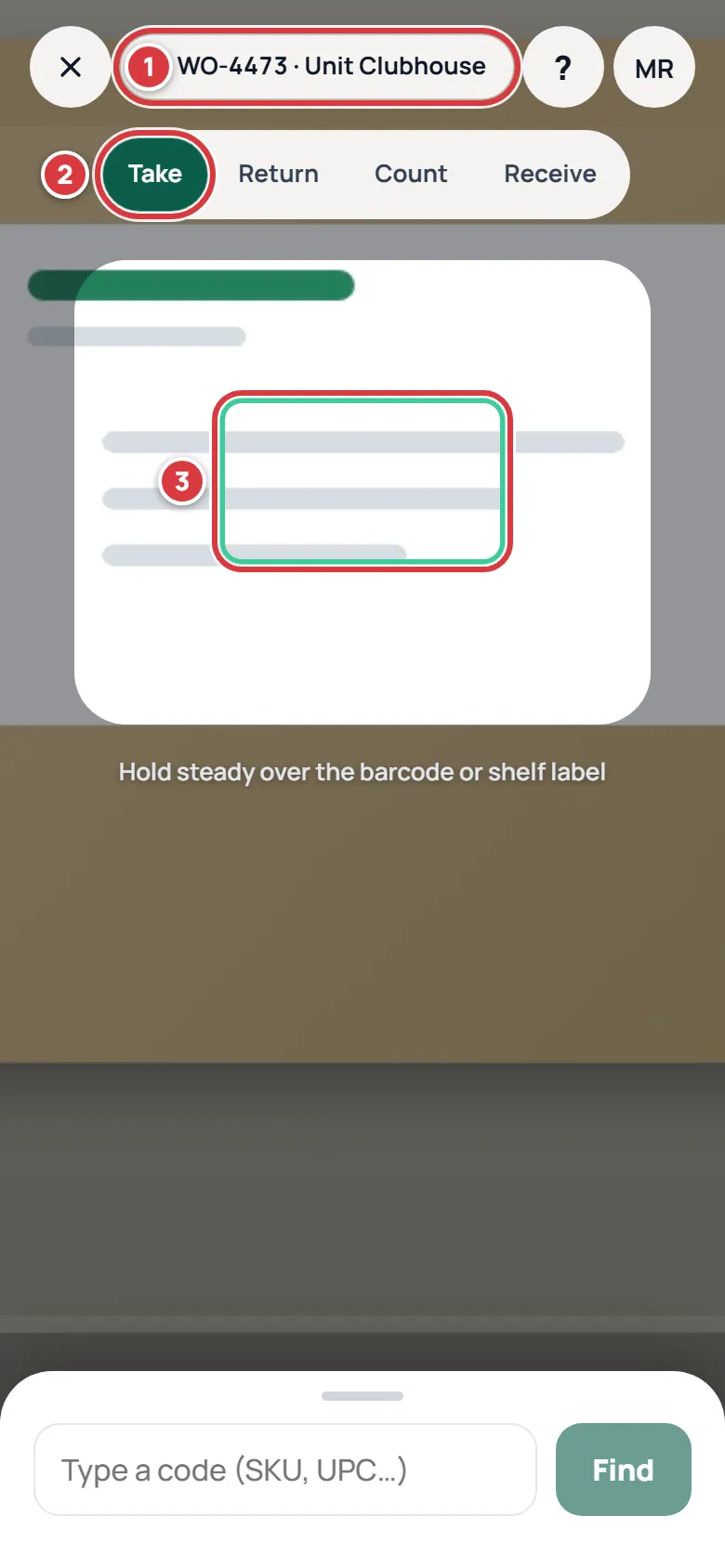
- Check the pill at the top shows your job, and the mode is Take.
- Hold the barcode or QR label inside the frame. A card slides up: Found it.
- Check the name and the number under How many?, then tap Take.
- A message says how many are left.
Bring parts back, or fix a number#
- Return mode puts unused parts back in a folder.
- Count sets the real number when the shelf and the app disagree.
- A label won't scan? Type the code in Type a code and tap Find.
No signal?#
Keep working. Scanning, taking, returning, counting and jobs all work with no signal. An Offline pill shows at the top, and your changes wait on your phone. They send by themselves when the signal is back.
If something can't be accepted, it shows under Needs attention with the reason. Open your initials, then Sync.
Stuck?#
Search the manual at a9stockroom.com/docs (press /), or in the app open Settings, then Help. Still stuck? Write to support@a9stockroom.com.