Getting help
Open this manual inside A9 Stockroom without leaving your screen: the Help and manual button, the question mark in each header, search, and what to do with no signal.
The whole manual is inside the app. You can look something up while you work and then go straight back to what you were doing. The screen underneath keeps its place and keeps what you typed.
What you'll need#
- Nothing but the app. The first time you open help you need a signal. After that the manual is kept on your device, so it opens with none.
- On a computer, a window at least 1024 pixels wide. Narrower than that, help opens as a sheet from the bottom, like on a phone.
Steps#
Open help on a computer#
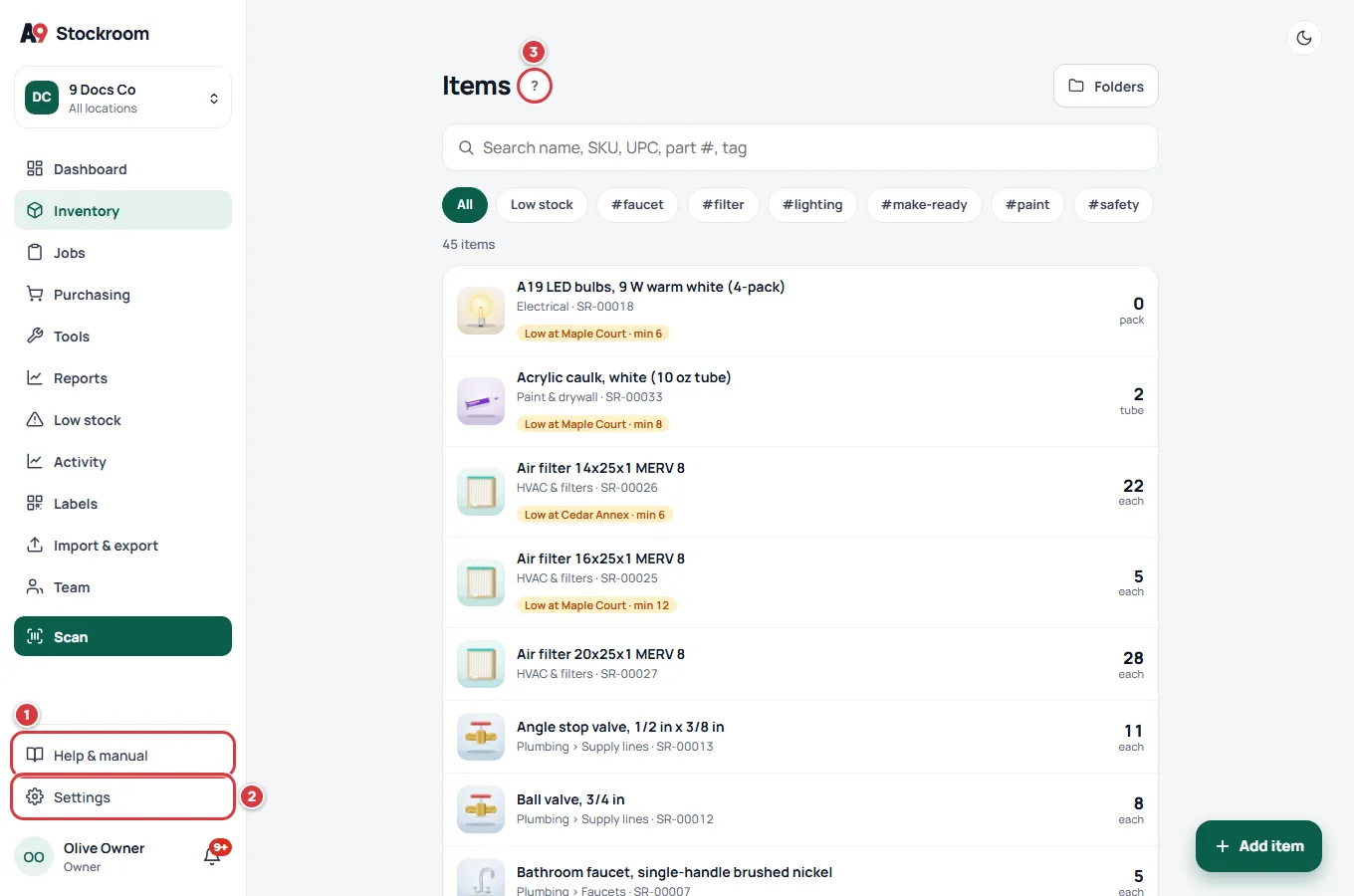
- Look at the bottom left of the menu, just above your name. Help & manual and Settings sit there together, with a line between them and the rest of the menu.
- Click Help & manual. A panel slides in from the right and opens on the page of this manual for the screen you are on.
- Or click the small ? in the screen's header. It does the same.
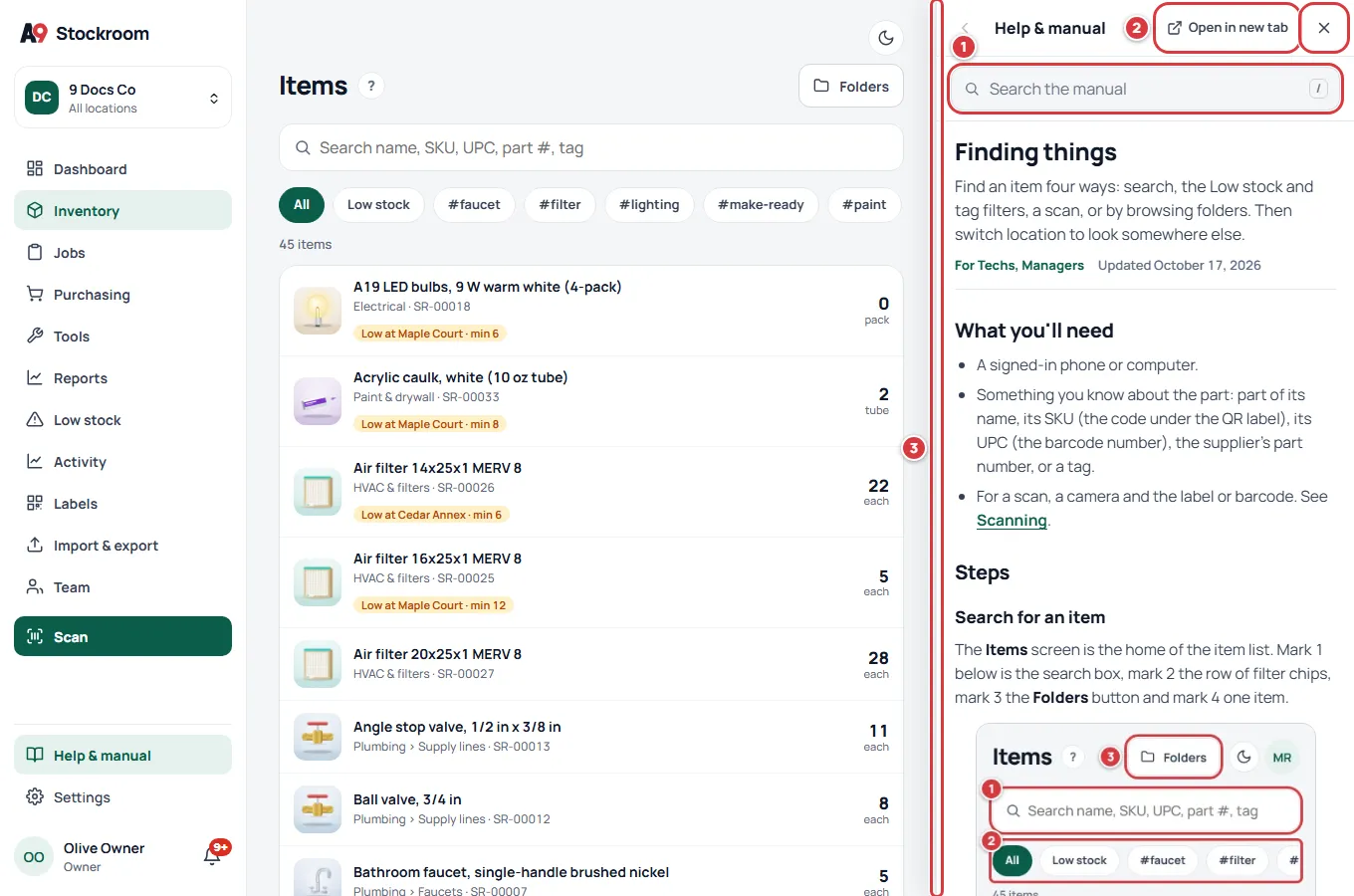
The panel sits beside your screen. It is not a pop-up: you can keep working on the left. If you are in the middle of a form, what you typed is still there when you close the panel.
Search the manual#
- Click Search the manual and type what you want to do, in your own words, for example "make a new bin".
- The results list shows each page and section that answers it, with a few words from it. Click one.
- The page opens in the panel with its pictures. Click a picture to see it larger.
- Click the back arrow at the top left of the panel to go back to your results, or to the page before.
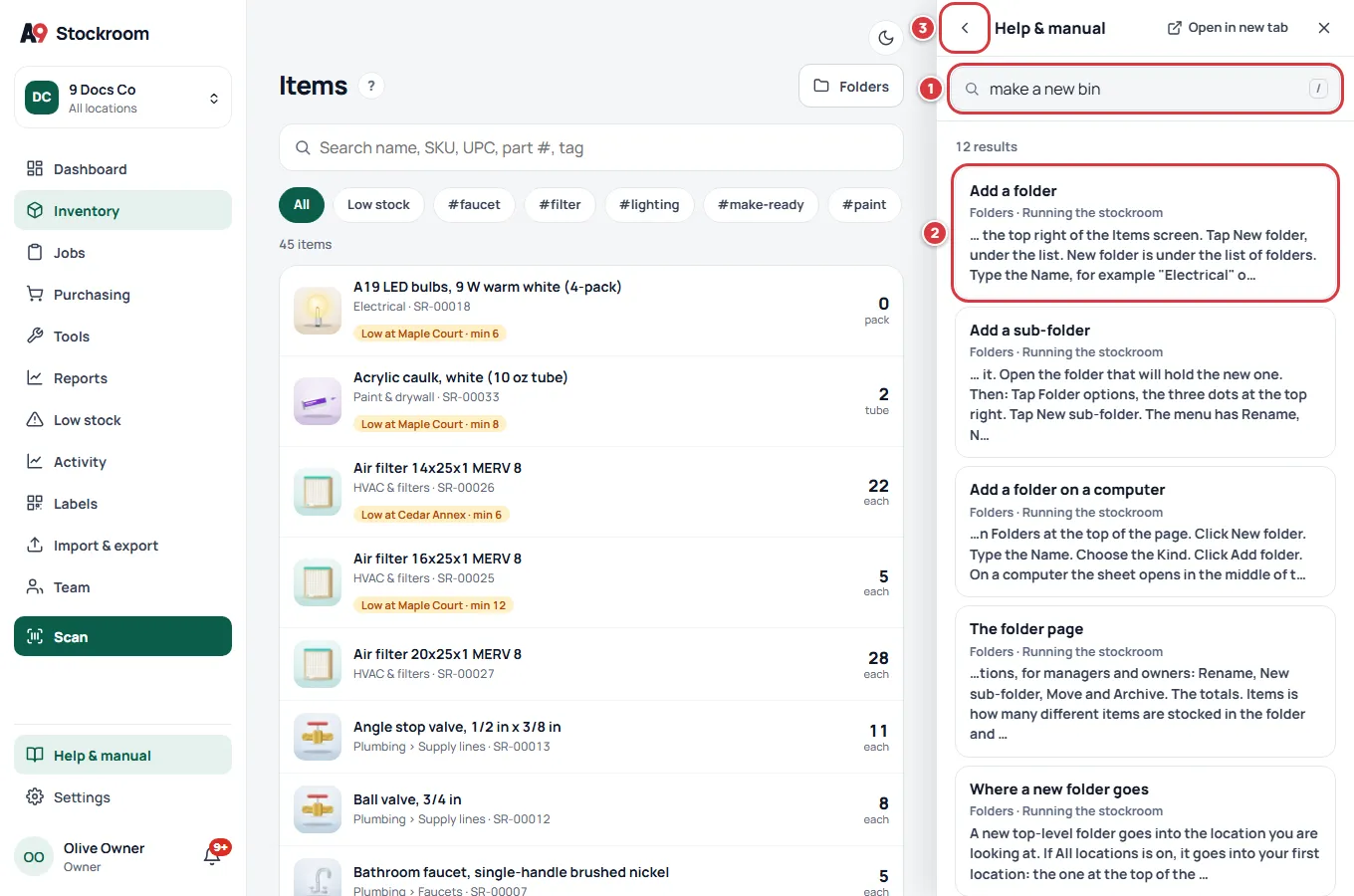
The search is the same as the one on the manual's own website: "bin", "shelf" and "truck" find folders, "part" finds items, and a small typing mistake still finds the page.
Make the panel wider or narrower#
- Drag the left edge of the panel to the left or the right. It stays between a narrow and a wide size.
- Or click the edge, then press the left or right arrow key.
The panel keeps the width you chose the next time you open it.
Use the keyboard#
- Press ? (hold Shift and press /) anywhere on a screen, except while you are typing in a box, to open help on that screen's page.
- With help open, press / to put the cursor in the search box.
- Press Esc to close help. If there is a search in the box, the first Esc clears it and the next one closes help.
Open help on a phone#
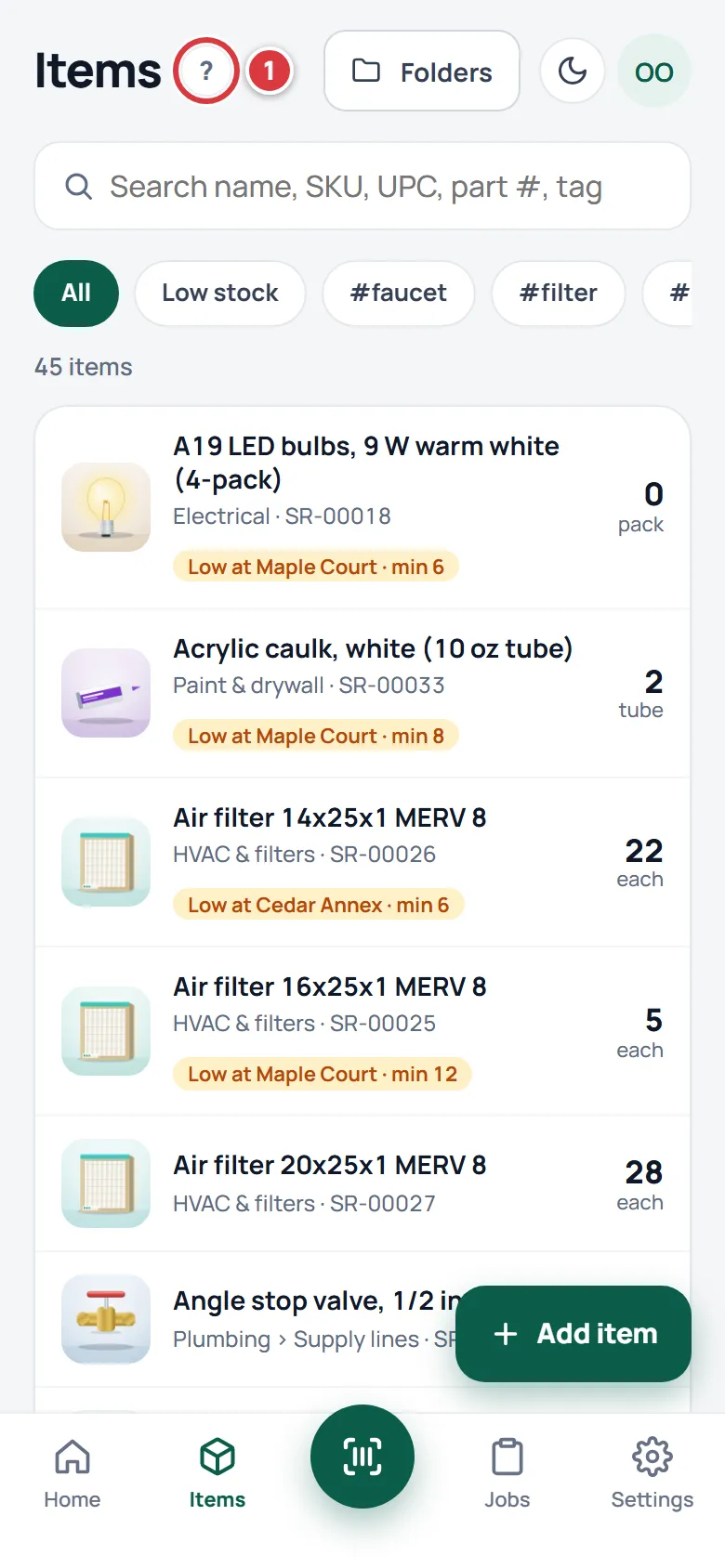
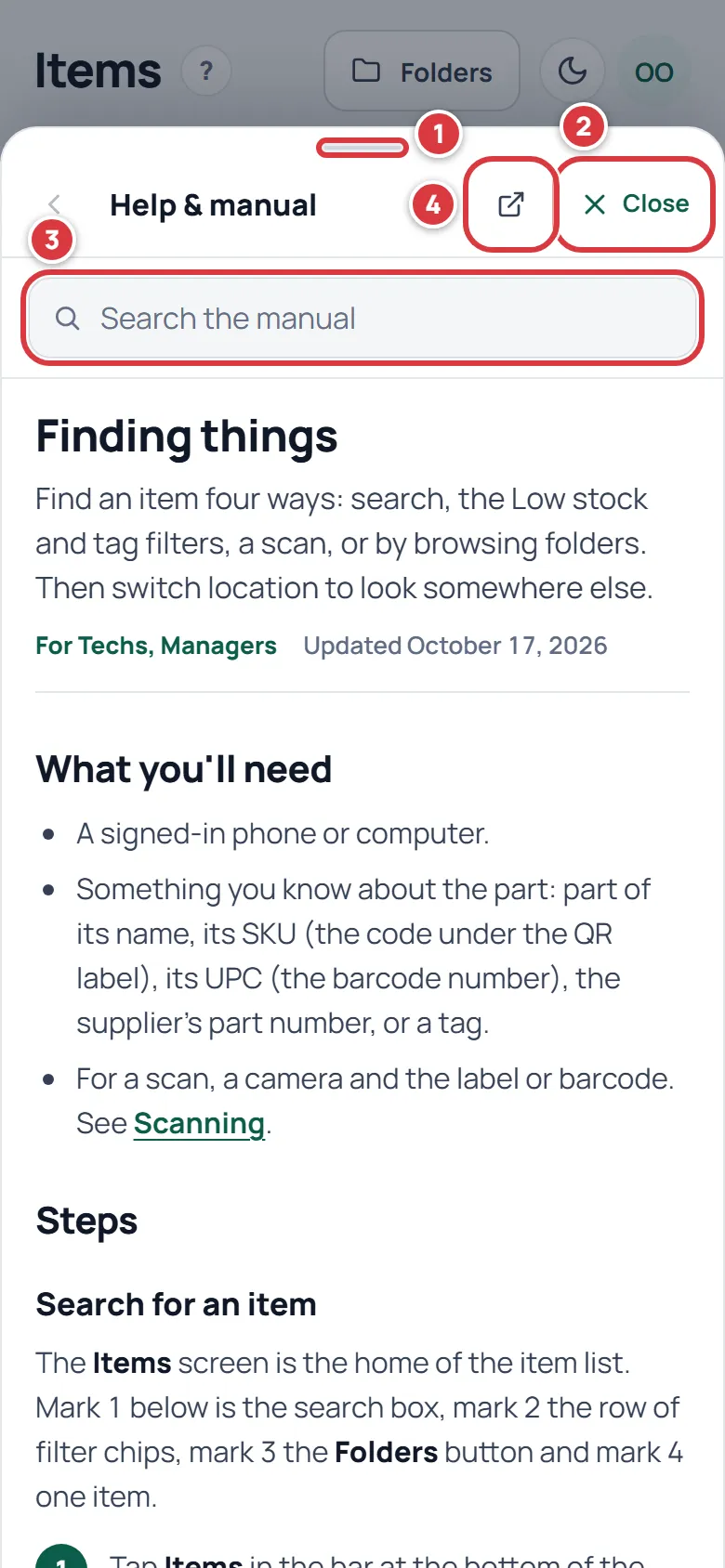
- Tap the small ? in the header of the screen you are on. A sheet slides up and covers most of the screen, with the page of this manual for that screen.
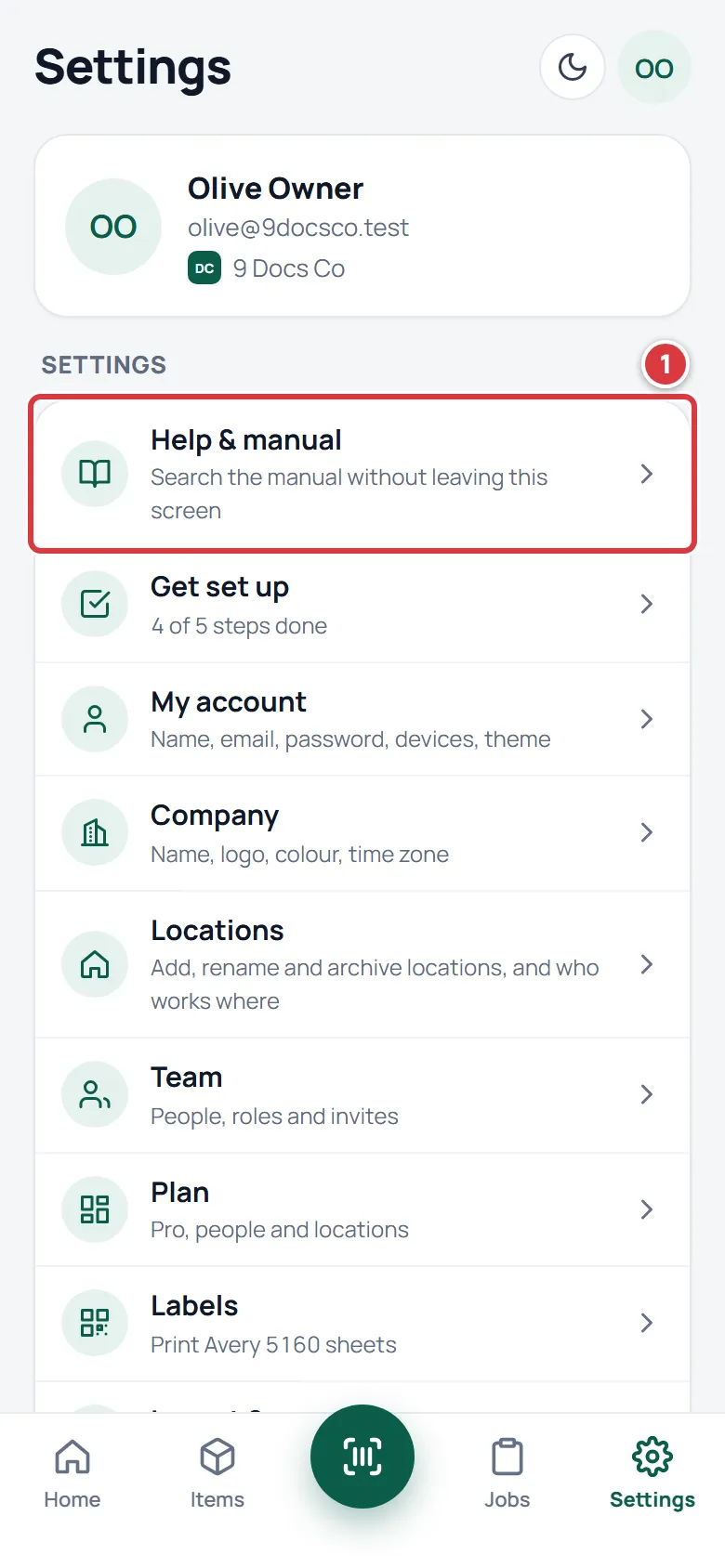
- Or open Settings and tap Help & manual at the top of the list. It opens on the front page of the manual.
- Search, read and go back the same way as on a computer.
Put the sheet away on a phone#
- Drag the sheet down by the small bar at its top, or by its header.
- Or tap Close. Tapping the dimmed screen above the sheet works too.
You are back on the screen you left, in the same place, with whatever you had typed.
Read the same page in a new tab#
- With a page open in help, click or tap Open in new tab.
- The same page of the manual opens in another tab of your browser, on a9stockroom.com. This is handy with two screens: the app on one, the manual on the other. From a list of results, it opens the manual's own search for the same words.
Use the manual with no signal#
- Open help as usual. The manual comes from the copy kept on your device the last time you had a signal.
- Pictures and short videos need a signal. Without one, a box with the picture's description and the note "Picture loads with signal" shows in its place. The steps next to it are all there.
What you'll see#
- A panel on the right (a sheet from the bottom on a phone and on a narrow window) with Help & manual at the top and a search box under it.
- The page for the screen you were on, with its headings, numbered steps and pictures.
- The screen underneath exactly as you left it.
If it didn't work#
- "The manual couldn't load." The first time ever, help needs a signal. Connect, then tap Try again. Open the manual in a new tab below it goes to the website.
- The pictures show a box that says "Picture loads with signal". You have no signal. The words are there. Pictures come back when the signal does.
- The ? key does nothing. It does not work while the cursor is in a box. Click somewhere else on the screen first, or click Help & manual.
- The panel covers part of my screen. On a narrower window the panel lies over the screen instead of beside it. Drag its edge to make it narrower, or close it.
- I cannot find my answer. Try fewer words, or other words for the same thing. If it is still not there, write to support@a9stockroom.com and say what you were trying to do.
- There is no Help & manual in the menu. On a phone there is no side menu: tap the ? in the header, or open Settings.