Sign up and start free
Make your own company on the Free plan in a couple of minutes, with no card, then confirm your email. People joining an existing company use their invite instead.
Anyone can start a company in A9 Stockroom. It begins on the Free plan: no card and no time limit. You are the owner of the new company, and you can invite your team later. If someone has already invited you to their company, you do not need this page: use the invite link in your email. See Signing in.
The Free plan holds 100 unique items, 1 person, 1 location and 2 active jobs at a time. You can upgrade whenever you need more. See Your plan.
What you'll need#
- A work email address that has no A9 Stockroom account yet. You will confirm it from your inbox.
- A password you will remember. The screen tells you the shortest one it accepts.
- The name of your company, and the name of the first place that holds your stock (a shop, a yard, a building).
- About two minutes, and a connection. Signing up needs a signal or Wi-Fi.
Steps#
Create your company#
Open
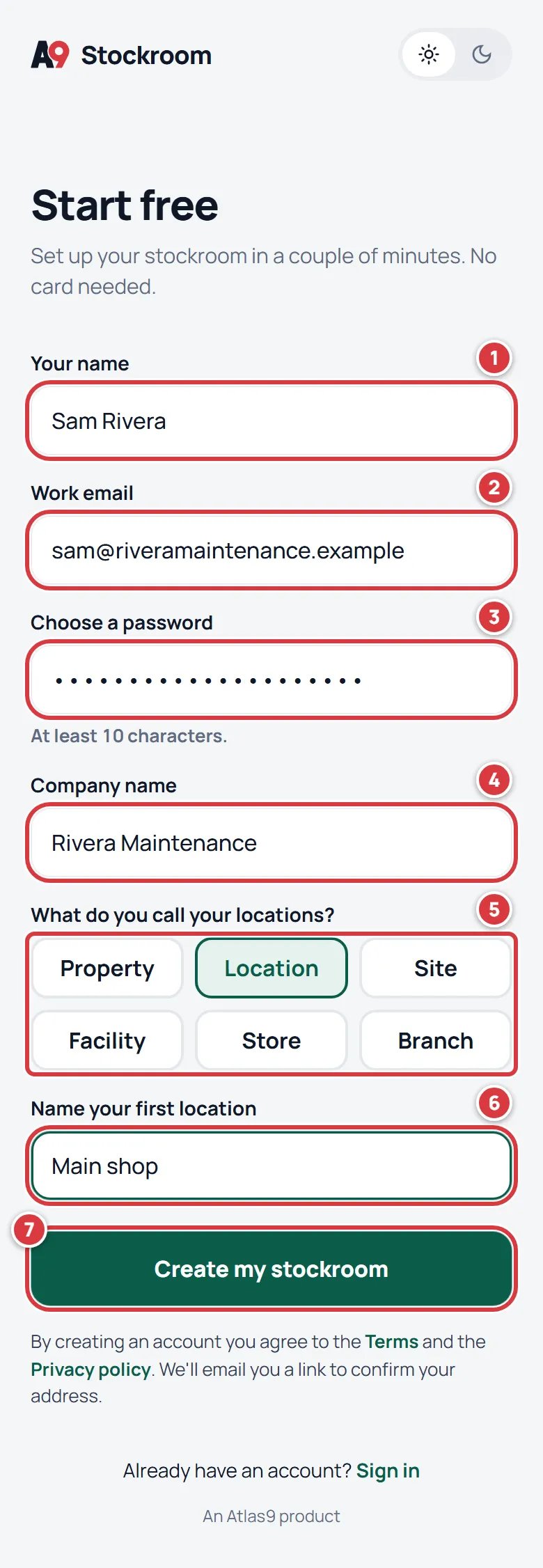
app.a9stockroom.comin your browser. On the sign-in screen, tap Start free. Or go straight toapp.a9stockroom.com/signup.Type your name in Your name.
Type your work email in Work email.
Choose a password in Choose a password.
Type your company's name in Company name.
Under What do you call your locations?, tap the word your team uses. The choices are property, location, site, facility, store and branch. Every screen will use your word. You can change it later: see Company settings.
In the box below the words, type the name of your first location, for example "Main shop".
Tap Create my stockroom. If a short check appears first (a box that confirms you are a person), finish it, then tap the button.
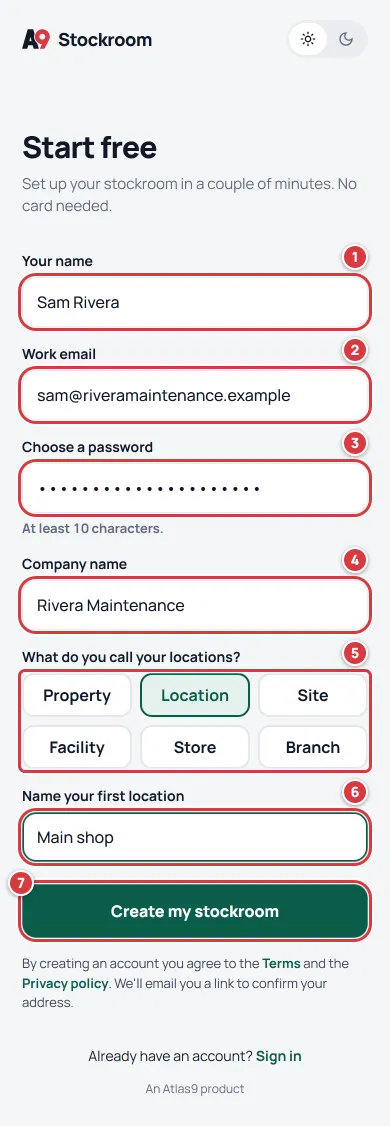
The whole page. The numbers match the steps above, from your name to the button.
You are signed in at once. There is nothing to wait for.
Confirm your email#
A9 Stockroom emails a link to the address you gave. The account works right away, but the address must be confirmed within 24 hours.
- Open the email from A9 Stockroom, and tap its link. The page says Email confirmed.
- Go back to the app. You do not need to sign in again.
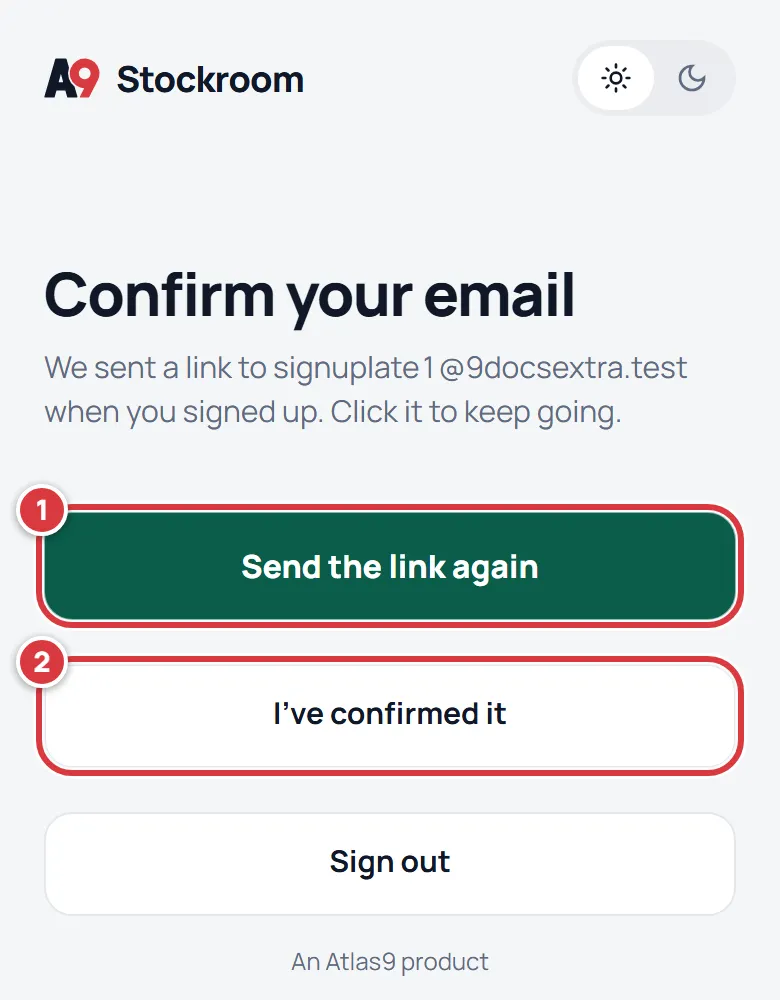
If you wait too long, the app shows Confirm your email instead of your stockroom.
Open the email and tap its link. Or tap Send the link again and open the new email.
In the app, tap I've confirmed it.
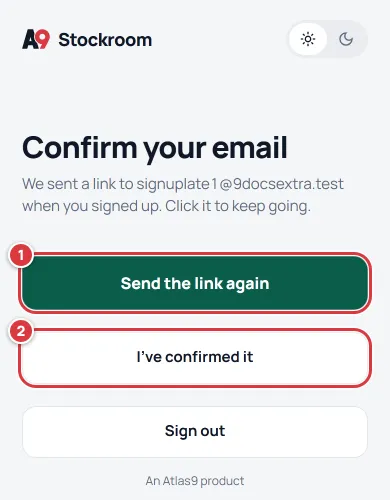
The screen after 24 hours without confirming. Nothing is lost.
What you'll see#
- The Home screen, with your company's name and your first location under your greeting.
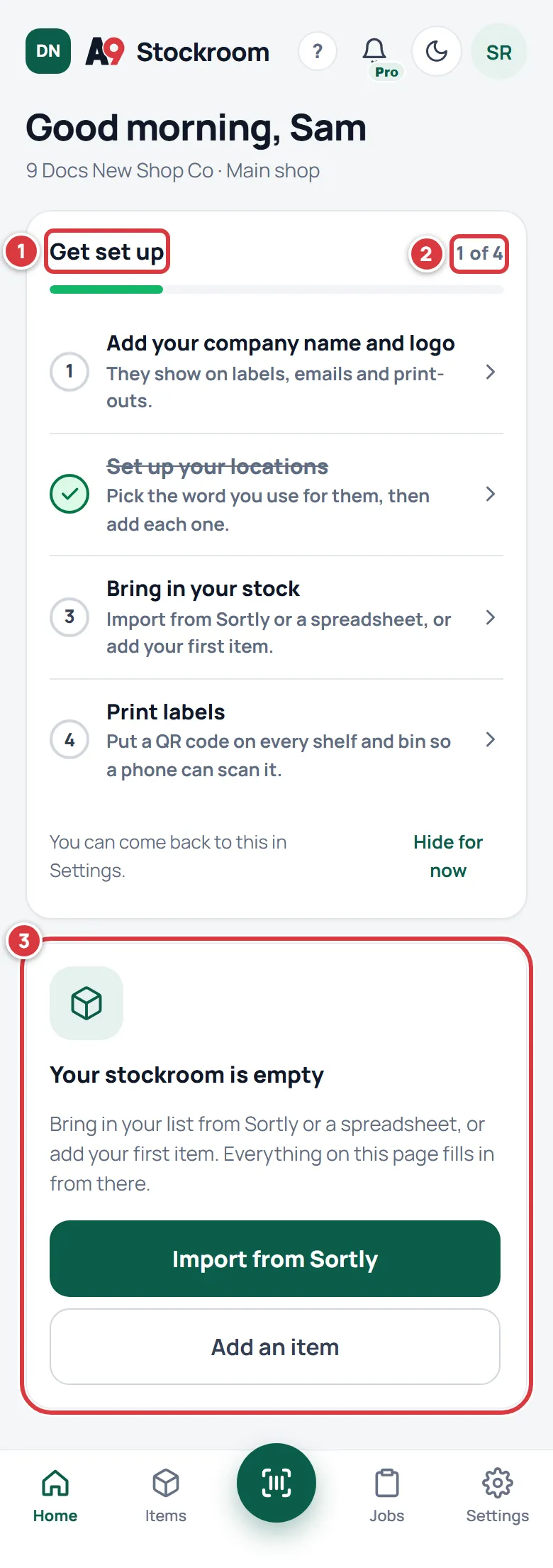
- Your stockroom is empty on purpose. Get set up, a checklist of four steps on the Free plan, is at the top. One step is already ticked, because you chose your word for a location. Your stockroom is empty offers Import from Sortly and Add an item. See Setting up your company.
- Under Settings, then Plan, the plan is Free. See Your plan.
- A confirmation email in your inbox.
If it didn't work#
- "That email already has an account. Sign in, or reset your password." The address is already on a team. Tap Sign in, or Forgot? if you do not know the password. An address belongs to one company at a time: see Can I create another company?.
- "That looks like a temporary email address. Use the address you sign in with every day." Use a real work or personal address, not a throwaway inbox.
- "Wait for the check above to finish, then try again." The human check has not finished. Wait a moment and tap the button again. If it says "We couldn't check that you're a person. Reload the page and try again.", reload the page.
- "Too many tries. Wait a minute and try again." Wait a minute and try once.
- "Too many companies were made from your network today." or "…with that email domain today." There is a daily limit to keep out abuse. Try again tomorrow, or write to support@a9stockroom.com and we will set you up.
- The note under Choose a password says "At least 10 characters." Choose a longer password.
- The confirmation email does not arrive. It can take a minute. Check your spam folder, then use Send the link again. Make sure you typed the address correctly.
- You see Start free but wanted to join your team. Use the link in your invite email instead. See Signing in.